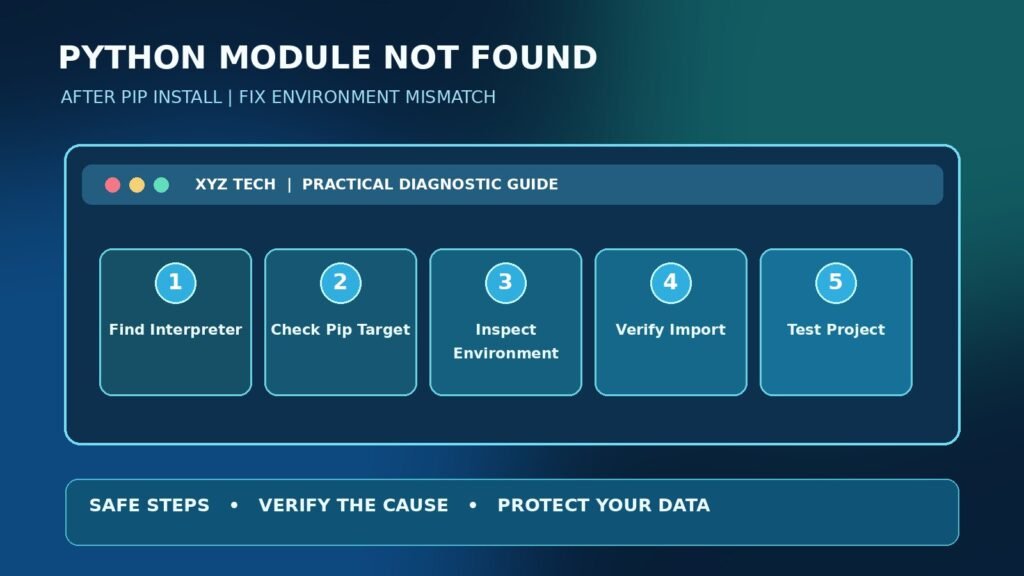

This research-backed, step-by-step diagnostic guide explains what the symptom means, how to separate likely causes, and which changes are safe to test. The illustrations are conceptual; they are not captured screenshots from your device.
What ModuleNotFoundError Means After A Successful Install
Python raises ModuleNotFoundError when the interpreter executing an import cannot locate the named module in its available search locations. The package might genuinely be absent, but successful installation output does not automatically prove it was installed into the interpreter that is running your program. You may have several Python installations, an activated virtual environment, an IDE-selected interpreter or a notebook kernel that differs from the terminal.
The most reliable approach is to identify the interpreter that runs the failing program, inspect packages belonging to that interpreter, and install the intended distribution there. The official Python package installation guide uses the interpreter-qualified python -m pip form for exactly this reason. Avoid randomly installing the same package into every environment or using administrator privileges as your first experiment.
Quick Answer: Compare Interpreter And Installer
In the same environment where your script runs, print sys.executable and sys.version. That reveals the interpreter executable and release. Then use that interpreter with -m pip to inspect or install the distribution: python -m pip show PACKAGE and python -m pip install PACKAGE, where python must refer to the same actual interpreter. If it does not, use its full executable path.
Activate the correct project environment before the command when your workflow requires one. Afterwards, rerun the import using the same interpreter or notebook kernel. This sequence isolates an environment mismatch without editing system folders, changing the global PATH or deleting a working virtual environment. See our Python Virtual Environment Guide for an introduction to isolated environments.
Run The Interpreter Identification Test
Add import sys; print(sys.executable) to a temporary test or run python -c "import sys; print(sys.executable)" in the terminal that you intend to use. The full path is more informative than a command label because python and python3 can resolve differently on machines with several installations. In a notebook, evaluate the expression in a notebook cell so the result reflects the active kernel.
Do not share full personal directory paths publicly if they contain usernames, project names or organizational identifiers. The important fact is whether the executable belongs to a project environment, a system installation or another managed runtime. Python’s sys documentation defines sys.executable and related interpreter state. Record the result before changing anything else.
Why pip And python May Point To Different Places
Commands such as pip, pip3, python and python3 can be installed by different programs and resolved through shell aliases, PATH order, virtual environment activation or platform-specific launchers. On Windows, the py launcher may select a different installation from a bare python command. On macOS and Linux, python3 may be the relevant command rather than python. None of those labels alone identifies the active target reliably.
Use the chosen interpreter to invoke pip as a module: python -m pip or python3 -m pip as appropriate. The pip user guide documents this pattern. If the interpreter reports No module named pip, handle pip installation for that environment separately instead of installing a package with an unrelated pip binary.
Understand Distribution Names Versus Import Names
The name on the Python Package Index and the name used in an import statement are not always identical. For example, installing the distribution beautifulsoup4 provides the commonly imported module bs4. Installing Pillow provides PIL, and installing PyYAML provides yaml. A successful pip install followed by import beautifulsoup4 can therefore fail even when the distribution is present.
Check the project’s official documentation for its supported import example instead of guessing the module name. Python package names are case-normalized in distribution management, but module imports can remain case-sensitive. This distinction matters across operating systems and should be verified before reinstalling software. Our Package Manager Basics discusses why a package record and a runtime component are different concepts.
Check The Package In The Correct Environment
Use python -m pip show PACKAGE with the exact interpreter that executes the script. A result showing the package version and Location helps identify where pip installed it. Also inspect python -m pip list if the distribution name is uncertain. Do not assume that a different terminal displaying the package proves your active project can import it.
The location can be within a virtual environment, user-level packages or a system installation. Compare it with sys.executable and the active environment. If the package is absent for that interpreter, install through that same interpreter after checking project requirements. The pip show reference describes the metadata fields.
Create A Virtual Environment For A Project
When a project needs its own dependencies, a virtual environment is usually a safer default than modifying global Python packages. Inside the project directory run python -m venv .venv using the intended Python release. Activate it if desired, then use its interpreter to run pip and the project. On Windows the executable normally resides under .venv\Scripts\python.exe; on Unix-like systems it commonly resides under .venv/bin/python.
Paths and activation commands vary by shell, so follow the official venv documentation rather than copying an arbitrary command from another platform. Keep the environment out of source-control commits unless a team workflow explicitly requires otherwise. Recreating it from a properly maintained dependency specification is generally preferable to copying an environment between incompatible computers.
Verify Virtual Environment Activation Rather Than Assuming
An environment label in a terminal prompt can be helpful, but it is not conclusive evidence that every program uses that interpreter. Check sys.executable after activation and compare it with the project’s expected .venv path. An IDE can ignore terminal activation when its run configuration points to another executable, and a notebook can use its own kernel. Treat each run pathway independently.
If your shell has an activation restriction, you can invoke the environment’s Python executable directly without changing a global execution policy. This is particularly important on managed Windows devices. Our VS Code Terminal Guide explains how terminals and working directories interact with editor workflows.
Select The Right Python Interpreter In VS Code
Visual Studio Code supports choosing a Python interpreter for a workspace. Open the Python command palette and use the supported Select Interpreter action, then choose the project’s intended environment. A terminal in VS Code is not always guaranteed to match the interpreter used by the Run or Debug button. Check the interpreter for each operation using a short print of sys.executable.
If the list contains several similar Python releases, rely on their full paths and environment names instead of guessing from a generic Python 3 label. You may need to reopen the terminal after changing interpreter configuration. Avoid deleting an unrelated environment merely to remove ambiguity. Document the project’s expected Python version and dependency installation instructions for collaborators.
Why Jupyter Notebooks Have Their Own Kernel
A notebook cell executes in the interpreter behind its selected kernel, which can differ from the shell where you ran pip. Checking a terminal installation is therefore insufficient when a notebook raises ModuleNotFoundError. In the notebook evaluate import sys; print(sys.executable) and inspect the selected kernel from the notebook interface. Use an installation method targeting that kernel.
In IPython-based notebooks, the %pip install PACKAGE magic is designed to target the active kernel environment. The official IPython documentation explains this command. Restart a kernel if a supported package or extension requires it, but save notebook state and output first. Repeating a shell pip command will not fix a different notebook kernel.
Use sys.path As A Diagnostic Rather Than A Quick Hack
Python uses module search paths to locate importable modules. A temporary diagnostic using import sys; print(sys.path) can reveal what directories the interpreter will search. Do not immediately append arbitrary directories to sys.path or set global PYTHONPATH values without understanding the consequences. Such changes can hide a deeper environment problem and accidentally cause Python to load the wrong module.
The standard Python import system reference describes how imports work, while the sys documentation explains path entries. If a project intentionally uses source-directory imports, inspect its packaging configuration and supported run command. A well-configured virtual environment and package installation is usually more maintainable than a collection of ad hoc path edits.
Watch For Local Files That Shadow Packages
A local file named requests.py, json.py, typing.py or another module name can accidentally shadow the intended installed or standard-library module. A folder with the same name can cause similar confusion, and cached files may preserve a broken state. When import behavior looks inconsistent, inspect the current working directory and the project tree for unexpected name collisions.
Do not delete files blindly. Rename only your own conflicting project file after understanding its references, and update imports as needed. A shadowed module may produce AttributeError or circular-import errors rather than ModuleNotFoundError, so use the complete traceback as evidence. Our Command Line Basics helps users verify which directory the shell is using before running project commands.
Check The Working Directory And Project Layout
Running a script from a different directory can affect which local packages are visible and how relative file paths resolve. A package designed to run as python -m package.module may fail when a nested file is executed directly. Inspect the repository layout, package metadata and documented entry point before inserting folders into sys.path. The import name used within a package also matters.
If the project is installed in editable mode, use the project’s approved installation command within the intended environment. Do not create an empty __init__.py in random directories to silence an error without verifying the design. Python namespace packages and modern packaging tools can have legitimate configurations without that file. The appropriate fix depends on how the codebase is organized.
Check Case Sensitivity And Spelling Exactly
Python import identifiers have exact spelling. A distribution with a capitalized display name may expose a lower-case module, and identifiers such as Matplotlib and matplotlib are not equivalent Python imports. Verify the complete module path, including subpackages. An error for package.something may indicate that a particular submodule is absent rather than the top-level package.
Copy an import example from the official package documentation, then test it in the same interpreter. Avoid searching for unrelated similarly named distributions merely to satisfy the spelling in a tutorial. Importing an untrusted package with a typo-squatted name can create a supply-chain risk. Prefer verified project dependencies and trusted repositories.
Distinguish Installation Failure From Import Failure
pip can report an installation error before any package is added, or it can finish successfully and leave the package in a different environment. Scroll back through the complete output and confirm the process returned successfully. A warning about scripts not on PATH is not necessarily the same as an unavailable Python module; scripts and imports follow different resolution rules.
If installation failed because no compatible distribution exists, inspect Python version, operating system, architecture and package support. Do not suppress build errors or execute unknown setup scripts to force success. A package can require system libraries or development tools that a particular operating system lacks. Follow its official installation guide.
Check Python Version Compatibility
A package may require a minimum or maximum supported Python version. Running a project on Python 3.8 while installing with Python 3.12 can produce confusing results if the paths differ. Check python --version using the intended executable, the project’s dependency specification, and the package metadata. A distribution installed for one version may not be importable from a different interpreter.
If the project needs another supported version, create a dedicated virtual environment using that version and install its dependencies. Avoid overwriting the system Python installation just to satisfy a single application. Our Software Repository Guide explains why package sources and compatibility policies matter when assembling a safe development environment.
Check For Architecture And Operating System Mismatches
Binary packages can depend on a compatible processor architecture, operating system and Python ABI. A wheel built for one interpreter or platform is not automatically reusable on another. pip normally selects compatible distributions and may reject unavailable builds. If a package does not support your platform, an import failure can be a secondary symptom of an unsuccessful or incomplete installation.
Review pip output and the package’s official platform requirements before downloading alternative binaries. Do not install an unofficial wheel from a random file-sharing service to overcome a compatibility warning. A source build may be possible for some packages, but it requires documented compilers and dependencies. Keep a record of the exact error before changing environments.
Check Editable Installs And Local Projects
An editable install, such as python -m pip install -e ., can make a local Python project importable while you work on its source. This command should be run only within the intended project and environment, and only when the repository has appropriate packaging metadata. It is not a universal solution for every missing third-party module.
If a package was moved, renamed or restructured after installation, a previously configured editable path may no longer point to the expected source. Check the project configuration and reinstall within the same environment if appropriate. Use version control to preserve intentional code changes. The pip local-project installation guide explains the distinction between regular and editable installs.
| What You See | Likely Cause | Safest Next Step |
|---|---|---|
| pip show empty in script interpreter | Package not installed there | Install with that interpreter |
| pip show succeeds, wrong import name | Distribution differs from module | Read official import instructions |
| Works in terminal, fails in VS Code | Editor selected other interpreter | Choose intended interpreter |
| Works in terminal, fails in notebook | Kernel mismatch | Inspect kernel and use %pip |
| Failed only inside container | Host install not in image | Fix container build dependencies |
| Error changes to nested package | Missing submodule or dependency | Read full traceback and version requirements |
Understand Dependency Files And Lock Files
A project may list dependencies in a requirements.txt, pyproject.toml, lock file or a tool-specific manifest. Installing one guessed package may not recreate the environment expected by the maintainers. Follow the documented setup process and use the prescribed package manager. If a locked environment is supplied, respect its intended version constraints.
Do not run a random requirements file downloaded from an untrusted source with elevated privileges. Dependency packages execute code during installation or use, so verify the repository owner and applicable security policies. When a legitimate dependency is missing, add it to the approved project specification instead of relying on a private, undocumented global install that collaborators cannot reproduce.
Handle Externally Managed Python Environments Carefully
Some Linux distributions mark their system Python environment as externally managed. pip may decline a global installation and recommend using a virtual environment or the system package manager. This protection prevents one tool from unintentionally replacing packages required by the operating system. An error of this type is not solved responsibly by force-installing into system directories.
Use a project virtual environment, or obtain a distribution-managed package if it matches the purpose. The Python Packaging Specification explains the externally managed mechanism. Avoid the --break-system-packages override as a routine troubleshooting step; it can make system maintenance more difficult and is not required for ordinary project development.
Why sudo pip Is The Wrong First Move
Running pip with administrative rights does not solve a mismatch between the interpreter used to run a script and the environment receiving installed packages. Instead, it can modify shared locations and create permission problems or conflicts with operating-system-managed dependencies. Use a virtual environment with normal user permissions whenever practical.
If a package truly requires a system-level installation for an approved deployment, follow the operating system and application maintainer’s documented process. Do not paste a command from an unknown website into an elevated shell. A clear understanding of the interpreter and environment is safer than treating permission elevation as an automatic fix.
When pip show Succeeds But Import Still Fails
If python -m pip show PACKAGE lists the distribution but the import fails, check the documented import name, script interpreter, notebook kernel and local shadowing. Inspect the installed Location field and compare it with the interpreter’s import search path. The module might be optional, renamed or missing from the distribution version you installed.
Use a minimal test script in the same environment rather than debugging an entire application at once. If the simple import succeeds but your program fails, examine how the program is launched and whether it modifies sys.path. If both fail, the environment or package configuration remains the leading area to investigate.
When A Submodule Is Missing Inside A Package
An error that names a nested module is not always evidence that the top-level package was never installed. It may mean the version no longer contains that submodule, an optional extra was not installed, or the import path changed between major releases. Read the complete traceback and compare the application code with the documentation for the installed version.
An approved dependency specification may need a compatible version or documented extra, for example a distribution published with optional feature groups. Do not pin an obsolete insecure package merely to recreate an outdated tutorial. When the project is maintained by a team, report the version mismatch and review supported migration guidance before changing code.
Distinguish ModuleNotFoundError From An Internal Error
Sometimes Python successfully imports a top-level package, but that package fails while importing one of its own dependencies. The traceback may contain several lines and point to a missing indirect dependency. Read the final exception and the stack frames rather than assuming the first imported name is the missing one. Installation corruption or incompatible dependency versions can produce similar symptoms.
Use the project’s documented dependency installation and check pip’s dependency reporting tools where appropriate. A clean environment with a known specification may be easier to reason about than one modified repeatedly by arbitrary install commands. Preserve the original environment until important work is backed up, and do not remove packages shared with other projects.
Use pip check To Identify Dependency Conflicts
The supported python -m pip check command can report installed-package dependency conflicts and missing requirements in the chosen environment. This is useful after identifying the interpreter, but it does not guarantee that every application import succeeds or that a package’s optional runtime components exist. Treat its results as one piece of evidence.
If conflicts appear, compare them against the project’s approved requirements and resolve them in a dedicated environment. Avoid force-upgrading every dependency because major-version changes can break working code. Pinning and testing compatible versions is more reliable than making the newest package numbers the primary objective.
A Windows Example With The py Launcher
On Windows, Python installations may coexist. The py launcher can select a specific installed release, so an example such as py -3.12 -m pip show PACKAGE can inspect that version when it is available. Then run your script using that same selected interpreter. Do not assume the machine has Python 3.12; inspect available installations first.
If you work inside a project virtual environment, using its explicit Python executable is often clearer than selecting a global version through the launcher. Record the actual interpreter path and test the import. Keeping the run and install commands aligned prevents repeated reports that pip says a package is installed but Python cannot find it.
A Linux Or macOS Example With python3
On many Unix-like systems, python3 is the relevant interpreter command. Check python3 -c "import sys; print(sys.executable)" and python3 -m pip --version before installing. If a project environment is active, use its interpreter directly; if the operating system marks the global environment as externally managed, create a virtual environment rather than modifying the system installation.
The shell’s PATH order and symbolic links can affect what python3 resolves to. A command that works in one terminal may use a different interpreter inside a graphical editor or task scheduler. Compare full paths, not only version labels. Avoid adding broad global PYTHONPATH values to paper over inconsistent project setup.
A Notebook Example With The Active Kernel
Imagine you installed pandas in a terminal and then a notebook reports No module named pandas. The terminal may be using a project virtual environment while the notebook kernel uses another installation. Evaluate import sys; print(sys.executable) inside the notebook, inspect its selected kernel and use the supported kernel-targeted package installation workflow.
After a legitimate install, restart the kernel if required and rerun a minimal import cell before executing the entire notebook. Save unsaved code and outputs first because a kernel restart clears in-memory variables. A repeatable environment setup is more valuable than installing packages randomly until the error disappears.
When The Error Occurs In Docker Or A Service
Containers, scheduled jobs, web servers and IDE run configurations can use their own Python environments that differ from an interactive shell. Installing a library on the host laptop does not put it inside a container image. A service may also run as a different user with a different working directory. Identify the exact runtime, image and interpreter before changing package installations.
Our Docker Container Exit Troubleshooting explains why runtime and image behavior should be diagnosed within the relevant container. Follow the project’s build and dependency definition, rebuild through the supported process and test again. Avoid installing packages manually into a running production container as an undocumented permanent fix.
Make A Minimal Reproducible Import Test
Once you identify the target interpreter, create a tiny script that imports the expected module and prints a harmless attribute such as its version if supported. Run that script with the same exact executable as the original program. This removes unrelated application code from the diagnosis and helps determine whether the problem lies in the environment or the project’s launcher.
Do not expose private environment variables, tokens or proprietary files in the test output. A successful test demonstrates that the interpreter can import that module in that context; it does not prove the full application is compatible. Continue with the project’s own test suite and requirements after the import itself succeeds.
Do Not Install Lookalike Packages From Search Results
Package names can resemble popular import names, and a typo can lead to an unrelated or malicious distribution. Confirm the exact distribution in the project’s documentation or verified repository before installing it. Do not follow a website that asks you to paste an unexpected shell pipeline or disable security software to make an import work.
The safest fix is often a path or environment correction rather than another download. If a package is truly missing, use the approved package index, a maintained version and a dedicated environment. Review dependencies when working on sensitive projects. Our Package Manager Overview gives context about trusted repositories and version management.
Final Checklist Before Calling The Import Fixed
Confirm which Python executable runs the original script. Use that interpreter to inspect the target distribution, verify the documented import name, and compare the current project environment with its dependency files. Check IDE or notebook kernel configuration separately, and examine local modules that may shadow imports. Run a minimal test and then the actual project.
If it works, document the interpreter path, Python version, environment-creation command and package dependency in the project instructions. Do not remove unrelated global installs or change administrator policies to make the final output appear simpler. A properly documented fix prevents the same ModuleNotFoundError from returning when the application runs on another computer.
Frequently Asked Questions
Why Does Python Say ModuleNotFoundError After pip Install?
Most often pip installed the distribution into a different interpreter or virtual environment, but import names, incompatible versions and local file conflicts also matter.
What Command Shows Which Python Runs My Code?
Run import sys; print(sys.executable) inside the failing program or notebook kernel, then compare the full path.
Should I Use python -m pip Instead Of pip?
Using the intended interpreter with -m pip helps align the package installation with the Python runtime executing the application.
Can The Package Name Differ From The Import Name?
Yes. For example, beautifulsoup4 normally imports as bs4, Pillow as PIL and PyYAML as yaml.
How Do I Fix Imports In VS Code?
Select the project interpreter, verify it with sys.executable, install dependencies there and rerun the correct launch configuration.
Why Does Jupyter Not See A Package Installed In Terminal?
The active notebook kernel can use a different environment. Check its sys.executable and use a kernel-targeted installation method.
Does sys.path Need Manual Editing?
Usually not. First fix interpreter, project packaging and environment configuration. Arbitrary sys.path edits can hide the root cause.
Should I Run sudo pip Install?
No, not as a routine fix. Use an isolated environment instead of changing operating-system-managed packages.
What Does pip Check Tell Me?
It reports some missing or incompatible installed dependencies in the selected environment, but does not guarantee that an import or app works.
How Do I Verify The Error Is Resolved?
Run a minimal import with the same interpreter and then test the original project using its documented setup and dependency versions.