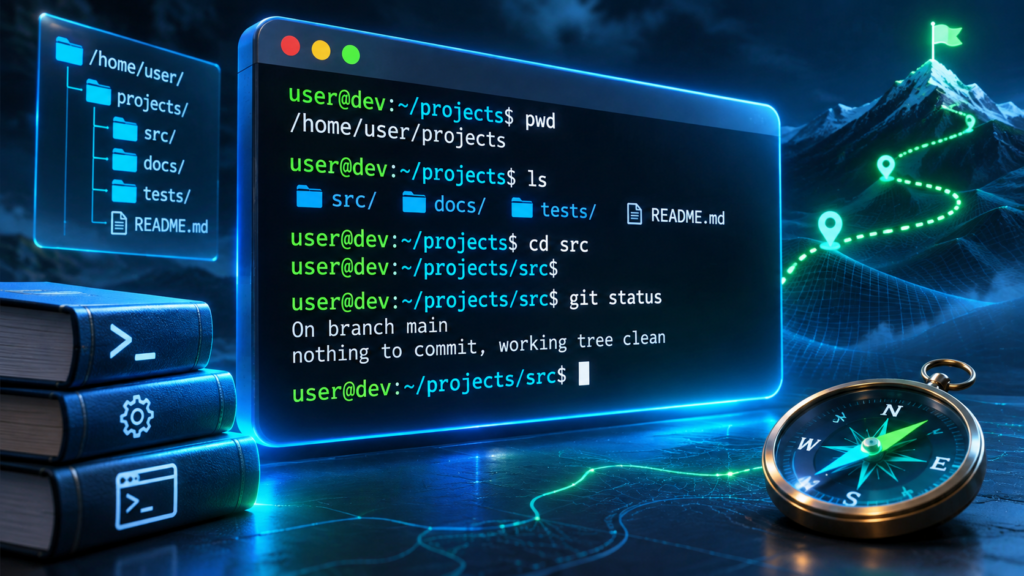

A command line lets you control a computer by typing instructions. A terminal displays the session, while a shell such as PowerShell, Command Prompt, Bash, or zsh interprets what you type. Beginners should start with read-only commands to check their location and list files, then practice creating disposable files in a folder they own. The examples below explain the differences between Windows, macOS, and Linux without requiring administrator access.
Safety first: Do not paste unfamiliar commands into an elevated terminal. Examples that write files belong only in a new, disposable practice directory. Command behavior varies with shell, operating system, and permissions.
What Is A Command Line And Why Does It Matter
A command line is a text-based way to instruct a computer. Instead of opening a folder by clicking its icon, you type a command that asks the operating system to show the folder’s contents. Instead of navigating through several settings screens, you can ask a tool to report a specific configuration. The important distinction is not that text is inherently better than graphics. It is that text commands can be precise, repeatable, documented, and combined into larger workflows.
A graphical user interface, usually shortened to GUI, exposes buttons, menus, windows, and other visual controls. A command-line interface, or CLI, accepts written instructions. Many everyday tasks can be completed in either interface. Opening a folder in File Explorer and displaying that folder’s contents with a terminal command are different interfaces to related file-system operations. They are not guaranteed to have identical permissions or effects, and some applications provide capabilities through only one interface.
The command line is especially valuable when you need to repeat an action, inspect a large number of files, troubleshoot a system that has limited graphical access, or follow documented setup instructions. Developers use it to run tests, manage projects, and inspect software output. IT administrators use it for diagnostics and automation. Students can use it to learn how paths, processes, files, and programs interact. Even if you never write a script, knowing how to read a command helps you recognize dangerous instructions before executing them.
The phrase command line can describe several related things. A command-line interface is the method of interaction. A terminal is the application window or environment through which text input and output are presented. A shell interprets the commands you type. A command is an instruction to the shell or a program launched by it. These distinctions become useful when a tutorial says to open Windows Terminal but then shows a PowerShell command: Windows Terminal is the host, while PowerShell is the shell processing the instruction.
A beginner should focus on understanding where commands run, what information they read, what they change, and how to reverse an action when reversal is possible. The goal is not to memorize dozens of cryptic words. It is to develop a reliable mental model of the machine. If you are new to computing terms, our technology glossary and technology fundamentals guide provide useful context.
Terminal, Shell, Console, And Prompt Explained
The terminal is the place where you interact with a shell. On Windows, the modern Windows Terminal application can host tabs running PowerShell, Command Prompt, or other installed command-line environments. A Mac includes a Terminal application, and many Linux desktop environments offer terminal applications with different names. A terminal window is therefore not necessarily tied to a single command language. Changing the shell changes the rules and available built-in commands even if the window looks almost identical.
A shell is the interpreter. Bash is widely used on Linux and other Unix-like systems. Zsh is the default interactive shell on many modern macOS installations. PowerShell is a command shell and scripting environment with a distinctive object-oriented pipeline. Command Prompt, often called cmd.exe, is the traditional Windows command interpreter. You may encounter Git Bash or a Linux environment installed through Windows Subsystem for Linux, but those are additional environments rather than synonyms for Command Prompt.
A prompt is the visual signal that the shell is ready to accept another instruction. A PowerShell prompt might begin with PS and show a path. A Unix-like prompt might show a username, machine name, and dollar sign. The prompt itself is not generally part of the command. When documentation displays a dollar sign before a sample, you should usually type only the command after it. Copying the prompt into the terminal can produce an error or unexpected behavior.
The word console is used inconsistently. Historically it could refer to a physical operator interface or a text input and output device. In modern software, a console may mean a terminal window, an embedded developer console, or a logging panel. Context matters. The JavaScript console in a browser, for example, does not accept the same commands as a Windows system shell, even though both provide text prompts.
A terminal is also not automatically an administrator environment. An ordinary terminal typically runs with the privileges of your signed-in user. Elevated terminals have broader rights and greater risk. Beginners should avoid opening an administrator terminal by default. If a legitimate task requires elevation, the guide should explain why, what changes will occur, and how to verify the source. The ability to type a command is not evidence that it is safe.
How To Open A Terminal On Windows, macOS, And Linux
On Windows 11, search the Start menu for Windows Terminal, PowerShell, or Command Prompt. Windows Terminal is a convenient host because it supports tabs and profiles, but a command shown for PowerShell should still be run in a PowerShell profile. Look at the tab title or prompt before pasting anything. If Windows Terminal is unavailable on a particular computer, the built-in PowerShell or Command Prompt application can still be used. You do not need to install a third-party terminal to practice the basic lessons in this guide.
On macOS, open Finder, choose Applications, then Utilities, and open Terminal. You can also search for Terminal with Spotlight. The default shell on current macOS installations is commonly zsh, though users and managed computers can have different configurations. To discover your current shell, inspect the terminal settings or use appropriate system commands, but do not assume every Mac has identical shell initialization files.
On a Linux desktop, search the applications menu for Terminal, Console, or the terminal application supplied by your desktop environment. Some environments provide a keyboard shortcut such as Ctrl+Alt+T, but shortcuts vary. A remote Linux server may offer only a command-line session through SSH. In that situation, you are working on the remote machine, not necessarily on the computer whose keyboard you are using.
Before your first experiment, create a harmless practice folder through your graphical file manager and give it a distinctive name such as CLI-Practice. Use that folder for examples that create files. Do not experiment in system directories, shared workspaces, or folders containing irreplaceable data. The most useful beginner habit is to check the current location before issuing any command that changes files.
A terminal may start in your home directory, a project directory, or a location chosen by its configuration. Never assume the startup folder. The same command can act on different files depending on the current working directory. A directory listing before and after a change is a simple form of verification, and it builds confidence without requiring privileged access.
How To Read A Command Before You Run It
Most simple commands follow a recognizable pattern: the command name, optional switches or parameters, and one or more arguments. In the command ls -l Documents, ls is the program or command, -l is an option in Unix-style environments, and Documents is a target path. The equivalent task on another shell may use different words or parameter syntax. This is why commands should never be copied between shells without checking their documentation.
Spaces usually separate parts of a command. If a file or folder name contains spaces, quoting may be necessary to keep it together as one argument. For example, cd "Project Notes" is easier to reason about than an unquoted path that could be interpreted as multiple words. The exact quoting and escaping rules depend on the shell. Bash, PowerShell, and Command Prompt do not interpret every special character in the same way.
Documentation uses placeholders such as <filename> or YOUR_PATH to indicate values you must replace. Angle brackets may also be interpreted as redirection operators in real commands, so do not type placeholders literally unless the instructions explicitly say to. Square brackets in reference documentation often indicate optional syntax, not characters to enter. Read the examples and the syntax legend together.
A command’s output is information printed back to the terminal. Some commands print nothing when they succeed. Others show warnings, errors, or structured results. An error message is a clue, not an instruction to disable protections. Read it carefully and note the shell, the command, the current directory, and the exact message before trying a fix. Searching for a phrase from the error can help, but solutions from unfamiliar sources should be checked against official documentation.
You can learn more about a command without running its potentially destructive form. On PowerShell, Get-Help Get-ChildItem provides help for a command when the help content is available. In Bash, many utilities support --help, and man may open a manual page where installed. In Command Prompt, numerous built-in commands support /?. These conventions are common rather than universal. Reading help is an essential part of professional command-line practice.
Your First Safe Commands
Start with commands that only report information. In PowerShell, Get-Location displays the current working directory. In Command Prompt, cd with no arguments reports the current directory for the active drive. In Bash or zsh, pwd prints the working directory. These are similar learning exercises, but they use shell-specific names. A useful first question is always: Where am I?
Next list the contents of that location. PowerShell uses Get-ChildItem, and its dir alias is convenient in interactive sessions. Command Prompt uses dir. Bash and zsh commonly use ls. Listings may include file names, timestamps, sizes, or permissions, depending on the shell and options. A listing does not prove a file is safe or readable, but it tells you what names the system currently exposes in that location.
For a quick text-only output exercise, use Write-Output "Hello, terminal" in PowerShell, echo Hello, terminal in Command Prompt, or printf '%s\n' 'Hello, terminal' in Bash. These commands illustrate that the shell can process text without touching your documents. The output may appear immediately and the prompt will return. Do not worry if your terminal colors or prompt style differ from screenshots in a tutorial.
Clear the visible terminal screen if you want to reduce clutter. Clear-Host is a PowerShell option, while cls is common in Command Prompt and clear is common on Unix-like systems. Clearing the display is not the same as securely erasing a command history or removing files. Sensitive text entered into a terminal may remain in shell history or logs even after the screen looks empty.
Repeat the exercise several times, noticing which commands return a path, which return a list, and which print a single line. This trains you to distinguish commands that inspect the environment from commands that modify it. The distinction is more important than speed. A person who understands the result of five safe commands is better prepared than someone who pastes fifty unexplained commands into an elevated session.
Understanding Paths And Navigating Folders
A path describes where a file or directory is located. An absolute path starts from a recognized root, such as C:\Users\ on Windows or /home/ on many Linux systems. A relative path is interpreted from the current working directory. If you are in a practice folder, a relative reference to notes.txt means the file of that name inside the current folder, not every file with that name anywhere on the computer.
The dot character . usually refers to the current directory in many command-line contexts. Two dots, .., commonly refer to the parent directory. In PowerShell, Bash, and Command Prompt, cd .. is a familiar way to move up one directory. However, changing directories does not rename, move, or delete the folder itself. It changes the shell’s working location for subsequent relative paths.
Use Set-Location or its cd alias in PowerShell to navigate to a folder. Command Prompt uses cd, with a special detail: changing both the drive and directory may require cd /d. Bash and zsh also use cd, but the path syntax and drive model are different. When an example works on one platform and fails on another, check both the shell and the path notation before concluding the folder is missing.
Quotation marks matter when folder names contain spaces. For example, a PowerShell path such as Set-Location "C:\Users\Public\Documents" is one argument. On macOS or Linux, a quoted path like cd "$HOME/Documents" uses a shell variable and may point to a folder that does not exist on every installation. Always confirm the destination with a listing rather than assuming a common folder layout.
Path case sensitivity is another source of confusion. Many default Windows file systems behave case-insensitively for ordinary file lookups, while many Linux file systems distinguish Notes.txt from notes.txt. macOS behavior depends on the configured file system. Do not build workflows that assume every machine handles case identically. Exact spelling and capitalization are good habits even when a particular system is forgiving.
Create A Practice Folder Without Risking Your Files
After mastering read-only commands, practice one reversible change. First create a new empty folder under a location you control. In PowerShell, New-Item -ItemType Directory -Path "CLI-Practice" creates a folder named CLI-Practice relative to your current location if permissions and naming rules allow it. In Command Prompt, mkdir CLI-Practice performs a comparable operation. In Bash or zsh, mkdir CLI-Practice is also common. The names may match across shells, but command parsing and error behavior can still differ.
Verify the folder exists by listing the current directory. Then navigate into it and check the new working location. This three-step sequence of create, verify, navigate is more useful than memorizing one command. It demonstrates that commands have observable effects, that paths are relative to a current location, and that you should not treat an absence of output as proof of success.
To create a small text file in PowerShell, a beginner can use Set-Content -Path "practice.txt" -Value "My first command-line file" inside the empty practice folder. This writes content to the named file and can overwrite an existing file with that name, so confirm you are inside the intended empty folder first. In Bash, printf '%s\n' 'My first command-line file' > practice.txt is a comparable exercise, but the > operator replaces the target file’s contents if it exists. The exercise is safe only because you deliberately chose a new practice folder and a new filename.
Read the file back. In PowerShell, Get-Content practice.txt displays the contents. In Command Prompt, type practice.txt reads a plain text file. In Bash, cat practice.txt prints it. Be careful when displaying unknown files: binary data may render poorly, and sensitive files may expose private information on screen or in recordings. Keep practice files simple and non-sensitive.
Finally, use your graphical file manager to inspect the same folder. This connects the text-based and visual representations of the file system. You can see that the file was not created in a special terminal-only world. It is a normal file on your computer. Leave the practice folder in place until you understand deletion commands and recovery options; there is no need to remove it during your first session.
PowerShell, Command Prompt, Bash, And Zsh Compared
PowerShell is particularly useful for Windows administration and structured automation. Its commands often use Verb-Noun names such as Get-Process, Get-Location, and Get-ChildItem. Instead of treating every result as unstructured text, PowerShell pipelines can pass objects with properties between commands. This can be powerful, but it also means a Bash pipeline tutorial cannot always be translated by replacing only the command names.
Command Prompt remains useful for older Windows instructions, batch files, and utilities that expect cmd.exe conventions. It has its own variable expansion, quoting, and redirection rules. A Windows command that appears in Microsoft’s command reference might work in Command Prompt and also be callable from PowerShell, but some built-in shell syntax is not interchangeable. When documentation specifically says Command Prompt, open that shell rather than guessing.
Bash is a widely documented shell on Linux and other Unix-like environments. It provides command history, variables, expansion, redirection, pipelines, functions, and scripts. Many commands used in Bash examples are external utilities such as ls and grep, not built-ins of Bash itself. The GNU Bash manual explains the interpreter, while the documentation for individual utilities explains the programs it launches. This distinction helps you understand why two machines with Bash may have different tools installed.
Zsh is another Unix shell. It shares many common navigation patterns with Bash but differs in configuration, expansion details, and interactive conveniences. A command like pwd is familiar in both, but complex scripts should declare and test their intended interpreter. Avoid assuming that a script written for Bash will behave identically in zsh merely because both accept simple commands.
Choose the shell that matches your goal and the instructions you trust. For Windows basics, PowerShell is a good starting point. For legacy Windows utilities, Command Prompt may be appropriate. For Linux tutorials, Bash is common. For macOS, the installed default shell is usually a sensible starting point. Switching shells is not a badge of expertise. Understanding the environment is the skill that matters.
Quick Command Comparison Table
The following table is a learning reference, not a promise that every command is installed on every computer. Some entries are shell built-ins, some are aliases, and some are external programs. Use the exact environment specified in the column.
| Task | PowerShell | Command Prompt | Bash or zsh |
|---|---|---|---|
| Show location | Get-Location |
cd |
pwd |
| List files | Get-ChildItem |
dir |
ls |
| Change folder | Set-Location folder |
cd folder |
cd folder |
| Go to parent | cd .. |
cd .. |
cd .. |
| Make folder | New-Item -ItemType Directory -Path folder |
mkdir folder |
mkdir folder |
| Read text file | Get-Content file.txt |
type file.txt |
cat file.txt |
| Print text | Write-Output 'Hello' |
echo Hello |
printf '%s\\n' 'Hello' |
| Clear screen | Clear-Host |
cls |
clear |
These examples assume the commands are available and you are using a safe working directory. Replace placeholder folder names with your own actual names. On macOS or Linux, utilities can differ by distribution and installation.
Pipes, Redirection, And Why Output Matters
A pipe passes output from one command to another. In a Bash-style example, printf '%s\n' apple banana cherry | grep banana prints only matching lines when the grep utility is installed. The first program generates text and the second filters it. This illustrates the basic idea without accessing system files. The vertical bar is a shell operator, not ordinary punctuation inside a filename.
PowerShell also uses a pipe, but its pipeline can carry structured objects. For example, Get-Process | Select-Object -First 5 retrieves process information and selects a small number of results. The objects can have properties such as process names and identifiers. Do not assume that a PowerShell command receiving objects will behave like a Unix utility receiving plain text. Understanding the data type moving through a pipeline is essential for reliable automation.
Redirection sends output somewhere other than the screen. In many shells, > writes to a file, commonly replacing its contents. >> often appends instead. The details of encoding and stream handling differ between shells and versions. Beginners should practice these operators only with disposable files. A command that appears to merely print a message can overwrite a document if its output is redirected to that document’s path.
Standard output and standard error are separate concepts. A command can produce useful results on one stream and error messages on another. Redirecting or suppressing errors without understanding them can hide important failures. Likewise, piping a command into another program can change the meaning of the data. Read the entire line, not just the first word, before running a pipeline copied from a forum or chat.
These features explain why command lines are powerful: simple operations can be composed. They also explain why they require care. The same syntax that saves a report can overwrite a file. The safest learning sequence is to inspect output on screen, then redirect into a new practice file, then verify the file, and only later consider more complex scripts.
Permissions, Administrator Mode, And Trust
Commands run with the permissions available to their process. A normal user can often read personal files and create documents in owned folders, but may not be allowed to change system configuration. On Windows, an elevated terminal can perform administrative tasks that a normal session cannot. On Linux and macOS, privileged operations are commonly associated with tools such as sudo, depending on configuration. These mechanisms exist to protect the system, not to inconvenience beginners.
If a tutorial begins by telling you to run everything as administrator, ask why. Many navigation, text inspection, and programming exercises need no elevated privileges. Unnecessary elevation increases the damage that a mistaken command or malicious script can cause. Use the least privilege required for the task, and return to an ordinary terminal afterward.
Do not paste commands from untrusted websites, comments, social posts, or messages simply because they promise to make a PC faster. A single line may download and execute another program, change security settings, delete files, or expose credentials. Even if the visible text looks short, it can invoke a script stored elsewhere. Read the entire command, identify each executable, and verify its source. If you cannot explain what a command does, do not run it on your main machine.
Avoid placing passwords, authentication tokens, or private keys directly into command arguments. Depending on the operating system, command-line history, process inspection, terminal logging, or screen recording may reveal them. Use the secure authentication method recommended by the software vendor. Be cautious when a tutorial asks you to disable antivirus protection, change execution policies globally, or ignore certificate warnings to complete a routine installation.
For device troubleshooting, official support instructions are preferable to anonymous one-liners. Our Windows Update troubleshooting guide explains why staged, reversible diagnostics are safer than indiscriminate repair commands. The same principle applies here: observe first, change one thing at a time, and preserve a route back to a working state.
Common Command-Line Errors And What They Mean
A message such as command not found, not recognized, or the term is not recognized often means the shell cannot locate the command name you typed. Possible causes include a spelling mistake, a command written for a different shell, software that is not installed, or a program directory that is not included in the command search path. It does not automatically mean the operating system is damaged. Check the exact spelling, shell type, and official installation instructions before editing environment variables.
A file not found or path not found error may mean the target does not exist relative to your current directory. Check your working location, list nearby files, and verify the path. A name with spaces may need quoting. A file might exist on another drive or in a cloud-synced folder that has not downloaded a local copy. Our cloud computing guide
Access denied or permission denied can indicate insufficient rights, but it can also result from file locks, security controls, or other constraints. Do not immediately switch to administrator mode. Confirm the file belongs to you, check whether another application is using it, and consult the relevant software documentation. Permission errors are sometimes intentional safeguards.
An empty result is not always an error. A search command might find no matches; a directory might genuinely be empty; a command might succeed without printing a message. Learn how your shell and program report exit status. In Bash, the special parameter $? reflects the previous command’s exit status, while PowerShell exposes concepts including $? and $LASTEXITCODE with different semantics. Do not treat a quiet terminal as proof that every step succeeded.
When seeking help, provide the command after removing secrets, the shell and operating system, the working directory if relevant, and the exact error text. Explain what you expected and what actually happened. This is more useful than saying the terminal is broken. Good error reports shorten troubleshooting time and reduce the temptation to apply random fixes.
When To Move From Commands To Scripts
A single command performs one action or invokes one tool. A script stores a sequence of instructions in a file so they can be repeated. Scripts are useful when a task is well understood, has predictable inputs, and benefits from consistency. They are not the right starting point for a poorly understood problem. Automating a mistake simply repeats it faster.
Before writing a script, perform the individual steps manually in a disposable environment. Record what each command expects, what it changes, and what successful output looks like. Think about missing files, names with spaces, unavailable network connections, and permissions. A robust script should handle failures deliberately rather than continuing blindly.
On Windows, PowerShell scripts commonly use the .ps1 extension, while traditional Command Prompt batch files use .bat or .cmd. Unix-like shell scripts may use .sh, though the interpreter is determined by how the script is invoked and, when executed directly, by its interpreter declaration and system behavior. The file extension alone does not guarantee the language or safety of a script.
Version control, logs, and dry-run options become increasingly valuable as scripts grow. Some commands provide a way to preview proposed changes without applying them. For example, certain PowerShell commands support a -WhatIf parameter, but not every command does, and external programs have their own options. Never assume a dry-run switch exists without checking official help.
A sensible first automation project is to generate a report from a folder of practice files, not to clean system directories or alter security settings. As you learn, you can explore Git, development environments, and programming tools. The command line becomes a practical foundation for understanding software rather than a collection of intimidating shortcuts.
A 20-Minute Practice Plan
For the first five minutes, open the terminal and identify your shell. Read the prompt, check your working directory, and list the files. Write down the commands that work on your system. If a tutorial’s command does not work, stop and compare the shell rather than guessing a substitute. Your goal is orientation, not speed.
During the next five minutes, navigate into a safe folder you own. Move to its parent and back again. Use quoted paths if the name contains spaces. Verify the location after each move. If you get lost, return to your home directory through your file manager or by using the documented shell navigation command. This exercise makes relative paths feel concrete.
For the third five-minute block, create a new empty practice directory, navigate into it, and write one disposable text file. Read it back and verify it through the graphical file manager. Do not use deletion commands. If a command fails, record the message and find the reason before repeating it. A failed command can be a useful lesson when you understand why it failed.
Use the final five minutes to inspect command help and compare the commands across two shells, if both are available. Notice differences in names, parameters, and output. You do not need to memorize everything. Keep a small personal reference containing the command, its purpose, the shell it belongs to, and one verified example.
Repeat this practice on another day without looking at your notes. If you can identify your shell, find your current directory, list files, navigate safely, create a disposable folder, and explain what a command will change before running it, you have built the essential foundation. That foundation matters far more than learning a hundred commands without understanding them.
Where To Go After The Basics
The next step depends on what you want to accomplish. If you are interested in software development, learn how a programming language is installed, how its official command-line tools work, and how projects organize source files. If you are interested in system troubleshooting, learn to inspect processes, network status, storage usage, and logs with read-only tools before attempting repairs. If you simply want greater confidence with computers, practice navigation and file inspection until they feel routine.
Command-line knowledge complements graphical tools rather than replacing them. File Explorer, Finder, and Linux file managers remain excellent ways to inspect and organize files. A terminal is particularly useful when a task is repetitive, when a precise instruction is easier to document than a series of clicks, or when the system provides a capability only through text tools. Use whichever interface gives you the clearest understanding and the safest result.
For a broader view of how these tools fit into everyday computing, read our technology glossary and introduction to technology. If your interest is troubleshooting, our slow Windows 11 PC guide demonstrates the value of checking evidence before applying fixes. A command line is one more way to investigate a computer thoughtfully, not a shortcut around careful diagnosis.
The most important lesson is simple: a terminal obeys instructions according to its shell, environment, and permissions. It does not know whether you intended to target the current folder, another drive, or a file with a similar name. Take responsibility for those details by reading commands carefully, checking your location, and practicing on files you can afford to lose. With those habits, the command line becomes approachable, useful, and far less mysterious.
Official Documentation And Further Reading
Command syntax and supported behavior can change between shells and versions. The following primary documentation is useful for checking examples, parameter meanings, and platform-specific details. Always consult the version of documentation that matches the environment you are using.
Frequently Asked Questions
Is The Command Line The Same As Coding?
No. You can use commands to navigate folders or inspect settings without writing a program. Shell scripting adds programming concepts, but basic command-line use does not require coding experience.
Is Windows Terminal The Same As PowerShell?
No. Windows Terminal is an application that hosts command-line sessions. PowerShell is one of the shells it can run. Command Prompt and other installed shells can also be hosted.
Which Command Line Should A Windows Beginner Learn?
PowerShell is a useful modern starting point for Windows. Command Prompt is still relevant for older utilities and tutorials. Use the shell specified by trustworthy documentation.
Can Command-Line Commands Damage My Computer?
Yes. Some commands change or delete files, modify system settings, or launch other software. Practice read-only commands first, avoid unnecessary administrator access, and do not run unexplained commands.
What Does Cd Mean?
It is commonly used to change the current working directory. Its detailed syntax differs by shell, and in Windows Command Prompt changing drives may require cd /d.
Why Does A Command Work In One Terminal But Not Another?
Different shells have different built-in commands, aliases, quoting rules, and installed utilities. Confirm which shell is active and consult the matching documentation.
What Is The Difference Between A Relative And Absolute Path?
An absolute path identifies a location from a root, while a relative path is interpreted from your current working directory. Always check your current location before modifying files.
Do I Need Administrator Privileges To Learn The Terminal?
No. Navigation, listings, help commands, and creating files in a folder you own normally work without elevation. Use higher privileges only when a legitimate task specifically requires them.
How Can I Find Help For An Unfamiliar Command?
Use the command’s official documentation. Common help mechanisms include Get-Help in PowerShell, man or –help for many Unix utilities, and /? for many Command Prompt commands.
Should I Paste Commands From The Internet?
Only after verifying the source and understanding what every part does. Be especially cautious of commands that download and execute code, disable protections, request credentials, or delete files.


