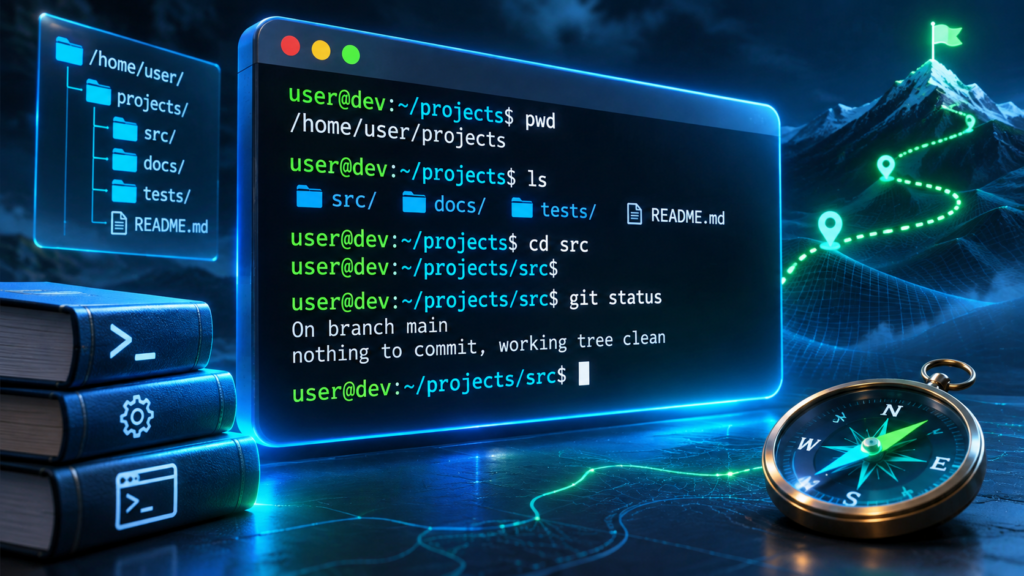

git add selects file content for the staging area, also called the index. git commit records that staged snapshot in local Git history. git push is a separate operation that can publish accepted commits to a remote repository.
Understanding the working tree, staging area and local history helps prevent accidental commits and makes project review more reliable.
Git Add Vs Git Commit In One Minute
The difference between git add and git commit is that add prepares selected content in Git’s staging area, while commit records a new snapshot of the staged content in local repository history. Editing a file is one action, staging its current contents is another, and creating a commit is a third. Those separate steps help developers review exactly what will become part of a recorded change.
The official git-add reference calls the staging area the index and explains that Git takes the content selected at the time of the add operation. The git-commit reference describes recording the staged changes with a commit message. These references are important because many beginners assume that saving a file in an editor automatically updates Git history.
Suppose you edit a README and run git add README.md. Git places the selected version of that file in the index. At this stage, the project history has not gained a new commit. When you run git commit -m "Explain installation", Git records the current staged snapshot as a commit with the supplied message, assuming the command succeeds.
Neither command automatically publishes changes to GitHub or another remote host. That normally requires a separate git push operation when the branch is configured for a remote. Our Git versus GitHub guide describes why local Git history and hosted collaboration are distinct concepts.
A practical workflow uses add to choose, diff to review, and commit to record. That sequence gives a small team or individual developer a more controlled history than treating every unsaved editor experiment as a permanent release.
The Working Tree, Staging Area And Repository
Git organizes ordinary work around three related states. The working tree contains files you edit. The index or staging area represents content prepared for the next commit. The repository stores committed history and supporting objects. A change can therefore exist only in the working tree, be staged without a commit, or become part of a committed snapshot.
Edited Files
Copy Selected Content
Next Snapshot
Record Local History
The official Git introduction describes the working tree, staging area and Git directory as central components. The index lets you construct an intentional snapshot rather than automatically committing every file in the project directory.
A file may be tracked in Git but modified in the working tree. It can also be untracked, meaning it is not yet part of the index or committed history under the applicable rules. Staging a new file prepares it to be tracked in the next commit. Staging a modified file updates its proposed snapshot.
A commit can include changes to several files while leaving unrelated working-tree edits uncommitted. This separation is particularly useful when you fixed one bug while experimenting with another feature. The staged snapshot should reflect one coherent change that can be reviewed.
When confused, run git status. It summarizes the staged and unstaged changes. Reading that output is safer than blindly adding every path and hoping the commit contains only what you intended.
What Git Add Does When You Stage A File
The command git add README.md asks Git to update the staging area for the named path using relevant working-tree content. If the file is newly created and is not ignored, it can become staged as a new file. If it is already tracked and modified, the selected version is prepared for the next commit.
Staging is not uploading. The contents remain within the local repository environment until a later operation sends commits to a remote. Nor is staging necessarily permanent historical publication. You can adjust the index before committing, including choosing another version of a file or removing selected staged changes.
For a directory containing several files, a command such as git add docs/ can stage applicable changes within that path. Git’s pathspec rules and version determine which tracked modifications, additions and deletions are included. Read the status output afterward because the scope may be wider than a single file.
The official git-add manual explains that the index represents the prepared next tree and that add can be used repeatedly while organizing a proposed commit. It also documents interactive and patch options for selecting smaller portions of changes.
Avoid staging secrets, generated credentials or unnecessary large files. Files placed in commit history may remain retrievable from the repository even if later deleted in the working tree. Check the actual staged patch before making the commit rather than relying on filenames alone.
Our software repository guide distinguishes Git history from package feeds and release artifacts. That context helps explain why staging one local file does not publish a release or install a dependency.
What Git Commit Records And What It Does Not
A Git commit records the staged snapshot in repository history along with metadata such as a commit message, author-related information and links to its parent commit or commits. The resulting commit object has an identifier and becomes part of the local branch history when the operation completes successfully.
A commit is not merely a copy of one editor window. Git records a tree representing the relevant tracked project state. The difference from the parent snapshot shows what changed. A commit can include added, modified or deleted files according to what the index contains when the commit runs.
The command git commit -m "Document setup" supplies a short message from the command line. If the staging area has no relevant changes, Git may report that there is nothing to commit. If hooks, identity configuration or other checks fail, the commit may not be created even though files remain staged.
The Git commit reference describes these behaviors and additional options. The essential distinction is that a commit is a durable entry in local version history, whereas a staged change is a proposed entry that can still be revised.
Commits are not remote backups automatically. If the only copy of a repository remains on a failed laptop, local history may be lost. Publishing to a trusted remote can help, but an independent backup and recovery plan may still be appropriate.
A good commit message explains the intention of the change. A message such as Fix login redirect after expired session is usually more useful than Update files, especially when the history later supports debugging, review or release notes.
A Safe Git Add And Commit Walkthrough
Use a disposable practice directory that contains no sensitive or production files. Create a small text file named README.md using a trusted editor. In a terminal opened in that directory, run git init to create a local repository. If Git reports that identity settings are required at commit time, follow the official configuration guidance for your machine and account.
Next run git status. Git should report the untracked README file in an otherwise new project. Type git add README.md, then run status again. The file should now appear in the staged section. Use git diff --cached to inspect the exact text prepared for the commit.
When the staged content is correct, run git commit -m "Add project introduction". Git creates the local commit if the command succeeds. Run git log -1 --oneline to inspect the latest history entry and git status to see whether the working tree is clean.
git init
git status
git add README.md
git diff --cached
git commit -m "Add project introduction"
This example does not require a GitHub account or network access. It demonstrates the local sequence without asking the user to change a production repository. The commands should only run in a folder whose contents you are authorized to track.
The official Git tutorial provides a similar progression and explains how the staging area leads to a recorded snapshot. An actual development project may add code reviews and automated tests before its changes are shared.
For terminal basics, see our command line introduction. Understanding the current working directory is essential because Git commands operate on the repository you are currently inside.
Why Git Status And Git Diff Matter
The command git status is one of the safest tools for understanding a repository. It reports current branch information and summarizes staged changes, unstaged modifications and untracked files according to Git’s state. It is useful before and after almost every operation that changes the index.
The command git diff normally shows changes in the working tree that are not staged relative to the index. The command git diff --cached, also written with the --staged option, shows staged changes relative to the current commit. These outputs can differ when a file was staged and then edited again.
The git-add documentation explicitly distinguishes differences between HEAD and the index from differences between the index and working tree. This is the technical foundation for the two diff commands. Understanding it prevents accidental commits of a version different from the one displayed in the editor.
Before a commit, inspect the staged diff. Check for accidental debug statements, hardcoded passwords, large binaries, broken formatting and unrelated edits. If a patch contains two separate changes, consider staging or committing them separately. Smaller coherent changes are easier to review and reverse.
Some differences are not visible as ordinary line-level text, such as binary assets or permissions. Use the repository’s supported diff and inspection tools appropriate to the file type. A clean text diff is helpful but cannot fully verify an executable build or image’s content.
For a group project, follow documented branch and review policies. One person’s confidence in a staged patch is not a substitute for tests, accessibility checks or required code review. The goal is to make the snapshot intentional and understandable.
What If You Edit A File After Git Add?
One of Git’s most important details is that adding a file stages its content at the moment the add command runs. If you later modify the same file in the working tree, the new edits are not automatically added to the index. The staged version remains the earlier snapshot until you run add again or otherwise update the index.
Imagine README.md initially contains one paragraph. You stage it, then correct a spelling mistake in the editor and save. If you commit immediately without restaging, the commit can contain the earlier spelling. The revised paragraph remains as an unstaged working-tree change after the commit.
The official Git basics guide explicitly demonstrates this behavior. It is a common source of surprise for beginners who are accustomed to automatic synchronization or editors that save to a cloud service.
Use git status to see that the same file may appear in both staged and unstaged sections. Compare git diff with git diff --cached to understand the two versions. If you want the newer edits in the next commit, run git add README.md again and review the staged diff.
This staged-snapshot model also allows deliberately committing only a previously tested version while keeping unfinished experiments in the working tree. Such flexibility is useful, but requires attention to what is actually staged.
Do not assume a Git commit recorded everything currently visible in an editor. Verify the index first, especially when a release or deployment pipeline will build from committed history.
Git Add -A, Git Add . And Interactive Staging
Git supports several forms of the add command. git add -A stages applicable changes across the repository scope, including additions, modifications and deletions. git add . operates relative to the current directory’s pathspec and can differ when invoked from a subdirectory. This distinction matters in large repositories or projects with several work areas.
The shorthand commands are convenient, but they can stage unintended files. A temporary credential, local environment file or large generated output may enter the index if it is not ignored and falls within the selected paths. Before using a broad add operation, inspect status and ensure the repository’s ignore rules are appropriate.
For finer control, git add -p starts interactive patch staging so a developer can select suitable hunks from text changes. This is useful when a file contains both a necessary bug fix and unrelated experimental edits. Patch selection still needs care because the staged result must remain logically coherent and compilable where appropriate.
| Command | General Purpose | Key Caution |
|---|---|---|
| git add README.md | Stage One Named Path | Review That File’s Content |
| git add -A | Stage Applicable Repository Changes | May Include Unrelated Files |
| git add . | Stage Changes Under Current Path | Scope Depends On Working Directory |
| git add -p | Select Text Change Hunks | Check The Staged Result |
The official manual explains the pathspec, all and patch options. Do not rely on an old tutorial’s shorthand description without checking Git’s current documented behavior.
A high-quality Git workflow chooses the narrowest appropriate staging scope, reviews the result, and commits one coherent purpose at a time. Speed gained from broad staging is not useful if the next commit leaks a secret.
Unstage A File Without Deleting Your Work
Staging is reversible before a commit. If you accidentally stage a file, the command git restore --staged README.md can restore its index entry from the current commit while leaving the working-tree contents in place under the normal supported behavior. This is different from removing the file from disk or discarding the editor changes.
The git-commit documentation points to restoring the index to unstage changes. Git’s separate working-tree restore operations can discard modifications if used incorrectly, so pay careful attention to the --staged option and the current command’s meaning.
For a newly created file, unstaging may make it appear untracked again. The file can remain in the folder for later editing. Use status to confirm the resulting state rather than assuming the command did exactly what you intended.
Do not reflexively run git reset --hard to fix accidental staging. That command can discard working-tree changes and is inappropriate for a beginner who wants to preserve unsaved work. Similarly, deleting the .git directory destroys local repository history and is not a standard unstaging technique.
If a sensitive file has already been committed and shared, unstaging is no longer the right remedy. Follow the hosting provider’s secret-exposure procedure, rotate affected credentials and consider history cleanup under expert guidance. A later commit deleting the secret may not remove it from existing history.
A safe recovery sequence is to inspect status, unstage the specific path if needed, verify that the working file still exists, and then stage only the intended change. Controlled recovery keeps both code and history understandable.
Git Commit -a, -am And The Untracked File Exception
Git provides a commit option that can stage and commit modifications to already tracked files in one step. For example, git commit -am "Update documentation" can include changes to tracked files without a separate add operation for each of them. However, it does not automatically include newly created untracked files.
This exception matters when a developer creates a new source file and edits an existing one. Running commit -am may record the modification to the existing file but omit the newly created file. The project can then fail to build for collaborators who receive only the commit. Always inspect status and the resulting snapshot.
The Git commit manual documents the all option and how tracked files are handled. The behavior should not be paraphrased as commit everything in the folder, because that is inaccurate for new untracked paths.
The separate staging step remains useful for review even when an option can combine operations. Explicit add lets developers examine the exact patch with git diff –cached before recording it. In a project containing sensitive or unrelated work, that control may be worth the extra commands.
Other options such as amend can rewrite the most recent local commit under certain conditions. Rewriting commits that others have already based work on requires care. It should not be introduced as the default remedy for every spelling mistake in shared history.
For beginners, use explicit status, add, staged diff and commit until the distinctions are familiar. Convenience flags are not inherently unsafe, but understanding their scope prevents incomplete or accidental commits.
Git Commit Vs Git Push And Remote Publication
A local Git commit records history in your repository. Git push sends appropriate local history to a configured remote repository, subject to authentication, permissions and branch policies. These operations are separate. A commit can succeed when the computer is offline, while a push typically requires a reachable remote.
A developer may make several small local commits and push them together later. Teammates cannot see those commits through the remote until they are published or otherwise exchanged. Conversely, pulling remote changes does not automatically stage and commit your uncommitted local modifications.
GitHub’s remote repository explanation shows the relationship between local Git and hosted history. The remote service can apply branch protection, review requirements and automated tests before accepted commits reach certain branches.
| Action | Where It Operates | Main Result |
|---|---|---|
| Edit File | Working Tree | Uncommitted Content |
| git add | Local Index | Prepared Snapshot |
| git commit | Local Repository | Recorded History Entry |
| git push | Local To Remote | Publishes Accepted Commits |
A push is not the same thing as deploying an application to production. Some organizations use automated pipelines triggered by a push or merge, but the actual deployment behavior is configured separately. Do not assume pushing any branch will publish software to customers.
Our client server article provides context for remote services and authentication. Git’s local version history remains useful even without those network services.
Common Git Add And Commit Errors
An error saying nothing added to commit can mean there are no staged differences, that relevant files are ignored, or that changes are only present in the working tree. Start with git status. It can clarify whether files are untracked, modified but unstaged, or already committed.
If a file is not staged because of an ignore rule, check .gitignore and other Git exclusion mechanisms. Ignore rules usually affect untracked files; a file already tracked will not simply disappear from history because a new ignore pattern was added. Do not force-add a secret simply to overcome an ignore warning without understanding the implications.
An author identity error during commit may indicate that Git user.name or user.email is not configured as required. Use official Git setup documentation and an appropriate identity for the repository. Avoid copying another person’s personal information into your commits.
A commit hook can block a commit when tests, formatting or policy checks fail. This is often a deliberate project safeguard. Review the hook’s message rather than disabling the check automatically. Some hooks can be skipped through options, but bypassing a required security or quality gate may violate team policy.
If push fails after commit, the local commit can still exist. Investigate remote permissions, network access, branch protection or divergent history. Do not rewrite history or force-push to a shared branch without coordination. The problem is no longer the initial add operation.
A useful support report contains status output, the intended branch, the command that failed and relevant error text, with tokens and private repository details redacted. That is sufficient for targeted troubleshooting in many cases.
A Premium Git Review Checklist Before Every Commit
Before running git add, decide which logical change you intend to record. Save the relevant files and confirm that the project builds or passes the applicable tests. Review untracked files and ensure secrets, credentials and irrelevant generated data are not accidentally included in the repository.
Stage only the intended paths or hunks. Then use git diff –cached to inspect the exact snapshot. Compare it with git diff if the same files have additional unstaged changes. The two views are essential when a file was edited after its initial staging.
Write a clear commit message that summarizes why the change matters. Prefer a message specific enough to be useful months later. If your team uses issue identifiers or conventional commit formats, follow that documented standard rather than inventing a new naming system.
After the commit succeeds, inspect git status and the latest commit. Verify whether any desired files remain unstaged or untracked. If a subsequent push is required, use the configured remote and follow branch-protection or review processes. A local commit alone is not proof that colleagues received the change.
Keep backups and remember that version control is not a substitute for every kind of disaster recovery. Large binaries, databases, credentials and environment-specific configuration may need separate storage and recovery arrangements. Our software repository guide covers those broader roles.
The lasting distinction is simple: add selects the snapshot; commit records it; push shares accepted history with a remote. The quality comes from reviewing each transition instead of using commands blindly.
Frequently Asked Questions
What Is The Main Difference Between Git Add And Git Commit?
git add prepares selected content in the staging area, while git commit records the staged snapshot in local repository history.
Does Git Add Upload A File To GitHub?
No. Staging occurs locally; pushing accepted commits to a remote is a separate action.
Does Git Commit Include Every Modified File?
Not by default. It normally records the staged snapshot, with documented options for tracked files.
What Happens If I Edit A File After Git Add?
The newer edits remain unstaged until the index is updated again, so the next commit may contain the earlier staged version.
How Do I See Exactly What Will Be Committed?
Run git diff –cached or git diff –staged and inspect the patch.
How Can I Unstage A File Without Deleting It?
Use git restore –staged followed by the intended path, then confirm the result with git status.
Does Git Commit -am Add New Untracked Files?
No. The -a option applies to already tracked files and does not automatically add new untracked files.
Should I Run Git Add Before Every Commit?
Explicit staging is a good beginner habit because it supports deliberate review; some commit options handle tracked changes automatically.