

Understand What A Browser Session Can Recover
Closing the wrong tab is a surprisingly common problem. A browser window may contain the reference you need for a report, the documentation for a software project, several comparison pages for a purchase or a useful article you have not bookmarked. Many desktop browsers retain enough information about recently closed tabs to allow you to reopen them without searching the web again.
The first distinction is between reopening a tab and recovering its entire previous state. A tab normally represents a browsing context associated with a particular page address and possibly its navigation history. Restoring it may cause the browser to load that address again. The contents of the page can change between the original visit and the restored visit. If the site has removed an article, updated a price or expired your authorization, the browser cannot necessarily reproduce the original view.
A session may contain several windows and tabs under a particular browser profile. If the browser closed unexpectedly, it may have stored information from which the previous arrangement can be reconstructed. This is why restarting after a crash sometimes presents a recovery prompt. The information is not a guaranteed, permanent backup of every page you have ever opened. Its availability depends on the browser, profile, configuration and circumstances surrounding the closure.
Work stored inside a website needs separate attention. Restoring a page does not establish that your unsaved form, message or document is still available. Use the website’s own save, draft or version history features if it offers them. Make sure that any recovered information is correct before submitting or relying on it. A restored checkout page, for example, should not be treated as proof that an order was placed.
Step 1: Reopen A Recently Closed Tab With The Keyboard

On a Windows desktop computer, the quickest first attempt in Chrome, Edge and Firefox is to open the same browser profile and press Ctrl, Shift and T together. On macOS, use Command, Shift and T in the corresponding desktop browsers. The keys must be used while the browser is active, rather than while you are typing in a separate application.
This shortcut is particularly useful when the mistake has just occurred. Open the browser window that belongs to the original profile, use the shortcut once and observe the result. If the wrong recently closed tab opens, use it again to move through the available recent closures. Depending on the browser and what was closed, a restored item may be an entire window instead of only a single tab.
Google’s Chrome tab management guide confirms that the shortcut can recover a closed tab or window. Microsoft’s Edge keyboard reference likewise identifies the command for restoring recently closed tabs. Mozilla documents the same desktop shortcut in its session recovery guidance.
Consider a simple example. You have a documentation page in one tab, a search result in another and an online reference in a third. You accidentally close the reference, then close the search result. The first recovery command may return the search result, while another command can return the earlier closure. You do not need to remember the full web address in order to try this method.
Be cautious when recovering a page that had just submitted information. You may encounter an expired session, a request to resubmit data or a different server response. Verify your activity through the site’s confirmation or account records before repeating a transaction. Reopening an address is not the same thing as undoing a completed purchase, restoring an unsent message or recovering an application-specific draft.
If the shortcut appears ineffective, open the browser’s menu and inspect its history controls. The shortcut may be unavailable in your current context or there may be no eligible item left to restore. There is no benefit to pressing it indefinitely. The next step provides a more deliberate way to identify a missing window or website.
Step 2: Recover A Specific Tab Or Window From History
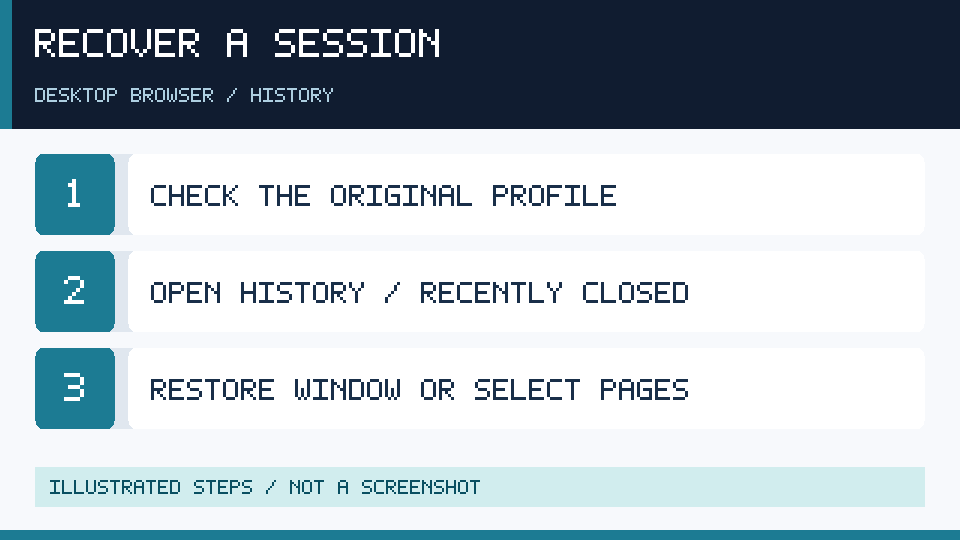
Browser history is useful when you remember a topic or website but do not want to recover every recently closed page. Open the browser’s main menu and look for History. In many Windows desktop browsers, Ctrl and H opens a history interface. The precise layout varies by browser and release, so use the visible labels rather than expecting a particular icon at an exact position.
Start with the recently closed items if they are offered. An entry may represent a window with several tabs rather than a single visit. Inspect its description and select it if it corresponds to the missing workspace. If you see only individual pages, identify the most important ones and reopen them separately. This approach is often preferable to restoring a large number of unrelated tabs.
Search ordinary browsing history when the recently closed list does not contain the page. A distinctive word from the page title, the publisher’s domain or the approximate time of the visit can help narrow the results. If you visited multiple pages from a documentation website, use the topic or the specific section name rather than searching only for the common domain.
For example, imagine that you were comparing installation instructions for two different software packages. You remember one publisher but cannot recall the address of the second. A history search for a product name may bring back the page you visited. You can reopen the actual result and bookmark it in an appropriate folder rather than relying on the original arrangement of the browser window.
History can also contain several entries for pages that look almost identical. Inspect the address and access the legitimate publisher. Do not assume the first match is the correct one when a search result includes promotional or misleading sites. Our phishing guide explains why a recognizable page title alone is not sufficient proof of identity.
When a page returns an error, investigate whether the resource still exists, whether you need to sign in and whether the connection is working. A browser can preserve an address even if the server has removed its contents. If several unrelated websites fail, our Wi-Fi troubleshooting guide may help distinguish a network fault from a problem with restoring the original session.
Once you recover an important page, consider bookmarking it. A bookmark gives you a deliberate reference rather than a record dependent on the order in which you happened to close other tabs. This is especially useful if you need the page again after several days.
Step 3: Check The Correct Browser And Profile
A profile stores a particular browsing environment. People who use one computer for personal research, business work and school may have separate profiles with different accounts, extensions, history and bookmarks. A new window in the same application does not necessarily belong to the same profile as the lost session.
Inspect the profile control near the browser’s toolbar or use its supported profile management interface. Select the profile in which you were working before the closure. Verify that its familiar bookmarks and account configuration appear. You do not need to reveal your email address or password to anyone in order to perform this comparison.
Check recently closed items and the history interface again after switching to the correct profile. If the missing references appear there, the original information was probably associated with that browsing environment. This is a more targeted diagnosis than deleting caches or reinstalling the entire browser.
The operating system’s default browser can create another source of confusion. Clicking a web link from a messaging application may open the configured default, even if you were previously working in a different browser. Each browser maintains its own browsing data unless you have deliberately imported or shared information. Our guide to setting default apps on Windows 11 explains why opening a link through Windows can differ from opening it in a browser that is already active.
Keep existing profiles intact while investigating. Creating a new profile may help diagnose a crashing browser, but it does not normally recreate records from an older one. Similarly, signing into an account is not a guarantee that every local session was uploaded or will be restored. Synchronization depends on the browser and the settings that were enabled before the problem occurred.
If the missing history belongs to a managed work profile, use the organization’s permitted tools and contact its administrator when necessary. Avoid copying a profile containing confidential work data into an unrelated personal browser or sharing profile directories with a third-party repair service. Those directories may contain sensitive settings and authentication-related information beyond simple web addresses.
After recovering the appropriate environment, create a clear distinction between browser profiles in your daily routine. Use names and recognizable profile icons where supported. When opening a collection of work pages, confirm that the correct environment is active before signing into services. This reduces the chance of mistaking an empty history in another profile for the permanent loss of your original session.
Step 4: Restore Tabs After A Crash, Update Or Unexpected Shutdown
A browser that closes because of a system restart or application crash may have an opportunity to recover its recent session. Open the original browser as soon as the computer is stable enough to do so. If the browser displays a recovery prompt, read its options and select the appropriate restoration action when available.
Do not confuse recovery of pages with repair of the condition that caused the crash. If opening the previous collection immediately causes the browser to fail again, one of the pages or a shared component may be involved. A large collection of tabs might also put pressure on limited memory. When a browser offers a choice of which windows or pages to recover, consider restoring a smaller set before reopening the entire collection.
Mozilla’s Firefox session restore guidance describes recovery after unexpected shutdowns and explains that users may need to start a fresh session if restoring the previous one repeatedly causes crashes. Its History menu can then provide access to recently closed items where they remain available. This is a practical distinction between a usable browser configuration and the goal of recovering particular addresses.
Chrome and Edge may present recently closed windows or recovery controls after restarting. Their availability is not universal. Use the recovery prompt if present, then inspect the history interface and original profile if the desired pages do not return automatically. Do not assume that a missing prompt means every address is gone.
If Chrome is repeatedly crashing, our Chrome crash troubleshooting guide covers memory, optional extensions and profile comparisons. For Microsoft Edge that cannot launch normally, our Edge startup troubleshooting guide explains the supported Windows repair approach. Prioritize preservation of essential browser data whenever you need broader repair.
If the computer itself is unstable, save important work outside the browser as soon as practical. Our Windows performance guide can help identify broader resource problems. A stable system is more valuable than repeatedly recreating an environment that fails under its normal workload. Avoid force-stopping unrelated processes or interrupting legitimate system updates just to restore an earlier window.
When the missing tabs have reopened, inspect the documents, messages or online projects associated with them. They may need to reload, reconnect to a service or obtain updated authorization. Save useful URLs immediately and verify application-specific data separately before declaring the recovery complete.
Step 5: Configure Automatic Session Restoration For Future Visits
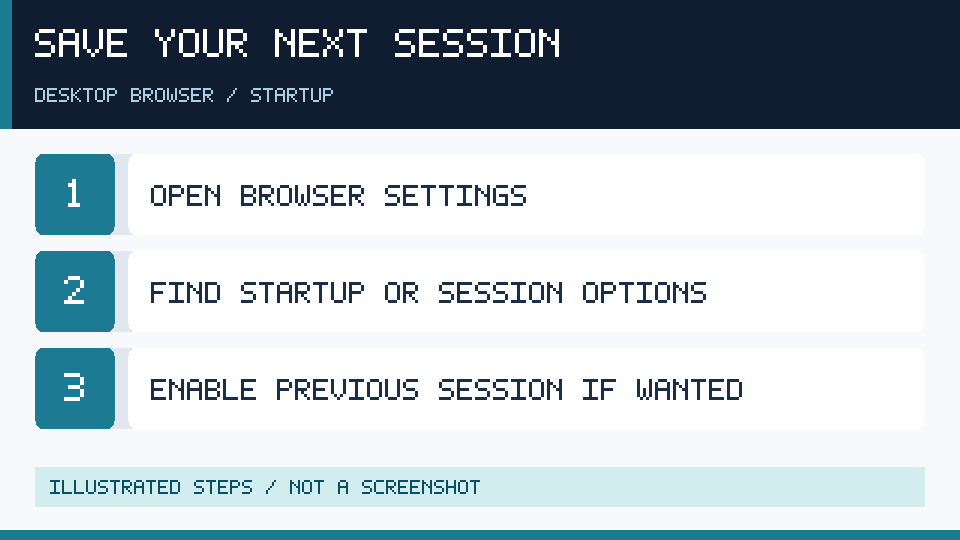
If you routinely close your browser at the end of a work period and want the same group of pages to reopen later, configure the supported startup preference. This is a preventive measure, not a reliable way of reconstructing a session that the application no longer retains. Check the available history for a lost session before changing settings for future ones.
In desktop Chrome, open Settings and find the startup section. Google’s startup page documentation explains the preference for continuing with the pages that were open when the browser last exited. Select that option if it fits your routine. Chrome also supports choosing specific startup pages, which can be preferable if every workday begins with the same trusted resources regardless of the previous session.
In Microsoft Edge, open Settings and use the section for startup, home and new tabs. Select the option to reopen tabs from the previous session when available. Microsoft’s Edge session recovery guide describes this workflow. If the interface looks different after a browser update, search its settings for startup and consult the current documentation rather than following an outdated screenshot.
In Firefox, open Settings and review the general startup controls. Select the available option for opening previous windows and tabs. Mozilla’s session recovery instructions distinguish manually restoring the last session from configuring restoration at launch. These options serve related but different purposes.
Test the selected preference with a few harmless public pages. Close the browser normally using its supported exit command, then start it again and observe the result. Do not use your only unsaved document or a sensitive account as the test. If several windows were open, check whether they all returned. Exact restoration behavior can differ with how the windows were closed and the browser’s own configuration.
There is also a privacy tradeoff. A restored session can display the pages you were using previously and may retain access to accounts whose sessions remain valid. On a shared computer, this could expose material to another user of the same profile. Lock your device when you step away, use appropriately separate accounts and choose a startup behavior that matches your privacy requirements. Automatically restoring every page is convenient, but it is not always the best configuration for every environment.
Understand Private Browsing, Synchronization And Unsaved Work
Private browsing sessions are intentionally different from regular browsing sessions. Chrome’s Incognito documentation explains that closing all Incognito windows ends that session and that ordinary visited-site records are not retained locally in the same way. Firefox also explicitly excludes private windows from ordinary session restoration. Do not expect a standard closed-tab shortcut or regular history search to recreate pages from a completed private session.
This limitation is part of the expected design. It does not mean private browsing provides complete anonymity from websites, internet providers or managed networks. Our VPN fundamentals guide explains a separate aspect of networking privacy. Neither private browsing nor a VPN serves as a general backup mechanism for research pages or account data.
If the browser had synchronized open tabs or history before the loss, another trusted device signed into your account may provide an additional source of addresses. Check the browser’s own supported tabs-from-other-devices or synchronized history controls if they are available. The result depends on which settings were enabled, whether information was uploaded successfully and whether the other device still has the relevant pages. Enabling synchronization now cannot reliably reconstruct records that were never retained.
Avoid signing into an account on a public or untrusted computer simply to search for a lost tab. Authentication information should be handled through legitimate services and protected devices. For important account access, see our two-factor authentication guide and explanation of password managers.
A restored page might contain an editable form that was open before the closure. Some sites maintain local or server-side drafts, while others discard unsaved text. Check for a legitimate draft within the application rather than assuming the browser will recover all typed material. A web address and a complete editing state are different types of information.
For example, reopening a browser-based writing tool may display the most recent saved document rather than the additional paragraphs you were composing at the moment of failure. If the tool offers version history or automatic saving, inspect those features. If it offers no such recovery method and the text was never saved, a tab restoration alone may be insufficient.
Similarly, a download that was in progress before the browser closed may remain interrupted. Visit the download history and assess its status independently. Our browser download troubleshooting article covers resumption, expired links and safe file verification. Restoring the page that initiated a transfer does not prove that its file reached your computer intact.
Preserve Useful Tab Collections Without Depending On Session Recovery
Session restoration is a convenient shortcut, but a deliberate collection of bookmarks is a more manageable way to preserve important website addresses. Save pages you expect to need again in organized folders. For research, a folder named for the project is often more useful than a large chronological list of unrelated links.
When a browser supports bookmarking all tabs in the current window, consider using that feature before intentionally closing a meaningful collection. Microsoft documents Ctrl, Shift and D for saving open tabs as favorites in a folder in Edge. The exact wording and available choices vary across browsers, so consult their bookmark commands and inspect the items being saved.
Before bookmarking a whole window, review its contents. Remove unrelated or sensitive links that should not be stored or synchronized in that collection. A private document’s address may reveal information about its owner or include a temporary authorization value. Keep such records only in appropriate approved locations and do not share the collection publicly without reviewing it.
Use a brief accompanying note when a page is particularly important. A link alone may not explain why you saved it, which section contained the information or whether it was accurate at the time of your research. A project note containing the source, relevant topic and date of access can make later retrieval much easier. For information that changes, revisit the original reliable source before depending on earlier assumptions.
Where you need to preserve the actual contents of an authorized document, use its legitimate download, export or save function instead of depending exclusively on a bookmark. A website can remove or update its pages, and a local bookmark does not preserve the material those pages displayed. Keep appropriate independent backups of your own important documents and respect the copyright and access restrictions governing other materials.
Be cautious with extensions promising unlimited tab recovery or cloud storage of your complete browsing activity. Such tools may request significant access to websites or navigation data. Evaluate their actual publisher, permissions and privacy practices before installing them. Built-in bookmarks and supported browser recovery features are sufficient for many ordinary workflows.
A sustainable routine is to close completed research tabs, bookmark useful references and save ongoing work in applications designed to preserve it. That reduces both the burden of restoring an enormous old session and the likelihood that a browser crash interrupts an important project.
Choose The Right Recovery Method And Verify The Result
The following table connects typical recovery situations with the least disruptive useful action. It assumes that you have authorization to access the original browser profile and the pages involved.
| Situation | First useful action |
|---|---|
| One regular tab just closed | Use the browser’s reopen-tab shortcut |
| Several tabs or a window closed | Inspect recently closed items |
| Browser reopened in another profile | Switch to the original authorized profile |
| Missing page after restart | Check recovery prompt and browser history |
| Completed private browsing session | Ordinary local session recovery is not expected |
| Unsaved form or interrupted download | Check the website’s draft records or download history separately |
After restoration, open the relevant pages and verify that they correspond to your intended material. Check whether the account is correct, whether a document still exists and whether the page represents a completed operation or merely an earlier view. Remove unnecessary restored tabs after saving useful references.
If the normal recovery methods do not return a session, avoid installing unknown recovery software or making indiscriminate changes to browser data. Search for the public resources again, consult existing project notes, and use application-specific backups where applicable. For valuable missing records, contact an appropriate administrator or support provider before deleting the original profile.
The best outcome is not necessarily a perfect reconstruction of every window. It is the recovery of the useful authorized information and a reliable workflow that protects your future work. A few carefully maintained bookmark folders and explicit document saves can make that outcome much easier to achieve.
Sources And Further Reading
- Google Chrome Help: Manage tabs
- Microsoft Support: Edge keyboard shortcuts
- Mozilla Support: Restore previous session
- Google Chrome Help: Startup pages
- Microsoft Edge: Reopen closed tabs
- Mozilla Support: Restore tabs from last time
- Google Chrome Help: Incognito mode
Frequently Asked Questions
How Do I Restore A Closed Browser Tab On Windows?
Press Ctrl + Shift + T in the original browser profile. If the shortcut does not return the desired item, inspect recently closed tabs and history.
Can I Restore An Entire Browser Window?
Yes, many browsers can restore a recently closed window when its session information is still available. Check the recent closures or use the reopen shortcut.
Can I Recover A Closed Incognito Session?
Generally, no. Once the private session has ended, standard local history and session recovery are not designed to reconstruct it.
Does Reopening A Tab Restore Everything I Typed?
Not necessarily, because the website or application may not have saved your editing state. Look for its supported draft or version history controls.
Will Automatic Session Restoration Work Every Time?
No, the feature depends on retained session information and the browser’s configuration. Save important pages as bookmarks and store work through the application’s own save mechanisms.


