Understand What You Are Installing
Python is a programming language used for automation, data analysis, web development, education and many other computing tasks. Installing Python on Windows gives you an interpreter capable of running Python source code. You do not need to buy a development environment or create an online account to write ordinary local Python programs. The official CPython distribution is a useful starting point for someone who wants to learn the language independently.
Several components are involved in a typical setup. The interpreter reads and executes your instructions. The standard library supplies modules for tasks such as reading files, working with dates and manipulating text. A package installer called pip helps install additional libraries when you need them. A terminal provides a place to issue commands, and an editor lets you create and save source files. These components have different responsibilities, so a working editor does not prove that Python is installed, and an installed interpreter does not automatically provide every third-party library.
Modern Windows installations do not necessarily contain a full Python runtime simply because typing python displays a Microsoft Store prompt or an application execution alias exists. The goal of this guide is to establish that a real runtime is present and that you know which copy of it is being used. This matters when several Python versions or development applications coexist on one computer.
The distinction between software and the hardware executing it is explained in our computer fundamentals guide. The terminal may also be unfamiliar if you have only used graphical applications. Our beginner’s command-line guide explains how commands, paths and output fit together. You can learn them gradually while following the practical steps below.
Choose A Supported Python Version And Installation Method
Open the official Python downloads for Windows and inspect the available stable releases and installation options. Choose a supported Python 3 version suitable for your intended project. There is no need to install a pre-release merely because its number is larger. Previews are useful for testing upcoming language changes, but a beginner normally benefits from a stable version that works with the tutorial and libraries they intend to use.
If you are following a course, check which Python versions it supports. A tutorial written for one release may still work with a newer one, but dependencies can have their own compatibility requirements. Python 3.14 is used as a specific release-series example in this article; the particular maintenance version you receive will depend on the available releases. If your project specifies another supported series, select that series instead.
Review your Windows system type under Settings, System and About if you need to choose an architecture. An x64 PC and an Arm64 PC can have different native software requirements. Use the official distribution appropriate to the device and intended libraries. If a course supplies a special binary dependency, check its architecture support as well. Most beginners do not need the embeddable Python package, a debug build or an experimental distribution. Those options exist for more specialized deployment and development tasks.
The modern Python Install Manager and a Python runtime are different things. The manager makes it possible to obtain and manage interpreter installations, while the runtime is the software that executes Python programs. The current official Windows documentation recommends the install manager for the CPython team’s distribution. It can be obtained from python.org or the Microsoft Store. Existing traditional executable installers may still be relevant to supported release series and particular deployment requirements.
Use a legitimate source throughout. Never download a Python installer from an unfamiliar page that offers a modified version or requires a separate download assistant. Our safe Windows software installation guide explains how to check publisher identity and installation prompts. On a managed computer, ask your administrator about the approved installation channel. A course may also have suitable instructions for a restricted environment without requiring you to change the computer’s security settings.
Step 1: Install Python With The Official Install Manager
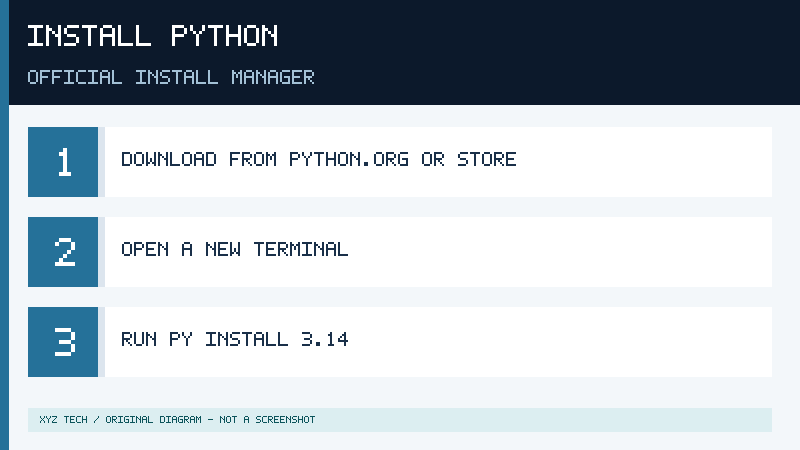
Visit python.org directly and select its Windows installation option, or locate the Python Install Manager from its official publisher in the Microsoft Store. Complete the supported installation procedure. If you use the downloadable MSIX package, open the genuine downloaded package and follow Windows’ installation interface. Do not obtain a similarly named executable from an unrelated site.
When the installation completes, close previously opened terminal windows and start a new one. On Windows 11, you can open Start and search for Terminal, PowerShell or Command Prompt. These are suitable environments for the basic commands in this article. Unless a documented procedure specifically requires elevation, use your ordinary user account rather than starting every terminal as an administrator.
With the new install manager available, request a runtime in the release series you intend to use. For example, the following command requests Python 3.14. This is a terminal command, not Python source code.
py install 3.14Allow the official manager to complete the operation. A network connection may be required to obtain the runtime. If Windows or the manager presents configuration prompts, read them carefully and follow the applicable official instructions. The manager may offer changes affecting command availability, so consider whether you need those changes instead of accepting unfamiliar modifications without reading their descriptions.
The manager provides a way to examine installed runtimes. Use the following command if you are using the modern install manager.
py listThis helps establish which versions the manager knows about. The command is specific to the newer tooling; an older Windows Python launcher is not identical to the install manager. If py responds with unexpected syntax help or does not recognize an installation subcommand, you may be using the legacy launcher. Read the Windows documentation’s troubleshooting section before concluding that the runtime is broken.
A runtime installation may not require you to manually edit a system-wide environment variable. The modern manager exposes commands through Windows integration and may offer optional command aliases. If another Python distribution already supplies those names, there can be competing command paths. Use the diagnostic commands in this article to identify the active one before making configuration changes.
If the installation fails, note the exact error. Check that the device has adequate storage, that the download comes from the correct source and that required Windows installation services are functioning. Avoid attempting several unrelated repair operations at once. If the Microsoft Store is restricted by your organization, use its authorized alternative rather than trying to bypass the restriction.
Step 2: Understand Existing Traditional Python Installations
Many established tutorials describe a traditional Windows executable installer rather than the newer Python Install Manager. If you already have a working traditional installation of a supported Python series, you do not have to remove it simply to follow a beginner programming exercise. First determine whether the existing interpreter meets the project’s requirements.
When you deliberately choose a traditional installer that is still provided by the official Python project for your required release, download the correct package for the computer and launch it through Windows. Review the offered installation features, including pip and the optional PATH configuration where those choices are available. The wording depends on the installer and release. Do not assume a checkbox pictured in an older tutorial is present in the modern install manager.
PATH is an environment variable that helps a terminal locate programs by name. Adding a Python executable directory to the appropriate user PATH can make python available when your terminal is not currently in that directory. However, adding multiple incompatible directories indiscriminately may cause commands to invoke a different installation than you expect. There is a useful difference between making a command available and making it select the correct runtime.
A traditional installer may also include or interact with the legacy Python launcher. That launcher can select a Python version through options such as py -3.14, when the corresponding interpreter is installed. The newer manager provides additional commands for installing and listing runtimes. Do not apply modern management commands to an older launcher without first identifying which tool responds.
The safest strategy for a machine with existing tools is to preserve the working configuration while testing. Record the version and executable path before installing another interpreter. If a particular project requires a different release, manage that requirement consciously rather than removing all earlier releases. An editor or application may be configured to use a specific executable that is not the one your terminal normally selects.
If you later decide to remove an unused installation, use its supported removal mechanism through the manager or Windows, according to how it was installed. Preserve project files and dependency records first. Our guide to supported Windows program removal explains why deleting an application’s folders manually can create additional problems. Python source files and the runtime used to execute them are separate resources, and removing one should not be mistaken for safely backing up the other.
Step 3: Confirm The Python Version And Executable
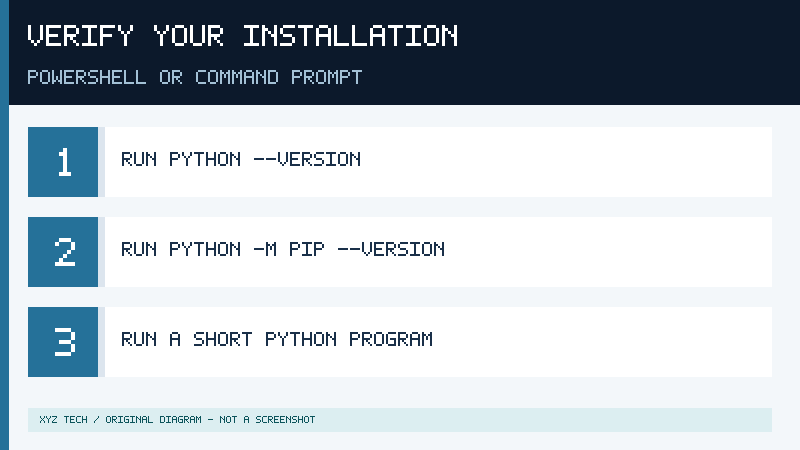
A successful installation dialog is not sufficient evidence that your terminal can execute Python. Open a new terminal and check which version responds to the normal command.
python --versionIf the command succeeds, it should report a Python version. The exact number varies according to the installed runtime. If you specifically installed the 3.14 release series, confirm that the runtime you plan to use belongs to that series rather than assuming the default command selected it automatically.
Run a second check that asks Python itself to report the path of its executable.
python -c "import sys; print(sys.executable)"This command executes a short Python instruction directly from the terminal. The sys module is part of the standard library, so you do not need to install an additional package to obtain the executable path. The printed location is valuable diagnostic information when two applications report different Python versions.
You can also run a simple version-specific check on a machine with a compatible launcher and the corresponding series installed.
py -3.14 --versionWindows provides a useful additional command for locating executables available through normal command resolution.
where.exe python
where.exe py
Using where.exe explicitly works around the fact that PowerShell has its own meaning for the shorter name where. The resulting paths can include Windows application aliases and multiple installations. An alias location is not necessarily the physical runtime executable. Compare the results with sys.executable rather than assuming the first folder name explains every aspect of the configuration.
The expected version output may be different from the example in a tutorial. A current maintenance release in the intended series is usually preferable to an older unsupported patch. If a different major or minor version appears than the one your project requires, determine which launcher or executable you need to select. Do not make a broad PATH change until you have identified the actual mismatch.
Keep the distinction between terminal commands and Python’s interactive prompt in mind. When you start the interactive interpreter, Python displays a prompt commonly written as three greater-than signs. At that prompt, enter Python expressions rather than shell commands such as python –version. Leave the interactive interpreter using exit() when you need to return to your shell. This small distinction prevents many confusing syntax errors for new programmers.
Step 4: Write And Run Your First Python Program
Choose a folder where you are permitted to save personal practice files. For a new learner, a dedicated project folder inside an appropriate user directory is simpler than placing source files in Windows system locations or the interpreter’s installation directory. Keep practice data separate from installed software. You should be able to recreate the interpreter while retaining your original projects.
Create a plain text file in an editor, such as a maintained text editor or an approved code editor. Save it under the name hello.py. Ensure that the file actually uses the .py extension, not .py.txt. File Explorer’s supported filename extension view helps confirm the name. A word processor’s formatted document is not the same as a plain Python source file.
Enter this small original example.
print("Hello, Python!")
print(7 * 6)
Save the document. Open a terminal in the folder containing the file, or navigate there using the shell’s cd command with the appropriate path. Then run the source file using the interpreter.
python hello.pyThe expected output is:
Hello, Python!
42
The first line demonstrates that Python can execute a standard output instruction. The second line demonstrates evaluation of a simple arithmetic expression. Both checks rely only on the interpreter itself, which makes the example suitable even when you have not yet configured additional packages.
If the program fails with a message saying that the file cannot be opened, verify your current terminal directory and filename. The interpreter may be working correctly even though it cannot locate the requested script. In a Windows terminal, dir can help you inspect the current folder. Avoid copying a command containing an invented path without adapting it to your actual location.
If you see a syntax error, check whether the source file uses ordinary straight quotation marks and whether you copied the code without the surrounding explanatory text. A syntax error generated by Python indicates that an interpreter has begun processing the file; it is different from Windows reporting that the python command is unavailable.
For a second test, change the multiplier to eight, save the file and run it again. The expected number becomes 56. If the output remains 42, make sure you saved the correct file and are executing the intended copy. This is an elementary debugging exercise that reinforces the connection between source code, the saved file and the interpreter.
Verify the interpreter version and example output on your computer before proceeding to more complex projects.
Step 5: Check Pip And Understand Package Installation
Python’s standard library is enough for many introductory exercises. When you eventually need third-party functionality, pip is a common way to obtain and manage packages. First verify that the interpreter you intend to use can access it.
python -m pip --versionA working command reports pip’s version and location, along with the Python version with which it is associated. This is more informative than testing a standalone pip command because python -m pip explicitly asks the selected interpreter to execute the pip module. On computers with multiple Python installations, a standalone executable named pip may resolve to a different environment.
The Python Packaging User Guide provides the supported package-management workflow for Windows and other operating systems. If pip is absent from a conventional CPython installation, review its installation options and the documented ensurepip recovery method. The following example applies where the standard ensurepip module is available and where modifying that environment is permitted.
python -m ensurepip --upgradeCheck the pip version again afterward. Specialized Python distributions can manage packages differently, so do not assume that every interpreter should be altered with the same command. If an organization manages the environment, use its approved package process.
Do not install packages merely to prove that Python works. Third-party package installations can obtain and execute code from outside the standard library. Before installing a package for a real project, identify its official name, documentation, maintainers and compatibility requirements. Typos in package names can direct you to the wrong project. A package with a familiar-looking name is not automatically affiliated with the software you intended to use.
When you need a package, installing it into a dedicated virtual environment is preferable to accumulating unrelated packages in a global interpreter. Avoid using elevated permissions to solve an ordinary package installation problem. Administrative installation may change files outside the current project and make future maintenance harder. Similarly, do not disable certificate verification or endpoint security to obtain packages from a server with an unexplained trust problem.
A network failure while installing packages does not establish that Python is defective. If the interpreter runs local programs but pip cannot reach its approved package index, investigate the network or repository configuration separately. Our download troubleshooting article explains related distinctions between connectivity, legitimate access and security blocks.
Step 6: Create And Test An Isolated Project Environment
A virtual environment gives a particular project its own package installation location. This is useful when one project requires a library version that differs from another project’s requirements. It also keeps beginner experiments from filling a shared interpreter with dependencies that later become difficult to identify.
Open the terminal in your own practice project folder and use the interpreter you have already verified.
python -m venv .venvThis creates an environment in a directory named .venv. The name is a convention rather than a requirement. If a directory with that name already exists, inspect it before recreating it. Do not overwrite a project environment that you still need without understanding how it will be reconstructed.
The Python venv documentation explains that activation is a convenience, not a requirement for running its interpreter. On Windows, you can directly invoke the Python executable inside the new environment.
.\.venv\Scripts\python.exe --version
.\.venv\Scripts\python.exe -m pip --version
.\.venv\Scripts\python.exe hello.py
The explicit path makes it clear which environment should execute each command. It can also avoid the need to change PowerShell script execution policy simply to activate an environment. If you choose activation for convenience, the documented commands differ between PowerShell and Command Prompt. PowerShell normally uses the Activate.ps1 script, while Command Prompt uses activate.bat. Follow the appropriate documentation and your organization’s policy.
A virtual environment isolates project dependencies; it is not a complete security sandbox. A Python program launched inside it may still access resources available to your user account. Do not install or run untrusted code simply because the environment is called virtual. Review unfamiliar scripts and packages through appropriate trusted channels.
Treat the project’s original files as its valuable source material. A virtual environment is normally recreated from a compatible interpreter and recorded dependencies rather than copied indiscriminately between devices. Preserve your source files, configuration and documented dependency requirements. A virtual environment folder can contain platform-specific binaries and paths that are unsuitable for another computer.
Once the example program works through the explicit environment path, you have established that both ordinary local execution and an isolated project setup function on your computer. That is a stronger starting point than merely seeing a desktop shortcut or a successful installation notification.
Fix Common Windows Python Installation Problems
When Windows reports that python is not recognized, first open a new terminal and try the verified installation’s appropriate commands. Check where.exe python and where.exe py to understand whether the shell can locate either name. If you recently installed Python, the previously open terminal may not reflect updated environment settings. A fresh terminal is a low-risk first test.
If entering python launches the Microsoft Store rather than the expected interpreter, inspect the actual installation and Windows app execution alias configuration, following the official Python Windows troubleshooting documentation. Some aliases intentionally provide access to an installation flow when the executable is not otherwise available. Others may conflict with a working installation. Do not indiscriminately disable every alias or remove all PATH entries; determine what the intended interpreter requires.
When py install is unrecognized, check whether the command refers to the older launcher rather than the current manager. The correct solution depends on how Python was installed. In a machine with a functioning legacy setup, you may be able to use the existing interpreter and launcher without any manager command. If you intend to use the modern manager, consult its official conflict-resolution guidance.
If pip is associated with a different Python version, use the selected interpreter with -m pip rather than experimenting with unrelated pip executables. The same principle applies when an editor works but the terminal reports another version. Examine the editor’s selected interpreter and compare it with the path printed by sys.executable.
If the system cannot download the official installer or runtime, confirm the legitimate source and inspect the error. Check available storage, supported Windows installation requirements and permitted network access. Do not turn off antivirus or bypass certificate errors to force software installation. A security block calls for investigation through a legitimate publisher or authorized administrator.
| Symptom | First useful check |
|---|---|
| Python command is not recognized | Open a fresh terminal and inspect command paths |
| Microsoft Store opens unexpectedly | Verify the installed runtime and execution aliases |
| Unexpected Python version | Compare the launcher selection and sys.executable |
| No module named pip | Check distribution guidance and ensurepip availability |
| Script cannot be opened | Verify terminal folder and actual filename |
| PowerShell blocks activation | Use the environment’s executable directly or follow approved policy |
When several unrelated applications cannot start, investigate the wider Windows environment. Our Windows troubleshooting guide provides background for system-wide performance concerns. Keep notes about what changed and avoid reinstalling every tool in response to one specific error. The aim is a reproducible development setup that you can understand and maintain.
Know When Your Python Setup Is Ready
A useful installation check ends with observable results. Record the interpreter series, the executable location and the output of your first program. If your first project needs packages, confirm that pip belongs to the intended environment and that the environment can execute the practice script. This record helps you diagnose future differences when you open a new terminal, install another Python version or select an interpreter in an editor.
Keep your interpreter and development tools maintained through supported distribution channels. Before changing the Python series used by an existing project, check its dependencies and preserve your own source files. A new interpreter does not automatically guarantee that older third-party libraries will work with it. A separate project environment allows you to evaluate compatibility without immediately replacing a configuration that already works.
A beginner can proceed with the standard library and a simple editor. Focus on writing short programs, understanding error messages and confirming what each command does. Do not confuse installing more tools with learning to program. Once you can execute a saved script reliably, you have the necessary foundation for variables, conditions, loops, functions and later projects.
Sources And Further Reading
- Python Windows downloads
- Python documentation: Using Python on Windows
- Python Packaging User Guide: Install packages in a virtual environment
- Python documentation: venv
- Python Packaging User Guide: Installing packages
Frequently Asked Questions
Is Python Free To Install On Windows?
Yes, the official CPython distribution is freely available from the Python project. Choose a supported version from its official distribution channels.
How Do I Know Whether Python Is Installed?
Run python –version and python -c “import sys; print(sys.executable)” in a terminal. Verify the reported runtime and execute a small script.
Do I Always Need To Add Python To PATH Manually?
No, the modern install manager and supported launcher configurations can provide command access without a manual system PATH change. Diagnose existing command resolution first.
Do I Need To Install pip Separately?
Usually, a standard Python installation provides pip. Check python -m pip –version and follow the distribution’s recovery instructions if it is missing.
Can I Install Multiple Python Versions?
Yes, supported installations can coexist. Verify which interpreter your project and terminal use, and create separate virtual environments when appropriate.