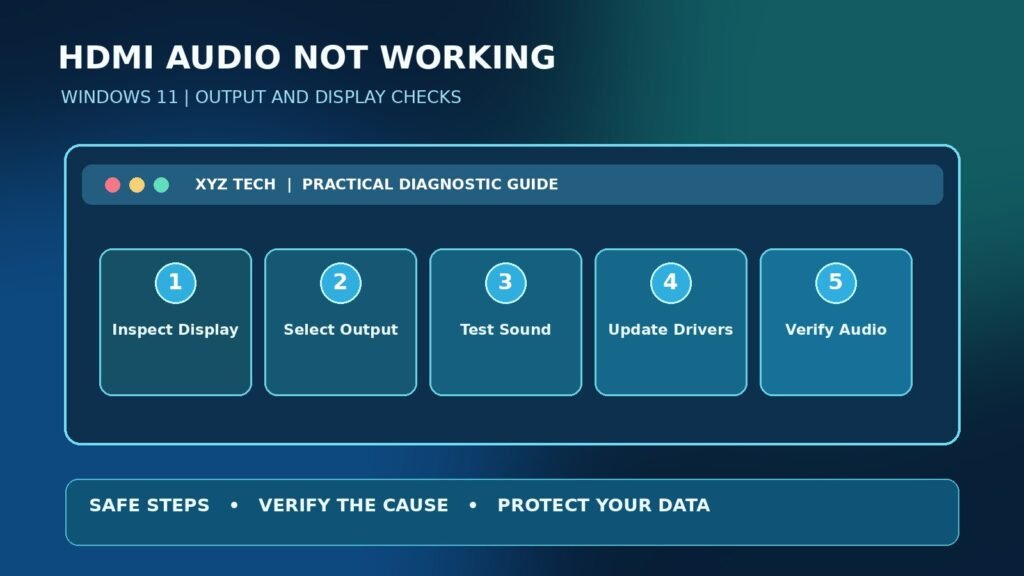

This research-backed, step-by-step diagnostic guide explains what the symptom means, how to separate likely causes, and which changes are safe to test. The illustrations are conceptual; they are not captured screenshots from your device.
Why HDMI Video Can Work While Audio Does Not
HDMI can carry digital video and audio through one connection, but a working picture does not prove the sound path is configured correctly. Windows may continue using laptop speakers or headphones as the default output, a monitor may have no built-in speakers, or a graphics-related display-audio component may not be available. The issue can also arise from a receiver, docking station, cable or application-specific output choice.
Microsoft’s Windows sound troubleshooting documentation emphasizes choosing the correct output device and checking whether the connected display has speakers. Do not reinstall drivers or reset Windows before confirming what audio hardware is actually present in the chain. A simple monitor without speakers cannot produce sound merely because it receives an HDMI video signal.
Quick Answer: Choose The Correct Output Device
Connect the display, confirm that it is powered on and displaying video, then open Settings > System > Sound in Windows 11. Under Output, inspect the available playback devices and select the HDMI display, television or audio receiver when it is listed and has a working speaker path. Play an ordinary test sound at moderate volume and check that neither Windows nor the display is muted.
If the device is absent, investigate the cable, adapter, display capabilities and graphics/display-audio driver. If it is present but silent, inspect the display speakers, TV settings, receiver routing, per-app audio and supported output format. Microsoft’s Output Device Troubleshooting provides the supported starting steps. Avoid changing several audio and video settings simultaneously.
Confirm That The Monitor Actually Has Speakers
Many computer monitors have an HDMI input for video yet contain no internal speakers. Others offer only a headphone output that passes received audio to an external speaker or headset. Check the exact model specifications, not merely the presence of an HDMI port. A monitor’s audio menu may be absent, hidden or available only with specific inputs. If the device has no speaker, use laptop speakers or an authorized external audio device.
A television generally has built-in speakers, but it may be configured to use a soundbar or AV receiver instead. A receiver can also switch audio to a zone that is not currently active. A device with a speaker symbol in Windows does not guarantee that a physical loudspeaker exists. Confirm the full signal path before reinstalling Windows audio components.
Check The Display Input And The HDMI Connection
Ensure that the television or monitor is on the HDMI input actually connected to the computer. A display may have several ports with distinct audio or advanced format settings. If the display shows the computer’s picture, the basic video path is active, but a dock or converter can still affect audio behavior. Note the cable route and whether the connection passes through additional equipment.
Inspect connector seating without forcing the plugs. If a cable or adapter is loose, disconnect it safely and reconnect to the intended port. Use a known-good cable when available and avoid bending or stressing ports. If the display remains blank as well as silent, prioritize basic video connection diagnosis rather than changing Windows sound settings first.
Use The Windows 11 Sound Output Picker
Open Settings > System > Sound, select Output and review connected playback devices. A monitor or TV may appear under its model name, a graphics display-audio name or an audio receiver. Select the intended output and play a safe test tone at low volume. Windows can retain laptop speakers as its selected output after a new HDMI display is attached.
If the HDMI device is not offered, do not type a made-up device name or install a random codec pack. Instead, check display detection, hardware support and relevant drivers. If the option exists, determine whether audio is reaching the display but its own volume or output path is muted. Our Laptop Audio Troubleshooting Guide covers a distinct crackling symptom where the output is already detected but sounds distorted.
Test Windows Volume And Display Volume Separately
Windows has a master output level, while televisions, monitors and receivers can have independent volume and mute controls. Start the computer at a modest volume and raise the display volume gradually. Check physical buttons, a remote control or the display’s on-screen sound menu when available. Some monitors have no volume controls because they have no speaker output.
A powered soundbar can have an additional input setting and volume control. Test with a short, harmless audio clip and avoid maximum volume because some devices switch suddenly after an output is selected. If headphone audio works on the computer but HDMI sound does not, the laptop’s audio subsystem may be functioning while the HDMI path still needs investigation.
Check The Volume Mixer For App-Specific Output
Windows 11 supports application-level sound settings and volume controls. One app may be muted or assigned to laptop speakers while another plays through the selected HDMI display. Open Sound settings and inspect Volume mixer or the relevant per-application settings. Test a second application to see whether the problem is system-wide or limited to one program.
Microsoft’s App Audio Troubleshooting explains this distinction. If system sound plays through the monitor but a browser stays silent, check the browser tab, app volume and per-app output rather than reinstalling the graphics driver. Avoid changing default settings for every other application when only one program has the issue.
Distinguish HDMI Audio From Laptop Speaker Output
An HDMI monitor or TV usually represents a separate playback endpoint from the computer’s internal speakers. Selecting one can make the other go quiet, which is expected behavior in a single-output configuration. Some applications allow independent routing, but that does not mean Windows automatically sends every sound to both devices simultaneously.
Before troubleshooting, identify the desired outcome. Do you want sound from the TV, from the laptop while a second screen displays video, or from a receiver connected to the TV? These are different configurations. Choose the appropriate output for the desired speaker path and avoid calling an intentional routing choice a defect.
Identify The Actual Windows HDMI Playback Device
The expected HDMI endpoint name varies with the graphics processor, monitor and audio path. You may see an entry associated with the display model or with Intel, AMD or NVIDIA display audio rather than a device literally labeled HDMI. Device names alone are not proof of a working output; confirm which selection produces sound.
If multiple HDMI displays are connected, test one at a time to identify the relevant endpoint. A docking station can expose additional paths and make the list more complicated. Record which endpoint appears when the HDMI cable is attached and whether it disappears after disconnection. That observation is helpful for driver and adapter diagnosis.
Check Whether The HDMI Device Is Disabled
Some audio playback endpoints can be disabled through Windows sound device controls. Check the supported Sound settings and available device properties, and do not assume a missing device means the driver is corrupt. It might be disabled, disconnected or unsupported by the particular adapter. Enable a legitimate device only when you understand its role and the computer is under your control.
On an organization-managed PC, audio devices may be restricted by policy. Do not alter administrator controls or use unauthorized registry scripts to force an endpoint to appear. If a device is intentionally hidden for security or operational reasons, ask the administrator which output route is permitted.
Understand Display Audio Drivers
HDMI audio on many PCs depends on graphics and display-audio components that differ from the built-in speaker codec. A laptop can play sound normally through its own speakers while its display-audio driver is missing or malfunctioning. In Device Manager, inspect the sound device list and display adapter entries, noting any warnings and the hardware vendor.
Use the laptop or graphics manufacturer’s official driver instructions, and prefer supported Windows Update or OEM packages. Microsoft’s Audio Driver Guidance explains legitimate update paths. Do not download an unsigned driver installer from an advertisement or a third-party site promising instant audio repair. Our Device Driver Overview explains the relationship between hardware and system software.
Check HDMI Audio After A Graphics Update
A Windows or graphics update can change the set of available display-audio endpoints or how an external monitor is detected. If the problem began immediately after an approved update, record the date, driver version and whether HDMI video continues working. Check the vendor’s release notes and supported rollback or replacement procedure rather than deleting all sound drivers.
If an update changed the selected output device, simply reselecting the HDMI endpoint may restore audio. A driver change is more appropriate when the endpoint is missing or Device Manager reports a relevant error. Distinguish correlation with an update from demonstrated causation, and check whether the television or docking station changed at the same time.
Run The Official Windows Audio Troubleshooter
Windows 11 provides a supported Get Help-based audio troubleshooter. Open Windows Settings or Microsoft’s Missing Audio Output Device Guide and launch the recommended diagnostic for your build. Describe the issue as HDMI or external audio output when prompted, and record the result.
The troubleshooter may identify a muted device or a known service condition, but it cannot manufacture speakers inside a monitor or make a video-only adapter carry sound. Do not install a random third-party audio fixer after an official diagnostic fails. Keep the observed result and progress to cable, graphics-driver or manufacturer checks as indicated.
Check The HDMI Cable With Another Known-Good Device
An HDMI cable can develop intermittent contact or behave differently at certain video modes, especially when routed through adapters or damaged connectors. A known-good cable and alternate compatible HDMI input can help identify a physical problem. Make one change at a time and note whether the Windows playback endpoint appears, whether video stays stable and whether sound plays.
Do not conclude that every HDMI cable supports every modern display capability simply because its plugs fit. Check the official video and audio specifications of the hardware involved. Avoid using improvised adapters, sharp bends or damaged plugs. If another input or cable works, document it before buying replacement equipment.
Test Direct HDMI Before A Dock Or Hub
Docking stations, KVM switches, HDMI splitters and USB-C hubs add possible points of failure. When the computer has a compatible direct HDMI output, compare a direct connection with the docked connection. If direct HDMI plays audio but the dock does not, investigate the dock’s firmware, video protocol support, power supply and audio-routing capability.
USB-C connectors can support different functions depending on the port and device. A physically compatible connector does not guarantee video or audio output over a particular adapter. Our Windows USB-C Port Troubleshooting explains why capability matters. Follow the OEM’s official dock compatibility matrix before replacing Windows audio services.
Understand HDMI-To-DVI And Video-Only Adapters
Some adapters and legacy display interfaces pass video but do not provide the audio path expected by the user. An HDMI-to-DVI arrangement, in particular, should not be assumed to carry audio to an ordinary DVI display. Check the exact converter specifications, including whether it has a separate audio output or active conversion stage.
If your monitor lacks an audio-capable input or speakers, choose a separate supported audio output. A generic adapter label such as HDMI compatible does not establish what it transmits. The right solution may be changing the cable path or using powered external speakers, not reinstalling Windows or toggling every audio enhancement option.
Consider TV Soundbar And Receiver Routing
When the computer is connected to a television, that TV may send audio to a soundbar or AV receiver. In such setups, output selection on the TV, ARC or eARC configurations, receiver input and speaker zone settings can affect the result. ARC and eARC describe specific return-audio paths between compatible consumer devices; they are not interchangeable with an ordinary laptop HDMI video-output setting.
Test direct TV speakers first if available, then return to the documented soundbar path. Do not randomly switch HDMI Control settings or factory-reset the television, because it may affect other family devices. Record which receiver or soundbar input is selected and use its vendor manual. A silent speaker chain outside Windows cannot be fixed solely by changing a Windows output name.
Test The Display Without The AV Receiver
If sound is supposed to pass through a receiver or switch, bypass that component temporarily when safe and compatible. Connect the computer directly to a TV with speakers and test a moderate-volume sample. If direct sound works, the receiver or intermediate path deserves closer inspection. If even direct playback fails, focus on Windows output, display support or the computer’s display-audio components.
Never disconnect cables while equipment is being moved in a way that risks damage or an electrical hazard. Follow the device manuals for safe cable handling. A controlled direct-versus-intermediate comparison is more informative than changing all TV audio settings at once.
| Observed Result | First Diagnostic | Possible Next Step |
|---|---|---|
| Video Works, HDMI Audio Is Unselected | Windows Sound Output | Select Compatible HDMI Endpoint |
| Monitor Has No Speakers | Monitor Specifications | Use Separate Speaker Or Headset |
| HDMI Audio Missing From Windows | Cable, Adapter And Display Driver | Official OEM Device Checks |
| Only One Application Is Silent | Volume Mixer And App Output | Correct App Routing |
| Direct HDMI Works, Dock Does Not | Dock Firmware And Compatibility | Vendor-Supported Dock Repair |
| TV Speakers Work, Soundbar Silent | TV Audio Routing And Receiver Input | Check Official Audio Return Settings |
Try A Supported Audio Format
Windows and digital displays negotiate supported audio formats. An unusual output format or an advanced surround configuration can be incompatible with a basic monitor or TV. Where the device exposes a supported Default Format setting, select an ordinary compatible stereo format and test, following Microsoft and display manufacturer guidance. Record the previous configuration before changing it.
Do not assume that 24-bit, 192 kHz or every multi-channel option improves sound quality for all devices. A negotiated format not supported by the downstream endpoint can lead to silence or distortion. Use supported defaults as a diagnostic baseline, then restore the preferred configuration only after verifying that the actual hardware supports it.
Check Audio Enhancements And Spatial Sound
Windows audio enhancements and spatial audio settings can affect how sound is processed. When the HDMI device exists but playback fails or sounds distorted, a safe comparison may involve disabling an optional enhancement temporarily using supported Windows settings. Microsoft includes enhancement checks in its general sound guidance. Do not delete driver files or edit undocumented registry keys to perform this test.
If an enhancement change has no effect, restore the prior setting and focus on other evidence. Application-level spatial audio and receiver decoding can be separate from the Windows master output choice. Keep the testing simple: one device, one application and a known ordinary stereo sample.
Separate Video Detection From Audio Negotiation
Windows display settings and audio settings describe related but distinct device paths. A monitor can appear under System > Display while its HDMI audio endpoint is not present in Sound. Some hardware detects video EDID information but does not expose a usable audio capability. Record the display model and the playback-device list while the cable is connected.
If Windows does not see the display at all, repair video detection first. Our Ubuntu External Monitor Guide illustrates similar physical-path distinctions on another operating system. Do not use Linux-specific commands on Windows. If video is correct but audio is not, move to driver and display audio capability checks.
Why Win Plus P Does Not Directly Select Audio
The Windows projection shortcut Win + P controls screen-output modes such as Duplicate or Extend. It does not serve as the primary HDMI audio output selector. A display mode change can sometimes trigger device redetection, but if the Windows sound endpoint remains wrong, you still need to choose the appropriate playback device in Sound settings.
If switching projection modes affects the issue, note the exact mode, connected devices and timing. Avoid repeatedly changing resolutions or refresh rates simply to force audio. Those settings can disturb a working display and do not replace checking the monitor’s audio support.
Check HDMI Audio After Sleep Or Reconnection
A dock or display may fail to reestablish its full set of endpoints after a laptop wakes or a cable is reconnected. Test whether a normal disconnect and reconnect restores the display audio endpoint, then compare behavior after the next supported sleep and wake cycle. Save work before testing and avoid repeated forced shutdowns.
Our Windows Sleep And Wake Troubleshooting covers related power-state symptoms that should not be confused with audio-only failure. If video returns but HDMI audio remains missing, gather the graphics driver version, display model and dock configuration for support.
Check Whether Bluetooth Audio Is Still Selected
Windows may remain connected to Bluetooth headphones or another audio endpoint while an HDMI television is attached. Open the output picker and choose the speaker path you intend to use. If Bluetooth playback works and HDMI does not, that narrows the diagnosis but does not itself prove the HDMI port is defective.
Avoid disconnecting someone else’s paired device on a shared system. Our Bluetooth Headphones Audio Guide treats the separate Bluetooth problem. For HDMI, document whether the monitor’s playback device is listed and whether a direct wired connection can produce sound.
Do Not Overlook TV Mute Or External Speaker Power
A television may have its speakers disabled because a soundbar was connected previously. A powered speaker or AV receiver may be off, muted or assigned to another input. These are valid causes even when Windows correctly sends an audio stream to the selected HDMI output. Use the device’s own controls to verify audio output before modifying Windows system components.
Check the signal path from the Windows playback endpoint to the actual loudspeaker. If the TV sends audio onward to a receiver, there may be several independent volume controls. Test one path at a time using a moderate volume. Never touch damaged electrical equipment or exposed wires as part of a software troubleshooting procedure.
Avoid Random Driver Packs And Codec Bundles
A site that promises a universal HDMI audio driver may deliver software unrelated to your graphics hardware or an unsigned installer. Display audio implementations differ by vendor and device generation. If the official device driver is missing or malfunctioning, obtain the relevant package from Windows Update, the computer manufacturer or the graphics vendor.
Our Codec Basics explains media encoding, but a codec pack is not the standard cure for a missing HDMI output device. A system-wide output-path failure is distinct from an individual media file format that one player cannot decode. Avoid escalating administrator privileges to unknown installers.
When A Recent Update Seems Related
If HDMI audio stopped after a Windows update, check Update history and the installed graphics or audio driver version. The update may have changed default output selection, driver behavior or hardware detection, but the timing alone does not prove that a specific update is faulty. Start with the reversible output and hardware checks before exploring driver recovery.
If the manufacturer documents a known issue for your specific model, follow its supported procedure. Use official driver rollback only when the installed version and symptoms justify it. Do not uninstall unrelated security updates to restore a speaker setting. Backup and change-control practices apply especially to managed PCs.
When The HDMI Device Is Missing In Device Manager
Open Device Manager and inspect audio and display-related devices for warnings. The device may appear under Sound, Video And Game Controllers or another relevant category depending on the hardware. Intel’s Display Audio Troubleshooting discusses a case in which a display-audio component is unavailable, although that particular article concerns a different Windows generation.
Use device-specific official guidance rather than copying every advanced removal instruction from another computer. Reinstalling graphics packages can temporarily disrupt external displays, so preserve work and ensure a recovery method before making significant driver changes. If the device is managed, involve IT.
A Decision Table For HDMI Sound Problems
Use observations to choose a targeted next action. If the monitor has no speakers, use a supported external output. If the monitor has speakers but is not in Windows Sound, examine cable and display-audio detection. If it appears but stays silent, check volume, routing and formats. If only one application is silent, inspect that application’s output.
This approach avoids expensive hardware replacement when a simple audio output selection is responsible. The decision table below summarizes the branches without claiming they determine every case conclusively. Record the exact model, connection path and playback behavior whenever a test changes the symptom.
When To Contact The Computer Or Display Manufacturer
Ask the computer manufacturer for help when the correct display-audio driver fails repeatedly, the HDMI port is physically damaged or the monitor is absent from both Windows Display and Sound. Contact the display or receiver manufacturer when Windows lists and selects the output but the hardware cannot produce sound on its documented path.
Provide a concise report with Windows build, graphics adapter, audio endpoint name, display model, cable route and tests completed. Avoid publishing device serial numbers, work-network information or account credentials in public forums. A specific evidence trail can help support identify an incompatible adapter, firmware issue or hardware failure.
Verify Audio And Restore Your Preferred Settings
After a successful fix, play a known-good local audio clip and an ordinary streaming sample at comfortable volume. Check the intended speaker path, confirm that the sound remains after disconnecting and reconnecting once, and test one normal sleep/wake cycle if relevant. If the issue was only in a particular application, confirm that app independently.
Restore any unrelated audio enhancements, VPN policies or display settings changed only for diagnosis. Keep official driver updates documented and avoid leaving a system in an unknown configuration. A successful result is audible sound through the actual intended speaker device, not simply the presence of an HDMI icon in Windows Sound.
Frequently Asked Questions
Why Does My HDMI Monitor Show Video But No Sound?
The monitor may have no speakers, Windows may be sending sound elsewhere, or the display-audio path may not be detected.
How Do I Select HDMI Sound In Windows 11?
Open Settings > System > Sound, choose the intended output device, and test at moderate volume with the display unmuted.
Do All HDMI Monitors Have Built-In Speakers?
No. Check the exact monitor specifications. Some have only a headphone output or no audio playback hardware.
Can A Bad HDMI Cable Cause No Audio?
A cable or adapter fault can affect audio, but first confirm the selected output and that the display supports speakers.
Why Is My HDMI Audio Device Missing?
The display connection, adapter capability, disabled endpoint or graphics/display-audio driver may need inspection.
Will Installing A Codec Pack Fix HDMI Audio?
Usually not. A missing playback endpoint is different from a particular media file requiring a codec.
Can HDMI Audio Stop Working After A Windows Update?
Yes. A changed default output or driver issue may contribute. Start with reversible checks and official driver guidance.
Should I Use Win Plus P To Fix The Sound?
Win + P changes projection modes. Select the correct audio device separately in Settings > System > Sound.
Does HDMI ARC Or eARC Matter For A Laptop?
ARC and eARC matter in certain TV-to-soundbar or receiver signal paths, not ordinary laptop sound output selection.
When Should I Contact Support?
Contact the PC or display manufacturer when correct output selection, known-good cabling and supported driver checks still fail.


