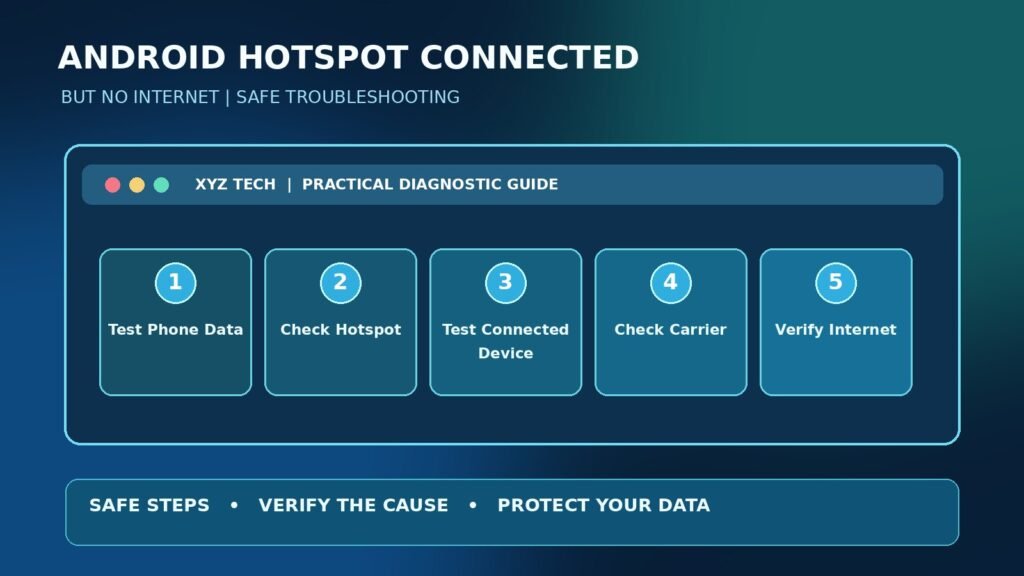

This research-backed, step-by-step diagnostic guide explains what the symptom means, how to separate likely causes, and which changes are safe to test. The illustrations are conceptual; they are not captured screenshots from your device.
Understand What Connected Without Internet Means
A device can join the Wi-Fi network created by an Android hotspot and still be unable to open a website. Joining the hotspot proves that the short-range wireless link and authentication worked; it does not prove that the phone has working mobile data to share. A local Wi-Fi connection and a usable internet connection are different stages of the network path. Google documents this distinction in its Android Hotspot And Tethering Guide.
Rather than immediately resetting everything, divide the path into four parts: the phone’s cellular connection, the hotspot service, the client device’s network settings, and the destination website or application. A failure at any stage can resemble the same symptom. The tests below isolate each part without deleting user data, bypassing carrier restrictions, or weakening the hotspot password.
First Test Mobile Data On The Phone Itself
Switch off Wi-Fi on the phone temporarily, leave mobile data enabled, and open an ordinary website using the phone’s browser. If the page cannot load, investigate the phone’s cellular data connection before troubleshooting a laptop connected to the hotspot. A hotspot cannot share an internet connection that the phone does not have. Test more than one reputable site in case a particular service is unavailable, and avoid using sensitive account pages for the initial diagnosis.
If the phone itself has no cellular internet, review network signal, the active SIM or eSIM line, mobile-data allowance, roaming status and operator service. Our Android Mobile Data Troubleshooting Guide addresses that upstream failure in detail. If the phone loads websites normally over cellular while connected clients cannot, proceed to the hotspot and client checks below. Record this result because it is the most useful early distinction.
Confirm That The Hotspot Is Sharing The Intended Connection
Some Android phones can share a Wi-Fi connection, while others share mobile data or switch off Wi-Fi when hotspot mode activates. Support depends on hardware, operating-system version and manufacturer configuration. For an unambiguous test, use cellular data as the upstream connection when your plan allows it, and confirm that the phone itself can browse with its Wi-Fi disabled. Google’s Pixel Hotspot Instructions explain device-specific tethering behavior.
Do not assume that the Wi-Fi symbol on the phone means the hotspot is using cellular data. A phone connected to a hotel or office Wi-Fi network may be subject to its captive portal, policy, or sharing restrictions. If the phone is not permitted to redistribute that network, the appropriate response is to use an authorized connection rather than trying to work around the restriction.
Check The Carrier Plan And Hotspot Entitlement
A mobile subscription can allow data on the phone yet restrict or meter tethering differently. Some carriers impose hotspot-specific allowances, speed limits, provisioning requirements or roaming conditions. Check the account information in the carrier’s official application or website before changing advanced Android settings. Google’s Android hotspot help specifically notes that carriers can limit or charge extra for tethering.
If you recently changed a plan, received a new SIM, transferred an eSIM or traveled abroad, ask the provider to confirm hotspot entitlement on the active line. A successful Wi-Fi association does not mean the carrier approved the upstream data session. Avoid attempting to bypass subscription rules with unofficial applications or altered device configurations. A carrier support case is safer and more likely to address a genuine entitlement problem.
Verify Which SIM Or eSIM Carries Mobile Data
Dual-SIM Android devices often let you choose a preferred line for calls and a different one for mobile data. A hotspot may use the current data line, which can have no active data subscription even when the other SIM shows signal. Open your phone’s SIM manager or cellular settings, confirm the line selected for mobile data, and test it directly using the browser.
If the SIM is missing or unrecognized, solve that first rather than resetting the hotspot. Our Android SIM Card Not Detected Guide separates card recognition from carrier service. Do not delete a working eSIM profile during these checks, because reactivation may require a new carrier authorization or QR code. Keep account recovery methods accessible while investigating.
Distinguish A Data Cap From A Wi-Fi Failure
A prepaid data bundle can expire, a monthly allowance may run out, or a roaming limit may block additional traffic. Some devices continue displaying a connected hotspot network even after cellular data stops flowing. Compare the carrier’s remaining allowance with the phone’s own cellular browser test and the timing of the failure. A data counter in Android is an estimate and might not match the provider’s billing system.
Do not buy a new router or perform an Android factory reset to address an exhausted subscription. If a carrier applies a fair-use policy, ask about the actual restrictions and available legitimate options. Confirm whether mobile data is working for ordinary applications before concluding that the tethering feature is defective. Maintain a clear record of the plan, time and exact client symptoms.
Restart The Hotspot Service Once
After confirming the phone’s cellular internet works, turn the hotspot off in the phone’s Settings, wait briefly and turn it back on. Reconnect the client using the current network name and password. A controlled restart can refresh a temporary Wi-Fi sharing state without removing saved photos, contacts or application data. Manufacturer menus may be named Hotspot And Tethering, Mobile Hotspot, Personal Hotspot or Connections.
If the hotspot returns to normal, record whether the issue began after sleep, a phone update, low power or a VPN connection. Repeatedly toggling the service every few minutes without tracking the pattern is not diagnosis. Some phones automatically stop the hotspot when no clients are connected, which is documented in Google’s Android Hotspot Help. Check that behavior before calling it a fault.
Check The Hotspot Password And Security Mode
If a client cannot connect at all, verify the hotspot password, selected network name and supported security mode. If it connects but lacks internet, the password itself was likely accepted; investigate other layers. Avoid disabling hotspot authentication to simplify the test, especially in a public location where strangers could consume data or access a connected device.
Use a unique strong passphrase and the strongest mode supported by both the phone and client, commonly WPA2 or WPA3 depending on hardware. Older devices may have compatibility limits; consult manufacturer instructions rather than weakening security indiscriminately. If you change the password, forget the old client network entry and reconnect through the normal Wi-Fi menu to avoid stale credentials.
Forget The Network And Rejoin On The Client
A laptop or tablet can retain an outdated network profile after the hotspot name, password or security configuration changes. On the connected device, select the phone’s hotspot network, choose Forget, and then reconnect using the verified details. This changes the saved Wi-Fi association but does not remove the phone’s data or modify the carrier subscription.
On a Windows laptop, examine Settings > Network & Internet > Wi-Fi > Manage Known Networks; wording varies by Windows version. On another Android device, open the Wi-Fi network details and use Forget if present. Our Android Wi-Fi Connection Guide covers the specific case where a client phone struggles to join a network. Confirm whether a fresh association solves the problem before adjusting IP addresses or DNS manually.
Test With A Second Authorized Client
Connect a second phone, tablet or computer that you control to the hotspot. If both clients join the network but neither gets internet, focus on the hotspot phone, its mobile-data link or the carrier. If only one client fails, focus on that client’s Wi-Fi profile, VPN, DNS, proxy, firewall or operating-system configuration.
Use the same simple browser test on both clients and record the result. Avoid borrowing an untrusted device or sharing the hotspot password in a public chat. A comparison is especially useful because an IP configuration problem on one laptop can mimic an Android hotspot failure. The goal is to reduce possibilities with evidence, not make several risky changes at once.
Compare Hotspot 2.4 GHz And 5 GHz Bands
Some Android hotspots support both 2.4 GHz and 5 GHz, and some newer phones offer other configurations. Older laptops and smart devices may not support every band or security option. A client that connects intermittently or has an unstable wireless link can perform better using a compatible band. The preferred choice depends on range, interference, device support and the hotspot phone.
Test one band at a time from a consistent distance and record whether the connected client can load websites. Do not assume that changing the band increases your mobile-data plan speed or repairs an ISP outage. Our Wi-Fi Versus Ethernet Troubleshooting discusses wireless performance factors more generally. When a client shows strong Wi-Fi but has no upstream internet, first revisit cellular-data and carrier checks.
Avoid Confusing Signal Bars With Internet Access
The Wi-Fi icon on a connected laptop generally represents its wireless link to the nearby phone, not the strength of the phone’s cellular connection to a mobile tower. You can have excellent hotspot signal across a desk while the phone itself has weak mobile reception or no data service. Check the phone’s cellular signal, network type and mobile-data browser test separately.
If mobile reception improves near a window while the client remains beside the phone, the upstream cellular link may be the bottleneck. Conversely, if the phone’s browser is fast but clients slow dramatically as they move away, the local Wi-Fi link may be weak. Compare the two paths instead of interpreting all signal indicators as one network.
Check Battery Saver And Automatic Hotspot Shutdown
Power-saving settings may restrict background activity, and phones can turn off a hotspot when no device is connected. Some manufacturers implement aggressive battery management that affects tethering. Check the built-in hotspot timeout and power-saving options, then test while the phone is sufficiently charged and not overheated. Follow the device’s documentation rather than disabling all battery protections.
If the hotspot turns off only when idle, this may be an expected behavior. If the network stays visible but internet stops during long sessions, record the time, battery level and whether power saving activated. A phone that repeatedly overheats may need cooling and safe placement before further tests. Avoid placing it under bedding or in direct sunlight while using cellular data and Wi-Fi.
Identify VPN Interference On Either Device
An active VPN on the phone or connected laptop can change routing, DNS resolution or security policy. Some VPN providers permit hotspot sharing, while other configurations do not forward tethered clients through the tunnel as expected. Check the provider’s official documentation and whether the device is managed by an employer. Do not disable a mandatory organizational VPN to defeat its information-handling policy.
On a personal device, compare normal browser access with and without an optional VPN only when authorized. If one arrangement works and the other fails, record the VPN client version and settings for support. A VPN is not the automatic cause of every hotspot problem; it is one part of the client-versus-phone diagnostic decision.
Check DNS Without Assuming It Explains Everything
DNS translates website names into network addresses. When the client can reach an existing connection but cannot resolve new names, a DNS problem is plausible. If all traffic fails or the phone itself has no cellular data, changing DNS is unlikely to solve the root problem. Examine whether multiple reputable websites fail, and whether an application that uses an already established connection behaves differently.
As explained in Google’s Network Settings Guide, on Android a manually configured Private DNS provider may be unavailable in the current network conditions. Check the existing setting before changing it and remember the original value. Our DNS Troubleshooting Guide explains name-resolution failures on Windows. Avoid copying random public DNS addresses without considering privacy, carrier controls and network policy.
Look For A Custom Proxy Or Managed Profile
A laptop with a leftover proxy from school or work may connect to the hotspot but be unable to browse because the proxy address is not reachable on cellular data. Check the client’s proxy settings and any device-management policies. If the computer is managed, ask its administrator before changing configuration. Removing a corporate proxy can break legitimate access or violate policy.
If the device is personal and a proxy was configured for an old network, record its current details and follow the operating system’s supported procedure to disable an unneeded setting. Test afterwards, then restore the configuration if it was not the cause. A proxy problem is more likely when other hotspot clients work correctly.
Use Windows Network Status As A Client-Side Clue
A Windows laptop may display Connected, no internet even though it has a valid Wi-Fi association with an Android phone. Open Windows network settings and inspect the connection, IP address and default gateway. The address should be supplied by the hotspot in normal automatic configurations. If the laptop has a manually configured static IP from another network, it may not communicate correctly with the hotspot.
Unless you know that a special static configuration is required, use the device’s approved automatic IP and DNS settings. Do not edit the router-style gateway information by guessing a number. Our Default Gateway Explained describes why the next-hop address matters. If another laptop works on the same hotspot, compare the general configuration categories without exposing private device identifiers.
Check Another Android Client Separately
When a second Android phone joins the hotspot but cannot browse, check whether its own mobile data is being preferred over Wi-Fi due to connectivity switching, VPN settings or network validation behavior. Confirm the client really uses the hotspot network. Manufacturers may offer options to automatically change to mobile data when Wi-Fi internet is unavailable; those settings vary.
Use the client’s Wi-Fi network details to confirm its connection. Test a benign website and then compare with another device. Do not reset both Android phones simultaneously, because doing so removes the evidence that could identify which one is responsible. The hotspot phone and client phone have different roles in the network path.
| Observation | Likely Investigation | Safe Next Step |
|---|---|---|
| Phone Cannot Browse On Mobile Data | Cellular Connection Or Allowance | Check SIM, Data Plan And Signal |
| Phone Browses, No Hotspot Clients Work | Hotspot Service Or Carrier Entitlement | Inspect Sharing Settings And Contact Carrier |
| Only One Client Has No Internet | Client DNS, Proxy, VPN Or IP Settings | Forget Network And Compare Another Client |
| USB Tether Works, Wi-Fi Does Not | Wireless Band Or Association | Check Band, Password And Router-Style Settings |
| Only One App Fails | Application Or Private Service | Check App Status And Authorized Access |
Understand Hotspot Restrictions At Hotels And Offices
If you are attempting to share a hotel or workplace Wi-Fi connection rather than the phone’s mobile data, the original network may limit device registration or redistribution. Captive portals can require individual sign-in and organizational networks can prohibit tethering. The hotspot still may broadcast its own Wi-Fi name while upstream access is unavailable or restricted.
Use the approved guest-access procedure or a legitimate mobile-data subscription. Do not attempt to bypass a captive portal, spoof network identities or defeat organization rules. Confirm from the phone itself whether its upstream connection is allowed to open ordinary websites. This avoids misdiagnosing a policy restriction as a damaged handset.
Use USB Tethering As A Controlled Comparison
When a Windows laptop and Android phone support USB tethering, a known-good data cable can provide an alternate link and help isolate whether the Wi-Fi hotspot radio is the problem. Enable USB tethering only according to the phone’s instructions and confirm that the computer recognizes the connection. Do not assume every USB cable supports data; some are charging-only.
Google notes platform limitations for certain tethering modes, including USB tethering to Macs. Our Android USB Tethering Troubleshooting has a separate diagnostic sequence. If USB sharing works while Wi-Fi sharing fails, investigate wireless settings and client association. If neither works while mobile browsing succeeds, examine entitlement and the phone’s tethering configuration.
Why Bluetooth Tethering Is Not A Speed Benchmark
Bluetooth tethering is available on some Android phones and client devices, but it generally behaves differently from Wi-Fi hotspot sharing and may be slower. It can be useful as a limited connectivity test when both devices support it, not as proof that a modern cellular plan should deliver a particular throughput. Follow the platform’s supported pairing procedure and keep the phone in range.
If Bluetooth tethering works but Wi-Fi sharing does not, focus on the local Wi-Fi band, hotspot association or client settings. If none of the approved sharing modes works, contact the carrier after confirming mobile data and account allowances. Do not install software that claims to unlock undocumented tethering features.
Review APN Settings Only With Carrier Instructions
Access Point Name settings affect how an Android device connects to certain mobile-data services. A misconfigured APN can disrupt cellular data and sometimes tethering, but entering random values can introduce new problems. If the phone itself cannot browse, or if a carrier specifically identifies an APN issue, obtain values directly from the provider’s official documentation.
Do not use an arbitrary internet APN list to bypass a tethering restriction. Save the existing configuration before any authorized change. If mobile data on the phone works but every tethering mode fails, the carrier can check account provisioning and permitted hotspot features more reliably than a general-purpose tutorial.
Consider Software Updates Without Using Unofficial Firmware
Official Android and manufacturer updates can fix connectivity or hotspot reliability defects. Check the device’s supported update settings, charge it appropriately and preserve important data before a major software upgrade. Read release notes if available and avoid flashing unverified modem firmware. A phone running modified software may have connectivity differences that require its own vendor support.
Updating a laptop or tablet client through its official settings can also resolve a driver issue. Change one component at a time whenever practical so you can tell whether the issue improved. A software update is not proof that a carrier has enabled tethering or that the mobile network has sufficient signal.
Treat Overheating As A Safety Problem First
Hotspot use can keep the mobile radio and Wi-Fi hardware busy while charging, especially in poor signal areas. Excessive heat can affect performance or trigger protective behavior. If the phone becomes unusually hot, disconnect the client, stop intensive use and let the device cool in a ventilated space in accordance with its manufacturer instructions.
Do not place a hot phone in a refrigerator, expose it to water or cover it with fabric to hide the light. A hot or swollen battery may require professional support and should not be treated as a routine internet-speed issue. If performance returns only after cooling, note that correlation for the manufacturer.
When To Use A Network Settings Reset
Only consider a network settings reset after checking the phone’s cellular data, carrier entitlement, hotspot settings and client configuration. On Android the wording and effect differ by manufacturer: some reset Wi-Fi and Bluetooth associations, mobile network preferences or other stored connection settings. Inspect the exact confirmation screen and save necessary passwords and paired-device information first.
A reset cannot replace a data allowance or repair physical radio damage. Do not select Erase All Data or Factory Reset while attempting an ordinary network reset. For enterprise-managed phones, involve IT. The goal is to avoid damaging otherwise working settings for an issue that may be specific to one laptop or the mobile provider.
Avoid A Factory Reset Without A Recovery Plan
A factory reset can remove local files, applications, authentication sessions and device settings. It is rarely an appropriate first response when a client has successfully joined a hotspot but cannot browse. Before considering one on a personal device, verify reliable backups, account recovery methods and the status of eSIM profiles. Some reset choices have consequences for digital SIM activation.
Our Android App Compatibility Guide illustrates why broad resets do not solve every eligibility or configuration condition. If the carrier reports a known network incident or a data-plan restriction, a factory reset will not change that. Ask the device maker for a model-specific escalation path when safer steps fail.
Test When Only One Application Fails
An application can fail due to its own server outage, authentication token, regional restriction or background-data policy even when the hotspot provides working internet. Check ordinary browsing on the affected laptop and try a second reputable service. If several applications work but one does not, do not assume the entire hotspot is broken.
Review that application’s error text, support status and account eligibility. If the app was designed for a private corporate network, a personal mobile hotspot may not reach the required internal resources. Use the organization’s approved remote-access procedure rather than weakening firewall rules or sharing credentials.
Build A Simple Diagnostic Evidence Table
Keep a short log with the date, phone model, Android release, carrier, mobile-data result on the phone, number of hotspot clients, and whether a laptop can reach a normal website. Include whether the problem occurs only after sleep, during roaming or after a particular application starts. A few reproducible tests are more useful than a folder of unrelated screenshots.
Do not publish your hotspot password, SIM identifiers, account PIN or precise personal location. The sample table below helps separate upstream, wireless and client-side failures. It is a troubleshooting aid rather than a prediction of the exact cause in every hardware combination.
When To Contact Your Carrier Or Phone Manufacturer
Contact the carrier when the phone has working mobile internet but tethering repeatedly fails on multiple authorized clients, particularly after a plan change, SIM replacement or roaming. Ask whether tethering is enabled and whether there is a hotspot-specific limit. Share the time and broad diagnostic results rather than passwords or payment details.
Contact the manufacturer when the phone cannot maintain a hotspot on any supported client despite a confirmed enabled data service and official updates. Provide the exact model, Android build, hotspot band and symptoms. If an authorized client alone fails, contact that client’s support provider instead. Routing the case to the correct owner usually saves time.
Verify That Internet Access Is Really Restored
After an apparent fix, confirm the phone can browse using mobile data, the client connects to the named hotspot, ordinary websites load, and an appropriate app can transfer a small amount of data. Repeat after the client sleeps and reconnects if the failure was intermittent. Check the data allowance before lengthy speed tests so the test itself does not consume an expensive plan.
Restore any legitimate security settings temporarily changed for diagnosis, including VPNs and device-management policies. Keep a unique hotspot password and do not leave public tethering enabled unnecessarily. A good resolution is a stable connection within your subscription rules, not merely a Wi-Fi icon that says Connected.
Frequently Asked Questions
Why Does My Android Hotspot Say Connected Without Internet?
The local Wi-Fi connection may work while the phone lacks mobile data, the carrier limits tethering, or the connected client has a DNS, VPN or network setting problem.
How Can I Tell Whether My Carrier Is Blocking Tethering?
Verify that mobile data works on the phone and test more than one authorized hotspot client. Then ask your carrier about hotspot eligibility and data limits.
Should I Turn Off Wi-Fi On My Phone?
For a controlled cellular-sharing test, disabling Wi-Fi can confirm the phone uses mobile data. Some models support Wi-Fi sharing, so follow your device documentation.
Will Changing The Hotspot Band Restore Internet?
It can help an incompatible or unstable wireless connection, but it cannot repair an exhausted data plan or unavailable mobile-data service.
Does Strong Wi-Fi Signal Mean The Hotspot Has Internet?
No. It mainly indicates the connection between client and phone. The phone’s cellular link is a separate connection.
Can A VPN Cause A Hotspot To Stop Working?
Some VPN configurations affect routing or DNS. Test only when authorized and follow employer rules on managed devices.
Should I Reset My APN Settings?
Only when the carrier identifies an APN issue or provides official values. Random APN changes can disrupt otherwise working mobile data.
Can I Use USB Tethering To Test The Problem?
On a compatible Windows PC and Android phone, a data-capable USB connection can help distinguish wireless hotspot issues. Platform support varies.
Will A Factory Reset Fix Connected Without Internet?
It is not a sensible first step and may erase data. Test cellular data, entitlement and client settings before considering a reset.
What Should I Report To The Carrier?
Provide your plan type, approximate failure time, mobile-data test result and whether multiple devices are affected, without sharing passwords or account secrets.


