
This guide follows Microsoft printer management documentation and focuses on making a deliberate default choice without deleting working printer configurations.
Why Your Default Printer Keeps Changing
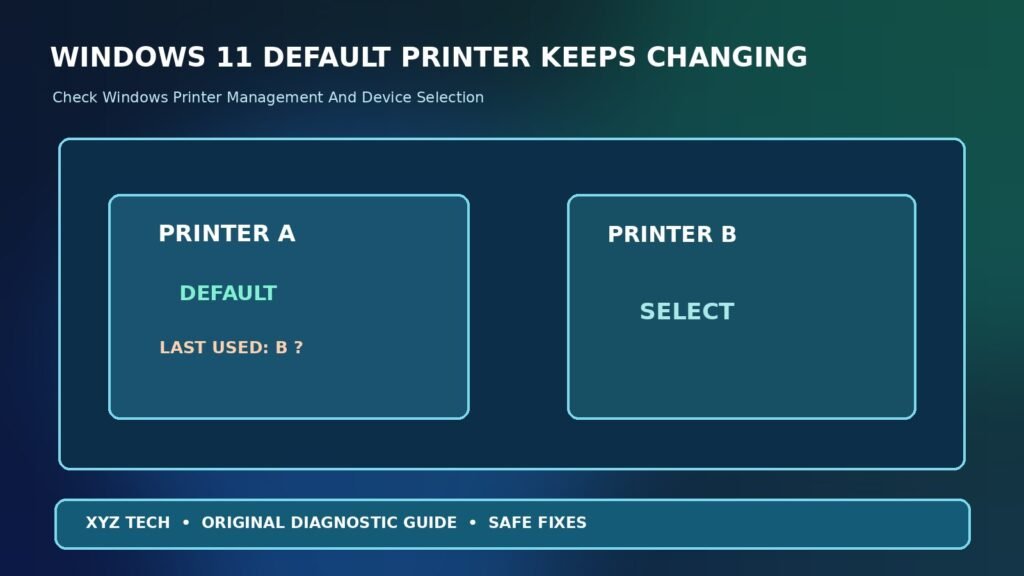
Windows 11 can manage the default printer automatically according to the most recently used destination. That feature is helpful when someone moves between home and office, but it can be frustrating if the computer suddenly sends jobs to a PDF printer or a device in another room. Microsoft’s default printer instructions explain the management option and how to set a specific printer. The important distinction is between Windows changing the system default and an individual application remembering a different printer. Both can look identical when a document opens a print dialog. First determine where the selected destination changes, then adjust only the relevant setting rather than removing every printer queue.
Find The Default Printer In Windows 11
Open Start > Settings > Bluetooth & devices > Printers & scanners and inspect the listed devices. Select the printer you want to use regularly and note its full name. A physical printer might have several entries for different connection methods, while Microsoft Print to PDF and other virtual destinations are legitimate separate devices. Do not assume that the first entry in the list is the intended default. If the settings page is unavailable, verify that the device is managed and use the supported troubleshooting route. Our Printer Offline On Windows 11 guide explains why a connected printer can appear offline even when a queue is listed. A visible printer does not prove that it is reachable or functioning.
Understand Let Windows Manage My Default Printer
When the setting named Let Windows manage my default printer is turned on, Windows can change which printer is designated as the default based on recent use. Microsoft’s support page describes this behavior, including changes associated with location on mobile computers. This is a designed feature, not automatically a malware problem or a corrupted registry. If you always want one device, turn the option off using the supported Settings interface. If you move between offices and benefit from automatic selection, leave it on and understand why a destination may change. Record its original state before modifying anything. A default printer choice only affects how Windows suggests a destination; an application may still expose its own selection choices.
Set A Specific Printer As Default
With automatic default management disabled, select the intended printer under Printers & scanners and choose Set as default when the control is available. The user interface may vary slightly across Windows 11 builds, but Microsoft’s official instructions are the authoritative reference. Confirm the expected printer name before applying the selection, particularly when two devices have similar model numbers. Avoid selecting Microsoft Print to PDF unintentionally unless you actually want PDF files. Then open a harmless document in a trusted application and inspect the print destination. A successful selection proves the configuration changed, but actual printing still depends on device connectivity, driver compatibility and the current queue state.
Why The Set As Default Button May Not Appear
The default-printer management option can affect whether Windows offers the Set as default control. Microsoft’s printer troubleshooting guide notes this relationship. If the button is missing, inspect the automatic management setting first rather than reinstalling the printer. On an organization-managed device, page controls or printer preferences may also be restricted intentionally. Check whether an administrator banner appears and ask IT what the approved printer policy is. Do not attempt to take ownership of printer registry keys or override management to reveal a button. A restricted interface and an unreachable printer are different problems, so keep a record of which condition you actually see.
Distinguish System Defaults From Application Defaults
Some applications remember the last printer used for that specific program, document or user session. For example, one PDF viewer might reopen with Save as PDF even when Windows’ system default points to a physical printer. Test in two trusted applications and inspect the current destination before starting a print job. If one app consistently selects a different printer, review its print preferences rather than changing Windows globally. Avoid printing confidential documents merely for a test. A short nonsensitive one-page file is sufficient. If the system preference stays correct but only a program differs, that is evidence that the program’s own behavior is involved. Seek the app developer’s instructions for permanently selecting or remembering a printer where supported.
Check Whether The Printer Is Online And Available
Windows may list a printer that is disconnected, powered off, out of range or waiting on an inaccessible network. An offline device can make the user choose another printer temporarily, which may then become the last-used default when automatic management is enabled. Confirm the printer has power and is connected through its intended USB or network path. For network printers, check the manufacturer’s status page or a supported printer connection tool rather than blindly resetting router settings. Our Printer Offline Troubleshooting Guide distinguishes a device availability problem from the default-printer preference. A default choice does not itself repair a jam, paper shortage or lost connection.
Watch For Similar Printer Names And Duplicate Entries
A printer may appear more than once because it was installed through different ports, protocols or software. Before deleting anything, inspect whether each entry refers to a local USB queue, a network address, a shared printer or a vendor-specific device instance. Some entries might serve a legitimate scanning or virtual-print workflow. Write down the actual device model and connection method. A duplicate name can cause confusion when selecting the default, but its presence is not proof that every entry is broken. If an outdated queue is confirmed unnecessary, remove it through supported Windows controls only after checking whether documents remain pending. Don’t delete a shared office queue without permission, because other users or applications might depend on it.
Test A Printer From Two Applications
After selecting the default, open a basic text document and verify the print dialog shows the intended printer. Then test a second supported application, such as a PDF reader. If both choose the correct device, the system preference is probably being honored. If only one differs, investigate that application’s saved settings or document options. If neither can print, the issue may involve the printer service, driver or connection rather than the default alone. Print a harmless test page only when the device is available and it will not expose sensitive data in a shared tray. A controlled comparison prevents repeated configuration changes based on one app’s sticky print preference.
Understand Network Printers And Location Changes
Laptops often connect to a printer at home and another at an office, school or coworking space. When automatic default management is on, Windows may select the last printer used under the relevant conditions. Microsoft’s documentation describes how location can influence the default on mobile devices. If the wrong office printer reappears after travel, confirm the active network and whether automatic management is enabled. Do not delete the home printer from your device simply because its entry appears while you are away. A disconnected printer and a selected default are distinct facts. On an enterprise network, administrators may distribute printers through policy, so changes to availability should be coordinated with IT.
Check Windows And Printer Driver Updates Safely
A supported driver update may correct printer detection or a queue that stops working after a Windows version change. Microsoft’s printer driver compatibility guidance recommends using official installation methods. But a driver update is not the first fix for intentional automatic default switching. Confirm the problem category before touching drivers. If a print queue displays a genuine driver error, use Windows Update or the hardware manufacturer’s verified support channel for a model-specific package. Avoid bundled drivers from third-party download sites and tools that promise to repair all printers instantly. Record the current driver version and system build before a change so that you can interpret the result.
When The Printer Driver Is Reported Unavailable
An error that says Driver unavailable is different from a default that changes after each job. The queue might be using an unsupported or missing package even though its name appears in Settings. Consult Microsoft’s official driver process and the manufacturer’s Windows 11 support details. Our Printer Driver Unavailable Guide explains that symptom in more depth. Do not remove every printer just because one driver is incompatible. A local USB queue and a shared print server may use different deployment methods. For corporate hardware, let the administrator choose the approved package and installation policy. Restoring a correct driver helps the device work but does not automatically choose it as the default.
Check Print Spooler Only For A Service Symptom
The Windows Print Spooler manages printing operations and queues. If jobs stall, printer dialogs fail to populate or the spooler crashes, service-level troubleshooting may be warranted. However, a normal printer default that moves from A to B after each successful job usually points first to automatic management, not a broken spooler. Avoid stopping the spooler or deleting queued documents merely to change the default. Our Print Spooler Keeps Stopping Guide covers the separate service failure. If a job is confidential or important, examine the queue before canceling anything. Use the official Get Help printer troubleshooter for an actual device or spooler problem rather than broad service resets.
Check For Virtual PDF Printers
Microsoft Print to PDF, Save as PDF features and third-party document software can add print destinations that do not produce paper. A PDF writer might become the last-used destination if you regularly save documents that way. When Windows manages the default, it can become the suggested system printer. Decide whether your primary workflow is physical printing or PDF creation, and choose the intended default accordingly. Some apps have an in-app PDF export command that does not alter the default printer. Verify output locations before sharing or deleting generated files. A virtual printer appearing in the list is not necessarily malware or an installation error. Avoid uninstalling a PDF tool solely because Windows selected it after your last task.
Why A Network Change Can Make Printing Confusing
A laptop moving from one Wi-Fi network to another may retain printer entries that are unreachable in the new environment. The printer list can still show those entries, and an app may continue suggesting one from the previous location. Check whether the printer is actually available on the current network or through an authorized print server. Do not disable firewall protection or make a network public simply to expose a printer. Our Shared Folder Troubleshooting Guide covers a related network-access principle: local resources and authenticated network shares require correct connectivity and permissions. The appropriate next step may be reconnecting to the right network, not altering the default preference again.
Consider Remote Desktop Printer Redirection
A Remote Desktop session may expose local printers to the remote environment through permitted redirection features. Those printer entries can appear with names that differ from the physical device and may not persist across sessions. If the default changes only after entering a remote workspace, determine whether you are examining the remote computer’s default printer or your local PC’s setting. Do not assume they are identical. An organization may control redirected printers and available queues. Follow the Remote Desktop client’s official resource-redirection guidance and ask IT about the intended workflow. If your problem involves clipboard redirection rather than printing, our Remote Desktop Clipboard Guide illustrates why different redirected resources need separate diagnosis.
Managed Printer Policy In Offices And Schools
Organizations can install network printers automatically and enforce preferred or required destinations. A user who repeatedly changes a default might see it restored at sign-in or during management refresh. This is not automatically a Windows defect. Check for work or school account management and ask the support team which settings users are allowed to change. Do not create unauthorized administrator accounts or edit policy keys to defeat a printer rule. If an enforced destination is wrong for your department, IT can update the deployment. Provide the actual printer names, location and times when the default changes. A clear report helps distinguish a policy conflict from a roaming laptop’s normal last-used printer behavior.
Look For Print Dialog Settings That Persist Per Document
Some document formats and applications preserve printing choices, page layout, output scale or previous destination information. Reopening a particular document may therefore choose a different printer despite the correct Windows default. Compare a new blank document with the problematic file to establish whether document-specific state is involved. Avoid changing paper size, page range or duplex settings in a way that wastes paper during repeated tests. If the app has a documented reset of print preferences, review its consequences before applying it. A system-wide printer removal is disproportionate when only one document keeps selecting a remembered queue. Keep the diagnosis focused on reproducible behavior rather than one surprising name in a dialog.
Verify The Right Printer Port And Connection
For advanced diagnostics, a queue may have the wrong port or point to an old IP address, especially after a router change. Those settings influence whether a job reaches the hardware, not the conceptual default selection itself. Review the actual device’s connection information through supported Windows or vendor tools when you have permission. Do not change ports blindly on a shared printer, because other users could lose printing. If a valid default is unable to print, fix connectivity before selecting another queue permanently. Keep a record of current settings and consult the administrator if the printer belongs to a workplace. A known-good USB test can sometimes separate a network problem from the printer hardware, where the manufacturer supports it.
A Safe Restart And Retest Sequence
If the correct default has been selected and automatic management disabled, restart the computer normally once after saving work. Reopen Settings and verify that the default remains the intended device. Then print a harmless one-page document or use a supported test page, and check the selection in a second application. A stable result across the normal restart is stronger evidence than a button appearing to be selected only once. If the default changes again, record which program was used immediately beforehand, whether a remote session or network transition occurred, and whether the device is managed. Do not repeat registry edits or spooler resets without new evidence.
Avoid Aggressive Registry And Printer Cleanup Scripts
Online advice may recommend deleting printer registry entries, removing the entire driver store or stopping several Windows services to force a preferred default. Those procedures can damage printing and affect other users, especially on shared machines. Start with Microsoft’s supported Windows management option and app-level testing. A third-party optimizer may also change settings, but that should be investigated through its official controls rather than adding another unknown repair utility. If an advanced repair is genuinely required, back up configuration and follow the printer vendor or Microsoft support sequence for the exact Windows version. Do not trade a minor preference annoyance for broken document output or weakened system security.
A Troubleshooting Decision Table
Match the symptom to the least disruptive check. If the default changes after each successful job, inspect automatic Windows management. If only one application changes destinations, inspect that application’s print dialog and remembered settings. If the queue is offline, check the printer connection and driver. If duplicate entries confuse selection, identify their ports and purpose before removal. If the computer is managed, consult the organization’s printer policy. The comparison table below summarizes these paths. Remember that the printer designated as default can still be unavailable, and an available printer can still fail for unrelated paper, queue or hardware reasons. Verify each separate condition with a safe test.
| Observed Situation | First Safe Check | Avoid |
|---|---|---|
| Last-Used Printer Becomes Default | Review Windows Manage Default Printer | Deleting Printers Immediately |
| Only One App Picks Another Printer | Check That App’s Print Dialog | Changing System Policy |
| Multiple Similar Printer Names | Inspect Device And Port Identity | Removing Unknown Queues |
| Workplace Printer Is Forced | Ask IT About Printer Policy | Overriding Management |
| Printer Frequently Offline | Check Connection And Driver | Resetting Whole PC |
Confirm The Printer Remains Correct
The final check is practical: Settings identifies the intended default, at least two trusted applications suggest it appropriately, and a permitted test job reaches the expected device. If you travel, repeat the check after a normal network change to confirm that your preference behaves as intended. Make sure virtual PDF printers remain available when needed and that security or workplace policies have not been broken. Keep a short note of the Windows version and the management option you changed. If the default returns unexpectedly, provide this information to support rather than repeatedly reinstalling printers. A reliable default is one that survives ordinary work and restarts without compromising other printing functions.
Frequently Asked Questions
Why Does Windows 11 Change My Default Printer?
With Let Windows manage my default printer enabled, Windows can use the last printer used as the default, including location-related changes on mobile devices.
How Do I Keep One Printer As The Default?
Turn off the automatic management option in Printers & scanners, choose the intended printer and select Set as default.
Why Is Set As Default Missing?
The Windows management option may be enabled, or policies and UI differences may affect the available controls.
Can An Application Ignore My Windows Default Printer?
An app may retain its own recent printer selection or document-specific print settings. Check its print dialog separately.
Will Restarting Print Spooler Fix Default Printer Changes?
Not usually when the automatic default setting is responsible. Spooler repair is relevant to service or queue failures.
Should I Delete Duplicate Printer Entries?
Inspect their ports and purpose first. Some represent legitimate drivers, virtual destinations or separate connections.
Can My Workplace Set A Printer For Me?
Yes. Managed printer policies can control defaults. Ask IT rather than attempting to bypass them.
Why Does My Printer Switch When I Change Locations?
Windows can use location-related last-used printer behavior when automatic default management is enabled.
Does Reinstalling A Driver Always Solve This?
No. If Windows is intentionally managing the default, driver reinstalls do not address that setting.
How Do I Verify The Fix?
Print a harmless test document, close and reopen the app, and check the selected default after a normal restart.


