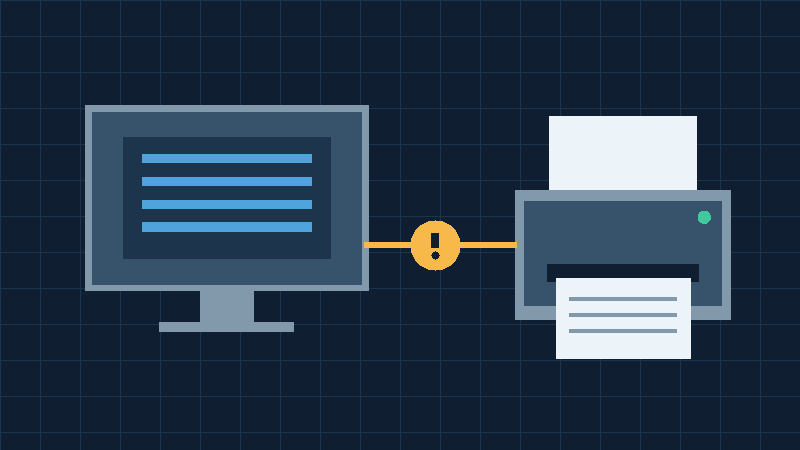

Identify The Driver Unavailable Error
A printer driver unavailable error in Windows 11 means that the computer does not currently have a usable driver for the relevant printing arrangement. This can happen after setting up a printer, upgrading Windows, replacing a computer or installing an update. It can also appear while a printer remains listed in the system. That existing entry is not proof that Windows can prepare and send a valid print job.
Start by opening Printers & scanners in Windows Settings. Locate the printer that you actually intend to use. If there are several entries with similar names, inspect them individually rather than assuming they represent separate machines. A previous connection, a shared queue and a directly connected printer can all have similar names.
Write down the displayed error, the exact printer model, the Windows version and the connection method. Determine whether the printer has ever worked on this specific computer. A printer that worked yesterday after months of normal use calls for a different investigation from an older printer that has never been successfully installed on a new PC.
Distinguish the driver message from a paper jam, an empty supply warning or an offline status. A working driver cannot make a printer mechanically ready when a different fault prevents it from printing. Likewise, replacing toner does not provide Windows with compatible driver software. Our guide to printer offline problems in Windows 11 covers the separate communication and availability issue.
The objective is to recover a functional printing arrangement with the right driver while preserving any other printers that already work. Avoid deleting every installed printer or changing broad security settings just because one queue is unavailable.
Check The Printer Model And Windows Architecture
Printer model names sometimes differ by only a letter, a number or a suffix. A driver for a related product is not necessarily compatible with the actual machine. Examine the printer’s identification label or its information screen and note the full model designation. If you still have its setup guide, use it to confirm the correct product.
Next, open Settings, choose System, and select About. Record the Windows edition, version and system type. In particular, determine whether your computer uses an x64-based processor or an ARM-based processor. The application and driver requirements for these systems can differ even when both computers run Windows 11.
Do not assume that a printer driver from a previous PC will work on a new one. A package may depend on a different architecture, an older Windows release or a setup method that is no longer supported. Even a package that appears to install successfully may not supply every printer function.
Microsoft’s printer driver compatibility guidance describes how Windows version and compatible software relate to printing problems. Use the Windows information alongside the printer manufacturer’s requirements rather than relying on the age or appearance of the printer.
If the printer belongs to an employer, identify the approved queue or print service before downloading anything. The driver’s package and connection may be managed centrally. A personal installation could conflict with that arrangement or create a duplicate printer entry. Share the error and device details with the appropriate technical support team when you do not have authority to change the configuration.
Confirm That The Printer Is Powered On And Reachable
A driver repair and a connectivity repair are related but distinct tasks. First check the printer’s display and indicator lights. Ensure that it has finished starting and is ready for normal operation. Address any paper, consumable or mechanical warning according to the printer’s manual before drawing conclusions from a failed print attempt.
For a USB printer, inspect the cable and the connection at each end. Where practical, connect it directly to a compatible port on the computer rather than through an optional dock or hub. Try another suitable data cable or port if you have reason to suspect the original one. Never force a connector into an incompatible socket.
For a network printer, verify its connection using the printer’s control panel or approved management interface. Check whether the Windows computer is on the authorized network from which the printer is accessible. A guest network can isolate clients from one another, even when internet browsing works on both devices.
If another authorized computer can print successfully to the same machine, preserve that observation. It suggests that the printer can operate through at least one arrangement, although the affected computer might use a different queue or protocol.
Microsoft’s printer recognition troubleshooting guide explains common connection checks. Our USB device not recognized guide provides additional context when Windows does not detect a directly connected device at all. Establish ordinary recognition before repeatedly trying new drivers.
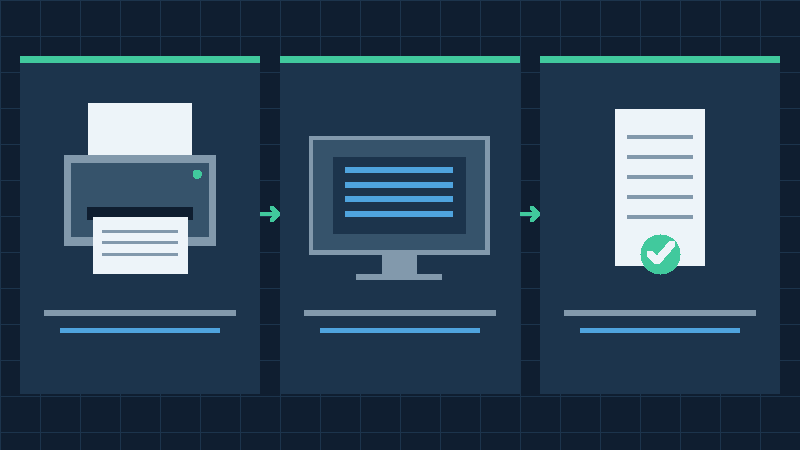
Run The Built-In Printer Troubleshooter
Windows provides an automated printer diagnostic through the Get Help application on supported Windows 11 installations. This is a useful early step because it can inspect common conditions without requiring you to search for unrelated driver packages.
Save unfinished work and confirm that the correct printer is available for testing. Open Get Help and search for printer troubleshooting, or use the available troubleshooting entry from Windows Settings. Follow the prompts and select the actual printer when the interface offers that choice.
Read the diagnostic results before deciding what to do next. If a suggested action changes a printer setting or restarts a service, consider whether other people are using the same equipment. In an office, obtain the necessary authorization instead of interrupting shared work.
A successful test after the troubleshooter completes is encouraging, but it is still useful to determine what changed. Inspect the printer’s status and print a harmless page from an ordinary application. If the same driver error returns after restarting the computer, record that as a persistent symptom.
An unsuccessful automated test does not establish that the printer is permanently incompatible. The troubleshooter may not have access to a manufacturer-specific package or the necessary organization-managed permissions. Its result should guide the next check rather than justify a complete reset of Windows.
Keep the error details for support. The distinction between a printer that cannot be detected, one with an unavailable driver and one whose jobs remain queued is important when deciding how to proceed.
Install A Compatible Driver Through Windows Update
Windows Update is a sensible starting point for obtaining compatible printer drivers. Microsoft recommends this route before searching for alternative packages. On a computer with an ordinary working internet connection, open Settings and inspect Windows Update for relevant available updates.
If your Windows version provides an optional updates area, inspect the available driver entries carefully. Select only a relevant printer update that matches the intended equipment. Do not install every available optional hardware package merely because a printer has stopped working. Preserve the original working versions of unrelated devices.
The update process may require a restart. Save your work, connect a portable computer to suitable power and let Windows finish applying the selected update. If an installation fails, record the error and consult the relevant update guidance rather than repeatedly interrupting a restart. Our Windows update troubleshooting guide covers a different condition in which an update appears unable to finish.
Return to Printers & scanners and inspect the affected printer. A supported built-in driver may be sufficient for ordinary printing, while additional manufacturer software may be needed for specialized settings or other functions. Do not mistake an unavailable scanning feature for failure of basic printing.
Microsoft’s driver installation documentation explains the recommended update sources and other supported installation methods. Our guide to finding Windows 11 drivers safely provides background on distinguishing trusted hardware software from questionable download sites.
Print a small test page after the update. If the printer still reports that its driver is unavailable, proceed to the manufacturer’s model-specific support resources rather than downloading an arbitrary similarly named package.
Download The Correct Driver From The Manufacturer
Identify the manufacturer’s official support website using documentation supplied with the printer or a trusted source. Search that website for the complete model designation. Select the Windows 11 driver or supported setup method intended for the computer’s architecture and the connection type you use.
Read the package description before downloading. Some manufacturers offer a basic print driver, a full-feature package, scanning software or a management application. You may only need the basic driver to restore printing. A larger application bundle is not automatically a better choice.
If the manufacturer supplies installation instructions, follow the correct order for connecting or disconnecting the printer. Certain USB setup programs expect the printer to be connected only when prompted. An installation performed in a different order may create a partial or duplicate device entry.
Avoid driver download portals that imitate official manufacturer pages. Do not accept an offer to install a universal driver updater, disable antivirus protection or run an unsigned executable in exchange for a supposed driver repair. Verify the source and publisher when Windows presents an installation confirmation.
A printer installation disc may contain outdated software even when the original disc is genuine. Compare its supported Windows versions with current manufacturer guidance. If a newer compatible package exists, the official download is generally more appropriate than an older disc.
Once the installation finishes, restart if required and select the intended queue from the application’s print dialog. Verify ordinary printing before testing advanced settings such as duplex output, trays or borderless printing. If Windows still cannot use the driver, preserve the package name and installation error for technical support.
Handle ARM-Based PCs And Built-In Printing Support
A Windows 11 PC that uses an ARM processor may encounter limitations when trying to install a package created for another architecture. An older printer setup utility may fail even though Windows can communicate with the printer through its built-in printing support.
Check the system type in Settings under System and About. If the device uses ARM, consult the printer manufacturer’s specific Windows on ARM guidance. Microsoft documents an installation limitation affecting some ARM PCs and recommends trying Windows’ built-in printer addition controls rather than relying on an incompatible manufacturer installer.
Open Printers & scanners, ensure the printer is connected and select Add device. Allow discovery to complete before choosing the appropriate printer. A modern network printer may be usable with the printing support included in Windows, even when an older vendor package cannot be installed.
Do not attempt to force an x64 driver into an ARM printing configuration by changing signing rules or downloading unofficial replacement files. A setup program that can be launched on the computer does not necessarily provide a compatible printing driver. Confirm support for the actual architecture.
On a compatible printer, built-in support can provide ordinary printing without installing the manufacturer’s full suite. Specialized features may still need supported software. Test the functions that matter to you individually rather than inferring full compatibility from a single successful page.
When a printer is genuinely unsupported by the computer or operating system, consider an approved alternate printing arrangement or a compatible replacement. Do not weaken the operating system’s security to make an unsupported legacy package appear to install.
Remove And Reinstall Only The Affected Printer
If the printer entry remains unusable after the relevant driver checks, removing that particular entry and adding the printer again may help Windows rebuild the printing arrangement. Record its model, connection type and any special queue settings before doing so.
For a home or personally managed PC, open Printers & scanners, select the affected printer and choose Remove. Confirm that you have selected the correct device. This removes the installed printer arrangement from Windows; it is not a command to erase the printer’s own network configuration.
A shared or specialized queue can require additional setup information and permission to reinstall. If you use a workplace printer, check with the print administrator first. Removing an approved queue without access to its installation method can leave you unable to restore it.
Restart the PC normally if appropriate. Connect or power on the intended printer and use Add device in Printers & scanners. Wait for discovery. Select the verified printer from the available entries and let Windows configure it. If discovery does not find the machine, use the supported manual addition procedure for the correct connection.
Microsoft’s printer installation guide explains the relevant wired and network setup choices. Inspect the installation result and look for any additional driver requirement.
Once the printer appears, print a small test page. Reapply only the special preferences you need, such as paper size or duplex printing. Avoid leaving several identically named test queues in place if you can confidently identify and remove only the unnecessary entries. A duplicate entry can make later print failures harder to understand.
Check Device Manager And Driver Rollback Options
Device Manager can provide useful evidence when a printer-related device is present but its installation is incomplete. Open it from Start and inspect the appropriate Printers or Print queues group if available. A multifunction printer can also expose additional devices for scanning or other operations.
Locate the entry associated with the exact printer and inspect its properties. Note the reported status and any error information. Do not uninstall unrelated USB controllers or every device that happens to contain the same manufacturer’s name.
If the device properties offer a supported driver update action, follow it for the relevant device. Windows may already have a suitable driver or may require the official package you obtained. Do not select a random driver for a different model to make a warning disappear.
When a previously working printer fails immediately after a particular driver update, a rollback option may be available in that device’s driver properties. Use it only if there is a clear reason to suspect the update and you have the necessary permission. A rollback is not available for every device and does not automatically repair unrelated connectivity problems.
Record the driver version and the timing of the original failure before changing it. After a supported rollback or update, restart when requested and repeat the same test page. If the error reappears, retain that evidence for the manufacturer.
Avoid deleting every package from the print server or driver store. Some installed drivers may support several working queues, and broad removal can disrupt other printers. Advanced driver management should be limited to a demonstrated conflict and performed with appropriate authorization.
Investigate A Stalled Print Queue And Print Spooler
A functioning driver can still be unable to print when the Windows printing service or queue is experiencing a separate problem. A printer that displays a job indefinitely, refuses to clear its queue or repeatedly loses availability deserves an inspection of the printing service.
Open the affected printer’s queue from Printers & scanners. Check the job status and identify any document that is failing. If you can safely cancel an obsolete personal job, do so using the normal queue controls. Do not cancel other people’s work on a shared printer without permission.
When the Print Spooler service is unresponsive, a supported restart can help restore printing operations. Save work and make sure that you understand which jobs may be affected. Use the Services application to inspect the Print Spooler and restart it if you have authority to do so.
Microsoft’s printing troubleshooting reference describes spooler repair as a later-stage action. Clearing spooler files can remove pending jobs. Our dedicated guide to Print Spooler keeps stopping in Windows 11 covers repeated service failures in more detail.
Do not treat a spooler restart as a universal driver installer. If Windows has no usable driver for a printer, restarting the printing service will not necessarily provide one. Conversely, reinstalling a driver is not always needed for a single stalled print job.
Inspect the queue and driver status again after a targeted repair. A successful test page with an empty or normally progressing queue establishes more useful evidence than merely observing that the service is running.
Separate Shared Network Printers From Direct Connections
A printer shared through another computer or a centrally managed print service is not necessarily installed in the same way as an ordinary local USB printer. It may require access to a specific server, an approved driver and permissions associated with your account.
Ask the administrator for the correct queue name or supported installation method if the printer belongs to a workplace or school. Avoid guessing a network address or connecting to an unidentified printer with a similar name. Your documents could otherwise be delivered to the wrong location.
On a home network, confirm that the intended printer is on and reachable from the authorized computer. If a shared printer depends on another PC, that host may need to be operating. If the printer has changed its network configuration, an existing queue may refer to an outdated destination.
Do not loosen firewall rules, allow unauthenticated printing or disregard an operating system security warning merely to restore a shared connection. These controls may protect both the computer and the confidentiality of printed information. Use the supported installation procedure and contact the person responsible for network permissions.
If a printer works through a direct authorized connection but fails through a shared queue, the comparison points toward the shared arrangement rather than proving that the printer itself is defective. The reverse can also occur if the direct connection requires a different driver.
When the printer appears offline rather than displaying an unavailable driver, re-evaluate the actual connection and status. Microsoft provides separate offline printer guidance for that condition. Choose the next repair based on the current evidence rather than the original error alone.
Print A Test Page And Confirm Required Features
After the apparent repair, use the available printer properties or settings to print a Windows test page. Make sure you select the actual printer and use inexpensive suitable paper. A test page demonstrates that Windows can send a basic job through that queue, which is more useful than an installation program merely announcing success.
Next, print a harmless short document from an application you normally use. Inspect the output for legibility, correct paper size and ordinary alignment. If the test page succeeds but an individual application’s document fails, investigate that application’s print settings and selected queue before replacing the driver again.
Test additional functions separately if you depend on them. Two-sided printing, specialized paper trays, color controls and scanning may have their own configuration and software requirements. A successful basic print does not establish that every feature is supported.
Restart normally with work saved and print another small page if the original error repeatedly returned after a restart. Observe whether the driver remains available and whether the intended printer retains the necessary preferences. Check that other installed printers continue to work.
When the issue persists, provide the manufacturer or authorized administrator with the complete model, architecture, Windows version, connection type, driver package and test results. If the device is no longer supported, ask about built-in printing compatibility or approved alternatives.
This guide uses official Microsoft documentation and diagnostic reasoning. The illustrations are conceptual, not actual screenshots, and the individual procedures have not been tested on a physical printer for this article. A successful repair should preserve ordinary Windows security and a reliable printing configuration.
Frequently Asked Questions
Why Does Windows 11 Say Printer Driver Unavailable?
Windows may lack a usable driver for that printer, or the existing installation may be incompatible or incomplete. Verify the model, system type and connection before installing a supported driver.
Can Windows Update Install A Printer Driver?
Yes, Microsoft recommends Windows Update for compatible printer drivers. If it cannot provide the required driver, consult the manufacturer’s official support resources.
Will Removing My Printer Delete My Documents?
Removing a printer from Windows is not intended to delete personal documents. Pending jobs and queue-specific preferences can be affected, so record important settings first.
Why Does My Printer Driver Fail On An ARM PC?
The manufacturer’s package may be incompatible with the architecture or its installation method. Try Windows’ built-in Add device procedure and check the manufacturer’s ARM support guidance.
Should I Download A Universal Driver Updater?
No, prefer Windows Update and the printer manufacturer’s official compatible package. Do not disable security protections to install an unknown driver.
Can Restarting Print Spooler Fix An Unavailable Driver?
It may resolve a service or queue problem, but it does not necessarily install a missing compatible driver. Verify the cause separately.
How Do I Know The Printer Driver Is Working?
Print a Windows test page and a short ordinary document using the intended queue. Confirm any specialized functions you rely on and check that the result survives a normal restart.


