

Determine Whether Mobile Data Or The Entire Network Has Failed
An Android mobile data problem can leave you unable to browse websites, load maps or receive messages through internet-based apps, even when the phone shows signal bars. This guide concentrates on cellular internet access rather than the separate problem of a phone that cannot register with its mobile operator at all.
Disconnect Wi-Fi briefly using its normal control. This prevents a working wireless connection from concealing a cellular fault. Confirm that airplane mode is off and that mobile data is enabled. If your plan is active and you understand the charges, open a fresh page in a trusted browser. Choose a small ordinary page rather than a large download or speed test; the purpose is to establish connectivity, not to consume a substantial amount of data.
Make an ordinary nonurgent call to a willing contact if appropriate. If calls and standard SMS work but no webpage loads, you have useful evidence that the problem may involve packet data access rather than complete registration. If the phone shows No SIM or emergency calls only and normal calls fail too, start with our Android mobile network not available guide instead.
Compare two unrelated internet services, such as a browser and an app that you know requires live connectivity. A single app error can be caused by its publisher, account or settings. Record the device model, Android version, carrier, default SIM and approximate location, along with whether the failure affects all apps, specific locations or only certain times.
| Observed Behavior | First Diagnostic Action |
|---|---|
| Wi-Fi works, all cellular apps fail | Check the data SIM, plan and mobile data settings |
| Calls and cellular data both fail | Check registration, coverage and SIM activation |
| Only one app fails on cellular | Check app data restrictions and service status |
| Data stops at a predictable usage level | Inspect device limits and carrier allowance |
| Data works at another location | Compare coverage and congestion |
| Phone data works but hotspot fails | Check tethering support and client connection |
The table identifies reasonable starting points rather than diagnoses. Restore Wi-Fi when the test is complete if it is your normal connection.
Enable Mobile Data And Select The Correct SIM
On many Pixel phones, the relevant controls are under Settings, Network & internet, and SIMs. Select the intended operator and check that both the subscription and mobile data are enabled. Google’s mobile connectivity guide documents these checks. On Samsung Galaxy devices, look under Settings and Connections for SIM manager, Mobile networks or Data usage, depending on the model and software version.
A dual-SIM phone can have a different preferred line for voice calls and internet access. Imagine a phone with an active personal voice subscription and a separate travel data subscription. A successful call made on the personal subscription says little about whether the travel subscription is selected or activated for mobile data. Inspect the actual defaults instead of relying on the carrier name in the status area.
If you find the wrong line selected, switch to the intended active data subscription using the ordinary settings interface. Confirm any charges or plan restrictions before choosing it. Some dual-SIM devices offer automatic switching behavior under particular conditions. Review that preference if the selected line seems to change by itself, and do not assume every phone supports simultaneous data on both subscriptions.
Wait until the normal cellular indicator appears, then reopen the test webpage with Wi-Fi off. If the page loads and another independent service works, confirm that the correct line was used. You may also inspect the device’s usage information afterward, recognizing that its measurement can differ from the operator’s billing record.
A recognized SIM is not necessarily an activated data subscription. If the correct lines and settings are already in place, leave them configured and move to the account and connection checks. Do not delete an eSIM merely because mobile data fails. Retain access to the carrier’s legitimate activation process and a working communication alternative.
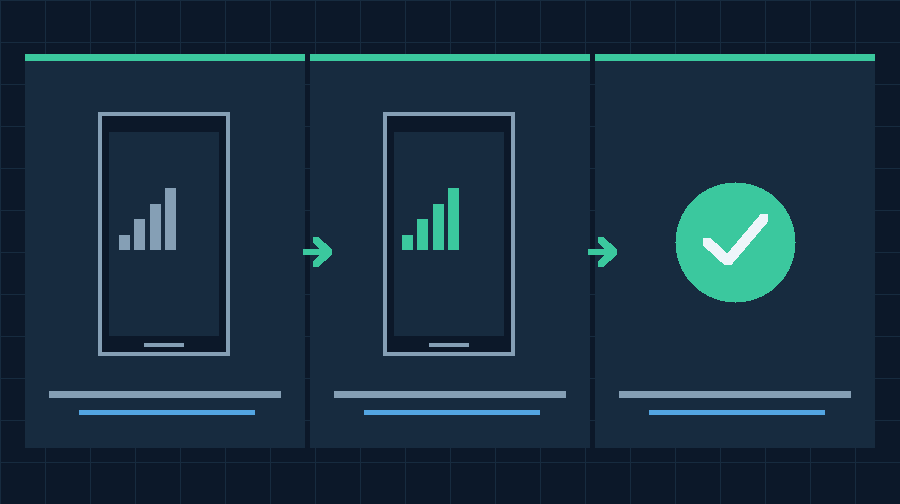
Confirm Your Carrier Data Plan And Device Usage Limits
The carrier determines which services the subscription is allowed to use. An active telephone number does not necessarily include mobile internet, and a prepaid data package can expire while voice calls remain available. Some plans slow down after an allowance is consumed; others suspend data or incur additional charges. Ask your operator about the actual terms rather than assuming there is a universal behavior.
Use the operator’s official website, app or supported customer service channel through a working connection. Verify that the intended number has an active data allocation, payment or balance where applicable, and no suspension. If the phone was recently transferred, ask whether the correct data provisioning has completed.
Android also allows certain users to configure mobile data warnings or limits. A warning typically informs you that a threshold has been reached, whereas an enabled limit can stop cellular data when its configured threshold is reached. The available controls and names vary. Inspect the device’s Data usage, Data warning and limit or equivalent settings.
Samsung’s Galaxy data usage guidance explains relevant usage controls and mobile network checks. Compare the device’s configured billing cycle with the actual subscription cycle. The phone’s usage estimate is useful for management but may not exactly match carrier billing.
For example, suppose an authorized owner has set a 5 GB monthly device limit, then upgraded to a larger plan. If the existing device limit has been reached, the phone may still restrict data even though the carrier indicates that allowance remains. In that case, adjust the deliberate device setting only after checking the actual plan and the owner’s intention. Do not raise or remove a protective data limit that belongs to somebody else.
If the carrier reports no active data allowance, changing APN settings or resetting the phone will not create one. Resolve the account condition through the official provider before proceeding. If the allocation is active and device limits are not blocking use, record that evidence and investigate the connection itself.
Refresh The Cellular Connection Safely
A temporary registration or data session problem may improve when the phone reestablishes its connection. Start with a reversible comparison rather than changing stored network information.
Google’s Android internet connection troubleshooting guidance recommends checking mobile data and airplane mode among the initial tests. End active calls and finish any important transfers first. If you need the phone for urgent communication, ensure that another reliable method is available before interrupting its cellular connection.
Turn mobile data off briefly, then enable it again for the intended line. Leave Wi-Fi disconnected only long enough to repeat the test page. If the problem stays the same, you can try briefly enabling airplane mode and then disabling it, provided it is safe and appropriate. Let the handset complete its ordinary reconnection process before evaluating the result.
If the issue continues, save accessible work and perform the manufacturer’s supported normal restart or shutdown and startup procedure. Ensure that you know the device unlock credential and any enabled SIM PIN beforehand. Do not interrupt a software or firmware update that has not completed.
After initialization, inspect the cellular data indicator and attempt the same small webpage. Compare with the original result. A brief recovery followed by another failure can indicate a recurring issue rather than a permanent repair. Record when the service becomes unavailable again and what happens immediately beforehand.
Do not make these changes repeatedly in rapid succession. Once you have established the result of a deliberate reconnection, proceed to a different diagnostic. If the operator is experiencing a local outage, none of these operations can restore its infrastructure. If only cellular internet is affected while the radio remains registered, check the carrier configuration and applicable data restrictions instead of attempting more aggressive changes.
Compare Coverage And Network Modes
Signal bars are not a direct measurement of useful internet throughput. They describe aspects of a radio connection, and their meaning can differ across devices and network technologies. A displayed 5G or LTE symbol is also not a guarantee that a particular application can communicate successfully.
Try the same small data request at another safe location where you would normally expect carrier service. Avoid entering restricted or unsafe areas merely to obtain reception, and do not manipulate the phone while driving. If practical, compare another subscribed phone using the same operator at the same general location, with its owner’s consent.
If cellular internet works elsewhere, investigate coverage, local infrastructure or congestion through the carrier. A problem occurring during busy hours in one building may have a different explanation from one that follows the handset across several locations. Do not diagnose a faulty modem solely from low download speed or one unsuccessful test.
Inspect the preferred network type in the settings for the affected SIM. Google’s Pixel mobile network settings guide explains that supported options depend on the phone and carrier. Use the normal supported selection or an approved alternative if troubleshooting a repeatable problem with a particular mode.
For instance, a user might compare LTE with an available automatic 5G mode in a location where the carrier supports both. Record which configuration can complete the same ordinary data task. Restore the recommended setting if the comparison does not improve the result. Older network generations may have been retired, so forcing an obsolete mode is not a universal solution.
Also check whether a supported battery-saving mode changes network behavior. Google’s Pixel Battery Saver documentation describes possible use of 4G in place of 5G under particular conditions. This is a specific device behavior, not a general indication that every battery saver disables mobile internet. Preserve your preferred power settings after the comparison.
Verify APN Configuration Against Carrier Instructions
An Access Point Name, or APN, is part of the configuration that allows a handset to use a carrier’s data service. A recently changed operator, a transferred device or an unusual manual configuration may make APN settings relevant to a data-only failure. Do not start by inventing APN values.
On supported Galaxy devices, Samsung documents a route through Settings, Connections, Mobile networks and Access Point Names in its data usage support article. On other phones, the mobile network or SIM settings may provide comparable options. Some carriers manage these settings automatically and do not expose every field for editing.
Identify the currently selected APN and compare it with official documentation for the exact operator and plan. A carrier can specify different configurations for consumer data, multimedia messaging, enterprise services and other purposes. The value used by somebody on a different subscription may be unsuitable even when the carrier name looks familiar.
Before changing an approved manual profile, record its original relevant settings privately and ensure you have the operator’s documented restoration method. If the carrier recommends its built-in automatic provisioning or the supported reset-to-default control, use that procedure only for the intended subscription.
Do not copy credentials, proxy addresses or other settings from an unfamiliar website. Do not remove all available APN entries indiscriminately. If the device is managed or the relevant controls are unavailable, consult the administrator or carrier rather than attempting to bypass restrictions.
After a justified correction, allow the phone to reconnect and test a new webpage with Wi-Fi off. If ordinary mobile internet works but multimedia messaging, a business service or tethering remains unavailable, report that narrower problem separately. A successful public web request does not establish that every carrier-specific service is functional.
If the APN was already correct and the operator confirms that the data subscription is active, continue with app and device-level restrictions. Avoid repeating an APN reset as routine maintenance when there is no evidence of a configuration defect.
Check Data Saver And App-Specific Data Restrictions
When only one application fails on cellular internet but other apps load normally, the mobile connection itself has demonstrated some useful functionality. Inspect the individual app’s network behavior before resetting the entire phone.
Open Settings, locate the affected app and inspect its mobile data usage or network permissions where these controls are supported. On some phones, an app can be prevented from using mobile data, or its background usage can be restricted. A data-saving feature may limit background transfers while still allowing foreground activity. The exact behavior depends on the Android version and manufacturer.
Compare the app while it is actively open with its behavior while it is in the background. If it loads correctly in the foreground but fails to deliver notifications or updates until opened, investigate background restrictions or synchronization. Our Android notification guide describes the difference between notification delivery and audible alert presentation.
Check whether the app has its own Wi-Fi-only download option. Video applications and app stores may intentionally avoid large transfers over cellular to conserve allowance. A download that waits for Wi-Fi does not prove mobile data is broken. For the Google Play Store specifically, our Play Store troubleshooting guide covers separate application and download conditions.
If a trusted app is permitted to use mobile data and needs background access, make only the relevant authorized adjustment and repeat the original task. Do not grant unrestricted network or background access to every installed application. Keep intentional data limits, battery management and privacy protections that are not responsible for the symptom.
If the app also fails on Wi-Fi while other internet services work, investigate its own server availability, account access or software state. Our Android app troubleshooting guide is relevant when the same app becomes unresponsive or closes. Use the observed pattern to decide whether the carrier, operating system or app developer is the appropriate support provider.
Inspect Private DNS VPN And Roaming Dependencies
A mobile connection can be usable while a particular traffic configuration prevents applications from reaching their destinations. Consider this possibility if a recent VPN change, custom Private DNS setting or travel arrangement preceded the data failure.
Google’s network settings documentation explains where compatible Pixel devices expose VPN and Private DNS controls. Review their actual configuration rather than disabling them as a routine fix. On managed phones, these features may be required for secure access or policy compliance.
If you personally configured a custom Private DNS hostname and the problem began when that configuration changed, verify the hostname against the intended provider’s documentation. On an authorized personally managed device, a temporary comparison using the normal Automatic setting may be appropriate if it fits your security requirements. Record the original setting and restore it promptly if it is not responsible. Do not deliberately bypass approved filtering or security policies.
Similarly, a VPN may influence how internet requests are delivered. If a legitimate VPN app reports a connection fault, use its supported diagnostic procedure. Avoid sending sensitive traffic through an unprotected connection merely to see whether a website works. Our VPN guide explains its separate role in network access and privacy.
When traveling, verify that your operator allows the intended data roaming service and review applicable charges before enabling it. A travel subscription may specifically require data roaming to be enabled, while a domestic subscription may have different costs or restrictions. Ask the provider rather than applying one rule to both.
Test a small, nonsensitive webpage before attempting larger transfers. If only an internal company service remains unavailable, consult the administrator about its approved VPN and DNS configuration. If data fails with the supported roaming, DNS and VPN arrangements verified, contact the carrier about provisioning. Avoid conflating a security configuration or billing restriction with a defective radio.
Separate Hotspot Failure From Cellular Internet Failure
A phone may access the internet normally over mobile data while a connected laptop or tablet cannot use its hotspot. In that situation, the phone’s own cellular connection has passed at least one important test. Tethering introduces additional requirements, including a supported subscription, the phone’s sharing settings and the client’s Wi-Fi connection.
Verify that the phone itself can complete the ordinary test page with Wi-Fi disabled. Then enable hotspot using its supported controls, check the intended network name and password, and connect only an authorized test device. Avoid creating an open hotspot or exposing the network to unnecessary devices.
If the client connects to the hotspot but cannot load a page, confirm that the phone still has cellular internet. Check the plan’s tethering allowance and the manufacturer’s hotspot configuration. A tethering-specific restriction is not necessarily solved by changing the main data APN; some operators manage tethering separately.
Our Android Wi-Fi guide describes related client-side wireless checks, while the general Wi-Fi connected without internet guide explains why a wireless connection indicator does not establish successful internet access.
For a meaningful comparison, keep the phone in the same location and test the same small webpage directly on it and on the connected authorized device. If the phone succeeds and the client fails, investigate the hotspot and client before resetting mobile network settings. If both fail, return to the cellular troubleshooting sequence.
Disable the test hotspot when you finish if it is not part of your normal use, and check the phone’s data consumption. Large speed tests, automatic updates on connected computers and cloud synchronization can quickly use a limited mobile plan. A small controlled test usually provides sufficient evidence without unnecessary expense.
Use Supported Updates And A Targeted Network Reset
If all simpler checks fail, inspect the phone’s supported software update options. A carrier configuration or system update can sometimes correct connectivity defects. Protect your data, use a stable authorized connection and adequate power, and allow the installation to complete. Avoid unapproved modem images, altered system software and unofficial carrier profiles.
A network settings reset is a later diagnostic, not an initial requirement. On compatible Pixel versions, look under Settings, System and Reset options for Reset mobile network settings. On supported Galaxy devices, Samsung describes Settings, General management, Reset and Reset mobile network settings in its official support documentation. Older devices may combine mobile, Wi-Fi and Bluetooth resets, so read the actual confirmation screen.
A mobile network reset can restore default connectivity configuration and remove customized values. Record a required APN, roaming preference and other approved details before proceeding. If the selected reset also affects Wi-Fi or Bluetooth, ensure you can recover your necessary connections and pairings. Do not select a separate erase-eSIM option merely because it is nearby. Contact your carrier before removing an activation profile.
After the reset, check the intended SIM and automatic network configuration. Restore any necessary authorized custom settings, then test ordinary cellular internet. Verify calls and other important connectivity functions afterward. If service remains unavailable, preserve the result rather than performing repeated resets.
A factory reset has broader consequences and cannot guarantee correction of a coverage problem, inactive subscription or unsupported hardware. Our Android backup before resetting guide explains separate preparation for more disruptive recovery. Confirm independent copies of valuable information and account access before any such operation.
If you cannot establish what the displayed reset option will erase, obtain model-specific assistance first. A mobile internet problem is not sufficient justification for risking the only working subscription or irreplaceable information.
Verify The Repair And Prepare A Useful Carrier Report
When mobile data returns, verify the actual task that was failing. Keep Wi-Fi disconnected long enough to load a new webpage and test the intended app. Confirm that the correct SIM provided data and that you remain within the expected plan. Restore ordinary Wi-Fi, roaming, battery and privacy settings where appropriate.
If service is intermittent, repeat a low-data test in the circumstances that originally produced the problem. Compare a previously failing location with a known working one when safe. A single successful page is encouraging, but it does not settle a fault that returns whenever you move or use the device at a particular time.
For persistent problems, prepare a concise support report. Include the phone model and Android version, carrier and plan type, the approximate affected area and time, whether calls work, whether Wi-Fi works, whether all cellular apps fail, and the outcome of the APN and connection comparisons. State whether a supported network reset was attempted. Share sensitive account and equipment identifiers only with the authorized provider through its secure channels.
If the carrier confirms proper provisioning and compatible coverage but the problem recurs on the same handset across suitable locations, request manufacturer diagnostics. Do not attempt to repair an internal antenna or radio based on an informal internet test.
This guide draws on official Google and Samsung documentation and original diagnostic scenarios. The figures are conceptual illustrations, not device screenshots, and the individual procedures were not independently performed on physical Android hardware for this article. The aim is reliable, authorized mobile internet access without losing the existing subscription, data or protective configuration.
Frequently Asked Questions
Why Does My Phone Have Signal But No Mobile Data?
Signal alone does not confirm data access. Check the active data plan, selected SIM, device data limit and carrier APN.
Why Does Wi-Fi Work But Mobile Data Does Not?
The connections are separate. Confirm cellular data is enabled and the carrier is providing compatible data service.
Do I Need To Change My APN?
Only when the existing configuration is incorrect or the carrier directs you to do so. Use its official values for the exact subscription.
Can Data Saver Affect One App?
Yes, background or app-specific restrictions may affect its data use. Test the app in the foreground and inspect its relevant settings.
Why Does My Hotspot Fail When Mobile Data Works?
Check tethering eligibility, hotspot settings and the connected device. The phone’s own cellular data may be functioning normally.
Will Resetting Mobile Networks Delete My ESIM?
The effects depend on the exact reset option. Read the displayed warning and do not select an eSIM erase operation unless deliberately required.
Can A Factory Reset Fix An Inactive Data Plan?
No, it cannot activate a carrier subscription or restore an exhausted allowance. Contact the operator.


