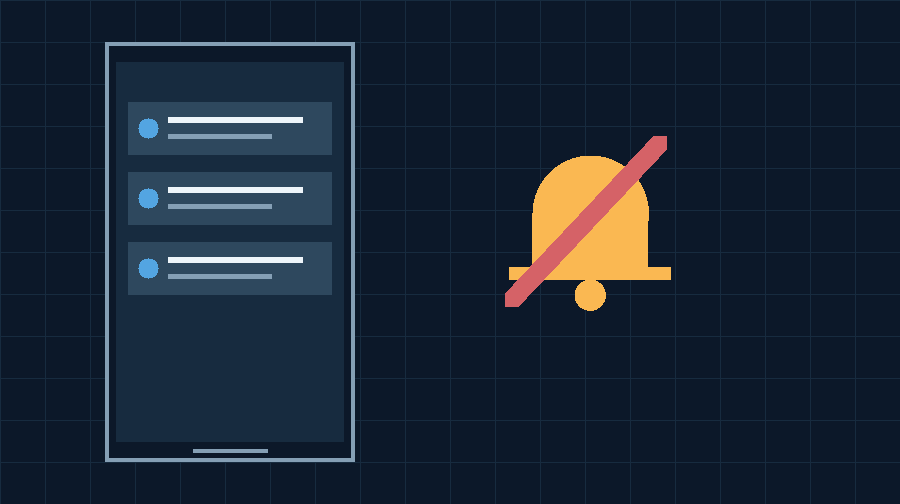

Identify Whether The Notification Arrives
An Android notification sound problem may be the result of three fundamentally different failures: the alert never arrives, it arrives silently, or it arrives but the phone cannot play its intended sound. Identifying the difference before changing settings can prevent unnecessary resets and make the repair much quicker.
Use a trusted messaging application and ask a willing contact to send a short test message such as “Sound test 1”. Keep the phone on a desk in a quiet room with its display locked, if that is how you normally experience the fault. Make sure the application is not currently displaying that conversation, because some apps intentionally suppress alerts while their conversation is open. Observe whether the display changes, the device vibrates, an icon appears, and a notification becomes visible when you open the notification shade.
Next, try a second familiar app with a known notification function, such as a calendar reminder you create deliberately for this test. Do not rely on an emergency alert, a financial transaction, or a time-sensitive medical alarm for testing. Choose events that can safely be repeated and removed afterward.
Record the device model, Android version, app name, whether the screen was locked, and the time of each test. This record will help you isolate a scheduled quiet mode from an app-specific failure. If the same message actually appears in the notification shade but never makes a sound, delivering the notification itself is not the primary problem at that moment. If the message appears only after opening the app, check delivery instead.
Use the following symptom matrix to choose a starting point. These are diagnostic possibilities, not confirmed causes.
| Observed Symptom | Check First | What A Successful Test Shows |
|---|---|---|
| All apps are silent | Sound mode, volume, Modes | A global setting may be responsible |
| One app is silent | App categories and app preferences | A specific alert configuration may be responsible |
| Only one conversation is silent | Conversation mute or channel | Other alerts can still work |
| Nothing arrives until opening the app | Permissions, connectivity, background delivery | Delivery needs investigation |
| Media and ringtone previews are also silent | Audio output and speaker | The fault may extend beyond notifications |
Check Sound Mode And Notification Volume
Android commonly separates media, calls, ringing, alarms and notifications into different sound controls. Listening to a video successfully does not establish that the notification volume is audible. Likewise, a low call volume may not affect the sound of an incoming message.
Open Settings and find Sound & vibration, Sounds and vibration or the corresponding category on your model. Select the available volume controls and inspect the notification volume where it is separate. Some Android devices combine ring and notification volume, so follow the labels actually displayed rather than assuming every phone has the same sliders.
For a short test, select Sound or Ring mode instead of silent or vibrate-only mode. Increase the relevant volume gradually to a comfortable level. On some models a volume button initially displays only the media volume, with other sliders accessible through an expanded panel. Google’s Android volume and sound documentation explains the purpose of the different controls.
Choose a familiar built-in notification tone and preview it if the interface provides a preview. A clear preview demonstrates that the phone can play that sound through the current output arrangement. It does not establish that a particular app is permitted to play the tone when a message arrives.
Ask your test contact to send another harmless message. Observe whether the phone now produces the expected sound, then compare the second app. If both alerts work, identify which setting was changed and restore any unneeded temporary adjustments. If neither makes a sound despite an audible preview, the next checks concern interruption rules and app-specific alert behavior.
Remember that playing a tone at an excessively high volume is not necessary to establish audibility. Keep sound comfortable for yourself and nearby people, and avoid changing alarm volume simply because the notification slider is difficult to find. The specific symptom, not a general increase in every volume control, determines which adjustment is useful.

Inspect Do Not Disturb Bedtime And Scheduled Modes
A phone may be configured to receive notifications without alerting you audibly. Do Not Disturb, Sleep or Bedtime settings, Driving mode and other scheduled profiles can all affect how interruptions are presented. A failure that occurs consistently at night, during meetings or when a phone is charging deserves this check before you change individual app categories.
Open Quick Settings and inspect the active quiet modes. Then open the corresponding settings page to review scheduled activation, notification filters and exceptions. Google’s Modes and Do Not Disturb guidance describes these arrangements; older Android releases and manufacturers can place equivalent controls under different headings.
If you are not driving, sleeping or participating in an activity that requires the quiet setting, temporarily turn off the relevant mode for a controlled test. Send another ordinary message into the affected app while its conversation is closed. If the sound returns, the mode or its filters are responsible for the observed difference. You can then decide whether the app or particular conversation should be permitted to interrupt the schedule.
Use exceptions selectively. A user may intentionally allow family calls or calendar reminders while silencing social media notifications. Restoring every sound and vibration is not necessarily a desirable solution. Maintain driving safety, accessibility preferences and organizational restrictions, and do not disable a required quiet rule simply to make a nonessential app audible.
If you find that your phone switches back into silent operation automatically after the test, inspect the schedule rather than assuming the button is defective. A bedtime routine may be linked to charging, a time range or another automation. Write down the condition under which it activates.
Restore the desired quiet-mode arrangement after testing. Verify a permitted ordinary notification under the mode, where appropriate, as well as a notification outside the scheduled period. A successful repair should respect the distinction between intentionally quiet and unexpectedly silent alerts.
Check App Notification Permission
When a message appears inside an application but no corresponding notification appears outside it, examine whether the application is allowed to post notifications. This is a distinct question from whether a permitted notification makes a sound.
Open Settings and locate Notifications, followed by App notifications or the relevant installed application. Select the affected app. Inspect its notification permission and enabled state. On Android 13 and later, eligible applications must obtain the runtime notification permission, as described in the Android developer documentation. Some specialized notifications have distinct rules, so the permission model should not be treated as identical for every system service.
If you trust the app and want its notifications, allow them using the normal settings control. Do not enable notifications for every installed app. A permission that was intentionally denied can be an appropriate privacy or attention-management choice.
Return to the application once, verify that it is signed into the account you actually use, and leave the relevant conversation or screen closed. Have your contact send a fresh message. If the notification now appears, delivery has improved; if it is visible but silent, move to the category and sound controls. Granting notification permission does not automatically guarantee an audible alert for every notification type.
Some work profiles have a separate instance of an application with its own notification preferences. Check the correct personal or work instance rather than changing a similarly named app. If a work profile is paused or notifications are restricted by management policy, consult the authorized administrator.
Do not grant unrelated microphone, contacts or location permissions as a blanket response to a missing sound. Only adjust permissions supported by the actual app function and your own preferences. On a supervised device, the authorized administrator should manage restricted controls. A focused permission check is more reliable and less disruptive than resetting all application preferences at once.
Set The Relevant Notification Category To Alerting
Many apps deliver several types of notifications: direct messages, group messages, reminders, promotions and account updates. Android supports notification channels, commonly called categories in device settings. Each can have different sound and visibility behavior. This is often why a phone sounds normally for one type of alert but remains silent for another event in the same application.
Find a recent notification from the affected app in the shade. On many devices, touching and holding that notification opens a shortcut to its notification settings. Choose the appropriate settings control and identify the category associated with the actual notification. An app’s overall notification switch being on does not establish that this individual category is audible.
Where the interface offers an Alerting or Silent choice, choose Alerting for the specific category you want to hear. Select a compatible sound when that control is available. Google describes these options in its notification controls guide.
Samsung Galaxy users may first need to enable category management. Samsung’s Galaxy notification settings guidance describes Settings, Notifications, Advanced settings, and the option to manage notification categories for each app where supported. Then return to App notifications, select the app and open the desired category. Not every app exposes the same choices.
Here is an illustrative example. A messaging app sends audible direct messages but silent group-message notifications. Instead of increasing the entire phone’s volume, the owner opens the group-message category, chooses the desired alert behavior and sends a new test message to that specific group with the participants’ consent. A separate direct-message test confirms that its original settings were unaffected.
Avoid setting every category to urgent or enabling unwanted promotional alerts. Android’s channel system is intended to support selective control. If the relevant category cannot be identified from the settings list, reproduce the actual notification and use its own settings shortcut where available. That is generally more informative than changing multiple categories at random.
Choose A Built-In Notification Sound For Testing
A notification category can be configured to use a specific sound file, the system default sound or no sound at all. If an alert is permitted but unexpectedly silent, inspect the actual sound selected for that category.
Open the relevant notification settings and check the sound choice. If the current value is None or Silent, choose a recognizable built-in tone appropriate for the notification. If you normally use a custom downloaded file, temporarily select a built-in tone instead. This comparison can help separate a sound-file problem from an alert configuration problem.
A custom file may have been moved, deleted or become inaccessible after a storage change. Different devices and applications may handle custom sound locations differently. A built-in sound provides a useful baseline without requiring you to download another file.
Preview the selected sound if the interface permits it. Then generate a new notification of the affected type. Do not rely on an old entry already present in the notification shade, because changing its category settings does not necessarily replay that entry. Check the sound of a new event with the phone in the normal state in which the problem occurs.
If the built-in tone works, you can retain it or configure a custom sound through the manufacturer’s supported process. Verify that the custom sound remains accessible and that it belongs to a compatible format and authorized source. Do not install an unfamiliar sound customization app that requests broad device access merely to change a notification tone.
If the preview works but the new alert is still silent, return to the category, quiet-mode and app-specific checks. If no built-in tone or ordinary media can play, investigate speaker output and connected accessories instead. The goal is to identify the layer at which the sound is lost rather than replacing the entire notification configuration.
Look For Muted Conversations And In-App Preferences
A message may reach the phone through an enabled app while the app’s own preferences deliberately prevent it from generating a sound. Messaging programs commonly offer mute settings for individual conversations or groups. Email and calendar apps may allow separate adjustments by account or event type.
Open the affected application and navigate to its normal notification settings. Inspect the conversation or activity that failed rather than changing every app preference. If a muted conversation is the only affected one, verify whether that mute was intentional before restoring alerts.
Some applications let you select a notification sound inside the app, while the operating system still controls the final category behavior. These settings can interact. If the app is configured to produce silent group alerts, an audible system default does not necessarily override its decision. Conversely, enabling alerts within the app may not make sound if the Android category is still silent.
Reproduce the specific problem with a controlled test. For example, if one contact’s direct messages are quiet while all others make sound, ask that contact to send a harmless message after you inspect its conversation settings. Compare with another authorized contact. A successful test in a different chat does not establish that the original chat has been repaired.
In applications with more than one account, verify the actual account whose alerts are missing. Work and personal accounts may intentionally use different settings. If the app has a quiet period synchronized from another device, check that documented feature rather than assuming the phone is at fault.
Our Android app troubleshooting guide provides further comparisons when the same application also freezes or closes. If your issue only affects incoming SMS itself, consult the relevant message-delivery or carrier diagnostics rather than treating notification sound as a network registration test.
Check Delayed Delivery Connection And Background Limits
A notification that appears only when the application is opened is not simply an inaudible alert. The event may not be delivered to the phone until the app retrieves it, or an app may not have posted it in the background. This requires a different set of comparisons.
Check internet access from a trusted browser using the connection normally used by the app. If Wi-Fi is connected but cannot load a new page, our Android Wi-Fi guide covers that condition. If cellular data alone is unavailable, verify the subscription and connection settings through the appropriate route. The network indicator alone is not proof of working internet access.
Inspect the affected app’s data and battery usage settings. Some devices restrict background activity or data when a saver mode is active. Review any relevant restrictions that you deliberately chose and the app’s documented requirements. If suitable, allow the necessary background behavior for the one trusted app and repeat the test with its screen closed. Do not exempt all apps from battery and data controls.
Check the account and synchronization configuration in the app as well. A notification from one account may not arrive if that account is signed out or its synchronization arrangement is disabled. If the app sends alerts from a remote service, its own server may also be experiencing a fault.
Compare arrival times rather than simply counting notification sounds. Ask your contact to record the approximate send time and note when the notification appears with the display locked and after opening the app. This observation can distinguish delayed delivery from silent presentation. If delivery consistently fails only in the background, contact the app’s developer or authorized support provider with the results.
A network or synchronization repair should first restore the arrival of the intended notification. Then test its audible behavior under the desired sound and category settings. Do not interpret a newly arrived but silent message as evidence that the delivery repair itself failed.
Test Speaker Output And Nearby Accessories
If many independent notifications, ringtone previews and ordinary media are inaudible, the problem may involve the phone’s audio output rather than notification settings alone. Begin by choosing a known built-in sound and checking whether playback begins at a comfortable volume.
Inspect any connected Bluetooth accessories, including earbuds, a car system or a wearable companion device. Audio and notification routing varies by accessory, phone and application. A wearable may also offer a setting that silences certain phone notifications while the accessory is connected. Review the documented behavior of the actual devices rather than assuming every sound is always routed to the same output.
For a short safe comparison, disconnect a nonessential accessory through its normal controls and test the tone and new notification again. Keep required accessibility devices connected unless you have a safe alternative. Our Android Bluetooth guide offers related connection checks.
If built-in sounds are distorted or consistently silent, inspect the exterior of the speaker area with the phone manufacturer’s care instructions in mind. Remove an obstructing case if appropriate, but avoid inserting tools into openings or applying liquids or compressed air. A damaged audio component cannot be diagnosed conclusively from a single notification test.
Use the phone’s supported diagnostic function if available. Our Android speakerphone guide describes how to distinguish audio output from other call issues. A successful call or media test is helpful, but different audio modes may not behave identically.
Restore accessories and normal settings after the comparison. If only one connection arrangement suppresses the sound, check its supported routing and companion preferences. If ordinary audio is unavailable across independent sources, seek appropriate manufacturer service instead of repeatedly changing notification categories.
Restart Update And Verify Your Final Notification Setup
Once the relevant configuration checks are complete, an ordinary restart can help if the notification service or an app appears temporarily unresponsive. Save any accessible work and ensure you know the legitimate screen-lock credential before using the manufacturer’s restart procedure.
If the affected application has an official update available, review and install it through the authorized distribution source where appropriate. A supported Android update may also address a broader software problem. Protect important local information and allow installation to finish normally. Do not download an unofficial replacement app or notification fixer to solve a specific sound problem.
After startup, repeat the original test using the intended volume, quiet-mode arrangement and normal accessories. Confirm that the correct app and conversation receive sound when they should, and that deliberately silenced categories remain quiet. If the problem originally occurred on a schedule, verify the relevant time or mode as well.
A factory reset is disproportionate for most notification sound problems. Before considering a broader recovery, consult the device or application provider, and verify backups using our Android backup guide. A reset cannot correct an intentionally unsupported application behavior or a damaged speaker.
For persistent issues, record the device model, Android version, application version, notification category, sound preview result, interruption mode and delivery timing. Provide an anonymized example to the appropriate support provider. Avoid sharing message contents or other private data unnecessarily.
This article is based on official Google and Samsung guidance and original diagnostic reasoning. The figures are conceptual illustrations, not device screenshots, and the steps were not independently performed on physical Android hardware. A successful solution makes important notifications audible without unnecessarily disturbing other preferences or weakening privacy and security.
Frequently Asked Questions
Why Are My Notifications Showing But Making No Sound?
Check notification volume, active quiet modes and the specific category’s alert and sound settings. Visible delivery and audible presentation are separate.
Why Is Only One App Silent?
Inspect its notification categories, app settings and muted conversations. If other apps sound normally, a global speaker failure is less likely.
How Do I Change A Samsung Notification Category Sound?
On supported Galaxy models, enable category management in notification advanced settings if needed, then select the app, category, Alert and Sound.
Can Do Not Disturb Silence Only Some Notifications?
Yes, the mode can apply configured filters and exceptions. Review the intended rules rather than disabling every quiet preference.
Why Do Messages Arrive Only When I Open The App?
Check app notification permission, connectivity, account synchronization and relevant background restrictions. This is primarily a delivery issue.
Should I Clear All App Data To Restore Sound?
No, inspect specific sound, permission and category settings first. Clearing data may remove preferences or local information.
What If No Notification Tone Or Media Plays?
Check volume, output routing and supported speaker diagnostics. Seek manufacturer assistance if independent audio tests consistently fail.


