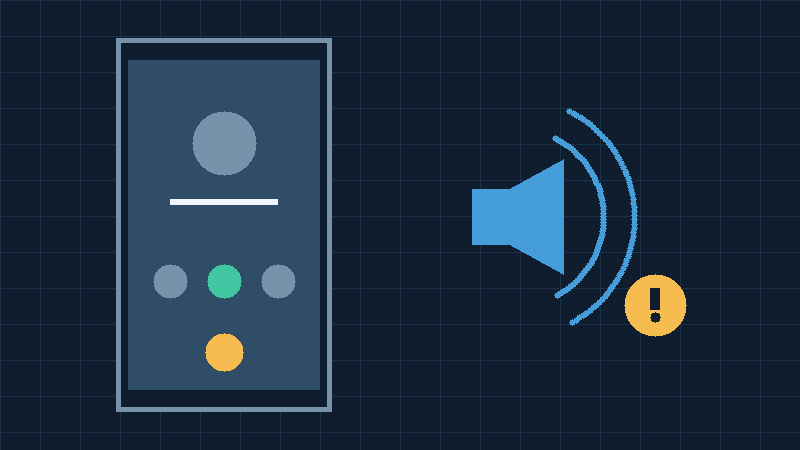

Identify Which Direction Of Call Audio Is Failing
Android speakerphone not working can mean that you cannot hear the other person, that they cannot hear you, or that both sides experience poor sound. Some users also find that tapping the speaker button changes its appearance but leaves the call playing quietly through the earpiece. These symptoms need different checks, even though all of them occur during hands-free calls.
Start with an ordinary nonurgent call to a willing contact. Explain that you are testing audio so that the other person can report what they hear. Use a quiet private room and keep the phone stationary. Begin with a normal call through the earpiece, then select speakerphone. Ask the contact whether your voice changes when you switch modes. Record whether the problem occurs in one direction or both.
If you hear the contact clearly but they cannot hear you, investigate the microphone, mute control and call input path. If they can hear you but you receive no audio, investigate output volume, audio routing and the loudspeaker. If both sides hear intermittent speech or long gaps, network quality or a problem on the other person’s device may also be contributing.
For a second comparison, try another trusted contact. A failure that occurs with only one person or number does not necessarily originate in your phone. Note whether the same problem occurs during incoming and outgoing calls, whether it began after an update or hardware incident, and whether you are using the original Phone app or an internet calling application.
Do not use an emergency number to test audio. If you cannot rely on your phone for important communication, arrange an alternative working device until the problem is resolved.
Select The Phone Speaker And Adjust In-Call Volume
Open the original Phone app and place your nonurgent test call. When the call connects, locate the audio routing control. It may appear as a speaker icon or show the name of the current audio destination. Select the phone’s own loudspeaker rather than a previously connected accessory.
Check the actual result rather than relying only on the highlighted button. Hold the phone at a comfortable distance and listen for the change in output. If the sound remains quiet, press the volume-up button while the call is active, increasing the level gradually. Be careful not to expose yourself or another person to an unexpectedly loud sound.
Samsung’s speaker and microphone troubleshooting guidance emphasizes that the volume adjusted during a call differs from the ringtone setting. Adjusting media volume before calling may therefore have no effect on the volume of the conversation.
If your contact reports that your voice is absent, inspect the mute button separately from the speaker control. Unmute yourself when you intend to transmit sound. The loudspeaker button changes the listening arrangement; it is not intended to unmute a muted microphone.
Switch back to the earpiece once and then reselect speakerphone. Record whether that action restores sound and whether the problem returns during the next call. A repeatable switching problem is useful evidence for the manufacturer or app developer.
After the test, return the volume to a comfortable setting. A very loud speaker can create feedback or make a call difficult for nearby people. The goal is intelligible two-way communication rather than the maximum possible output.

Disconnect Bluetooth And Other Audio Accessories
A phone may continue routing call audio to a connected wireless device even when you expect the built-in speaker to be active. Earbuds, hearing devices, a car hands-free system and certain wireless accessories can all affect the available audio routes. A previously paired device does not need to be visible beside you to connect automatically.
For a short controlled test in a safe environment, disconnect the accessory using its normal connection controls. If appropriate, turn Bluetooth off temporarily through Settings or Quick Settings. Remove a wired audio adapter or headset after the current call has ended. Then make the same test call and deliberately select the phone’s speaker.
If audio now works, inspect the connection and route choices for the accessory you normally use. Android interfaces differ among manufacturers, but connected-device settings may provide options for phone calls and media on compatible equipment. Determine whether the device is intended to handle calls or just music.
Our Android Bluetooth troubleshooting guide provides related checks for connection and pairing failures. There is no need to forget every paired accessory when the problem is confined to an accidental output selection.
For people who depend on a hearing aid or another accessibility device, disconnecting it is not always a suitable troubleshooting step. Arrange an appropriate alternative test or consult the device’s support guidance instead. Do not alter essential accessibility settings without understanding their consequences.
When you finish the comparison, reconnect the accessories you need and restore Bluetooth to your preferred state. Check a second call under that normal configuration. A lasting repair should work with the intended everyday setup, not simply while an important accessory remains disabled.
Compare Media Playback With Speakerphone Output
A short media test helps establish whether the device can produce audible sound independently of a phone call. End the test call and play a familiar locally available recording or video with a clearly audible spoken voice. Select the phone speaker as the output destination and set the media volume to a comfortable level.
Try another recording or application if the first clip has unusually quiet or distorted audio. A single poor-quality sound file is not a reliable test of speaker hardware. Google’s Pixel sound troubleshooting reference recommends comparing several audio sources as part of evaluating sound failures.
Observe whether ordinary media is clear, silent, unusually quiet or distorted. If multiple independent clips play properly but speakerphone fails on every tested call, concentrate on the call audio route, application and network rather than assuming the loudspeaker has completely failed.
If both media and speakerphone are silent after confirming the selected output and volume, a broader audio or hardware problem is more plausible. If sound is distorted across several ordinary sources, inspect accessories, physical condition and manufacturer diagnostics.
Do not assume that successful media playback proves every speaker component is working. Phones can have different speaker arrangements, and their behavior may vary by mode or model. A useful test narrows the possibilities without establishing a definite hardware diagnosis.
If an audio clip sounds normal through headphones but not through the intended phone speaker, write down that distinction for support. Keep the source and volume comparable so that changes in recording quality or output equipment do not confuse the results.
Inspect The Case Speaker Openings And Microphone Openings
Physical obstructions may change the way sound reaches or leaves a smartphone. An ill-fitting case, protective film or accumulated debris can interfere with the openings intended for normal audio operation. A phone that began to sound muffled immediately after fitting a new accessory deserves a simple physical comparison.
Remove the case if you can do so without damaging the phone or compromising an essential accessibility accessory. Inspect the outside of the device under suitable lighting. Consult the manufacturer’s diagram for the exact model when identifying the speaker and microphone openings. Do not assume that every small opening is a microphone or a speaker; some serve other purposes.
If the exterior needs cleaning, follow the specific manufacturer’s care instructions. Use only a suitable soft, clean material where recommended. Do not push pins, toothpicks or other objects into audio openings, apply liquids or blow compressed air into the phone. Those methods can damage delicate internal components.
After removing an obstructing accessory, repeat the call and media tests. If the problem disappears, choose a properly fitting replacement that allows normal access to the required openings. Refit only the accessories you have determined are suitable.
If the device has been dropped or exposed to liquid, report that history to a qualified service provider. Do not treat the absence of visible external damage as proof that the internal components are unaffected. Follow model-specific liquid exposure guidance and avoid charging a wet device.
A quiet, crackling or intermittent speaker may have several possible causes. Physical inspection is one useful check, but it cannot establish an internal hardware diagnosis. Do not open the phone or attempt an improvised replacement of its audio components merely because one call test failed.
Test The Microphone When Other People Cannot Hear You
Speakerphone involves both audio output and audio input. If you hear your contact but they cannot hear your voice, verify that the call is not muted and that an accessory is not receiving the microphone input unexpectedly. Then carry out a separate local recording test.
Use a trusted built-in or already installed recording application if available. Record a short neutral sentence in a quiet place and play it back at a comfortable volume. Where appropriate, make a short ordinary video with spoken audio as another comparison. Avoid capturing other people without their permission.
If the recordings contain clear speech but the contact cannot hear you during speakerphone calls, concentrate on the Phone app, microphone permissions, voice call processing and network conditions. If both recordings and calls have absent or distorted speech, examine the wider microphone configuration and obtain appropriate hardware diagnostics.
Google’s Pixel microphone troubleshooting guidance covers situations where other people cannot hear the caller. The relevant microphone arrangement varies by phone and mode, so a successful recording does not establish that every microphone is working during speakerphone operation.
Make another ordinary call after checking the mute and accessory settings. Ask whether your voice is intelligible without requiring you to shout. Keep the device a reasonable distance away and avoid covering its microphone openings with your hand.
If you discover that the other person hears feedback, try a quieter level and greater separation from other nearby audio devices. Persistent echo that appears only with one application may merit developer support. Do not purchase replacement parts based solely on an informal recording result.
Check Microphone Permission And Device Privacy Controls
Internet calling applications generally need permission to use the microphone when you speak. A permission that was denied during setup or changed later can interfere with the expected operation of the app. This check is particularly relevant if the original Phone app works but a third-party calling service cannot transmit your voice.
Open Android Settings and select Apps. Identify the affected application and open its Permissions section. Inspect microphone access. Choose an appropriate permission only if you trust the app and intend to make calls with it. The exact choices depend on Android version and application requirements.
On supported Android versions, device-wide privacy controls can also restrict microphone access. Check whether a microphone privacy switch is disabled. Google’s Android permissions guide explains the app-level and broader privacy controls.
Avoid granting additional unrelated permissions in the hope of fixing sound. An application does not automatically need location, contacts or complete file access merely because its audio is malfunctioning. Where nearby-device access is relevant to a connected accessory, review that permission separately.
Repeat the call with the specific affected application after correcting a relevant setting. If the ordinary Phone app works and the internet calling app now transmits your voice, the comparison provides a clear result. A permission problem may prevent microphone capture, but it is not by itself an explanation for every loudspeaker output failure.
Family-managed and workplace-managed phones may restrict permission changes. Consult the authorized parent or administrator if the control is unavailable. Do not bypass management or privacy controls merely to test a calling feature. Restore any unnecessary temporary grants after completing the diagnosis.
Compare Cellular Calls With Wi-Fi And Internet Calls
Call audio is not always lost inside the phone. Weak network coverage, unstable Wi-Fi, delayed data delivery or a service-side error may produce gaps or one-way sound. A network problem can seem like a speakerphone fault when it happens around the time you change the audio mode.
Begin with a conventional carrier call in an area with a reliable signal. Compare the earpiece and speaker modes during that call. Repeat with an authorized contact if the original connection was unusually poor. If the same localized output problem occurs in both modes, the network or another general call issue becomes more relevant.
If your carrier and phone support Wi-Fi Calling, compare the available calling arrangements when it is practical and safe. Avoid turning off a connection on which you depend for important communication unless you have another working route. Our Android Wi-Fi Calling guide explains the service requirements and troubleshooting considerations.
For a separate internet calling application, check whether the phone can load an ordinary fresh webpage using the same connection. Compare another trusted network if available. Our Android Wi-Fi troubleshooting guide covers access problems when ordinary network activity also fails.
A successful local audio recording is independent of the other person’s data connection, so it can be especially useful alongside these comparisons. Keep the microphone and audio routing configuration unchanged while changing only the relevant connection.
Do not use repeated emergency calls or unfamiliar paid calling services for the test. If conventional calls fail across several locations and contacts while local audio works, contact your carrier with the relevant details. If only one internet calling service fails, investigate its support resources instead.
Restart Android And Check For Relevant Updates
A temporary failure in an app or the system’s audio processing can sometimes be resolved by a normal restart. Use the documented power menu for your phone model. Save any important work, end calls and restart normally instead of forcing a shutdown when the device is responsive.
After the restart, make a controlled call before opening several optional applications. Check both directions of audio. Then reproduce the circumstances where the problem originally appeared. Record whether the restart restored normal operation or only provided a temporary improvement.
Inspect the affected calling application for supported updates through its authorized distribution source. If a third-party app began failing after a specific update, note its version and consult its developer. An updated application can correct defects, but a new version can also introduce a problem that requires a later correction.
Check the manufacturer’s supported Android updates as well. Protect important information, ensure adequate storage and use reliable power and connectivity for any substantial update. Do not interrupt a software installation because the phone takes longer than usual to start.
Our Android application troubleshooting guide covers related software diagnostics. If the problem occurs in only one calling application, avoid installing unrelated audio booster or call enhancement tools. Those applications can introduce additional variables and may request unnecessary access to sensitive call information.
Where an app requires a newer Android release unavailable for your phone, consult its supported alternatives. Downloading a modified application from an unofficial source can expose private communications and device data. Keep the phone’s security features enabled as you investigate legitimate audio problems.
Use Safe Mode To Investigate Downloaded App Interference
Safe Mode can help isolate some problems caused by downloaded applications. It temporarily limits their operation, making it useful when an ordinary call fails after a new application or system customization was introduced. It does not repair physical damage or guarantee that a network problem will disappear.
Use the manufacturer’s model-specific procedure to reach Safe Mode. Google’s Pixel Safe Mode documentation describes the relevant power controls and warns that some widgets may be removed. On other Android phones, consult their own documented method rather than assuming every button sequence is identical.
Before starting, make sure you know your ordinary screen-lock credential and record important home screen arrangements if needed. Check whether airplane mode has been activated by the restricted startup and restore ordinary carrier connectivity if you are authorized and intend to make a test call.
Because downloaded applications may be unavailable in this mode, use the built-in Phone app for the comparison. A third-party internet calling service cannot be meaningfully tested if Safe Mode prevents it from launching. Record whether a conventional speakerphone call now succeeds in both directions.
If the problem disappears under restricted startup, investigate recently installed apps that could influence calls or audio. Return to ordinary startup and review their supported configuration or uninstall procedures individually. Protect local application data before removing anything important.
If the problem persists, do not conclude automatically that a speaker or microphone has failed. Safe Mode narrows one class of possible causes; other system, network and hardware conditions can remain. Restore normal startup after the test and seek further assistance appropriate to the observed fault.
Run Manufacturer Diagnostics And Protect Data Before Resetting
Many Android manufacturers provide model-specific diagnostic resources. Where available, use the official tool to test the speaker and microphone independently. Review the instructions and verify that the test applies to the actual phone model. Record the result rather than trying to make the diagnostic show a passing status through repeated random changes.
Compare a failed diagnostic with the ordinary call and media observations. A reported microphone failure together with consistently silent recordings may justify professional assessment. A passing diagnostic does not necessarily establish that every intermittent call problem has been corrected.
If a manufacturer recommends a reset after the supported checks, review the exact action first. A network reset can remove stored connection settings or paired devices depending on the phone. A factory reset has much broader consequences and can remove local applications and information. It is not an appropriate first response to an unavailable speakerphone button.
Google’s Android backup instructions explain backup options and limitations. Not every application supports complete restoration of its data. Our Android backup before resetting guide describes additional protection steps.
Confirm that recent photos, contacts, documents, app-specific exports and account recovery arrangements are available independently. Make sure you can regain access to the Google Account and any other required accounts. For a managed device, let the responsible administrator determine the approved procedure.
If there is evidence of a physical fault, a factory reset may waste time without correcting the problem. Seek an appropriate repair assessment before erasing a phone that contains valuable local information. Preserve the results of the simpler diagnostics for the service provider.
Verify Two-Way Audio And Decide When To Seek Service
After a repair appears successful, repeat an ordinary test call with a willing contact. Confirm that you can switch between the earpiece and loudspeaker, adjust the call volume and continue transmitting understandable speech. End the call and verify local media playback. If your normal workflow uses a headset, reconnect it and confirm that audio is routed as expected.
Test the specific calling application or network arrangement that originally failed. A successful carrier call does not automatically establish that every internet calling application functions correctly, and the reverse is also true. Check incoming and outgoing calls when convenient and keep track of intermittent behavior.
Restore temporary privacy and connectivity preferences that are no longer needed. Keep legitimate accessibility settings and security protections intact. If a recently installed accessory or application caused the issue, use a compatible replacement or supported configuration instead of leaving the phone in a restricted diagnostic state.
If speakerphone remains unreliable, contact the phone manufacturer, carrier or application developer based on the observed pattern. Supply the device model, Android version, affected call type, audio direction, route selection and results of the media, recording and Safe Mode comparisons. Mention any relevant physical incident. Do not include private recordings or account credentials in a general support request.
A reliable calling alternative is important while the phone is being assessed. Do not assume the problem is permanently resolved after one lucky call if it has repeatedly returned.
This guide draws on official Google and Samsung documentation and structured troubleshooting reasoning. Its illustrations are conceptual, not actual Android screenshots. The procedures were not independently performed on physical phones for this article.
Frequently Asked Questions
Why Is My Android Speakerphone Not Working?
Check the selected call audio route, in-call volume, Bluetooth connections and physical obstructions. Compare ordinary playback and microphone recording to determine whether the problem involves incoming sound, outgoing voice or both.
Why Can I Hear Music But Not Speakerphone Calls?
Media playback and calls use different audio controls and processing. Working music playback narrows the problem but does not establish that every component is functioning. Check call volume, routing and the calling app.
Why Can Nobody Hear Me On Speakerphone?
Check the mute control, connected accessories, microphone openings and appropriate app permissions. Compare a normal call with a local voice recording.
Can Bluetooth Stop My Phone Speaker From Playing Calls?
Yes, a connected accessory may receive the conversation instead. Disconnect it temporarily if appropriate and deliberately select the phone speaker.
Does Safe Mode Test Third-Party Calling Apps?
Generally, downloaded apps are disabled in Safe Mode. Use the available built-in Phone app to investigate potential downloaded-app interference.
Should I Use Compressed Air To Clean A Phone Speaker?
No, avoid compressed air, inserted tools and unapproved cleaning liquids. Follow the manufacturer’s exterior cleaning guidance for your exact model.
Will A Factory Reset Fix A Broken Speaker?
No, a software reset cannot repair physical hardware damage. Consider supported diagnostics and qualified service, and protect your data before any reset.


