
Identify What Happens When You Open Google Play
A Google Play Store failure can take several forms. The app icon may be visible but the app closes immediately after you tap it. Alternatively, the store might open to a blank page, display a connection error or keep loading indefinitely. Another common symptom is a store that opens normally but cannot install or update a particular application. These situations overlap, but they should not all receive identical treatment.
Start by opening the store from its ordinary app icon rather than from a link in an email, an advertisement or a webpage. Observe what happens and record the exact wording of any error. Determine whether you can reach the store’s home page, view application information or access your account menu. Do not attempt a purchase simply to establish that the store works.
Check whether another ordinary application opens normally. If a trusted browser, Settings and another installed app respond as expected, the problem is more likely to be specific to the store or its services. If many unrelated apps are failing, our Android app crash guide provides a broader diagnostic approach.
Record the device model, Android version and the time the issue began. Note whether you recently changed accounts, traveled, installed an update or connected to a different network. Avoid drawing a conclusion from the timing alone. These observations help organize the subsequent tests, particularly if the store becomes briefly usable and then stops working again.
A missing Play Store icon is yet another condition. Check the application list and device settings before downloading any purported replacement. The absence of a shortcut does not establish that a legitimate store installation has been removed.
Check The Internet Connection Independently
The Play Store needs a reliable connection to retrieve application information, check account access and perform downloads. A phone may display a Wi-Fi icon even when that particular network cannot reach the internet. Similarly, a strong cellular signal does not necessarily establish that mobile data is available for your account.
Open a familiar legitimate website in a trusted browser and load a fresh page. Do not rely exclusively on an already displayed page that may have been cached. If other online services also fail, focus on the connectivity problem first. Confirm that you are connected to the network you intended to use and that any required authorized network login has been completed.
Compare Wi-Fi and cellular data if your plan and circumstances permit. Avoid an unfamiliar public network when working with account credentials or financial information. A useful test changes the connection while keeping the phone, account and store application otherwise unchanged. Our Android Wi-Fi troubleshooting guide provides further steps for a phone that cannot connect reliably.
If the store works through one network but not the other, review the failing connection. Workplace and school networks may legitimately restrict access to application stores. Do not bypass those restrictions or disable an organization-managed security tool. Ask the responsible administrator whether the intended service is permitted.
Google’s basic Play Store troubleshooting instructions identify connectivity, storage, updates and the device clock as early areas to check. Correct any demonstrated connection fault and reopen the official store before changing application data. If the store still cannot load while normal web access works, continue with the other checks rather than assuming the network is definitely responsible.
Close And Reopen The Store Before Restarting
The least disruptive application-level check is to close the current Play Store interface and open a fresh instance. Use your phone’s ordinary recent-apps screen and dismiss the Play Store card. Return to the app list or home screen and tap the actual Play Store icon.
Observe whether the store now loads normally. If it does, browse to a familiar application’s information page and verify that the details appear. There is no need to make a purchase or install an unnecessary program. A successful basic browsing test establishes whether the original launch problem has changed.
If the app is still stuck, open its application information page through Android Settings. Many devices also provide an App info shortcut when you touch and hold the application icon. Verify the name before using Force stop. This ends the affected app’s current operation and is more targeted than stopping unrelated background services.
Do not force stop multiple Google components indiscriminately. Some handle sign-in, notifications, payment-related information or functions used by other applications. Focus on the Play Store itself during this initial test.
If closing the app does not help, save accessible work and restart the phone normally using its manufacturer-supported power controls. Make sure you know the device unlock credential, because biometrics may be unavailable until the initial unlock following a restart. Avoid restarting during a system update that is still installing.
After the phone starts normally, test the store before opening a large collection of other apps. If a temporary failure disappears but returns later, note the sequence leading to the next occurrence. Repeatedly rebooting is not a lasting repair for an error that reliably returns under the same conditions.
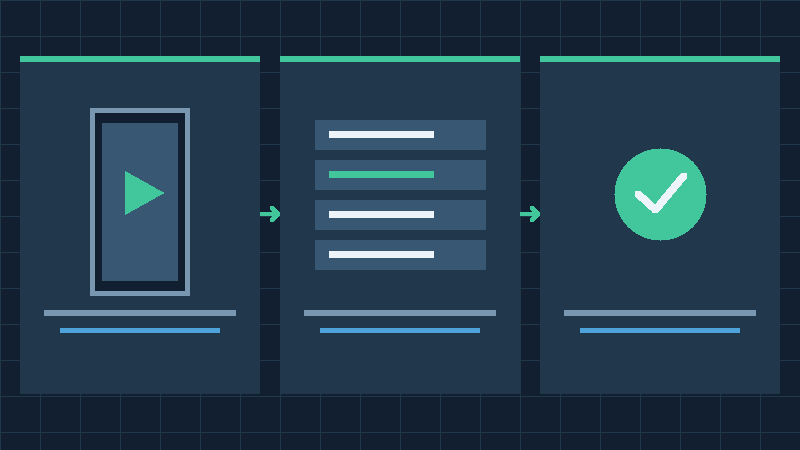
Inspect Available Storage Without Losing Files
Very limited device storage can interfere with updates and ordinary application activity. Large application installations can require space for downloaded packages and other temporary information in addition to the final installation. A store that opens but cannot complete downloads may therefore need a storage assessment.
Open Settings and locate the device’s Storage information. Distinguish the available capacity of the phone from any cloud storage allowance associated with your account. Buying cloud capacity does not automatically increase the free physical storage available for local application installations.
Review the displayed categories before deleting anything. For example, an old downloaded video may be replaceable, while a locally stored voice recording or unfinished project may exist nowhere else. If you cannot determine whether an item is recoverable, preserve it instead of treating it as disposable.
Our Android storage full guide explains how to distinguish items that may be safely removed from information that needs protection. If necessary, copy important files to a suitable independent location and verify that the copies open. Deleting synchronized information may affect other devices, so inspect the relevant service behavior before proceeding.
Avoid third-party cleaning tools claiming to repair Google Play by removing every application cache and unknown folder. Such an approach can remove useful information without establishing which application was affected. Use the normal storage controls and make targeted changes that address the actual capacity problem.
Once reasonable space is available, reopen the store and test its browsing interface. If your original problem was a failed installation, retry the required legitimate application after confirming its space requirements. A successful download is useful evidence that the storage issue mattered, but it is not a reason to remove additional unrelated files.
Verify Date Time And Android Version
An incorrect device clock can cause problems in services that rely on time-sensitive connections and account verification. The clock can be wrong even though the phone otherwise appears to work, particularly after travel, a manual time setting or a battery-related interruption.
Open Settings, then locate Date and time under the appropriate system or general management category. Compare the displayed date, local time and time zone with a trusted reference. Where suitable, enable the supported automatic time and time-zone options. Do not deliberately change the clock to an incorrect date in an attempt to evade an application restriction.
Once you correct a real discrepancy, reopen Google Play and observe whether the original symptom remains. If the clock was already correct, record that fact and continue rather than repeatedly altering the setting.
Also inspect the Android version in the phone’s About section and check the manufacturer’s supported system update process. An operating system update may contain compatibility or stability corrections. Make sure your device has suitable power, space, connectivity and a current backup before starting a substantial update.
A successful system update is not proof that every app is now compatible. Some older or specialized devices have reached the end of a manufacturer’s support period, and some devices do not include licensed Google services at all. If the problem relates to an unsupported configuration, seek the device manufacturer’s documented alternatives rather than downloading a modified system package.
When only the Play Store is affected and the ordinary system is functioning normally, there is no reason to install an unfamiliar firmware image solely to test a theory. Keep the distinction between a normal supported update and a complete replacement of the operating system clear. Retest the store after each relevant correction.
Clear Only The Google Play Store Cache First
The store may retain temporary information that helps it load familiar content. If that information becomes inconsistent, a targeted cache-clearing operation can be a reasonable diagnostic step. This should be directed at the actual Google Play Store application, not at every application with Google in its name.
Open Android Settings and enter the Apps area. Select Google Play Store from the installed application list. Open its storage controls, which may be labeled Storage or Storage and cache depending on your phone. Identify the cache-clearing option separately from the control for clearing the application’s stored data.
Select Clear cache when available. Return to the home screen and open the store again. The first opening may require the application to retrieve information that was previously available locally. Use the same network and account from your earlier tests where possible, so that you can attribute any improvement to the relevant change.
Google discusses this operation in its Play Store application troubleshooting documentation. The cache and stored data are distinct targets. Clearing the larger application data area can affect configuration choices and may require additional preparation.
Do not repeatedly clear the cache after every ordinary store session. It is a troubleshooting action, not a necessary daily maintenance practice. If the store works after the operation, check whether the result persists the next time you open it. If the same problem returns quickly, note the recurrence for further support.
Avoid clearing the cache of unrelated messaging or banking applications as part of this repair. A single app’s launch problem does not justify a system-wide cleanup. Treat each change as a deliberate experiment with a clear expected result.
Review The Effects Of Clearing Play Store Data
If cache clearing does not correct the fault, a more substantial reset of the Play Store application’s local state may be considered. Unlike clearing temporary cache, resetting the stored application data can affect its local preferences. Google specifically warns that some protective settings may be removed during this operation.
Before proceeding, inspect any purchase authentication, password protection and parental control settings that apply to the device. If the phone belongs to a child or is managed by another authorized person, have that person perform or approve the repair. A troubleshooting procedure is not permission to remove supervision or purchase controls.
On an authorized device, open Google Play Store’s application information page and its storage settings. Select the option for clearing stored application data only after reviewing the warning. Confirm that this is the store itself rather than Google Play services or an unrelated installed application.
Reopen the official store and complete any necessary legitimate account or terms prompts. Check the configuration you recorded earlier and restore the intended protective settings. If supervised settings cannot be restored through the ordinary process, consult the authorized administrator or Google support.
Retest the original launch problem. When the store opens, verify basic browsing and the ability to reach the intended application page. Do not use a purchase as a test if it is not something you actually need.
A local store reset is not the same as a factory reset of the Android device, nor does it mean that every affected preference is guaranteed to return automatically. The goal is to restore access while preserving the protections expected by the account owner. If the procedure fails, preserve the error details and continue to a targeted next step rather than repeating the same destructive configuration change.
Remove And Restore Store Updates Through Supported Controls
Some Android devices provide the Play Store as a preinstalled application whose updates can be removed through its application information screen. If the store began to fail after a software change, this may offer a supported way to compare the original included version with the updated application.
Check the actual device documentation and store information before selecting this option. On a device that offers it, open Google Play Store’s App info screen, find its additional options menu and inspect the choice for uninstalling updates. Review the displayed information to confirm what will be changed.
This does not mean downloading a random earlier release of the Play Store from a third-party website. The supported operation uses the device’s built-in application arrangement. If your device does not present the option, do not try to reproduce it using an unfamiliar package management tool or unauthorized system modifications.
After restoring the included application version, attempt to open the official store. When its ordinary preferences are accessible, check the About section for its version and supported update control. Restore a current supported version when available rather than deliberately maintaining outdated software as a permanent solution.
Record whether either version opens successfully and whether the failure returns after an update. This information is valuable when seeking manufacturer or Google assistance. An update-related symptom may need a corrected release instead of repeated removal of updates.
If the store remains unusable at every stage, verify the device’s account, certification and wider system conditions before making additional changes. Do not assume that restoring an included version always works. Its usefulness depends on the phone’s original software, your current configuration and the available official update mechanism. Keep the device’s normal security protections enabled throughout the comparison.
Check Account Access Before Removing An Account
The Play Store can depend on a Google Account associated with the device. If the interface opens but account verification fails or content is unavailable under one particular account, inspect account access before removing anything from Android.
Use the store’s existing account menu if it is accessible. Confirm that you have selected the account you actually intend to use. A second account may have different purchases, family settings, organizational requirements or application eligibility. Do not assume it provides equivalent access to everything on the first account.
On another trusted device, verify that you can authenticate legitimately to your own account. Check that required verification methods remain available. Avoid entering your password on a site that claims it can test Google Play access or remove a Play Store error. Use official account services.
Removing a Google Account from Android is more disruptive than selecting another account in the store. Google’s account management instructions explain that associated information is removed from the device when the account is removed. Preserve important local or unsynchronized information and confirm your legitimate sign-in methods before considering that step.
On a personally managed device, use its normal account management settings if removal and re-addition is appropriate. Confirm the exact account and complete any required authorized device verification. Re-add it through the official account controls, then check whether the store and essential account functions work. For family-managed or workplace accounts, seek approval first.
Do not proceed if losing temporary account access would prevent you from reaching important records or verification tools. An app-store problem does not justify risking wider account access. If your account itself cannot be authenticated normally, solve that problem through the official account recovery process before making further device changes.
Treat Google Play Services As A Later Diagnostic
Google Play services is a different component from Google Play Store. It supports functions used by other applications and parts of Android. As a result, actions that change its stored information can have much wider consequences than restarting the store interface.
First confirm that Play services is present and supported on the actual device. Check the normal application information or supported system service update arrangement. Google’s Play services guidance provides separate instructions for keeping this component available and up to date.
If other Google-dependent applications are also failing, record that wider pattern. It may make a service-related problem more relevant, but it does not establish that deleting service data is the right repair. Try the less disruptive store and device checks before considering a service-level reset.
Google specifically cautions against clearing Play services storage before other diagnostics. Stored information affected by this operation can include payment-related credentials and transit or other cards, and some accounts or payment methods may need renewed authentication. Make sure you understand the consequences that apply to your setup.
Do not treat the instruction to clear the Play Store cache as interchangeable with instructions to reset Google Play services. The two names are easy to confuse in the Apps list. Inspect the selected component and follow current official guidance only if the more extensive step is genuinely necessary.
For a phone relied on for payments, travel or work, arrange an alternative before undertaking a change that might disrupt those functions. If the device is managed or you cannot establish a safe recovery path, consult the responsible administrator or support provider. Verify the store and the other affected functions afterward. A repair is incomplete if it restores application browsing while leaving essential services unavailable.
Check Store Availability And Device Certification
Android exists on many types of devices, and not all of them are supplied with licensed Google applications. A device that never had a functioning official Play Store is a different case from a certified phone whose previously working store suddenly stops opening.
Google’s device certification documentation explains how to identify its certification status and seek supported solutions. If the store opens sufficiently, inspect its About area. If it cannot open at all, consult the device manufacturer’s information about the exact model and software configuration.
A certification error should not be confused with the Play Protect safety scanning feature. Turning off protective scanning does not establish that the device meets Google’s compatibility requirements. Keep the ordinary security controls in place while pursuing an appropriate resolution.
Consider whether the device recently received an unofficial operating system modification or was purchased with unfamiliar software already installed. Do not follow generic instructions to change the bootloader or flash a system image simply because the store is unavailable. These operations can erase information or introduce other serious problems if they are not performed using the correct authorized procedure.
If a device has never included Google Play as part of its supported configuration, use its manufacturer’s documented software distribution options. A file advertised online as a replacement Play Store may not be legitimate. Our fake software download button guide describes relevant precautions.
Record the exact certification or availability message and seek manufacturer support where necessary. A genuinely unsupported device is unlikely to be corrected by repeated cache clearing. Choose a solution that preserves ordinary device security and respects the actual software support arrangement.
Verify Google Play And Escalate Without Erasing Unnecessarily
When the store opens again, confirm more than the first appearance of its home page. Browse to a legitimate application you recognize, check that information loads and verify the intended account. If you previously needed to update an installed application, try that specific supported update rather than installing unnecessary software.
Check any purchase authentication, family protection and application preferences that were affected by the chosen repair. Restore the connection arrangement and other temporary settings when appropriate. If account or service data was changed, confirm that other essential Google-related functions operate correctly.
If the fault persists, gather the Android version, device model, exact error, account-independent symptoms and results of your connection and storage checks. Provide this information through official Google or manufacturer support channels. Avoid sharing full account credentials or screenshots that reveal sensitive payment information.
A factory reset has substantially broader effects than the troubleshooting actions described earlier. It can erase local files, applications and settings, and subsequent setup may require legitimate account access. Before considering it, use our Android backup guide and verify independent copies of irreplaceable information. A factory reset cannot make an inherently unsupported hardware or software configuration compatible.
This guide is based on official Google help documentation and controlled troubleshooting reasoning. Its illustrations are original conceptual diagrams rather than Android screenshots. These procedures were not independently tested on a physical phone for this article. The correct repair should restore ordinary access to the legitimate application store without sacrificing important data, account access or security controls.
Frequently Asked Questions
Why Does Google Play Store Close Immediately?
A temporary app error, configuration problem or wider software fault may be involved. Test other apps, close and reopen the store, and use targeted cache checks.
Can I Clear Play Store Cache Safely?
Clearing the store’s temporary cache is generally less disruptive than clearing its stored data. Select the correct app and distinguish the two controls.
Will Clearing Play Store Data Affect Parental Controls?
It may reset certain store settings, including protection settings. An authorized person should review and restore the intended controls.
Should I Clear Google Play Services Data First?
No, Google recommends reserving that action for later because it can affect stored payment information and account authentication.
Why Does Google Play Work On Wi-Fi But Not Mobile Data?
Check your mobile connection, plan and applicable network settings. Compare the same store on both connections before changing app data.
Can Turning Off Play Protect Fix Certification?
No, device certification and protective app scanning are separate. Follow official certification guidance and keep security protection enabled.
Should I Factory Reset My Phone If Google Play Will Not Open?
Not initially. Use targeted checks and official support first. Verify backups and account access before considering a reset.


