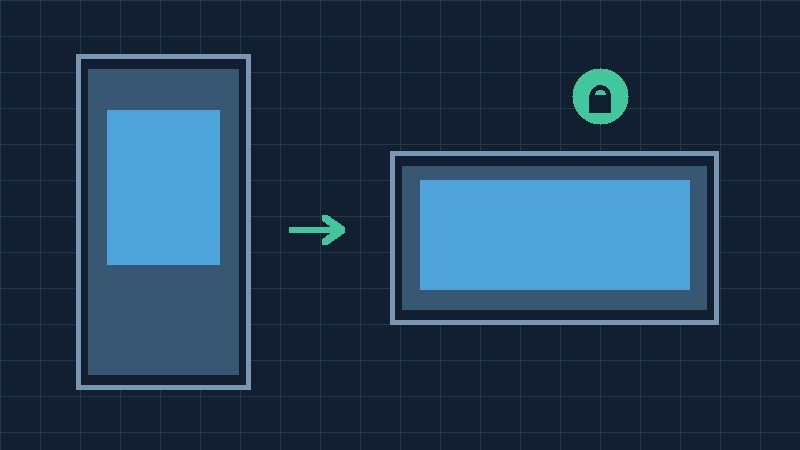

Identify The Exact Screen Rotation Symptom
When iPhone screen rotation is not working, the display may remain in portrait orientation even when you turn the phone sideways. Alternatively, only one app may refuse to rotate, a video may appear in the wrong direction, or the display may remain in landscape when you return the phone to an upright position. The appropriate troubleshooting steps depend on which of these situations you are experiencing.
Begin with an ordinary test in a stable environment. Sit or stand somewhere safe, open Safari and display a simple webpage. Hold the phone upright rather than flat on a table. Slowly turn the device approximately ninety degrees into landscape orientation. Then return it to its original position. Observe whether the page and the surrounding application interface adapt to the change.
Try a second compatible application or screen. Do not draw conclusions from testing only the Home Screen, a login screen or an application designed exclusively for portrait use. A particular screen may be fixed in one orientation even when the device’s orientation detection functions normally.
Record the model of your iPhone, its iOS version and the circumstances in which the problem occurs. For example, note whether the issue began after an update, occurs only while watching videos, or appeared following an impact. These details are useful when comparing tests, but none of them alone proves a specific cause.
If the phone is also unusually slow or unresponsive to taps, separate that wider issue from a rotation problem. Our iPhone touch screen troubleshooting guide explains how to assess input failures. The objective is to establish whether the phone is detecting its orientation, whether iOS is allowing a change, and whether the selected application actually supports it.
Turn Off Portrait Orientation Lock
The first setting to inspect is Portrait Orientation Lock. It is designed to prevent unwanted screen rotation in supported situations. It can be convenient when reading in bed or holding the phone at an unusual angle, but it may also explain why a compatible application remains upright when you want a landscape display.
On an iPhone with Face ID and no Home button, open Control Center by swiping downward from the upper-right area of the screen. On iPhone models with a Home button, use the supported gesture for that model, typically swiping upward from the bottom edge. Open Control Center while the device is unlocked if you are unsure whether access from the lock screen is enabled.
Locate the control showing a lock surrounded by a circular arrow. Inspect its active state rather than tapping unrelated icons. If orientation lock is enabled, turn it off. Apple describes the control and its purpose in the iPhone screen rotation guide. The appearance and arrangement of Control Center may differ between iOS versions and personalized layouts.
Close Control Center before conducting the actual test. Rotate the phone while viewing a compatible application. If it now behaves as expected, the original setting was preventing the desired rotation. You do not need to reset the phone or change system software.
If the setting appears to be off but the screen remains unchanged, record the result and move to the application compatibility test. Do not assume that toggling the switch several times will repair a hardware problem. One clear comparison is more useful than repeatedly changing the setting without observing the outcome.
After troubleshooting, you can restore the orientation lock whenever its normal function suits your reading or viewing habits.

Find The Orientation Lock In A Customized Control Center
An iPhone’s Control Center may look different from the arrangement shown in an older tutorial. Its available controls, groups and organization can vary according to the iOS release and personal customization. A familiar icon may not appear immediately even though the corresponding feature remains available.
Review the current Control Center carefully. If it includes multiple pages or groups of controls, inspect those areas as appropriate. On supported customizable versions, use the normal editing controls to add the orientation lock button if it is not already present. Follow Apple’s documented customization method for your version rather than assuming that a screenshot from another device describes the exact interface in front of you.
Do not confuse Portrait Orientation Lock with a Focus mode, the screen mirroring control or another icon that includes a similar shape. Turning off an unrelated control will not establish whether the rotation setting was responsible. If necessary, consult Apple’s screen rotation support article, which identifies the relevant control and explains the next diagnostic steps.
If your device restricts access to Control Center while locked, unlock it normally and repeat the check. There is no need to remove screen-lock protection just to inspect an orientation preference. A managed phone may also have a particular approved configuration, so ask its administrator before changing restrictions.
Once you have located the correct switch, set it to the unlocked orientation state for your test. Use an ordinary supported landscape application and hold the phone at a natural viewing angle. This separates an unavailable shortcut from an actual inability to rotate the screen.
If the control is available and other Control Center functions respond normally, but orientation remains unchanged, keep the existing interface organization and investigate the selected app and device response.
Confirm That The App Supports Landscape Mode
Support for landscape orientation is partly a decision made by the application developer. Many iPhone apps can rearrange their content when the phone turns sideways, but some are designed for portrait operation. Others support landscape only in certain screens, such as a video player or a document viewer.
A useful comparison is to open Safari on a simple ordinary webpage and rotate the device with Portrait Orientation Lock disabled. Then test another app or a particular supported landscape screen. Apple’s rotation troubleshooting guidance suggests Safari or Calculator as examples. The behavior of individual Calculator features and layouts can change with iOS versions, so use a normal compatible screen rather than assuming every view has the same rotation behavior.
Now return to the application where you first noticed the problem. If Safari rotates normally but that app does not, the phone has demonstrated that orientation changes can work in at least one supported context. Check whether the affected application provides landscape support for the screen you are using.
For example, an app may keep its account setup page in portrait while allowing a video to expand into landscape. A game might require landscape exclusively and ignore the phone’s portrait position. An app’s shopping or messaging view may have a fixed layout even though another app offers both orientations.
Consult the application’s own help resources or developer when its intended behavior is unclear. Do not assume that reinstalling it will add a feature that the developer does not support. If the app previously rotated on the same screen and now does not, verify the installed version and review recent changes.
A consistent failure in multiple supported applications provides stronger evidence of a broader orientation issue. Keep using the same known compatible test screens as you proceed so that an app’s layout restriction is not mistaken for a device-wide fault.
Compare The Home Screen With Full-Screen Video Behavior
The iPhone Home Screen is not a reliable universal test of rotation. Its behavior can depend on the device and system version, and many iPhones normally keep the Home Screen upright. Similarly, a particular system interface may be fixed in portrait even while ordinary applications can display landscape content.
When testing video, distinguish the orientation of the player interface from the orientation of the actual recording. A video recorded vertically can retain black bars or a portrait-shaped image inside a landscape player. That does not necessarily mean the player itself has failed to rotate. Conversely, a media application may provide a dedicated full-screen control that changes how the content is presented.
Open a known video from a trusted source if that is relevant to your original symptom. Compare its ordinary embedded player with the full-screen presentation. Examine whether the playback controls, application layout and video area change as expected when you move the phone. Avoid interpreting the shape of the recorded footage alone as a sensor test.
If a video was saved with incorrect orientation information, the remedy may involve correcting that individual recording using supported media editing controls. Preserve the original file before making edits. A sideways recording and a screen that cannot change its interface orientation are different issues.
An external display, screen sharing session or accessory arrangement may also present content according to its own layout rules. To establish a simple baseline, test directly on the phone’s built-in display without an optional external display session.
Once the normal Safari comparison works, focus on the specific player, recording or application presenting the unexpected image. If the built-in display itself remains fixed across multiple supported applications, continue to the physical orientation comparison and the device’s Measure feature. This avoids system-wide repair attempts for an issue confined to one media presentation.
Change The Way You Hold The Phone During Testing
The device’s physical position matters when testing automatic orientation. Holding a phone upright and turning it sideways provides a clearer comparison than slowly spinning it while it lies flat on a desk. In a nearly horizontal position, the relationship between gravity and the display may not provide the same clear portrait-to-landscape change.
Use both hands if needed and move the phone gently. Begin with the top edge pointing upward and the display facing you. Turn the phone to one side, pause briefly and observe the same application. Return through portrait and then test the other landscape direction if the application supports it.
Do not shake the phone or strike it in an attempt to free a supposed stuck sensor. Modern orientation detection is electronic and is not repaired through impact. A violent movement risks dropping or damaging the device and adds no useful evidence to an ordinary orientation test.
If you normally use a mount, stand or grip accessory, try the handheld comparison when it is safe to do so. Do not make changes while driving or operating machinery. A fixed mount may hold the phone in a position that makes your expected display behavior different from an upright test.
Compare the display response without changing orientation lock, app or other software settings between these simple movements. If the phone rotates under the handheld test but not in its usual position, consider whether that physical arrangement or app presentation is responsible.
An iPhone experiencing orientation errors after a physical incident may require professional evaluation, but the presence of a case or mount does not establish a damaged sensor. Record the circumstances and test the phone’s ordinary movement response before selecting further action. A controlled movement is both safer and more informative than attempting random vigorous gestures.
Use The Measure App To Check Orientation Response
Apple recommends the Level feature in its Measure application as an additional test when the screen does not rotate. It can help you establish whether the phone responds to a deliberate change in physical orientation independently of the ordinary landscape layout used by another app.
Open Measure and find Level. Hold the iPhone securely against an appropriate flat object or surface, then gently change its angle while observing the displayed reading. You can compare an upright position with a deliberately tilted one. Avoid balancing the phone precariously or placing it near a drop.
If the angle reading changes appropriately as the phone moves, the device has demonstrated a form of orientation-sensitive response. This does not guarantee that every motion sensor, application or display behavior is working perfectly. It does, however, provide a useful comparison when the ordinary rotation setting seems ineffective.
If the indicator remains fixed despite several gentle changes in angle, note that result. Apple recommends restarting the device when Level appears stuck. If Measure itself is unavailable or cannot be opened, consult the supported application options for your model rather than downloading an unknown sensor testing program.
The Level feature should not be confused with an application that requires access to location services for mapping. Changing location permissions is not an ordinary first-line repair for a display orientation problem. Our iPhone Location Services guide explains a separate group of positioning issues.
Record the results of the Level and Safari tests together. A responding Level combined with normal Safari rotation suggests a narrower application issue if another screen fails. A nonresponding Level combined with repeated failures in compatible apps provides more useful evidence for device support. Neither informal observation is a definitive hardware diagnosis.
Restart Normally And Repeat The Same Tests
If the orientation control is disabled and compatible applications still fail to rotate, a normal restart can help resolve a temporary software problem. Make sure you have saved important work and know your legitimate device passcode. Your iPhone may require the passcode rather than biometric authentication after restarting.
Use the documented restart method for your iPhone model. On many models without a Home button, holding the side button and either volume button together brings up the power-off control. For models using different button arrangements, follow the applicable instructions rather than repeatedly trying unfamiliar button combinations.
Apple’s iPhone restart guidance describes the supported procedures for different models. If the device is responsive, use the ordinary shutdown and startup process instead of forcing an abrupt restart.
Once the phone is running and you have completed normal unlock, confirm that Portrait Orientation Lock is still off. Open the same Safari page and repeat the upright-to-sideways movement. Then test Level in Measure if it was unresponsive earlier. Repeat the original affected application test last.
Comparing the same screens and physical positions before and after restart is important. If the behavior improves, you will know that the restart was associated with a specific change in the symptom rather than observing an unrelated application that always supported landscape.
If rotation works immediately after startup but later stops, make a note of the application or situation preceding the next failure. This may help identify a recurring software issue. Do not treat a restart as a complete repair if the same fault returns every time you use the phone normally.
A device that is stuck on its startup logo requires a separate investigation. Our iPhone stuck on Apple logo guide addresses startup symptoms rather than an isolated orientation preference.
Investigate An App-Specific Rotation Problem
When the screen rotates normally in Safari and other compatible applications, a failure confined to one app should be investigated at the application level. Determine whether the same view previously supported landscape on your device. Review any documented changes to the app’s layout or requirements.
Save your work before closing the application. Use the normal App Switcher and dismiss only the app you are troubleshooting. Reopen it, navigate to the same screen and test rotation again. There is no need to force close every app as a routine part of this comparison.
Check for a supported update through the App Store. Record the existing app version if possible and observe whether the updated version corrects the original behavior. Apple’s app troubleshooting instructions describe supported measures for software that does not work as expected, including checking for updates and protecting data before deleting an application.
If the application is also freezing or closing unexpectedly, our iPhone app crash guide provides a more detailed approach. Do not assume that a rotation error is the cause of every crash or that correcting one behavior will automatically repair the other.
An app that intentionally supports only a fixed orientation does not require a repair. If the developer confirms that the intended screen does not rotate, use its supported layout or an alternative application appropriate to your needs. Avoid untrusted utilities that promise to force arbitrary apps into unsupported orientations.
Deleting and reinstalling an application is more disruptive than closing it and updating it. It may remove local data, so establish a safe backup or export and account recovery path before considering the procedure. If a reproducible issue remains in just one application, supply the developer with the app version, iPhone model, iOS version, affected screen and comparison results.
Check Supported IOS Updates And Wider Display Symptoms
An orientation issue can occasionally accompany a wider software problem, especially if several applications fail on the same device. Inspect the device’s current iOS version in Settings, General, About. Compare the symptom with other ordinary functions rather than assuming that every unusual display effect is related to the same issue.
For example, an iPhone that responds normally to movement but has a dark camera preview may have a separate camera problem. Our iPhone camera black screen guide describes that symptom independently. Likewise, display content that does not respond to ordinary taps may require touchscreen assessment rather than a rotation setting.
Check General, Software Update for an available update supported by the model. Before starting, protect important information, confirm adequate storage and connect the device to suitable power and connectivity. Do not interrupt an update that is still completing or repeatedly restart the device during installation.
If the issue began immediately after an update, record the installed version and exact behavior. Contact Apple through official support channels if the failure persists. Do not attempt an unsupported operating system downgrade, install an unfamiliar configuration profile or modify the device’s system software merely to test an orientation fault.
There is also a distinction between rotation and display accessibility settings. Preferences such as text presentation, motion effects and display appearance can change the experience of a screen without necessarily disabling physical orientation detection. Do not reset important accessibility preferences without understanding their actual purpose.
Repeat the controlled compatible-app and Level comparisons after any supported system update. If a previously repeated failure disappears, record the change and verify that the phone continues to function normally. If Level remains stuck and several compatible apps still refuse to rotate, preserve that diagnostic evidence rather than making further unrelated software adjustments.
Protect Important Information Before Advanced Recovery
An isolated screen rotation failure rarely justifies erasing an iPhone. It may be tempting to select a general settings reset when the simpler checks have not worked, but broad configuration changes can affect preferences that have nothing to do with orientation. Before considering such an action, determine exactly what it would change.
Create or verify a recent backup of your device through its supported iCloud or computer backup method. Apple’s iCloud backup instructions explain how to request a backup and inspect its displayed completion information. Check the result rather than assuming that starting the process guarantees a usable copy.
Remember that certain information may synchronize independently of the device backup, and individual applications can have their own export or recovery requirements. Verify important local records before removing any application or resetting the device. Our iPhone iCloud recovery guide and computer backup recovery guide explain two distinct restoration arrangements.
Confirm access to the Apple Account and any other essential accounts before undertaking substantial recovery. Preserve necessary verification methods and independent copies of valuable files. If the phone is managed by an employer or school, use its approved support procedure.
Do not select an erase operation solely because an informal orientation test failed. It cannot repair a damaged physical component, and data loss can be far more disruptive than an app that remains upright.
If Apple support recommends a particular recovery action after assessing your device, review its consequences and confirm the backup first. A proportionate repair starts with the relevant setting, app behavior and orientation response, then escalates only when the evidence supports more extensive work.
Verify Rotation And Know When To Seek Device Service
After the screen rotates again, repeat the original task and the controlled Safari test. Verify both portrait and landscape where the application provides them. Check whether the display returns to the expected orientation when you hold the phone upright again.
Restore your preferred Portrait Orientation Lock setting after completing the comparison. If you intentionally choose to keep the screen locked for everyday use, remember that this is expected behavior rather than a recurring defect. Confirm that your original application works in its supported presentation.
If the failure persists in multiple compatible apps after a normal restart and the appropriate settings checks, contact Apple or an authorized service provider. Explain whether Measure Level responds to deliberate changes in angle, whether the fault began after an update or physical incident, and which compatible applications you tested. Include the device model and iOS version without sharing your passcode or private account information.
A damaged or malfunctioning physical component is one possibility in a persistent broad failure, particularly after an impact or other physical incident. Informal software and movement tests alone cannot establish which component is affected. Avoid opening the phone or attempting an unauthorized internal repair based solely on the rotation symptom.
If the device has other serious physical warning signs, stop unnecessary testing and obtain appropriate service. A reliable repair should preserve both ordinary device functionality and your important data.
This article draws on Apple’s official documentation and original diagnostic reasoning. Its illustrations are conceptual rather than screenshots of an actual iPhone. The procedures were not independently performed on physical iPhone hardware for this article. By comparing the intended orientation setting, supported application layouts and motion-sensitive Level response, you can choose a more targeted solution without introducing unnecessary data loss or configuration changes.
Frequently Asked Questions
Why Is My iPhone Screen Not Rotating?
Portrait Orientation Lock may be enabled, the particular app may not support landscape, or a broader software or orientation-response issue may exist. Start with the lock and compatible-app tests.
Where Is Portrait Orientation Lock On iPhone?
Open Control Center using the gesture appropriate to your model and look for the lock surrounded by a circular arrow. On supported customizable versions, add the control if it is missing.
Why Does Safari Rotate But My Other App Does Not?
The other application or screen may be designed for a fixed orientation. Check its documented behavior and updates before attempting system repairs.
Should My iPhone Home Screen Rotate?
Not necessarily. Home Screen behavior varies by model and software, so use a known compatible application to test rotation.
How Can I Check Whether My iPhone Detects Orientation?
Open Measure and select Level. Observe whether its angle reading responds when you gently change the phone’s physical position. This is a useful comparison, not a definitive hardware test.
Will Restarting Fix An iPhone Rotation Problem?
It may resolve a temporary software problem. Restart normally and repeat the same orientation and application comparisons to verify the result.
Should I Erase My iPhone If Rotation Still Fails?
No, erasing the device is not an appropriate initial repair. Seek supported diagnosis for a persistent failure and verify backups before any substantial recovery.


