
A frozen startup screen can be worrying when important files are still on the device. This guide explains the safest order of troubleshooting and when to stop before choosing a destructive repair.
Why Your iPhone Is Stuck On The Apple Logo
An iPhone that remains on the Apple logo may be completing an update, restoring information or experiencing a startup failure. The logo by itself does not tell you which situation applies. A progress indicator underneath the logo is particularly important because it may show that an installation or migration is still in progress.
A startup fault can follow an interrupted update, an unsuccessful restoration or a hardware problem. Repeatedly restarting the phone without identifying the state can complicate diagnosis. If the device is actively transferring information, disconnecting power or interrupting the process is not a sensible first response.
| What You See | First Response |
|---|---|
| Logo and moving progress bar | Keep reliable power connected and allow completion. |
| Logo and unchanged bar during migration | Observe whether the bar moves for at least an hour. |
| Logo with no progress bar for several minutes | Consider a force restart and recovery mode if needed. |
| Repeated startup logo followed by a restart | Attempt the supported recovery update procedure. |
| Black screen or low-battery indicator | Check power and follow the appropriate startup guidance. |
For a device that does not display a startup logo at all, see iPhone Won’t Turn On. The troubleshooting steps overlap, but the visible symptoms can require different responses.
Check Whether An Update Or Migration Is Still Working
During an iOS update, backup restoration or migration from an older phone, the device may show a startup logo with a bar. The bar can move very slowly, appear stationary or begin a further pass. Apple explains this behavior in its progress bar troubleshooting guide.
Keep the device connected to suitable power. If it is attached to a computer as part of a restoration or migration, keep the connection intact while the process continues. Do not assume that a slowly changing bar means the phone needs repair.
For an iPhone that appears frozen during a migration or backup restoration, Apple’s specific Apple logo instructions recommend confirming that the progress bar has not moved for at least one hour before proceeding to recovery mode. This threshold applies to the documented migration or restoration scenario, not to every startup problem. If the bar is advancing, leave the process undisturbed.
Note what happened immediately before the logo appeared. For instance, a phone completing a transfer from another iPhone has a different starting point from one that suddenly restarted while you were using an app. That information will help determine the appropriate next step.
Check Power And Physical Condition Before Restarting
If the phone may have a depleted battery, connect it to a compatible, intact charger. Apple’s startup troubleshooting guidance recommends allowing up to an hour of charging before retesting an iPhone that will not turn on. A device that is actively updating should remain powered rather than being repeatedly disconnected to test chargers.
Inspect the cable and adapter for obvious damage. Stop using damaged or overheating equipment. If the phone is swollen, unusually hot, visibly damaged or recently exposed to liquid, discontinue ordinary charging tests and seek appropriate assistance. Never insert a metal tool into the charging port or apply heat to the device.
A charge test can help distinguish a battery-related startup problem from an iOS failure, but it cannot establish the health of the battery on its own. If the phone later starts and drains quickly, our iPhone Battery Drains Quickly guide provides separate checks for that symptom.
Force Restart Your iPhone Using The Correct Buttons
If the phone is genuinely unresponsive and is not actively progressing through an installation, try a force restart. This procedure restarts the device without intentionally deleting its stored information. It is different from erasing all content or restoring iOS through a computer.
iPhone 8 And Later, Including iPhone SE Second And Third Generation
- Briefly press Volume Up and release it.
- Briefly press Volume Down and release it.
- Hold the Side button until the startup logo appears again, then release it.
iPhone 7 And iPhone 7 Plus
Hold the Volume Down and Side buttons together until the startup logo appears again. Release the buttons when the phone begins restarting.
iPhone 6s, First-Generation iPhone SE And Earlier Models
Hold the Home button and the appropriate Side or Top power button together until the startup logo appears again. The location of the power button depends on the model.
Apple’s force-restart instructions and its model-specific startup guidance explain the button combinations. If the phone returns to the same frozen state, avoid repeatedly performing the same restart. Move to the recovery procedure where appropriate. Broken or unresponsive hardware buttons may require service.
Prepare A Mac Or Windows PC For Recovery Mode
Recovery mode permits the computer to communicate with the iPhone when ordinary iOS startup is not working. Prepare the computer before beginning. Make sure it has reliable power, internet connectivity and adequate space to download the required iOS software. Use an intact compatible USB data cable rather than a charging-only cable.
| Computer | Application |
|---|---|
| Mac running macOS Catalina or later | Finder |
| Mac running macOS Mojave or earlier | iTunes, where supported |
| Windows PC | Current Apple Devices app, or an appropriate supported iTunes setup |
Locate the computer application before connecting the phone. If you have an existing backup, confirm where it was stored and whether it is accessible. An encrypted computer backup may require its separate backup password when you later restore it. Do not assume that entering recovery mode will create a backup of data that cannot currently be accessed.
Put The iPhone Into Recovery Mode
Attach the iPhone to the prepared computer and open the appropriate application. Keep the phone connected as you perform the button sequence. Unlike an ordinary force restart, keep holding the relevant button or combination until the recovery screen appears. Releasing too early may simply restart the phone into its original state.
iPhone 8 And Later
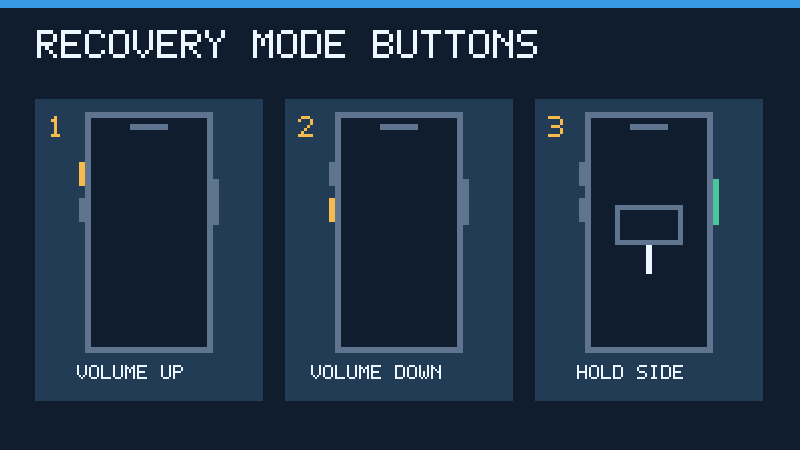
- Tap and release Volume Up.
- Tap and release Volume Down.
- Hold the Side button past the startup logo until the recovery screen appears.
iPhone 7 And iPhone 7 Plus
Hold the Side and Volume Down buttons together until the recovery screen appears.
iPhone 6s And Earlier
Hold the Home and appropriate Side or Top power buttons together until the recovery screen appears.
These sequences are based on Apple’s iPhone recovery mode documentation. Compare the instructions with your exact model if its layout differs. The screen that indicates a computer connection is not the ordinary startup logo.
Choose Update Before Restore To Protect Your Data
When the computer recognizes the iPhone in recovery mode, it can present Update and Restore choices. If an Update option is available and you have not yet attempted it, choose that option first. It attempts to reinstall compatible iOS software without intentionally erasing personal information. No recovery attempt is a guarantee that inaccessible information will become recoverable.
Keep the cable connected during software installation. If the computer is downloading software and the iPhone exits recovery mode after an extended download, allow the download to finish and then reenter recovery mode as described by Apple. Do not repeatedly restart the computer or remove the cable while it is writing software to the phone.
Data loss warning: Restore erases the iPhone and installs iOS. Do not select it casually when valuable files are not backed up. If Update fails and the data matters more than immediate device usability, pause before initiating Restore and discuss the remaining options with Apple or a qualified service provider.
If you decide to restore and later set up the device from an available backup, our computer backup restoration guide explains that separate process. A previously saved backup cannot guarantee the recovery of photos or other changes made after the backup date.
What To Do If The Computer Cannot Recognize The iPhone
A failed connection does not necessarily mean recovery mode is unavailable. Check the cable specification, direct USB port and computer application. If a Mac requests permission for the accessory connection, review the legitimate prompt. An iPhone that cannot load its normal interface may not be able to display an ordinary trust prompt; use the documented recovery procedure rather than attempting to bypass authorization.
Try another compatible data cable, then a different direct port. Where practical, use another supported trusted computer. Keep the applications and system software updated before retrying. Apple’s computer recognition instructions explain common connection problems. Windows users can also consult USB Device Not Recognized Windows 11 for the separate computer-side symptom.
If the phone is detected but updating fails, record the exact error and follow the instructions associated with it. Do not download an unknown repair program or provide an Apple Account password to an untrusted recovery website. These actions do not establish that the original error will be corrected.
When To Arrange Professional Service
Seek appropriate service if the iPhone cannot enter recovery mode because a required button is broken, if supported update attempts repeatedly fail, or if a known-good charging and computer connection does not resolve the problem. A recent fall, liquid exposure or unusually rapid heating changes the priority from ordinary software troubleshooting to safety and hardware assessment.
Tell the technician what the device displays, what preceded the failure and whether important information remains without a current backup. Supply the observed error messages rather than guessing which component is at fault. Ask whether a proposed procedure will erase the phone before approving it. Avoid opening a damaged device or attempting board-level repairs yourself.
If the phone starts successfully, verify that photos, messages and essential applications remain accessible. Make a current backup while it is working. You can also make an independent copy of important photographs using our iPhone photo transfer guide. Confirm that the copies actually open before deleting originals.
Frequently Asked Questions
Why Is My iPhone Stuck On The Apple Logo?
The phone may be updating, migrating data or experiencing a software or hardware startup failure. Check whether a progress bar appears and whether it moves.
Does Force Restart Erase My iPhone?
No, a force restart does not deliberately erase your files. It restarts the device using its model-specific buttons.
Should I Wait If The Progress Bar Is Not Moving?
Yes, during a migration or restoration, confirm that the bar has not moved for at least one hour before following Apple’s recovery guidance.
Is Recovery Mode The Same As A Factory Reset?
No, entering recovery mode does not itself erase the phone. Choosing Restore from the computer does erase it.
Which Option Should I Choose, Update Or Restore?
Try Update first when offered and appropriate. Restore erases data and should be considered only after assessing backup and recovery options.
Can I Fix An iPhone Stuck On The Logo Without A Computer?
Sometimes a suitable charge or force restart resolves the problem. A persistent startup failure may require recovery mode using a computer or professional assistance.
Can I Create A New Backup While The iPhone Cannot Start?
Do not assume you can. Routine backup generally requires an accessible device and appropriate authorization. Preserve existing backup copies and consult supported recovery guidance.
Official References And Technical Review
Reviewed November 16, 2026. Apple Support references: Progress Bar After Updating Or Restoring, iPhone Frozen On The Apple Logo, Force Restart iPhone, Unresponsive iPhone, Recovery Mode and Computer Recognition. Original illustrations are conceptual, not screenshots. Procedures were reviewed against official documentation; no physical iPhone recovery tests were performed.


