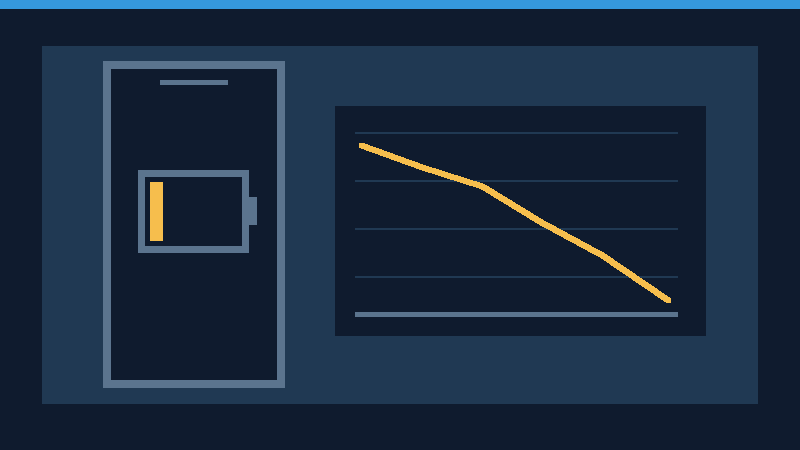

Fast battery drain can make a reliable iPhone feel unpredictable. A few focused checks can help distinguish ordinary energy use from inefficient settings, background tasks and a battery that needs service.
Find Out Whether The Drain Is Actually Unusual
When an iPhone battery drains quickly, the most useful first question is whether the phone is using more energy than usual or whether the battery can no longer store as much energy as it once could. Both problems reduce time between charges, but their remedies differ. Changing several settings at random can hide the original cause without resolving it.
Compare a day of typical use with a day when the battery seems especially weak. Navigation, video recording, gaming, video calls, large downloads and high screen brightness can all increase energy consumption. A busy day outdoors using maps and cellular data should not be compared directly with a quiet day at home on Wi-Fi.
Note whether the phone loses charge mainly while in use or also when the screen is off. Check whether the problem began after a software update, a new app installation, a change in cellular coverage or an accidental drop. If the phone has been getting progressively weaker over months, battery aging deserves particular attention.
There is no universal acceptable percentage of battery drain per hour. Model, battery condition, signal quality, brightness, temperature and workload all affect the result. Judge the phone against its own established pattern under comparable conditions.
Check Battery Usage In Settings
Open Settings and select Battery. Review the available battery-level and activity charts, and examine the apps or system activities listed below them. The layout depends on your iOS version. On newer releases, additional daily comparisons and insights may be available; on earlier versions, use the time periods shown on the screen.
- Open Settings and tap Battery.
- Select an available time period covering the unexpected drain.
- Review the apps and system activities with the largest share of consumption.
- Examine the activity duration and whether it occurred on screen or in the background.
- Compare the results with a similar period when battery life was better.
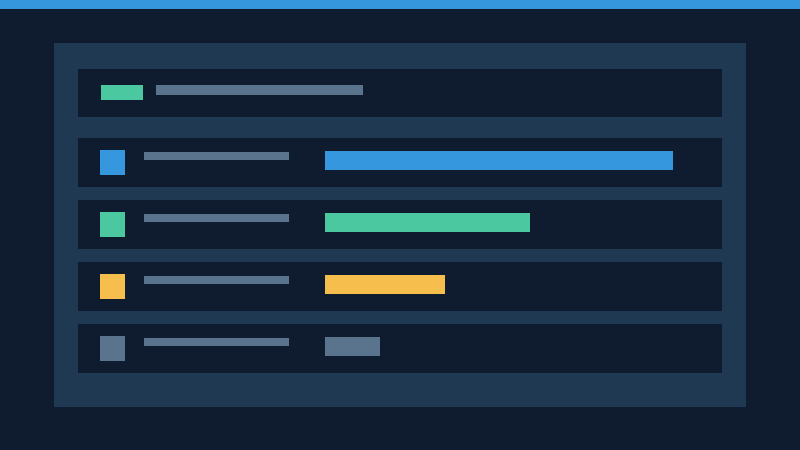
The percentages are shares of the energy used during the selected period, not necessarily percentage points removed from a full charge. An app showing a large share may simply be the app you used most. Compare that share with its activity time and your expectations before concluding that the app is faulty.
For example, a mapping app with extensive background activity may be following an active route. A similar amount of unexplained activity in an app you have not opened recently deserves further investigation. Apple’s battery drain guidance explains the ways battery usage can be attributed to apps and system tasks.
Deal With Unexpected App Activity
Start with apps whose activity does not match your expected use. Check whether they need an update or have an active upload, download, location session or media playback task. End a task normally from inside the app when possible, rather than immediately removing the application.
For applications that do not need frequent updates while you are using something else, open Settings, General, and Background App Refresh. Consider limiting individual apps rather than disabling every app at once. Some background tasks are independent of this setting, so turning it off is not a guarantee that all background activity will stop.
Review location permissions under Settings, Privacy & Security, Location Services. Use permission levels appropriate to each app. A delivery app may need your location while you place an order, but an unrelated app may not need persistent access. Be cautious about changing settings for navigation, safety, accessibility or device-finding functions that you rely on.
Adjust unnecessary notifications through the app’s notification settings. Frequent screen wakeups can use extra energy even when you do not open the app. Keep important calls, account-security alerts and time-sensitive reminders enabled according to your needs.
Do not habitually force-close every app. Instead, close one that is clearly unresponsive or behaving unexpectedly, then reopen it if needed. Test whether a specific change produces a repeatable improvement.
Reduce Display Power Without Making The Phone Unusable
The display can be a major source of consumption during active use. Adjust brightness to a comfortable level and enable automatic brightness if appropriate. Apple’s battery performance recommendations describe the benefits of sensible display settings.
In Settings, Display & Brightness, consider a shorter Auto-Lock interval that still meets your needs. An idle screen that stays illuminated while your phone lies on the desk consumes power unnecessarily. On compatible models with an always-on display, you can test whether switching it off improves the standby time you experience.
Dark Mode may save some display energy on compatible OLED screens, particularly at higher brightness with dark content. The benefit varies with screen technology and what is actually being displayed. It is not a universal replacement for adjusting brightness, and there is no reason to make text difficult to read merely to reduce consumption.
Take a screenshot or write down the original settings before experimenting. Make one noticeable change, compare similar usage, and retain the change only if its benefit is worth the tradeoff.
Check Wi-Fi, Cellular Coverage And Network Usage
A phone can use considerable energy in places with weak cellular coverage. It may need to search for service or maintain a less reliable connection. If the drain is worse on a commute, in a basement or at a particular workplace, compare battery behavior in a location with reliable coverage.
Use a trusted Wi-Fi network when it is available and suitable for your internet activity. On supported 5G models, the 5G Auto setting allows the phone to select a more efficient connection when high speeds are not needed. Look under Cellular or Mobile Data settings for Voice & Data options, which may vary depending on the carrier.
Airplane Mode can reduce radio activity when you intentionally need no connectivity in an area with no service. Remember that it can interrupt cellular calls and messages, so do not use it when you need to remain reachable. Wi-Fi and Bluetooth can be managed separately if you require them.
Leaving Wi-Fi and Bluetooth enabled is generally a reasonable default. Apple’s battery maintenance guidance explains that they are designed to use little power when idle. Focus on actual signal problems and high-energy network activity instead of continually switching every radio off.
Use Low Power Mode When You Need Extra Runtime
Low Power Mode is a practical temporary option when you expect to spend a long time away from a charger. Find it under Settings and Battery, or use the Power Mode submenu on versions and models that provide it. You can also add the appropriate shortcut to Control Center when supported.
When enabled, it restricts some less urgent activity and may reduce display-related energy usage. Tasks such as automatic downloads and background refreshing may be delayed, while basic communication remains available. The exact changes depend on the model and software release. Apple’s Low Power Mode guidance describes its operation.
Low Power Mode helps conserve the charge you have left; it does not restore lost battery capacity. If the phone runs down very quickly even with light use and Low Power Mode enabled, check its battery condition and investigate unusual background activity instead of relying on this feature permanently.
Check Battery Health And Understand Maximum Capacity
Open Settings, Battery, and Battery Health or Battery Health & Charging, depending on your iPhone. Review the reported maximum capacity and any service message. Some newer models also provide charge-cycle details. The information describes the battery’s condition relative to its original capacity, rather than the amount of charge remaining right now.
As a rechargeable lithium-ion battery ages chemically, it stores less energy and may become less capable of meeting sudden power demands. An older battery can therefore provide fewer hours of use and sometimes contribute to unexpected shutdowns. Apple’s battery and performance documentation describes this distinction.
A capacity reading above 80 percent does not establish that every aspect of the battery is working correctly. Conversely, a phone below that figure does not automatically need an emergency repair if it is operating safely. Consider runtime, service messages and unexpected shutdowns together. If the phone recommends battery service or the reduced runtime interferes with everyday use, arrange a qualified assessment.
The battery percentage displayed in the status bar and maximum capacity in Battery Health are two different measurements. Charging to 100 percent does not mean the battery has recovered its original capacity. Nor can a utility app reverse chemical aging.
Allow Temporary Activity After Updates And Setup
It is possible to experience shorter runtime after installing a software update or transferring information to a new phone. During this period, tasks such as processing photos, synchronizing data or preparing search information may continue after the device becomes usable.
If there is no sign of unsafe heat or hardware damage, allow normal background work to finish. Charge safely when needed and compare usage again over the next few days. Some iOS releases display battery insights about ongoing setup or update tasks. If an insight is available, it can help explain the temporary increase.
If battery life remains unusually short after those tasks should have completed, review the activity charts again. Check for supported app updates and persistent activity before considering more disruptive troubleshooting. Keep a verified backup before making major software changes; a factory reset is not an appropriate first response to battery drain.
Protect The Battery From Extreme Temperatures
Heat affects both short-term behavior and long-term battery condition. Avoid charging the phone in direct sunlight, inside a parked hot car or near a heat source. Apple specifies a normal ambient operating range of 0 to 35 degrees Celsius for iPhone use. Cold conditions may temporarily reduce runtime, while prolonged excessive heat can harm battery capacity.
If an undamaged phone becomes warm during demanding tasks, stop the task if necessary and allow it to cool naturally. iOS may temporarily slow or pause charging in extreme conditions. Do not use a refrigerator, freezer, water or a hairdryer to change its temperature rapidly.
If the screen or back enclosure is lifting, or the device develops severe heat, smoke or signs of a swollen battery, stop using and charging it. Seek qualified service. Do not press the enclosure back into place, puncture the battery or attempt a software fix for a physical safety issue.
Run A Simple Comparison Test
You can learn more from a modest repeatable test than from dozens of battery-saving tricks. Choose a period when the device can be left in its usual safe environment and when you do not need to alter essential communications.
| Observation | Possible Explanation | Next Check |
|---|---|---|
| Rapid drain during video or gaming | Demanding workload | Compare similar active use |
| Unexpected background app activity | Sync, playback, location or app issue | Review that app’s tasks and permissions |
| Drain mainly in weak signal areas | Radio activity | Compare on reliable coverage |
| Short runtime with a service message | Battery wear or fault | Arrange assessment |
| Severe heat or swelling | Potential safety issue | Stop charging and seek service |
Write down the starting charge, elapsed time, activity, signal quality and ending charge. Repeat the comparison after changing only one relevant setting. These observations provide context for a repair provider, and are not a laboratory measurement or a substitute for professional diagnostics.
Know When To Seek Battery Service
Seek qualified assistance if your iPhone shuts down unexpectedly, has a battery service warning, or repeatedly loses substantial charge despite comparable light use and sensible settings. If the phone stops starting entirely, follow our iPhone startup troubleshooting guide instead of treating it as ordinary battery drain.
Back up accessible data before service, record the model and symptoms, and use a trusted repair provider. For related issues on other platforms, see our Android battery drain guide and Android charging guide. Their settings are different, but measuring the problem before changing a device remains a useful principle.
Frequently Asked Questions
Why Is My iPhone Battery Draining Fast Even When I Am Not Using It?
Background tasks, networking, notifications or battery wear can contribute. Review battery activity during the idle period and compare it with an ordinary day.
Does Low Power Mode Damage The Battery?
No, it reduces selected power-consuming activities. It does not repair a worn battery.
Should I Charge My iPhone Only To 80 Percent?
It depends on your runtime needs. Supported charge-management features can reduce time spent at high charge, but you can charge fully when you need extra runtime.
Can An iOS Update Temporarily Reduce Battery Life?
Yes, background preparation after an update can increase energy use for a while. Recheck after normal setup tasks finish.
Will Closing Every App Save Battery?
Not necessarily. Investigate apps that exhibit unexpected activity rather than repeatedly closing every application.
When Should I Replace My iPhone Battery?
Consider service when battery health warnings, reduced runtime or unexpected shutdowns interfere with use. Obtain a qualified assessment for persistent problems.
Official References
Apple documentation: Battery Drain Troubleshooting, iPhone Battery And Performance, Low Power Mode, Maximizing Battery Performance and Charging And Battery Maintenance. Some references have been updated since this article’s assigned archive date; menu names vary by installed iOS version. The illustrations are original concepts, not screenshots or measured data. The procedures are documentation-based and have not been physically tested on every model.


