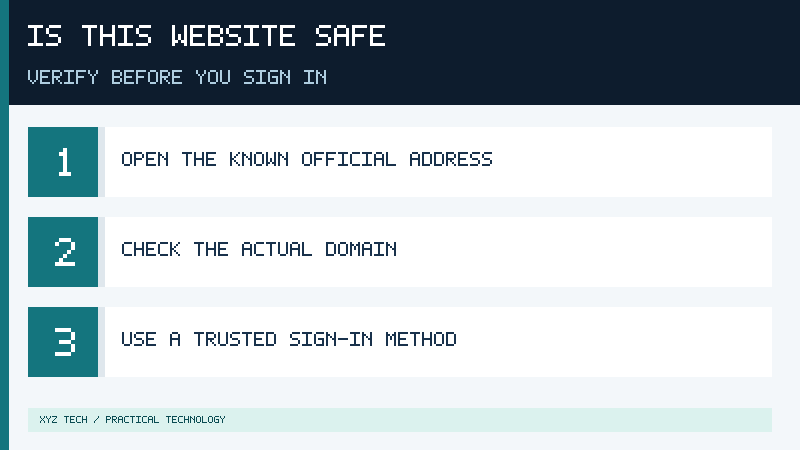

What Does A Safe Website Mean When You Are About To Sign In?
A website does not become trustworthy merely because it displays a familiar logo or an attractive login page. Before entering a password, you need to establish that you have reached the service you actually intend to use, that your connection is appropriately protected, and that the action being requested makes sense. These are separate questions, and a positive answer to one of them does not automatically settle the others.
Consider an email that appears to come from a delivery service. It says a package is waiting and asks you to sign in immediately. The page reached through the message might display an accurate-looking company name and a professional form. It might even use HTTPS. None of those observations proves that the organization operates the page or that you really have a package waiting.
An authentication page is particularly sensitive because the information you enter may provide access to an account holding other valuable records. Your email account may be used to recover access to additional services. A shopping account might contain saved delivery addresses or payment arrangements. A work account might provide access to organizational resources. Verifying a destination is therefore more important than completing the sign-in as quickly as possible.
The Federal Trade Commission’s phishing guidance recommends contacting a supposedly familiar organization through a route you already know to be genuine when an unexpected message requests sensitive action. This is the foundation of a practical website verification routine: separate the claimed reason for signing in from the route by which you were directed there.
Our phishing explainer describes the broader threat and common warning signs. This guide concentrates on the specific decision you face immediately before submitting credentials. No single visual indicator, reputation check, browser setting or authentication method can certify that an arbitrary website is completely safe. A combination of independent navigation, destination checks and deliberate authentication provides a more useful approach.
You can use this routine on a desktop computer, laptop or phone. The exact arrangement of address bars and security indicators varies across applications. On any device, the objective remains the same: identify the intended service and avoid allowing a message, notification or webpage to make that decision for you.
Step 1: Reach The Real Service Independently

Begin by identifying why you were asked to sign in. Did you open your bank’s website to check your account, or did an unexpected message tell you that an urgent payment was overdue? Did you deliberately open a document-sharing service, or did someone send an unfamiliar invitation claiming that a file requires immediate approval? The context can reveal whether you have a legitimate reason to authenticate.
For an unexpected request, avoid using the link provided in that request. Instead, open the official application you already use, navigate to the organization’s verified homepage, or use a reliable bookmark established during an earlier visit. The FTC’s 2024 consumer alert on phishing explains that a person receiving an unexpected message should use separate, familiar contact information to confirm it. That advice remains useful even when the message appears to refer to a real account.
If a service genuinely requires attention, the issue may also appear in its account dashboard, notification center or an official support channel. For example, a user receiving a suspicious billing message can open the existing billing application independently and inspect the current account balance. If the application does not show the claimed problem, ask the organization through a known contact method rather than returning to the message’s link.
A search engine can help find public organizations, but a result is not inherently official simply because it is highly visible or marked as an advertisement. Check the real organization name and address against a trusted source. For financial accounts, a known app or a bookmark established from verified instructions may be preferable to searching for a login page every time. Avoid entering credentials into a result merely because its title matches the desired brand.
The same principle applies to QR codes and shortened addresses. These mechanisms can conceal the final destination until you inspect it. If an unexpected poster, delivery notice or message asks you to scan a code and submit login details, navigate to the relevant official service separately when possible. You do not need to open a suspicious destination to determine whether an account issue exists.
When a colleague or friend sends a surprising request, confirm it through a separate conversation or established contact route. Someone’s genuine account can be compromised, so the presence of a familiar sender name does not necessarily establish that the request reflects their intentions. If a workplace service requires unusual authentication or permission approval, consult the authorized administrator.
This method works because it reduces dependence on the original message. A person trying to mislead you controls the information included in their own communication, but they do not necessarily control the trusted app or official address you chose independently. Removing that dependence is the most important first step before typing a password.
Step 2: Inspect The Actual Website Address
Once you have reached what appears to be the intended service, examine the address displayed by the browser itself. Do not judge the destination by a company name printed inside the page. The page can contain arbitrary text and images, while the browser’s address field identifies the address it is currently visiting. On a phone, you may need to select the address bar to reveal more of the full address.
A web address can contain a scheme such as https, a host name, a path and additional information. The host name is essential when determining which domain you are visiting. Our guide to DNS explains how domain names relate to network destinations. The presence of an organization’s name somewhere within an address is not sufficient proof that the organization controls that host.
The table uses reserved demonstration domains. Treat accounts.example.com as the intended host for this comparison. Compare the actual host in each example, rather than relying on a matching word in the displayed address.
| Displayed address | Host to inspect | What it illustrates |
|---|---|---|
| https://accounts.example.com/login | accounts.example.com | Matches the intended fictional host |
| https://example.net/accounts | example.net | A matching word in the path does not make the domain identical |
| https://accounts.example.com.example.org/ | accounts.example.com.example.org | Familiar text can appear within a different host |
| https://example.org/login | example.org | A different domain requires separate verification |
Real-world organization domains can be more complicated, particularly where country-code domains, separate identity providers or delegated subdomains are involved. Do not assume that reading the last two labels always identifies the organization. Instead, compare the exact hostname against verified documentation or a previously established genuine sign-in route. If you cannot determine whether an unfamiliar hostname belongs to the service, do not guess.
Look for spelling differences, unexpected extra words and unusual characters. Some domain names can display visually similar characters from different writing systems. A simple visual check is therefore helpful but not infallible. A trusted bookmark and a properly configured password manager can reduce the need to distinguish subtle character differences by sight.
Check the address again after any redirect, particularly immediately before credential submission. The page you first opened may not be the page that ultimately receives your sign-in. Some legitimate services use a separate identity provider, which is discussed later in this article. An unexpected destination should prompt verification rather than automatic acceptance or rejection.
When inspecting a private link, avoid copying the complete address into a public forum. The path or query string may contain an access token, an invitation identifier or another sensitive value. If support is needed, use the service’s approved channel and disclose only the information necessary to investigate the problem.
Step 3: Understand HTTPS And Browser Security Warnings
HTTPS is important when sending authentication information because it helps protect communication between a browser and the authenticated endpoint. It is not a general certificate of commercial honesty or an indication that every request made by the website is appropriate. A fraudulent operator can obtain a certificate for a domain that the operator controls. The browser may therefore establish a protected connection to a destination you did not intend to visit.
Google’s official Chrome connection security guidance distinguishes a protected connection from insecure or dangerous website states and advises users to check the site name. The browser’s exact icon may vary with its version and design. Older tutorials often refer to a padlock, while current browser interfaces may use other symbols for website information and connection status.
Look at the browser’s security indicator near the address field. If the browser says the connection is not private or warns that the site is dangerous, do not enter your password. Close the affected page and use an independent trusted route to the service. If a legitimate site still presents an error, contact its support team or your organization’s administrator through verified information.
A certificate warning can have several causes. The computer’s time may be incorrect, the server may have a configuration problem, or a network or device issue may interfere with connection validation. The warning alone does not explain which cause applies. It does mean that you should not proceed with sensitive authentication until the issue has been resolved through an appropriate method.
Browser reputation features can also identify some dangerous sites. Keep these protections in their supported normal configuration. Google’s Chrome safety and security settings explains available secure-connection preferences and password-compromise warnings. The absence of a warning is not proof that a website is legitimate. Detection mechanisms may not identify every harmful destination, especially newly encountered pages.
A VPN does not change the identity of the service that receives your credentials. It addresses a different part of your networking environment. Our VPN guide explains why a protected tunnel should not be confused with identity verification or complete anonymity. Regardless of the network route, the destination accepting the password still needs independent verification.
The practical rule is straightforward: use a properly protected connection to the verified service. Treat a connection warning as a reason to stop, while recognizing that a normal HTTPS indicator is only one part of the overall decision.
Step 4: Check Whether The Requested Sign-In Or Permission Makes Sense
Even after verifying a website’s identity, read the requested action. An authentication flow can include a password, a code, a device confirmation or a request for permission to access information. These are different operations, and a legitimate-looking window can be used to encourage an action that you never intended to authorize.
Start by comparing the request with your own activity. If you have not begun signing into a service, do not approve an unsolicited authentication notification. If you are accessing a simple shared document, a request for broad access to unrelated files or email data deserves investigation. If a service asks you to reauthenticate after a normal session expiration, open the original service through its trusted route and confirm the actual requirement.
A sign-in process may legitimately redirect you to a separate identity provider. For example, a workplace application may require authentication through its approved organizational identity system. Verify that the destination is the exact authorized provider and that the organization has established that relationship. A familiar sign-in logo inside an unfamiliar webpage is not an adequate substitute for checking the browser address.
Consider the meaning of a consent screen independently from the initial login. Approving access for an application can authorize more than simply reading its current page. Review the displayed application identity and requested permissions. If you did not intend to give an application access to a category of information, decline the request and seek guidance from the authorized provider.
Be cautious when a webpage or individual asks you to share a one-time code through chat, a phone call or a separate form unrelated to the sign-in you initiated. Such information may help somebody else authenticate. Our two-factor authentication guide explains why additional factors reduce some risks but still require careful use.
Treat urgent pressure as a reason to verify the situation rather than submit credentials more quickly. The FTC’s scam avoidance guidance emphasizes independent contact and resisting demands for immediate sensitive action. A genuine support problem can be investigated directly without relying exclusively on the message that announced it.
You do not have to determine precisely how a suspicious page was built or who is responsible for it. Your decision can be based on a simpler question: did you initiate and verify this authentication or consent action through the genuine service? If you cannot establish that connection, do not approve it.
Step 5: Use Authentication Features That Reduce Password Exposure
A reputable password manager can help you maintain distinct passwords across services and associate saved credentials with known website addresses. This reduces the temptation to reuse one password on many sites or repeatedly type a familiar password into whichever page happens to be open. Our password manager article describes the purpose of encrypted vaults and autofill.
If a password manager does not offer an expected login on a page, investigate rather than immediately copying the password out of the vault and pasting it into the unfamiliar form. Matching behavior can vary depending on the application’s configuration and the service’s legitimate domains, so a missing suggestion is not proof of a scam. It is an opportunity to verify the actual destination. Avoid weakening domain-matching settings simply to make a suspicious form accept saved credentials.
Where a service supports passkeys or another properly implemented phishing-resistant authentication method, consider enabling the appropriate option through its genuine account settings. The NIST digital identity guidance on authenticators describes phishing resistance and explains how cryptographic authentication can bind credentials to an authenticated service name. Ordinary manually entered one-time codes do not have the same protection against fraudulent verifiers.
This distinction does not mean that every account supporting passkeys is immune to fraud. Think of the authentication method as one protective layer. Account recovery procedures, device access, permissions granted to third parties and other factors still matter. Use the service’s supported recovery settings and preserve appropriate recovery methods before replacing an existing authentication arrangement.
If your service only supports a password and an additional code, use the available protective options responsibly. Never give an unsolicited caller a code merely because they claim to work for the organization. For an approval notification, verify that it corresponds to the sign-in you deliberately began and reject requests that you did not initiate.
Use unique credentials for different services. When one account is compromised, password reuse can increase the number of other accounts at risk. Protect the primary email account used for password recovery and maintain the recovery options associated with important services. A sound authentication routine involves more than choosing a long password; it includes controlling where and when that password is submitted.
For a new account, establish its credentials only after verifying the legitimate registration destination. Save a trusted bookmark if appropriate and review the service’s security settings. Do not use an unexpected invitation or unsolicited support offer as the basis for deciding which authentication method to enable.
Apply The Website Check To Common Everyday Situations
Compare these situations to choose a safe verification route without interacting with suspicious pages.
| Situation | Better first action |
|---|---|
| Unexpected bank account warning by SMS | Open the bank’s genuine app or known website separately |
| Unfamiliar sign-in page after opening a shared document | Confirm the document request and approved identity provider |
| Browser reports a certificate error | Stop sensitive activity and contact verified support if needed |
| Password manager does not recognize a login page | Compare the actual hostname with the saved legitimate service |
| Authentication request appears without your action | Reject it and check the real service’s security settings |
| QR code asks for payment or credentials | Verify the service and transaction through a separate trusted route |
Suppose you receive an unexpected message about an account suspension. Instead of selecting the supplied link, open your usual service independently. Check whether the account displays a relevant security or billing message. If it does, use the controls of the genuine service. If it does not and you remain concerned, contact its real support team. Completing this process does not require entering a password into the original message’s destination.
For a second example, imagine that an online application redirects you to an identity provider you have not encountered before. If the organization genuinely uses that provider, an administrator or official documentation can establish the expected domain. Once the destination is verified, proceed through the approved process. If the destination cannot be confirmed, decline the authentication request until clarification is available.
Avoid submitting a private link to an arbitrary online site checker. Such a link may grant access to a document or contain account-related information. Public reputation services can have useful limited roles, but their results should not replace independent identity verification. A newly created page may not have accumulated reputation information, and a previously trustworthy service can still contain an unauthorized or compromised page.
The examples lead to the same decision pattern: identify the context, verify the intended destination and then authenticate through a method that makes sense for that context. This is more dependable than searching for one reassuring symbol or hoping that a browser will block every threatening site.
What To Do If You Already Entered Your Password

If you submitted a password on a page that you now believe may be fraudulent, use a trusted device and navigate independently to the genuine service. If you suspect the device itself may be compromised, use another trusted device where feasible. Do not use links or contact information supplied by the suspicious page to recover the account.
Change the affected password through the service’s legitimate account controls if you can still access them. If you cannot access the account, use the official account recovery process or verified support. If you reused that password elsewhere, replace it in those other accounts with distinct credentials. Prioritize important accounts such as email, financial services and organizational access.
Review active sessions and recent sign-ins through the genuine account’s security controls when available. Sign out unfamiliar sessions using the service’s supported actions and inspect registered authentication methods, recovery information and connected applications. Changing a password may not automatically invalidate every existing session or revoke every previously granted permission, so check the particular service’s procedures.
If you submitted a verification code or approved a notification, tell the relevant support team what happened. A suspicious authentication event can involve more than the password. If a financial account or payment information may be affected, contact the financial institution through its established fraud-reporting channel. For workplace or school accounts, report the incident to the authorized security team promptly, even if the page no longer appears.
If you downloaded or executed something suspicious, follow the appropriate device-security response. The FTC’s phishing recovery guidance includes updating security software and scanning when a harmful download may have occurred. Our malware guide and antivirus overview explain the distinction between detecting harmful software and protecting account access. A clean device scan alone does not prove that credentials were never misused.
Keep relevant evidence in a safe place according to the service’s incident procedure, without forwarding active links or secret codes indiscriminately. Report suspected fraud through the organization and the appropriate local authorities. In the United States, the FTC provides ReportFraud.ftc.gov for reporting suspected scams. Local reporting channels and identity recovery options vary by country.
The practical priority is to restore authorized control, limit further exposure and report the situation through legitimate channels. You do not need to return to the suspicious website to prove that an incident occurred.
Build A Repeatable Sign-In Routine
Make independent verification part of ordinary account use rather than reserving it for obviously unusual messages. Establish genuine bookmarks or approved applications for services you use frequently. Keep supported browser and device protections enabled. Use distinct passwords, maintain appropriate account recovery arrangements and adopt phishing-resistant authentication through verified settings when available.
Teach family members or colleagues to use the same process for unexpected login and payment requests. They do not need expertise in networking or cryptography to understand that a familiar logo, a convincing complaint and an HTTPS connection are not sufficient proof of identity. The most valuable habit is recognizing when an action was initiated by somebody else’s message and confirming the request through a route chosen independently.
When the genuine destination is uncertain, do not submit sensitive information. Ask the organization through verified support or obtain guidance from an authorized administrator. The aim is not to guarantee that an arbitrary website is safe forever. It is to make a well-supported decision about a specific sign-in at the moment you are about to grant access to your account.
Sources And Further Reading
- FTC: Recognize and avoid phishing scams
- FTC: Phishing scams can be hard to spot
- Google Chrome Help: Check if a site’s connection is secure
- Google Chrome Help: Manage Chrome safety and security
- FTC: How to avoid a scam
- NIST SP 800-63B-4: Authentication and authenticator management
Frequently Asked Questions
Does HTTPS Prove A Website Is Safe?
No, HTTPS helps protect a connection to its authenticated endpoint. Independently verify that the domain belongs to the service you intend to use.
Can A Fake Website Use A Secure Connection?
Yes, a fraudulent operator can have a valid certificate for a domain it controls.
Should I Trust A Website Because My Browser Does Not Show A Warning?
No, browser warnings are one protective layer, not a guarantee of website identity or safety.
What Should I Do If A Password Manager Does Not Offer Autofill?
Check the current domain against the established service. Do not paste a saved password into an unfamiliar page without verifying it.
Do Passkeys Completely Eliminate Account Fraud?
No, properly implemented passkeys help resist credential phishing, but account recovery, device access and other risks remain.


