

Find Out Whether Firefox Or The Website Is Failing
Firefox pages not loading can mean that a single website is unavailable, a group of sites cannot be reached or the browser cannot connect to anything at all. A page that displays its heading but never finishes loading is also different from a page that cannot establish its initial connection. Begin by defining the scope of the fault so that your next action addresses the relevant part of the system.
Open a fresh tab and type the known address of a reputable website that is unrelated to the one you were trying to visit. Try a second unrelated website. Avoid relying on an already open page because it may display previously stored content without making a successful new request. If two other sites load normally, record the failing domain and the exact message that appears.
Now use another installed browser, such as Chrome, Edge or Safari, and test the same addresses on the same computer and network. If the results differ, you have evidence that browser settings or browser-specific processing deserve closer attention. If the results match, investigate the shared connection and system before removing Firefox extensions or reinstalling it.
Mozilla provides a useful overview in its website loading troubleshooting guide. The comparison is a diagnostic step, not a promise that the second browser is always correct or that Firefox itself is defective.
Write down the error, time, network and whether you were signed in. This is particularly useful when the problem occurs intermittently or only during a particular activity. Avoid copying addresses that contain private session identifiers into public support forums.
Interpret The Error Instead Of Treating Every Failure Alike
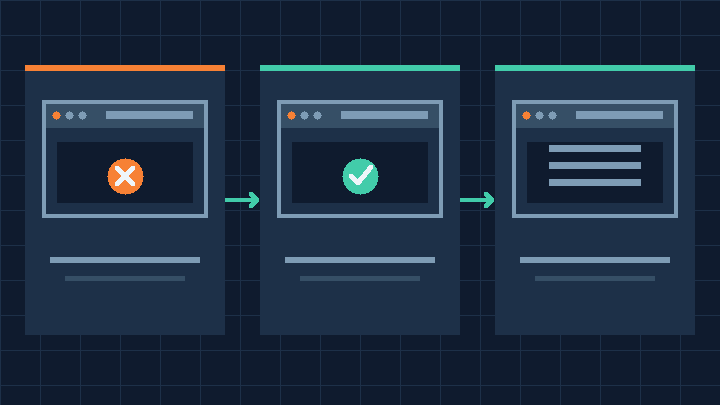
A Server Not Found message usually points toward locating the destination or reaching the network services needed to locate it. An inability to connect can arise when the destination is known but the browser cannot establish communication. A timeout indicates that an expected response did not arrive in time, and an interrupted or reset connection suggests that the exchange stopped before it finished.
These messages describe outcomes, not definitive causes. An unreachable DNS resolver, a misspelled domain, a filtering rule or an unavailable server may lead to similar symptoms. Mozilla’s Server Not Found troubleshooting article explains common connection-related cases.
An HTTP error is another useful distinction. A 404 response means a server has replied that the requested resource was not found. A 403 can indicate that access is forbidden, while a 500 or 503 usually indicates a server-side failure or temporary inability to serve the request. Receiving an HTTP response demonstrates that communication reached a server or intermediary, even though the intended content was not delivered.
A certificate warning belongs to a separate category. It means the browser could not establish appropriate trust in the secure connection. Do not dismiss it as a routine connection error. The safest response to an unfamiliar certificate warning is to stop before sending private data and investigate the address, system clock and source of the certificate.
Finally, consider a partially loaded website. If the navigation and text arrive but images or interactive controls fail, the main document may be accessible while secondary resources fail. This directs your investigation toward the particular site, its scripts, resource servers and content settings instead of the computer’s entire internet connection.
Check Your Internet Connection And Compare Another Device
When both Firefox and another browser fail on several unrelated websites, test the underlying connection. Confirm that the computer is attached to the intended Wi-Fi network or wired Ethernet connection. A connected wireless icon only means that the local wireless link may be established; internet communication still depends on the router and upstream provider.
Try a second device attached to the same network. Make sure a phone used in this comparison is actually using the Wi-Fi connection, rather than automatically switching to mobile data. If both devices fail, the network or provider becomes a more useful starting point. If the other device succeeds, investigate the computer’s adapter, network configuration or security software.
On a network that you own or manage, inspect the router’s status and verify its ordinary connections. If a restart is appropriate, warn other users first and follow the manufacturer’s normal restart procedure. Do not press the factory reset control as a substitute for restarting. That can erase the connection credentials and configuration needed to restore internet access.
Our guides to Wi-Fi connected without internet and checking a router or ISP outage provide additional help with this layer of troubleshooting. If you are using a managed office or school connection, consult the authorized administrator before changing network configuration.
A public hotspot may require a sign-in page or acceptance of terms before allowing external traffic. Use the operating system’s trusted network sign-in notification if available, confirm the venue’s actual network name and avoid supplying sensitive information to an unexpected page. If necessary, test using another trusted connection.
Mozilla’s all-browser connectivity guide discusses common system and network causes. Once basic access is restored, repeat the original Firefox test without simultaneously changing its settings.
Restart Firefox Without Losing Important Work
Before using a more invasive troubleshooting method, save unfinished forms, documents and other work that depends on browser tabs. Closing a browser window does not guarantee that a website will preserve an unsent message or an incomplete transaction. If an online payment or form submission appears uncertain, check its actual status before submitting it again.
Quit Firefox normally using its exit or quit command, then reopen it. Test a known address in a new tab before restoring a large group of tabs. If the browser had been running for a long period or several resource-heavy pages were active, a fresh session can provide a cleaner comparison.
If Firefox itself becomes unresponsive rather than merely displaying a page connection error, you may need to close the application through the operating system’s process controls as a last resort. This can lose unsaved browser work. The separate guide to Firefox crashes addresses cases where the browser closes or fails to stay running, rather than simply being unable to load a website.
Save other applications’ work before performing a normal computer restart. A restart can clear temporary conditions outside the browser, including some networking or resource problems. Do not repeatedly force the computer off to test a webpage. If the restart itself is unreliable, address that system problem separately.
After returning to the desktop, open Firefox without immediately launching several optional applications. Test the same addresses again. If the failure disappears, record what was running before the restart. A recurring issue associated with a particular program or network change deserves further investigation instead of a daily forced restart.
Test A Private Window And Remove Only Relevant Site Data
A Firefox private window provides a useful comparison because its temporary browsing session is separate from much of the ordinary website state. Open a private window through the browser menu and enter the same failing address. If the page loads there but not in your regular window, investigate stored site information or differences in the extensions and privacy behavior between the two sessions.
A successful private-window test does not prove that a cookie is defective. Private and ordinary browsing may behave differently for several reasons. If the website requires an account, compare the relevant stage carefully: a public sign-in page working in a private window is not equivalent to a successful authenticated session.
When the problem is limited to a particular site, prefer removing data for that site over deleting your entire browsing history. In Firefox settings, locate the cookies and site data management controls in the privacy area. Find the affected domain and review the deletion before confirming. Clearing site data can log you out or remove saved preferences and locally stored website information.
If cached resources appear to be the problem, use the browser’s cache clearing controls. Mozilla’s Firefox diagnostic procedure describes cache and cookie troubleshooting. Review the categories in the clearing dialog and select only what you need. Leave saved passwords, history and other retained information alone unless you specifically intend to erase them.
After removing the affected site’s data, open it again and sign in only after confirming the genuine address and secure connection. If the symptom returns immediately, do not repeat the deletion indefinitely. A server problem, extension or local preference may be a better explanation.
Use Troubleshoot Mode To Isolate Extensions And Themes
Extensions can modify website content, intercept requests, adjust privacy behavior or provide proxy and filtering features. A malfunctioning or incompatible extension can therefore affect page loading even though Firefox starts normally. However, disabling every extension permanently is not the first objective.
Firefox includes a temporary diagnostic environment called Troubleshoot Mode. Save open work and find the feature under Help in the browser menu. Follow the restart prompt and select the option that opens the diagnostic session, rather than selecting a refresh or reset action. The distinction is important because a temporary test should not remove your customized profile.
Try the same failing addresses in the diagnostic session. This mode temporarily changes several factors, including extension activity, themes and hardware acceleration. If the website now loads correctly, one or more of those factors may be involved, but the result does not establish which one.
Exit the diagnostic session by restarting normally. Review your installed extensions in the Add-ons Manager. Temporarily disable a suspected nonessential extension, reload the relevant site and record the outcome. Start with extensions that interact with network requests, scripts or page content, particularly if they were recently installed or updated.
Restore each unrelated extension to its original state. Avoid turning off protections required by your workplace. If a privacy or security extension causes a problem, inspect its documented site-specific controls or seek a compatible solution instead of leaving all protections disabled.
If Troubleshoot Mode does not change the behavior, continue investigating browser preferences, site data and external conditions. Some settings persist in the diagnostic environment. A failed test does not rule out all browser-related explanations.
Inspect Proxy Settings Without Bypassing Network Policy
A proxy server receives network requests on behalf of a client. Firefox may use the operating system’s proxy configuration or maintain its own connection preferences. An incorrect proxy address or an unavailable proxy service can prevent the browser from reaching websites even when another browser succeeds.
Open Firefox Settings and locate the proxy or network connection settings. Menu placement varies by browser version. Before changing the configuration, note the original selection and any manually supplied details. If a proxy configuration is intentional, preserve the information needed to restore it.
On a privately managed computer, compare Firefox’s settings with a known-working browser and the operating system. A leftover proxy configuration from an old application or previous network may be relevant. Mozilla’s browser-specific connectivity guide covers these cases.
If the computer uses a required organizational proxy or an automatic configuration script, ask the administrator to investigate the original error. Do not bypass it just to make one website load. Similarly, do not copy proxy information from a random online troubleshooting post. A proxy can affect who receives browser traffic and which security procedures apply.
Where a personally configured VPN or proxy is suspected, compare behavior using its supported connection controls on a trusted network, only when it is safe and permitted to do so. Restore the original protective configuration after the test. A successful comparison is evidence to share with the provider, not necessarily a reason to leave the service disconnected permanently.
Our VPN guide explains why a private network connection and a web browsing session have distinct configuration layers.
Investigate DNS And DNS Over HTTPS Carefully
The Domain Name System translates domain names into network addresses and supplies other information used to connect to internet services. A resolver problem can prevent websites from opening even when the computer is connected to the local network. DNS is especially relevant when error messages indicate that the browser cannot find several valid domains.
Begin with the comparison between browsers and devices. Firefox may use DNS over HTTPS, which sends DNS requests over an encrypted HTTPS connection where configured and supported. This can create differences between Firefox’s lookup behavior and that of other applications. Network environments and administrative policies can affect the available choices.
Review the browser’s privacy and security settings for its DNS configuration. Record the original protection level and provider if displayed. Check whether the chosen provider is reachable and whether the network requires a particular DNS configuration. Mozilla discusses network and DNS settings in its secure connection troubleshooting guidance.
Do not randomly change providers or disable encrypted DNS as a permanent fix. A controlled comparison may be appropriate on a private network when you understand the purpose and implications, but restore the original setting afterward unless an informed change is required. Managed devices and private organizational domains may depend on specific resolution policies.
If several applications on a Windows computer appear to use stale address information, flushing the local DNS resolver cache is one possible diagnostic step. The command is ipconfig /flushdns. It clears the operating system’s cached lookups rather than repairing every DNS service or network fault. Follow the relevant system documentation for other platforms, and do not run commands intended for a different operating system.
After a suitable change, test several known domains, then the originally failing address. A successful lookup does not guarantee that the destination server is responding or that its certificate is valid. Keep the remaining diagnostic layers separate.
Resolve Secure Connection Errors Without Adding Exceptions
Firefox checks whether a website’s certificate is appropriate for the connection. A certificate warning can indicate an invalid or expired certificate, a certificate issued by an untrusted authority, or interference between the browser and the intended website. It is not simply a slow-page notification.
Verify the actual address carefully. Do not type credentials, payment information or recovery codes into a website while a certificate trust warning remains unresolved. A similar-looking address may lead somewhere other than the genuine service. Our guide to checking a website before entering passwords is relevant here.
Check the operating system date, time and time zone. A significantly incorrect clock can make a legitimate certificate appear to be outside its valid period. Correct the clock through the normal operating system settings and use a trusted time source. Mozilla’s time-related error guide explains why this affects secure websites.
If the clock is correct and the warning affects only one public website, contact its owner through an independent trusted channel. If warnings appear on many unrelated secure domains, consult the appropriate IT team or security software provider. The source of the warnings could include a managed traffic inspection system, certificate misconfiguration or malicious interception.
See Mozilla’s certificate error reference for the meaning of common codes. Record the code for support purposes. Do not install unknown certificates, override warnings on public websites or remove certificate protections simply to continue browsing. A website that cannot establish a trustworthy connection needs its connection problem resolved, not hidden.
Check Firewall And Security Software After Browser Updates
If Firefox stopped loading sites immediately after an update but other applications work, consider whether security software recognizes the browser’s updated executable correctly. A firewall or endpoint security product may apply different rules to different applications, and a change to the program can affect how those rules are evaluated.
Confirm that the software installed on your computer is genuine and up to date. Review its notifications and event history for a blocked Firefox connection. If a rule is involved, follow the security vendor’s documented method for recognizing the official Firefox installation. Do not grant network access to an unfamiliar executable simply because it has a similar name.
Keep the firewall and antivirus protections running. Permanently disabling them, opening broad inbound ports or installing an unofficial certificate can introduce far more serious problems than a failed webpage. If the machine belongs to an organization, share the evidence with its IT support team instead of altering protected policies.
If unexpected advertisements, browser redirects, unknown extensions or suspicious download prompts accompany the connectivity failure, treat those symptoms as potential security indicators. Use the operating system’s approved malware protection or another reputable supported security product to investigate. Avoid downloading a supposed browser repair utility from the same suspicious website.
Our Windows Security scanning guide explains how to approach a security scan on Windows. A clean scan is useful information, although it does not prove that every setting or website is safe. Retest using a familiar genuine website after following the documented repair procedure.
Troubleshoot A Website That Loads Only Partially
A site may deliver its main page successfully while failing to display images, videos, interactive buttons or other resources. Modern websites often fetch content from several independent servers, so a partial load does not necessarily indicate a failure of the main site connection.
First check whether the same page looks incomplete in another browser and whether unrelated websites function normally. If the problem happens in multiple browsers, the site or its associated resources may be unavailable. If it happens only in Firefox, compare the normal session with Troubleshoot Mode and the relevant site-specific settings.
Review any message from the browser indicating that insecure content has been blocked on an otherwise secure page. Do not disable mixed-content protections to make the page appear complete. The website owner should serve required resources securely. Similarly, a site that depends on blocked scripts may need a compatible, narrowly scoped setting or a change by its developer.
If you are familiar with developer tools, the Network panel can help distinguish requests that succeeded from requests that failed. Reload the page and look for failed resource types or response codes. Do not assume every red entry explains the visible fault; advertisements, optional analytics and unrelated services can fail without preventing the main content from working. Do not share requests containing session cookies, authorization headers or private form data.
If a shopping cart or account dashboard spins indefinitely, avoid repeated submissions. Confirm the status of any transaction using the site’s official support or account history before retrying. A webpage can fail to display confirmation even after a server accepts a request. For a site that you do not manage, report the exact address and visible behavior to its owner.
Test With A New Profile Before Refreshing Firefox
Firefox stores user preferences, extensions and browsing information in a profile. A profile-specific problem can persist even after reinstalling the application because the existing personal settings may remain in place. Testing a fresh profile can be more informative than repeatedly replacing the program.
Before starting, ensure that important bookmarks, credentials and open work are protected. Firefox’s profile management features allow users to create or select profiles on supported desktop versions. Consult the browser’s own help and use a new profile for a temporary comparison. Do not delete the original profile during the test.
Open a known address in the fresh profile before installing additional extensions or signing into synchronization. If the site works in this clean configuration, the old profile’s data or preferences become a stronger area of investigation. If it fails in both profiles, focus on shared software, network conditions or browser installation issues.
Mozilla also provides a Refresh Firefox feature for supported desktop installations. It is more disruptive than a temporary diagnostic session. Although it is designed to preserve certain important personal information, it removes or resets various customizations and add-ons. Review exactly what the feature changes for your browser version before starting.
Back up important browser information independently where possible. Do not assume a sync account is an independent backup of every item. The guide to missing Chrome bookmarks discusses a related principle: preserve the existing browser data before attempting repair. While the products differ, protecting the original information is equally important here.
Use a supported official Firefox installer if repairing or replacing the application becomes necessary. Do not download modified copies promising to bypass certificate or network settings.
Verify The Repair And Record What Changed
Once pages begin loading again, return to the original test addresses and compare them under normal conditions. Check one ordinary public site, another unrelated site and the specific website that originally failed. If the issue involved an authenticated site, test a harmless normal action only after confirming that the connection is trustworthy.
Re-enable temporary settings that are not needed for the fix. If an extension was responsible, consult its supported update or replacement options rather than forgetting which change restored access. If a network service was implicated, keep a record of the comparison network and relevant error code for the provider.
Intermittent failures deserve a small diagnostic record. Note the date, the connection used, whether another browser was affected, and the specific fix attempted. For example, a page that consistently fails on one home network but works elsewhere is a different support case from a page that fails only in one Firefox profile across several networks.
When requesting help, provide the browser version, operating system, a non-sensitive example address and the exact error text. Avoid posting screenshots that expose account information or private URLs. If the issue affects every browser and device, contact the internet provider or authorized network administrator. If it follows one website, notify the site owner. If it follows Firefox alone after careful comparison, consult Mozilla’s support community.
These checks are intended to restore normal browsing while preserving personal data and security protections. This article uses Mozilla’s official troubleshooting documentation and general diagnostic principles. The illustrations are conceptual, and the specific repair steps have not been independently executed on a physical test computer for this guide.
Frequently Asked Questions
Why Does Firefox Not Load Pages When Chrome Works?
The difference may involve Firefox-specific connection preferences, profile data, extensions, DNS behavior or application rules in security software. Compare the same addresses and use Troubleshoot Mode before considering a reset.
Why Do All Browsers Fail To Load Websites?
A shared network, DNS, system clock, security configuration or internet provider issue may be involved. Compare another device on the same network before changing individual browser settings.
Will Clearing Firefox Cache Delete My Passwords?
Clearing only temporary cached files should not remove saved passwords. Review the categories in the deletion dialog carefully because broader clearing options can remove other information.
Does Private Browsing Fix Firefox Connection Problems?
It is a diagnostic comparison, not a universal repair. A site that works only in a private window may be affected by ordinary session data or configuration differences.
Should I Disable My Antivirus If Firefox Cannot Connect?
No, inspect its event history and follow the vendor’s documented application rules. Keep security protections enabled and ask the responsible administrator for help on managed devices.
Can I Ignore A Firefox Certificate Warning?
Do not bypass an unexpected warning on a public website. Check the address, system clock and certificate issue, and contact the appropriate support team if trust cannot be established.
Will Refreshing Firefox Remove Extensions?
Refresh can remove add-ons and reset customizations while retaining certain essential data. Check the official documentation and make a backup before using it. A temporary diagnostic session is less disruptive.


