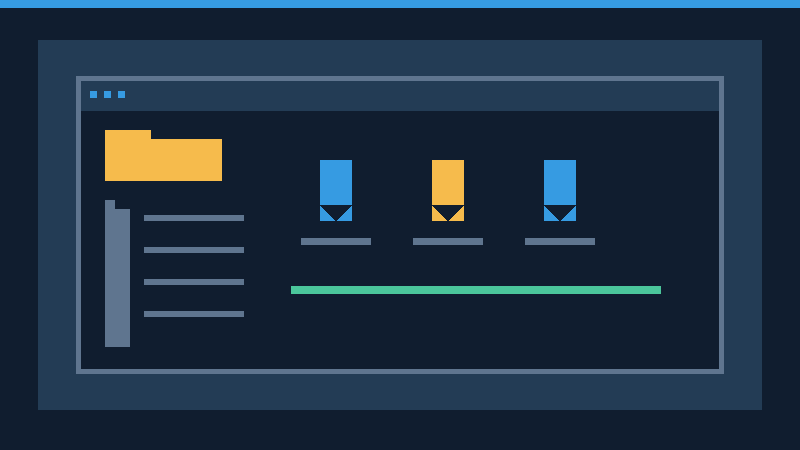

Missing bookmarks can result from a hidden folder, changed profile, account storage differences or genuine deletion. This guide explains the safest recovery order for desktop Chrome and how to protect the links you still have.
Determine Whether Your Bookmarks Are Actually Missing
When Chrome bookmarks disappear, the browser may still contain the original links. A hidden toolbar, a different browser profile or a change in how Chrome displays information saved in a Google Account can give the impression that an entire collection has been deleted. These cases are much easier to resolve than permanent deletion. Investigate them first, before making changes that could compromise the remaining copies.
Think about the last time you saw the bookmarks. Did the problem follow an operating-system reinstall, a new browser window, a change of account, an upgrade or a move to another computer? Note whether only the toolbar changed or the entire bookmark collection appears empty. If another household member recently used the browser, ask whether the active profile changed. Do not delete their profile or open their private data in an attempt to locate your own.
| Symptom | First Check |
|---|---|
| Bookmarks toolbar is missing | Show the bar and inspect Bookmark Manager. |
| Completely different set of links | Active Chrome profile and account. |
| Only some folders disappeared | Search bookmarks and inspect other folders. |
| New computer shows an empty collection | Account storage and older devices or exports. |
| Links deleted from several devices | Preserve independent backups and offline copies. |
Keep the investigation separate from general browser performance troubleshooting. If the browser closes unexpectedly whenever you inspect its settings, our Chrome Keeps Crashing guide deals with that separate symptom. Avoid reinstalling Chrome simply because the displayed links have changed.
Restore The Bookmarks Bar And Search All Folders
Start with the browser interface. In desktop Chrome, open the main menu and look under Bookmarks and lists for the option to display the bookmarks bar. On Windows and Linux, Ctrl + Shift + B is the usual toggle; on macOS, use Command + Shift + B. If your links appear, the underlying collection may not have been affected at all.
Next, open Bookmark Manager through the same menu. You can also enter chrome://bookmarks in the address bar of desktop Chrome. Expand folders and inspect sections outside the toolbar, especially Other bookmarks and any folders associated with your account. A misplaced nested folder can hide hundreds of links without deleting a single entry.
Search for the title or domain of a familiar bookmarked site. Try part of its original title if you cannot remember the precise name. In supported releases the address bar also offers the @bookmarks search mode, which searches saved entries rather than the general web. Google’s bookmark management documentation explains the available viewing and searching controls.
If the item appears, inspect its parent folder before moving anything. You may find that an entire collection was dragged into another folder unintentionally. Move the folder only after confirming the destination, and consider exporting the existing collection first. If the manager itself remains empty, continue to profile and account checks rather than repeatedly toggling the toolbar.
Preserve Any Existing Collection Before Making Changes
If the bookmarks still exist anywhere, your immediate goal is to create an independent copy. Do not assume synchronization is equivalent to a historical backup. Connected devices can receive deletion and modification information, so a second device displaying the same account today does not necessarily contain an older recoverable state. An exported file separated from the active browser collection is much easier to inspect and preserve.
- Find an authorized Chrome profile that still contains the desired links.
- Open Bookmark Manager and locate its export action in the manager’s own menu.
- Save the resulting HTML file with a name that identifies the profile and date.
- Copy the export to an appropriate independent backup location.
- Retain earlier exports until you have verified the complete recovery.

Review the saved file privately using a local browser window or text viewer. A bookmark export contains website destinations and titles, which may disclose internal work resources, personal interests or sensitive links. Keep it in storage with appropriate access controls. Do not upload it to an unfamiliar online conversion or repair service. Google’s bookmark import and export instructions describe the supported HTML transfer format.
If a previously used laptop is currently offline and may contain a surviving local copy, keep it offline while investigating. Do not reconnect it solely to refresh the browser until you have preserved any accessible bookmarks. This precaution cannot guarantee that an older copy exists, but it avoids an unnecessary opportunity for a recent remote change to reach that device.
Check The Active Chrome Profile Carefully
Chrome profiles separate browsing data. A profile may include its own bookmark folders, history, extensions and preferences. The computer can therefore contain several bookmark collections even when only one is visible in the current window. This is common on shared home computers and on laptops used for separate business and personal accounts.
Inspect the profile icon near the browser’s toolbar. Look at the listed profiles and select the one you recognize as your original working profile. In the newly opened window, inspect Bookmark Manager again. Do not assume that selecting a different account on a Google website changes which Chrome profile is active. Website sign-in and browser profile selection are distinct operations.
Check whether you are browsing in a temporary Guest window instead of your ordinary profile. Return to the normal profile through the browser’s supported interface. If a profile is unfamiliar, respect its owner’s privacy rather than opening their saved information. Google’s Chrome profile documentation also warns that removing a profile deletes its local browsing information.
When you discover the correct links, leave the working profile intact while preserving an export. If you need to move only bookmarks to another profile, an HTML export and import is preferable to copying a complete active browser directory. A full profile contains other sensitive information and may depend on device-specific security mechanisms. Do not remove the original profile until you have separately verified everything you intended to retain.
Understand Local Bookmarks And Google Account Storage
Chrome can retain bookmark information on a device or save it in a Google Account for access across supported devices. The visible interface depends on account state and browser version. In newer versions, the browser may present collections from the signed-in account without the older manual synchronization setup. Earlier instructions written for the traditional Sync switch may therefore not match the settings you see today.
Google’s Chrome account storage announcement describes the changes introduced with the version 143 rollout, including the possibility of older account-saved links appearing in addition to local ones. The update does not establish that every missing link exists online. A bookmark created and retained only on a particular device may never have been saved to the account.
Open Chrome settings and inspect the You and Google area for the active account and the available data preferences. Compare that account identity with the one you used when saving the links. Do not sign into a different person’s account or enter credentials into a purported synchronization repair website. If you manage separate work and personal accounts, preserve the separation required by your organization.
Google’s account storage guide explains how to access stored information and save existing local data to an account. An available save or merge action may combine collections, but it may also alter their organization or remove duplicates. Export accessible local links before choosing that action. Do not reset a synchronization passphrase as a bookmark recovery method: changing a passphrase can remove encrypted online information. Resolve account access through Google’s authorized process rather than making speculative changes to stored data.
Find Surviving Copies On Another Device
Consider which devices you previously used with the same profile or account. An older desktop computer, laptop or phone may provide another view of the collection. Use devices you own or have permission to access. Check whether the relevant profile remains available and whether the expected folder names are present. A different list on a phone does not automatically establish which copy is newer, because bookmark collections can be stored separately.
When a desktop device contains the missing bookmarks, use its supported HTML export as described earlier. Mobile Chrome interfaces differ and may not offer the same direct export action. Do not enable a broad account-data merge merely to move a few links from a phone. If there are only a handful, record the intended titles and addresses manually using the device’s normal share or copy controls. Verify the exact URLs before adding them to the desktop collection.
If only an old backup computer contains the missing set, preserve that set under its own dated filename. Do the same with the current computer, which may contain newer work. The two collections may overlap, but neither should be assumed disposable. Once both copies are safe, import the appropriate export and compare folders. A little time spent reviewing duplication is preferable to losing a set of newer links while trying to restore older ones.
Restore Bookmarks From An Existing HTML Export
An HTML bookmark file is the simplest independent recovery source when the links remain intact in it. Search your own documents, backup folders, external drives and trusted cloud storage for files with names associated with previous browser exports. An HTML file can contain many links, so choose the correct dated version rather than using the first one you find.
- Export any bookmarks that are currently visible in the destination profile.
- Open the intended destination profile in Chrome.
- Go to the bookmark import controls and select the HTML file option.
- Choose the saved export and complete the import.
- Inspect the newly imported folders and search for several known entries.
- Organize the recovered collection only after confirming that both older and newer links remain available.
The imported items may appear in a separate folder or location depending on the existing collection and Chrome version. Search for a known imported title rather than assuming the toolbar must immediately show all recovered items. Importing a bookmark export is not the same as restoring all browsing history, passwords, extensions or open tabs. Those types of information have different backup and migration procedures.
Do not automatically open every recovered link to test it. Older bookmarks can point to expired domains, changed websites or pages that are no longer trusted. Review addresses first. A bookmark is a stored pointer, not an offline saved copy of the page. A successful import cannot restore a website that no longer exists. Keep the original HTML file even after the import works.
Locate The Correct Local Profile Directory
If interface checks and ordinary exports do not reveal the missing links, investigate whether the local browser files or an older backup contain them. This is an advanced recovery step. The Chrome user-data directory also contains other private browsing information, so restrict the inspection to profiles you are authorized to manage. Do not upload the whole directory to a web service.
On a running desktop Chrome instance, open chrome://version and find the displayed profile path. Write down the path for the intended profile. This is more reliable than assuming the original profile is named Default. Repeat the path check for another relevant profile only if it is yours to inspect. The Chromium project’s user data directory reference describes the path layout and operating-system differences.
| Platform | Common Stable Chrome User Data Location |
|---|---|
| Windows | %LOCALAPPDATA%\Google\Chrome\User Data |
| macOS | ~/Library/Application Support/Google/Chrome |
| Linux | ~/.config/google-chrome |
These are typical base directories, not guaranteed paths for every installation. A different release channel, custom configuration or another operating-system account can use a different location. The individual profile is generally a subdirectory of the base. Preserve the currently known path before closing the browser. Save open work, then exit Chrome normally before copying active profile files. Do not terminate unrelated browser processes while they contain important unsaved activity.
Inspect Copies Of Bookmark Files Without Replacing The Originals
Some Chrome versions and profiles store local bookmark information in files named Bookmarks, with a Bookmarks.bak file sometimes available. Storage details can vary with the version and whether entries belong to an account. An older backup file is not guaranteed to exist, to contain the missing entries or to be newer than a surviving collection. The modification timestamp is a clue, not a verification of its contents.
With the browser closed, make separate copies of any relevant files you can identify. Store the copies in a private recovery folder outside the live browser directory, retaining their original names and clearly labeling which profile they came from. Keep originals unchanged. Work only on duplicates. If the contents are readable as structured text, use a local text viewer to search for a known bookmark title or destination. Avoid saving changes over the source or executing anything found inside it.
If you find a few desired addresses, manually re-create the links in Bookmark Manager after validating them. For a large collection, seek a trusted offline conversion or recovery method that produces a separate HTML file for supported import. Do not rename a candidate backup file over the live Bookmarks file as your first recovery experiment. Such replacement can discard newly saved links or interact with account synchronization, and a file from a different format or profile may not work as expected.
Preserve the evidence if the files appear unreadable or the destination device has storage errors. Do not repeatedly install repair utilities on the affected storage. If the bookmarks are business-critical and no separate copy exists, consult qualified support about recovering data from a protected copy rather than altering the live source.
Search Older System Backups And Restore To A Separate Location
Operating-system backups can contain earlier browser files or previously exported HTML collections, depending on how the backup was configured. Look for a snapshot taken before the date the links disappeared. Do not assume your system backs up every application-data directory automatically. A backup showing Documents and Pictures does not necessarily include the Chrome profile directory.
On Windows, inspect any relevant previous versions or existing File History backup. Microsoft’s File History restoration guide explains how to preview earlier versions and restore them to another location when available. Prefer that alternative location so the live profile remains unchanged. Our Windows backup software guide provides context about independent backups.
On a Mac, check an existing Time Machine backup using the documented file restoration controls. Because restoration can place items back in their original location, protect the current files before selecting a recovery action. If you cannot safely recover a separate copy using the available backup tools, seek support rather than approving an overwrite. On Linux, follow the documentation for your configured backup application or snapshot service. Do not perform an entire operating-system rollback solely to retrieve a few browser links.
Compare the recovered file’s contents with the desired folder names and known addresses before importing. An earlier backup can omit recently created entries, while the current collection may omit older ones. Preserve both sets separately. If the entire computer has recently been reset, see Back Up Files Before Windows Reset for future preparation principles.
Rebuild A Missing Collection From Browsing History
If there is no surviving bookmark collection but browsing history remains, it may be possible to recover some destinations manually. Open the browser history interface and search for relevant domains, project names or remembered page titles. Google’s Chrome history guide explains its scope, including the normal 90-day history period and exclusions such as private browsing sessions and deleted entries.
History is not a replica of bookmarks. A bookmark may refer to a page you have not visited recently, and history does not retain the original bookmark folder structure. It can nevertheless help identify the pages that matter most. Verify each address and add it to a newly organized recovery folder. You might also find useful links in your own documents, email, project notes or exports from another browser.
If the missing items were open tabs rather than saved bookmarks, Chrome’s session-restoration controls address a different problem. See Restore Closed Browser Tab Session. Recovering recently closed tabs does not necessarily restore the bookmark collection. Do not clear history while it might be your only alternative source of those addresses.
Prevent Future Bookmark Loss And Verify Recovery
After recovering the available links, search for several known important entries from different folders. Confirm that newly added bookmarks are present as well as older restored links. Inspect the active Chrome profile and its account settings one more time. If you use multiple devices, verify that the resulting organization is appropriate for the account configuration rather than changing everything to match a single toolbar view.
Create a fresh dated HTML export and retain it separately from the browser. Keep earlier versions rather than replacing the same file every time. For a frequently changing professional bookmark collection, export after major reorganizations and periodic intervals that reflect how much recent work you could afford to reconstruct. Store backups in an appropriate protected location and occasionally inspect them to confirm that they actually contain the expected links.
Google also offers account data export for eligible information still stored in the account. That facility may be useful for an independent archive, but it cannot download data that has already been deleted. An export should complement, not replace, a practical versioned backup routine. Avoid unnecessary browser resets and profile deletions, remember which profile belongs to each account, and preserve essential information before changing account or storage settings.
Frequently Asked Questions
Why Did All My Chrome Bookmarks Suddenly Disappear?
Check whether the toolbar is hidden, the active profile changed or the account displays a different collection before assuming the data was deleted.
Can I Recover Bookmarks Without Signing In To Google?
Yes, if the links survive locally or in an independent HTML export or backup. Account-only data may require access to the correct account.
Will Deleting My Chrome Profile Restore Missing Bookmarks?
No, removing a profile can erase its local browsing data. Preserve existing information first.
Is A Bookmarks.bak File Always Available?
No, availability and content vary. Inspect a separate copy when present and do not overwrite the active browser file as an initial step.
Does An HTML Bookmark Export Include My Passwords?
No, a bookmark export preserves links and their organization, not the whole collection of browser data.
Can Google Recover Every Deleted Bookmark?
No, there is no guaranteed recovery of permanently deleted entries. Search independent exports, local copies and older backups.
Can I Import An Older Export Without Losing My Current Links?
Yes, supported bookmark import generally adds entries, but preserve and verify a separate export of the current collection before proceeding.
Official References
Technical review: November 16, 2026. Sources: Chrome Bookmark Management, Chrome Profiles, Chrome Account Storage, Bookmark Import And Export, Chrome Data Export, Chrome Account Storage Changes, Chromium User Data Directory, Chrome Browsing History, Windows File History, Time Machine File Recovery. The original graphics are conceptual illustrations, not browser screenshots. The supported interface and backup guidance was reviewed against official documentation. Local file inspection is a cautious advanced option, not a guaranteed or hands-on-tested recovery procedure.


