

This guide separates temporary touch problems from possible display hardware faults. It explains how to perform safe diagnostic comparisons, recover from a freeze and preserve important information before deciding on repair or restoration.
Identify The Type Of Touch Screen Failure
An iPhone touch screen that does not respond can prevent you from making calls, opening applications, entering a passcode or reaching important documents. The screen may still display a normal image, yet the device does not recognize taps or swipes. In other cases only one portion of the display works, a particular application stops accepting touch, or the phone intermittently registers actions that you did not intend.
Start by distinguishing these symptoms. The display’s ability to show an image and its ability to detect touch are related but different functions. A black screen is not by itself proof of damaged touch hardware. Conversely, a clear and bright picture does not establish that the touch-sensitive components are working normally. If the phone is completely inactive, our iPhone Won’t Turn On guide addresses power and startup difficulties separately.
| Observed Symptom | First Investigation |
|---|---|
| Only one app ignores touch | Check that application’s responsiveness. |
| Touch works only in some physical regions | Check interference and compare physical screen positions. |
| Touch fails while charging | Disconnect the accessory and compare safe compatible equipment. |
| Phone speaks selected items but a single tap does not open them | Check accessibility behavior. |
| No response anywhere despite a visible image | Try a suitable restart if safe. |
| Screen is cracked, lifted or damaged | Stop use and arrange qualified assessment. |
These observations provide starting points rather than definitive diagnoses. Apple identifies restart, removal of interference and service as appropriate avenues in its screen troubleshooting guidance. Throughout this article, prioritize personal safety and protecting existing data over getting the display to respond at any cost.
Recognize Conditions That Require You To Stop Testing
Before testing any button or connection, examine the outside of the device without pressing on the display. Consider whether the symptoms followed a fall, crushing pressure, liquid exposure or unusual heating. If you suspect damage to the phone or battery, discontinue using it and obtain qualified assistance. A screen that has separated from the frame can have several causes, including an internal battery problem. Do not press it back into position.
Apple’s important safety information warns against continued use of a damaged iPhone and the injury risk associated with cracked glass. Do not deliberately manipulate a cracked display, open the phone or insert tools into a gap. Do not charge a device suspected of unsafe internal damage merely to complete a backup. If there is smoke, an electrical odor or severe heat, maintain a safe distance and obtain appropriate assistance. A damaged lithium-ion battery is not an ordinary software issue.
When an otherwise intact phone has a wet exterior, disconnect accessories when safe and follow Apple’s model-specific handling instructions. Do not put it in a rice container, apply a heat gun or attempt to dry liquid from a connector by inserting objects. A device that looks dry may still have internal damage. Discuss the events with the service provider rather than concealing the possibility of liquid exposure. Only continue the ordinary diagnostic sequence if the device is safe to operate.
Protect Important Data And Prepare For The Passcode Requirement
When touch is intermittent, use a stable working interval to check the status of your backup before restarting. A successful biometric authentication during normal use is not a substitute for knowing the device passcode. After a restart, the phone generally requires its passcode before Face ID or Touch ID becomes available again. If the screen cannot register the necessary digits, a restart may leave you unable to reach the Home Screen even though the phone itself boots successfully.
Check whether essential photographs, documents and contacts exist in an independent location. If you already use iCloud synchronization, verify the information through an authorized device where practical. Treat synchronized information and a complete device backup as different things. An item available in cloud storage is useful, but it does not establish that the phone’s entire application state is recoverable. Our iCloud backup restoration guide explains what happens during supported restoration.
Do not repeatedly attempt a passcode through a display that registers unpredictable touches. Incorrect entries can trigger security delays, and some configurations can erase the device after enough failed attempts. Do not deliberately disable protections or seek software that claims to unlock a device without its legitimate credentials. If there is no safe way to enter the passcode, avoid unnecessary experiments and discuss data-preserving display service with an authorized technician.
If a backup is already available, preserve it until you confirm that the repaired or replacement phone contains the expected information. Do not discard a known-good older backup solely because the device has restarted. The priority is to retain a usable recovery source.
Clean And Dry An Intact Display
Ordinary contact problems can arise when moisture, debris or residue interferes with touch. If your iPhone is safe to handle, unplug attached cables and turn the device off normally if possible. Use a soft, clean, lint-free cloth following Apple’s cleaning directions for your model. Avoid abrasive materials, direct sprays, compressed air and moisture entering openings. If a model has a specialized display surface, use its specific care instructions instead of assuming every glass finish can be treated identically.
Allow an intact cleaned screen and your hands to dry before testing. Ordinary gloves and external styluses that are not designed for the display may affect recognition, so compare a normal dry fingertip when appropriate. Do not press harder, repeatedly rub the same area or apply a solvent to make a failing region respond. Touch recognition should not require excessive physical pressure.
Perform the first test while the phone rests on a clean stable surface. Check whether normal taps and swipes are now reliable across the display. If cleaning improves the symptom, note what changed and monitor ordinary use. If the same region consistently fails, proceed with the next safe checks rather than assuming that further cleaning will repair internal components.
Remove Possible Case And Screen Protector Interference
A case or protector may sometimes interfere with normal touch, particularly near edges or where it has become damaged, lifted or contaminated. Consider whether the problem began immediately after fitting a new accessory. Remove a removable case carefully and inspect whether it was pressing on buttons or obstructing gestures. For a removable screen protector on an intact display, follow its manufacturer’s instructions if you can remove it safely.
Do not attempt to lift the actual display while removing an accessory. If you are unsure whether a damaged layer is a protector or the phone’s display glass, have a qualified technician examine it. Some devices have distinctive display materials or structures; an improvised removal procedure can damage them. Avoid inserting a blade or metallic tool under an unknown layer.
Test the screen again without the optional accessory and compare it with the original behavior. If only an edge gesture had been failing and now works consistently, the accessory arrangement merits closer examination. Replace it only with equipment suited to the model. A successful case-removal test is not evidence that every intermittent problem is caused by the case. Keep a short record of which accessory was removed and what actually improved.
Disconnect Chargers And Other Connected Accessories
If touchscreen problems occur when the phone is plugged in, disconnect the attached charger or data accessory and compare normal operation while the safe, sufficiently charged device runs on its battery. This isolates the external connection from other variables. An accessory-related symptom can involve several parts of the connection, not necessarily the cable alone.
On an otherwise undamaged device, use a known-good compatible cable and approved charging adapter if you need to make a comparison. Use a safe working electrical outlet. Discontinue use of a damaged connector, adapter or frayed cable. Do not attempt to modify the charger, use an improvised adapter or defeat electrical protections. Apple specifically includes disconnecting wired accessories among its initial screen checks.
Record whether touch is reliable when unplugged and whether the symptom returns with a particular otherwise safe charging arrangement. If it returns consistently, discontinue use of the suspected accessory and seek appropriate support. Our iPhone Charging Slowly guide explains separate charging comparisons. A working replacement cable does not prove that an iPhone’s internal components are faultless, and a touchscreen fault should not be investigated by continuing to use potentially unsafe power equipment.
Test Touch Across Different Screen Regions And Applications
When the display is intact and the device remains accessible, try a brief repeatable comparison. Use non-sensitive content rather than an important document or banking screen. Open a suitable local drawing or notes interface if available. Make several gentle lines across different parts of the screen and observe whether particular physical locations consistently miss input. Repeat with a simple navigation or typing action in a second application. Do not purchase a diagnostic app merely to conduct the comparison.
- Check a normal tap in the middle of the screen.
- Compare gentle taps near different edges and corners where the application accepts them.
- Try a short continuous swipe across a suspected region at an ordinary speed.
- Repeat the comparable action in a second responsive application.
- Where supported, rotate the interface and compare the same physical region rather than only the same button.
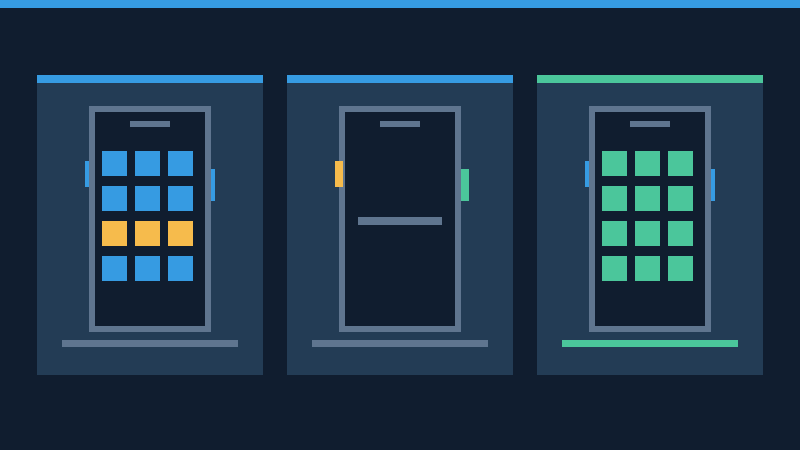
Rotation is a useful distinction because the location of an application’s controls can change while a defective physical region remains in the same place. Some applications do not rotate or use the entire display for input, so interpret only comparable tests. These observations can guide further assessment but do not constitute a hardware certification.
Describe a fixed band of missed touches, a single application freeze or a pattern of spontaneous input separately. If unexpected touches prevent you from reliably controlling the device, avoid opening sensitive applications or repeatedly entering credentials. Save important work if you can do so safely and arrange service if the phenomenon persists.
Restart The iPhone Using The Correct Buttons
If the phone still recognizes the ordinary power-off control, save work and use the supported normal restart procedure for that model. If the device is unresponsive and you cannot use the display, a force restart may help recover from a software freeze. A force restart does not deliberately erase the phone, although unsaved activity can be lost. It is different from recovery mode and a factory restore. Confirm that you know the legitimate device passcode first, particularly when touch is unreliable.
For iPhone 8 and later, including the second- and third-generation iPhone SE, use the following sequence:
- Briefly press and release the volume-up control.
- Briefly press and release the volume-down control.
- Hold the side button until the startup logo becomes visible, then let go.
For an iPhone 7 or 7 Plus, hold the side and volume-down controls together until the startup logo appears. For an iPhone 6s or earlier, including the first-generation SE, use the Home button together with the appropriate side or top power button instead. Do not assume that all models with a Home button share the older procedure. Button placement on newer form factors may vary. The official unresponsive iPhone instructions and force restart reference explain the supported sequences.
Do not keep forcing restarts without new diagnostic evidence. If a required button is defective, follow Apple’s button troubleshooting advice or obtain service. Avoid holding combinations at random, since other buttons and gestures can activate unrelated security or emergency features. After a successful restart, observe whether touch survives the normal passcode screen and everyday navigation.
Investigate App Freezes And Accessibility Behavior
If the Home Screen and Settings respond normally but one application does not, the application may be frozen or waiting for a task rather than indicating defective touch. Save any available work, return to another functioning interface and close the affected application using the supported app-switching controls if necessary. Open it again and compare the same action. Check for a compatible update from the legitimate App Store.
Do not delete the application as a first step if it contains important local files, drafts or authentication information. Review how its data is stored and how to recover it before reinstalling. An unresponsive app can also result from a network request or inaccessible service. If other parts of the screen accept normal gestures, investigate that specific context rather than replacing the display.
Accessibility features may intentionally change the way touches behave. For example, VoiceOver allows a single tap to select and announce an item while a double tap activates it. A person unfamiliar with that behavior might think an ordinary button is ignoring touch. Apple’s VoiceOver gesture guide describes the intended controls. Other accessibility features can alter the timing or interpretation of touches. Review the relevant settings only if the device is accessible and make changes only with the consent of the person who relies on them.
Do not disable useful accessibility features on someone else’s device merely to match a conventional diagnostic sequence. If gestures work as intended for the configured access method, the behavior may not be a fault. A fixed unresponsive physical area that persists across supported gestures is a different observation.
Back Up And Update Before More Disruptive Software Repair
If the display is sufficiently usable, confirm an existing backup or create a fresh one using a supported method. On a trusted Mac, Finder offers device backup on compatible macOS versions; on Windows, Apple Devices or a supported existing iTunes installation may provide the relevant controls. Apple’s Mac backup reference and Windows backup guide explain the options. Use a suitable data cable and confirm backup completion from the displayed date and time.
Connection alone does not grant a computer access to protected information. The phone may require a passcode or a trust confirmation, especially after a restart or on a newly connected computer. A previously used computer is not a guaranteed workaround for an unusable touch screen. Do not use an untrusted computer or an unofficial data extraction tool. If choosing an encrypted local backup, preserve the backup password securely because it is needed for restoration. Our Restore iPhone From Computer Backup guide covers the recovery stage.
After protecting important files, check for supported iOS updates if the symptoms suggest a software problem. Use a stable connection, adequate space and reliable power. A compatible update can correct software defects, but it cannot physically repair a damaged touch sensor. Do not interpret the existence of a new software version as evidence that it specifically addresses your symptom.
Understand Recovery Mode Before Choosing Update Or Restore
When the iPhone persistently fails to start or a supported update cannot complete, computer-assisted recovery may be appropriate. It is not ordinarily the first treatment for an intact phone with a fixed unresponsive screen region. If a display hardware problem prevents you from accessing essential data, explore appropriate service options before deciding on software restoration. Our iPhone Stuck On Apple Logo guide deals with the related startup failure.
Use Apple’s recovery mode reference for the exact model and computer software. Recovery mode differs from the force restart because the relevant controls remain held until the recovery connection screen appears rather than ending at the ordinary startup logo. Follow the supported sequence with the device connected to the authorized computer, then identify the actual device in Finder or Apple Devices as appropriate.
Understand the consequences before selecting an offered operation. Update attempts to install compatible system software without intentionally erasing the user’s information. Restore reinstalls the system and removes the device’s existing contents. A failed update does not justify automatic approval of restoration when essential files have no backup. Stop and seek appropriate support if preservation matters more than immediately returning the phone to a usable state.
Do not interrupt a legitimate installation without a reason supported by the recovery instructions. Some downloads require more time than the phone remains in recovery mode. If a supported process fails, record its precise error and seek help rather than trying unofficial firmware packages or bypass utilities. Activation and account verification protections still apply after a restore.
Recognize Possible Display Hardware Problems And Recent Repairs
When the same physical region fails across several applications after the safe comparisons, the display assembly or another associated hardware component may need assessment. Uncommanded touches, intermittent edge input and unreliable gesture detection are also useful symptoms to describe. These observations alone cannot identify the precise failed part.
Consider whether the problem began after display replacement, impact or another service event. On supported models, Settings and General followed by About can include Parts and Service History when applicable. Inspect this information if the device can be used safely. Apple discusses possible differences in touch performance and replacement display identification in its display service information. A particular service-history label does not prove that the display is responsible for the current failure. Report the actual symptoms and repair history to the technician.
Do not assume that a software reset can correct a faulty internal connection or that every touchscreen failure calls for a new display. Qualified assessment can distinguish the appropriate repair from an unrelated problem. Avoid opening the device unless you have the proper training, model-specific service instructions and suitable equipment. Screen repair can involve delicate components, water-resistance considerations and battery safety.
Arrange Service And Verify The Repair
When basic checks do not restore reliable touch, contact Apple or a qualified repair provider. Describe the model, software version if available, which regions fail, whether the phone responds while disconnected from accessories and whether a restart changes the behavior. Mention any recent physical incident, exposure or previous repair. These details are more informative than simply saying that the touch screen is broken.
Before service, review the applicable Apple service preparation instructions. The requirements vary by software version and type of appointment. Complete accessible backup and privacy steps, and ask the provider what can be done if the screen prevents you from completing them. Never disclose your Apple Account password or device passcode to a stranger. When legitimate service requires you to enter credentials, follow the authorized process. Consider data recovery before authorizing any exchange or erasure when you lack an independent copy.
After receiving a functioning device, test gentle taps, ordinary swipes, keyboard input and relevant accessibility gestures. Compare the original affected regions and normal operation in multiple applications. Verify essential data and make a current backup. If the fault returns, report the recurring pattern to the service provider and retain your repair documentation. A successful startup alone is not enough to demonstrate that touch is reliable.
Frequently Asked Questions
Why Is My iPhone Screen Visible But Not Responding To Touch?
The display can produce an image even when touch input is affected by software, interference or hardware failure. Check for safe, repeatable differences between touch regions and applications.
Can I Restart My iPhone Without Touching The Screen?
Yes, the supported force-restart button sequence depends on the model. Make sure you know the device passcode for the subsequent startup.
Will A Force Restart Delete My Photos?
No, a force restart is not a factory erase. Unsaved activity can be lost, so use ordinary shutdown when practical.
Why Does Touch Fail Only While Charging?
Compare safe operation after disconnecting the accessory. A compatible alternative connection may help identify interference. Stop using damaged equipment.
Can VoiceOver Make Taps Behave Differently?
Yes, it changes how items are selected and activated. Use the appropriate accessibility gestures.
Does Recovery Mode Automatically Erase An iPhone?
No, entering recovery mode does not itself erase the contents. Choosing Restore is destructive, while Update attempts a non-erasing installation.
Should I Keep Using An iPhone With A Lifted Or Cracked Screen?
No, discontinue use if you suspect damage and seek qualified assessment rather than pressing the display into place.
Official References
Technical review: November 16, 2026. Sources: Apple Touch Screen Troubleshooting, Unresponsive iPhone, Force Restart Guide, Normal Restart, iPhone Cleaning, iPhone Safety, VoiceOver Gestures, Mac Device Backup, Windows Device Backup, Recovery Mode, iPhone Displays, Service Preparation, Button Troubleshooting. Illustrations are original conceptual graphics, not device screenshots. This guide is based on official documentation and proposed diagnostic comparisons, not hands-on testing or a physical repair.


