
Slow charging can reflect an accessory limitation, normal battery management or a hardware problem. This guide helps you isolate the cause without unnecessary purchases or unsafe repairs.
Why Your iPhone May Be Charging Slowly
An iPhone that takes longer than expected to charge may be receiving limited power, using considerable energy while connected, or deliberately protecting its battery. The charging symbol indicates that a charging connection exists, but it does not tell you the exact rate at which energy is being stored in the battery.
Start by distinguishing a gradual increase in charge from a device that does not charge at all. A phone that gains charge steadily while resting presents a different problem from one that repeatedly disconnects from the charger, displays an accessory error or continues losing charge despite being plugged in.
Apple’s charging speed guidance explains that the adapter, accessories, software activity and surrounding temperature can all influence charging. The final portion of charging can also take noticeably longer than an earlier portion. That is not necessarily a fault.
| Symptom | First Check |
|---|---|
| Charges slowly from a computer | Compare with a compatible dedicated wall adapter. |
| Slow Charger message | Review adapter and charging method. |
| Stops around 80% | Inspect charge limit, optimization and temperature. |
| Charges only at a certain cable angle | Stop using the unreliable connection and inspect for damage. |
| Slow wireless charging | Check alignment, case and supported charger. |
| Device becomes excessively hot or swollen | Discontinue charging and seek qualified service. |
Run A Controlled Charging Comparison
Before purchasing a replacement accessory, compare your current setup with a known-good compatible charger and cable. Start when the battery is comfortably below its upper charging limit. There is no need to discharge the phone completely. Perform the comparison in a comfortable indoor environment and avoid demanding applications during each observation period.
- Record the starting battery percentage and the time.
- Connect the phone directly to a suitable wall adapter using an intact compatible cable.
- Lock the screen and let the phone charge for 20 to 30 minutes.
- Record the ending percentage and any charging-related message.
- On a later occasion with a similar starting percentage and temperature, repeat the test using another known-good compatible setup.
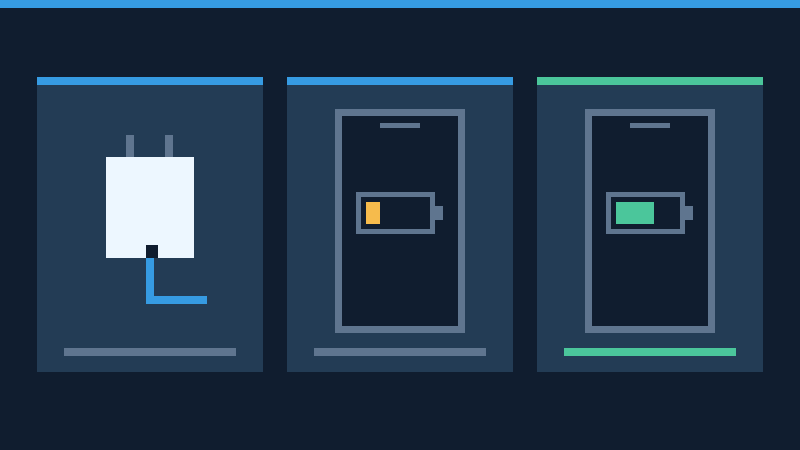
This is a practical troubleshooting comparison, not a laboratory benchmark. Battery percentage estimates are approximate, and charging power varies during a session. A result from 25% to 45% cannot be compared directly with a test beginning at 85%. If you change the cable, adapter, temperature and workload simultaneously, you will not know which variable caused the difference.
Choose A Compatible Power Adapter And Cable
Look at the power supply’s specifications rather than relying on its connector shape alone. A USB-C adapter that supports USB Power Delivery is a useful choice for compatible fast-charging iPhones. Match the cable to your model: earlier Lightning-equipped iPhones require the appropriate Lightning connection, while USB-C iPhones use compatible USB-C cables.
Apple’s model-specific fast-charging reference lists the necessary adapter and cable combination for different generations. Its advertised charging times refer to defined test conditions, not guaranteed results on every device. A suitable higher-rated adapter does not force its full rated output into the phone; compatible equipment negotiates supported power delivery.
A multiport charger may divide its available power among connected devices. If you frequently charge several devices at once, compare the result when the iPhone is the only device connected. Check the manufacturer’s per-port specifications rather than interpreting the total wattage printed on the packaging as the power available to each port.
Car USB sockets, keyboards and computer hubs can also be limited power sources. They may work adequately for maintaining charge without meeting the requirements for faster charging. A dedicated wall adapter is a more useful baseline for diagnosis. Replace damaged or unreliable accessories with equipment meeting the appropriate safety and compatibility requirements.
Inspect The Charging Connection And Port Safely
Unplug your equipment before examining it. Check for bent connectors, torn insulation, discoloration or looseness. Stop using damaged cables and adapters. A cable that works intermittently when bent is not a reliable accessory and should not be held in position with tape or pressure.
Look at the charging port under good light. If it appears obstructed or damaged, follow Apple’s approved care instructions or obtain professional cleaning. Do not scrape the contacts with a pin, insert conductive tools, apply liquid or force a plug into an obstructed connector. Inspecting a port is different from attempting to repair it.
Try an intact cable and a different compatible adapter, preferably changing one component at a time. Connect them directly to the iPhone and a working outlet. Apple’s charging troubleshooting guide explains how to approach loose connections, accessory errors and devices that do not charge. If the device is completely unresponsive, see iPhone Won’t Turn On for the related startup procedure.
Understand The Slow Charger And Charging Status Messages
Supported iOS versions can identify some charging limitations through the Battery settings and Lock Screen. A Slow Charger indication suggests that a different compatible power source may improve charging speed. It does not automatically establish that your existing accessory or iPhone is defective.
Open Settings and tap Battery. Review the displayed charging information. On iOS 26 and later supported versions, Apple also provides charge-time estimates in relevant circumstances. Older software releases may not display the same information. Use the actual menu available on your device.
A message about an incompatible accessory or a charging hold requires a different response from the Slow Charger indication. Record its precise wording. If a familiar cable suddenly produces persistent errors, inspect the equipment and try a supported replacement. If you see a temperature-related hold, allow the device to return to a suitable operating temperature.
Check Whether Charging Is Intentionally Limited
The battery does not charge at a constant rate from empty to full. Apple’s battery maintenance guide explains why it reduces charging current as the battery approaches a full charge. Comparing the time needed for the final few percentage points with the earlier stage can therefore produce a misleading impression of a charging problem.
Optimized Battery Charging is intended to reduce the time a battery spends at a high state of charge. The phone can postpone the final portion until it anticipates that you will need it. Supported iPhone models also have a configurable charge limit that may stop charging below 100%.
Review the Battery settings and the charging options supported by your model. If you need a fuller charge for a trip, use an available temporary override or adjust the limit deliberately. Apple explains these controls in its charge limit and optimized charging guide. Permanently disabling battery protections is not necessary to establish whether the phone can accept power normally.
Reduce Heat And Power Use During Charging
Charging supplies energy to both the device’s operating needs and its battery. A demanding game, navigation session or high-resolution video recording can leave less energy available for replenishing the battery. If the phone charges much more effectively when the display is locked and unnecessary applications are closed, workload may be contributing to the slow result.
Heat is another important variable. Apple’s temperature-related charging guidance describes automatic protections that reduce or suspend charging outside the suitable thermal range. Move the phone away from direct sunlight, allow it to rest and use a ventilated location. Remove an insulating case if doing so is appropriate and the device becomes warm during charging.
Never use a freezer, ice pack or artificial heating method to make the phone charge faster. Let it return naturally to a suitable temperature. If the device is unusually hot, smells burnt, appears swollen or has physical damage, stop charging it and seek qualified assistance rather than repeating the comparison.
Troubleshoot Wireless Charging Separately
Wireless charging introduces additional variables such as alignment, charger compatibility and the case surrounding the phone. A supported MagSafe or Qi2 charger may offer a different charging capability from a basic Qi pad. The supported speed still depends on the particular combination of iPhone, charger, adapter and operating conditions.
Place the charger on a stable clear surface, use its recommended adapter and position the phone correctly. Remove incompatible thick cases or wallet attachments before testing. Do not leave cards, metal objects or other foreign material between the device and the charging surface.
Compare the wireless setup against a compatible wired connection on another comparable occasion. If the phone charges normally by cable but poorly on one pad, the wireless charging arrangement deserves closer examination. Apple’s MagSafe charger instructions describe alignment and accessory considerations. A successful wired test does not by itself prove that a wireless charger is broken.
Respond Safely To A Liquid Detection Alert
If the iPhone reports liquid in the connector, disconnect the cable and follow Apple’s liquid detection instructions. Wait until the connector and accessory are completely dry. Do not override the warning merely to speed up ordinary charging, and do not insert paper, cotton swabs or other objects into the connector.
Apple also advises against rice, compressed air and external heat as drying methods. Persistent alerts after the device and accessories have dried require further investigation. If the phone shows signs of physical damage or abnormal heating, stop using it and seek service. A moisture alert is not a reason to reset the operating system.
Review Battery Health And Decide Whether Service Is Needed
Open the Battery Health section under Settings, then review the maximum capacity and any service recommendation. The precise menu name depends on the model and iOS release. Maximum capacity estimates the battery’s remaining capacity relative to its original condition; it is not a direct measurement of the charging wattage.
If the device reaches its usual percentage but lasts very little time afterward, investigate its energy consumption as well as battery condition. Our iPhone Battery Drains Quickly guide covers the separate runtime problem. Apple explains battery condition and performance in its battery health documentation.
When a known-good compatible charging setup consistently performs poorly at suitable temperatures, arrange service if the problem persists. Take note of the model, iOS version, percentage changes, charger details and exact warnings. Back up important information while the device remains usable; our iCloud backup restoration guide explains the recovery side of that process. Do not erase the phone just to diagnose charging speed.
Frequently Asked Questions
Why Is My iPhone Charging Slowly Even With A New Charger?
Check whether the charger and cable support your model’s charging requirements. Temperature, device usage and battery charging limits can also affect the result.
Does The Slow Charger Message Mean My iPhone Is Damaged?
No, it can indicate that another compatible charger would provide better charging performance.
Why Does Charging Slow Down Near 100%?
The phone reduces charging current as the battery approaches full capacity. This helps manage heat and battery wear.
Can I Use A Higher-Wattage USB-C Adapter?
Yes, if it meets the applicable compatibility and safety requirements. The iPhone and compatible adapter negotiate the supported power.
Should I Turn Off Optimized Battery Charging Permanently?
No, it serves a battery maintenance purpose. Use a supported temporary override if you need to finish charging sooner.
Is Wireless Charging Always As Fast As Wired Charging?
No, speed depends on the supported charger, adapter, phone model, alignment and temperature.
Will A Factory Reset Repair A Damaged Charging Port?
No, software erasure cannot repair physical damage. Seek qualified assistance for a suspected hardware fault.
Official References And Technical Review
Reviewed November 16, 2026. Sources: iPhone Charge Speeds, Fast Charging, Charging Troubleshooting, Charge Limit And Optimization, Thermally Limited Charging, Battery Maintenance, Liquid Detection, MagSafe Charging, Battery Health And Performance. The original images are conceptual illustrations. This article is documentation-reviewed, not a hands-on charging benchmark. The comparison exercise is proposed for readers; no measured charging results are claimed.


