

A quiet iPhone is not necessarily failing to receive messages. This guide explains how to identify the missing notification behavior and restore the alerts that matter without unnecessary resets.
Identify Which Notification Behavior Is Failing
When notifications stop appearing on an iPhone, the problem may be the delivery of new information, the presentation of an alert or the sound that accompanies it. These are separate functions. A message can arrive successfully without producing a sound, a banner or an immediately visible Lock Screen alert. Diagnosing the wrong function can lead to unnecessary changes and make the phone more difficult to use.
Start by noting which apps are affected, whether the phone is locked and whether the problem occurs at a particular time. Open the affected app and check whether the expected information is present. If a message never reaches the app, investigate the service or network before adjusting notification presentation.
| Observed Symptom | First Area To Check |
|---|---|
| One app sends no alerts | App notification permission and in-app preferences. |
| Alerts appear without sound | Silent mode, alert volume and app sounds. |
| Notifications arrive in groups later | Scheduled Summary and Focus. |
| Alerts appear only on Apple Watch | Paired-device notification routing. |
| New content appears only after opening an app | Account, connectivity and app-specific delivery behavior. |
Keep the distinction in mind throughout the following checks. The objective is to restore the type of alert you need without enabling unnecessary interruptions or exposing private content.
Run A Controlled Notification Test
Choose an ordinary messaging app or another service that can reliably generate a new alert. Ask a trusted contact to send a harmless test message at an agreed time. Do not use banking verification codes or emergency alerts as test material. Check the locked phone first, then repeat the comparison while the phone is unlocked but the relevant app is not open.
Record whether you see a badge, receive a sound, find a notification in Notification Center or discover the message only in the application. If you have an Apple Watch, record which device actually receives the alert. A useful test changes one setting at a time and repeats the same ordinary action afterward.
Notification Center can reveal alerts that were missed when they initially arrived. See Apple’s notification viewing guide for the navigation and presentation options on supported iOS versions. A message being present in Notification Center is evidence of alert delivery, even when the original banner escaped your attention.
Check Notification Permissions For The Affected App
Inspect the specific application’s notification controls before changing settings for the whole device. Open the Settings app, choose Notifications and locate the relevant app. Enable Allow Notifications if you want that application to send alerts. Then review the supported presentation options, including Lock Screen, Notification Center and Banners.
For a test, enable an appropriate visible alert and sound rather than assuming that a badge alone will provide the behavior you expect. Different apps offer different controls. Some also provide their own notification categories or preferences within the application, so a system-level permission does not guarantee that every type of event will produce an alert.
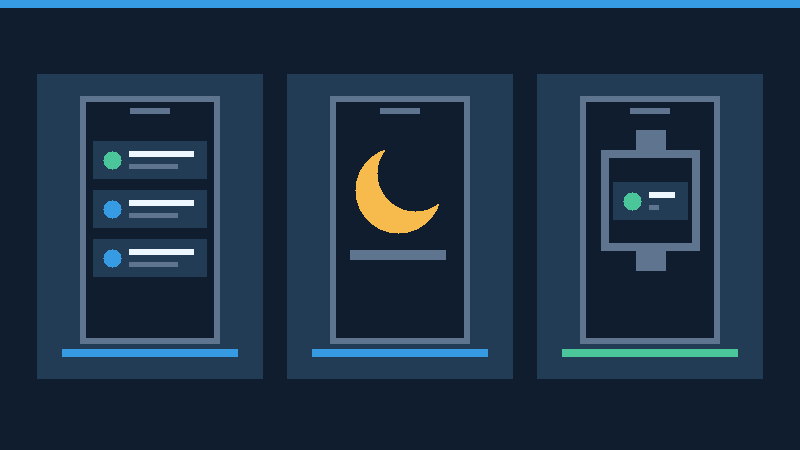
If an app has never requested notification permission, open it and review its onboarding or notification settings. Do not remove the app merely to repeat a permission prompt. Apple’s notification settings reference explains the available system controls. Menu labels and supported options vary with the installed iOS release and app.
Fix Notifications That Arrive Without Sound
If alerts are visible but inaudible, investigate audio settings rather than the app’s connection to the internet. Check whether the iPhone is in Silent mode. Depending on its design, the phone may have a Ring/Silent switch or an Action button configured to control silent behavior. The status indication is more reliable than assuming the physical control is identical on every model.
Open Settings, then Sounds & Haptics, and inspect the alert-volume setting. Adjust it to a comfortable level. In the affected application’s notification settings, check whether its Sounds option is enabled when available. Some applications also offer independent sound choices. Test an ordinary new alert rather than judging only from media playback volume.
For example, if a message appears on the Lock Screen but makes no noise, enabling the appropriate alert sound or changing Silent mode may solve the specific problem. If there is no visible alert either, inspect permissions and Focus next. If other normal audio functions fail, speaker or audio hardware assessment may be appropriate. Apple’s notification troubleshooting overview describes the relationship between visible alerts and sounds.
Inspect Focus, Do Not Disturb And Automatic Schedules
Focus allows an iPhone to limit interruptions while you work, sleep or perform other activities. If alerts are missed at a consistent time or in a particular location, check for an active or automatically activated Focus profile. Do not permanently remove a useful work or sleep configuration simply to perform a brief comparison.
- Open Control Center using the gesture appropriate for your iPhone model.
- Inspect the active Focus control and its displayed profile.
- Temporarily disable an optional active profile when it is safe and appropriate to receive alerts.
- Repeat your harmless notification test.
- If the comparison succeeds, review the profile’s specific people, app and schedule rules in Settings.
A profile can silence selected apps or people, or permit only selected ones. Verify which rule direction is in use before adding a contact. If an approved app supports urgent or time-sensitive notifications, consider the relevant exception only when that behavior is genuinely needed. Some specialized alerts are subject to additional platform permissions. Avoid enabling every exception as a general repair.
Review automation and linked-device settings if a profile seems to turn itself back on. A Focus may be associated with a schedule, location or activity, and cross-device sharing can apply its state from another compatible device. Apple’s references on Focus notification rules, Focus configuration and Do Not Disturb explain those controls. Maintain any safety-related or organization-required restrictions.
Check Scheduled Summary And Notification Visibility
If notifications arrive together later in the day, determine whether the application is included in a scheduled delivery arrangement. A delayed summary may be functioning exactly as configured, rather than indicating a broken push-notification connection. Check the Notifications settings for Scheduled Summary and inspect the affected app’s delivery preference.
For an application that needs to alert you promptly, choose immediate delivery when supported and appropriate. Keep optional newsletters or low-priority applications in the summary if that suits your preferences. The goal is to change the particular delivery rule responsible for the symptom rather than disabling all notification organization.
Also review the Lock Screen presentation. Notifications can be visually grouped or reduced to a count, and privacy settings may conceal their text until the device is unlocked. Neither behavior necessarily means the alert is missing. Preserve a privacy-conscious preview setting on a phone used in public or at work. The presence of a notification does not require its private contents to be readable by anyone nearby.
Understand Notification Routing To Apple Watch
When an Apple Watch is paired to an iPhone, ordinary notification routing often sends an alert to one device rather than both. Typically, an unlocked iPhone handles alerts itself, while an unlocked worn watch may receive them when the phone is locked or sleeping. That can make the phone seem quiet even when messages are being delivered correctly.
Observe both devices during the controlled test. Check the watch’s connection and lock state, then open the Watch app on the iPhone and review its notification choices for the affected application. Depending on the app, it may mirror the iPhone settings or offer independent watch preferences. A silent presentation in the watch’s Notification Center may also differ from an audible or tactile alert.
Do not unpair or erase the watch as a first diagnostic step. Review the Apple Watch notification troubleshooting guide before changing device relationships. Decide whether immediate alerts on the wrist or on the phone better fit your routine, and use supported settings for that intended behavior.
Investigate Missing Notifications From Messages Or Mail
Messages
If only one conversation is silent, open that conversation and inspect its notification options. A muted thread can continue receiving messages without interrupting you. Check for an intentional mute before changing every Messages preference. For unexpected messages that do not appear in the ordinary list, inspect the appropriate filtered message categories without opening suspicious links. Apple’s guide to message notification controls describes conversation-level and contact-related choices.
If email does not appear until Mail is opened, examine how the relevant account receives incoming information. Provider support determines whether a push mechanism or periodic fetching is available. Look at the account’s Fetch New Data settings and compare them with the delay you observe. Separately review Mail notification preferences. A service outage or authentication issue can prevent new messages from reaching the device regardless of the chosen alert sound.
Use the provider’s verified website or authorized administrator to confirm account access. Follow Apple’s email troubleshooting guidance before removing an account. Confirm that important locally stored or downloaded messages are independently protected before making any account changes. A device backup does not necessarily retain copies of every email message.
Check Network Access Without Resetting The Phone
Remote notifications generally depend on the device’s ability to communicate with the relevant online service. Compare a simple web request and an ordinary in-app refresh on the current network. If Wi-Fi has internet access but mobile data does not, check the selected line and relevant app permissions. Our iPhone Cellular Data Not Working and Wi-Fi Connected But No Internet guides cover those separate problems.
Compare the behavior on another trusted connection if available. If other devices cannot access the same service, check its official status or support channel rather than resetting your iPhone. A workplace VPN, managed configuration or network filter may require assistance from the administrator. Do not remove mandatory protection to receive an alert.
Do not assume turning on Background App Refresh is a universal push-notification repair. The mechanisms are different, and apps may depend on different delivery models. Use the affected provider’s instructions if its own service has particular background requirements.
Restart And Update Before Considering More Disruptive Repairs
After checking the settings, restart the iPhone normally when doing so will not interrupt important activity. Open the affected app, confirm you are signed in and repeat the controlled test. Check the App Store for supported updates to the application, and review compatible iOS updates. Make a current backup before substantial software changes and maintain reliable power.
If only one application remains affected, contact its developer with the application version, iOS version and test results. Reinstalling it can remove local data or require account reauthentication. Verify its backup, export or account recovery process first. A factory reset is not an appropriate early response to missing alerts. Our iCloud restoration guide explains the limitations of backup-based recovery.
If every app remains affected on several working networks after supported updates and appropriate settings checks, seek Apple Support or the device administrator. Include the precise symptoms and test results, but omit private message contents, passwords and account identifiers from public support requests.
Frequently Asked Questions
Why Are My iPhone Notifications Silent?
Silent mode, app-specific sound preferences, alert volume and Focus can all influence notification sounds. Check whether the alert is visible before diagnosing delivery.
Why Do I Receive Notifications Only On My Apple Watch?
Paired-device routing may direct ordinary notifications to your watch when the iPhone is locked. Review the notification preferences and test both devices.
Can Focus Stop Notifications From One App?
Yes, a Focus can restrict particular apps or permit only selected ones. Review the active profile’s rules.
Does Scheduled Summary Mean Notifications Are Broken?
No, it can intentionally deliver selected alerts at scheduled times.
Does Background App Refresh Need To Be Enabled For Every Push Notification?
No, the two mechanisms are distinct. Follow the relevant app’s delivery instructions.
Will Erasing My iPhone Fix All Notification Problems?
No, it cannot repair an unavailable online service or every account issue. Try targeted non-destructive checks first.
Official References And Technical Review
Reviewed November 16, 2026. Sources: iPhone And Apple Watch Notifications, Change Notification Settings, View Notifications, Focus Notification Rules, Set Up Focus, Do Not Disturb, Apple Watch Notifications, Message Notifications, Mail Troubleshooting. The original illustrations are conceptual, not actual device screenshots. Instructions were reviewed against Apple’s documentation; no physical iPhone or Apple Watch testing was performed.


