

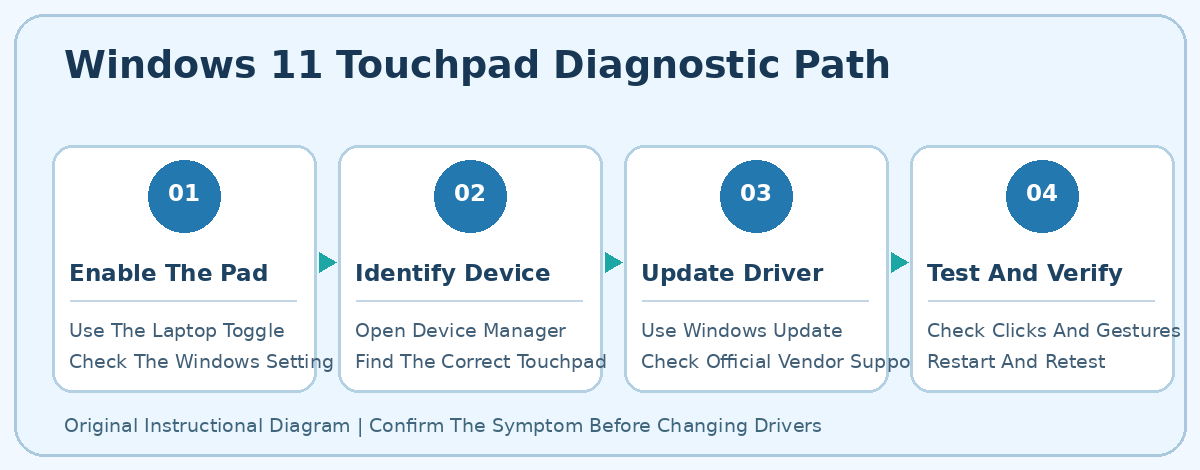
Check the laptop touchpad toggle and Settings, Bluetooth & devices, Touchpad. Restart, identify the correct device in Device Manager, and use supported Windows Update or manufacturer drivers only when needed. A bulging laptop or swollen battery requires professional service.
The following tests separate disabled settings, missing drivers, gesture issues and physical faults.
Identify The Exact Touchpad Symptom
A touchpad that does not work on Windows 11 can be disabled, misconfigured, missing a driver, affected by a power transition or physically damaged. Before changing the system, identify what actually fails. Test normal pointer movement, one-finger tapping, physical clicking, two-finger scrolling and an ordinary gesture separately. If the pointer moves but scrolling fails, the issue is not the same as a completely undetected pad.
Connect a known working USB mouse if available. This gives you temporary navigation while checking settings. A functional external mouse does not prove that the internal touchpad has failed; it only provides a useful comparison. If neither the mouse nor the keyboard responds, investigate general system freezing before reinstalling touchpad drivers. Save work before testing any restart.
Record when the problem started. Did the touchpad stop after an update, after closing the lid, when connecting a mouse, or following a drop or liquid spill? Timing is a clue, not proof. A touchpad that fails only when the computer wakes from sleep points toward a different cause from one that was damaged physically.
If the laptop body bulges around the palm rest, do not push the touchpad back into position. A swollen battery can create a safety hazard. Stop using or charging a visibly swollen laptop and arrange qualified service.
Use this evidence-first approach instead of running random driver packages. The correct fix depends on whether Windows can detect the device and whether the failure concerns movement, clicks or gestures.
Use A Safe Diagnostic Checklist
Match the symptom to a specific first test, keeping other settings unchanged.
| Symptom | First Test | Area To Investigate |
|---|---|---|
| No movement | Check touchpad switch | Enablement or driver |
| Movement without clicking | Compare tap and physical click | Tap setting or mechanism |
| Scroll gesture fails | Test in two applications | Gesture configuration |
| Fails with USB mouse | Disconnect mouse safely | External pointer interaction |
| Fails after sleep | Restart then test wake | Driver or power state |
| Missing from Device Manager | Check vendor hardware details | Enumeration or hardware |
One symptom can have multiple causes. A device missing in Device Manager may be disabled in firmware, unrecognized by Windows, or physically faulty. A sluggish pointer may actually reflect a system under heavy load. The table helps choose the next observation rather than declaring a diagnosis.
Use a temporary wired mouse when possible, but avoid uninstalling unrelated devices to see if the pad returns. Keep a way to control Windows while working. If your system is managed by an employer or school, respect any restrictions on driver installation and power settings.
After each change, perform the same brief test and note the result. If movement returns after enabling a switch, there is no reason to rebuild Windows or reinstall numerous drivers. If the pointer works only for a few minutes after reboot, the job is not complete; investigate what event makes it fail again.
Be prepared to explain the failure in plain language to technical support. A report that movement fails after wake but works after a restart is much more useful than simply saying the mouse broke.
Check The Touchpad Setting And Shortcut
Open Settings with Windows + I and choose Bluetooth & devices, then Touchpad. On a compatible laptop, the main touchpad switch controls whether the pad is active. If it is off, enable it and test movement immediately. Review settings for taps and scrolling only after confirming that basic movement works.
Some laptops have a physical switch or keyboard shortcut that toggles the pad. Look for a touchpad icon on a function key, then check the exact model’s manual to confirm whether that key requires Fn. Do not try every possible combination; unrelated function keys may change wireless connectivity, brightness or other settings. Some models use a touchpad corner control instead.
If the pad works until an external mouse is attached, review the Windows option that keeps the touchpad enabled when a mouse is connected. A manufacturer control utility may provide a similar preference. This could be intentional behavior rather than a defect. Change the setting only if it does not match your needs.
When the standard Touchpad settings page is absent, do not assume Windows itself is corrupted. Windows may not be recognizing the pad as a supported touchpad, or the hardware may need a vendor-specific interface. Continue to Device Manager.
On an organizational device, controls may be locked by policy. Use the approved help desk instead of replacing system software. On a personal computer, a single reversible setting is a better first step than an operating-system reset.
After a successful change, verify movement, click and scroll and repeat after restart. A setting that does not persist can indicate software or device initialization that requires further investigation.
Inspect The Device In Device Manager
Open Device Manager from the Start context menu. Examine Human Interface Devices as well as Mice and other pointing devices. Microsoft identifies both categories because touchpads can appear under different device names. A model might show a HID-compliant touch pad, an I2C HID device, a vendor label or a related controller.
Do not assume that every device called HID is your touchpad. Other human interface devices can control keyboards, touchscreens and pens. Open Properties for a likely entry and inspect its description, manufacturer and Device status. Record any error code accurately.
If the correct entry is disabled and you have permission, consider the standard Enable device command. A device that Windows can see but has deliberately disabled may need nothing more. If the entry is missing, use Scan for hardware changes and inspect the results. A scan cannot guarantee that a physically damaged device will appear.
Check whether the internal pad is listed separately from a connected external mouse. An external device may be the only pointer in the list if the integrated controller has not enumerated. That observation is evidence for further diagnosis, not proof of a broken motherboard.
If you find a warning icon, note the exact status and its timing. Do not immediately uninstall the entire HID class or delete chipset drivers. Changing unrelated input components risks losing keyboard or touchscreen function as well.
The device status guides the next action: a healthy recognized pad deserves configuration checks; a driver error deserves an official driver investigation; a persistently missing pad may require firmware or hardware help. The order matters because each step becomes more invasive.
Update Drivers From Trusted Sources
Begin driver troubleshooting with Windows Update. In Settings, Windows Update, check for supported updates and inspect Optional updates under Advanced options if offered. Many laptop touchpad drivers are supplied through Microsoft or the computer manufacturer. Match packages to the precise model and Windows version.
If Device Manager identifies a relevant problem, select the verified touchpad and use Update driver. Windows can search automatically. If the manufacturer recommends a specific release, obtain it from the manufacturer’s official support site, not a search advertisement or a bulk driver updating utility.
A vendor package may add gesture configuration and palm rejection features. It is not always necessary to install a replacement if the Windows-provided driver works normally. A higher version number alone does not establish that a driver is more suitable for the machine.
If an update does not help, Microsoft also documents reinstalling a touchpad driver through Device Manager. Before trying it, connect an external mouse, verify the precise device and ensure a recovery route. Uninstall only the affected entry and follow the supported restart or rescan procedure. Windows may detect it and restore a compatible driver.
Do not select driver-package deletion without understanding what you are removing, especially on a system without network access. If the touchpad fails to return after reinstalling, stop instead of uninstalling additional controller components randomly.
On a managed laptop, IT may deploy approved packages centrally. For personal devices, use Microsoft’s touchpad support article and the manufacturer’s model-specific instructions. Driver work should be justified by a detected problem, not performed because every internet checklist contains a reinstall step.
Official reference: Microsoft Touchpad Troubleshooting.
Restore Clicking, Scrolling And Gestures
When a pad moves the pointer but does not click, start with the Taps controls rather than deleting its driver. Open Settings, Bluetooth & devices, Touchpad, and inspect tap-to-click and sensitivity. Compare a normal physical click with a single tap on an innocuous file icon. A mechanical click that feels stiff, uneven or jammed deserves hardware attention.
For a scrolling issue, open a long document and perform a two-finger scroll. Repeat the same gesture in a second program. Different applications can handle gestures differently. A failure in every program suggests a system setting or driver issue, while a failure in one application may be local to that program.
Three-finger and four-finger gestures can launch different Windows tasks. When a gesture works but triggers an unexpected window, check the assigned action. Microsoft documents cases where touchpad gestures may open Windows Search unexpectedly. Reassign the action you prefer rather than treating it as a broken sensor.
If sensitivity is too low, an intended tap may not be registered. If it is too high, pointer movement during typing may be distracting. Make one adjustment at a time and test in a normal work session. Avoid changing multiple gesture settings at once, because that makes the outcome difficult to interpret.
Also remember that touchpad capabilities depend on hardware. A basic pointing device may not support every precision gesture shown in a generic tutorial. The manufacturer’s model documentation is the authoritative description of its intended functions.
To verify the result, test pointer motion, a single click, right-click, scrolling and the gestures you actually use. Record separately which functions now work. Restoring a gesture is a smaller task than recovering a completely undetected device.
Check External Mouse And Dock Behavior
If the pad fails only when a USB or Bluetooth mouse is connected, first verify the Windows setting that controls simultaneous use. Some computers deliberately suppress touchpad input while another pointer is attached to avoid accidental movements. That is an interaction preference, not automatically a defect.
Disconnect an optional external mouse while no related file transfer or critical work is in progress, and test the pad. If it begins working, reattach the mouse and review the relevant touchpad option. The manufacturer may implement the rule in a separate control utility. Match the configuration to your actual workflow.
Docks can connect mice, monitors, keyboards and USB devices through a single cable. When a touchpad behaves differently in docked and undocked modes, record the dock model and connection method. Test once with the laptop operating independently if it is safe. This is a comparison, not a suggestion to replace the dock immediately.
An external Bluetooth mouse also may reconnect automatically when turned on. To isolate the effect, power off the accessory using its proper switch or disconnect it through supported settings. Do not forget all Bluetooth devices or reset network settings as a broad experiment.
If the laptop’s internal pad works in one configuration and fails consistently in another, the result helps the manufacturer or IT support investigate input policies, controller initialization and peripheral software. Keep the known working setup available while resolving the problem.
If both the internal and external pointers are unresponsive at the same time, check whether the whole operating system is frozen. Try a normal keyboard action and watch for an application response. System-wide unresponsiveness requires a different investigation from a malfunctioning integrated sensor.
Investigate Sleep And Power Transitions
A failure immediately after resuming from sleep can involve driver initialization or power transitions. Save open files, restart Windows normally, and see whether the pad works from a fresh session. Then perform one deliberate sleep and wake test while the computer has reliable power.
Record the result instead of immediately disabling power-management settings. If the pad works after restart but fails every time the lid is closed, the pattern is strong evidence that the wake process matters. Review the laptop manufacturer’s firmware and driver support notes for the exact model.
Windows Update may have delivered a new input, chipset or firmware component around the time the issue began. Review update history, but do not assume the latest update is automatically responsible. A device can fail because of an unrelated physical fault or a conflicting utility installed at the same time.
Do not use random Registry scripts that promise to fix input device power management. Those scripts can affect unrelated devices and may not be supported by your Windows build. Prefer official diagnostics, a verified driver update or a manufacturer-recommended fix.
If a long-running document was open when the touchpad failed, save it using the external mouse or keyboard before testing a restart. Avoid holding the power button down while Windows is still responsive, because forced shutdowns can interrupt unsaved work.
Some problems are broader than the touchpad. A machine that hangs during resume and delays every input deserves a general Windows stability diagnosis. The touchpad may simply be the most obvious sign that Windows has not resumed normally.
A useful final comparison includes the state before sleep, immediately after wake, and after a restart. It reveals whether an apparent fix survives ordinary operation, not just a freshly loaded desktop.
Recognize Hardware Warning Signs
Some laptop hardware has an internal pointing device control exposed in firmware settings. Whether yours has one depends entirely on its manufacturer and design. Consult the exact model’s manual rather than entering BIOS or UEFI and changing unfamiliar options.
Do not modify storage, encryption, Secure Boot or other unrelated firmware controls while looking for a touchpad setting. Changes in those areas can complicate startup or account recovery. On company laptops, firmware settings may be locked for security and should be managed by authorized staff.
Inspect the touchpad exterior for cracks, residue, unusual gaps or damage after an impact. Follow the manufacturer’s safe cleaning guidance with the machine powered down. Never pour cleaner on the pad or pry beneath it to examine an internal cable.
A swollen battery can press against the palm rest and interfere with touchpad clicking or alignment. If the chassis bulges, the pad rises, or the battery appears compromised, stop using and charging the machine and obtain qualified professional help. This is a safety issue rather than a software setting.
A touchpad that remains absent from Device Manager after a controlled restart and supported driver work may require service of its controller, connector or sensor. Opening the laptop without suitable training can damage fragile cables or batteries. A repair professional can assess it safely.
If the laptop was recently repaired, record that timing and the service work performed. A connection issue may be relevant, but the user should not assume the exact part has failed without examination.
Use a temporary external mouse only when the laptop is otherwise safe. It can make file backup and arranging service easier, but it does not resolve a physical hazard. The correct endpoint is reliable input and a safe device, not merely a pointer that moves by any means.
Verify The Repair After Restart
Verify the result against the original symptom. Move the pointer across the screen, select a document, use a normal click, perform a two-finger scroll, and test the gestures you rely on. Repeat those tasks in the environment where the problem occurred.
Restart Windows and test once more. If wake from sleep was the trigger, use a controlled sleep and resume cycle after saving your work. If an external mouse caused the problem, attach that device and confirm that the intended settings are preserved.
Write down the exact change that helped, such as enabling a Touchpad switch, correcting the external-mouse preference, or installing a verified manufacturer driver. This small record is valuable if the same behavior returns after an update.
Keep official Windows and manufacturer updates current, but avoid replacing functional drivers merely for novelty. On managed computers, leave maintenance to the authorized process. Resist the temptation to apply every step from a generic list after the issue has already been resolved.
If the pad continues to fail despite safe tests, supply the manufacturer or help desk with the model, Windows version, Device Manager status and the repeatable trigger. Those observations are more useful than speculation about a broken chip.
For connected input devices, the related guide to USB recognition can help distinguish an external device problem from an integrated pad issue. For keyboard problems, use the dedicated laptop keyboard article. If the whole PC freezes, investigate Windows responsiveness separately.
The best result follows from changing only what the evidence points to: check enablement, separate gesture from movement problems, identify the correct device, use official driver sources and seek service when hardware is implicated. A controlled process protects working systems while solving the actual fault.
Frequently Asked Questions
Why Did My Touchpad Stop Working Suddenly?
A toggle, Windows setting, driver or hardware problem may be responsible. Identify the symptom and check the model-specific control.
Where Is The Touchpad Setting?
Open Settings, Bluetooth & devices, Touchpad on a supported Windows laptop.
Why Does The Pad Stop When I Plug In A Mouse?
A Windows or manufacturer setting may suppress touchpad input when another pointer is connected.
Where Is My Touchpad In Device Manager?
Look under Human Interface Devices and Mice and other pointing devices.
Should I Remove All HID Devices?
No, identify the actual touchpad and retain a working keyboard or mouse before any driver change.
How Do I Fix Two-Finger Scrolling?
Inspect the Scroll & zoom settings and test the gesture in multiple programs.
Can Battery Swelling Affect A Touchpad?
Yes, a bulging laptop requires prompt professional assessment; stop using or charging it.
Does Restarting Prove The Issue Is Fixed?
No, repeat ordinary use and the original trigger, such as a sleep and wake cycle.
Related Guides And Official References
Safe Driver Installation | USB Device Problems | Laptop Keyboard Issues | Windows Freezing | Microsoft Mouse And Keyboard Help | Microsoft Gesture Guidance


