
When You Should Run A Memory Diagnostic
Windows Memory Diagnostic is a built-in test designed to investigate errors involving the computer’s working memory. It can be useful when a Windows 11 computer experiences unexplained crashes, freezes, data corruption or instability after a RAM upgrade. Because testing requires a restart, it is best scheduled deliberately rather than launched during important work.
Physical RAM is the temporary working memory used by the processor and running software. It is different from the SSD or hard drive that retains files after shutdown. A computer running low on available RAM may become slow, even when every installed memory module functions correctly. By contrast, a memory subsystem that returns incorrect data can make unrelated applications behave unpredictably. These problems require different responses.
Begin by recording the actual fault. If you see a blue screen, write down its stop code. If an application crashes, note whether the problem affects only that application or several unrelated programs. If the symptoms started after new memory was installed or a performance profile was enabled, include that information. Our Windows blue screen guide explains the role of stop codes, and our Windows freezing guide covers broader responsiveness problems.
Use this decision table before choosing a diagnostic.
| Symptom | Useful Next Check |
|---|---|
| Unrelated applications repeatedly crash | Memory test and wider system diagnostics |
| Instability following a RAM upgrade | Compatibility, configuration and memory test |
| Slow performance only with many apps open | Memory usage and workload assessment |
| Drive disappears or reports storage errors | Backup and storage diagnostics first |
| Only one program fails after an update | Investigate that program or driver first |
These are starting points, not confirmed diagnoses. A memory-related stop code does not establish that a RAM stick is defective, and a slow computer does not automatically need new RAM. Choose the test to answer a defined question.
Prepare Your Computer Before Restarting
Windows Memory Diagnostic runs outside the usual desktop session. During that time you cannot continue ordinary work in Windows, and the tool may need a substantial period to finish. Duration depends on the amount of installed memory, selected test settings and hardware. There is no dependable universal completion time.
Save open documents and finish important file transfers. Close applications through their ordinary controls. If Windows is applying an update or another critical operation is active, wait for that operation to complete before arranging the diagnostic. Keep a laptop connected to suitable power and ensure that you have a working display and keyboard.
Verify an independent backup of important information, especially if the computer has already experienced unpredictable crashes or corrupt files. A memory test is not intended to erase personal files, but a computer that is already unstable can fail during ordinary use or restart. Our Windows file backup guide explains the distinction between preserving information and repairing a system.
Know your legitimate Windows sign-in credentials. If the device is encrypted, make sure you can retrieve its authorized BitLocker recovery information if an unexpected startup problem occurs. The ordinary memory test should not be treated as permission to modify encryption, firmware security or boot configuration. A work or school computer may require its administrator to approve the diagnostic or arrange downtime.
Record the approximate date and time, computer model, installed memory capacity and any recent hardware or firmware changes. You can inspect the recognized memory through Task Manager, Performance, Memory on a functioning Windows desktop. The capacity and activity displayed there are useful context but are not equivalent to the result of a hardware diagnostic.
If the machine is your only means of remote access to a business system, arrange a supported local or alternative access method before restarting. Starting this diagnostic on a remotely administered device will interrupt the normal desktop session. A successful test is not worth an avoidable loss of access to essential work.
Launch Windows Memory Diagnostic Through Start Or Run
Windows provides the diagnostic as part of the operating system. You do not need a third-party RAM cleaner, registry utility or replacement executable to launch it.
- Open the Start menu and search for Windows Memory Diagnostic. Select the built-in Windows tool from the results.
- Alternatively, press Windows + R to open Run and enter the command shown below.
- If Windows requests administrator approval, use the authorized credentials for the computer or ask its administrator.
- Read the scheduling choices before selecting one.
mdsched.exeThe diagnostic launcher normally offers a choice to restart and check immediately or check for problems the next time the computer is started. The immediate option is useful when your work has been saved and there is suitable time for a test. The scheduled option allows you to finish your current tasks before the next startup.
Microsoft describes the built-in testing procedure in its Windows stop error troubleshooting documentation. A normal diagnostic restart is different from Reset this PC or a Windows reinstallation. It is intended to examine memory, not to restore Windows to factory settings.
If the command does not open the tool, note the actual error. Confirm that you typed the executable name correctly and that you are accessing the legitimate installed Windows utility. Do not download an executable with the same name from an unknown website. If several built-in Windows tools are unavailable, a broader operating system problem may be relevant. Our system file repair guide discusses that distinct category of problem.
When the launcher opens successfully, select the appropriate scheduling choice once. Avoid repeatedly scheduling tests while a previous one is pending. If the computer cannot start normally at all, consult its official preboot hardware diagnostics or authorized support rather than assuming you can use the desktop launcher.

Observe The Test In The Preboot Environment
After the selected restart, Windows ordinarily loads the Memory Diagnostic test environment before returning to the desktop. Its screen differs from the familiar Windows interface and may use simple text and progress indicators. This is expected behavior.
Allow the default test to run. The display may show progress through its current pass, overall progress and a status describing any problems found so far. Remember that a message indicating no problems at an intermediate point is not the same as a completed test result. Continue until the diagnostic has finished or an actual problem makes further operation unsafe.
Progress may advance unevenly as different tests run. A percentage that changes slowly does not by itself establish that the computer has frozen. Available memory, test methods and hardware performance affect the time required. Avoid forcing shutdown simply because the display remains on one percentage longer than anticipated.
Keep the machine on reliable power and avoid disconnecting its display or necessary keyboard. If a thermal or electrical safety issue appears, such as smoke or a strong burning smell, stop using the equipment and follow appropriate hardware safety and service procedures. Ordinary test duration is not a reason to ignore a serious physical warning.
If the diagnostic repeatedly fails to start, unexpectedly reboots or never produces a completed result, record that outcome separately. Do not describe an interrupted run as a passing test. A failure to complete can involve several different hardware or startup conditions and is not sufficient to identify one defective RAM module.
When the diagnostic completes normally, Windows should restart into its usual sign-in environment. Sign in using your authorized credentials, then check the reported outcome. Keep the approximate test start and completion times so that you can distinguish this run from older events when inspecting Windows logs.
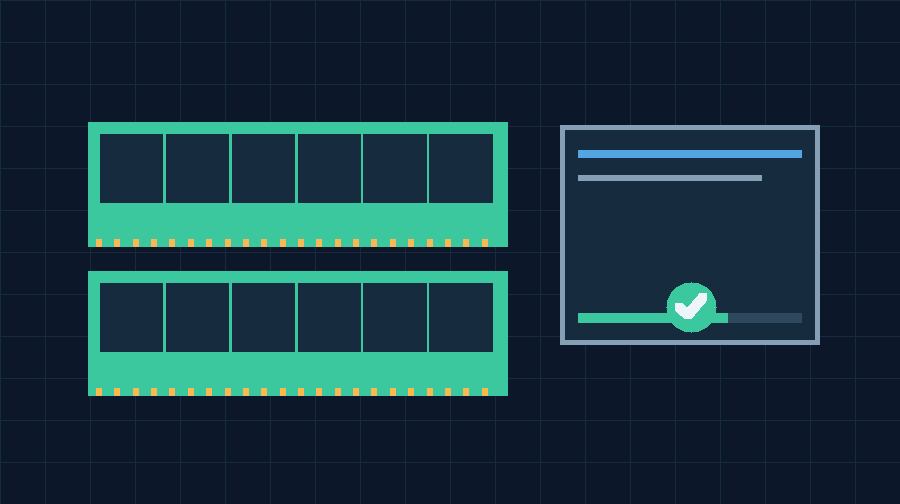
The illustration in this guide presents the test workflow conceptually. It is not an actual screenshot of the preboot interface. Follow the options displayed by the installed Windows diagnostic on your own machine.
Understand Standard And Extended Test Options
The default Windows Memory Diagnostic test mix is Standard. Microsoft also documents an Extended mode that performs additional testing and may take longer. Starting with Standard provides a practical baseline for many ordinary investigations.
If the initial completed test reports no errors but symptoms continue to suggest a memory problem, you can consider an extended run after protecting your files and arranging sufficient downtime. When the diagnostic screen is active, use F1 to open its options where supported. Locate Test Mix, choose Extended using the displayed keyboard controls, and use F10 to apply the settings and continue. The exact available controls should be read from the tool itself.
Some versions expose other test choices, cache behavior and pass counts. More passes or an extended mix can improve the opportunity to observe some intermittent failures, but no finite test can establish that every possible memory operation will always succeed. Do not alter unfamiliar test settings solely because a more complicated configuration appears more thorough.
For example, a PC that crashes several times during ordinary work may complete a Standard test without errors. An extended run could provide additional evidence if the owner has a suitable maintenance window. If the extended test also finishes without errors, the appropriate next step is to examine other evidence rather than declaring every hardware component faultless.
Do not run an extended diagnostic merely to produce a higher number of passes for a support report. It is most useful when the reason for suspecting memory remains credible after the initial comparison. If errors are already reported, protect important data and obtain appropriate hardware or configuration assistance rather than repeatedly stressing an unstable system.
Record the selected test mix and any deliberately changed settings. When comparing two runs after a hardware or firmware change, use the same documented test conditions where practical. This improves the usefulness of the comparison without promising that the test can reproduce every condition present during normal computing.
Find The Result After Windows Restarts
After the diagnostic returns to Windows and you sign in, a notification may appear describing its result. Allow the ordinary desktop and notification system to finish starting. Read the message carefully and distinguish a completed result from a warning that another action is necessary.
A completed test with no detected errors is encouraging. It means that the diagnostic did not detect a memory problem during the tested conditions. It does not mean that Windows has certified the RAM for all possible workloads or that other components are healthy.
A result reporting hardware problems deserves attention. Save the exact wording and the time of the test. A memory-related failure indicates that the tested memory subsystem did not behave as expected. The cause might involve a memory module, memory controller, motherboard, compatibility or an unstable configuration. Do not purchase a particular replacement module solely on the basis of a generic error message.
You may miss the notification because it appears after signing in, is dismissed or is handled by the system’s notification settings. Its absence is not proof that the test passed or failed. Event Viewer gives you another way to seek a recorded outcome.
Before examining event logs, confirm that the computer actually completed the expected restart and test sequence. If you scheduled the test but have not restarted since then, the result of that new test cannot yet be available. Likewise, a previously recorded success may belong to an older hardware configuration.
Keep a simple record that separates the test completion, result message and later changes. For an important workstation, preserve the result for the responsible administrator before running another test or modifying hardware.
If the diagnostic identified errors and the computer remains unstable, prioritize protecting important data and arranging support. A built-in diagnostic is an evidence-gathering tool; it does not automatically repair defective memory, guarantee a stable restart or identify every underlying hardware cause.
Retrieve Memory Diagnostic Results In Event Viewer
Event Viewer provides a more durable way to inspect diagnostic results when the notification is no longer visible. The exact channels available can differ between Windows environments, so begin with the common System log route and examine the event provider and timestamp.
- Right-click Start and open Event Viewer, or press Windows + R and run eventvwr.msc.
- Expand Windows Logs and choose System.
- Use Find or Filter Current Log to locate MemoryDiagnostics-Results or the corresponding Microsoft-Windows-MemoryDiagnostics-Results provider.
- Open the relevant recent event and read the General message and its timestamp. Confirm that it belongs to the run you just completed.
Microsoft’s troubleshooting documentation also describes looking under Application and Services Logs, Microsoft, Windows, and the MemoryDiagnostics-Results channel where available. If the System log search does not show the expected entry, inspect the relevant available diagnostic channels or follow the version-specific Microsoft guidance. Do not enable or change extensive logging simply to create a result that has not been recorded.
Read the message in addition to the event number. Microsoft identifies an event ID associated with a no-error diagnostic outcome in its documented diagnostic channel, but event IDs are meaningful only in their provider and log context. An isolated number found in an unrelated log is not proof of memory health.
If there are several memory test entries, compare their dates and the configuration you used. A passing entry created before a RAM upgrade does not answer whether the current setup is stable. A partial or interrupted test must not be treated as completed solely because a scheduling event exists.
Record the relevant source, time, event ID and displayed result. Avoid clearing the System log during troubleshooting; it contains other potentially useful information. If no result is found, note that the result remains unverified rather than assuming success. Consider checking the available logs with PowerShell or consulting support about why the diagnostic outcome was not recorded.
Use PowerShell To Read Recent Memory Test Events
On Windows, PowerShell can retrieve existing event messages without changing the diagnostic settings. This is useful for documenting several test runs or providing an administrator with a relevant result. It is a read-only query, not a memory test and not a repair.
Open Windows PowerShell in the usual way and use an appropriately authorized session. A common example queries the System log for the Microsoft memory diagnostic results provider:
Get-WinEvent -FilterHashtable @{LogName='System'; ProviderName='Microsoft-Windows-MemoryDiagnostics-Results'} -MaxEvents 5 | Select-Object TimeCreated, Id, Message | Format-ListThe command asks for up to five matching recent events and displays their times, identifiers and messages. Microsoft documents the filtering syntax in its Get-WinEvent reference. It is intentionally restricted to a relevant provider rather than collecting all system logs.
If the command reports that no matching events were found, first confirm that the test completed, that you used the expected log and that the provider is present under the relevant event channels. If permission is denied, obtain appropriate administrator assistance. Do not interpret an empty result as a passing test.
Compare the latest matching timestamp with the time you recorded earlier. If an older event contains a clear result but there is no record of the new run, keep those facts separate. The old result applies to the earlier test conditions.
If you need to provide a result to support, copy only the relevant event message and identifying information required for the diagnosis. Event logs can contain system or organizational details; avoid publishing the complete log without review.
A PowerShell query does not independently verify that the hardware passed the test. It retrieves whatever matching records Windows has retained. Check the event’s actual message and the evidence that the test completed, alongside the original symptoms. This prevents a convenient reporting command from being mistaken for a new hardware diagnostic.
Interpret Pass Fail And Missing Results Correctly
The most important part of a memory diagnostic is deciding what the recorded result means for the actual computer. Treat its status as one piece of evidence alongside the history of instability and any hardware changes.
| Test Outcome | What It Establishes | Next Action |
|---|---|---|
| Completed with no detected errors | No fault observed under this test | Investigate recurring symptoms and other components |
| Completed with detected errors | The tested memory subsystem showed a problem | Protect files and obtain configuration or hardware assessment |
| Interrupted or unable to complete | No valid completed outcome | Investigate the interruption and use supported diagnostics |
| Result not located | The outcome has not been verified | Check timestamps, provider and applicable logs |
For an illustrative case, suppose a PC began crashing after installation of additional memory. The original configuration had worked normally, but a completed test with the new memory reports errors. That evidence makes the recent configuration highly relevant. It does not yet establish whether the new module is defective, incompatible, incorrectly installed or affected by another subsystem condition.
In another case, an older computer freezes during large file copies but completes a Standard memory test without errors. Investigating its storage, temperatures, drivers and actual workload may be more useful than purchasing replacement memory immediately. Our SSD health guide describes separate diagnostic information that may be relevant to file-transfer failures.
Avoid treating a no-error result as a universal warranty of future operation. Intermittent faults can depend on conditions not reproduced by the test. Equally, do not ignore reported errors merely because the computer can still open a browser. Faulty or unstable memory operation can affect the reliability of important calculations and data written to storage.
For production work, document unresolved results and seek appropriate support before returning an evidently unstable machine to critical use. The next intervention should fit the strength and scope of the evidence.
Investigate Memory Compatibility And Performance Profiles
If a failure appeared after a RAM upgrade or firmware configuration change, collect the actual memory and computer specifications. Determine whether the system supports removable memory, the installed module type and capacity, and the manufacturer’s documented compatibility requirements. A module fitting physically does not guarantee that every performance configuration is supported.
Performance profiles such as Intel XMP can configure memory to operate beyond standard specifications on compatible platforms. Intel describes this behavior and associated stability and warranty considerations in its XMP documentation. Other platforms have their own supported memory-profile arrangements.
A qualified owner or technician may compare the manufacturer’s standard supported configuration with an optional performance profile if recent tuning is relevant to instability. Record the original configuration and consult the specific motherboard or system documentation. Avoid arbitrary changes to voltage, memory timings or other firmware settings. Do not clear security hardware or reset unrelated firmware options as a general memory repair.
If a machine becomes stable under its supported standard memory configuration, further testing may help evaluate the relationship between the performance profile and the symptoms. It does not automatically establish that a particular module is physically damaged or that every optional setting will remain stable.
Before accessing the system’s internal components, consider warranty conditions, whether the hardware is serviceable and the manufacturer’s electrical and electrostatic precautions. Laptop memory may be soldered or accessible only through a model-specific procedure. Do not open a device that you are not qualified or authorized to service.
If component comparison is appropriate, let a qualified technician use compatible known-good hardware and controlled tests to distinguish modules, slots and other subsystem possibilities. Confirm the backup beforehand. Keep a record of each configuration and result instead of swapping multiple components at once. The objective is a supported stable computer, not merely making a diagnostic pass under an undocumented setting.
Use Additional Diagnostics When The Evidence Requires Them
Windows Memory Diagnostic is a useful starting point, but it is only one part of a complete hardware investigation. When the test passes and symptoms continue, examine the other systems involved in the observed problem. A device that shuts down under load, fails to access files or experiences a particular driver crash may require a different diagnostic.
Use Task Manager to inspect ordinary memory use and available capacity when the computer is stable enough to do so. A high workload can cause paging and slow responsiveness without indicating defective physical RAM. Our slow Windows 11 PC guide explains how to compare resource pressure with other performance conditions.
Consult the manufacturer for supported onboard or preboot hardware tests where available. They can be especially useful if Windows cannot start reliably or the built-in Windows tool does not complete. Obtain any external diagnostic software only from its legitimate publisher, and verify the correct procedure for your hardware.
An independent bootable test may require creating a USB device, which can erase information already stored on that USB drive. Use an appropriate spare device and follow the vendor’s official process. Do not alter boot security or encryption settings casually to run a diagnostic. Seek qualified assistance if supported startup requirements are unclear.
If storage warnings or data corruption accompany the crashes, prioritize backup and appropriate storage assessment before running intensive workloads. If a particular Windows or application driver is implicated, use supported driver diagnostics and updates rather than assuming that any blue screen is a RAM fault.
Keep a clear boundary between diagnosis and repair. A memory test can demonstrate a problem under specific conditions; correction may require supported configuration changes, service or component replacement. Conversely, running System File Checker repairs certain software components and is not a physical memory test.
When different diagnostics appear to disagree, record their precise test conditions, configurations and outcomes. Ask the hardware manufacturer or an authorized technician to interpret the combined evidence. Do not erase important files or purchase hardware solely because a generic troubleshooting list recommends doing so.
Keep A Test Record And Verify Stability After Repair
A concise test record makes memory troubleshooting more useful than a series of unexplained restarts. Record the computer model, detected memory capacity, date and time, test mix, whether the run completed, exact result message, relevant Event Viewer source and recent hardware or configuration changes. Record the initial problem separately, including any specific stop code or affected workload.
For example, a hypothetical record could describe a completed Standard test with reported errors after an upgrade, followed by a technician restoring the manufacturer’s supported memory configuration and running a second test under comparable conditions. If the second test passes, that is evidence of an improvement, not absolute proof that every intermittent fault has been eliminated. Confirm normal operation with the legitimate work the computer is expected to perform.
If there were earlier file errors or unexpected application results, review important documents and independently verified backups where appropriate. A successful memory repair cannot automatically restore information that was already corrupted. Ask the relevant record owner to review critical calculations and files before relying on them.
Avoid copying full diagnostic logs to a public forum when a small relevant extract will suffice. Preserve the test details privately and provide them to an authorized support provider. If the device is under warranty or managed by an organization, use its approved repair and replacement arrangements.
This guide uses official Microsoft and Intel technical documentation plus original explanatory examples. The illustrations are conceptual, not actual Windows screenshots. No physical Windows memory test or hardware benchmark was performed for this article. The commands and workflow have been reviewed against documentation, rather than validated on your specific PC. A completed test, correctly interpreted record and stable ordinary operation together provide a more useful basis for deciding whether further repair is necessary.
Frequently Asked Questions
How Do I Open Windows Memory Diagnostic?
Search for Windows Memory Diagnostic from Start or press Windows + R and enter mdsched.exe. Save your work before selecting a restart.
Does Windows Memory Diagnostic Delete My Files?
It is designed to test memory rather than erase files. Back up important information if the computer is already unstable, and save open work before restarting.
How Long Does Windows Memory Diagnostic Take?
Duration varies with memory capacity, test mix, passes and hardware. Extended tests generally take longer than Standard tests.
Where Can I Find My Memory Diagnostic Results?
Check the result notification after signing in, then search Event Viewer for MemoryDiagnostics-Results and verify the message and timestamp.
Does A Passing Memory Test Mean My RAM Is Perfect?
No, it means no problem was detected under the completed test conditions. Intermittent or untested faults may remain.
What Should I Do If Hardware Problems Are Detected?
Protect important files and seek authorized hardware and configuration assessment. The result does not necessarily identify a particular defective module.
Is Extended Testing Better Than Standard Testing?
Extended includes additional testing and can be useful when suspicion remains after Standard, but takes longer and cannot guarantee detection of every fault.


