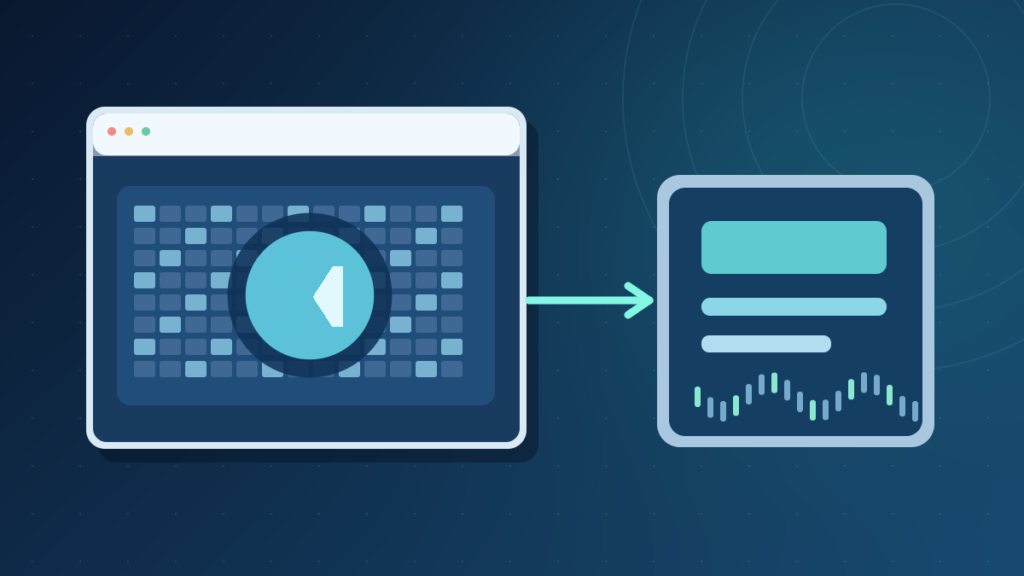

A codec encodes and decodes digital information, especially audio and video. H.264, AV1, AAC and Opus are codecs. MP4 and WebM are containers that hold encoded streams. Playback requires support for both the container and the specific encoded audio or video tracks.
Understanding codecs makes it easier to choose recording formats, reduce streaming bandwidth, preserve editing masters and diagnose media playback problems without unsafe software downloads.
What A Codec Means In Audio And Video
A codec is a method for encoding and decoding digital information, especially audio or video. The name is commonly expanded as coder-decoder. When a phone records a movie, an encoder transforms camera and microphone data into stored representations. A player uses a matching decoder to reconstruct pictures and sounds. This can reduce huge media files to practical sizes while creating rules that playback devices must understand. A codec is not itself a movie file extension, a complete media player, or a container.
A codec can be implemented in software, dedicated hardware, or both. Two devices supporting the same codec family may differ in the profiles, resolutions, bit depths and frame rates they can handle. That is why an H.264 file that plays on a modern phone can still fail on an old television. Compatibility means the specific encoded stream can be decoded, not merely that a familiar codec name appears on a product label.
Some codecs offer lossless modes; many consumer video streams are lossy. A lossy encoder may discard detail that is less perceptually important. The goal is usually acceptable quality at a practical size and processing cost. This trade-off does not mean every compressed file looks poor. A well-configured encode can be effective, but it cannot promise exact reconstruction of discarded source samples.
MDN’s WebCodecs overview describes codec algorithms and browser interfaces separately. Our compression guide explains the recoverability distinction.
The Source, Encoder, Container And Decoder Pipeline
A typical media workflow has several stages. A camera captures frames and a microphone captures audio samples. A video encoder processes pictures, an audio encoder processes sound, and a container packages the resulting streams with timing and metadata. During playback, the application reads the container, separates the tracks and passes them to appropriate decoders. A display and speakers then present the reconstructed result.
These stages are separate and can fail independently. An application might recognize the MP4 container yet lack support for the video codec. Another player might display pictures but fail to decode the audio track. A corrupt container index can prevent the player from locating otherwise valid encoded data. Treating every error as a missing codec leads to unnecessary installations.
Video compression can reduce redundancy inside individual images and across successive frames. Audio coding uses separate approaches suited to time-varying sounds. Decoding must be sufficiently fast to maintain playback without interruptions. A processor may decode using general-purpose instructions, or specialized graphics hardware may accelerate supported formats.
The important distinction is that the container tells software how the tracks are arranged, while the codec tells it how to reconstruct each track. MDN’s video processing concepts explains demuxing and why the WebCodecs API itself does not manage file containers.
Codec Vs Container Vs File Extension
A codec describes encoded stream syntax and decoding behavior. A media container packages one or more streams with timing and metadata. A filename extension gives a naming convention, but cannot guarantee the exact contents. MP4 is a container, while H.264 is a video codec and AAC is an audio codec. The same .mp4 extension can identify files with different combinations of streams. For the naming layer and why changing a suffix does not convert file content, see our file extension guide.
| Layer | Examples | Purpose |
|---|---|---|
| Video codec | H.264, HEVC, AV1, VP9 | Represent moving pictures |
| Audio codec | AAC, MP3, Opus, FLAC | Represent sound |
| Container | MP4, WebM, MKV | Package tracks and timestamps |
| Extension | .mp4, .webm, .mkv | Name file type convention |
| Media player | Browser or application | Read, decode and present tracks |
Renaming movie.mkv to movie.mp4 changes a string in the filename but does not change the container’s internal structure or re-encode its media. A true conversion requires an application to perform the necessary operations. Remuxing may repackage compatible encoded tracks without recompressing them; transcoding decodes and re-encodes streams, potentially losing more information.
A file that opens in one application but not another may have a valid container and an unsupported codec. Different containers also permit different codec combinations. MDN lists these mappings for common video codecs. When investigating media, record container, video stream codec, audio stream codec and target device support separately.
For related vocabulary, see the XYZ Tech glossary. Understanding the names helps prevent destructive or ineffective troubleshooting.
H.264, HEVC, VP9 And AV1 In Practical Terms
H.264, also known as AVC, is a longstanding compatibility-oriented video choice. It is widely supported by browsers, phones, editing software and consumer playback devices. A file can still exceed a particular device’s supported profile or level, so the presence of H.264 is not a guarantee that every resolution and bit depth will work.
H.265, often called HEVC, can produce efficient video at comparable quality in many conditions. However, browser support, installed decoder availability, device hardware and licensing considerations are less uniform. A workflow for a closed set of known devices can evaluate HEVC, while publishing to unknown visitors calls for more careful fallback planning.
VP9 and AV1 are important web video codecs. Both can deliver efficient compressed video; AV1 is supported in many modern ecosystems but encoding and hardware decoding capabilities vary. A laptop that plays an older H.264 stream smoothly may use more CPU power or struggle with a demanding AV1 stream. Actual configuration, not one benchmark, determines the result.
The MDN codec selection guide recommends checking support for the intended codec configuration. For broad distribution, test the oldest supported device in your audience, not only a current workstation. If subtitles and small UI details are important, include them in the test sample.
Codec comparisons also depend on the encoder. One codec may require more encoding time to reach a desired size. Licensing, latency, editor support and browser compatibility can outweigh a theoretical compression advantage. The best choice satisfies real requirements rather than simply naming the newest standard.
MP3, AAC, Opus And FLAC For Audio
Audio codecs operate on audio sample data rather than video frames. MP3 is familiar and widely supported for playback. AAC is common in MP4 videos and many audio distribution services. Opus is useful for communication and web media, including low-latency speech workflows. FLAC is lossless and can reconstruct the encoded audio samples exactly.
Each codec has properties that affect practical suitability. A speech conversation cares about delay and intelligibility. Music distribution prioritizes acceptable quality, bandwidth and playback support. An archival copy may need to preserve the original samples rather than produce the smallest file. One codec is not automatically best for all three situations.
Bit rate gives a rough indication of data allocated to the encoded stream but is not a universal quality rating. Encoder settings, source complexity, channel arrangement and codec all matter. A simple voice recording can behave differently from a dense musical passage. Comparing a single bit-rate number across unrelated algorithms may be misleading.
A lossy source cannot be restored by converting it to FLAC. The result can be larger without adding authentic detail. A carefully preserved original recording is still needed when exact future editing matters. The MDN audio codec guide describes common audio formats, containers and practical differences.
If video works but sound is absent, determine whether the file contains an audio track, whether that codec is supported and whether the player is muted or routed to the correct device. A missing decoder is only one possible cause of silent playback.
Lossy, Lossless And Perceptual Quality
Most consumer video is distributed using lossy compression because uncompressed frames require enormous storage and bandwidth. A lossy encoder discards or approximates selected information to make the stream compact. When settings are aggressive, the viewer can observe blocking, banding, blurred texture, ringing around edges and degraded motion detail.
Lossless codecs retain enough information to reconstruct the original encoded samples exactly. That can be valuable for archives and selected editing intermediates, but files can be much larger. An export can also be lossless relative to the already altered source. Saving a low-quality video through a lossless encoder does not regenerate information removed earlier.
Perceived quality differs from bitwise equality. An ordinary viewer may find a well-encoded lossy copy visually satisfying even though it is not identical to the capture. Conversely, a screenshot tutorial containing small text may suffer from even subtle artifacts. The intended job determines whether the trade-off is appropriate.
A common error is comparing two export sliders as if their numbers mean the same thing. Different encoders use different rate control and quality scales. One program’s setting of 80 cannot be assumed equivalent to another’s. Examine the actual output at native dimensions and intended viewing size.
When repeated editing is planned, keep an original or suitable high-quality intermediate. Export a smaller delivery copy at the end. Our detailed comparison covers codecs, image formats and file conversion myths, including why lossless packaging cannot reverse earlier lossy damage.
Resolution, Frame Rate And Bit Rate
Resolution describes frame dimensions, such as 1920 by 1080 pixels. Frame rate describes how many frames are presented per second. Bit rate describes the stream’s data rate. These settings interact with codec efficiency and source complexity, but none alone guarantees acceptable playback quality.
Imagine two videos of the same length at the same nominal bit rate. One displays a nearly static person speaking; the other includes fast-moving sports, water and confetti. The second may require many more bits to preserve comparable visible detail. An encoder can allocate data differently, especially with variable rate or constant-quality methods.
A higher-resolution export from a blurry original does not restore original camera detail. It increases pixel dimensions and may interpolate new values. Similarly, reducing a 4K source to a suitable 1080p delivery copy can be reasonable if the audience watches on small screens or has limited bandwidth. Evaluate real text legibility and motion, not just the numerical label.
Frame rate matters for motion smoothness and can change bandwidth requirements. A player must decode frames fast enough to meet the intended rate. Hardware acceleration may help, but the exact codec profile and device generation determine eligibility.
Test representative scenes before uploading a large library. Include bright gradients, dark areas, fast movement, small captions and speech. Compare output size, compatibility and visual clarity on actual target devices. If a video editor’s preview looks smooth, also check the exported file in a separate supported player because preview and delivery paths can differ.
Hardware Decoding And Playback Performance
Some CPUs and graphics devices provide dedicated hardware blocks that encode or decode supported media streams. Using those blocks can reduce general CPU work and improve energy efficiency. But support is often limited to particular codec profiles, levels, color formats, resolutions or frame rates.
Software decoding uses more general processing resources and can be flexible when a dedicated block is absent. However, a demanding stream may consume more power or fail to keep up with real-time playback. The situation depends on device specifications and the workload, not merely the codec’s brand.
Browser support and operating-system support are not the same thing. One player may use operating-system decoders, another may bundle its own library, and a browser may expose a restricted set for security or compatibility reasons. A file can therefore play correctly in one app yet fail in another on the same computer.
MDN documents the ability of web applications to check supported configurations. An application serving video should use capability checks or tested fallbacks where appropriate. Content creators should verify output against the target audience rather than making a universal hardware claim.
A user who sees choppy playback should check whether the file is fully downloaded, whether other software is exhausting system resources and whether the device supports the stream. Use official graphics and media software updates. Avoid anonymous codec bundles that request elevated privileges.
For safe driver sourcing, our driver installation guide explains appropriate vendor paths. Installing unrelated drivers is not a reasonable first response to one unsupported media file.
Web Streaming And Several Media Variants
Streaming platforms can encode a title into several versions to accommodate different screens, decoder capabilities and connection speeds. A modern device may play an efficient AV1 version, while another device receives H.264. The service may also provide several resolution and bit-rate levels for each codec.
Adaptive streaming can select among segments based on available network capacity and playback conditions. The player may reduce quality to avoid buffering and raise it when conditions improve. The selection mechanism is separate from the compression codec itself, although encoded variants must be packaged in a compatible way.
A website can provide more than one source for an HTML video element, allowing the browser to choose an appropriate option. This requires real compatible files and valid type information; merely listing two extensions without supplying two encodings does not create a fallback.
Containers and streaming protocols also matter. MP4 and WebM are useful file-oriented examples, while segmented streaming systems have additional packaging rules. The player must understand timing and track organization before decoding the media. This is why a codec alone does not describe a whole streaming workflow.
Accessibility belongs in the distribution plan. Captions, transcripts, controls and readable overlays matter as much as compression ratio for a tutorial or instructional recording. A tiny file that excludes essential speech or makes text illegible has failed the content goal.
For a site owner, a modest sample tested across representative browsers is more informative than assuming every visitor has the same GPU. Document the minimum supported devices and provide an accessible fallback when needed.
Diagnose Unsupported Codec Or Missing Audio Problems
Begin by defining the symptom. A file that never opens might have an unsupported container, an invalid path or damaged metadata. A file that shows pictures but no sound may contain an unsupported audio stream or have a playback routing problem. A file that stutters could be constrained by decoding speed, bandwidth or another system workload.
Inspect media details using a reputable player’s information panel, or an official diagnostic utility when appropriate. Record the container, video and audio codec names, resolution, frame rate and reported profile. The file extension alone cannot supply that information reliably.
Compare playback in another trusted application on the same system. If the file works there, the first player’s decoder or configuration is a stronger suspect. If it fails on several compatible systems, file corruption or unsupported stream properties deserve more attention. Do not upload a private recording to a random converter just to test it.
When necessary, consider remuxing into a supported container if the encoded streams already meet its requirements. Transcoding changes the encoding and can reduce quality, so preserve the original. Do not rename a file and describe the operation as transcoding.
Avoid disabling antivirus protection, installing unknown codec packs or replacing unrelated drivers. A narrow diagnosis is safer. If a video is proprietary or protected by rights management, additional restrictions may apply that a codec installation will not remove.
A useful support report states exactly what plays, what does not, the inspected stream details and the tested application versions. That evidence makes troubleshooting significantly more reliable than a generic cannot-open message.
Pick A Codec For Editing, Archiving Or Sharing
Separate your needs into source preservation, editing and delivery. A camera original should generally remain intact, particularly for irreplaceable material. A high-quality editing intermediate can prioritize responsiveness and avoid repeated lossy conversions. A final web video can prioritize compatibility and streaming efficiency. These goals do not have to use identical encodings.
For broad consumer playback, H.264 video and AAC audio in MP4 are often practical. For a managed environment with known modern devices, AV1, VP9 or other options can be tested for efficiency. For audio archives, lossless formats such as FLAC can preserve samples. The chosen codec must also be supported by the intended container and recipient software.
If commercial distribution is involved, review the applicable licensing terms for implementations and services. Do not assume that every widely available codec has the same licensing obligations, nor that a free player implies unrestricted commercial encoding rights.
Evaluate the complete export: resolution, frame rate, bit depth, subtitles, audio configuration, color representation and metadata. Keep the editable master where future changes matter. Test a short delivery copy in the real environment before exporting a large batch.
If the file will be shared with people using old hardware, prioritize the oldest device that must be supported. A theoretical reduction in file size is not useful if recipients cannot play the result. Conversely, where newer hardware support is established, a more efficient codec can reduce bandwidth costs.
A documented workflow with a preserved source and actual playback checks gives better results than choosing a codec solely from a popularity list.
A Codec Quality And Security Checklist
Before sharing media, confirm the actual stream codecs and container rather than relying on the filename. Check whether the target devices support the required profiles. Inspect quality at the final viewing size and confirm that captions and audio are synchronized. Verify compatibility with the software that recipients actually use.
For troubleshooting, preserve the original file and identify the failing stage: opening the container, extracting tracks, decoding video, decoding audio or delivering frames fast enough. A mismatch at one layer does not prove corruption at every other layer.
Avoid untrusted download buttons for codec packs. Many common media files already work with supported browsers or reputable players. If an official application requires an additional codec, follow its current publisher instructions and use trusted distribution channels. Never change system security settings merely to try an unidentified decoder.
Do not promise a particular compression ratio without measuring the real source. High-motion footage, animated interfaces, quiet speech and orchestral music have different data characteristics. A high bit rate can still produce poor output if source capture or encoding settings are wrong.
For readers, the simplest durable distinction is this: a codec describes how encoded media is recovered, a container organizes media tracks, an extension names a file convention and a player coordinates the entire process. Knowing which layer is responsible turns confusing playback errors into specific, testable questions.
Frequently Asked Questions
What Does Codec Stand For?
Codec commonly means coder-decoder, referring to encoding and decoding digital data.
Is MP4 A Codec?
No. MP4 is a media container that may include video and audio streams encoded with several supported codecs.
What Is The Difference Between H.264 And H.265?
They are different video codec families. H.264 commonly offers broad compatibility; H.265 can provide efficiency benefits but has different support and licensing considerations.
Can A Codec Be Lossless?
Yes. Some codecs preserve the encoded original information exactly, while others use lossy compression.
Why Does My Video Play Without Sound?
The audio stream may be unsupported, missing or muted. Check the track and output device before making changes.
Does Changing A Video Extension Change Its Codec?
No. A proper remux or transcode requires compatible media software.
Why Does One Player Open A File Another Cannot?
Players may differ in container parsing, codecs, profiles, hardware support and rights management.
Which Codec Is A Practical Choice For A Website?
H.264 with AAC in MP4 is a common compatibility-oriented choice, but actual browser and device testing is still necessary.


