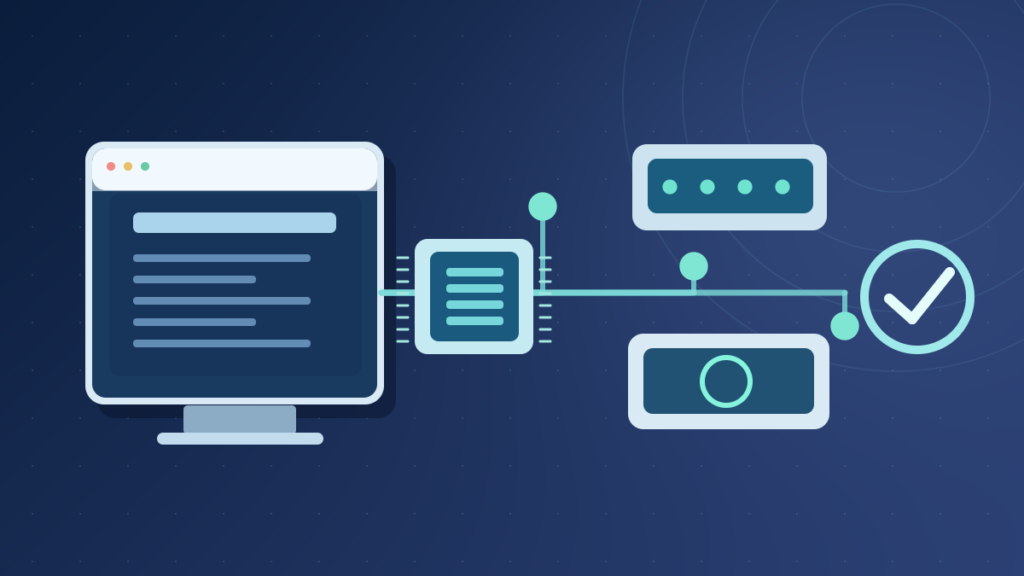

A device driver is software that lets an operating system work with hardware or perform selected low-level services. Windows includes many standard drivers and can obtain supported versions from Windows Update. Drivers may operate in user mode or kernel mode; a trusted, compatible driver matters more than simply installing the newest one.
Understanding drivers helps distinguish hardware problems from software faults, choose safe updates and avoid unnecessary system-wide changes.
What Device Drivers Do In A Computer
A device driver is software that allows an operating system to communicate with hardware or perform selected lower-level system functions. Modern computers use drivers for graphics, audio, networking, printers, storage, input devices and numerous less visible components. A driver participates in a defined communication path rather than replacing the physical device it controls.
Imagine opening a photograph in an application. The application requests display operations through operating-system interfaces. Graphics components and relevant drivers help those requests reach the graphics hardware. Similarly, a document can be sent through printing services and device-specific components to a printer. The operating system coordinates these stages so every application does not need to implement each hardware protocol itself.
Microsoft’s driver introduction describes a driver as software that observes or participates in communication between a device and the operating system. Some software drivers are not directly associated with a physical device, so the familiar idea of a translator for plugged-in hardware is a useful starting point but not a complete definition.
A driver is not the same thing as an application, firmware or the operating-system kernel. It may operate within a larger stack, and a generic class driver can support many compatible devices. A new computer can therefore recognize a keyboard without installing a separate utility downloaded from the keyboard manufacturer’s website.
The correct driver is not always the one with the newest date. Compatibility, trust, supported features and actual stability matter. If a device is operating normally, replacing its driver without a reason can introduce problems. For context, our kernel explanation discusses the privileges and responsibilities of core system software.
How An Application Request Reaches Hardware
When an application needs a device operation, it usually requests a service through an API or operating-system interface. The operating system and one or more driver components translate the request into operations appropriate for the target hardware. Results and errors are then returned through supported interfaces.
A modern device stack may contain class, function and filter drivers, shared operating-system services and firmware. The exact arrangement differs among operating systems and hardware types. There is not one universal driver file that every application contacts directly. A network adapter, printer and graphics card can use substantially different software architectures.
Requests Work
Manage Access
Handles Commands
Performs Work
Drivers can help initialize devices, handle input and output, manage power transitions and report status. A faulty component may cause device-specific problems or affect the wider system depending on its privileges. An external drive that disappears may involve cabling or power, while a failed storage controller driver can produce another set of symptoms.
Microsoft’s driver categories describe distinct responsibilities. This helps explain why uninstalling every entry in Device Manager is not a safe way to repair one peripheral.
The right troubleshooting method identifies the affected device, records the observed error and changes only the relevant component. A driver is a controlled part of a system, not a universal remedy for every hardware complaint.
Device-Specific, Class, Filter And Software Drivers
Some drivers are designed for particular hardware models, while others provide generic support for a standard device category. Windows often includes class drivers for common storage, input and other devices. A model-specific package may provide additional features or support a design that the generic component cannot handle.
Filter drivers can participate in processing requests as they pass through a device stack. Some security, storage and system products use filter or software drivers. This category is different from a visible external accessory, and its installation can affect multiple system operations. Device drivers are therefore not limited to things that users plug into USB ports.
| Driver Category | Typical Responsibility | Example |
|---|---|---|
| Model-specific driver | Support hardware features | Specialized graphics adapter |
| Class driver | Serve standard device families | Common input device |
| Filter driver | Participate in request processing | Selected storage or security function |
| User-mode driver | Run outside the kernel’s primary privilege space | Supported device component |
| Software driver | Provide low-level software functionality | Selected virtualization services |
A functioning printer may have a driver, spooler service and configuration application. When one of those parts fails, the user sees only that printing stopped. Reinstalling the printer application is not automatically necessary when the problem is simply a paper jam or an offline network connection.
This distinction is useful in Device Manager. Multiple entries can be associated with one piece of hardware, and their names may be unfamiliar. Confirm the correct component before disabling, removing or updating it.
A device that works with an included driver does not need an unrelated third-party driver utility. Install additional software only for a specific feature, compatibility fix or supported security requirement. That reduces complexity and preserves a known working configuration.
User Mode And Kernel Mode Are Not The Same
Windows and modern processors support privilege boundaries. User-mode programs have restricted access to system memory and hardware, helping isolate processes. Kernel-mode components have broader privileged access. Drivers can exist in either context depending on the supported model and function.
Microsoft’s user-mode and kernel-mode documentation explains that kernel-mode driver mistakes can compromise shared operating-system state. A serious defect can lead to a system crash. User-mode components can sometimes be isolated more effectively, although their practical behavior still depends on the stack.
An administrator account is not itself kernel mode. Running an application with elevated permission does not make every instruction a kernel instruction. Account authorization and processor execution privilege are related security concepts with different functions.
The distinction also prevents a common myth that all drivers are permanently inside the kernel. Modern Windows provides user-mode driver frameworks and device classes. Microsoft separately documents user-mode and kernel-mode drivers. For an accurate diagnosis, consider the actual type of component rather than relying only on the word driver.
High privileges make trusted sourcing important. Unverified driver downloads may introduce security vulnerabilities or unstable code. Disabling signature protections to install an unknown package can undermine the very controls intended to protect the computer.
For ordinary users, the practical rule is to prefer Windows Update and verified hardware manufacturer packages. Keep a recovery route for significant changes. A display problem might be associated with graphics software, but that does not justify replacing every privileged driver on the machine.
Driver Vs Firmware Vs Application Software
Firmware is code associated closely with the hardware platform or an embedded device. It can initialize components and control their internal behavior. A driver is operating-system-facing software that coordinates operations with hardware or system services. An application performs tasks for a person or another program. These layers can work together but are not equivalent.
A wireless adapter may have firmware inside the device and a Windows driver that exposes network capabilities. A vendor management app can offer additional settings. Updating the firmware changes code associated with the hardware, while updating the driver ordinarily changes software in the operating-system environment. Each has its own compatibility requirements.
Firmware updates can be especially sensitive to power interruption or installing the wrong image. Drivers can also be disruptive, but they often have different recovery methods, such as rollback through Device Manager. Do not treat a combined vendor utility as permission to update every component without reviewing the purpose and risks.
If a drive is missing after boot, determine whether firmware can detect it and whether Windows sees the storage controller. A physically disconnected cable cannot be repaired by installing an unrelated driver. Our firmware introduction and SSD detection guide cover those separate diagnostic stages.
The installation package may contain both driver and application components. Some printer suites include scanning utilities, while a basic class driver may already handle printing. Choose what the task actually requires.
A good maintenance plan records which layer is being changed. Installing a driver for a specific fix makes more sense than flashing firmware simply because the update checker displays a newer number.
How Windows Matches A Driver To Hardware
Windows uses device identities, package metadata, driver ranking and policy to select suitable driver packages. Hardware IDs and compatible IDs describe devices for matching. The driver store holds packages that can be installed or reused when supported devices appear.
Microsoft’s driver-selection reference makes clear that the chosen package is not always the newest by date. Automatic or critical classifications, matching quality and policy can influence what is offered through Windows Update.
The practical implication is that a website advertising a later version number does not prove the package is more suitable for your particular laptop. The computer manufacturer may validate a specific version against its firmware, power system and installed components. A generic update can omit custom features or introduce instability.
Device Manager can show hardware IDs, but using one identifier in a search engine without verifying the vendor can lead to incorrect or malicious downloads. Confirm the exact computer model and official support page instead of accepting the first result.
On organizational equipment, approved drivers may be deployed through managed systems. Users should not bypass those policies by manually installing software from an unrelated site. The organization might have security controls or tested dependencies that are not visible in a basic settings dialog.
Driver matching is an engineering and policy decision. It is safest to investigate a real symptom, obtain a trusted compatible package, then verify that the device works as intended. Our Windows driver sourcing guide explains trustworthy sources and model checking.
Update Drivers Through Supported Windows Channels
When a device genuinely needs attention, start with Windows Update. Open Settings, Windows Update and review supported updates. Under Advanced options, the Optional updates area may include driver packages appropriate to the machine. Those packages are not automatically better than the currently installed driver merely because they appear in a list.
If Windows cannot supply the desired functionality or the manufacturer documents a specific fix, find the exact PC or device model on the manufacturer’s official support site. Check the supported Windows build and architecture. A generic package for a vaguely similar adapter may not be suitable for your computer’s custom power or firmware configuration.
Windows Device Manager also provides an Update driver control for a selected device. It can search for a compatible package. Use this after confirming that you have identified the correct component. A printer that works with an existing class driver may not require installation of every optional vendor utility.
Do not install an anonymous driver manager promising to repair hundreds of outdated devices. Bulk changes make it harder to diagnose regressions, and unknown packages may be unsafe. A small set of justified updates is easier to test and reverse.
Before installation, save work and record the existing version. Follow instructions about restart, security software and any special prerequisites. Afterward, test the original behavior instead of assuming that a completed installer proves the device is working.
Windows Update’s ranking and delivery processes consider hardware identification and policy. Microsoft’s driver selection documentation explains why the most recent date is not the only factor. Make your choice based on supported compatibility and real need.
Inspect Driver Status In Device Manager
Open Device Manager by right-clicking Start and selecting it. Expand the hardware category relevant to the symptom, such as Display adapters, Network adapters or Sound, video and game controllers. For input devices, some touchpads appear under Human Interface Devices rather than a category literally named Touchpad.
Open a candidate device’s Properties and inspect the General and Driver tabs. Note the Device status, any error code, provider, version and date. These are observations, not automatic proof that a driver is defective. A hardware disconnection, insufficient power or device failure can also produce a warning.
Do not disable or uninstall the first entry that contains an unfamiliar name. A HID device may be a keyboard, mouse, touchscreen, pen or another control. Removing the wrong entry can leave the computer hard to use. If the touchpad is failing, arrange an alternative pointer before attempting a driver reinstall.
For a device absent entirely, check the physical connection and whether the operating system or firmware detects it. Scanning for hardware changes may help in some circumstances, but cannot make physically damaged equipment reappear. A missing device and a detected device with a driver error require different approaches.
If Device Manager shows several similar adapters, use the exact model and connection context to determine which is active. A VPN adapter or virtual interface might have a different driver purpose from the physical network card.
Our touchpad guide demonstrates this distinction for a common laptop problem. Its key principle applies widely: identify the actual component, preserve an alternative way to control Windows and make one reversible change at a time.
Roll Back Or Reinstall After A Driver Regression
A driver update may be followed by crashes, disappearing sound, flickering graphics or unreliable network connections. The timing matters, but it does not prove the driver caused the issue. Record the version that was installed and the steps that reproduce the failure.
On some devices, Device Manager provides Roll Back Driver on the Driver tab when a previous package remains available. If that control is enabled and the symptom began with the update, rolling back may be a supported test. If it is disabled, do not assume that deleting unrelated driver files is an equivalent operation.
The manufacturer may publish a known stable version or instructions for reinstalling the relevant device. Download it from the verified source. On work equipment, consult IT because drivers may be centrally deployed and an unauthorized change could conflict with the device management policy.
A reinstall should target the verified component. Before removing a network driver, consider whether the machine will still have a way to download the replacement. Before removing touchpad software, use an external mouse or another reliable navigation method. Do not remove the entire HID or storage controller category as a general repair attempt.
If Windows fails to start after a change, use supported recovery tools. Preserve data before running major recovery operations. Our blue screen troubleshooting guide explains why a stop code is evidence to investigate, not proof of one particular defective driver.
After rollback or reinstallation, repeat the original workload and verify that other essential functions remain available. A successful restart is only the first check; stable device operation is the actual goal.
Signed Drivers, Security And Kernel Risk
Drivers can run with powerful operating-system privileges. In particular, a kernel-mode driver may affect memory and resources shared with the OS. A serious defect can compromise stability or security. Microsoft’s driver security checklist emphasizes threat modeling, restricted privileges and rigorous testing in driver development.
Windows uses signing and supported installation mechanisms to help establish trust in driver packages. A valid signature is valuable, but it is not a guarantee that a driver has no defects or vulnerabilities. A legitimate vendor can still release a problematic version. The corresponding user responsibility is to install compatible, supported updates and monitor the result.
Avoid instructions that tell you to disable driver signature enforcement merely to install a free fix from an unknown website. Such a change can weaken protections while leaving the underlying hardware problem unresolved. It is also unnecessary for most ordinary devices whose supported drivers are available through Windows Update.
Driver packages may include applications and update agents. Review what will be installed and whether the additional components are needed. A vendor’s supported graphics control utility may be appropriate, while a browser advertisement that claims to update every component is not a trustworthy substitute for the manufacturer.
Keep appropriate backups and system recovery options before high-impact changes. For enterprise devices, comply with change management and security policy. Driver security matters because these components can affect the whole machine, not just one visible application.
A strong update workflow relies on authentic sources, a clear compatibility match and practical verification. The word certified, by itself, is not a substitute for understanding what was tested and which system configuration is supported.
When The Problem Is Not A Driver
A malfunctioning device does not automatically indicate driver corruption. A monitor may be black because of an unplugged cable, incorrect input selection or failed backlight. A printer may be offline because its network connection is unavailable. A touchpad can be disabled by a model-specific key or physically damaged. Reinstalling drivers cannot solve every one of these cases.
Compare behavior using safe, known working equipment when possible. If a USB device fails in one port but works in another, investigate that difference. If a laptop touchpad responds after restart but fails after sleep, record the pattern. A normal driver update may be appropriate, but only after establishing the relevant failure stage.
A blue screen or whole-system freeze can involve a driver, firmware, memory or hardware fault. A single error code is not a complete diagnosis. If a computer fails to start, prioritize data protection and supported recovery rather than blindly deleting protected system files.
For networks, distinguish Wi-Fi signal and router problems from adapter driver issues. An IP address or gateway misconfiguration is not necessarily a defective network driver. A device that cannot connect to any network after a specific driver change may justify reviewing that version; one unreachable website generally does not.
Our USB recognition guide and firewall explanation cover related layers. Correct troubleshooting considers the complete path between the application, operating system, device and network.
A useful support report includes the exact computer model, Windows version, device status, driver version, when the symptom began and whether it is repeatable. This helps a technician choose a relevant intervention instead of stacking generic repairs.
Driver Maintenance For A Reliable PC
Driver maintenance should begin with a reason: a security advisory, supported hardware upgrade, documented defect or observed malfunction. The goal is a stable and secure computer, not to maximize the number of recently installed packages.
Check the current device identification and approved sources. Record the installed version, save important files and maintain recovery options. Apply one relevant change at a time, restart if required and verify both the affected function and nearby capabilities. For example, a graphics update should be followed by actual display use, not simply an installer success message.
Avoid repeatedly replacing a healthy driver because its release date looks old. Windows may have selected a well-matched package, and the hardware manufacturer may have validated a version that differs from a generic update. Security patches and supported compatibility improvements are still important, but update decisions should follow evidence.
Document what helped. If a specific network adapter update solves a repeatable fault, keep the model and version in a maintenance log. If a rollback restores operation, record the incompatible package and the official support reference. This information helps when a future Windows update changes the environment.
Do not confuse firmware, drivers, applications and system security policy. Each has different responsibilities and possible side effects. The best repair modifies the smallest relevant part of the system while protecting user data.
For a beginner, the practical summary is that a driver enables supported communication or low-level system functionality, and it should be trusted, compatible and verified through normal use. Higher version numbers and one-click scanners are poor substitutes for that standard.
Frequently Asked Questions
What Is A Device Driver?
It is a software component that helps the operating system work with hardware or provide selected low-level system functions.
Are Device Drivers The Same As Firmware?
No. Firmware is associated closely with hardware or the platform; a driver communicates through the operating system.
Do All Drivers Run In Kernel Mode?
No. Windows supports both user-mode and kernel-mode driver components.
Should I Install The Newest Driver For Every Device?
Not automatically. Choose supported updates for specific fixes, security needs and compatibility.
Where Can I Check My Windows Drivers?
Use Device Manager to inspect a relevant device’s Properties, Device status and Driver tab.
Can Drivers Cause Blue Screens?
Yes. Kernel-mode driver defects can destabilize Windows, but hardware and other problems can also cause crashes.
Can I Roll Back A Driver?
Sometimes. Device Manager offers Roll Back Driver when a previous version is available.
Is A Signed Driver Always Safe?
No. A signature supports provenance and package trust but does not guarantee freedom from bugs or vulnerabilities.


