
A slower Mac after an update does not have one universal cause. This guide gives you safe tests, model-specific distinctions, and a way to tell temporary background work from a real problem.
Why A Mac Can Feel Slower After An Update
A major macOS update changes many things at once: system components, app compatibility, security rules, indexing work, and sometimes the way connected accessories behave. The timing makes it tempting to blame the update for every pause, but the first useful distinction is whether the slowdown is temporary background work, a repeatable problem in a specific application, or a performance issue affecting the entire computer. An update can coincide with a nearly full startup disk, a browser tab consuming excessive memory, or a backup that has resumed after being paused. Apple’s official Mac performance guidance recommends examining storage, Activity Monitor, and installed software rather than immediately erasing the system. A structured diagnosis gives you evidence and protects files.
Quick Diagnosis: Note What Is Actually Slow
Before applying any fix, record whether the delay occurs during startup, login, switching apps, opening Finder folders, browsing, exporting video, or waking from sleep. These symptoms point to different places. A long first login can reflect indexing or app startup work, whereas an app that alone freezes may have an incompatible extension or damaged preferences. Check the exact macOS version and Mac model under Apple menu > System Settings > General > About, with the understanding that names vary on older releases. Observe whether the computer is unusually hot, whether the fan is active, and whether other users of the Mac notice the same issue. Avoid using one vague benchmark or a single spinning cursor as evidence of failed hardware. A short problem log makes later comparisons meaningful.
Allow Necessary Post-Update Work To Finish
Following some upgrades, Spotlight may need to process changed content, Photos may analyze a library, cloud services may synchronize, and applications may rebuild caches. These activities can temporarily consume processor, storage, or network resources. The amount of work depends on the size of your data, Mac model, and changes introduced by the update, so a universal prediction such as ‘it will always be fast tomorrow’ is not reliable. Connect the correct power adapter if appropriate, maintain ventilation and an adequate internet connection, and let the Mac finish authorized tasks. Look for actual progress or unusually heavy processes in Activity Monitor instead of assuming every pause is an indexer. If slowness persists under normal conditions, investigate the active workload rather than leaving the Mac idle indefinitely.
Check Activity Monitor CPU Before Closing Anything
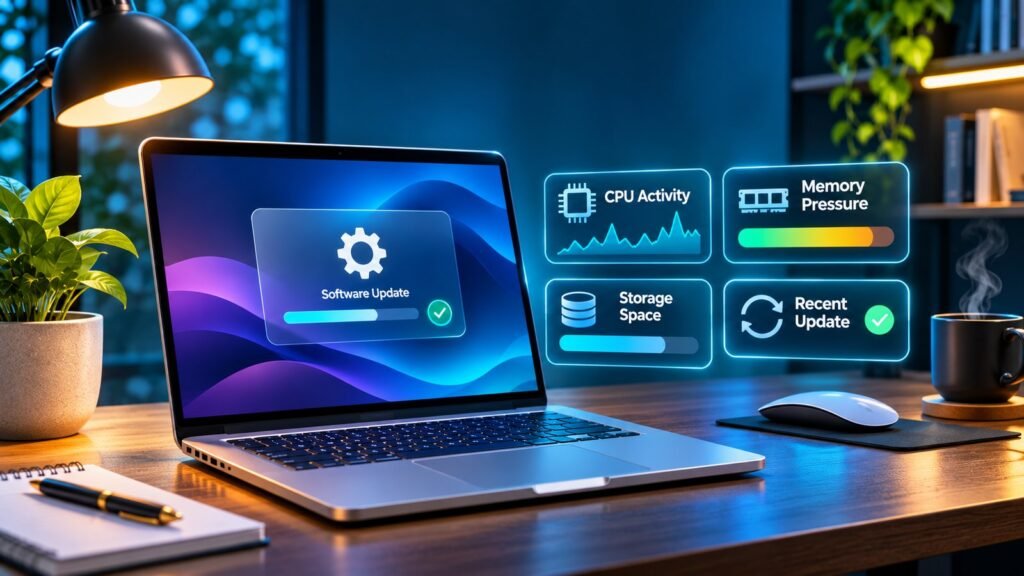
Open Activity Monitor through Applications > Utilities or Spotlight and choose the CPU view. Sort by percentage of CPU use and observe the values over several minutes while reproducing the problem. A single application may be using substantial processing resources, or the workload may be distributed across several legitimate processes. High CPU use is not always a fault: video rendering, software installation and photo analysis are designed to perform demanding work. If an app is unexpectedly consuming resources while idle, save your work and use its normal Quit command before considering Force Quit. Do not force-quit unfamiliar system daemons to create an empty CPU graph. Apple’s Activity Monitor guide explains the interface and its diagnostic categories.
Interpret Memory Pressure Instead Of Free RAM Alone
macOS uses available memory to speed up work, so a small number labeled Free Memory is not itself evidence that the Mac needs more RAM. In Activity Monitor’s Memory tab, watch Memory Pressure, swap usage, and which applications are active. Apple’s memory-pressure explanation describes why these values matter together. A consistently high pressure reading during ordinary tasks is more meaningful than a brief peak while opening a large document. Close unnecessary browser windows and memory-hungry apps after saving work, then repeat the same task. If pressure falls and the Mac becomes responsive, you have evidence that workload contributes to the problem. On many recent Macs, physical memory is not user-upgradable, so avoid recommending a purchase without checking the exact model.
Check Startup Disk Space Without Deleting Unknown Files
A startup disk close to capacity can limit the space available for temporary files, updates, and some application operations. Check Apple menu > System Settings > General > Storage. Review large downloads, installers you no longer need, duplicated media you have verified, and apps you deliberately choose to remove. Apple’s storage management guidance describes supported ways to free room. Do not delete files inside System, Library, or hidden folders just because a cleanup utility calls them junk. Emptying Trash is permanent for its contents, so confirm which files are there first. If documents are synchronized through iCloud or another service, understand whether removing a local file will also remove its cloud copy. Keep an independent backup of important data before bulk cleanup.
Compare Startup Performance With Everyday Performance
A Mac that takes longer to reach the desktop is not necessarily slow once logged in. If the slowdown is limited to login, review background items, attached drives, login synchronization, and whether a user account loads many applications automatically. If opening apps and saving documents are also slow, focus on CPU, memory pressure and storage health. Perform the same comparison after a normal restart rather than relying solely on a cold boot during upgrade completion. Write down which phase is affected and whether the cursor or menus respond while the delay occurs. Inconsistent symptoms sometimes indicate an attached device or network service that responds slowly only occasionally. Separating startup performance from application performance prevents unnecessary changes to the operating system when one login item causes the noticeable delay.
Review Login Items And Background Permissions
In current macOS releases, System Settings includes Login Items & Extensions or comparable controls for applications that start automatically and certain background services. Review what is enabled, especially recently installed utilities, cloud-sync clients, VPN software, and software with display or audio extensions. Disable only one suspicious optional item at a time, then restart and compare the same workload. Some security and backup agents are required by organizations, and turning them off may create risks or violate policy. Keep a note of each change so you can restore it if performance does not improve. A legitimate app can still cause a problem after an operating-system update when it needs a newer version. Contact its developer before deleting app data or reinstalling the entire operating system.
Check Whether One App Has A Compatibility Problem
Open two or three familiar apps and compare their responsiveness. If Finder and a simple text editor work normally but one creative application stalls, focus on that app’s version, plug-ins, cached content and access permissions. Review the developer’s official compatibility notes for your installed macOS release. Update through the App Store or the software publisher’s authenticated updater, and preserve any licenses and working documents. Do not install unofficial patches advertised as a performance fix. If the app has a safe mode or plug-in-free launch supported by its publisher, test it to distinguish extensions from the core program. Our Mac Camera Troubleshooting Guide illustrates why permissions and app-specific behavior deserve their own tests rather than broad operating-system resets.
Recheck Safari Or Another Browser Separately
A browser with many tabs, extensions and active web applications can make the whole computer feel sluggish, particularly during video calls or complex web pages. Test with a small number of tabs and compare a private window or a temporary extension-free session according to the browser’s official instructions. Do not treat private mode as a guarantee that all extensions are disabled in every browser. Check whether the problem affects other apps at the same time, and examine browser processes in Activity Monitor. If only one website is slow, a remote server, browser extension or network condition may be involved. For connection-related symptoms, our Mac Wi-Fi Connected But No Internet Guide helps distinguish network access from computer performance.
Understand Spotlight Indexing Without Forcing A Rebuild
Spotlight can perform indexing work when files or metadata change. An indexing process consuming CPU shortly after a substantial update may be expected, particularly with a large number of files. But rebuilding the entire index is not automatically the best response to every slow Mac. First observe CPU use, available disk space, and whether searching actually fails. An indexing-related symptom should be confirmed before applying Apple’s official Spotlight privacy and reindexing steps. Broadly excluding important folders from search can make results incomplete. Do not run obscure Terminal commands to delete Spotlight databases copied from an unrelated forum. If indexing appears stuck for an extended period, collect the macOS version and specific error behavior, then follow current Apple guidance or request support.
Watch For Photos And Cloud Sync Activity
Photos and cloud applications can begin transfers or library analysis after an update, especially when the Mac was offline for a while. Their CPU, storage and network activity may affect interactive work. Open the application’s own activity view when available and see whether it is processing a large backlog or showing an error. If it is legitimately uploading important files, stopping the application abruptly can interrupt progress; weigh the need to pause against data safety. Our iCloud Photos Not Syncing Guide explains why cloud status and local photo availability need separate evaluation. Avoid deleting a Photos library or disconnecting a cloud account just to reduce a temporary processor spike, because those steps can have significant synchronization consequences.
Disconnect Nonessential External Accessories For A Comparison
A troublesome USB hub, dock, external storage drive, display adapter or third-party peripheral can cause delays or repeated hardware reconnects. Make a controlled comparison with unnecessary accessories disconnected, while leaving the required charger and any essential input devices available. Eject external storage properly before removing it, and never unplug a drive during a known write operation. If performance improves, reconnect devices one at a time and review the manufacturer’s compatibility information. An external monitor problem is not the same as general system slowness; see our Mac External Monitor Not Detected Guide for supported connection checks. Avoid changing graphics-related system extensions when simple cable or dock testing has not been done.
Check Temperature And Ventilation
Processors adjust performance to manage temperature and power use, so a Mac operating in a hot environment can behave differently from one on a cool, unobstructed desk. Make sure vents are clear, the charger is appropriate, and the computer is not resting on thick fabric that obstructs airflow. If the machine becomes abnormally hot while doing very little, inspect active applications and background activity before diagnosing a hardware problem. Fan noise alone is not a fault: under heavy workloads, higher fan speed can be normal. A swelling battery, chemical smell or physical damage requires immediate safety assessment rather than continued benchmarks. Do not use software that disables thermal protection or forces fans off in order to make the computer quieter after an update.
Use Safe Mode As A Diagnostic, Not A Permanent Fix
Apple’s Safe Mode instructions provide a way to start macOS with a more limited environment and run certain checks. On Apple silicon Macs, the startup-options procedure differs from the keyboard sequence used by Intel Macs. Confirm which processor family you have before following steps. If the Mac performs normally in Safe Mode but poorly after a regular startup, the result suggests that optional software or startup behavior is involved, although it does not identify a particular item. Record the result and return to normal startup. Do not treat Safe Mode as a way to bypass required organization security tools; contact IT for a managed computer. If performance is poor in both modes, storage or broader system checks may be appropriate.
Apple Silicon Safe Mode Steps
Shut down the Apple silicon Mac using the normal controls and wait until it is fully off. Press and hold the power button until startup options appear, select the intended startup disk, hold Shift, and choose Continue in Safe Mode. The exact on-screen wording can vary by version; use Apple’s official instructions for the installed release. Sign in using an authorized account, then repeat a simple, harmless task that was slow during ordinary startup. Note differences but remember that Safe Mode deliberately changes which features load, so graphics or network behavior may not match the standard desktop. After testing, restart normally. Do not erase disks or change firmware security settings as part of a basic performance comparison. If startup options are inaccessible, stop and seek model-specific support.
Intel Mac Safe Mode Steps
On supported Intel-based Macs, restart and immediately hold Shift while the computer starts, following Apple’s current guidance. The login process may differ from a regular startup, including more than one password request where encryption is involved. If you use a wireless keyboard and its startup shortcut is not detected, review Apple’s guidance for an appropriate connection method. Once Safe Mode is confirmed, open a few basic apps and compare behavior with normal startup. Avoid making several system changes during the test, because you want to preserve a clear comparison. Restart to exit Safe Mode. Do not attempt Apple silicon power-button instructions on an Intel Mac or assume that older NVRAM reset advice applies to every current model.
Check Whether Software Update Still Has Pending Work
After a major installation, macOS or an individual app may offer a follow-up update that improves compatibility or security. Check System Settings > General > Software Update, and review App Store updates or trusted developer release notes. Save files and ensure an appropriate backup before additional upgrades. Do not downgrade to an earlier macOS simply because one application’s interface feels unfamiliar. A major downgrade can require more complicated recovery and may affect data formats, app versions and device security. If an update is pending and the machine is otherwise stable, schedule it when you can allow the installer to finish without interruption. Confirm the installed version afterward and retest the actual workload rather than judging performance by the progress screen alone.
Distinguish Network Slowness From Mac Slowness
Opening a local text document and opening a remote website are different operations. If Finder responds quickly and local documents open normally, but cloud drives and web pages are slow, investigate Wi-Fi, DNS, VPN, proxy and service-side conditions. Compare a known local task with a network-dependent task on the same computer. Use another device on the same network for an additional baseline, but account for different radios and hardware. Our Mac Wi-Fi Diagnostics explains why an active Wi-Fi connection does not guarantee internet access. A network outage after an update may be coincidental; avoid erasing the Mac to repair a router or external service issue.
Avoid Random Cache Cleaners And Terminal Scripts
Search results often promise that deleting caches, turning off security checks, or running a complicated Terminal command will immediately restore speed. Some caches exist precisely to make future operations faster; clearing them may temporarily increase work as they are rebuilt. Unknown scripts can also delete valuable application data or weaken system protections. Prefer macOS storage controls, trusted app removal procedures and official repair guidance. If an advanced command is recommended by Apple or the app developer, verify its exact purpose, path and compatibility before running it. Never paste a command from an unfamiliar website into an administrator Terminal without understanding what it changes. The goal is stable, secure performance, not a momentary benchmark improvement gained by dismantling normal system services.
Read Disk Health Symptoms Rather Than Guessing
A startup disk that repeatedly disappears, reports serious errors or causes application crashes may need professional assessment. Disk Utility’s First Aid can check certain filesystem conditions when used according to Apple’s instructions, but it is not a substitute for a verified backup and cannot repair physical hardware damage. If the system is usable, preserve important files before initiating significant disk repairs or reinstall operations. Apple’s Disk Utility First Aid Guide describes the process. A slow Spotlight index or one busy browser tab should not be treated as proof of drive failure. Document repeated read errors, unexpected shutdowns and failed checks before escalating. Avoid repeated stressful benchmarks on a drive that might be failing.
Understand Available Memory And Hardware Limits
Older Intel Macs and newer Apple silicon Macs have different upgrade possibilities, thermal designs and software requirements. Look up the actual model before assuming that installing more RAM or replacing a drive is possible. On many recent devices, memory and internal storage cannot be upgraded in the same way as conventional desktop components. Apple’s performance guidance recommends examining pressure and workload first. An external disk may provide room for large archived files, but it does not automatically replace adequate startup-disk working space for system tasks. If the Mac consistently struggles with supported professional software despite reasonable storage and a clean background workload, a hardware limitation may be real. Make that decision from measurements and app requirements, not from a generic ‘post-update slowdown’ label.
If Only One User Profile Is Slow
When authorized, comparing with another existing user account can indicate whether the delay is tied to login items, account preferences, background sync or a more general system condition. A test account should not be used to circumvent parental or organizational restrictions. If one account is consistently slow, review its apps and cloud workload before altering shared system components. Do not delete the affected user’s Library folder, home directory or account to test a theory; that can destroy data and permissions. If every account is slow, focus on common processes, hardware resources, attached devices and the operating system. Record exactly which account showed the issue and under what conditions. A successful second-account login provides a clue, not a complete diagnosis.
When To Use Apple Diagnostics
If the Mac is still unexpectedly slow after software and workload checks, particularly alongside hardware-related symptoms, Apple Diagnostics may help test certain components. The startup procedure depends on Apple silicon versus Intel, and availability of specific tests varies with the macOS release. Review Apple’s Apple Diagnostics Guide before beginning. Diagnostics may report reference codes useful for support, but a passing result does not prove every component or every software configuration is healthy. Keep the machine connected to appropriate power and disconnect nonessential devices as the instructions specify. Never replace a component solely because an internet checklist guessed it was faulty. If the computer is under warranty, document results and consult Apple or an authorized provider before attempting physical repair.
A Safe Recovery Plan When Performance Remains Poor
When normal tasks continue to lag, consolidate the evidence you have gathered: model, macOS version, available storage, Memory Pressure during the slowdown, top CPU processes, Safe Mode comparison and whether a particular app or accessory is involved. Check that backups are complete. Depending on the findings, the next step may be an app update, a supported disk check, Apple Support or an organization administrator. Reinstalling macOS is a significant escalation, not a routine optimization technique. Apple’s macOS Recovery Guide outlines recovery capabilities and the need to select options carefully. Avoid any Erase instruction unless you deliberately intend to wipe a disk and have a verified recovery plan.
Compare Results With A Repeatable Test
Choose two or three ordinary tasks that previously felt slow, such as opening Finder, switching between a browser and a document editor, and exporting a small nonconfidential file. Record roughly how long each action takes under comparable conditions before and after one change. Do not run simultaneous cloud uploads during one test and then claim an unrelated setting improved performance on the next. Note whether the Mac is plugged in, whether the same external display is attached and whether a backup is active. This simple approach reduces guesswork. Some legitimate post-update work may finish on its own, while other issues are consistently reproducible. Repeatability is a stronger basis for future action than one isolated experience of a spinning pointer.
A Decision Table For Post-Update Slowness
Match the observation to the least disruptive next action. If the CPU is busy with recognizable indexing or photo processing and disk space is adequate, monitor progress rather than force-quitting system tasks. If Memory Pressure rises during normal browsing, test with fewer tabs and optional extensions. If only one application is affected, consult its developer. If all network-dependent operations are slow but local tasks are fine, troubleshoot the network. If the Mac fails in Safe Mode, repeatedly reports disk errors or exhibits hardware damage, preserve data and seek qualified service. The table below captures these distinctions; it is not a substitute for a full diagnostic performed on your particular model. Choose a change you can reverse and verify its effect before proceeding.
| Observed Symptom | Best First Check | Avoid |
|---|---|---|
| Busy CPU After Upgrade | Identify Legitimate Background Work | Force-Quitting Unknown Services |
| High Memory Pressure | Reduce App And Tab Load | Assuming Free RAM Alone Is Diagnostic |
| Low Startup Disk Space | Review Storage With Supported Tools | Deleting System Folders |
| Only One App Is Slow | Check Its Supported Version And Extensions | Erasing macOS |
| Stable In Safe Mode | Examine Login Items And Optional Software | Blindly Removing Security Products |
Frequently Asked Questions
Is It Normal For A Mac To Be Slow After Updating?
Background indexing, photo analysis and synchronization can create temporary load. Confirm what is using resources instead of assuming the slowdown is permanent.
How Long Does Spotlight Indexing Take After An Update?
There is no universal duration. Library size, hardware and the size of the changes affect the work. Monitor actual progress and responsiveness.
Should I Force Quit High CPU Processes?
Not automatically. Identify whether the process belongs to an important update, backup or app task; use normal quitting methods when appropriate.
Does Low Free RAM Mean My Mac Needs An Upgrade?
No. macOS deliberately uses memory for caching. Memory Pressure and swap behavior provide better evidence than the free-memory number alone.
Can Clearing Every Cache Make macOS Faster?
Not reliably. It can create more work as caches rebuild and may risk application data if done carelessly.
Will Safe Mode Fix A Slow Mac Permanently?
Safe Mode is mainly a diagnostic. If performance improves there, investigate optional startup software and extensions after restarting normally.
Should I Reinstall macOS Immediately?
No. Preserve a backup and complete basic workload, storage, app and Safe Mode checks before considering recovery.
Can iCloud Photos Make A Mac Seem Slow?
Large sync or library processing tasks may temporarily consume resources. Inspect app status and avoid deleting a library to stop activity.
Is A Mac Running Hot After An Update Always Broken?
No. Heavy background processing can increase heat, but persistent abnormal heat or physical damage deserves further investigation.
When Should I Contact Apple Support?
Contact support when supported tests point to hardware trouble, disk errors persist or performance remains unusable despite cautious diagnostics.