
This original XYZ Tech guide addresses Mac Black Screen After Login? Diagnose And Fix It Safely with checks ordered from reversible observations to more invasive repairs. Menus and device behavior can vary with model, software version, hardware and organizational management. Preserve important data and follow the manufacturer instructions for the actual equipment.
Confirm When The Black Screen Starts
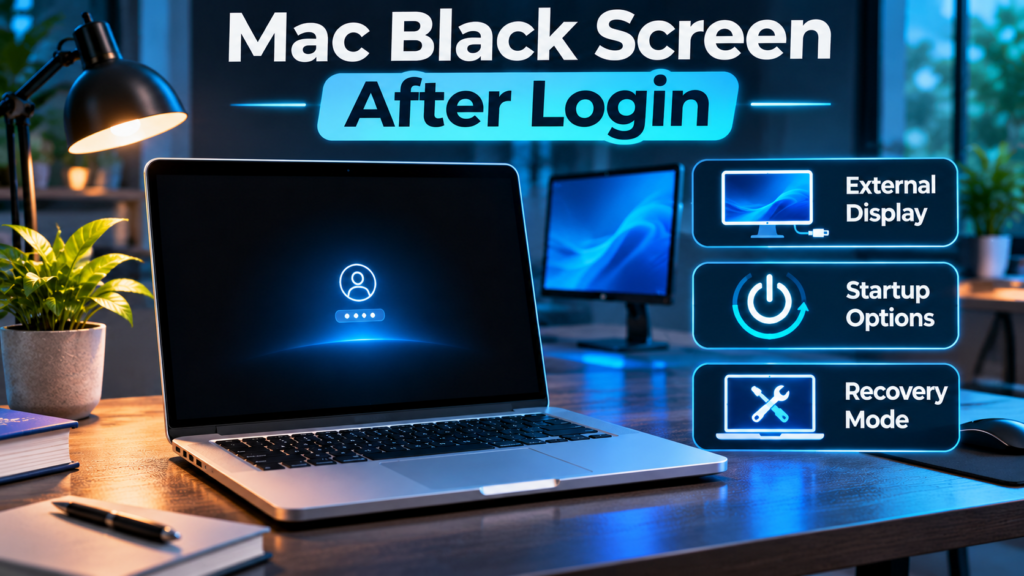
A Mac that shows a normal login window but turns black after your password has been accepted is not necessarily failing at the same point as a Mac that never displays its startup logo. Write down the moment the image disappears, whether a pointer is visible, whether a progress indicator completes, and whether the keyboard still responds. This separates a login-session problem from a display or full startup failure. Do not assume that the black color alone proves a broken screen, damaged disk or corrupt operating system. A deliberate observation will help you choose the right Apple recovery procedure rather than trying unrelated repairs.
Check Brightness Before Taking Bigger Steps
Start with the least invasive possibility: an excessively dim display or one that has been switched off. On a Mac with compatible brightness keys, raise brightness and look for a faint backlight or the appearance of the desktop. If an external screen is attached, check that monitor’s power and input. When the macOS login interface was visible moments earlier, total hardware failure is not the only plausible explanation. Do not blindly adjust resolutions when you cannot see Settings. Record whether changing brightness has any effect, and keep a note of any external monitor, dock, or display software that was active when the issue appeared.
Disconnect Nonessential External Displays
A USB-C dock, Thunderbolt adapter, HDMI cable or external monitor can change the active desktop arrangement when you log in. If the computer can be safely disconnected, remove nonessential display accessories one at a time while keeping a correct power source connected. Test the built-in screen again. If a simple disconnection restores a desktop, inspect the dock and cable configuration before reconnecting everything. The Mac External Monitor Guide explains separate external display diagnostics. Do not pull out external storage while files are being written and do not treat one successful test as proof that a particular cable is permanently defective.
Distinguish The Display From A Frozen Mac
A responsive machine with a blank panel differs from a frozen machine that ignores normal inputs. Observe the keyboard’s supported indicators, whether the pointer moves, whether an external screen shows anything, and whether a familiar system sound is heard. None of those observations alone is conclusive. If the computer has clearly hung, a normal restart may not be available, but avoid repeated forced shutdowns during macOS installation or disk activity. Record whether the behavior happens on every login or only intermittently. An intermittent display transition can require a different investigation from a machine that fails before any operating system screen appears.
Try One Normal Restart
If the Apple menu is accessible on a working display, save open documents and restart normally. A temporary graphics or user-session state can sometimes clear after a controlled restart. If you have no usable display, follow Apple’s model-specific instructions for shutting down and turning the Mac on instead of guessing at unsupported keyboard sequences. Restarting does not replace disk repair or correct faulty hardware. Watch whether the login screen returns and whether the black desktop recurs at the same stage. Do not perform a cycle of several hard power-offs just to see whether one happens to work, especially following an update.
Check A Working External Monitor
If you have a compatible external display, connect it through a known-good supported video path and confirm its selected input. A working monitor can allow you to inspect Display settings, back up files and establish whether the computer is running. If the external display works while the built-in panel stays dark, the internal display assembly, its settings or a display-routing issue becomes more relevant. If both remain dark, that points toward a broader failure but does not identify a single cause. Apple’s official external-display guidance describes cable, compatibility and power checks. Do not open the Mac case or force an adapter into a mismatched port.
Understand Apple Silicon Versus Intel
The correct startup and Safe Mode steps depend on whether the Mac uses Apple silicon or an Intel processor. Check the model information if you can access it, or look up the exact model on Apple’s official support pages. A procedure that begins by holding Shift during power-on applies to many Intel Macs, whereas an Apple silicon Mac normally first enters startup options by holding the power button. Following the wrong instruction can make troubleshooting confusing even when no damage occurs. Record the processor family before attempting Recovery, Safe Mode or low-level resets. Never assume that a social media video for an older Intel notebook applies to a current Apple silicon device.
Use Safe Mode On Apple Silicon
For a supported Apple silicon Mac, shut down fully, then press and hold the power button until startup options are displayed. Select the intended startup disk, hold Shift and choose the Safe Mode option as described by Apple. Safe Mode reduces some automatically loaded components and can help isolate a problem triggered by the normal software environment. It can also run startup disk checks. If the desktop appears there, make a backup while the computer is accessible and record the result. A working Safe Mode login suggests a software or session difference, but it does not name the exact application or rule out every hardware problem.
Use Safe Mode On Intel-Based Macs
For an Intel-based Mac, follow Apple’s supported startup process, which typically involves holding Shift immediately after turning on or restarting until the login interface appears. Some encrypted systems require a second password prompt. Use a supported keyboard and check the instructions for your particular model rather than copying a power-key combination from Apple silicon guidance. If the user account loads in Safe Mode but goes black after a normal restart, check login components and recently installed software. If Safe Mode also fails, consider Apple startup and disk repair guidance. Record what changed instead of repeatedly entering Safe Mode with no clear diagnostic objective.
Interpret A Successful Safe Mode Login
Safe Mode alters the normal startup environment, so the difference between Safe Mode and an ordinary login is valuable evidence. Recently installed utilities, user login items, display managers, and system extensions become reasonable candidates. Do not delete everything that starts automatically. Review each component’s publisher and role, disable only an appropriate suspect through supported settings, restart and repeat the original test. If the computer belongs to your employer, ask IT before changing security agents or managed login software. The best result is a reproducible comparison that identifies a cause while preserving essential protections and a working backup.
Review Login Items And Background Extensions
When the desktop becomes usable, open System Settings and find Login Items or Login Items & Extensions, allowing for version differences. Look for software added just before the black-screen problem. Some color-profile tools, window managers, backup agents or security software load at sign-in and can affect the session. Change one nonessential item at a time using the supported controls. A successful normal login after one change provides stronger evidence than disabling ten things together. Do not delete unknown system folders or launch agents based on a forum screenshot. Managed components should be handled through the administrator’s approved process, not forcibly removed from the computer.
Compare Another Authorized User Account
If you have permission and a second user account already exists, test whether that account reaches a normal desktop. If one account fails while another works, the cause may be account-specific software, preferences or permissions. If both fail, consider system-level or hardware issues more seriously. Do not create an unauthorized administrator account or move another person’s files to bypass controls. A comparison is a diagnostic clue, not proof that the original account should be erased. Back up important information and follow Apple’s account and FileVault guidance before attempting data migration or profile recovery.
Watch For An Update Still Finishing
After a macOS update, first login may involve additional work before the desktop becomes ready. If an official progress screen is still active, give it a reasonable uninterrupted opportunity to finish. Record whether the black screen began immediately after a known update or merely happened on the same day. Avoid attributing every symptom to the latest release without evidence; a new dock, app or power problem may coincide with an update. If the Mac remains unusable, follow Apple’s blank-screen startup procedure. Reinstalling macOS repeatedly without diagnosing the startup disk can create unnecessary risk, especially on a device containing irreplaceable files.
Keep Login Failures Separate From Startup Failures
Apple’s guidance for a Mac that starts up to an empty black, gray or blue screen may involve Recovery and Disk Utility. That process is more relevant when normal startup itself cannot progress. A computer that always reaches the login interface and goes dark only after password entry may require user-session and login-item diagnosis first. Distinguishing these stages avoids premature disk operations. The Mac Screenshot Troubleshooting Guide covers a separate file-saving symptom that can sometimes reveal whether the desktop and Finder are functioning once login becomes possible. Do not use an inability to take a screenshot as the sole proof that the startup disk is corrupt.
Check Whether The Screen Only Fails After Sleep
A black screen following idle time, closing the lid or waking from sleep can be a power/display wake problem rather than a login failure. Record whether the issue begins after an ordinary sleep interval or specifically after entering account credentials. Test a normal wake action once when work is saved. If the Mac wakes to an external screen but not the built-in display, investigate display selection and connected accessories. If the desktop remains available until the screen times out, inspect power and lock-screen settings when you regain access. Do not start disk recovery solely because the display sometimes stays dark after inactivity.
Preserve Important Files At The First Opportunity
Once you have a usable desktop or an authorized recovery environment, back up documents before more involved repairs. Time Machine, an approved external drive or another trustworthy backup method may help. Confirm the destination, encryption and actual file contents instead of assuming synchronization equals a full backup. Files with different extensions and application dependencies can require special handling, explained in What Is A File Extension. If you suspect a failing storage device, ask for expert data-preservation advice before running repeated repairs or generating large backups onto the same failing volume. A display problem should not become a data-loss incident because the backup step was skipped.
Enter macOS Recovery Only When Needed
macOS Recovery provides supported disk and system recovery tools, but entering it differs between Apple silicon and Intel. Use Apple’s instructions for your exact model and verify the intended startup disk. Recovery is not itself a factory reset. Do not click Erase or change partitions while investigating a black login screen. If you have FileVault enabled, authorized credentials may be required to unlock storage. A managed Mac may require administrator involvement. If Recovery cannot be entered, record what is actually displayed and seek Apple support rather than attempting random boot combinations that were written for another hardware generation.
Use Disk Utility First Aid Carefully
When Apple’s startup guidance identifies an appropriate disk check, Disk Utility First Aid can examine certain filesystem structures and attempt repairs. Select the correct disk and volumes following the model-specific procedure. First Aid cannot fix every physical hardware problem, and a failing drive can pose data risks. Preserve backups whenever practical before doing any repair. Read an error report rather than running the same operation endlessly. If the internal startup disk disappears, shows serious errors or cannot be mounted, specialist service may be more appropriate than repeated reinstalls. Do not initialize an unknown volume merely because it appears without a recognizable label.
Protect FileVault Credentials And Recovery Keys
FileVault encryption can change what credentials are required for startup and Recovery. A legitimate account password or recovery key may be necessary before protected data can be accessed. This does not prove FileVault caused the black screen. Never paste a recovery key into public forums, send it to an unverified repair chat or photograph it where bystanders can read it. On a managed Mac, the organization may have an approved recovery process. Secure credential handling is important even when the original symptom seems like a simple display problem. Plan the repair so that a temporary blank screen does not become permanent loss of access to encrypted information.
Know Which Reset Instructions Apply To Your Mac
Old tutorials sometimes suggest resetting NVRAM or the system management controller as an automatic fix for every Mac display problem. These procedures are hardware-generation-dependent and should not be assumed to apply to Apple silicon in the same way as older Intel-based computers. Review current official instructions for your exact model before trying any low-level reset. Resetting stored settings can alter startup or display behavior and complicate diagnosis if several changes happen together. Safer brightness, accessory and Safe Mode checks should come first. An unsupported keyboard sequence can waste time without generating meaningful information about the actual failure.
| Symptom Or Finding | First Appropriate Check | What To Avoid |
|---|---|---|
| Black Only After Login | Check Safe Mode And Login Items | Immediate Erase |
| Only External Screen Fails | Check Cable, Input And Dock | Blind Resolution Changes |
| Safe Mode Works | Review Recently Loaded Software | Delete Unknown Files |
| Disk Utility Reports Errors | Protect Backup And Follow Apple Steps | Repeated Unplanned Writes |
| Damaged Screen Or Lid | Qualified Hardware Inspection | Improvised Disassembly |
Use A Symptom Table Instead Of Random Fixes
Keep a brief table of what appeared before the black screen, whether the mouse pointer was visible, which monitor worked, and whether Safe Mode reached a desktop. Pair each result with one next check. A different account working suggests a user-session factor; an external monitor working suggests a display-path comparison; a disk error in Recovery points toward storage investigation. None of these observations guarantees a single cause, but together they help narrow the diagnosis. Do not apply every repair in a list just because the first attempt failed. The structured approach in Everyday Tech Troubleshooting Guide is useful for documenting a repeatable failure before seeking expert support.
Do Not Reinstall macOS Without A Backup Plan
Apple provides supported macOS reinstall procedures, but a reinstall is more disruptive than restarting, checking accessories or reviewing a login item. Understand which disk and operating-system version are involved, and protect important files before you begin. Never select Erase as part of a generic attempt to solve a dark screen. An underlying disk or hardware fault may not improve after reinstalling software. For a work-managed computer, obtain authorization before a recovery operation. Even where a supported reinstall can preserve user data, it is sensible to verify a backup first, because errors and incorrect selections can have permanent consequences.
Understand When The Hardware Needs Service
If the internal display stays dark across supported startup and Safe Mode diagnostics, the Mac has physical damage, or the panel fails when its lid moves, arrange qualified inspection. An external monitor comparison, disk diagnostic and model history can help narrow possibilities, but hardware diagnosis still requires proper tools. Avoid opening a sealed laptop, heating components or forcing display cables based on online repair experiments. Ask the technician about warranty, repair authorization and the handling of encrypted personal files. A visible login screen earlier does not completely rule out an intermittent display component or graphics fault. The goal is a safe, documented repair, not a lucky restart.
What To Tell Apple Support Or Your Administrator
A concise support report should identify the Mac model, processor family, macOS version if known, the exact stage of the black screen, the presence of an external monitor, and whether Safe Mode behaves differently. Include a list of recent updates or installed software but avoid accusing one application without a test. Mention whether Recovery is accessible and any genuine Disk Utility error. Protect account passwords, FileVault keys and private work documents. The support team can choose a targeted recovery path with this evidence, often saving more time than an unspecific request saying only that the computer has a black screen. Keep a record of each safe action already attempted.
Verify The Desktop Is Stable After A Fix
After a successful login, restart normally and test the desktop again at least once. Check Finder, a few standard applications, brightness settings and any supported external displays. If the issue was triggered by sleep, run a controlled sleep and wake test after saving work. If a particular dock or login utility reintroduces the black screen, note the correlation and refrain from changing unrelated settings. Confirm that FileVault, managed security tools and required startup applications still function. A single successful login is encouraging, but repeatability under ordinary conditions is stronger evidence. Make or update a reliable backup while the Mac is functioning properly.
Frequently Asked Questions
Why Does My Mac Show A Black Screen After Login?
Possible causes include a failed user session, a login item, external display configuration, startup disk issues or hardware faults. Check Safe Mode and display behavior to narrow it down.
How Do I Start Apple Silicon In Safe Mode?
Shut down, hold the power button until startup options appear, select the startup disk, hold Shift and choose Continue In Safe Mode as Apple directs.
How Do I Start An Intel Mac In Safe Mode?
Start or restart, then immediately hold Shift until the login window appears, following the procedure for your model.
Can An External Monitor Cause A Black Screen?
A dock, monitor, cable, input or display arrangement can affect what appears. Compare the built-in screen and an authorized external display.
Should I Reset NVRAM First?
No. NVRAM and other low-level reset instructions vary by hardware generation and should not replace basic display or Safe Mode checks.
Does Disk Utility First Aid Delete Personal Files?
First Aid aims to inspect and repair certain filesystem problems, but any repair of a failing device involves risk. Back up files first when possible.
Is A Mac Black Screen The Same As A Startup Failure?
Not necessarily. A login window appearing before the problem suggests startup progressed further than a computer that never reaches login.
Can I Reinstall macOS Without Erasing Data?
Apple provides reinstall workflows, but verify the exact options, backup status and disk health before attempting a significant recovery operation.
Can FileVault Cause The Display To Go Black?
FileVault alone does not establish the cause. It affects authorized disk unlocking and recovery requirements.
When Should I Seek Hardware Repair?
Seek service for persistent no-video behavior, physical damage, serious disk errors or symptoms that remain after supported diagnostics.
Technical References: Apple Blank Screen Startup Support, Apple Safe Mode, Apple External Display Support, Apple Disk Utility First Aid.