Understanding the distinction makes it easier to deploy applications, interpret Docker commands and avoid losing data when replacing containers. This guide compares their responsibilities using practical examples and official documentation.
What Is The Difference Between A Docker Image And A Container
A Docker image is a packaged set of files and configuration that serves as the starting point for a container. It can include an application, its dependencies, runtime components and default startup instructions. A container is an instance created from that image, with its own runtime configuration and filesystem state. A single image can be used to create several independent containers.
Think of an image as a prepared application distribution. You can store it, transfer it or use it to launch a fresh instance. A container is the environment in which a particular instance of that application operates. It can be created, started, stopped and removed without necessarily changing the original image.
The distinction explains why downloading an image does not immediately start an application and why stopping a container does not delete its image. It is also essential for deciding where to store application data. Docker’s container fundamentals explain the relationship between packaged files and isolated processes.
Compare Images And Containers At A Glance
| Property | Docker Image | Docker Container |
|---|---|---|
| Primary role | Reusable application package | Configured instance of an image |
| Lifecycle | Built, pulled, tagged or removed | Created, started, stopped or removed |
| Filesystem | Immutable image content | Usually includes an instance-specific writable layer |
| Execution | Does not execute by itself | Can run a process or remain stopped |
| Identification | Image ID, repository tag or digest | Container ID or name |
| Inspection command | docker image ls | docker container ls -a |
Runtime properties such as memory limits, network settings and mounted directories can differ across containers created from the same image. The image establishes the initial application environment, while the container’s configuration determines how that particular instance is deployed.
How Docker Image Layers Work
An image commonly consists of multiple immutable filesystem layers and configuration metadata. A base image may supply common system files, while subsequent layers introduce application dependencies and project files. Docker can reuse common content across images. This helps avoid storing an entirely separate duplicate of every base layer for each application.
When you build a new version, Docker produces a new image rather than editing the contents of an existing immutable image in place. Depending on the build instructions and cache, the new version may reuse some earlier layers. A repository tag can then refer to that new image.
When a container is created with a conventional writable root filesystem, Docker provides a writable layer of its own. Changes in one container do not automatically update the image or another container created from it.
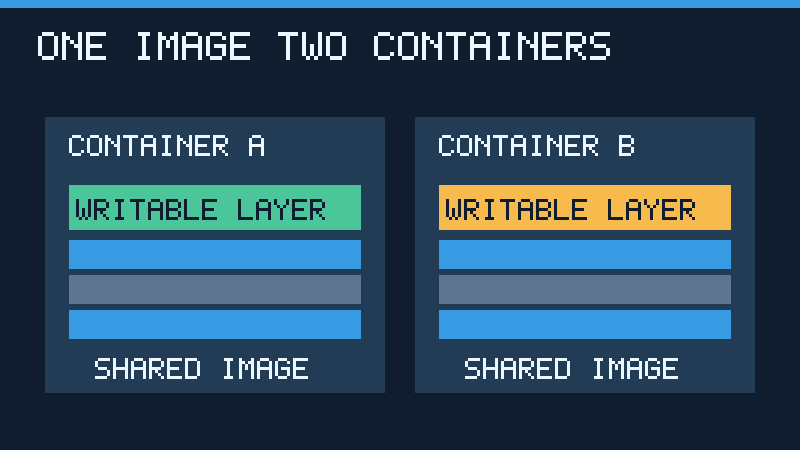
In a simplified example, two containers start with the same configuration file. Editing that file inside the first container normally affects only its own view of the filesystem. If both containers instead mount the same external storage at that location, changes to the mounted content can be shared. The Docker storage driver guide explains the image and container layer model in more detail.
Understand Image Tags, IDs And Digests
An image name commonly includes a repository and a tag, such as alpine:3.22. The tag distinguishes a published variant or version according to the repository maintainer’s naming scheme. Tags may be reassigned to different image content over time, so a version-looking tag is not necessarily an immutable lock on the underlying files.
If you omit the tag from a conventional image reference, Docker usually interprets it as latest. This is a tag name, not a guarantee that the image is the newest, most secure or most suitable version for your project.
A digest identifies specific content. Referencing an image by its supported digest can help make deployments reproducible. A multi-platform image may also contain an index describing images for different architectures. The appropriate platform and resolved image still matter. Docker’s image pull reference explains how to download images using tags or digests.
Image identifiers differ from container identifiers. Two containers can have distinct container IDs while using exactly the same image. Use docker image ls to inspect local image entries and docker container ls -a to inspect containers, including stopped instances.
Try A Safe Image And Container Lifecycle Exercise
For this exercise, you need a working Docker installation configured to run Linux containers, a command terminal and access to the Docker image registry. Use a disposable development environment and confirm that your Docker context refers to the intended engine, not an organization’s production server. The example uses Alpine Linux and does not publish network ports or mount private host files.
First download the official Alpine image and inspect local images:
docker pull alpine:3.22
docker image ls alpine
Now create and run a short-lived container that writes a test file into its own writable filesystem. Choose another unused container name if the example name is already present.
docker run --name xyz-demo-a alpine:3.22 sh -c "echo hello > /tmp/demo.txt"
docker container ls -a --filter name=xyz-demo-a
The command should finish quickly. The container is expected to be listed with an exited status because its main shell has completed. Stopping or exiting does not ordinarily remove the container’s writable layer. Inspect the file without restarting the stopped container:
docker cp xyz-demo-a:/tmp/demo.txt ./xyz-demo.txtOpen the local copy in a text editor. It should contain hello. Next, start a second container from the same image and ask it whether the test file exists:
docker run --rm alpine:3.22 sh -c "test ! -e /tmp/demo.txt && echo separate"Expected output: separate. The second instance should have its own filesystem state rather than automatically inheriting the first instance’s newly created file.
Clean up only the named practice container after confirming that it is yours:
docker rm xyz-demo-a
docker image ls alpine
The container should have been removed while the image remains available. This exercise was checked against the documented Docker command semantics. A live Docker engine is not available in the editorial environment, so these are expected results, not recorded execution results. See the official container run and container list references.
What Happens When A Container Stops Or Is Removed
A running container’s lifetime normally depends on its primary process. When that process terminates, the container can remain present in a stopped state. A later start operation can execute the configured process again using the same container filesystem state and configuration. This is different from making an entirely new container.
Removing the instance also removes its own writable filesystem layer. Data located only there should not be treated as durable across replacement deployments. An image pulled from a registry does not contain files subsequently created in the writable layer of a different container.
The --rm option is useful for short-lived commands because Docker automatically removes the container at exit. It also removes associated anonymous volumes under the documented conditions. It does not ordinarily delete a named volume just because the container exits. Read the relevant storage behavior before using automated cleanup.
Do not run broad pruning commands merely because you see many stopped containers or local images. A stopped container may hold valuable unexported information. Identify the specific object and understand its dependencies before removing it.
How To Preserve Data With Docker Volumes
For an application that needs persistent records, choose storage deliberately. Named Docker volumes are managed separately from a particular container’s writable layer. Bind mounts instead expose a specified path from the Docker daemon’s host environment. Each approach has different maintenance and access-control implications.
The following disposable example demonstrates the intended behavior of a named volume. Before proceeding, use docker volume ls and make sure the example name is not already used by an existing application. If it is, substitute a new unique practice name in every command.
docker volume create xyz-demo-data
docker run --rm --mount type=volume,src=xyz-demo-data,dst=/data alpine:3.22 sh -c "echo persistent > /data/note.txt"
docker run --rm --mount type=volume,src=xyz-demo-data,dst=/data alpine:3.22 cat /data/note.txt
The second command creates a temporary container that writes into the volume. The third creates another temporary container that should print persistent, because it reads the external volume rather than the removed instance’s private writable layer.
Only after confirming the volume contains disposable practice information should you remove it:
docker volume rm xyz-demo-dataThis is a destructive operation for the contents of that named volume. Never apply it to a database or other application storage without a verified backup and the appropriate authorization. The exercise is documentation-checked, not executed. Docker’s volumes guide and storage overview describe persistence, mounts and cleanup.
How Images Fit Into Application Deployment
Developers commonly describe an application’s build instructions in a Dockerfile. The build produces an image containing the appropriate runtime environment and application files. That image can be stored in a registry and reused across compatible development, testing and deployment environments.
When a bug is found, a typical workflow is to update the source or dependencies, build a new image, test it and deploy a new container from the updated image. Manually editing files inside a running production container can produce changes that are lost when the instance is replaced. It also makes it harder to reproduce the deployment later.
Persistent application records must be handled separately. Replacing an application image does not by itself migrate a database schema or guarantee that the newer application can read previously stored data. Test compatibility and prepare a rollback or recovery plan before changing important services.
Containers are not identical to virtual machines. Linux containers ordinarily rely on the kernel of their Linux execution environment, while virtual machines run guest operating systems with their own kernels. On some desktop systems, Docker uses a supporting virtual machine for Linux containers. See What Is A Server? for broader deployment context and What Is A Software Patch? for maintenance fundamentals.
Common Docker Mistakes And How To Avoid Them
| Mistake | Better Approach |
|---|---|
| Expecting a pulled image to run automatically | Create and start a container with the required configuration. |
| Assuming latest is a fixed version | Use a suitable tested version or digest and manage updates deliberately. |
| Keeping important database data only in a writable container layer | Use suitable persistent storage and independently verified backups. |
| Deleting all stopped instances to free space | Inspect individual containers and preserve needed data first. |
| Running an unknown image with elevated privileges | Use trusted images and grant only the permissions necessary for the workload. |
| Assuming an image contains live application data | Separate application packaging from runtime data storage. |
Container isolation is not a guarantee that arbitrary untrusted software is safe. Avoid mounting secrets, granting privileged access or exposing host services without understanding the need. Do not place credentials in a Dockerfile or image layers. Keep deployable artifacts and sensitive runtime configuration separate.
If a Docker command is behaving unexpectedly, check the active Docker context, image reference, container identifier and command options first. Our command-line guide explains terminal fundamentals, while Git Pull Vs Git Fetch explains the separate source-control workflow often used before building an image.
Frequently Asked Questions
Can One Docker Image Create Multiple Containers?
Yes, several containers can start from the same image while maintaining separate instance configurations and writable layers.
Is A Docker Image A Running Application?
No, an image is a package. A container created from it can execute the configured application process.
Does Stopping A Container Delete Its Image?
No, stopping the instance does not normally remove the underlying image.
Will Removing A Container Delete Its Files?
Yes, its own writable layer is removed. Data stored in named volumes or other independent storage follows the lifecycle of that storage.
Can I Update A Running Container By Pulling A New Image?
No, pulling a new image does not automatically replace an existing container. Deploy a suitable new instance through your supported update workflow.
Should I Store Important Data Inside An Image?
Generally, package application files and dependencies in the image, and use appropriate external persistent storage for changing records. Do not embed sensitive credentials.
Does Docker Latest Always Mean The Newest Release?
No, latest is a tag that a repository maintainer can assign. Verify the referenced version and its suitability.
Technical References And Review
Technical review: November 15, 2026. Official Docker documentation: Container Fundamentals, Storage Drivers, Container Run, Container List, Image List, Image Pull, Storage Overview and Volumes. Illustrations are original conceptual graphics. Exercises are reviewed against the documentation, not live-tested. Some documentation has been revised since the assigned archive date.