
Understanding these two commands makes collaboration easier and reduces the risk of unexpected changes to your project. This guide explains the difference using a locally tested practice repository.
The Main Difference Between Git Pull And Git Fetch
Both commands help you work with changes made in another Git repository. The difference is what happens after Git obtains those changes. In an ordinary clone, git fetch updates your local knowledge of the remote repository without integrating its work into your current branch. Git pull fetches and then attempts to integrate a selected branch into the branch you currently have checked out.
Imagine that you and a colleague start from the same version of a project. Your colleague commits a new file and pushes it to the shared repository. Fetching allows you to examine that commit without immediately bringing the new file into your current working tree. Pulling with an appropriate integration option can bring the colleague’s commit into your branch.
This distinction matters when you have your own unfinished or committed changes. Fetch gives you a chance to review the incoming history first. Pull is convenient when you understand the relationship between your local branch and its upstream branch. Neither command sends your local commits to the remote repository; pushing is a separate operation.
Understand Local Branches And Remote-Tracking Branches
Suppose you clone a repository whose primary branch is named main. You normally get a local branch called main and a local remote-tracking reference called origin/main. The remote repository itself also has a main branch. Although the names resemble one another, they refer to different things.
The local main branch points to the commit representing your current local branch history. The remote-tracking reference origin/main records the remote main branch as observed through your last relevant communication with that remote. It is not a continuously refreshed live view of another computer. The actual remote can receive new commits while your local origin/main still points to older history.
The name origin is conventional, not mandatory. Teams may use other remote names or configure a different upstream. Likewise, a project’s primary branch might not be called main. Use git remote -v, git branch -vv and git status to understand your own repository before copying commands that assume these names.
For a broader explanation of repositories and hosting, read Git Vs GitHub. Git works with local repositories and does not require any single hosting service.
What Git Fetch Changes
In a typical clone, run:
git fetch originGit contacts the named remote, obtains the objects required for the requested history and updates the remote-tracking references according to its configured fetch mappings. It may also obtain tags. In the normal workflow, this leaves your checked-out branch and tracked working files alone. Fetch is not a guarantee that literally nothing inside the repository changes: the object database, references and fetch metadata can change.
Now examine the commits that exist in the refreshed remote-tracking history but not in your current branch:
git log --oneline HEAD..origin/main
git diff HEAD..origin/main
git status
The log shows commits reachable from origin/main but not from HEAD. The diff compares the two endpoint snapshots; it is not necessarily a list of only the incoming edits when both branches have diverged. This distinction helps when reviewing work with local changes of your own.
Do not manually modify origin/main as if it were your normal development branch. If you need to explore a remote-tracking commit independently, create a suitably named local branch or use a detached inspection workflow you understand. The official Git fetch manual explains refspecs and other options that can change what gets updated.
What Git Pull Changes
Git pull performs a fetch and then attempts an integration into the current branch. When the current branch has a configured upstream, an argument-free pull normally uses it. Integration strategy can be influenced by command-line flags, Git version and configuration, so do not assume that every plain pull uses the same strategy in every repository.
git pull --ff-onlyThis command requests fast-forward-only integration. If the upstream history is a descendant of your current commit, Git can move your local branch pointer forward to the incoming commit and update the checked-out files accordingly. If the two histories have diverged, Git refuses this integration instead of automatically creating a merge or rebasing your local history.

Be aware that a pull can fetch successfully and then fail to integrate. In that case, your remote-tracking reference may have advanced even though your local branch has not. Read the error and inspect the branch state rather than assuming that every part of the command was undone.
Compare The Two Commands Side By Side
| Behavior | Git Fetch | Git Pull |
|---|---|---|
| Obtains remote history | Yes | Yes |
| Updates normal remote-tracking references | Yes, according to fetch mappings | Yes, during the fetch phase |
| Integrates into the current branch | No, in the ordinary clone workflow | Attempts integration |
| Can encounter integration conflicts | Not ordinary working-tree merge conflicts | Yes, depending on strategy and history |
| Best use | Review and inspect incoming work | Bring in work with a chosen strategy |
Neither operation substitutes for testing your project after incorporating someone else’s changes. A successful Git operation indicates that a particular repository operation completed, not that the incoming software is correct or compatible with your work.
A Reproducible Local Example
You can practice with a disposable bare repository and two local clones. You do not need GitHub, credentials or an internet connection. Run the following in a new empty practice directory using Git Bash or another shell that supports the commands shown. Do not run this setup inside your working project.
git init --bare --initial-branch=main remote.git
git clone remote.git alice
git -C alice config user.name Demo
git -C alice config user.email demo@example.invalid
echo start > alice/readme.txt
git -C alice add readme.txt
git -C alice commit -m A
git -C alice push -u origin main
git clone remote.git bob
Alice and Bob now have clones containing the first commit. Create and publish another commit in Alice’s clone:
echo upstream > alice/upstream.txt
git -C alice add upstream.txt
git -C alice commit -m B
git -C alice push
git -C bob fetch origin
git -C bob log --oneline HEAD..origin/main
Bob can see commit B after fetching, but the file upstream.txt has not yet appeared in Bob’s checked-out working tree. Compare the output of git -C bob rev-parse HEAD with git -C bob rev-parse origin/main. They point to different commits. Now integrate the update:
git -C bob pull --ff-only
git -C bob rev-parse HEAD
git -C bob rev-parse origin/main
Both references should now identify the same commit, and upstream.txt should exist in Bob’s directory. This behavior was verified in a disposable local test with Git 2.47.3. Commit identifiers and terminal formatting will differ when you repeat the exercise.
What Happens When Local And Remote Histories Diverge
Fast-forward integration works only when the current commit is an ancestor of the target commit. If both developers create independent commits from a common starting point, neither branch can simply move forward to the other without addressing the different histories.
Continue in the same practice directory. Configure Bob’s local commit identity so that the test does not affect your global settings:
git -C bob config user.name Demo
git -C bob config user.email demo@example.invalid
echo remote > alice/remote.txt
git -C alice add remote.txt
git -C alice commit -m C
git -C alice push
echo local > bob/local.txt
git -C bob add local.txt
git -C bob commit -m D
git -C bob pull --ff-only
The final command should report that it cannot fast-forward. In the tested example, it refreshed origin/main but left Bob’s HEAD unchanged. Inspect the two sides:
git -C bob log --oneline --left-right HEAD...origin/mainCommits marked on the left are unique to Bob’s current history; commits on the right are unique to the remote-tracking history. Because the exercise uses separate new files, the histories can be merged without a file-level conflict:
git -C bob merge --no-edit origin/mainIn the local test, the merge completed and both local.txt and remote.txt were present. A real repository can have conflicts if both sides edit overlapping content. Never assume a successful practice merge guarantees a conflict-free production integration.
Choose Fast-Forward, Merge Or Rebase Deliberately
A fast-forward-only pull is a useful starting point when the intention is to synchronize a branch without creating additional integration history. It stops when divergence requires a decision. That makes it a predictable choice for many beginners, but it does not eliminate the need to check your current branch and working tree.
A merge integrates histories while retaining the original commits. You can inspect the incoming changes first and then merge the intended remote-tracking branch. When policy requires a merge strategy during pull, git pull --no-rebase explicitly requests merge-based integration.
A rebase reapplies local commits onto another base. This can produce a linear history, but it normally changes the identities of the commits being replayed. This is especially significant for commits that have already been shared with other contributors. Only use git pull --rebase when it agrees with your team’s workflow and you understand which commits may be rewritten.
Consult the Git pull manual and Git rebase documentation. Configuration-dependent behavior is a reason to be explicit, not a reason to change every repository’s global settings without discussion.
A Safer Everyday Git Workflow
Start by checking your current branch and the status of your files. If you have unfinished changes, decide how to preserve them according to your project workflow. Review what is staged before committing. A stash can be useful in suitable circumstances, but it is not a substitute for a durable backup of important work and does not automatically include every untracked file.
git status
git branch -vv
git fetch origin
git log --oneline --left-right HEAD...origin/main
If the intended upstream is origin/main and you have confirmed the current branch is appropriate, use a deliberate integration method. For a straightforward fast-forward after reviewing fetched history, git merge --ff-only origin/main avoids an additional fetch. Alternatively, git pull --ff-only fetches again before integrating the configured upstream.
Run the project’s relevant tests after integration. Inspect your branch history and check its status again. If the branch you are on is a feature branch rather than main, decide whether bringing in the remote main branch matches your team’s instructions. Pull does not switch you to the remote branch specified in its arguments; integration occurs in your current branch.
Handle A Failed Pull Without Losing Work
If a pull stops because it would overwrite local changes, inspect git status and the affected files. Preserve your work before trying another integration. Do not use a forced reset or delete untracked files simply because a tutorial suggests that doing so will make the branch match the server.
If Git reports a merge conflict, determine whether a merge is in progress. Resolve the affected files intentionally, check the result and complete the merge if appropriate. If you choose to abandon an in-progress merge, the supported git merge --abort command can help, although preserving existing modifications before beginning remains important.
Similarly, if a rebase is in progress and you decide not to continue it, consult the rebase status and use git rebase --abort when appropriate. Do not run both abort commands blindly in an unrelated repository state. Read the messages and consult the corresponding official documentation.
For unfamiliar terminal operations, our command line guide and VS Code terminal guide explain how to work with a command environment. The Git commands operate in the repository selected by the terminal, regardless of which editor you use.
Frequently Asked Questions
Is Git Fetch Safer Than Git Pull?
For inspecting incoming commits without integrating them, yes, ordinary fetch is the more controlled first step. It still modifies repository metadata and can have other effects under unusual refspecs or options.
Does Git Fetch Update My Working Files?
No, an ordinary fetch in a typical clone does not update the current working files or integrate the current branch. It updates fetched objects and applicable references.
Do I Need To Fetch Before Every Pull?
No, pull already performs a fetch. Fetch separately when you want to review incoming history before deciding how to integrate it.
Does Git Pull Upload My Local Commits?
No, use git push when you intend to transfer local commits to a remote repository and have the required permissions.
What Does Git Pull –ff-only Do If Branches Diverge?
It refuses the fast-forward integration. Fetching may already have completed, so inspect your local and remote-tracking branches before deciding what to do.
Is Git Pull Always Equivalent To Fetch Followed By Merge?
No, the integration strategy may be a merge, rebase or another supported mode depending on the flags and configuration.
Official References And Test Notes
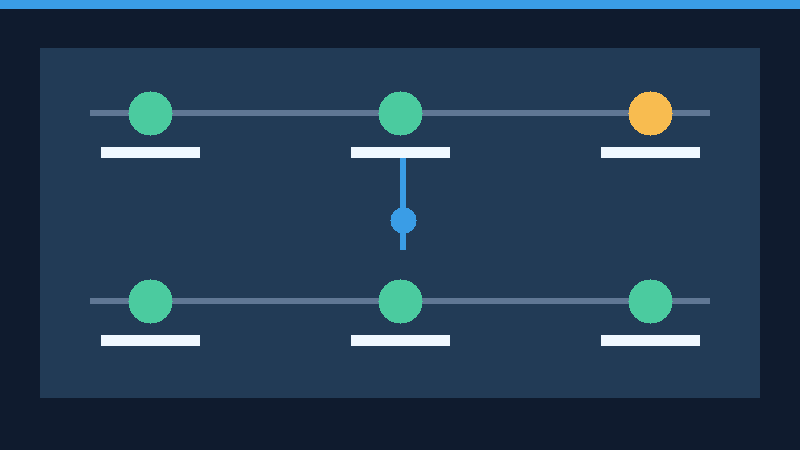
Primary documentation: Git Fetch, Git Pull, Git Merge, Git Rebase and Pro Git: Remote Branches. The two practice scenarios were run locally using Git 2.47.3, with checks for unchanged HEAD after fetch, updated files after fast-forward, preserved HEAD after rejected divergent integration, and both files after merge. The diagrams are conceptual, and the test does not cover every Git configuration, hosting service or operating system.