
Behind every app and website is a toolkit that developers rely on every day. Learn these developer tools and the whole craft of building software becomes far less mysterious, whether you write code yourself or simply want to understand how it is made.
This handbook is a plain English tour of the essential developer tools. It covers the code editor, the terminal, version control, package managers, containers, APIs, databases, and the tools for testing and debugging, one clear section at a time.
It is written for beginners and the curious, not only for professionals. Each tool is explained in everyday language, with why it exists and what problem it solves. By the end you will understand the modern developer’s workbench and how its pieces fit together.
What Are Developer Tools?
Developer tools are the programs that people use to build software. Just as a carpenter has saws, drills, and measuring tools, a developer has editors, compilers, and testing tools. Each one handles a specific part of turning an idea into working code.
The category is broad. It covers the editor where code is written, the terminal where commands are run, the systems that track changes, and the tools that test, package, and deploy the finished work. Together they form a workbench for building software.
Most of these tools exist to solve one of two problems. The first is complexity, since modern software has many moving parts. The second is collaboration, since teams of people work on the same code. Good tools tame both, so work stays organized and mistakes are easy to undo.
You do not need every tool at once. A beginner can start with just an editor and grow from there. As projects get bigger and teams get larger, more tools earn their place. The kit grows with the work rather than all at once.
It helps to see the tools as a pipeline. You write code in an editor, run it from the terminal, track it with version control, pull in ready made pieces with a package manager, and package it for others with containers. Each stage has its own tools.
Many developer tools are free and open source, built and maintained by global communities. This is one reason the field moves fast and stays open. A student and a large company often use the very same core tools, which keeps the playing field surprisingly level.
The tools also connect to each other. Your editor can run terminal commands, show version control changes, and launch tests, all in one window. Learning how the pieces link is as valuable as learning each one alone, because it is where real speed comes from.
AI has recently joined this toolkit. Coding assistants now sit inside editors and terminals, helping write and fix code. They are a powerful addition, but they sit on top of the classic tools rather than replacing them, so the fundamentals here still matter.
This handbook walks through the core developer tools in a sensible order, from the editor outward. You can read it start to finish to build a full picture, or jump to the tool you want to understand. Either way, the goal is clarity, not jargon.
The exact toolkit varies by field. A web developer, a mobile developer, and a data scientist share the basics but add tools specific to their work. This handbook focuses on the common core that nearly everyone uses.
Cost is rarely a barrier. Because so many developer tools are free, anyone with a computer can start building today. The main investment is time spent learning, not money spent buying, which keeps the field open to newcomers.
Code Editors And IDEs
Choose a project with a specific language and create a folder for it. Install only the relevant language support from a verified publisher, open the project folder, and test a small program using the documented runtime. An editor can recognize syntax without having the required compiler or interpreter installed, so check both. The Python installation guide explains this distinction for Windows.
The code editor is where a developer spends most of their time. It is a program for writing and editing code, much like a word processor is for writing text, but built for the special needs of programming.
A good editor does far more than let you type. It colors the code so different parts stand out, suggests completions as you type, flags obvious mistakes, and helps you jump around a large project. These features make writing code faster and less error prone.
Visual Studio Code, usually called VS Code, is a widely used editor available for Windows, macOS and Linux. It is free to use and supports many languages through extensions. The underlying Code – OSS project is open source; the Microsoft distribution has its own product license. Choose an editor that supports your language, workflow and hardware.
You will also hear the term IDE, which stands for integrated development environment. An IDE is a heavier tool that bundles an editor with extra features like a built in debugger, testing tools, and project management, all in one package.
The line between an editor and an IDE has blurred. VS Code started as an editor but, with extensions, behaves much like an IDE. The JetBrains family, such as IntelliJ and PyCharm, are full IDEs known for deep, language specific features.
Extensions are the secret to a modern editor. They are small add ons that give the editor new powers, from support for a language to tools for a specific framework. You build your ideal setup by adding the extensions that match your work.
Themes and settings matter more than they seem. A comfortable color scheme, a readable font, and sensible defaults reduce fatigue over a long day. Most developers tune their editor to their taste, and the tools make this easy to do.
Keyboard shortcuts are where real speed lives. Moving, selecting, and editing without reaching for the mouse saves time on every action. Learning a handful of shortcuts is one of the fastest ways to become more productive in any editor.
Optional AI assistants can offer code suggestions or explanations inside an editor. They should not replace understanding, reviewing and testing software. Consider the tool’s data-handling terms and organizational policy before sharing project material.
For a beginner, install an editor from its official source, add the trusted extension for the language you actually use, and start with a small program. Our VS Code setup guide and code editor comparison explain how to choose and configure an editor.
Editors also help you navigate large projects. Features like jump to definition and search across files let you move through thousands of lines quickly. On a big codebase, this navigation is as valuable as the writing itself.
Choosing between VS Code and a full IDE depends on your language. For many, VS Code with the right extensions is ideal. For heavy, language specific work, a dedicated IDE can offer deeper tools that repay its extra weight.
The Command Line And Terminal
The terminal is a text based way to control your computer by typing commands, rather than clicking buttons. It can look intimidating at first, but it is one of the most powerful tools a developer has, and it rewards a little practice.
The words terminal, command line, and shell are often used together. The terminal is the window, the command line is where you type, and the shell is the program that reads your commands and runs them. For everyday use, the difference rarely matters.
Why type commands when you could click? Because the terminal is fast, precise, and repeatable. Many developer tools are controlled from it, and some have no graphical interface at all. Once a task is a command, it can be saved, shared, and automated.
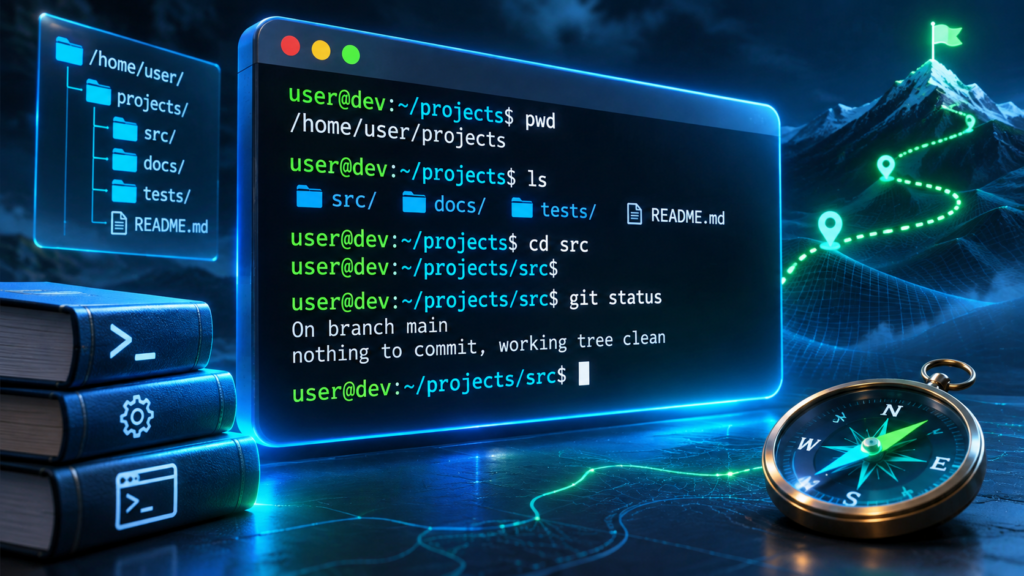
A few basic commands go a long way. You can move between folders, list what is inside them, create and delete files, and run programs, all with short typed instructions. These building blocks appear constantly in tutorials and daily work.
The terminal is also how you run your code. After writing a program, you often start it with a single command. Errors and output appear right there in the window, which makes it the natural place to see whether your code works.
Scripts take the terminal further. By saving a series of commands into a file, you can run a whole routine with one instruction. This is the beginning of automation, where the computer does repetitive work for you, reliably and every time.
macOS commonly uses zsh; many Linux distributions use Bash. Windows provides PowerShell and Command Prompt, and Windows Subsystem for Linux (WSL) can provide a Linux environment. The concepts transfer, but command syntax and paths can differ.
The terminal connects to almost everything else in this handbook. Git, package managers, and container tools are all commonly run from it. Getting comfortable here unlocks the rest of the toolkit, which is why it is worth the early effort.
Beginners often fear breaking something. In practice, a few safe commands cover most early needs, and you learn the rest gradually. Typing a command you do not understand is the risky part, so read before you run, especially anything found online.
Practise in a disposable project folder: list files, navigate to another folder, and run a small program. The command line basics guide and VS Code terminal guide help you learn the fundamentals without risking important files.
Read a command and check its target directory and options before running it. Take particular care with recursive deletion, elevated privileges and commands downloaded from the internet. Do not execute an unknown script simply because a tutorial says to do so.
Version Control With Git
For a harmless practice repository, create a folder containing only a sample README. Run git init in that folder, then git status. After editing the README, stage that file with git add README.md and inspect status again. A commit records the staged snapshot, not every untracked or unsaved file. Configure your identity through Git’s documented procedure before committing. Do not stage credentials or private data.
Version control records changes that you explicitly track and save. It lets you inspect committed versions, understand history, and undo certain mistakes. It does not automatically protect untracked or unsaved files, so it complements rather than replaces backups.
Git is a widely used distributed version control system. It records snapshots of tracked and staged project content on your computer, and repositories can be shared with other contributors. Concurrent edits may still require conflict resolution. See the official Git explanation of recording changes.
The core idea is the commit. A commit is a saved snapshot of your project at a moment in time, with a short note describing the change. A project’s history is a series of commits, which you can review or return to at any point.
Branches let you maintain different lines of work. A feature branch can be reviewed before integration into the shared branch; overlapping edits may produce conflicts that must be resolved and tested.
GitHub is where Git meets the internet. It is a website that hosts Git projects, so teams can share code, review each other’s changes, and track issues. GitLab and Bitbucket offer similar services. These sites are the social hub of modern software.
A pull request is how changes get reviewed. One developer proposes a change, others read it, suggest improvements, and approve it before it joins the main code. This simple ritual catches mistakes and spreads knowledge across a team.
A repository, or repo, is the home of a project’s code and its full history. Repos can be public, open for anyone to see, or private. The world’s open source software lives in millions of public repositories, free to read and learn from.
Git has a reputation for being confusing, and its many commands can overwhelm beginners. The good news is that a small set of everyday commands covers most work. You can learn the rest slowly, as specific needs arise.
Version control is not optional for serious work. Even solo developers benefit, since it protects against mistakes and records how a project grew. Starting a project with Git from day one is a habit worth building early.
Install Git from its official source and create a small local repository. You do not need a GitHub account to use Git. When you want to collaborate or store an authorized remote copy, a Git hosting account may help. Read the Git and GitHub explanation.
Commit messages matter more than beginners expect. A clear note explaining why a change was made turns your history into a story others can follow. Future you will be grateful for the context when revisiting old work.
Git can restore committed content and help you reverse changes, but some operations can remove uncommitted work or rewrite history. Check the current status and preserve work before performing a destructive reset. Git is not a substitute for independent backups.
Package Managers And Dependencies
Keep package declarations and the appropriate lockfile under version control when the ecosystem recommends it. Use a project-specific environment, especially for Python, instead of modifying the system interpreter casually. Record how to reproduce installation, and test the application after updates. A lockfile aids reproducibility but cannot certify that all dependencies are secure.
Modern software is built from parts, and package managers are the tools that fetch and organize those parts. Instead of writing everything from scratch, developers pull in ready made code, which saves enormous amounts of time.
A dependency is any outside piece of code your project relies on. A package is a bundle of such code, shared for others to use. A package manager installs packages and keeps track of which ones your project needs, and at which versions.
JavaScript projects commonly use npm, and Python projects often use pip. Other ecosystems have different tools. Use the package manager, project environment and dependency format supported by the language and repository.
The value is huge. Need to work with dates, images, or web requests? A well tested package almost certainly exists. Reusing shared code, rather than reinventing it, is one of the main reasons software can be built so quickly today.
Package managers also handle versions. Software changes over time, so your project pins the versions it needs, ensuring it keeps working even as packages update. A single file usually lists all your dependencies and their versions.
This creates the idea of reproducible setups. Because the dependency list is written down, anyone can install the exact same packages and run your project. This is how a teammate, or a server, gets the same environment you have.
Installing dependencies means trusting external code, including transitive dependencies and installation scripts. Verify the package name and publisher, review known security issues and maintenance status, and install only what the project needs. Popularity alone is not a guarantee of safety.
The words library and framework appear here too. A library is a package you call when you need it. A framework is a larger structure you build inside. Both arrive through package managers, and both save you from starting empty.
Package managers run from the terminal, which is one more reason to get comfortable there. A short command installs a package, another updates it, and another removes it. The commands become second nature within a few projects.
For a beginner, the lesson is to lean on packages wisely. Search for a trusted package before writing a hard feature yourself, but read enough to understand what you install. The best developers reuse code without losing track of what it does.
Updating dependencies is a regular chore. New versions bring fixes and features, but can also change behavior, so updates are best done carefully and tested. Neglecting them, though, leaves security holes unpatched.
Trust, but verify, is the rule with packages. Popularity and active maintenance are good signs, and a quick look at a package before installing it is a habit worth keeping.
Containers And Docker
Containers reduce differences between software environments by bundling an application and its user-space dependencies into an image. A compatible runtime and platform are still required; architecture, host kernel, permissions, configuration and external services can affect behavior.
Docker provides tools for building images and running containers. A compatible image can run in a supported environment, which reduces many dependency differences. Check the official Docker getting-started documentation for your platform and licensing requirements.
Think of a container as a packaged application environment. It can include code and supporting dependencies, while configuration and secrets may be supplied separately at runtime. Persistent information should be managed explicitly; never bake confidential credentials into a shared image.
An image is a packaged, generally immutable filesystem and configuration used to create containers. A Dockerfile describes image construction. Containers are running or stopped instances of an image, and registries distribute images. Review the image publisher and version before running it.
A virtual machine runs a guest operating system on virtualized hardware. Containers ordinarily share a compatible host kernel, though desktop container environments may use a virtual machine behind the scenes. Containers are often lighter than full virtual machines, but their isolation model is different.
Teams can use the same compatible image and defined configuration to reduce environment differences. Development and production can still differ in secrets, services, networking, resources and security policy. Test the intended deployment conditions rather than assuming identical results.
Containers also make complex setups manageable. A real application might need a database, a cache, and several services. Tools built on Docker can start all of them together with one command, giving you a full environment in moments.
This is not only for large companies. Even a solo developer benefits from a clean, repeatable setup that does not clutter their main system. When a project ends, you remove the containers and your machine is left tidy.
There is a learning curve, and beginners do not need containers on day one. They become valuable once your projects grow or you work with others. Learning the basics is a natural step after you are comfortable with the editor and terminal.
Use the official installation instructions for your platform and an image from a verified publisher. Start with a small disposable example. Review volume mounts, exposed network ports and permissions before launching an unfamiliar image.
Containers can improve reproducibility between development and production. They do not eliminate all deployment bugs; test startup, storage, configuration, networking, resource limits and dependencies in the intended environment.
Orchestration is the next step for large systems. When you run many containers across many machines, tools help manage them at scale. Beginners can safely ignore this until their projects grow well beyond a single machine.
APIs And How Software Connects
Software rarely works alone. An API, or application programming interface, is the way one program talks to another. It is a set of rules that lets your code request data or actions from another service in a predictable way.
APIs are everywhere behind the scenes. When an app shows the weather, takes a payment, or logs you in with another account, it is calling an API. The app does not build those features itself. It asks a service that already provides them.
A common API style is an HTTP web API. The client sends a request to a URL and receives a response; this can happen over the internet or a private or local network. The same pattern supports many web applications.
Responses usually come in a format called JSON. JSON is a simple, readable way to structure data, using labels and values. Because it is easy for both people and machines to read, it has become the common language of web APIs.
An API key may identify a project or client and may also authorize access, depending on the service. Other APIs require tokens or different authentication methods. Keep credentials out of public repositories and browser-delivered code, restrict them appropriately and revoke leaked credentials promptly.
Tools make working with APIs easier. Postman and similar apps let you send requests and inspect responses without writing a full program, which is perfect for testing and learning how an API behaves before you build against it.
REST is an architectural style for networked systems. Many HTTP APIs use resource-oriented URLs and familiar HTTP methods, though not every API described as REST follows all of its constraints. Consult the service’s actual contract.
APIs turn services into building blocks. Maps, payments, messaging, and AI are all available through APIs, so a small team can build something powerful by combining them. This is a major reason software can be assembled so quickly today.
Good documentation is the key to any API. It explains what requests are possible, what data comes back, and how to authenticate. Learning to read API documentation is a core developer skill, and it is often clearer than people expect.
For a first exercise, use a documented public API intended for learning or a local test endpoint. Inspect the status code and response before processing the data. Our API guide explains requests and responses in greater detail.
Rate limits are worth knowing early. Many APIs cap how many requests you can make in a period, to protect their service. Respecting those limits, and handling them gracefully, is part of building reliable software.
APIs also power the AI wave. The same request and response pattern lets your code call a language model or an image generator. Much of what feels new in software is built by combining these services through their APIs.
Databases And Data Tools
For a practice database, create a small local database with fictional records. Retrieve a specific record with a SELECT query, add a test record and inspect the result. Before changing records that matter, review the query and its target, use transactions where supported, and maintain a tested backup. Limit application credentials to the operations actually required.
Almost every application needs to remember things, and databases are where that memory lives. A database is an organized store of information that software can search, add to, and update quickly and reliably.
Think of a simple database as a set of tables, like spreadsheets that software controls. Each table holds one kind of thing, such as users or orders, and the database keeps it all consistent as many actions happen at once.
There are two broad families. Relational databases store data in structured tables and are queried with a language called SQL. They suit data with clear relationships, such as customers and their orders, and they have powered software for decades.
NoSQL is an umbrella term covering different approaches, including document, key-value and graph databases. Some suit particular data models and scaling requirements, but relational databases can also scale. Choose based on queries, consistency, operational needs and data constraints.
SQL is worth knowing even at a basic level. It is the language for asking a relational database questions, such as show me all orders from this month. Its core commands are readable and learnable, and the skill transfers across many jobs.
Many databases offer transactions, durability and other reliability guarantees under documented conditions. They can still lose information through configuration errors, failures, accidental edits or disasters. Use appropriate constraints and independently verified backups.
Tools make databases easier to work with. Graphical clients let you browse tables, run queries, and edit data without memorising commands. They are a friendly way to explore a database and see what your application is actually storing.
Managed database services can handle some maintenance tasks, backup facilities and scaling features. The division of responsibilities varies: developers and operators must still configure access, retention, recovery and monitoring and test that restores work.
Data brings responsibility. Personal information must be protected, kept only as long as needed, and handled within the law. Good developers treat the database not just as storage, but as a trust placed in their care.
For a beginner, a small relational database and a little SQL are a great start. Storing and retrieving your own data teaches how real applications remember, and it is a skill that stays useful across your whole career.
Backups are a database essential, not an afterthought. Regular, tested backups protect against loss from mistakes or failures. Knowing you can restore your data is as important as storing it in the first place.
Performance becomes a concern as data grows. Well designed tables and thoughtful queries keep a database fast, while careless ones slow to a crawl. These skills develop with practice, and the basics carry you a long way.
Debugging And Testing Tools
Writing code is only half the job. Making sure it works, and finding out why it does not, is the other half. Debugging and testing tools are what turn rough code into something you can trust.
A bug is simply a mistake in code that makes it behave wrongly. Debugging is the process of finding and fixing bugs. It is a normal, constant part of development, and even the best programmers spend a lot of time doing it.
A debugger is a tool that lets you pause your program and look inside it while it runs. You can stop at a chosen line, inspect the values, and step through the code one instruction at a time. This makes hidden problems visible.
Before reaching for a debugger, many developers start simply. Printing values to the screen at key points is a quick way to see what the code is doing. It is basic, but it solves a surprising share of everyday problems.
Testing catches problems before users do. A test is a small piece of code that checks whether another piece behaves correctly. Run your tests after a change, and they warn you if you broke something that used to work.
There are different kinds of tests. Unit tests check a single small piece in isolation. Larger tests check that several parts work together. A healthy project usually has many small tests and a smaller number of broad ones.
Linters and formatters keep code tidy. A linter flags likely mistakes and poor patterns as you write. A formatter arranges the code in a consistent style automatically. Together they reduce errors and end pointless arguments about layout.
Continuous integration can run checks after a push or pull request according to the project’s configuration. Tests detect only the behaviors they cover. Review failures, preserve secrets and keep the workflow definition under version control.
Good testing habits pay for themselves. The time spent writing tests is repaid many times over in bugs caught early and confidence to make changes. It feels slow at first, then quickly becomes a source of speed.
For a beginner, start small. Learn to read an error message calmly, try printing values to trace a problem, and write one simple test. These modest habits build the confidence to tackle larger, trickier bugs later.
Reading error messages is an underrated skill. They often name the exact file and line of the problem, and sometimes suggest the cause. Slowing down to read them fully solves many issues that a panicked skim would miss.
Tests also document how code should behave. A well written test shows, by example, what a piece of code is meant to do. New teammates often read the tests to understand a system quickly.
Building Your Developer Toolkit
With the main tools covered, the question becomes how to put them together. The good news is that you do not need everything at once. A sensible toolkit grows in step with your skills and your projects.
Begin with a code editor, a terminal and local Git. Save important files independently too. These tools are enough to write, run and record the history of a first small program.
Add tools as needs appear. When you reuse code, reach for a package manager. When you share work, lean on GitHub. When setups get complex, learn containers. Letting real problems pull in each tool keeps learning focused and practical.
Favour popular, well supported tools while you learn. VS Code, Git, and the common package managers have vast communities, endless tutorials, and reliable help. Standard tools mean that when you get stuck, an answer is usually a search away.
Resist collecting tools for their own sake. A smaller kit you know deeply beats a large one you use shallowly. Master the basics first, and add new tools only when a task genuinely calls for them.
Let the tools work together. Your editor can run the terminal, show Git changes, and launch tests in one place. Setting this up once turns a scattered set of programs into a smooth, single workflow that saves time every day.
An AI assistant is optional, not a prerequisite for development. When approved for the project, it may help with routine work, but generated code still requires review, tests and a security check. Never share credentials or confidential code with an unauthorized service.
Keep your tools updated, but not obsessively. Regular updates bring fixes and improvements, while chasing every shiny new release wastes time. A steady, well maintained toolkit is more valuable than the latest fashion.
Above all, remember that tools serve understanding, not the other way round. They are most powerful in the hands of someone who knows what they are doing. Keep building your own skills, and the tools will amplify them.
Your setup will become personal over time. Developers tune their editors, shortcuts, and workflows to their taste, and no two are identical. That is fine. The best toolkit is the one that helps you, specifically, work well.
Documentation is a tool in itself. Official docs, guides, and community forums are where you learn each tool deeply. Getting comfortable reading documentation may be the single most transferable developer skill of all.
Frequently Asked Questions
What Developer Tools Should A Beginner Start With?
Start with a code editor like VS Code, the terminal, and Git for version control. This trio lets you write, run, and safely track your code. Add package managers and other tools as your projects grow.
Are Developer Tools Free?
Many core tools, such as Git and package managers, are open source and free to use. VS Code is free to use; some other editors, IDE features and cloud services have paid terms. Check the relevant license for your intended use.
What Is The Difference Between An Editor And An IDE?
An editor is a program for writing code, while an IDE bundles an editor with extra features like a debugger and testing tools. Modern editors like VS Code, with extensions, can act much like an IDE.
Do I Need To Learn The Command Line?
Yes, at least the basics. Many developer tools, including Git and package managers, are controlled from the terminal. A handful of commands covers most everyday work, and comfort there unlocks the rest of the toolkit.
What Is Git Used For?
Git records committed snapshots of tracked files, allowing you to inspect changes, work on branches and collaborate. It does not record every edit automatically, and conflicts or destructive operations require care.

