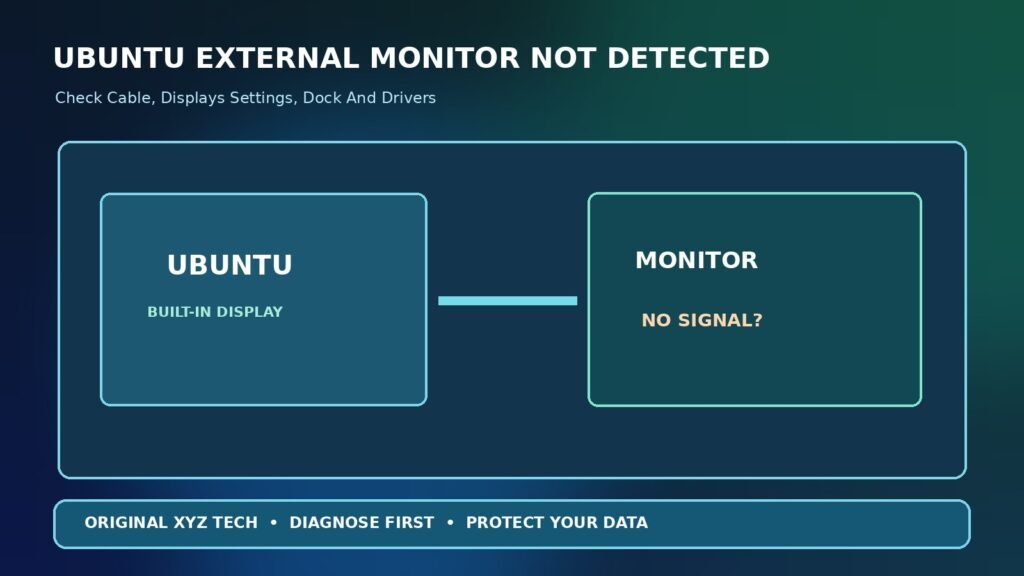

These steps follow Ubuntu desktop display guidance and focus on preserving a working built-in screen while isolating the video signal path.
What Ubuntu External Monitor Not Detected Actually Means
When Ubuntu cannot find a second monitor, the failure can originate at several points between the display panel and the desktop: its power source and selected input, an HDMI or DisplayPort cable, a USB-C adapter, the laptop’s graphics hardware, an available driver, or the display server session. The message ‘No Signal’ on a monitor differs from a screen shown in Ubuntu’s display settings but left disabled. Ubuntu’s dual-monitor guide describes how detected screens are arranged and enabled. Start by noting the Ubuntu release, exact computer model, monitor model, cable type and whether the problem started after an update. A systematic path avoids editing graphics configuration before verifying the physical link.
Quick Answer And First Safe Checks
Confirm the external monitor has power, is switched on, and uses the correct HDMI, DisplayPort or USB-C input. Reseat a known-good video cable and open Settings > Displays in Ubuntu. If the screen appears there, check whether it is enabled, mirrored or extended, then apply a supported resolution and refresh rate. If it is absent, try a direct connection without a dock, another approved port or a different cable. Finally, investigate graphics drivers and the current Wayland or Xorg session. Do not begin by replacing kernel packages or copying unverified xrandr commands. Test one change at a time and keep the built-in display working as your recovery path.
Distinguish A Black Monitor From An Undetected Display
A monitor may be detected by the system even while it shows a black picture. Look in Settings > Displays for a representation of the connected screen. If it appears, the signal may be going to a disabled output, an unsupported refresh rate or a display configuration outside the visible desktop area. If it does not appear, focus first on the hardware signal path, adapter capabilities and driver detection. Record whether the external monitor reports No Signal, displays a backlight without a picture or shows the Ubuntu desktop briefly before going dark. A monitor going to sleep immediately can indicate that it is not receiving a supported signal. These observations are more informative than assuming the monitor itself is faulty.
Check Monitor Power And Input Selection
Use the display’s physical controls to confirm it is powered and not simply in standby. Many monitors have several inputs, and choosing DisplayPort while the computer is connected through HDMI will prevent the expected image. Select the corresponding input explicitly for a test, then wait for signal negotiation. If the monitor is part of a shared workspace, verify that another computer is not controlling a KVM switch or dock output. Use the monitor manufacturer’s on-screen menu rather than guessing its input order. Avoid resetting monitor color and calibration settings merely to restore a signal. Power and input checks are fast, reversible and should precede driver changes on Ubuntu.
Verify The Correct Cable And Connector
Not every USB-C connector supports external video, and some cables are designed primarily for charging or data. Check the laptop’s and adapter’s specifications for DisplayPort Alternate Mode, Thunderbolt or another supported video capability. A cable that successfully charges the laptop is not proof it carries a display signal. For HDMI and DisplayPort, try a cable known to work with the monitor at its intended mode. Inspect bent connectors and damaged insulation without forcing a plug into an incompatible port. If the connection works directly but fails through a hub, the hub or its bandwidth and power limits become relevant. Record the complete path from laptop to screen, including any intermediate adapter.
Bypass The Dock For A Controlled Comparison
USB-C docks and multiport adapters often add their own display, USB and power components. Some require firmware updates or supported graphics drivers, while others rely on proprietary display technology rather than ordinary USB-C video output. Connect the monitor directly to the computer when an appropriate port is available. If it works directly, investigate the dock’s power, video specifications, supported Ubuntu versions and official vendor instructions. Do not install a driver supplied by an unrelated download site just because a dock shows a blank screen. The fact that keyboard and network ports function through a hub does not prove that its external video feature is supported by the computer or Linux distribution.
Test The Monitor On Another Compatible Computer
When available, connect the screen to another known-good, compatible device using the same input and cable. If it fails there too, the monitor, cable or input settings deserve attention. If it works, return to the Ubuntu computer and inspect its video port, GPU support and display configuration. A successful second-computer test does not prove that every resolution and refresh rate is compatible with the original laptop. Compare the same input mode and ideally the same cable. Avoid swapping enterprise equipment without permission. Our Mac External Monitor Guide covers similar physical signal-path checks on a different platform, while the Ubuntu driver and display-server steps remain specific to Linux.
Open Displays Settings Before Using Terminal Commands
Ubuntu Desktop normally offers a graphical Displays section in Settings. With an external screen connected, look for the second display representation and choices to mirror, extend or use a single screen. Arrange the display rectangles to match their actual positions so that the pointer does not appear to disappear into the wrong edge. Review scaling and orientation only after confirming a picture appears. Ubuntu documents the supported settings in its screen resolution and orientation guide. Apply a modest supported mode first, and use the confirmation dialog to keep it if the image is stable. GNOME and Ubuntu settings can look different across versions, so don’t insist on a menu label that is absent from a particular release. This graphical route is often safer than rewriting monitor configuration files.
Check Mirror And Join Displays Modes
Mirror mode shows the same desktop on multiple screens, while join or extend mode creates a larger workspace. If Ubuntu detects the external display but your windows seem missing, the monitor may be enabled as a second desktop to one side. Move a harmless window across the expected edge or use the Displays arrangement to locate it. A laptop screen that goes dark when the lid closes may reflect its power and display configuration rather than a disconnected cable. Test with the lid open first. Do not permanently disable the built-in screen until the external monitor is working reliably, because it provides an accessible way to reverse an unsuitable setting.
Try A Supported Resolution And Refresh Rate
An external screen may advertise modes that are not reliable through a particular cable, adapter or dock. In Displays settings, choose a conventional resolution and refresh rate explicitly supported by the monitor and graphics hardware. If a high-refresh gaming monitor fails at its maximum setting, a more modest rate can help diagnose bandwidth or compatibility limits. Keep a record of the original setting before making changes. Do not force arbitrary modelines from a blog post into a Wayland session. A black display after applying a new mode should be restored using Ubuntu’s confirmation timeout or the built-in panel. The goal is to obtain a stable signal before pursuing the highest marketed specification.
Identify Whether Ubuntu Is Using Wayland Or Xorg
Modern Ubuntu GNOME sessions may use Wayland, while certain hardware or driver combinations run an Xorg session. This distinction matters because tools such as xrandr are designed around the X11 display model and may not manage physical outputs in a Wayland session. Inspect your session type through supported system information or the echo $XDG_SESSION_TYPE command in a terminal. Do not assume a Wayland session is broken merely because a legacy xrandr command does not list all hardware. Use GNOME Displays and distribution-supported tools for the active session. Our Ubuntu Wi-Fi Adapter Guide explains a similar principle: identify the detected device before changing Linux drivers. Switching session type can be a diagnostic for advanced users, but it should not replace checking cables, screen power and driver support first.
Use xrandr Only In The Appropriate X11 Context
On a genuine Xorg desktop, xrandr --query can list known outputs and available modes. An output marked disconnected may point toward the signal path, while a connected output with a disabled mode may be configurable through supported commands. But running xrandr under Wayland can expose an Xwayland abstraction rather than actual monitor-management control. Never copy commands that hard-code an unknown output name such as HDMI-1 or DP-2 without confirming it matches your machine. If you are unfamiliar with manual mode setting, keep to Ubuntu’s graphical settings and seek vendor support. xrandr is a diagnostic tool, not an automatic solution that every Ubuntu edition requires.
Check Whether A Graphics Driver Is Missing Or Restricted
Ubuntu can use open-source drivers or, for some hardware, optional vendor-supplied drivers. An incorrect or unsupported graphics stack can affect external outputs, especially on laptops with both integrated and discrete GPUs. Inspect the system’s Additional Drivers interface where available and compare the recommended driver with the vendor and Ubuntu release guidance. Avoid unverified third-party package archives, random kernel downgrades or manually replacing system graphics libraries. For supported NVIDIA hardware, Ubuntu recommends the Additional Drivers or ubuntu-drivers methods. If a driver installation requires a restart, save work and ensure a fallback path remains available. The correct choice varies by GPU generation, kernel and security configuration. Our Device Driver Explained guide describes the role of drivers in connecting software to hardware.
Understand Hybrid Graphics Laptops
Some laptops have integrated graphics for normal work and a separate discrete GPU for demanding graphics. External video ports may be electrically routed to one GPU rather than the other, so an unsupported driver or GPU selection can affect monitor detection. Do not assume every external HDMI port is wired to the discrete GPU or that selecting a high-performance mode is always necessary. Check the laptop manufacturer’s hardware diagram or official Linux support information. If Ubuntu supports a graphics mode switch, follow its documented method and reboot only after saving work. A machine that works under one profile and fails under another provides a useful clue, but changing graphics modes without understanding power implications can introduce additional problems.
Consider Secure Boot When Installing Approved Drivers
On systems that use UEFI Secure Boot, certain proprietary kernel modules may need signing or enrollment to load as intended. Ubuntu can present supported module enrollment steps during legitimate driver setup. A missing driver after an update may sometimes relate to this environment, but the solution is not always to disable Secure Boot. Prefer distribution-supported procedures and follow any key enrollment prompts carefully. Never accept a surprise request to disable device security from an untrusted installer. If the computer belongs to an employer or school, contact the administrator before changing firmware or security settings. Record whether driver installation succeeded and whether the module appears to load after restart before treating Secure Boot as the cause.
Inspect Which GPU And Driver Are Present
Advanced users can inspect hardware details using distribution-supported commands, such as lspci for PCI graphics devices and system logs for driver errors. Output varies widely by laptop and may contain irrelevant entries. Do not paste entire logs publicly without reviewing hostnames, serials or other identifiers. The objective is to identify the actual GPU model and active driver, not to gather a list of terminal commands from unrelated tutorials. Where possible, compare the detected device with information under Settings > About and the manufacturer’s model specifications. If troubleshooting requires kernel module changes, consult official Ubuntu documentation or a qualified Linux administrator. A working internal panel does not guarantee that every external output has the same hardware path. Our Ubuntu Touchpad Troubleshooting Guide demonstrates why device detection and session-specific behavior must be tested separately.
Review Logs Only After Simpler Tests Fail
System logs may record connector detection, mode-setting errors and device initialization events. An advanced user might examine a limited set of messages after connecting the screen, using tools available in the installed Ubuntu release. However, warnings in a log are not always causes of the visible problem. Record the exact timestamp of the connection and focus on relevant display or graphics messages. Avoid deleting logs or running commands that stop the display manager while you depend on the current desktop. If a support engineer asks for evidence, provide a sanitized excerpt with the model, Ubuntu release and connection type. Do not share sensitive machine details merely because an online forum requests full diagnostic output.
When An Update Changes Monitor Detection
If the external display stopped working immediately after an Ubuntu update, record the package and kernel versions rather than assuming the update is defective. A new graphics driver, kernel or dock firmware may have changed behavior, but a cable becoming loose at the same time is also possible. Confirm the simple physical tests again, then investigate relevant known issues in Ubuntu’s release notes and the driver’s official support channels. Do not downgrade the kernel or graphics packages blindly, since that can remove security fixes or break boot compatibility. On critical work computers, consult the maintainer before choosing an older kernel entry or holding packages. A reversible, documented diagnostic is preferable to an unsupported permanent pinning of system components.
Check Laptop Lid And Power Settings
Closing a laptop lid may change whether the system sleeps or how external screens are used. Test the monitor with the lid open first and inspect the supported power behavior under Ubuntu’s settings. If a docked setup expects clamshell mode, verify that the laptop and desktop environment support the configuration rather than forcing the machine to remain awake through arbitrary system-file edits. Keep adequate airflow and power connected where the manufacturer recommends it. A dark external display that occurs only when closing the lid is a different case from a display that never appears in the Settings app. Record that transition for a targeted support request.
Test A Different USB-C Port Carefully
A laptop may have multiple USB-C ports with different capabilities. One may support charging and data but not DisplayPort video, and another may share bandwidth with a Thunderbolt or USB4 controller. Read the manufacturer’s port specifications before moving a display adapter. Avoid forcing a plug into a damaged socket. If a monitor works from one port and not another, document whether the affected port supports the same video standard. An external monitor that fails with a charge-only cable is not proof that Ubuntu’s graphics stack is defective. If the connection is intermittent when touched, stop moving the cable and ask about a physical port inspection.
Consider DisplayLink And Other Special Docks
Some external display docks use USB graphics technology that requires a separate supported driver rather than ordinary USB-C DisplayPort Alternate Mode. These products may have Linux compatibility restrictions, especially across kernel or display-server versions. Identify the dock model and whether it uses DisplayLink or another USB display method. Follow the vendor’s official Ubuntu installation and update guidance when applicable, not an unrelated forum’s command sequence. If the dock’s Ethernet and USB ports work while its monitor port fails, the USB display driver may be one relevant factor. Keep a direct video cable as a baseline to distinguish the dock’s extra layer from the laptop’s native video output.
When Only One Of Two External Monitors Works
A dual-monitor setup may exceed a computer’s supported number of displays or a dock’s total bandwidth. Review the laptop’s technical specifications, GPU limits and connection topology. Some hubs can provide two identical mirrored outputs on one platform but not two independently extended outputs on another. Begin by testing each monitor individually using its own cable. If both work separately but not simultaneously, investigate supported display counts, resolution and refresh-rate combinations instead of assuming one screen is faulty. Reduce refresh rate or resolution during a controlled comparison only when the devices support the alternative modes. Do not buy a splitter expecting it to create independent outputs without confirming the technology.
Verify That The External Screen Is Detected After Reconnection
After a cable, setting or approved driver change, return to Settings > Displays and confirm the external screen is represented. Apply a supported display arrangement and move a small test window onto it. Check whether the picture remains stable through a normal lock and unlock cycle and, if appropriate, after one restart. Do not declare success merely because the monitor’s power light turns on. If the screen is present but flickers or drops connection, investigate cable quality, dock power and mode bandwidth. A reliable result includes correct signal detection, stable rendering and a consistent desktop arrangement. Note any remaining issue instead of treating one momentary picture as a permanent repair.
A Safe Troubleshooting Decision Table
Use a simple branching approach. Monitor says No Signal and Ubuntu shows no second display: check input, cable, adapter capability, direct video and driver detection. Ubuntu recognizes the screen but nothing is visible: inspect enablement, mirror versus extend mode and supported resolution. Direct HDMI works but the dock fails: identify the dock technology and vendor support. Only one of two monitors works: review display count and total bandwidth limits. After a kernel update the output disappeared: collect release and driver evidence before changing packages. These branches are not guarantees, but they identify the safest next tests and reduce the chance of damaging a working Linux installation.
| Observation | Check First | Avoid |
|---|---|---|
| No Signal, Screen Absent From Settings | Input, Cable, Port Video Support | Replacing Kernel Immediately |
| Screen Detected But Blank | Enablement And Supported Mode | Unverified Modelines |
| Works Directly, Fails Through Dock | Dock Hardware And Vendor Driver | Assuming Ubuntu Is Broken |
| Only One Of Two Monitors Works | GPU And Bandwidth Limits | Unsupported Splitters |
| Lost After Update | Driver, Kernel And Release Evidence | Blind Downgrades |
When To Contact Support Or Seek Hardware Service
If two known-good monitors and cables fail on a particular port while other outputs work, a hardware inspection may be appropriate. For a driver or mode-setting issue, use Ubuntu support resources or the laptop and GPU vendor with exact system details. Provide Ubuntu version, session type, GPU model, cable and adapter path, whether the output appears in Displays, and the results of the direct-connection test. Avoid posting confidential log contents or device identifiers unnecessarily. If you are using a managed machine, obtain approval before installing proprietary drivers or changing security settings. The goal is to restore a stable external desktop without undermining system security or the ability to log in on the built-in display.
Frequently Asked Questions
Why Does Ubuntu Not See My External Monitor?
Check monitor power and input, cable and adapter video capability, display settings and the graphics driver before making advanced changes.
How Do I Open Ubuntu Display Settings?
Open the Settings app and find Displays. Menu positions can differ across desktop versions.
Does Every USB-C Port Support Video?
No. Some USB-C ports support charging and data without DisplayPort video output.
Does xrandr Work On Wayland?
xrandr is an X11 tool and may not show or control physical outputs as expected under Wayland. Prefer GNOME Displays in that case.
Can A Dock Cause A Missing Display?
Yes. Dock capability, firmware, USB graphics drivers and bandwidth can affect external video even when its USB ports work.
Should I Install Random NVIDIA Or AMD Drivers?
No. Use distribution-supported drivers and current vendor instructions for your exact GPU and Ubuntu release.
Why Does The Screen Turn Black After Selecting A Resolution?
The mode may not be supported reliably through the current connection. Return to a compatible mode using the confirmation fallback.
Can Closing My Laptop Lid Turn Off The External Monitor?
Power and lid behavior may change the display configuration. Test with the lid open first.
Why Do Two External Screens Not Work Together?
GPU limits, dock bandwidth, refresh-rate combinations or connection topology may prevent the intended arrangement.
When Should I Request Hardware Service?
If known-good cables and screens repeatedly fail on a supported video port, consult the device manufacturer or a qualified technician.