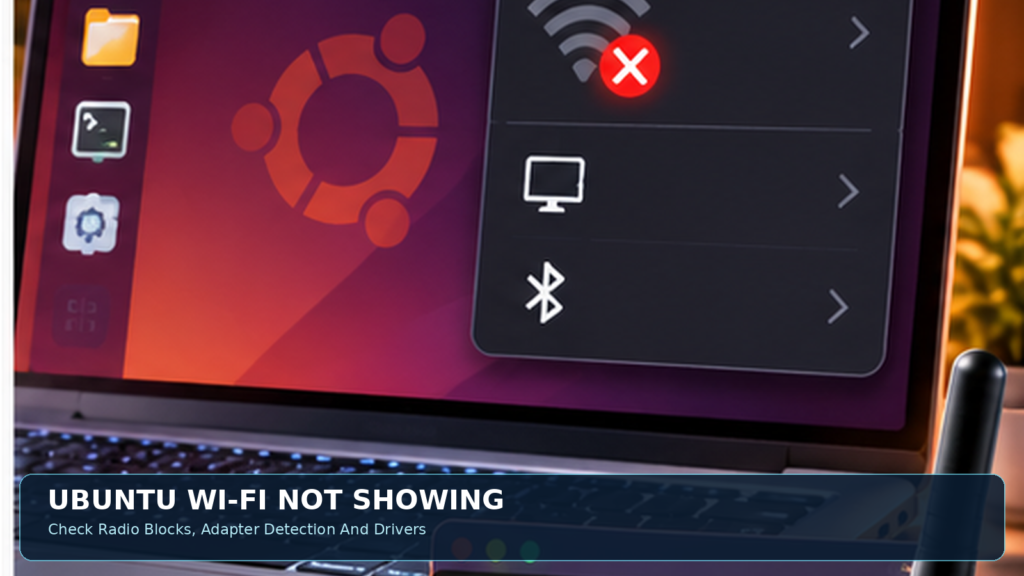

This guide follows Canonical’s wireless troubleshooting sequence and separates radio blocks, missing drivers, network visibility and actual connection errors.
Identify What Ubuntu Is Failing To Show
Ubuntu Wi-Fi not showing can mean that the wireless toggle is absent from Quick Settings, the device is disabled, no access points appear in a scan, or the computer does not detect its wireless adapter. These symptoms require different checks. A visible Wi-Fi control with no networks suggests radio state, scan conditions or an access point problem, whereas no wireless interface at all points toward hardware detection or driver support. Before changing anything, verify whether Ethernet works and whether the computer can connect through another authorized network. Note the Ubuntu release, laptop model and wireless adapter if known. This article uses Canonical’s official wireless troubleshooting approach, prioritizing hardware recognition and radio state before package changes or kernel-level experiments. For the official diagnostic stage, see Ubuntu Wireless Troubleshooting Overview.
Start With Quick Settings And Airplane Mode
Open the system menu and inspect Wi-Fi and Airplane Mode. Make sure Wi-Fi is enabled and Airplane Mode is not intentionally blocking wireless radios. On some laptops the relevant radio state may also be controlled by a hardware switch or a function-key combination. If the Wi-Fi option reappears, look for your normal network and test a simple web page. Do not reset network configuration or install drivers when the problem was just an off switch. Some interfaces use slightly different labels across Ubuntu desktop environments and releases, so follow the controls presented on the actual computer. If the toggle remains missing even after a supported restart, proceed to identify whether the operating system detects a wireless device at all.
Check For A Physical Wireless Switch
Some laptops have a side switch or a dedicated keyboard shortcut that physically disables the wireless adapter. Ubuntu cannot always override a hardware block through software. Inspect the laptop’s documentation and any wireless indicator light rather than guessing which key combination applies to every model. Avoid disassembling a laptop or changing firmware settings when the manufacturer provides a normal radio control. If a hard block is present, restore the hardware state through the supported mechanism and recheck Quick Settings. A device with Wi-Fi disabled by a physical switch can look like a driver failure even though the hardware and software are otherwise functioning correctly. This is one reason radio checks should come before driver downloads.
Use rfkill To Inspect Radio Blocking
Open Terminal and run rfkill list when the utility is available. It reports radio device blocks, often distinguishing Soft blocked from Hard blocked. A soft block may be controlled through a supported software setting. A hard block generally points toward a hardware switch, firmware radio control or device-specific condition. Do not run blanket unblock commands blindly on managed equipment or systems with intentionally restricted wireless radios. If the hardware is hard blocked, identify the model’s physical controls first. Canonical’s wireless troubleshooting resources explain why this distinction matters. The command is diagnostic; it cannot make an unsupported adapter compatible, and it cannot guarantee that a Wi-Fi interface will appear if a driver or firmware component is missing.
Inspect NetworkManager With nmcli
If Ubuntu uses NetworkManager, run nmcli device status to see whether a Wi-Fi interface is listed and how the system describes it. A recognized wireless device may appear disconnected, unavailable or connected depending on the current state. If the command lists only Ethernet and loopback, investigate hardware and driver detection. If Wi-Fi is listed but unavailable, inspect the radio state and local configuration. NetworkManager may not be the controlling service in every specialized Ubuntu environment, particularly certain server or custom network setups. Avoid editing multiple network management systems at once without knowing which one owns the interface. The output of this read-only command helps separate a missing adapter from a recognized adapter that is simply not connected.
Understand Missing Adapter Vs Missing Network
A missing wireless interface is not the same as an interface that cannot see one specific SSID. If the adapter exists, confirm that nearby networks are visible and that the router is actually broadcasting on a supported band. A device may not support a particular band, channel or regulatory configuration. On the other hand, if Ubuntu cannot identify the wireless hardware, changing the router password or forgetting a network is unlikely to help. Focus the diagnostic effort where the failure occurs. Our technology guide on SSIDs explains what the network name represents and why one access point can be invisible while the adapter itself remains fully functional. The distinction prevents broad changes that are irrelevant to the missing Wi-Fi toggle. For related practical context, read our What Is An SSID guide.
Identify PCIe Wireless Hardware
Many built-in laptop wireless adapters are connected through PCIe. On an Ubuntu installation with the appropriate utility available, lspci -nnk can show hardware identifiers and kernel driver information. Search for network or wireless controller entries rather than assuming every network-related device is the Wi-Fi card. Record the vendor, model and relevant driver line for support. If the command is unavailable, do not install packages from random sources just to obtain diagnostics; use official Ubuntu repositories when a working connection permits. A recognized PCIe device without a usable driver may need an appropriate supported driver or firmware package. The hardware identifier is more informative than broad advice such as install every wireless driver on the internet.
Identify USB Wi-Fi Adapters
If you use a USB wireless adapter, verify that it is firmly connected and try a suitable known-good USB port when safe. A USB hub may not provide a reliable connection for every device. The command lsusb can show detected USB devices if the utility is installed. Compare the adapter’s manufacturer and product identifier with the supported driver information. Do not confuse a mobile broadband modem, Bluetooth-only device or wired Ethernet USB adapter with a Wi-Fi interface. If the adapter never appears in the USB device list, inspect the cable, port, power and hardware. A driver configuration cannot repair a physically disconnected device. Where data access is important, avoid repeatedly connecting damaged hardware that shows signs of electrical or mechanical failure. For the official diagnostic stage, see Ubuntu Wireless Hardware Check.
Check What Ubuntu Reports About Drivers
If the wireless hardware is detected but no interface appears, investigate whether a supported kernel driver is bound to the adapter. Ubuntu’s wireless hardware check explains how to identify adapter models and locate appropriate driver information. A driver that is installed but cannot load due to missing firmware can produce different symptoms from a driver that never matched the device. Use the recognized model and current Ubuntu version when searching official support resources. Avoid commands that remove unrelated drivers or blacklist modules without a clear reason. The objective is to find the exact missing component rather than replace the operating system’s network stack wholesale. A small change made with evidence is easier to undo if it does not help.
When Additional Drivers Are Relevant
Some Ubuntu installations provide an Additional Drivers interface for hardware that requires proprietary components. If the exact wireless adapter is known to need a supported additional driver, review the available options through the distribution’s approved interface. A working wired or authorized temporary connection may be required to download packages. Be cautious when using instructions intended for an older Ubuntu release, because driver support and kernels change. Do not disable Secure Boot as a casual universal fix; module signing and driver compatibility must be assessed for the actual system. If the machine is managed, contact its administrator before changing drivers. The correct package depends on the hardware identifier, not the laptop’s brand name alone. For the official diagnostic stage, see Ubuntu Driver Troubleshooting. For related practical context, read our What Is A Device Driver guide.
Check Firmware Requirements Safely
Some wireless adapters require firmware files supplied by supported distribution packages. A kernel driver may be present but unable to initialize the device without suitable firmware. Review system messages and official Ubuntu hardware documentation to identify an actual firmware-related failure. Avoid downloading anonymous firmware archives or executing third-party shell scripts as root. Firmware should come from legitimate Ubuntu packages or the hardware manufacturer’s approved source when appropriate. Installing a mismatched file can waste time or create a different issue. If you cannot access the network from the affected computer, obtain packages through an authorized alternate connection and follow the relevant release-specific instructions. Keep a note of the original configuration before making any changes.
Use Journal Logs As Diagnostic Evidence
System logs can reveal whether NetworkManager, kernel drivers or firmware reported wireless errors during startup. Use supported log viewers or read-only commands such as journalctl when you understand the relevant scope and have permission. Search around the time the adapter disappeared. A message about a firmware load failure is different from a network authentication rejection. Do not paste entire logs to a public forum because they can contain device identifiers, networks and other private details. Provide only the relevant sanitized lines when asking for help. Do not treat every warning in a log as a confirmed cause. Match the event timestamp with the observed symptom and the actual hardware model.
Check NetworkManager Service State
On an Ubuntu desktop using NetworkManager, confirm its service state through the supported service-management interface or systemctl status NetworkManager. A stopped or failed service may prevent the normal desktop controls from managing Wi-Fi. However, an active NetworkManager service does not guarantee the adapter has a driver, and a custom server installation may use a different networking stack. Do not enable conflicting managers or delete network configuration files while investigating a simple missing device. Review logs if the service fails, then follow the distribution’s documented remedy. Restarting a network service can interrupt current connections, so avoid it on a remote machine where losing network access would lock you out. For the official diagnostic stage, see Ubuntu Wireless Initial Check.
When Wi-Fi Worked Before A Kernel Update
If wireless stopped appearing immediately after a kernel or distribution update, record the previous and current versions and the exact adapter model. A kernel may change driver support, module behavior or the expected firmware package. That temporal relationship is useful evidence but does not prove a specific update is defective. Consult Ubuntu’s current support notices and the hardware manufacturer’s guidance. Do not blindly install an obsolete kernel or untrusted driver from a third-party repository. On managed systems, coordinate with the administrator. If recovery or alternate boot options are available, use them only with a clear understanding of the risk and backup state. A kernel-related investigation should preserve data and avoid accidental changes to encrypted boot arrangements.
Check Secure Boot Without Disabling Security
Secure Boot can affect loading of certain third-party kernel modules, particularly when module signing is involved. If the driver installation reports a signing or module rejection error, consult the documentation for that supported driver and Ubuntu’s module-signing process. Disabling Secure Boot globally is not an appropriate first step for a missing Wi-Fi icon. It changes a security property of the computer and may introduce boot or device-trust concerns. A correct driver should be installed through a legitimate, compatible workflow. If you do not understand the prompt to enroll a module signing key or change firmware settings, stop and seek qualified assistance rather than accepting arbitrary instructions from a forum.
Check The Router Only After The Adapter Exists
A missing wireless interface should be diagnosed on the computer before changing the router. Once Ubuntu recognizes Wi-Fi and can scan, verify whether the access point broadcasts an appropriate SSID and supported band. Compare with another authorized device to determine whether nearby networks exist. A router configuration problem can prevent a specific network from appearing even when Ubuntu’s Wi-Fi control is present. Do not reset the router or weaken encryption to make a new adapter connect. If the connection works for other devices but not for Ubuntu, compare supported radio bands and driver behavior. Keep adapter detection and network association as two separate stages of the troubleshooting process. For related practical context, read our Wi-Fi Connected But No Internet guide.
Regulatory Domain And Wireless Channels
Wireless devices must observe regional channel rules. Certain routers and adapters cannot use all bands or channels in every country, and a regulatory mismatch can affect which networks are visible. Check the region configured on the access point and the device’s supported channels through legitimate controls. Do not use arbitrary commands to claim an incorrect regulatory country or bypass radio restrictions. If nearby networks appear but one particular channel does not, review the router’s official settings and the adapter’s regional capabilities. This is more relevant after the hardware has been recognized by Ubuntu. A missing Wi-Fi adapter in NetworkManager cannot usually be repaired simply by choosing another SSID or channel.
Power Saving And Intermittent Wireless Detection
Some Wi-Fi problems occur after suspend or resume, especially when a driver does not restore the adapter cleanly. Note whether wireless is missing only after waking the laptop or also after a fresh startup. If the issue follows suspend, collect the adapter model, kernel version and relevant logs before changing power settings. Avoid copying broad kernel boot parameters from unrelated hardware tutorials. Those can affect other devices and make future troubleshooting more difficult. A supported system update or driver fix may be more appropriate than disabling all power saving. The consistent timing of the failure is useful evidence for the Ubuntu or hardware support community.
Bluetooth Works But Wi-Fi Is Missing
Many laptops use a combined wireless module for Bluetooth and Wi-Fi, but the two functions can still have separate drivers and software controls. Working Bluetooth does not prove that the Wi-Fi interface is correctly recognized, and a Bluetooth failure does not guarantee the entire module is dead. Inspect the Wi-Fi controller identification and radio state separately. Our Ubuntu Bluetooth troubleshooting guide addresses pairing and Bluetooth service behavior, while this article focuses on wireless networking. Do not reinstall unrelated Bluetooth packages or disable its service in an attempt to restore Wi-Fi. Diagnose the specific interface that is missing and verify any proposed driver against the correct hardware identifier. For related practical context, read our Ubuntu Bluetooth Not Working guide.
When No Adapter Appears In Any Hardware List
If neither PCIe nor USB identification tools show the expected wireless device, consider a disabled firmware option, physical hardware switch, incompatible module, disconnected adapter or hardware fault. Consult the device manufacturer’s service instructions. Do not disassemble a laptop simply because a generic internet guide mentions reseating the Wi-Fi card. Internal components may be fragile or require specialized tools, and some devices have soldered wireless modules. If you have access to a supported external adapter, a temporary connection can help obtain diagnostics without changing internal hardware. The absence of a device at the hardware enumeration layer is a different issue from forgetting a Wi-Fi password.
Avoid Dangerous Wi-Fi Fix Scripts
Unknown internet scripts that promise to install every Wi-Fi driver, blacklist modules or replace network configuration in one command can damage a working Ubuntu installation. Avoid pasting unreviewed commands into a root shell, especially when they download code from a site you cannot verify. Check the Ubuntu version and adapter identifier first, then choose supported repositories and documented changes. Preserve copies of important configuration files before legitimate manual edits. Do not remove NetworkManager or switch to another network stack just because one tool displays an empty Wi-Fi menu. A carefully observed hardware, driver and radio diagnostic sequence reduces risk and produces a more useful support report if the issue persists. For the official diagnostic stage, see Ubuntu Community Wireless Troubleshooting.
A Wi-Fi Missing Decision Table
Match the failure to its stage. If the Wi-Fi toggle is simply off, use Quick Settings. If rfkill reports a hard block, inspect the hardware switch or firmware radio control. If nmcli lists no wireless device, check PCIe or USB enumeration. If hardware is visible but no driver is bound, investigate supported Ubuntu drivers and firmware. If the adapter can scan but no particular SSID appears, inspect bands, channels and router settings. If the interface exists but cannot connect, treat that as a network association or authentication problem. The table below keeps these scenarios distinct, avoiding unnecessary resets that cannot help a physically undetected device. For related practical context, read our What Is A Network Protocol guide.
How To Verify Wi-Fi Is Restored
After the intended fix, confirm that Ubuntu shows a wireless interface, the Quick Settings Wi-Fi control works and the desired authorized network is visible. Connect normally and test both local connectivity and a simple webpage. If the issue occurred after suspend, test a normal sleep-and-wake cycle when safe. Record the Ubuntu version, adapter model and configuration used so that future updates can be evaluated. Do not assume a single successful scan guarantees the adapter is stable over time, especially if the original symptom was intermittent. Stop making changes once the radio and connection work reliably under the conditions that previously failed.
| Observed Problem | Safest First Test | Next Area |
|---|---|---|
| Wi-Fi Turned Off | Quick Settings | Radio Control |
| rfkill Hard Block | Hardware Switch | Firmware Radio State |
| nmcli Shows No Wi-Fi | lspci Or lsusb | Adapter Recognition |
| Hardware Visible, Driver Missing | Official Driver Guidance | Firmware And Kernel |
| Adapter Sees Some Networks | Band And Channel Support | Access Point |
What To Provide When Asking Ubuntu Support
A useful support request states the Ubuntu release, desktop environment, laptop model, adapter identifier, whether Wi-Fi is missing at boot or after suspend, and the relevant sanitized output from rfkill, nmcli and hardware identification tools. Explain which safe checks you completed and whether Ethernet works. Do not publish passwords, private SSIDs when privacy matters, device serial numbers or entire logs without review. The Ubuntu wireless troubleshooting pages are a good starting point for identifying the correct next stage. A detailed report allows helpers to distinguish radio blocking, missing driver support, firmware problems and router-related issues without encouraging risky system-wide modifications. For the official diagnostic stage, see Ubuntu Wireless Troubleshooting Guide.
Frequently Asked Questions
Why Is The Wi-Fi Option Missing In Ubuntu?
It may be disabled by a radio switch, absent because the adapter is not detected, or unavailable due to driver or service issues.
How Do I Check Whether Ubuntu Detects Wi-Fi Hardware?
Use nmcli device status and appropriate hardware tools such as lspci or lsusb, depending on the adapter connection.
What Does Hard Blocked Mean In rfkill?
A hardware or firmware radio control is blocking the device. Resolve that state through the supported physical or firmware control.
Can I Fix Missing Wi-Fi By Restarting NetworkManager?
Sometimes a service issue is involved, but restarting it will not repair incompatible or undetected hardware.
Why Does Ubuntu See Bluetooth But Not Wi-Fi?
The two radio functions can use different drivers or configuration even when they share one physical module.
Should I Disable Secure Boot To Install Wi-Fi Drivers?
Not as a default fix. Review supported module signing and manufacturer guidance before changing security settings.
What If lspci Shows My Adapter But Wi-Fi Is Missing?
Investigate the bound driver, firmware requirements and relevant system logs for the exact adapter model.
Why Is One SSID Invisible But Other Networks Show?
Band support, channel selection, regulatory settings or router configuration may be involved.
Should I Install A Random Wireless Driver From A Forum?
No. Match the exact adapter hardware and Ubuntu version, and use trusted repositories or official support.
How Do I Confirm Ubuntu Wi-Fi Is Fixed?
Verify interface detection, successful scans, a normal connection and stable operation after the condition that caused failure.