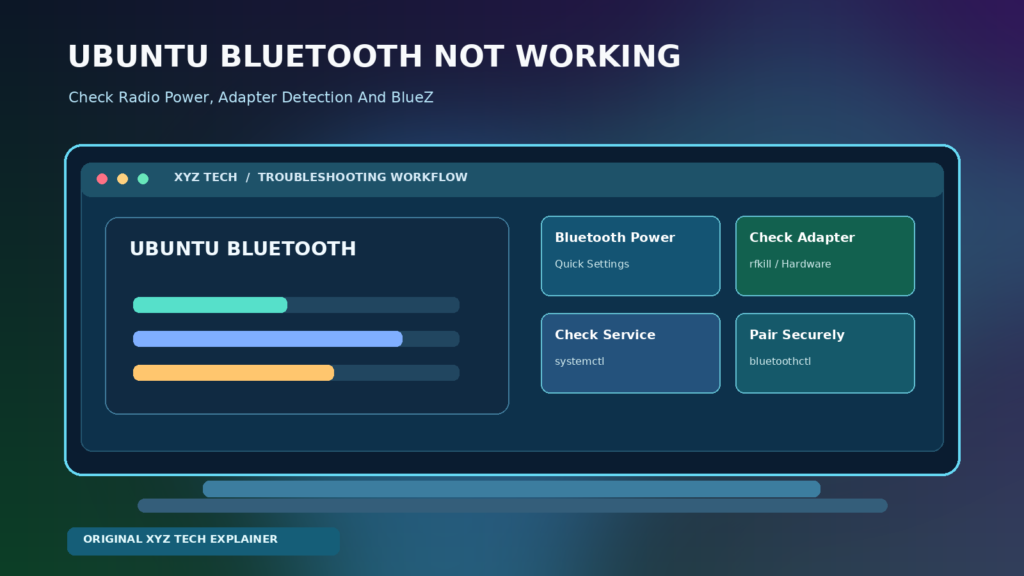

This guide follows Ubuntu Desktop and BlueZ documentation, separates hardware, service, pairing and audio issues, and prioritizes safe reversible checks over risky driver downloads.
Start By Identifying The Exact Bluetooth Problem
Ubuntu Bluetooth not working can mean several different failures. The Bluetooth switch may be missing, the radio may be disabled, the adapter may not be detected, the service may be stopped, pairing may fail, or a paired device may connect without usable sound. The right diagnosis starts with the actual symptom, not a universal command copied from an unrelated Linux distribution. Canonical’s Bluetooth connection guide lists hardware recognition, radio power and device discoverability among common causes.
Note the Ubuntu version, device type, connection history and what changed recently. Try another Bluetooth accessory if one is available, or test the accessory with another device. This helps separate a headset fault from an Ubuntu adapter problem. Keep any pairing passkeys private and avoid posting complete system logs that might contain identifying information. Do not install third-party drivers before determining whether the hardware is actually unsupported.
Check Whether Your Computer Has A Bluetooth Adapter
Not every PC or virtual machine has Bluetooth hardware, even if its operating system presents Bluetooth-related settings. Some laptops contain a combined Wi-Fi and Bluetooth card, while desktop PCs may require a USB dongle. Inspect the device’s official specification or a known installed adapter. Ubuntu’s support documentation explicitly notes that some computers do not include Bluetooth hardware.
If the machine used Bluetooth previously, check whether a USB adapter was removed, a hardware switch was toggled, or a firmware or kernel update changed recognition. A missing adapter is not fixed by repeatedly pairing the headset. Our Device Driver Guide explains why an operating system needs a supported hardware interface, while Wireless Access Point Explained describes different wireless networking equipment.
Turn Bluetooth On In The Ubuntu Desktop
Start with Ubuntu’s graphical controls. Open the system menu or Quick Settings, locate Bluetooth and turn it on if it is disabled. You may also open Settings > Bluetooth in supported Ubuntu Desktop releases and review the main switch. Canonical documents this in Turn Bluetooth On Or Off and its Quick Settings guide.
If the switch is missing or refuses to stay enabled, do not assume that the desktop itself is corrupt. The controller may be absent, blocked or unsupported. Proceed to adapter detection and service checks instead of repeatedly toggling the same button. A desktop toggle that works but cannot find an accessory suggests a different branch: pairing mode, distance, device limits or radio interference.
Check Airplane Mode And Hardware Wireless Switches
A laptop may have a physical wireless switch or function key that disables one or more radios. Airplane Mode can also affect Bluetooth depending on hardware and settings. Verify whether the laptop’s wireless indicator shows an intentional off state and consult the manufacturer for the correct shortcut. Do not assume that a Wi-Fi connection being available proves Bluetooth is enabled; the two radios can have separate controls.
Ubuntu’s official guidance notes that a hardware switch or key combination can disable Bluetooth. If the adapter is physically blocked, software may be unable to turn it on until the switch is changed. Do not change BIOS or UEFI settings without documenting their current state and understanding the device. Managed laptops may have organization restrictions that require administrative support.
Use rfkill To Detect Software And Hardware Blocks
Open Terminal and run rfkill list. This normally lists supported radio devices and can report whether Bluetooth is soft blocked or hard blocked. A soft block is typically controlled by software; a hard block can reflect a physical or firmware-imposed restriction. Ubuntu publishes the rfkill manual for relevant commands and descriptions.
If Bluetooth is soft blocked and you administer the device, sudo rfkill unblock bluetooth may be appropriate after confirming that enabling the radio is allowed. A hard block may require a laptop switch or hardware configuration change rather than repeated sudo commands. Do not unblock radios on a workplace device if policy prohibits it. Record the output before and after any approved change so you know whether it actually affected the controller.
Check Adapter Detection With bluetoothctl
The BlueZ command-line tool bluetoothctl can show which Bluetooth controllers and devices are known. Run bluetoothctl list to look for a local controller, and when a controller exists use bluetoothctl show for information about its state. Ubuntu’s bluetoothctl manual documents the command-line tool. The available subcommands can depend on the installed BlueZ version.
If no controller is listed, focus on hardware detection, firmware and service status before repeatedly scanning for accessories. If a controller exists and shows Power off, use the graphical Bluetooth toggle or a permitted bluetoothctl power on operation. Do not paste unexplained multi-line command sequences into a root shell. Treat command output as diagnostic evidence rather than proof that an attached device is guaranteed to pair.
Inspect USB And Internal Adapter Hardware
A plug-in Bluetooth adapter may appear in lsusb, while some internal cards may be visible through lspci or another hardware interface. Different manufacturers connect the Bluetooth portion of a combined wireless adapter in different ways, so an absence from one command does not prove the hardware does not exist. Compare the hardware identifier with documentation from the PC or adapter vendor.
If a USB dongle is used, carefully try another functioning USB port and avoid an unpowered hub that may cause intermittent problems. If the adapter disconnects when bumped, inspect the physical connection. Do not purchase a driver package merely because a generic command did not display a familiar device name. Official Ubuntu and hardware-provider support may help determine which Linux kernel and firmware package support the adapter.
Verify The Bluetooth Service State
On a standard Ubuntu Desktop installation using systemd, run systemctl status bluetooth to inspect the Bluetooth service. The result can help distinguish a stopped service from a working daemon that simply cannot detect a controller or accessory. If systemd is not used or the environment is a container or specialized Ubuntu Core device, these instructions may not apply unchanged.
If the service is stopped and you have administrator permission, investigate why before changing persistent service settings. An authorized sudo systemctl restart bluetooth can be a temporary troubleshooting step, but it will interrupt active Bluetooth connections and may disconnect a keyboard or mouse. Keep a wired input method available if necessary. Do not repeatedly restart the daemon while relying on a Bluetooth-only input device that could leave you unable to control the desktop.
Read Logs For Missing Firmware Without Publishing Secrets
Ubuntu’s current Bluetooth troubleshooting guide describes checking kernel logs for failed firmware loads. One documented diagnostic is journalctl --dmesg | grep -i 'firmware load'. Such entries may identify the expected firmware path and whether the kernel found a corresponding file. A log is not a definitive root-cause diagnosis by itself.
Look for specific, repeatable messages that match the hardware rather than assuming every warning is related. Logs can contain machine names, MAC addresses, serial information or other technical details. Redact what is unnecessary before sharing them publicly. Do not randomly download firmware binaries from file-hosting websites or overwrite kernel firmware directories without confirming the package, device ID, license and vendor instructions.
Understand BlueZ, Firmware And Kernel Support
Linux Bluetooth normally involves hardware, device firmware, kernel drivers, the BlueZ stack and desktop applications. A failure in one layer can produce similar symptoms to a problem in another. Canonical’s Bluetooth documentation says that some adapters require proprietary firmware not bundled by default for licensing reasons. This does not mean every Bluetooth failure requires a driver replacement.
Prefer supported Ubuntu repositories and official device-vendor sources when obtaining updates. Our Package Manager Guide and Software Repository Guide explain why installation provenance matters. A driver intended for a different Linux distribution, kernel release or architecture can break a working setup. If you cannot establish compatibility, ask the vendor or Ubuntu community before modifying system firmware.
Check Pairing Mode And Device Discoverability
A Bluetooth headset, mouse or speaker may be powered on but not available for new pairing. Many devices require holding a button or using a specific pairing gesture until an indicator changes. Refer to the accessory’s manual for its own procedure. Ubuntu’s Connect A Bluetooth Device guide explains how to discover and pair supported devices through the desktop.
If the device is connected to a phone or another computer, it may reject a new connection or stop advertising itself. Disconnect it from the old device when appropriate, then place it in pairing mode. Keep the two devices nearby during testing and avoid excessive retries. Bluetooth pairing involves both endpoints agreeing, so one computer can be healthy while the accessory is not currently allowing new connections.
Use The Graphical Pairing Workflow First
Open Settings > Bluetooth with the radio enabled, place the accessory in pairing mode and select the intended device when it appears. Confirm any code or pairing request according to the device’s instructions. If the accessory is not listed, refresh the discovery process using the supported interface and check whether it remains visible to another known device.
Do not approve pairing requests you did not initiate. A nearby unknown device is not automatically trustworthy, and a model name can be duplicated. If the pairing attempt repeatedly fails, note when it fails and whether an old paired record exists. Remove a stale pairing only for the affected accessory and retry the normal connection sequence. Do not delete every Bluetooth device in the system to fix one headset.
Use bluetoothctl For Targeted Diagnosis
Technical users can open bluetoothctl interactively, inspect the controller and run scan on to discover nearby devices. After identifying an accessory by its actual address and name, supported commands include pair, connect and, where appropriate for a trusted personal device, trust. Use the exact device address from your own scan rather than a copied example. Turn scanning off when finished.
This is a troubleshooting aid, not a reason to pair unknown hardware. Different accessories may require an agent or a passkey confirmation, and some do not support the same connection methods. Review the official bluetoothctl manual and use help inside the installed tool to confirm supported commands. If the user does not need Terminal, the graphical workflow is usually simpler and less error-prone.
When A Device Pairs But Immediately Disconnects
A device can pair successfully yet fail to maintain a connection because of power, firmware, radio interference, an existing connection to another host or accessory-specific limitations. Begin by charging both devices, keeping them close and temporarily removing an existing competing connection when permitted. Check whether the failure is reproducible with a different device.
Do not infer that the Bluetooth daemon is broken simply because one accessory disconnects. Compare connection state in the Ubuntu Bluetooth panel and in bluetoothctl if appropriate. A device that works with other accessories but not one specific headset may indicate a headset compatibility or firmware issue. Consult both Ubuntu and the device manufacturer’s support before installing unverified drivers.
Troubleshoot Bluetooth Audio Separately From Pairing
Bluetooth audio requires more than pairing. A headset can appear connected while Ubuntu still routes sound to built-in speakers, or its microphone and playback profiles may differ. Open the desktop Sound settings and select the intended output and input devices. Where available, review the headset profile and test a known audio source. Do not re-pair the device repeatedly if Bluetooth connectivity works but the wrong output is selected.
Modern Ubuntu Desktop may use PipeWire for audio, and audio routing details differ across releases. Canonical’s Bluetooth documentation links to PipeWire troubleshooting resources. Treat a connected headset without sound as an audio-profile or routing issue until evidence suggests otherwise. Our Windows Bluetooth Audio Guide covers a separate operating-system workflow rather than suggesting Windows steps should be copied into Ubuntu.
Distinguish Bluetooth Problems From Wi-Fi Problems
Bluetooth and Wi-Fi may share physical hardware or radio frequencies, but their services and network roles differ. A laptop can maintain Wi-Fi while Bluetooth is blocked, or connect a Bluetooth mouse while the internet is unavailable. Do not reset Wi-Fi configuration merely because Bluetooth pairing fails. Conversely, very congested wireless environments may affect performance without proving a specific driver defect.
Try a short controlled test in a relatively uncluttered environment with the accessory close to the computer. Move away from an overloaded USB 3 hub or nearby interference source if that is feasible and safe. Keep the normal network intact so you can still obtain official updates. Our Wireless Access Point Guide explains a network component that should not be confused with a Bluetooth controller.
Update Ubuntu Carefully Through Official Channels
If Bluetooth failed following a recent kernel or firmware change, note the exact Ubuntu release, kernel version, hardware identifier and timing. Use the supported Software Updater or package-management workflow to install appropriate official updates after backing up important data. A newer kernel can improve compatibility in some cases, but installing experimental kernels without a recovery plan can create additional issues.
Avoid adding unknown personal package archives or downloading proprietary blobs from random forums. Ubuntu’s supported update channels are preferable, and hardware-specific firmware may require verified vendor guidance. If the laptop has an unusual chipset, read the manufacturer’s Linux support statement. Do not run long system-repair commands that change unrelated packages when the problem is limited to discovering one Bluetooth accessory.
If The Bluetooth Toggle Is Completely Missing
A missing Bluetooth setting or a greyed-out toggle can indicate that Ubuntu is not detecting a usable controller. Inspect hardware power, rfkill results, bluetoothctl list, system service status and relevant kernel logs. These checks separate a disabled radio from a missing adapter or missing firmware. Avoid repeating graphical pairing steps before a controller is available.
If the USB adapter is not enumerated after trying a known-working port, it may have a hardware problem. If firmware loading fails, use the exact identifier and official source to locate the correct supported package. If the environment is a virtual machine, remember that the host may need to pass a USB Bluetooth adapter into the guest. Do not assume a virtual Ubuntu desktop automatically has access to the host’s built-in radio.
When Ubuntu Runs In A Virtual Machine
A virtual Ubuntu system usually sees virtual devices supplied by the hypervisor. Bluetooth hardware on the physical host is not necessarily exposed to the guest as a controller. A USB dongle may require explicit USB passthrough support and access through the virtualization product, which can also conflict with the host controlling the same device.
Before changing packages inside Ubuntu, verify whether the virtual machine actually has a Bluetooth controller. A missing controller cannot be fixed solely by restarting BlueZ if hardware has not been assigned to the guest. Our Virtual Machine Guide explains device abstraction. Use the hypervisor vendor’s approved hardware-passthrough procedure rather than editing random USB access rules copied from another platform.
A Safe Troubleshooting Decision Table
Use the following table to choose the next action according to actual evidence. A missing controller calls for detection and firmware checks, a hard rfkill block calls for hardware-switch inspection, a running daemon with a non-discoverable headset calls for pairing-mode checks, and a connected headset with no sound calls for audio routing. These are different problems and should not be addressed with one destructive reset.
Record commands and outputs without disclosing unnecessary system identifiers. Choose a single reversible test, verify its result and stop when the symptom is resolved. Where the hardware is managed by a company, use IT support rather than overriding administrative controls. Keeping the troubleshooting sequence narrow makes it easier to recover the original configuration if an attempted change does not help.
A Responsible Restart And Recovery Sequence
Begin with Settings and the device’s pairing mode. If an adapter is listed but disabled, check hardware switches and rfkill. If the controller is available but the desktop cannot use it, inspect BlueZ service status. A normal reboot can be reasonable after updates or transient glitches, provided you have saved work and can sign in without relying on a Bluetooth-only keyboard.
Only if supported evidence points to a service fault should you consider restarting the Bluetooth daemon, and only when disconnecting current Bluetooth devices is acceptable. Avoid deleting the entire Bluetooth configuration directory or resetting the kernel module as an initial step. If a package upgrade caused the problem, consult release-specific Ubuntu support and keep backups before a broader recovery.
| Observed Problem | First Safe Check | Avoid |
|---|---|---|
| No Bluetooth Toggle | Adapter, rfkill, Firmware | Random Driver Websites |
| Hard Blocked | Hardware Switch | Repeated sudo Commands |
| Controller Found, No Devices | Discoverability And Distance | Deleting All Pairings |
| Paired But No Sound | Audio Output And Profile | Reinstalling Ubuntu |
| Virtual Machine Lacks Controller | Hypervisor Device Assignment | Restarting BlueZ Repeatedly |
Confirm The Connection Is Reliable And Secure
When the accessory reconnects, test the specific function you need: pointing and clicking, typing, sound playback, microphone capture or file transfer. Disconnect and reconnect using the supported interface if that matches your normal workflow. A connected status icon is useful but does not guarantee the device’s audio or input profile behaves as intended.
Review which devices are trusted or paired and remove unknown entries only when you have confirmed they do not belong there. Do not keep Bluetooth discoverable longer than required for pairing if it is unnecessary. Keep Ubuntu and accessory firmware updated through official channels. For broader context about open software dependencies, see What Is Open Source Software, which explains why transparent code alone is not a guarantee of flawless device support.
When To Ask Ubuntu Support Or The Manufacturer
If no adapter is detected after physical checks, or logs repeatedly report a missing chipset-specific firmware file, collect the Ubuntu release, hardware model, controller ID and relevant redacted log excerpts. Ubuntu’s documentation directs users toward vendor guidance or a detailed community support thread for unsupported devices. Explain what worked before, which official steps you tried and the exact observed symptom.
Do not include passwords, private addresses, session tokens or full unreviewed logs. A manufacturer may be able to identify a supported firmware package or recommend a compatible replacement adapter. A precise support request is more effective than saying Bluetooth is broken, because pairing, radio power, hardware recognition and audio routing require different remedies. Preserve the original system configuration until a reliable fix is confirmed.
Frequently Asked Questions
Why Is Bluetooth Not Working On Ubuntu?
Common causes include disabled radio power, hardware or rfkill blocks, an undetected adapter, missing firmware, a service issue, incorrect pairing mode or accessory-specific problems.
How Do I Turn Bluetooth On In Ubuntu?
Use Quick Settings or Settings > Bluetooth on supported Ubuntu Desktop releases. If the toggle is missing, investigate adapter recognition instead.
What Does rfkill List Tell Me?
It reports wireless device block states where supported. Soft blocked generally refers to software control; hard blocked may require a hardware or firmware switch.
How Can I See Whether Ubuntu Detects My Bluetooth Adapter?
Try bluetoothctl list and inspect the hardware with appropriate commands such as lsusb. Combine results with service and firmware logs rather than relying on one command.
Is Restarting The Bluetooth Service Safe?
It can interrupt current Bluetooth devices. Save work and keep an alternative input method before using a service restart as a targeted test.
What Is bluetoothctl?
It is BlueZ’s Bluetooth command-line utility used to inspect controllers, discover devices and perform supported pairing and connection operations.
Can A Headset Pair But Have No Sound?
Yes. Bluetooth connection and audio output selection are different steps. Check the sound output, input and supported profile.
Should I Download A Bluetooth Driver From A Random Website?
No. Use Ubuntu’s supported repositories and verified manufacturer firmware guidance, after identifying the actual adapter.
Why Is Bluetooth Missing Inside My Ubuntu Virtual Machine?
A virtual machine may not have the host’s Bluetooth hardware passed through. Verify that a controller is assigned to the guest before changing software.
Does Reinstalling Ubuntu Fix Every Bluetooth Problem?
No. Hardware compatibility, radio blocking, firmware and pairing issues can remain. Diagnose the cause before considering any disruptive reinstall.


