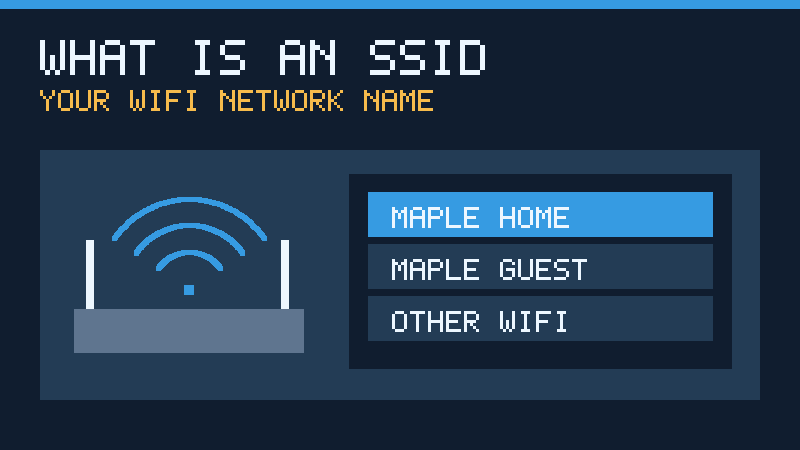

Whenever you join Wi-Fi at home, work or a hotel, the first thing you usually choose is a network name. Understanding what that name represents makes it easier to configure a router, recognize connection problems and avoid common security mistakes.
What An SSID Means In Wi-Fi Networking
SSID stands for Service Set Identifier. It is the name that identifies a Wi-Fi network to wireless devices. When you open the Wi-Fi menu on a laptop and see names such as MapleHome, OfficeGuest or AirportWiFi, you are generally looking at SSIDs advertised by nearby wireless access points.
The name helps a device select the wireless network it intends to join. It does not tell you how fast the connection will be, whether the network has working internet access, or whether you can trust its owner. A phone can successfully connect to a wireless network even while the connection between the router and internet provider is unavailable.
Technically, an SSID is a sequence of up to 32 bytes, rather than necessarily 32 visible letters. A short name composed of ordinary ASCII letters and digits is a practical choice because it avoids encoding and compatibility difficulties. Microsoft’s DOT11_SSID documentation represents the identifier using a byte array. Cisco’s access point guide also explains that names are case-sensitive and that equipment may impose its own naming restrictions.
For an introduction to the technology beneath these names, see What Is Wi-Fi? and What Is A Computer Network?.
How An SSID Helps Devices Discover A Network
A wireless access point transmits management information that helps nearby compatible devices discover available networks. A normally advertised SSID allows your phone or laptop to display a recognizable network name instead of requiring you to type every network identifier by hand.
When you select a network, the client attempts to associate with a suitable access point and complete the network’s required security procedures. On an ordinary home network, this typically involves a supported security mode and a Wi-Fi password. If the connection succeeds, the device may then obtain the network addressing information it needs to communicate.
The SSID therefore serves as a discovery and selection label, not as the complete connection process. Authentication, encryption, network addressing and internet connectivity are separate parts of the system. A wrong password prevents joining a password-protected network even when its name is plainly visible.
A router often combines several roles in a single box, including routing traffic and operating a wireless access point. Larger installations may have dedicated access points that connect to the same network. Our router explainer provides more detail about those roles.
SSID Vs BSSID, Password And IP Address
Several identifiers appear in router settings and wireless diagnostics. They describe different things and should not be substituted for one another.
| Term | Meaning | Example |
|---|---|---|
| SSID | Wireless network name | MapleHome |
| BSSID | Identifier of an individual basic service set, commonly represented by a MAC address in infrastructure Wi-Fi | 02:00:00:00:00:01 (illustrative) |
| Wi-Fi password | Secret credential used by a password-protected network | Not shown; keep it private |
| Router administrator password | Credential used to manage the router | Separate from Wi-Fi access |
| IP address | Address used for communication at the Internet Protocol layer | 192.168.1.20 (illustrative) |
Two access points can advertise the same SSID while representing distinct basic service sets. A wireless device may move between them while continuing to display the same network name. In contrast, a network security password is not something that should be visible to everyone scanning nearby networks.
Do not enter the router’s administrator password into an unfamiliar page merely because the page displays your SSID. The name is not proof that a website or device belongs to your router. Always use the management method specified by your router manufacturer or provider.
Find Your SSID On Windows, Android Or iPhone
When you are already connected, the easiest way to identify your current SSID is to open the Wi-Fi settings and look at the active network. On a computer connected exclusively through Ethernet, there may be no active wireless network to identify.
Windows
Open the network controls in the Windows taskbar and expand the available Wi-Fi connections. The active network will be distinguished from nearby networks. Look in Settings, Network & Internet, and Wi-Fi for additional connection details. See Microsoft’s connection guide for the version-specific interface.
Android
Open the Internet or Wi-Fi section of your phone settings. The connected access point’s network name is ordinarily shown with its connection status. Android manufacturers may organize the menus differently; Google’s Android guidance provides the standard navigation and saved-network options.
iPhone
Open Settings, then Wi-Fi. The checkmark in the list identifies the selected wireless network. This is the SSID your iPhone is using. Apple’s iPhone connection guide explains how to select or manually enter a network.
Router
Look for a network-name field in the router’s approved management application or configuration page. A sticker on the device may display the factory-assigned name, but it will not necessarily reflect changes made after installation. Avoid sharing photographs of the label because it may also contain private access credentials.
What It Means When Several Access Points Use One SSID
A single Wi-Fi name can represent more than one radio or access point. For example, a two-story home might have one access point upstairs and another downstairs, both configured to provide the same network service. Each access point has its own radio-level identifiers while sharing a recognizable SSID.

If compatible security settings and the underlying network are properly coordinated, the client can potentially roam as it moves through the building. The timing and success of roaming depend on device behavior, coverage and network configuration. Identical names alone cannot create a functioning mesh or guarantee uninterrupted calls.
A home router can also advertise the same name on multiple frequency bands. Apple’s router configuration recommendations favor a consistent unique network name across a coordinated network’s supported bands. Some specialized devices or diagnostic workflows benefit from deliberately separated band names, but that decision should be based on a specific compatibility requirement rather than a belief that a shared name is inherently slower.
To understand the practical tradeoffs in frequency selection, read 2.4 GHz Vs 5 GHz Wi-Fi.
How To Change Your Wi-Fi Network Name Safely
If you administer your home router, you can normally choose a different SSID without replacing the device or purchasing another internet plan. Plan the change because the devices using the old name may disconnect and require setup again. Do not make these changes on a school, workplace or other network you are not authorized to manage.
- Identify the exact router or mesh model and locate its official settings application or management instructions.
- Confirm that you can sign in as the authorized administrator. Record the existing wireless configuration without exposing its password publicly.
- Use a wired connection when practical, or be ready to reconnect wirelessly after the change.
- Find the wireless network name or SSID field and enter your chosen name. Use a concise, nonidentifying name.
- Keep appropriate security settings enabled. Save the change and allow the router to apply it.
- Reconnect a trusted phone or computer using the new name and verify local and internet connectivity.
- Update the settings of other affected devices, including printers, cameras and smart-home equipment.
For example, TP-Link documents its wireless settings menu and the expected interruption after saving a new name in its router settings guide. Exact menus vary by firmware and manufacturer. If your router is managed by an internet provider, consult the provider rather than assuming a common administration address will work.
A factory reset is not necessary simply to rename the network. Resetting a router can remove its internet-provider configuration, custom settings and connected-device arrangements. Preserve a supported configuration backup before major changes.
Choose A Network Name That Protects Your Privacy
A good SSID is recognizable to authorized users without exposing unnecessary personal details. Choose a distinctive neutral label instead of a name containing your full name, street address, apartment number, telephone number or Wi-Fi password. Examples such as MapleHome and MapleGuest are fictional labels, not suggested passwords.
Remember that nearby devices may see the network name. A unique name helps reduce confusion with unrelated networks, but it does not authenticate the router or guarantee that no other access point has copied the same label.
For a home network, use supported current Wi-Fi security, preferably WPA3 Personal where compatible, or a suitable WPA2/WPA3 transition configuration when older devices require it. Strong, unique credentials and current supported router firmware matter more to security than making the name difficult to guess. Avoid obsolete WEP and other weak security modes. See our home router security guide for related protective measures.
Do not assume public Wi-Fi is trustworthy just because its name sounds official. Confirm the correct network name with the venue, avoid automatically joining unfamiliar networks and follow the organization’s guidance about using its service.
What A Hidden SSID Is And Why Hiding It Is Not Security
Some routers can omit their network name from ordinary advertisements. The connection still exists, although a standard network list might not show its name. To join it, a device typically needs the exact identifier and required security information entered manually.
Hiding the name is not equivalent to concealing an entire wireless network or encrypting its traffic. Network management exchanges can still reveal information about the network’s identity. Cisco’s wireless security FAQ discusses why SSID hiding and the identifier itself are unsuitable as authentication mechanisms.
If you administer a network that intentionally uses this feature, configure its approved clients through their manual network-entry option. Type the exact case-sensitive SSID, choose its actual security type and enter the legitimate credentials. Never lower the security setting simply because a device does not discover a hidden name.
For ordinary residential networks, displaying the name with strong security is generally a more straightforward configuration. Hidden networks can create additional discovery complications and potential privacy concerns when devices search for them. If an employer or school intentionally controls these settings, follow its instructions.
Guest SSIDs And Separate Network Access
A guest network is commonly offered through a separate name such as MapleGuest. The purpose is to make guest access easier to manage without distributing the main network credentials. Some routers additionally restrict guest access to household printers, storage or other internal devices.
However, the mere existence of two network names does not prove that the underlying network is separated. Isolation depends on the router’s configuration and implementation. On enterprise equipment, separate SSIDs may be assigned to different network segments, with access rules appropriate to each service.
Use the manufacturer’s guest-network settings and product documentation to confirm what isolation is actually provided. Test with an authorized guest device if appropriate, ensuring that expected internet access works and restricted local resources remain unavailable. Keep the main network’s access credentials separate from the guest credentials.
Troubleshoot A Missing SSID Or A Failed Connection
| Symptom | Check First |
|---|---|
| Network name is absent on all devices | Router power, enabled radios, coverage and name-broadcast settings. |
| Name appears on some devices only | Client band compatibility, range and supported security. |
| Correct name appears but joining fails | Credentials, security compatibility and authorized network access. |
| Connected but websites will not load | Internet connection and local network addressing. |
| Same name appears in an unfamiliar location | Verify the network’s actual owner rather than assuming it is your saved network. |
| Devices disconnect after renaming | Reconnect using the new name and appropriate password. |
Start with the least disruptive checks and compare more than one device. A name that is no longer visible on one particular phone need not indicate a defective router. If the device is connected but cannot browse the web, use Wi-Fi Connected But No Internet. If only an Android phone cannot join, see our Android Wi-Fi connection guide.
Make one change at a time and note the result. Keep the wireless password available privately before forgetting a saved network. Avoid changing the router’s security settings or resetting it before establishing which part of the connection is failing.
Frequently Asked Questions
Is An SSID The Same As A Wi-Fi Password?
No, the SSID identifies the network. The password is a separate credential used by a protected network.
What Does SSID Stand For?
Service Set Identifier, the identifier commonly shown as the Wi-Fi network name.
Can Two Routers Have The Same SSID?
Yes, coordinated access points can use the same identifier. Unrelated networks can also use identical names, which is why a name alone cannot establish ownership or trust.
How Long Can An SSID Be?
The technical maximum is 32 bytes. Individual equipment may impose additional restrictions on supported characters.
Does Changing My SSID Change My Internet Speed?
No, changing the name alone does not increase the speed of your internet subscription or wireless hardware.
Should I Hide My Wi-Fi Network Name?
Generally, no. Hiding the name does not provide effective access control. Use suitable modern wireless security instead.
Where Do I Find My SSID?
Look at the connected network in your device’s Wi-Fi settings or the current wireless network-name field in your router’s authorized management interface.
Technical References
Technical review: November 15, 2026. Primary sources include Microsoft DOT11_SSID, Cisco SSID Configuration, Cisco Wireless Security, Apple Router Settings, Windows Wi-Fi, Android Wi-Fi, iPhone Wi-Fi and TP-Link Wireless Settings. Illustrations are original conceptual diagrams, not screenshots. The network examples are fictional, and the configuration guidance has not been tested on every router or device model.


