
Identify What Is Actually Failing
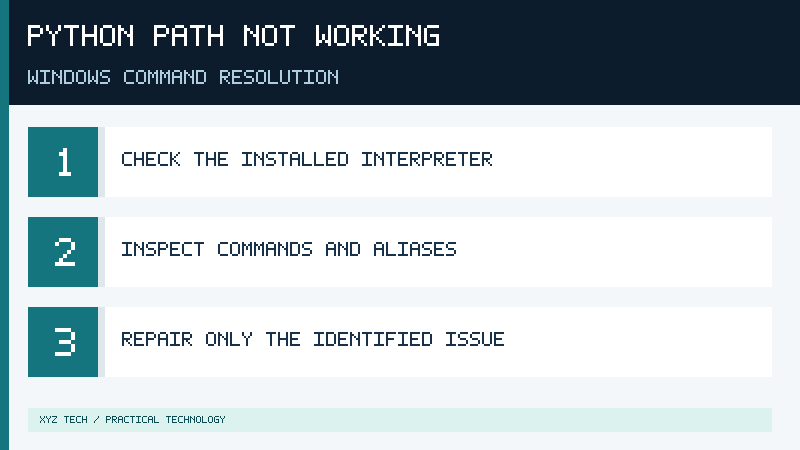
A Python PATH problem on Windows is often described as a program that cannot be found, but that description covers several different failures. Your computer may have no usable Python installation, a working runtime may be absent from the shell’s command search, a Windows application alias may point to an installation prompt, or several interpreters may compete for the same command. Distinguishing these conditions before editing environment variables is essential. Changing PATH cannot restore an executable that is not installed, and adding another directory may make an existing version conflict more difficult to diagnose.
Start with a normal Windows terminal opened under the account used for your development work. Save unfinished files and close terminals that were open before the most recent Python installation or configuration change. Open a new session from Start. If you are reproducing an error inside an editor, also compare a standalone PowerShell session. The editor may have inherited an older environment or activated a project-specific interpreter, so it is valuable to distinguish a system-wide symptom from one that appears only in a particular workspace.
Record the exact command that fails and its actual message. A shell reporting that a command cannot be recognized has not necessarily launched Python at all. A message from a running Python interpreter stating that it cannot locate a file or import a module means that at least one interpreter has executed. A version response that names an unexpected release is another issue entirely: the command exists, but the selected runtime is not the one you intended to use.
For an independent beginner, the aim is to establish a reproducible way to launch one supported Python interpreter and execute a small local program. There is no requirement that every command alias or every installed runtime be available through the same short command. Someone maintaining separate development projects may deliberately choose different interpreters. Our Python installation guide describes the current installation process, while this article concentrates on finding an existing runtime and correcting command selection without damaging other tools.
If you use a company-managed or school-managed computer, the runtime and environment may be assigned centrally. Check the approved setup rather than using administrative access or a different software distribution to circumvent restrictions. A functioning development environment must satisfy both the project requirements and the policies under which the device is used. Record any symptoms that you need to report to authorized support, but avoid sharing private paths or credentials.
Understand PATH, PYTHONPATH And Application Aliases
PATH is an environment variable: a list of locations involved in finding executable commands. On Windows, its directory entries are separated by semicolons when represented as a single string. Microsoft describes its role in the PowerShell environment variable reference. When you launch a shell, that process receives an environment from the process that started it. An update to persistent environment settings therefore does not necessarily alter every shell that is already open.
This explains a common beginner experience. You install a runtime and enable the supported command-access option, then return to the terminal that was open throughout installation. The command still fails. Before performing any more configuration, close that terminal and open a new one. If the command works in the new session, the interpreter was not necessarily damaged; the first session simply had a different environment.
PYTHONPATH is a different variable. Python can use it when determining where to look for imported modules. It is not the Windows executable search path. If the shell cannot start Python, adding the interpreter’s folder to PYTHONPATH is not a solution to that problem. Microsoft’s Python on Windows guidance discusses module search settings and cautions against applying a global PYTHONPATH indiscriminately across interpreter versions.
A third concept is the Windows app execution alias. An alias can make an application accessible under a command name even when that name does not resolve directly to the underlying runtime executable. A path returned by a file search might point to the Windows integration layer rather than the physical interpreter. That is why you should inspect the actual runtime after it launches rather than deciding which copy is running solely from a folder name.
Finally, PowerShell can resolve names to several kinds of commands, including functions and aliases. A command named python could be affected by shell configuration in addition to ordinary executable search. The Get-Command inspection in the next section helps distinguish those possibilities. The command-line basics guide explains how a shell, command, argument and output work together.
Step 1: Inspect The Existing Commands Without Changing Anything
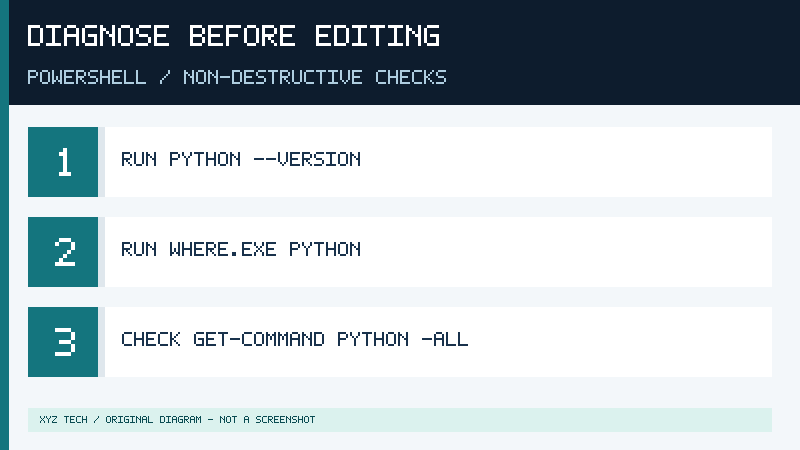
Begin with an ordinary PowerShell terminal on Windows. Try the following commands one at a time and observe the individual results. They report information rather than intentionally making persistent changes.
python --version
py --version
where.exe python
where.exe py
Get-Command python -All
Get-Command py -All
If the computer has no accessible command with a particular name, some of these checks may print an error. That is useful diagnostic information, not a reason to repeat them with arbitrary extra options. Use where.exe explicitly in PowerShell, because a shorter name such as where may be interpreted differently by that shell. The official Windows where documentation describes the file search it performs, while Get-Command documentation explains how to inspect command types and discover multiple matches.
If python successfully prints a version, ask the selected interpreter for its actual executable path.
python -c "import sys; print(sys.executable)"This output is more specific than a version number. Two installations can use the same Python release series while being stored in different locations. If py starts an interpreter too, compare its result by running the following command separately.
py -c "import sys; print(sys.executable)"The commands need not both print identical locations for your setup to be valid. The important question is whether the command used for your project starts the intended interpreter. If the output contains your personal username or a confidential organization name in its path, you can inspect it privately without publishing the complete location in a support forum.
On a computer using the newer Python Install Manager, the management command can also list installed runtimes. Its documented syntax is different from that of an older launcher. If you have confirmed that the modern manager is present, check its list:
py listIf that syntax does not work, identify which launcher is being invoked instead of presuming the installed interpreter is broken. A legacy launcher can still be useful for existing installations. The modern management subcommands are not evidence that an older launcher must recognize every new action.
Keep a record of the version responses and the actual executable path that each command reports. This is particularly useful after you install another interpreter or modify your environment. Repeat the same inspection before and after a targeted change so that the result can be evaluated directly. Never change several independent settings at once merely to make all the commands display something.
Step 2: Resolve Python Install Manager And Execution Alias Problems
Modern official Python installation instructions for Windows emphasize the Python Install Manager. The Python Windows documentation provides specific troubleshooting for the manager’s command aliases and for existing traditional Python installations. This article uses current technical guidance rather than assuming that every reader followed an older executable-installer tutorial.
If a Python command opens the Microsoft Store instead of launching your expected runtime, first establish whether you actually installed a runtime through an authorized distribution. Look in Installed apps and check the installation method you used. A Store prompt can reflect an available installation route or an alias conflict; it does not prove the presence of a working interpreter.
If the official install manager is present but its commands are unavailable, use Start to find Manage app execution aliases. Review the Python entries associated with the intended manager. The Python documentation recommends checking the default Python aliases and, when appropriate, refreshing an existing alias by turning it off and on again. Do not disable every unrelated application alias, because other software may use them normally.
The manager’s documentation also identifies the standard WindowsApps directory in the user PATH as relevant to command shortcuts. If you previously removed that entry, investigate whether restoring the documented user-level location is appropriate. This is different from adding arbitrary folders that contain executables. The value must belong to the intended account and environment.
When you install a runtime with the manager, it may offer an additional directory for version-specific command aliases. That additional location is optional for users who work through the documented launcher command. Decide which commands you genuinely need. A project that already starts correctly through a selected interpreter does not require a broad system PATH modification merely because an optional version alias is missing.
If an old launcher takes priority over the newer manager, the official documentation describes how to identify that conflict. Do not remove an existing launcher without checking whether your other projects depend on it. Use the supported maintenance route only when you have decided that the newer manager should control the conflicting command. Preserve source files, project interpreter settings and dependency information before changing an existing development setup.
After any supported alias or installation change, open a new terminal and repeat the original diagnostic commands. Check that the selected Python command starts an interpreter and prints the expected version. Then inspect its executable path. If the modern manager itself remains inaccessible, follow its documented troubleshooting or contact the authorized administrator with the actual observed error.
Step 3: Correct A Traditional Installation Or A Missing PATH Entry
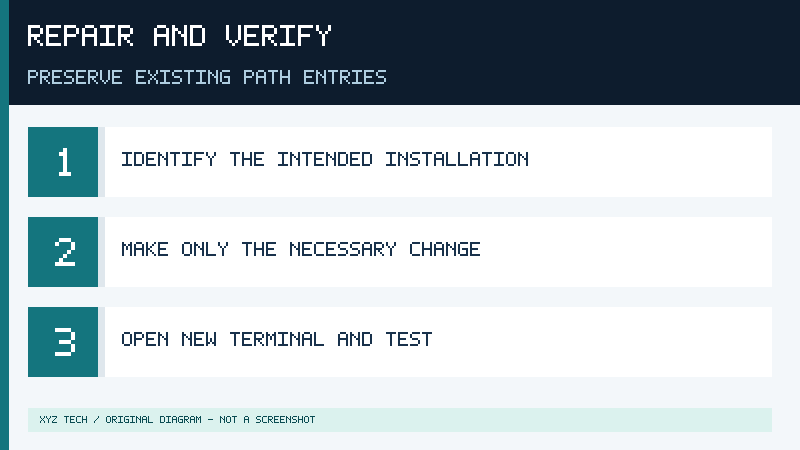
Manual PATH editing is most appropriate after you have established which executable should be available and why it is not being found. On a computer with a traditional Python installation, a supported installer maintenance operation may be simpler than manually manipulating the environment. Review the actual installation’s options and confirm the desired command behavior. Not all distributions use the same directory structure.
If you already know the precise path of the legitimate installed python.exe, you can test it directly in PowerShell before modifying PATH. Replace the text inside quotation marks with the verified full path to your interpreter.
& "C:\Example\Python\python.exe" --versionIf the verified executable launches successfully when addressed directly but the short python command fails, the difference suggests a command-resolution problem. If direct execution fails, adding its parent directory to PATH may not be the appropriate repair. Investigate the executable’s supported installation and compatibility instead.
When a targeted user PATH change is justified, search Start for Edit environment variables for your account. Locate the user Path variable, open its editor and record its existing values in a private note before making changes. Select the option to add an entry and enter the actual existing directory that contains the intended executable, not the full filename of python.exe. Verify the spelling and confirm that the directory belongs to the legitimate installation.
Preserve unrelated entries. Many applications and development tools rely on their own paths, and unexpectedly replacing the complete variable can cause failures elsewhere. Do not blindly paste a long replacement variable from a tutorial. Avoid using broad commands to rewrite system-level settings when the user-level mechanism or installer maintenance option is sufficient.
A directory containing useful Python scripts may be separate from the executable directory. If your project needs a standalone command installed by a package, consult that interpreter’s documentation and identify the corresponding scripts location. For ordinary package management, using python -m pip can avoid reliance on an additional standalone pip command being found. There is no need to add every Scripts folder from every installed runtime.
When there are several competing executable locations, consider which tools depend on them before changing their priority. A project that specifically requires an older supported interpreter can select that runtime without forcing every other project to use it. If an installation is truly unnecessary, follow the vendor’s supported uninstallation process rather than deleting its folders. Our safe Windows uninstallation guide provides background on why deleting program files can leave registration and maintenance problems behind.
Confirm your narrowly targeted change and open a new shell. Repeat where.exe python and the sys.executable check. If the result is worse, restore the user PATH entry from your earlier record or reverse the maintenance action through the supported tool. This gives you a clear recovery path instead of leaving several untracked modifications in place.
Step 4: Check The VS Code Interpreter And Virtual Environment
A development editor and a standalone terminal can select different Python interpreters. In Visual Studio Code, the selected Python environment supports project-specific development features, and the terminal may activate an environment according to the extension’s configuration. The official Python environments documentation describes environment selection and terminal activation.
Open your trusted project folder and select the intended interpreter through the Python: Select Interpreter action. A current workspace environment may appear alongside several system installations. Review the path and version rather than selecting the first entry that has the word Python in its name. Our VS Code beginner guide explains the basic selection workflow.
Open a fresh integrated terminal and run python -c “import sys; print(sys.executable)” again. Compare that output with the interpreter selected for your workspace. If the locations differ, inspect the terminal’s activation configuration and whether the terminal existed before you selected the environment. The VS Code terminal guide explains why every shell session has its own execution context.
A project-specific virtual environment helps isolate installed dependencies. When your project has an existing local environment with a known location, you can directly invoke its interpreter using an explicit path. For a conventional Windows virtual environment named .venv beneath the current project, this example checks the environment directly:
.\.venv\Scripts\python.exe --version
.\.venv\Scripts\python.exe -m pip --version
Run these commands only when that directory exists and belongs to the intended project. A general-purpose editor cannot create an environment merely because you typed a relative path that resembles one. If the environment has been moved from another computer or its base interpreter is no longer available, recreate it through the project’s documented setup after protecting source files and dependency specifications.
Direct invocation can be useful when PowerShell prevents a virtual environment’s activation script from running. Activation is a mechanism for convenient command selection; it is not the only way to use the environment. Do not disable script execution protections or broaden global policy solely because a local project can be executed through its explicit interpreter path.
Check packages through that same selected interpreter. If importing a third-party module fails, the package may be absent from that environment even if it was installed into another one. A version-reporting command and a package listing help identify the mismatch. This is a project dependency problem rather than necessarily a Windows PATH fault.
Step 5: Verify The Repair With A Small Reproducible Script
After correcting command selection, create a new user-controlled practice folder and a file named verify_python.py. Save the following plain text source code in that file. It relies only on Python’s standard library and reports the interpreter that actually executes it.
import sys
print("Interpreter:", sys.executable)
print("Python series:", sys.version_info[:2])
print("Check:", sum([3, 5, 7]))
Open a fresh terminal in the directory containing the file. Use the interpreter command or explicit path you identified during diagnosis.
python verify_python.pyExpect to see your own executable location, the major and minor Python version numbers and a final check value of 15. Do not expect the interpreter path or the version tuple to match a tutorial’s example exactly. The observed executable should correspond to the environment you deliberately selected, not merely any Python installation capable of calculating the sum.
For a second check, modify the last list value from seven to eight and save the file. Running it again should produce 16. This confirms that the command is executing the saved copy rather than an unrelated file in a different project directory. If you receive an error about the file not existing, inspect the current folder before altering the interpreter again.
If you use pip, check its association:
python -m pip --versionThe response should relate to the interpreter you intended to use. A missing pip module calls for investigation of the distribution and its package setup. It does not mean that the successfully executed Python program must have used the wrong PATH.
| Observed behavior | Appropriate next check |
|---|---|
| python not recognized | Check installation, fresh shell, command paths and aliases |
| python opens Store | Verify install manager and intended execution aliases |
| python and py report different versions | Compare executable paths and select the intended runtime |
| Explicit executable works, short command fails | Investigate targeted command resolution |
| Module import fails | Verify package installation in the selected environment |
| Only VS Code terminal is affected | Check workspace interpreter and terminal activation |
The important outcome is repeatability. Confirm the workflow in a new session and, if necessary, in the editor that will actually be used for your project. Keep a private record of the successful configuration and avoid making additional changes that do not solve an observed problem.
This example’s numerical expectations are derived from the supplied code. Verify each command against the interpreter installed on your computer. For a beginner, understanding why a particular command launches a particular interpreter is more valuable than an unexplained configuration that happens to work today.
Sources And Further Reading
- Python on Windows
- PowerShell environment variables
- Windows where
- PowerShell Get-Command
- Microsoft Python on Windows
- VS Code Python environments
Frequently Asked Questions
Do I Need To Reinstall Python If PATH Is Not Working?
No, first identify whether the interpreter exists and whether command resolution is the actual problem.
Is PYTHONPATH The Same As PATH?
No, PYTHONPATH affects Python module discovery, while Windows PATH is involved in locating executable commands.
Why Does Python Open The Microsoft Store?
Check the intended installation and the relevant Windows app execution aliases. A Store prompt does not establish that a runtime is installed.
Can I Use Python Without Modifying System PATH?
Yes, a supported launcher or explicit interpreter path can be sufficient for a project.
Why Does Python Work In VS Code But Not PowerShell?
The editor may be selecting or activating a project-specific interpreter. Compare the actual executable paths in the two environments.