
What Makes A Code Editor Good For A Beginner?
The best code editor for a beginner is the one that makes it easy to understand what you are writing, where your files are saved and how your programs are executed. A large collection of advanced features is not automatically an advantage during your first few lessons. You need a reliable environment in which you can make a small change, save it and observe its effect without confusing the programming language with the application that displays your code.
A source editor is primarily a program for working with text files. It can use colors, indentation, navigation and suggestions to make source code easier to read. An integrated development environment, commonly called an IDE, generally combines editing with additional development tools such as debugging, project configuration and test execution. The boundary is not absolute: extensible editors can acquire features similar to those of an IDE, while simpler IDEs deliberately limit their initial complexity.
The programming language’s runtime or compiler remains important. For example, a Python editor may use an existing interpreter instead of supplying one. If the interpreter is absent, an attractive editor cannot execute an ordinary Python script simply because it recognizes the syntax. Our Python installation guide explains how to verify an interpreter independently before connecting it to an editor.
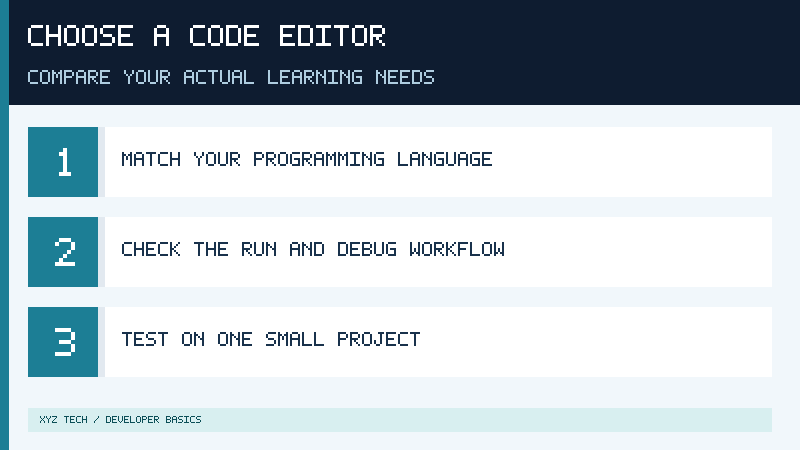
The right comparison begins with the kind of project you intend to create. A person writing a small HTML page has different requirements from a student learning Python loops, and both have different requirements from someone who must maintain a large application with many dependencies. Even a familiar editor can be an unsuitable choice when it lacks the required language support or does not satisfy an organization’s software policy.
This guide compares five established options by their documented capabilities, typical beginner workflows and tradeoffs. It does not rank them using invented performance measurements, subjective popularity scores or unverified installation tests. The goal is to help you choose an appropriate starting point and give you a repeatable way to evaluate it on your own computer.
Compare The Editor, Runtime And Development Environment
When a beginner first sees colored source code, it is tempting to assume that the editor understands everything about the program. Syntax highlighting usually recognizes certain language patterns and displays them differently. It can make strings and keywords easier to distinguish, but a correctly colored statement is not necessarily logically correct. A useful editor can improve the visibility of mistakes without replacing the process of testing your program.
An interpreter or compiler has a different responsibility. It processes the source code according to the language’s rules. A terminal can be used to launch that tool, and a debugger can help inspect the program’s behavior. An IDE may coordinate all of these components through menus and integrated views, but it still depends on the relevant programming tools. Understanding these distinctions can save a beginner from reinstalling an editor when the problem is actually a missing runtime.
Imagine that you write the statement print(“Hello”) in a plain text file. You can edit that file with many applications, provided they preserve plain text. To run it as Python, you need an interpreter capable of reading the file. A dedicated IDE might offer a Run button, while a simple editor requires you to execute a command separately. Both can produce the same result when they use an appropriate interpreter and the same saved file.
File organization is another important distinction. Some editors emphasize individual documents, while others organize related files into a project folder. A project might contain source code, test cases, a README and configuration. If you expect to build several related files, a folder-oriented workflow can help you avoid losing track of them. For a first lesson involving a single script, an elaborate project model may be unnecessary.
The amount of guidance offered by a program also affects learning. Automatic completions can help you discover valid identifiers or reduce typing errors. However, accepting every suggested statement without understanding it can make a small exercise seem to work even when you cannot explain its behavior. Begin with tools that help you observe and correct your own work. Additional automation can become useful later when its purpose is clear.
Our Visual Studio Code beginner guide demonstrates how an editor, a workspace and a selected Python interpreter work together. The same underlying distinction applies when you evaluate another editor, even if its menus and project terminology are different.
Visual Studio Code: A Flexible General-Purpose Starting Point
Visual Studio Code is an extensible source editor that can support many different programming languages. Its integrated file explorer, search, editing tools and terminal provide a practical environment for projects containing several files. The official core editor documentation describes its navigation, source control integration and extension capabilities. This makes it a reasonable candidate for a learner who expects to move between different programming languages over time.
For example, someone beginning with HTML and CSS might later want to write JavaScript or Python in the same application. The editor’s basic workspace model remains familiar while the relevant language tools can change. Certain web-language features are available in the editor itself, whereas other languages may require extensions and separate runtime components. Check the requirements for the specific language you are learning.
A typical beginner Python workflow involves opening a dedicated folder, installing the official Microsoft Python extension, selecting a working interpreter and creating a file with the .py extension. The integrated terminal can then be used to execute the saved file. This gives the learner a visible connection between the editor, project folder and command-line environment. It also provides a transition toward more advanced development practices when they become relevant.
The flexibility has a cost in complexity. VS Code exposes many menus, commands, extensions and optional services. A beginner can easily spend more time adjusting themes or installing tools than writing a program. A restrained initial setup is better: use the standard layout, install only necessary language support and practice saving and executing small projects. Add features only when you can explain why you need them.
Workspace and extension security also matter. The official Workspace Trust documentation explains how the editor limits some code execution features for unfamiliar projects. This is relevant because a development project may contain configuration that instructs tools to execute commands. Do not automatically trust downloaded folders or install extensions merely because the project recommends them.
Choose VS Code when you want a flexible environment that can grow with your programming experience. It is particularly suitable for a learner willing to understand the distinction between an editor and a runtime. It may be less appealing when you want a Python-only teaching environment with a much smaller initial set of controls. That is a difference in educational fit, not a claim that the editor is universally superior.
Thonny: A Python-First Environment For Learning
Thonny takes a more focused approach to introductory Python learning. Its official project website explains that it is designed for beginners, with a simplified starting interface and tools for observing program execution and variable state. Installer options can include a Python interpreter, reducing the number of separate configuration decisions required before a learner begins writing code.
Consider a first program containing an assignment, a calculation and a print statement. A learner may understand the final displayed number but remain uncertain about how each part of the expression was evaluated. Thonny’s educational debugging features are designed to make intermediate execution easier to observe. That can be helpful when you are learning variables, expressions and control flow rather than trying to configure a professional development environment.
A Python-specific environment also reduces choices that are irrelevant to the immediate lesson. You do not need to select a new extension for every language in a course devoted entirely to Python. The learner can concentrate on source code, the interpreter and the program’s output. An instructor may find it easier to explain a small consistent interface across a classroom than an environment customized differently by every student.
This simplicity does not exempt you from understanding Python installation and project environments. A distribution that includes an interpreter may supply a version different from one already installed elsewhere on the same computer. If a course expects a particular interpreter or package configuration, consult its instructions and the Thonny documentation. Do not assume that packages installed through another interpreter automatically appear in the environment used by Thonny.
The narrower focus may become less suitable when your project includes several languages or a more extensive professional workflow. You can still keep your Python source files and open them in another compatible editor. Learning to write clear programs is not tied permanently to the first application you use. A successful introductory environment should make that transition easier rather than requiring you to abandon your existing knowledge.
Choose Thonny when your primary goal is to understand Python’s basic behavior through a focused interface, especially if you have little experience with command-line tools. If you anticipate immediately working across several languages or coordinating a large repository, compare it with a more general-purpose editor before making it your sole development tool.
IDLE: A Small Environment Associated With Python
IDLE is Python’s editor and interactive shell environment. The official IDLE documentation describes separate editing and shell functions, basic debugging and the operation used to run a saved Python module. Its availability can depend on the Python distribution and installed components, so verify that your installation provides it instead of downloading an unrelated application with a similar name.
The interactive shell offers a convenient way to explore short expressions. For example, entering a mathematical expression at a Python prompt can produce an immediate result. An editor window provides a different workflow: you write and save a sequence of instructions, then run the saved program as a module. The difference is important because a command intended for your operating system’s shell should not be entered as Python code.
A learner who already has IDLE available may be able to begin without adding a large collection of development tools. This can be useful for simple exercises, introductory courses and small local scripts. Opening a file, making a change and running the module supports the same fundamental edit-test cycle used in more sophisticated environments.
The compact approach also has limitations. A project involving many files, multiple language tools, extensive navigation and complicated source control may benefit from a more comprehensive editor. Do not judge IDLE against an unrelated enterprise workflow if your immediate goal is to learn what a loop does. Similarly, do not choose it only because it is familiar when your next project needs capabilities better provided elsewhere.
If you use IDLE and another editor on the same machine, confirm which Python interpreter is associated with each. Differences in runtime configuration can explain why a program or import works in one environment but not the other. The underlying .py file can generally remain the same, while the execution context changes.
Choose IDLE when it is already available and you need a direct path into small Python exercises. It offers a useful baseline against which to compare additional tools. Once you begin needing project-wide features, you will have a clearer reason for moving to another environment rather than switching applications simply because a new one looks impressive.
Notepad++: A Lightweight Windows Source Editing Option
Notepad++ is a Windows text and source editor. Its official getting started manual describes tabbed editing and language features such as highlighting and code folding. It is distributed under the GPL license. Those characteristics make it an appropriate candidate when your main requirement is editing plain text and source files rather than configuring a comprehensive development environment.
A learner working with HTML, configuration files or short scripts may want a small editor that opens ordinary text files and preserves their contents. For tasks of this kind, source highlighting and search can be more important than integrated project management. A separate terminal can execute the appropriate interpreter or compiler when a file needs to be run.
This separation can be educational. Because the editor is mainly responsible for text editing, a learner usually needs to understand where a file is located and how to execute it outside the editing interface. Our command-line basics guide explains that workflow. However, an instructor who expects students to use an integrated debugger may find a more specialized environment easier to teach.
Notepad++ is designed for Windows, which matters if your plan includes using the same native editor on macOS or Linux. You may need a different application on those platforms. Plain text project files themselves are not limited to the operating system merely because one editor created them.
Choose Notepad++ when you primarily need straightforward Windows text editing and do not require a tightly integrated language-specific development workflow. Obtain the appropriate release through the project and keep it maintained. Our software installation guide provides additional context on trustworthy download sources and installer choices.
PyCharm: A More Comprehensive Python Development Environment
PyCharm is a Python-focused IDE from JetBrains. Its project-aware capabilities make it relevant to learners who expect to progress beyond isolated scripts toward larger Python applications. It offers tools for inspecting code and coordinating development tasks, although that broader scope can require more initial configuration and learning than a small educational editor.
The distribution model has changed over time. According to JetBrains’ October 2026 support guidance, the former separately distributed Community Edition has been replaced by the unified PyCharm product. Core functionality remains free, while additional Pro capabilities require the applicable subscription. Because this article uses an archival display date, the distribution information is explicitly identified as a November 2026 research update rather than a statement about what was available in March 2025.
A learner who plans to develop Python projects with multiple modules, tests and dependencies may appreciate having project-oriented tools closely integrated. Instead of adding support for several unrelated languages, the learner can concentrate on a Python development workflow. That can be particularly useful once course exercises become large enough that navigating definitions and inspecting program behavior are everyday activities.
The same capabilities can be distracting during the first day of programming. A user who has not yet understood how to run one source file may find project configuration, interpreter selection and optional integrations unnecessarily complicated. Start with a small project and a working interpreter, then learn additional development features as a practical need arises. You do not need to activate a paid feature merely to demonstrate a basic print statement.
When comparing PyCharm with Thonny or IDLE, concentrate on the scale of your intended projects rather than simply counting tools. When comparing it with VS Code, consider whether you want a Python-centered integrated environment or a more general editing workflow that you configure for each language. This is a preference shaped by your goals and the course requirements, not a universal hierarchy.
Check JetBrains’ current product information before making a purchasing decision or assuming that every tutorial describes the same edition. Choose the free core functionality when it meets your needs, and evaluate paid capabilities only when you have a specific reason for needing them.
Compare The Five Options By Your Learning Goal
The table uses descriptive criteria rather than numeric scores. A program’s suitability can change with what you intend to learn, your computer, and your instructor’s requirements. It is a shortlist, not a measured ranking.
| Tool | Useful starting scenario | Main consideration |
|---|---|---|
| Visual Studio Code | Multiple languages and project folders | Choose language extensions and runtimes deliberately |
| Thonny | First Python lessons | Focused Python workflow rather than a general editor |
| IDLE | Small Python exercises | Check availability with your Python distribution |
| Notepad++ | Text and source editing on Windows | Usually coordinate execution with separate tools |
| PyCharm | Structured Python development | More project-oriented setup; advanced features may be paid |
If you are following an existing course, its instructions can outweigh minor personal preferences about the interface. An instructor may provide exercises that depend on specific debugging controls or a prepared interpreter configuration. Verify those requirements before replacing the recommended tool. Once you can complete the course’s basic workflow, you can make an informed comparison with alternatives.
A beginner who learns web development and Python in parallel may value a general editor with a consistent folder model. Someone focused entirely on introductory Python may find a simpler language-specific tool more comfortable. A person who works mainly with local text and configuration files may prefer a plain editing workflow. Each decision follows from the work involved rather than the reputation of the application.
Consider accessibility and device constraints as well. Adjust the editor’s font size and contrast, check keyboard navigation and assess whether the interface works comfortably on your screen. A learner should not have to strain to read source code simply to use a popular tool. If your computer has limited resources, inspect actual responsiveness with the kind of project you intend to edit.
The ability to preserve your files is more important than any of these differences. Store source code in a location you control, understand how to save it and maintain suitable backups. Avoid treating application-specific project configuration as the only way to access your own work.
Test Candidate Editors With The Same Small Project
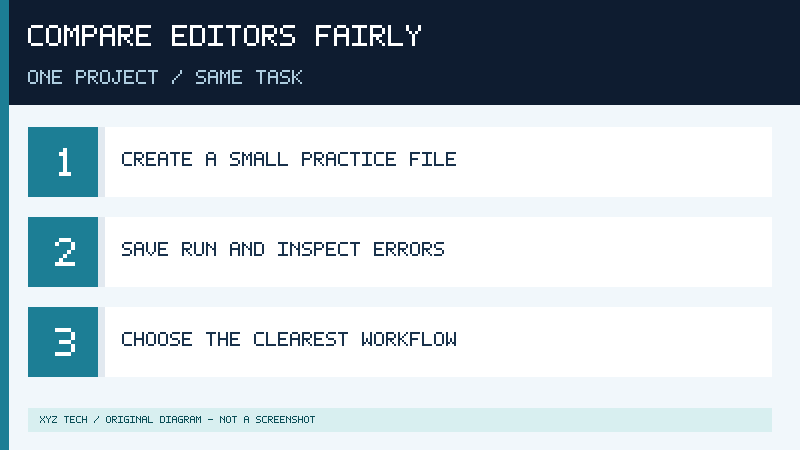
Rather than installing every possible alternative, shortlist two suitable applications and use an identical practical task to compare them. Obtain both from their legitimate publishers, verify that they fit your machine and follow any applicable organizational rules. You do not need to remove a working editor to try another one.
Create an ordinary practice folder and a plain text file named totals.py. If your existing file with that name contains important material, make a different test folder. Enter the following original example:
minutes = [15, 20, 10]
print("Sessions:", len(minutes))
print("Total:", sum(minutes))
The expected output is three sessions and forty-five total minutes. Save the file and execute it using the intended Python interpreter. In an integrated environment, a Run control may be available. In a separate terminal, you can normally invoke the saved file with python totals.py once you have verified that python selects the intended interpreter.
Now change the second value to 25, save and run the file again. The expected total becomes fifty minutes. A successful result confirms that you are working with the intended source and that the execution method uses the saved version. Notice whether the editor makes the filename, unsaved state and program output easy to identify.
For an additional learning check, deliberately introduce a harmless syntax error in a separate copy of the script. Examine how the execution error is displayed, then correct the copy. Do not make the comparison depend on an uncontrolled system benchmark. Instead, observe whether you can identify the relevant line, understand the message and continue the exercise.
If both applications meet the needs of the project, compare their setup effort and your comfort with their interfaces. Check whether it is easy to discover commands, read documentation and find your files again. If one application offers more features but makes your initial workflow difficult to understand, that is a meaningful reason to prefer the simpler alternative for now.
Finally, remove unnecessary test configurations only through supported application controls. Keep the original source files and any notes about your chosen interpreter. Your long-term objective is to develop transferable programming habits, not become dependent on one editor’s appearance. When you can create, run, inspect and maintain a small program reliably, you have a sound foundation from which to learn more advanced tools.
Keep The Development Environment Predictable And Secure
Every installed development application has an operating context that deserves attention. A code editor can read source files, and additional tools may execute programs on your behalf. Obtain software and extensions from trustworthy sources, review the actual publisher and use an ordinary user account for routine learning. There is no general need to run an editor with administrator permissions.
When opening an unfamiliar project, distinguish reading its files from executing its contents. Source code, dependency installation scripts and project configuration can have security consequences. A beginner should not automatically run commands found in an unreviewed repository. Our Git and GitHub guide explains principles for working with local and hosted repositories responsibly.
A basic development environment also does not require you to send private source code to an external service. If an optional cloud or assistance feature is available, inspect what information it handles and whether the intended project permits it. Keep real credentials outside example files and avoid copying personal data into online troubleshooting requests. The right application for a project is one whose use is compatible with your privacy, learning and organizational requirements.
As your software changes, preserve a simple record of the editor and interpreter you use. When a course switches languages, you can evaluate new requirements rather than discarding a functioning setup. A dependable workflow begins with understanding your tools and is more valuable than collecting every available extension or product.
Sources And Further Reading
- VS Code core editor features
- VS Code Workspace Trust
- Thonny official site
- Python IDLE documentation
- Notepad++ getting started manual
- JetBrains PyCharm distribution update
- PyCharm official product page
Frequently Asked Questions
Which Code Editor Is Best For A Complete Beginner?
That depends on your language and learning goal. Thonny or IDLE is a useful starting point for Python, while VS Code is a flexible choice for multiple languages.
Do I Need A Paid Code Editor To Learn Programming?
No, several suitable tools offer free functionality sufficient for introductory projects.
Can I Switch Editors Later?
Yes, ordinary source files can usually be opened in another compatible editor. Project configuration and runtimes may require separate attention.
Is An Editor The Same As A Compiler Or Interpreter?
No, the editor handles source text, while the relevant language tool processes or executes the program.
Should I Install Every Extension Recommended In A Tutorial?
No, install only relevant extensions from trusted publishers and understand why each is necessary.