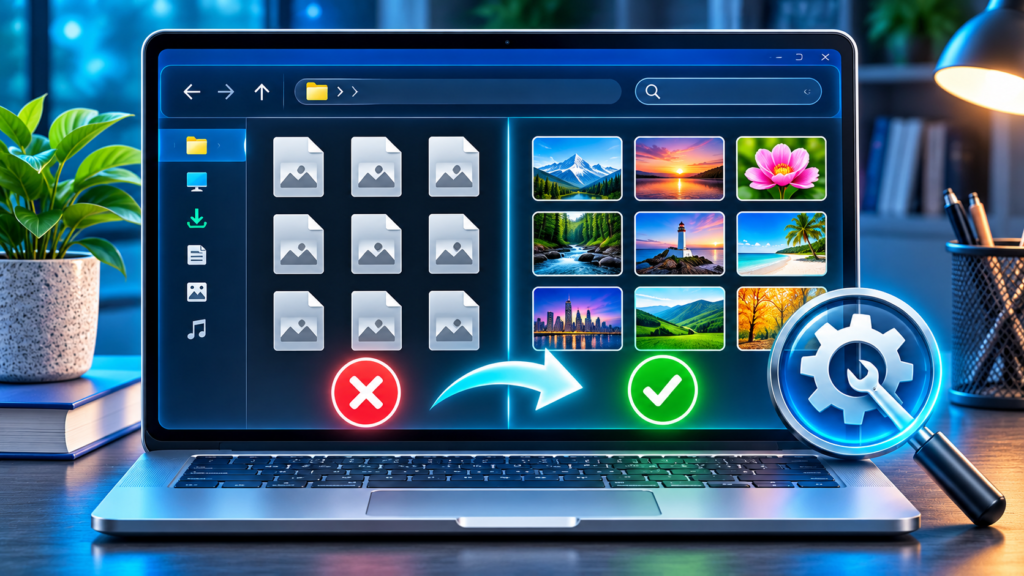

When File Explorer shows generic icons instead of photo thumbnails in Windows 11, switch to Large icons, open the three-dot menu > Options > View, and clear Always show icons, never thumbnails if enabled. Test a local JPG before investigating cloud files. If settings are correct, a controlled restart or Disk Cleanup of only the Thumbnails cache may help. Do not delete original pictures or disable Windows security protections.
Missing thumbnails can make a photo collection difficult to browse, but a blank tile does not automatically mean the image was lost. This guide uses the safest diagnostic order, distinguishes thumbnail tiles from the Preview Pane and explains how local images, OneDrive placeholders, supported file formats and cached previews behave differently. Instructions are based on official documentation, not a claim of testing your specific computer.
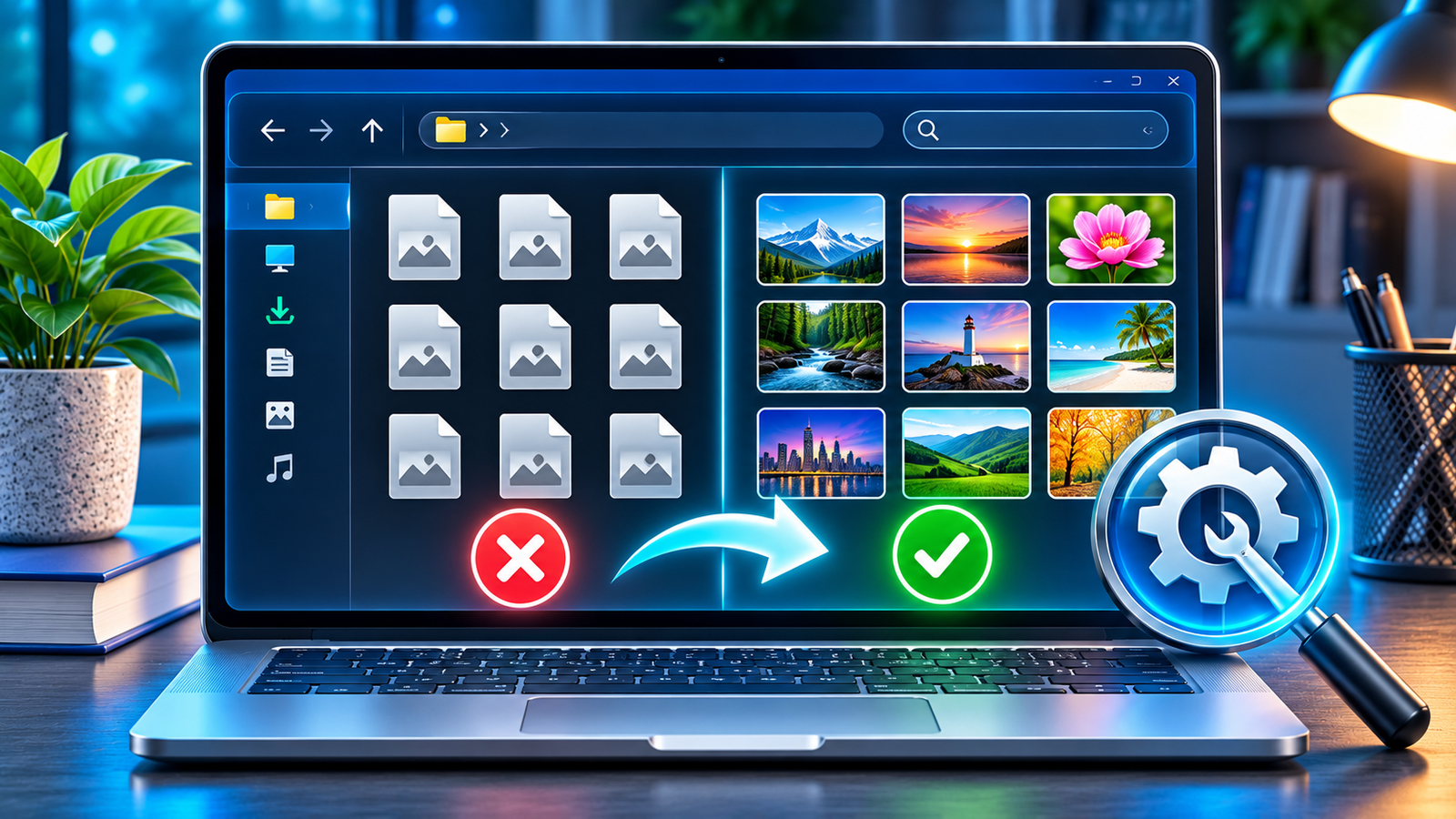
Recognize The Difference Between Thumbnails And The Preview Pane
Thumbnail images are small pictures drawn inside a folder’s file tiles. The Preview Pane is a separate area that displays a selected file’s contents. A JPG might show a miniature photograph in Extra large icons view even while the pane is closed. Conversely, the pane might work while the file tile remains a generic icon. Identify which view is broken before following a repair. Open a folder containing images you personally created or know are safe, and note whether the files themselves open normally.
XYZ Tech already has a dedicated Preview Pane troubleshooting guide. Use that article when selecting a file produces a blank or security-blocked reading pane. Here we focus on thumbnail generation within folder views. That separation matters because the security protection applied to some internet-downloaded preview content is not a reason to bypass Windows protections just to make folder icons look nicer.
Confirm That The Files Themselves Can Open
Double-click one known picture using a trusted local viewer and confirm its contents display. If the file cannot open at all, a missing thumbnail may be only a symptom of a damaged file, incomplete download, unavailable cloud placeholder or unsupported format. Do not use an icon problem as justification to overwrite the original. Keep a copy of irreplaceable photos somewhere independent before modifying storage or moving folders.
Try two different local files, ideally one recent JPG and one PNG. If both open correctly but no thumbnails appear, the rendering preference or cache is a better initial suspect. If the failures are limited to one downloaded image, investigate the file format and its source. For disk errors, first protect important files and then look at broader Windows storage symptoms rather than running aggressive cleanup commands.
Change File Explorer To A Thumbnail Friendly View
Press Windows + E to open File Explorer, choose a folder with photographs, and select View. Try Medium icons, Large icons or Extra large icons. Details and List views emphasize filenames and metadata, so they may not provide the picture-grid experience you expected. This comparison requires no administrator rights and changes no file contents. Keep a sample folder open to judge every later step consistently.
If you suddenly see pictures after switching to a larger icon view, the underlying thumbnail system was likely functioning. Return to your preferred view or keep the larger tiles for image-heavy folders. Do not rebuild caches simply because a Details view presents smaller icons. Windows can also remember different folder presentations, so test the same path after closing and reopening File Explorer before treating the behavior as systemwide.
Inspect The Always Show Icons Never Thumbnails Option
In File Explorer, open the three-dot menu, choose Options, and go to the View tab. Under Advanced settings, look for Always show icons, never thumbnails. If that option is selected, clear it and apply the change. The exact layout can vary by Windows build. Then revisit the local photo folder in Large icons view. This is one of the most reversible and specific settings for generic icons.
Do not change unrelated choices such as hidden protected operating system files while you are in Folder Options. Those settings address different needs and can make routine browsing more confusing or risky. If the thumbnail option was already clear, leave it alone and continue with the controlled tests below. An option being correctly configured is useful evidence even when it does not immediately solve the problem.
Determine Whether Every Image Format Is Affected
Check at least one JPG, PNG and, if available, a video or PDF file. Windows may support native thumbnail generation for common image formats while other formats depend on additional compatible components. A missing preview for one unusual extension is not the same as thumbnails failing for every photograph. A PDF might have a normal icon rather than a page thumbnail depending on the installed handlers and configuration.
Microsoft’s thumbnail-handler documentation explains that file-specific providers can supply previews to the shell. For ordinary users, this means the installed application or supported extension matters. Avoid changing registry handler associations manually. Instead, check the file type and the trusted app that should handle it, while keeping the working image tests as your baseline.
Compare Local Files With OneDrive Folders
Open a local folder that does not sit inside a cloud-sync directory and compare it with a OneDrive folder containing similar photo types. A thumbnail that works locally but is blank only in the cloud-managed path suggests a file-availability or cloud integration issue rather than a global File Explorer setting. Keep the files in their original location while investigating. Copy only a non-sensitive test item when a comparison is needed.
Microsoft notes that some thumbnail providers may behave differently on paths managed by cloud storage, because thumbnails may be supplied through the provider. See PowerToys File Explorer add-ons guidance for that distinction. Do not switch off cloud synchronization, delete OneDrive folders or alter account links as a thumbnail experiment. Confirm sync health and whether the files are available locally first.
Read OneDrive Cloud And Check Status Icons
A blue cloud beside a file indicates that it is online-only; a green check status indicates some level of local availability. Microsoft’s official OneDrive icon guide explains the meanings and how they relate to Files On-Demand. When the file contents are not on the computer, thumbnail behavior can differ from a fully local test file.
Check that OneDrive is signed in and synchronized before investigating advanced Explorer repairs. If you need offline access to an authorized file, use the approved Always keep on this device option, subject to available storage and organization policy. Avoid mass-downloading an entire cloud archive solely to generate pictures. A successful local thumbnail does not prove every cloud-side preview will appear under all network conditions.
Test A Small File That Is Definitely Local
Create or save one harmless sample picture into a normal local folder, such as a new temporary test directory inside Pictures. Open it in an image editor or viewer, then close that program and return to File Explorer. Switch to Large icons and inspect the thumbnail. Do not use private personal photos as shareable support samples. A locally created picture provides a reliable baseline without cloud permissions or third-party codecs.
If the new file produces a thumbnail while an older one does not, compare their extensions, sizes and locations. A single corrupted image or unusual format may account for the difference. If the new sample also shows only a generic icon, check folder options and cached thumbnails. Avoid modifying file extensions by renaming the ending, because that does not convert the internal file format.
Restart File Explorer Before More Invasive Repairs
If settings look correct, save open work and restart File Explorer in a supported way. You can close and reopen its windows, or use Task Manager to restart Windows Explorer if you are comfortable identifying the correct process. The desktop and taskbar may briefly refresh. That is normal for an Explorer restart, but any unsaved file operation deserves caution.
Repeat the same sample-file thumbnail test afterward. A temporary rendering problem may clear without altering the cache or installed applications. If it does not, do not repeatedly terminate Windows processes. Record whether the issue affects all folders or only certain locations, since that helps determine whether the next step should concern the thumbnail cache, file type or cloud status.
Understand What The Thumbnail Cache Stores
Windows may maintain cached miniature images so File Explorer does not have to regenerate every preview each time a folder opens. When that cache contains stale or inconsistent entries, some pictures can appear blank or outdated even when the underlying image is fine. The cache is separate from the original photograph, so rebuilding it can be a reasonable later step after the easy settings checks.
However, the cache is not an independent backup of your photos. It can be rebuilt only when Windows and any relevant provider can access the source content. If the original file is missing, a cache cleanup will not restore it. Avoid unknown cleaner applications that promise to fix thumbnails by deleting broad categories of files. Targeted cleanup is easier to understand and audit.
Use Disk Cleanup Only For The Thumbnails Category
Search Start for Disk Cleanup, select the relevant drive and allow Windows to list the categories. Inspect the choices rather than accepting every default. If you are addressing stale previews, select Thumbnails and clear unrelated categories that you do not intend to remove. Then proceed with the normal Disk Cleanup confirmation and reopen your test folder. Windows may need time to recreate previews.
Microsoft’s drive-space guide describes Disk Cleanup and specifically lists Thumbnails among cleanup categories. Never casually select Downloads, previous Windows installations or other potentially important data just because they appear beside Thumbnails. When the files belong to work or school, follow applicable retention policies. Cache regeneration may be gradual, especially in a large photo folder.
Do Not Delete Explorer Cache Databases Manually First
Some forum guides offer terminal commands that forcibly delete Explorer database files. Even when a procedure can be appropriate in advanced support scenarios, it is not the best starting point for an ordinary thumbnail issue. A supported interface such as Disk Cleanup offers more visible control over what gets deleted and requires less guesswork about paths, permissions and running processes.
If the official cleanup path does not work, note the Windows build, affected file types and whether the failure occurs in local folders. A technician can then decide whether deeper diagnostic steps are justified. Avoid copying commands whose meaning you cannot explain. Do not turn off Windows security, change file permissions across a drive or download registry scripts merely to refresh image tiles.
Check File Type Associations Without Resetting Everything
Select a file and review Properties to verify its actual type. Open it with a trusted application that supports the format. The application that opens a file and the thumbnail provider can be related, but they are not always identical. An incorrect association or missing format component may help explain why only particular extensions lack previews.
Use Settings > Apps > Default apps if you need to review which application opens an extension. Change only the relevant association and retest. A global default-app reset can disrupt PDFs, media players and other file behavior unnecessarily. Microsoft documents file-type handlers separately from ordinary file-opening commands. A thumbnail is a convenience view, not proof that a program can read every format.
Treat Video Thumbnails As A Separate Case
Videos depend on supported containers, codecs and the available thumbnail handler. A folder can show JPG thumbnails correctly while MP4 or another video extension remains a generic icon. Test a short, ordinary video you know plays correctly, and compare it with the problematic file. Do not install random codec packs because they claim to preview every video ever made.
If the video opens but its thumbnail does not appear, note the file type, where it is stored and the applications installed to handle it. Supported Windows media extensions and manufacturer tools are preferable to unsigned shell extensions. The XYZ Tech codec explainer can clarify why the media file’s extension does not tell the entire story. Preserve the original video before attempting conversion.
Distinguish PDF Thumbnails From PDF Preview Pane Support
PDF icons, PDF thumbnails and PDF Preview Pane rendering are related but different features. A file may open in a PDF reader while a page thumbnail does not appear in its folder tile. The presence of a preview handler depends on the software and current security behavior. Test the PDF in its trusted reader before assuming the file itself is broken.
Microsoft PowerToys offers optional thumbnail support for several formats, including PDF, but installing or enabling an extension should be a deliberate choice. Its official documentation notes that enabling preview handlers can override other installed handlers. Do not recommend overriding handlers as a universal fix, especially on business devices. For a PDF that will not open at all, use the PDF opening troubleshooting guide instead.
Understand The Role Of Microsoft PowerToys Add Ons
PowerToys is an optional Microsoft utility collection with File Explorer add-ons for specific formats. It can extend thumbnail support for some files that do not have useful previews through the current configuration. It is not needed for ordinary JPG or PNG thumbnails when Windows already supports those files. Check the official documentation for the exact formats and any limitations before installation.
If you choose to use an extension, install the official utility from Microsoft’s supported channels and enable only the features you need. Some handlers may conflict with existing applications, and company policies may prohibit modifications. An optional extension should be evaluated after basic file-view, folder-option and cache checks. Do not equate a third-party all-in-one preview program with a verified Windows repair.
Verify That The Drive Has Free Working Space
Extremely low available storage can cause a variety of Windows performance and maintenance problems. Open File Explorer > This PC and check how much space remains on the drive containing the user profile and cache. If the drive is nearly full, use Windows storage recommendations and remove only files whose purpose you understand. Never erase valuable downloads or personal pictures solely to reclaim thumbnail space.
See the Windows 11 Disk Cleanup guide for a safe approach to cleaning temporary data. Free space is one factor to evaluate, not a definitive cause of missing thumbnails. If there is ample space, proceed to specific rendering and file-type tests rather than optimizing the entire computer without evidence.
Check Whether Windows Updates Are Pending
Open Settings > Windows Update and inspect pending updates or a restart that is required to finish a supported update. File Explorer components and media support can change with Windows revisions. If a documented update addresses the problem, apply it through normal Windows Update or the official device vendor rather than a third-party repair package.
Do not remove security patches or disable update mechanisms because an online comment says thumbnails started failing after a particular update. Timing is a clue, not proof of the cause. Record the Windows version and build and use the update history when filing a support report. The Windows Update settings guide can help if you cannot even access the update interface.
Keep Thumbnail Problems Separate From Overall Explorer Slowness
A folder containing thousands of photos may take longer to populate thumbnail previews than a small local folder. If thumbnails eventually appear after some delay, the issue is not identical to a complete failure. Compare a directory with ten ordinary pictures against a very large folder, and note whether network storage or external drives are involved.
If File Explorer itself freezes, loads directories slowly or stops responding, use the separate File Explorer performance guide. Do not repeatedly clear caches when slow access to remote files or a busy disk is the primary issue. A meaningful troubleshooting report distinguishes images that never appear from images that appear only after a wait.
Check Permissions And Managed Device Policies
A work or school computer may restrict installed preview handlers, optional utilities and some system settings. If previews are missing only in a protected organization folder, do not change file ownership, permissions or antivirus rules to make icons appear. Verify that you are authorized to access the files and that they open normally in the approved app.
Ask the administrator whether the device intentionally blocks thumbnail generation for certain document types or locations. Such a restriction should not be bypassed without authorization. Provide the file extension, a non-sensitive sample if permitted, and the difference between local and managed locations. This evidence is much more useful than a blanket request to disable security controls.
Use A Symptom Based Troubleshooting Table
Compare what you see before choosing a fix. Generic icons for all ordinary photos point toward view settings or caching. Missing previews only for OneDrive files point toward cloud status or provider behavior. Missing video thumbnails alone suggests format-specific handling. A blank Preview Pane is a different interface feature. The table below pairs these symptoms with conservative checks.
The table is a diagnostic aid, not a guaranteed one-to-one diagnosis. A device can have several contributing factors. Repeat the same test after each change, and avoid changing more than one variable at a time. This makes it possible to know which action actually restored the image thumbnails.
Run A Five Step Verification After Any Fix
First, open a known local JPG in a large icon view. Second, confirm a PNG behaves the same way. Third, reopen File Explorer to see whether the previews persist. Fourth, compare an affected folder in OneDrive or another storage location if relevant. Fifth, verify that the actual files still open and have not been moved, renamed or altered during troubleshooting.
If all five checks pass, stop rather than making unnecessary driver or registry changes. If only some checks pass, document the exact file types and paths that still fail. A persistent difference confined to one file type or provider deserves targeted support. A single successful thumbnail in a screenshot is insufficient to claim that every problem is solved.
Prepare Useful Evidence For Microsoft Or Your Device Maker
When routine settings and cache checks do not restore thumbnails, record the Windows edition and build, whether files are local or cloud-only, the extensions affected, and whether a sample JPG opens correctly. Note whether thumbnails appear in Large icons view and whether the File Explorer Options setting is enabled. Include an anonymized screenshot if company policy permits.
Contact Microsoft support, the storage provider or the device manufacturer according to where the symptom occurs. A file whose contents cannot be read should be diagnosed as an access or file problem, not only an Explorer icon problem. The objective is to restore predictable browsing without risking original data or weakening system protections.
Thumbnail Diagnostic Table
| Symptom | First Safe Test | Likely Area To Review |
|---|---|---|
| All Pictures Show Generic Icons | Large icons and Folder Options | View Preferences Or Cache |
| Local Images Work But OneDrive Does Not | Compare Cloud Status Icons | File Availability And Sync |
| Only Videos Are Missing Thumbnails | Test A Known Supported Video | Format Or Provider |
| Only The Preview Pane Is Blank | Check The Separate Preview Pane Guide | Preview Handler Or File Security |
| One JPG Cannot Be Opened | Try Another Known Good Picture | Actual File Or Access Problem |
| Thumbnails Appear After A Delay | Compare Small And Large Folders | Disk Or Cloud Responsiveness |
Five Step Thumbnail Checklist
- Confirm one known local JPG and PNG can be opened normally.
- Select a thumbnail-friendly File Explorer View and inspect Options > View.
- Compare a small local folder with any cloud-managed folder that is affected.
- If necessary, clean only the Thumbnails cache using Windows Disk Cleanup, then allow previews to regenerate.
- Verify the files remain intact and the thumbnails persist after reopening Explorer.
Make one change at a time. If the test passes after the first setting adjustment, stop before trying more disruptive actions.
Frequently Asked Questions
Why Does File Explorer Show Icons Instead Of Picture Thumbnails?
First switch to Large icons and check File Explorer Options for the setting Always show icons, never thumbnails. A stale thumbnail cache, unsupported file type or unavailable cloud file can also explain the symptom. Test a known local JPG before assuming Windows is damaged.
How Do I Turn Thumbnail Previews On In Windows 11?
Open File Explorer, select the three-dot Options menu, choose View and clear Always show icons, never thumbnails if it is selected. Then set the folder View to Large icons or another picture-friendly layout. The menu may vary slightly by Windows build.
Will Clearing The Thumbnail Cache Delete My Photos?
Disk Cleanup’s Thumbnails category is intended to remove cached preview images, not the original photographs. Even so, review the selected categories carefully and preserve important files independently before cleanup. Do not select unrelated items just because Windows lists them together.
Why Do Thumbnails Work Locally But Not In OneDrive?
OneDrive Files On-Demand allows online-only placeholders, and Microsoft notes that cloud-managed paths may supply thumbnails differently. Check sync status, connectivity and whether the file is available on the device. Do not delete or unlink the folder solely to fix preview icons.
Is The Preview Pane The Same As A Thumbnail?
No, a thumbnail is the small file image shown in the folder grid. The Preview Pane is a separate reading area for a selected file. They use related components but can fail independently, so diagnose the correct feature before making changes.
Why Are My Videos Missing Thumbnails But Photos Are Fine?
Video preview support depends on the format, codec and installed thumbnail provider. Test a video that plays correctly and compare formats. Avoid unsigned codec packs or unknown shell extensions as a quick fix.
Does PowerToys Fix All Missing Thumbnails?
No, PowerToys offers extra thumbnail support for certain file formats but cannot guarantee previews for every file or cloud location. It can also override other handlers. Check its official documentation and use it only when the format-specific feature is appropriate.
Should I Delete Thumbnail Database Files With Command Prompt?
Use supported File Explorer settings and the Thumbnails option in Disk Cleanup before considering low-level commands. Manual deletion scripts are unnecessary for many cases and are easy to misuse. A persistent issue can be evaluated by qualified support.
What If A Picture Does Not Open At All?
Then the problem may involve file corruption, incomplete download, storage access or unsupported content rather than thumbnail rendering. Preserve the original and compare another known-good image. Do not overwrite the file in an attempt to generate a small icon.
Can Windows Security Block Certain Previews?
Some preview behavior may be restricted for safety, especially in the separate Preview Pane feature. A thumbnail issue is not a reason to bypass file reputation or download protections. Use a trusted viewer and follow official Windows guidance rather than disabling security controls.
Official References
These manufacturer documentation pages support the safe settings, thumbnail handling and cloud-file distinctions described here. Windows controls can change between builds.
- Microsoft: Free Up Drive Space In Windows
- Microsoft: What Do The OneDrive Icons Mean
- Microsoft Learn: PowerToys File Explorer Add Ons
- Microsoft Learn: Thumbnail Handlers
- Microsoft Learn: File Type Handlers
- Microsoft: Save Disk Space With OneDrive Files On Demand
For broader file management problems, see File Explorer Slow and Windows 11 Disk Cleanup. Preserve important data before any repair that affects storage.