

Identify Why The PDF Will Not Open
A PDF that refuses to open does not immediately indicate that your computer needs new software. The document may not have downloaded completely, the browser may have trouble displaying its contents, the wrong application may be associated with the file, or the file may require authorization or a password. In some cases, the document itself is damaged. The objective is to distinguish these situations before replacing software or changing security settings.
Begin by noting the exact behavior. Does a browser tab remain blank when you select the document’s link? Does Windows ask which application should open the file? Does a reader launch but show an error about the document’s format or contents? Does the reader itself close without displaying a document? These observations identify different stages in the process of locating, reading and rendering a PDF. An application that crashes when opening any document deserves a different investigation from an otherwise healthy reader that rejects one particular file.
Test another PDF from a known reputable source, preferably a small document you have previously opened successfully. Use a nonconfidential file so that you can repeat the test without exposing personal information. If the second PDF opens in the same application, the original file or its delivery method becomes a stronger suspect. If several unrelated documents fail, investigate the reader, browser or operating system environment instead.
Keep the original file unchanged. Make a separate copy if you need to conduct experiments, and avoid repeatedly saving over the same document. If the file belongs to a workplace or contains information that another person controls, follow the applicable handling rules. Do not submit it to an unfamiliar online repair service merely because that service promises to open damaged PDFs.
Record the application, operating system, error wording and whether the file is local or still located on a website. If you later contact support, this short description can help isolate the cause without disclosing the document itself. A reliable diagnosis should restore access to an authorized, intact document while preserving your operating system and its existing security safeguards.
Step 1: Confirm That The PDF Download Is Complete
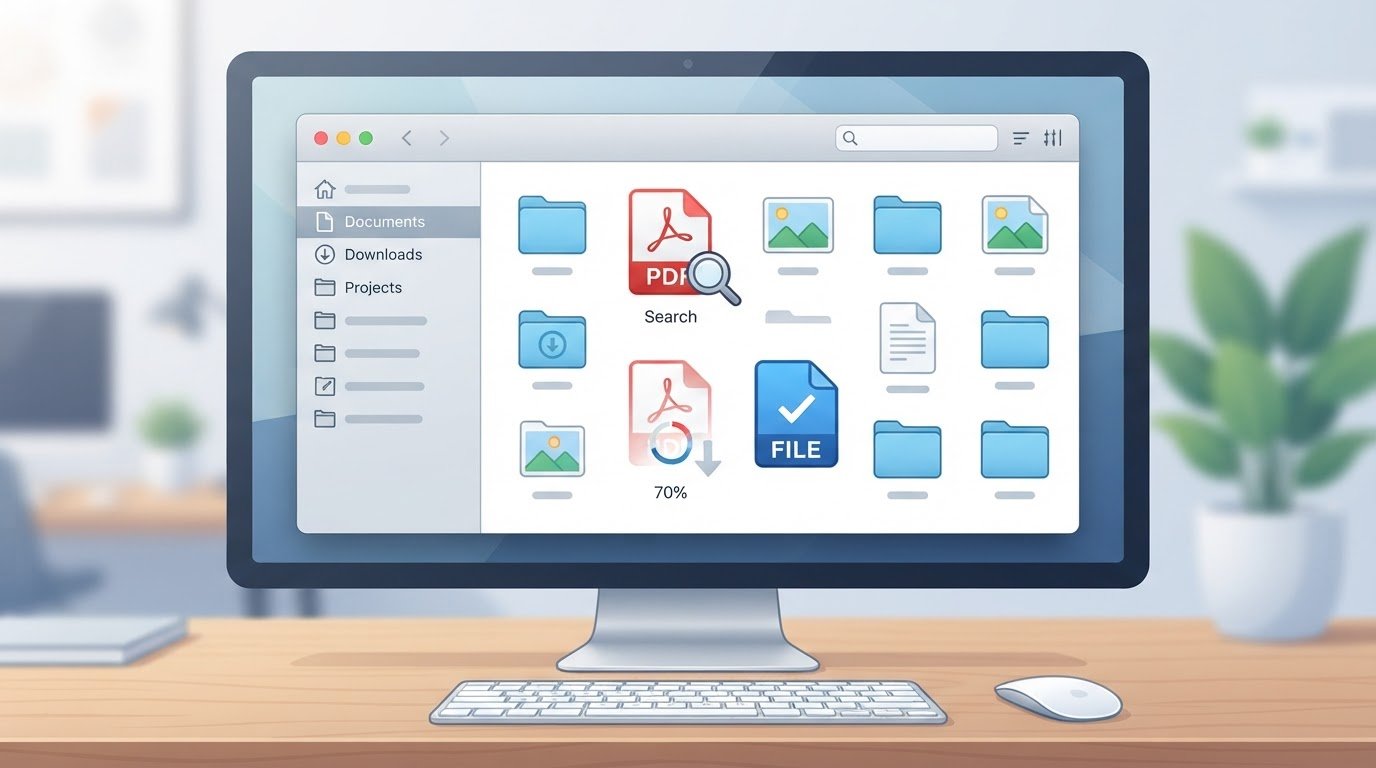
When a document is accessed through a website or email service, the visible PDF link is only the beginning of the process. The browser must receive the expected data and, if you save the file, write it to an accessible destination. A transfer interrupted by a connection problem may leave a file with incomplete contents. A filename ending in .pdf is not evidence that the full document has arrived.
Open the browser’s downloads panel or history. On many Windows desktop browsers, Ctrl and J opens this interface. Look for the entry corresponding to the document and check its reported status. If the browser reports that the transfer was interrupted, follow its ordinary resume or retry options where appropriate. Our browser download troubleshooting guide covers network failures, expired links, storage errors and security blocks in more detail.
Once the transfer is complete, use File Explorer to locate the saved PDF. Open Properties and inspect the file’s size. A zero-byte file cannot contain a complete ordinary PDF document, and an unusually small file compared with the size documented by its publisher may justify obtaining a fresh copy. File size alone cannot establish integrity: a simple document can be small, and a corrupted file can retain its original size.
Make sure the file is available locally. If the document appears in a cloud-synchronized folder but is only a placeholder, the application may need to retrieve its contents first. Use the storage provider’s supported option for making the file available on the device, provided you are authorized to keep a local copy. Avoid copying sensitive business or personal documents into an unapproved folder just to perform a test.
A webpage may sometimes deliver an error page or a sign-in form instead of the expected PDF. Saving that response under a PDF extension does not transform it into a valid document. Return to the legitimate service, verify your account and request the file again through the available download control. Do not change a filename extension as a supposed repair.
If the sender supplied an expected file size or cryptographic checksum through a trusted channel, compare it with your local copy. Otherwise, ask for a fresh export when the contents consistently appear incomplete. Compare the result with the original without deleting the only copy you have. For a large document, wait until transfer completion before attempting to open it; a progress notification still indicating activity is a reason to wait, not to assume the reader is malfunctioning.
Step 2: Open The PDF With A Different Supported Reader
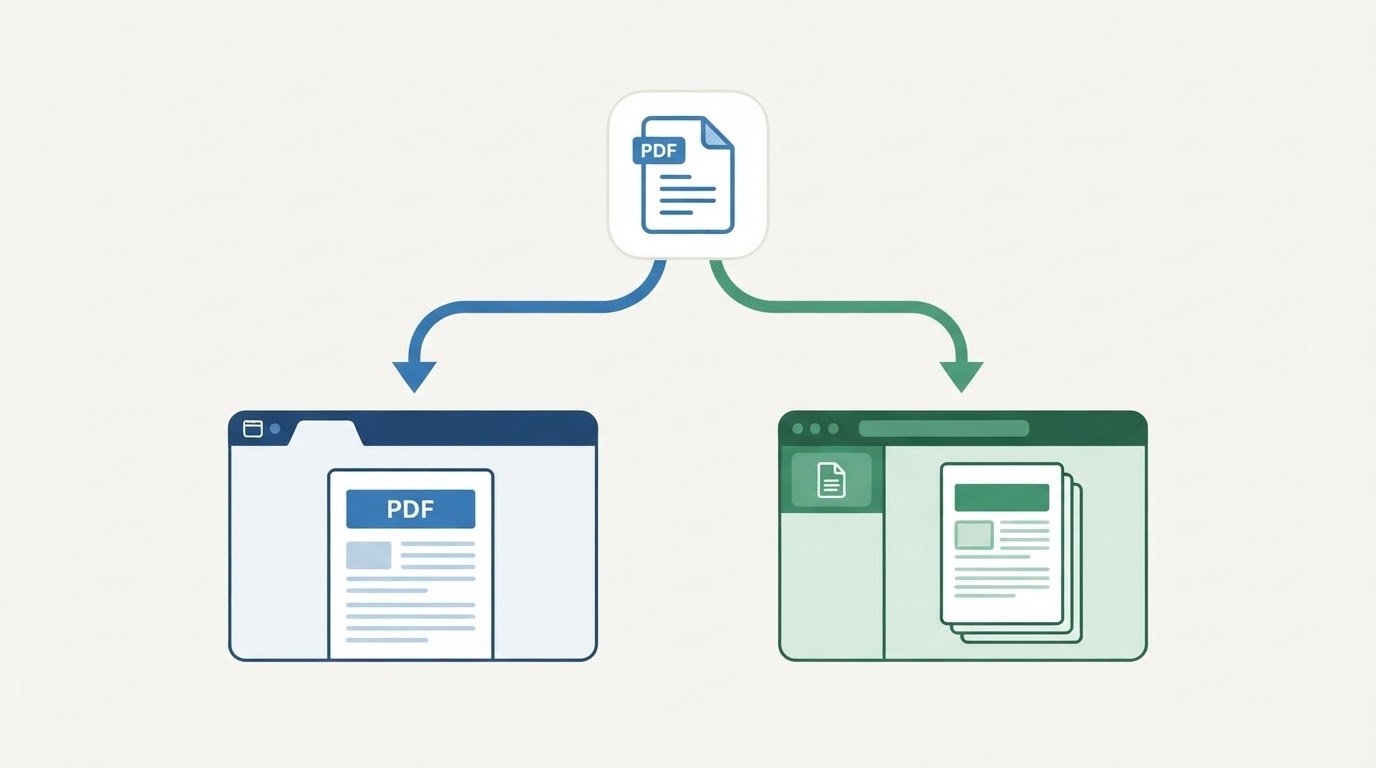
Most modern desktop browsers include a PDF viewer, and dedicated desktop applications provide additional document features. A file that displays poorly in one viewer may work in another because their rendering engines and supported features differ. Adobe’s PDF opening troubleshooting guidance describes saving a document from the browser and opening it in Acrobat or Acrobat Reader when the browser viewer cannot display it correctly.
If a trusted public PDF opens in a browser tab but remains blank, use the browser’s download or save control if the site permits downloads. Store the file in a suitable local folder. Do not confuse a webpage’s ordinary Save command with the PDF viewer’s control; the former can produce an HTML page rather than the document. Check the resulting file format before continuing.
In Windows File Explorer, right-click the local document and select Open with. Choose a known, maintained PDF-capable application already installed on your computer. You might compare the built-in PDF viewer in Microsoft Edge with a dedicated reader such as Adobe Acrobat Reader. For Firefox, Mozilla’s PDF viewer guidance describes how to choose between its built-in viewer and another installed application.
A successful alternate viewer does not prove that the first viewer is broken. The document might use a type of interactive form, embedded resource or other feature that the original application does not fully support. If you need to complete a form or validate a specialized document, use the viewer recommended by its issuer. Confirm that the fields, text, pages and relevant controls display correctly rather than assuming that the presence of one visible page establishes complete compatibility.
When you require a dedicated reader that is not already installed, obtain it directly from its legitimate publisher or another approved distribution channel. Consult our safe Windows 11 software installation guide for checking publisher identity, installer integrity and permission requests. Avoid download pages that advertise a universal PDF repair utility alongside misleading buttons.
For a confidential file, an installed reader can be preferable to sending the document to a third-party website. Uploading a PDF to an online service is a separate disclosure of its contents, regardless of whether the service successfully opens it. Use an approved local application unless you have authority and a genuine reason to transfer the document elsewhere.
Step 3: Set The Correct Default PDF Application In Windows 11
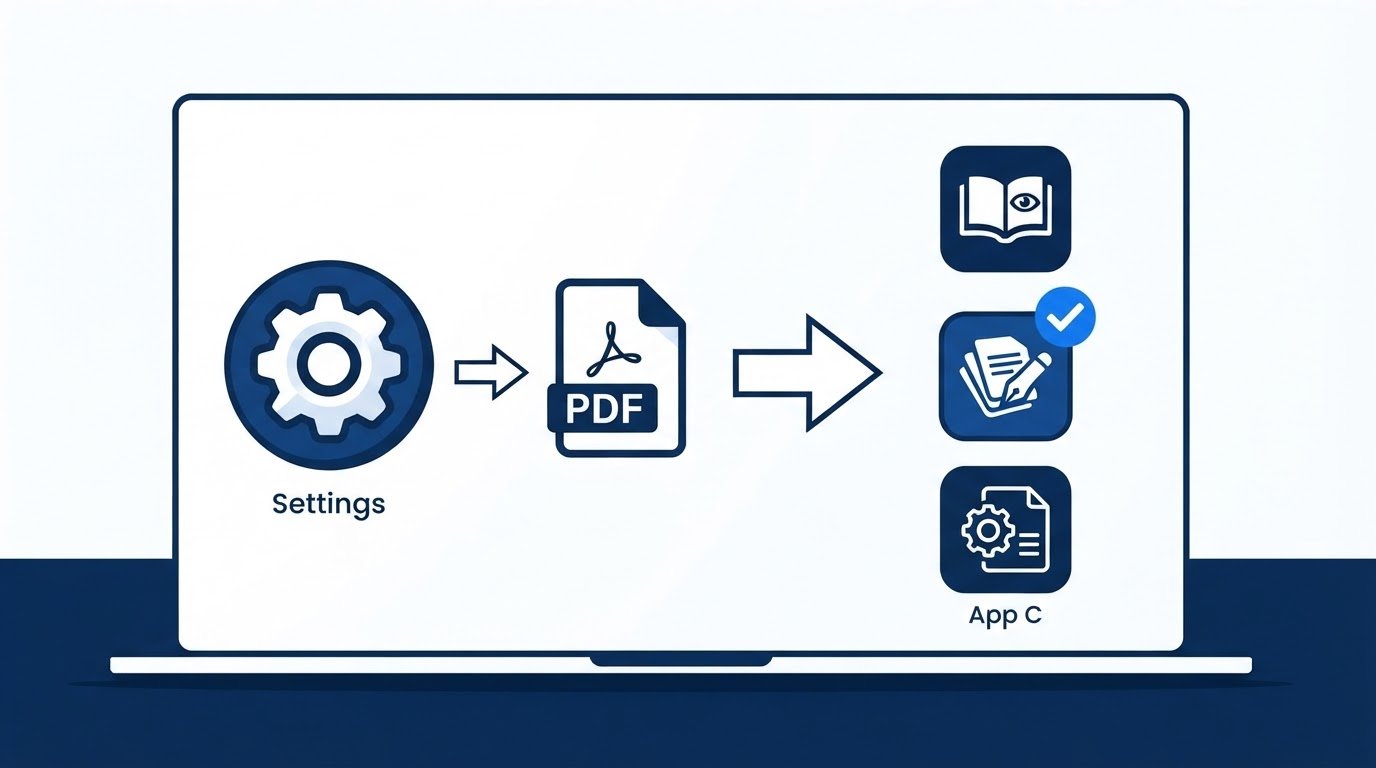
When a PDF opens correctly through a reader’s File menu but fails after you double-click it in File Explorer, Windows may be using an unsuitable default application. File associations tell the operating system which program should handle a particular file type. They do not alter the content of documents or make a damaged PDF valid.
First, identify the application you actually want to use. Open that application directly from Start and test a known good PDF using its supported Open control. If the document displays properly, that gives you useful evidence that the application itself can perform the intended task. If it fails even when you open the reader directly, changing the file association is unlikely to repair its underlying problem.
On Windows 11, open Settings, select Apps, then Default apps. Search for the .pdf file extension. Select the matching file type and review the applications Windows offers for it. Choose the maintained PDF reader you intend to use and confirm the selection if requested. Microsoft’s official default app instructions explain both file-type-based and application-based configuration.
Return to File Explorer and double-click the same known-good document. The chosen reader should handle it if the association was set successfully. Close the application and repeat the operation with another ordinary PDF. A consistent result confirms that at least the basic association is working. If you only need a different application for one document, use Open with without changing the default for every PDF.
On a managed work or school computer, application associations may be configured centrally. If the setting is unavailable or repeatedly returns to an organization-defined value, consult the administrator. Do not edit registry entries or use scripts to override policies you are not authorized to change. An administrator may be able to assign the appropriate approved viewer for a particular document workflow.
Remember that changing the default application affects future launches, not security classification or access permissions. A password-protected file still requires legitimate authorization, and a file damaged during transmission remains damaged. If only a single file continues to fail after other PDFs open normally, preserve the working association and investigate the original document rather than repeating the same Windows configuration change.
Step 4: Troubleshoot A Blank Or Unresponsive Browser PDF Viewer
A browser PDF viewer operates inside a larger application that also manages network requests, extensions, rendering and user sessions. A problem limited to the browser viewer may therefore have several explanations. If an ordinary locally saved PDF opens correctly in a dedicated reader, compare the behavior of the browser before changing system-wide settings.
Start with a known public PDF from a reputable organization and open it in the browser. If the document appears after a short delay, the previous blank tab may have been related to loading time. Large documents and image-heavy pages can demand more memory and processing than simple text documents. Wait for a reasonable period and check whether the browser interface remains responsive.
Close unnecessary tabs and applications after saving important work. Restart the browser normally and repeat the same test. If Chrome closes unexpectedly or several unrelated tabs fail, follow our Chrome troubleshooting guide. For a browser that does not start at all, our Microsoft Edge startup troubleshooting guide explains why application recovery should precede PDF-specific settings changes.
Review optional extensions that might interfere with document presentation or website requests. Temporarily disable a nonessential suspect if you are authorized to do so, then test the same trusted PDF. Reenable important extensions and repeat the comparison if necessary. Private browsing or a minimal browser profile can also provide useful evidence, but differences in sign-in state and permissions can affect access to private files. Keep required security extensions and organizational policies in place.
Some browsers let you choose whether PDFs display inside the browser or download for opening in another application. The names and locations of those settings vary across software releases. Use your browser’s settings search for PDF or file handling, and consult its current official instructions. Changing this preference can be convenient when a dedicated reader handles your documents more reliably. It does not repair the data of an invalid file.
If the problem occurs only with one website, compare an authorized download from that website with another public PDF. The server may supply an unexpected content type, an expired access link or a response that is not actually a document. Report the issue to the website owner when appropriate. Reinstalling a working browser will not necessarily correct a server-side response.
Step 5: Update Or Repair The Desktop PDF Reader
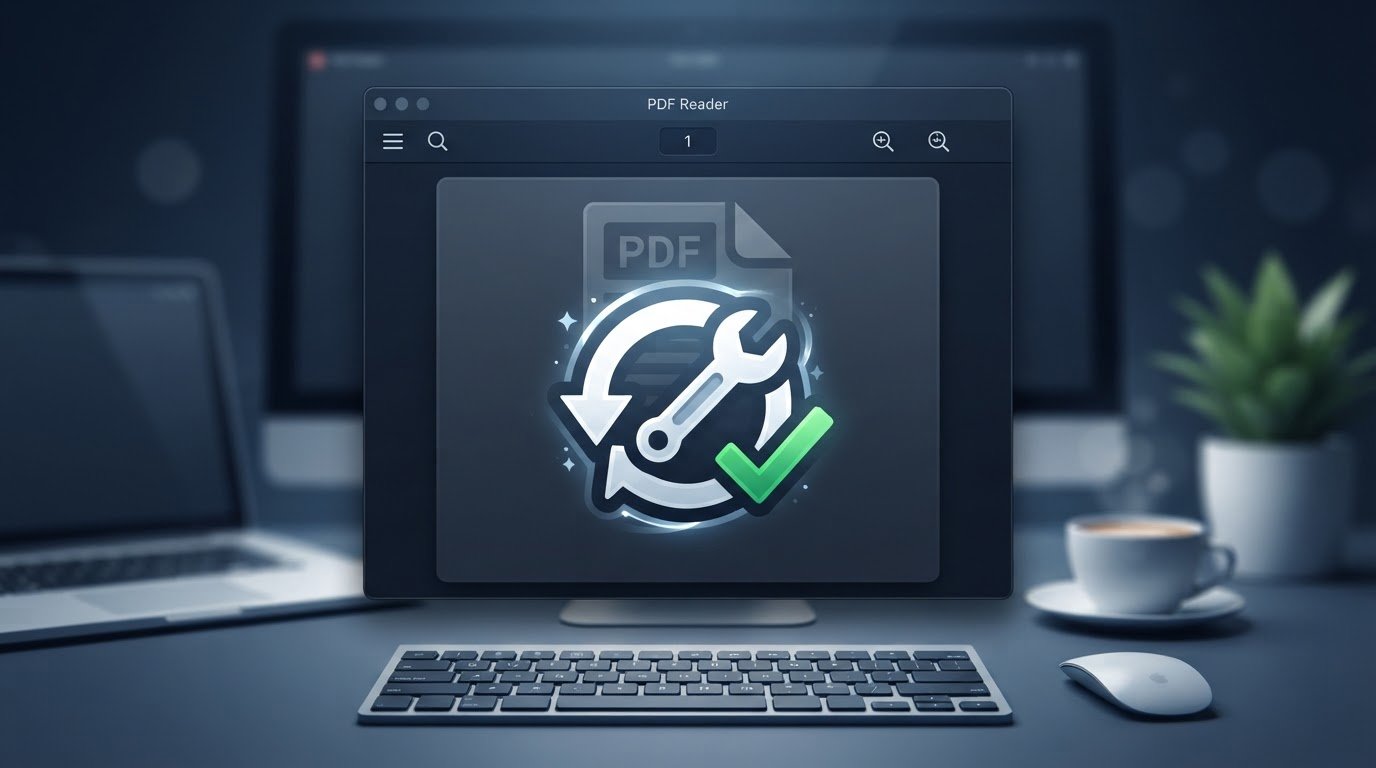
A reader may fail because of an application error, incompatible component or an incomplete update. If the reader cannot open multiple valid PDF files, investigate its own installation. Start by launching the application directly rather than double-clicking a file. Determine whether it remains open without a document loaded. An application that cannot even start requires a different investigation from one that only rejects a particular PDF.
Save open work and close unnecessary applications. Restart Windows normally, then launch the reader again. Check the available application updates through the reader’s supported Help or update menu. Adobe documents how to update Acrobat and Acrobat Reader through their built-in update controls. A current supported version is important not only for reliability but also for security, because PDFs can contain complex content that requires careful parsing.
If Acrobat or Acrobat Reader on Windows is installed and the menu is accessible, Adobe identifies Help followed by Repair Installation as a supported recovery route. Menu arrangement may vary with available editions or interface updates. Follow the application’s instructions and allow the repair to finish before testing a known PDF again. Repairing the program should not be confused with repairing an individual corrupted document.
If the reader does not start, review its installed application entry in Windows Settings and check whether the publisher or Windows exposes a supported repair or maintenance option. Not every reader offers this capability. If an installation is visibly damaged, use the publisher’s documented recovery process rather than manually deleting executable files. Our guide to removing a stuck Windows program covers safe maintenance and uninstallation where an ordinary removal mechanism fails.
A clean reinstall should come after simpler supported checks, not before them. Preserve personal documents, application settings you need, account access and license details where applicable. Obtain the installer through the real publisher and follow its installation guidance. Verify the new installation with an ordinary PDF before attempting the problematic file. Avoid using modified installers that claim to remove restrictions or unlock paid capabilities.
If multiple desktop applications also fail to launch, consider wider Windows problems. Our Windows performance troubleshooting guide explains how to assess resource and system symptoms. Do not assume a new reader will resolve a failing storage device or an operating system issue affecting every program.
Step 6: Understand Passwords, Permissions And Security Warnings
Some documents are encrypted or restricted by their creators. An open-password prompt is not necessarily an error. It can be part of a deliberate protection mechanism that limits who can view the contents. Obtain the correct password from the authorized sender or document owner using an appropriate communication channel. Do not assume a password used for printing or making changes is the same as the password needed to open the document.
Other documents may open successfully but restrict copying, printing, editing or filling particular fields. These restrictions are not equivalent to a corrupted PDF. If a document issuer requires a particular workflow, follow its instructions. Request a suitable authorized version when you need an accessible copy or legitimate editing rights. Do not use an unfamiliar online unlocking service to circumvent the controls on private or protected material.
A security warning should also be investigated before attempting to force the file open. PDF readers can use protected environments, content checks and other safeguards to reduce risk from untrusted documents. An unexpected attachment may contain links, scripts or content designed to trigger unsafe behavior. A reader’s refusal to process a particular file is not evidence that disabling protections is a reasonable fix.
Verify the file with the actual provider. If it arrived by email unexpectedly, contact the claimed sender through a known channel rather than relying on a reply address displayed in the message. Our explanation of phishing and misleading attachments provides context for this distinction. A file that appears to come from a familiar organization can still be part of an unauthorized message.
Keep the reader and authorized security software updated. If a security product reports a detection, inspect its own protection history and follow trusted assistance rather than restoring quarantined material or adding broad exclusions. Our antivirus guide explains the limitations of file scanning and why a clean result is not a guarantee of harmlessness. If the document seems suspicious, do not repeatedly open it in different applications hoping one ignores the warning.
If an approved business document continues to encounter a protection-related problem, consult the document issuer, reader vendor or organization administrator to find a supported resolution. The goal is to obtain the authorized information without weakening the protection of unrelated files you will encounter later.
Step 7: Recover An Incomplete Or Damaged Document Safely
Once several maintained readers reject one particular PDF while opening other documents correctly, the document itself becomes a stronger suspect. A failed upload, interrupted transfer, faulty export or storage error can produce an invalid copy. You may not be able to reconstruct the missing or corrupted information from that copy alone.
Keep the problematic document and any known original source. If the PDF came from a word processor, presentation application or design program, ask the document creator to export a fresh PDF from the original editable file. An export generated from intact source material is more trustworthy than an attempt to guess the missing contents of a damaged PDF.
If the PDF was downloaded from a public website, return to the legitimate source and obtain a fresh copy. Check whether the new version has a different size or checksum where the publisher makes this information available. If the file was sent as an attachment, request a new attachment or an approved alternative delivery method. A newly generated link can also help when a cloud service’s prior authorization has expired.
For an important document, a previous backup or version history may provide a valid earlier copy. Review the storage provider’s supported version recovery options without overwriting the only current file. A document that includes signed records or formal approvals requires special care: recreating or modifying it may affect the validity of digital signatures and the evidentiary status of the original. Ask the relevant issuer for an authentic replacement.
If no source or backup exists and the information is valuable, seek qualified document or storage recovery support suited to the circumstances. Preserve the original and document what has happened to it. A reader repair, filename change or repeated conversion cannot reliably recreate content that is absent. The most effective prevention is an independent backup of important source files and verified final exports.
Verify The Result Before Depending On The PDF
Use a practical comparison rather than attempting all repairs together. Choose the software and an authorized document, change one factor, and then observe whether the original symptom returns. If a simple PDF opens normally while the problematic file fails, focus on file integrity and feature compatibility. If neither opens, investigate installation, configuration and the broader device environment.
| What you observe | What to check |
|---|---|
| Browser shows a blank document | Compare a permitted local copy in a supported desktop reader |
| Double-click does not launch the correct reader | Check the .pdf association in Windows Default apps |
| All ordinary PDFs fail in one reader | Check supported updates and repair options |
| Only one file fails in multiple readers | Obtain a complete fresh copy or export from source |
| Password or restricted-access message | Request authorized access or an appropriate version from the issuer |
| Security warning | Stop and verify the source using trusted support |
A document that opens is not necessarily ready to use. Confirm the expected number of pages if you know it, inspect text and images in representative sections, and check relevant interactive features. If printing is part of your intended use, preview the print layout and ensure that any subsequent operation does not overwrite the approved original. For an accessibility-dependent workflow, check that the required text-reading or navigation functionality actually works.
If you need to send the document to someone else, preserve the original authoritative version and share it through an approved channel. A useful support report includes the reader and system versions, exact error message, whether a known PDF works and whether a fresh copy opens. It does not need to contain the confidential document, its password or personal account details. A precise diagnosis helps you restore a reliable reading workflow without unnecessary software changes or risky file handling.
Frequently Asked Questions
Why Is My PDF Not Opening Even Though It Downloaded?
The file may be incomplete, damaged, password-protected or incompatible with the selected reader. Compare another known PDF and verify the download.
Can I Open A PDF Without Adobe Acrobat?
Yes, many PDFs open in modern browser viewers or other supported readers. Specialized document features may need a particular application.
Does Changing The Default PDF Reader Repair A Broken PDF?
No, it changes which application opens the file; it does not modify or reconstruct the document.
What Should I Do If A PDF Asks For A Password?
Obtain the correct password through the legitimate document owner. Do not upload confidential documents to an unknown unlocking website.
Can A Corrupted PDF Always Be Recovered?
No, you should use an intact source file, fresh export or verified backup whenever possible.


