
Start with Settings > Display and locate Screen timeout, which appears under Display & touch on supported Pixel phones. Confirm whether the selected value actually changes or whether Adaptive timeout makes the screen turn off early. Review Screen attention and Battery Saver before clearing app data or resetting the phone.
A phone that unexpectedly sleeps or keeps its screen on can be working as designed under adaptive features. This guide separates a genuine preference reset from Pixel-specific adaptive behavior, lock-screen differences, battery modes and organization settings so the remedy stays safe and precise.
Identify Whether The Setting Reverts Or The Screen Behaves Differently
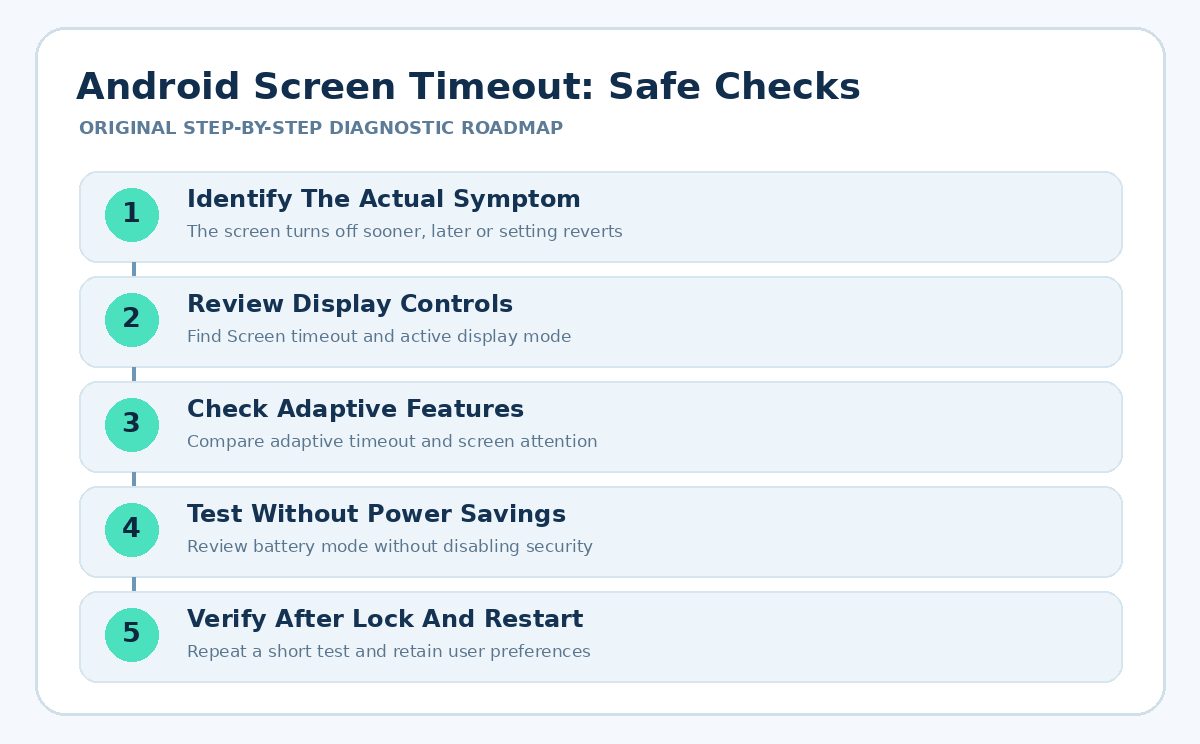
A phone that displays a 30-second screen timeout after you selected two minutes may have a setting that really changed. A phone that still shows two minutes but goes dark sooner can be using an adaptive feature, battery policy or application-specific behavior. Those are different symptoms and should not be called the same fault. Begin by opening the actual Screen timeout setting, recording its value, and observing the display with the phone awake and untouched.
Use a short repeatable check on the home screen rather than estimating time while an app loads. Keep the phone on a safe, stable surface and do not interact with the display during the test. Record whether the selected value changes in Settings itself. This basic comparison will tell you whether to investigate a preference being overwritten or the display responding to other controls.
Find Screen Timeout On Your Specific Android Device
On Google Pixel phones, Google documents Settings > Display & touch > Screen timeout, with feature options depending on model and Android version. Other manufacturers may use labels such as Display > Screen timeout or Sleep. Use the search field inside Settings if the route differs. Not every Android phone provides the same timeout durations or adaptive choices.
Before changing a setting, note the current device model and software version. A Samsung, Xiaomi, Motorola or Pixel menu shown in a video may not exactly match your interface. Do not install a third-party utility just to expose another brand’s setting. Stick with supported manufacturer controls, and check whether the selected duration is available on your actual device.
Choose A Supported Timeout Duration
Select a duration offered by the device, then leave the Settings screen and return to confirm that the value was saved. Many Android phones provide several choices from a short interval to multiple minutes, but the choices differ by manufacturer. A longer duration may suit reading or a fixed work surface; a shorter duration reduces accidental taps and can save battery.
Do not assume that every phone supports a never-sleep option or that such a choice is suitable for security. A screen that stays awake unattended can reveal notifications and consume energy. If you need a long temporary session, consider whether the relevant application has an approved presentation or keep-screen-on feature rather than forcing the entire phone to stay unlocked all day.
For general power-saving tradeoffs, see Android Battery Draining Fast.
Understand Adaptive Timeout On Pixel Phones
Google documents an Adaptive timeout feature on supported Pixel devices. It can turn off the screen earlier when it detects that you are not using the phone, even if the ordinary timeout duration is longer. This means a display going dark before the selected time does not always prove the stored duration was reset. The feature depends on the particular Pixel model and supported software.
Inspect the Adaptive timeout option in the same display area if it exists. Temporarily compare behavior with the option turned off while keeping the same fixed duration, then restore your preferred setting. Do not assume every Android brand uses the Pixel feature name or sensor behavior. The result of a controlled comparison is stronger evidence than copying the settings of an unrelated device.
Distinguish Screen Attention From Adaptive Timeout
Screen attention and adaptive timeout can act in different directions on supported Pixels. Google describes Screen attention as keeping the display on while you are looking at it, whereas Adaptive timeout can switch it off earlier when the device appears unused. A screen that stays awake longer than expected may therefore be behaving as designed, not ignoring the duration.
Check whether one or both features are enabled on your actual model. Test with the phone in a normal position and without covering its sensors. Some devices use different names, and lighting or positioning can affect attention detection. Preserve privacy preferences if a feature uses device sensing. Do not describe these controls as universally available across every Android release.
Check Whether A Case Or Screen Protector Obscures Sensors
Some phones rely on proximity, ambient-light or camera-based attention features. A poorly fitted case or screen protector can interfere with certain sensors or make a phone behave differently during calls and display interaction. If the timing problem appeared after installing an accessory, inspect its fit without taking the phone apart. A protector should not cover manufacturer-designated sensor areas.
Perform a harmless comparison with the device on a table under normal lighting, and follow the manufacturer’s accessory guidance. Do not remove a bonded display or pry at any sensor hardware. If the issue occurs only during calls, it may involve the proximity behavior that turns off the display near your ear, which is not identical to the idle timeout setting.
If the problem also involves touch detection, compare Android Touch Screen Unresponsive.
Review Battery Saver And Extreme Power Modes
Battery-saving features can alter background activity and, on some manufacturer implementations, display behavior. A phone that becomes more aggressive about sleeping only at low battery may be applying a power policy rather than forgetting its ordinary timeout choice. Check whether Battery Saver, Extreme Battery Saver or an OEM power mode is active when the problem occurs.
Run one comparison with sufficient charge and the normal battery mode if the phone and your situation allow. Do not permanently disable helpful battery protection because one timed test differs. Google’s battery documentation distinguishes power-management features and their tradeoffs. An enterprise-managed phone may enforce a short lock interval even when a consumer model would permit longer use.
Check For A Manufacturer Power Optimization Setting
Android manufacturers can add their own battery and display controls on top of the base operating system. Some devices change display behavior under ultra-power-saving modes or after a restart. Inspect the actual manufacturer’s settings and approved support article rather than relying on a generic app that claims to unlock every hidden timeout value.
If an OEM feature automatically adjusts display settings, compare what it does during normal power mode and during a battery-saving mode. Record both the displayed Screen timeout value and the observed result. Avoid changing many optimization toggles at once. The goal is to find the single feature that explains the apparent reset, not to remove useful energy controls throughout the phone.
Distinguish Screen Timeout From The Lock Screen
The display going dark, the device locking, and the lock screen remaining visible are related but separate behaviors. A phone can turn off its screen after a selected idle period yet require a password only under a different security schedule. Some devices also show an always-on display or lock-screen clock while the main screen is asleep.
Check exactly what is changing. If the display turns off at the right time but authentication arrives sooner than expected, inspect supported security and lock preferences instead. Do not weaken the screen lock or disable biometric protection merely to increase the display-on interval. Security requirements on work phones and shared devices may intentionally override convenience choices.
A display that rotates unexpectedly is a separate issue explained in Android Screen Rotation Not Working.
Remember That A Screen Saver Is Not Screen Timeout
Android screen saver or charging-display features can show pictures, a clock or other visuals during charging or docking. That is not necessarily the same as keeping an unlocked application visible indefinitely. Google separately documents screen saver controls for Pixel phones, including charging-related behaviors on supported devices.
If the display seems to stay active only when charging, inspect the screen saver and any approved always-on-display choices. Turning off a screen saver may not change the base timeout setting. Conversely, adjusting timeout may not remove a clock shown on the sleeping lock screen. Keeping the features separate prevents accidental changes to a feature you actually want.
Check Whether An App Keeps The Display Awake
Video players, navigation apps, digital readers and some games may request that the screen remain on while they are active. That behavior can be intentional so a route or presentation is visible. If the home screen times out normally but one app keeps the display lit, examine that app’s documented display preference rather than assuming Android’s global timeout is broken.
Compare the home screen, a plain settings page and the particular app under similar conditions. Avoid installing wake-lock monitors that demand sensitive device privileges merely for this test. If the application owns a stay-awake feature, changing its setting may be the most appropriate solution. Recheck that the phone still locks safely when you leave the application.
Consider Phone Calls And Proximity Behavior Separately
During a voice call, many phones turn off the display when placed against the user’s ear to prevent accidental touches. That behavior is often controlled by proximity sensing, not the ordinary idle Screen timeout value. A screen going dark immediately after raising the phone to your face should not be diagnosed by repeatedly choosing a longer timeout.
Test the display away from your face and without covering the top sensor area, while avoiding interference with any emergency call. If the problem only happens during calls, follow the manufacturer’s call-screen guidance. Do not bypass proximity protection or manipulate the phone’s sensors using untrusted utilities. Document when the behavior begins and whether it happens on speakerphone.
If the phone is generally slow, review Why Is My Android Phone So Slow.
Check Work Profile And Device Administrator Policies
Work-managed phones can have lock and inactivity requirements imposed by an employer or school. A setting that repeatedly returns to a short interval might be enforcing an approved security limit rather than a software error. Look for management indicators or settings marked as controlled by your organization. Do not remove an authorized work profile as a casual troubleshooting step.
Ask the administrator whether a maximum inactivity period applies to the device or only the managed work profile. The administrator may be able to provide a supported configuration that meets both security and accessibility needs. Bypassing the policy with unknown apps or hidden settings can expose business data and trigger compliance problems.
Understand Family And Supervised Device Restrictions
Family-supervision tools or school tablet management can limit device activity in ways that resemble a display issue. A scheduled downtime state or screen lock restriction is not the same as a Screen timeout value that reverts. Review whether the device is supervised and who is authorized to change its settings.
Do not attempt to evade parent, school or account-owner controls. If the device needs a longer display interval for an approved educational or accessibility reason, ask the relevant administrator to adjust the supported setting. Note whether the behavior occurs at specific times of day, because a schedule-dependent event points away from a simple idle timeout bug.
Check Accessibility And Interaction Features Respectfully
Android includes accessibility controls that change how people interact with the screen, buttons and visual information. Some third-party accessibility services also overlay content. If the display change began after a configuration change, inspect relevant supported accessibility settings, but do not disable a person’s assistive feature without permission.
An accessible solution may involve adjusting an approved display timeout to allow enough reading time. Test with the user’s ordinary workflow, not just a quick countdown. If the issue occurs only when a particular assistive app is active, contact its publisher or the manufacturer. Treat usability requirements as part of successful troubleshooting rather than an obstacle.
Review Developer Options Without Changing Hidden Values
Some Android devices offer a developer option to keep the display awake while charging. It does not necessarily change the normal Screen timeout duration when unplugged, and the option is not meant as a universal fix for everyday display control. If it was enabled during development, that may explain why a phone remains awake at a desk.
Do not enable developer mode solely to force the phone to never sleep. The option can affect power use, privacy and burn-in risk on certain displays. For a normal personal phone, use supported Display settings first. If the setting keeps reverting after an update, follow official manufacturer support rather than an ADB or third-party script that changes hidden system values.
Restart The Phone Once After Recording Settings
A normal restart can clear a temporary interface or service problem without deleting user data. Before restarting, record the chosen Screen timeout duration and whether adaptive features are enabled. Save open drafts and make sure you know the device PIN or password. Restart through the manufacturer’s normal power menu, then return to the same setting.
If the value remains selected and the home-screen test behaves correctly, the immediate symptom may have cleared. That does not prove a permanent cause was identified; verify again after the conditions that originally triggered it. If the setting reverts immediately after every reboot, note that pattern for the manufacturer rather than repeatedly restarting without learning more.
Update Android Through The Official System Interface
Manufacturer updates can change menu labels, device-specific power policies or the implementation of adaptive display features. If the behavior began after an update or persists across restarts, check the supported system-update screen and read any available release information. Use the device’s official update mechanism and keep battery and connectivity adequate during installation.
Do not sideload unverified firmware or install a modified operating system to fix a single display preference. If an update completes, retest the same settings with the same adaptive features. A recent update may be a clue, but timing alone does not prove it caused the failure. Record the before-and-after behavior rather than guessing.
For repeatable application errors instead of idle behavior, see Android Apps Keep Crashing.
Test A Third-Party App Conflict Carefully
An app that controls display or lock behavior can affect the apparent timeout, particularly if it has device administration or accessibility permission. Only investigate this when the symptom began after a specific installation or update. Review the app’s documented functions and whether it legitimately needs to manage the screen.
Do not disable security apps indiscriminately. If the phone supports a safe-mode troubleshooting procedure, follow its manufacturer documentation and use it only as a controlled comparison. Safe mode can temporarily prevent downloaded apps from running, but does not automatically reveal which app is responsible. Reboot normally afterward and restore intentional preferences.
Avoid Clearing App Data Or Factory Resetting Too Soon
A factory reset removes substantial user configuration and may require restoring accounts, authenticator apps and local data. It is not proportionate to a timeout that can be explained by Adaptive timeout, Screen attention or an administrator policy. Clearing Settings app data or installing cache-cleaning utilities can also create unnecessary disruption.
Use the smaller checks first, preserve a verified backup and record the exact model and symptom. A reset should be considered only after authorized manufacturer support determines that the benefits outweigh the risks. Do not describe it as a guaranteed fix. If the device is managed, obtain permission and recovery instructions before taking any destructive action.
Use A Consistent Before And After Test
Choose a supported duration such as one minute, keep the same brightness and power mode, and observe the home screen without touching it. Record whether the value in Settings remains unchanged. Repeat with one adaptive feature disabled if available, and compare the actual screen-off time. For a setting that truly reverts, check whether the change happens after battery mode, restart or account management activity.
A stopwatch measurement is only approximate because notifications, animations and touch events can reset idle timers. The value of the test is its consistency, not millisecond precision. Restore any intentionally enabled attention feature after diagnosing it. A repair is verified when the chosen setting persists and the screen behaves as expected under normal use.
If alerts rather than timeout are missing, consult Android Notifications Not Working.
Prepare A Support Report That Protects Privacy
If the issue persists, record the device model, Android version, selected timeout, observed idle behavior, adaptive features, power mode and whether a managed profile is present. Note whether the problem occurs on the home screen, during calls or inside one particular app. This can help the device manufacturer distinguish ordinary behavior from a software fault.
Share screenshots only after removing personal notifications, account names and any sensitive employer details. Do not publish device unlock codes or private app contents. State the actual pattern, for example the displayed one-minute choice returns to 30 seconds after each reboot, rather than saying the screen randomly fails. Targeted evidence is more actionable than a list of unrelated app resets.
Keep Privacy And Battery Tradeoffs In Mind
Extending the time before a display sleeps may improve reading and accessibility, but it can also increase battery consumption and leave private information visible longer. A shorter timeout may be a sensible personal choice when the phone is carried in a pocket or used in public. Screen attention offers convenience on supported devices but may not suit every privacy preference.
Choose a duration and optional adaptive features that fit your real use rather than chasing the longest possible interval. Confirm that the phone still locks under the security policy you need and that legitimate accessibility tools continue functioning. A successful configuration balances predictable display timing, battery life and protection of information.
Diagnostic Comparison
| What You Observe | First Safe Check | What It May Mean |
|---|---|---|
| Chosen Duration Reverts | Observe After Restart And Power Mode | A Setting Is Being Overwritten |
| Value Stays But Screen Goes Dark Early | Inspect Adaptive Timeout | Adaptive Display Behavior |
| Screen Stays On While You Look | Inspect Screen Attention | Attention Feature |
| Only Happens During Calls | Check Proximity Behavior | Call Screen Handling |
| Only Happens In One App | Review That App | App-Specific Keep-Awake |
| Work Phone Locks Quickly | Contact Device Administrator | Security Policy |
Verification Checklist
- Record the selected timeout and the observed screen-off duration.
- Check adaptive timeout and attention options supported by the actual model.
- Compare normal battery mode with any active power-saving feature.
- Test on the untouched home screen, then revisit Settings after restart.
- Restore intended privacy, lock and accessibility preferences.
Frequently Asked Questions
Why Does Android Screen Timeout Change Back To 30 Seconds?
A battery mode, device-management policy or manufacturer feature may be restoring a short limit. Check whether the setting itself changes or only the display behavior differs.
What Is Adaptive Timeout On A Pixel Phone?
On supported Pixels, Adaptive timeout can turn off the screen sooner when it detects that you are not using the phone.
Does Screen Attention Do The Same Thing As Adaptive Timeout?
No, Screen attention can keep the display on while you look at it, while Adaptive timeout can shorten idle time. Both depend on model support.
Where Is Screen Timeout On Google Pixel?
Open Settings, Display & touch, then Screen timeout on supported Pixel versions. Other Android brands may use a different path.
Can Battery Saver Change Screen Behavior?
Some device power modes can affect display behavior. Compare the normal mode with the battery-saving mode without permanently disabling protections.
Why Does My Screen Stay On During Videos?
An app may intentionally request that the display remain active. Test on the home screen to distinguish this from the general timeout setting.
Does Screen Saver Control When My Screen Turns Off?
Not necessarily. Screen savers and always-on clock displays are separate features from the ordinary unlocked-screen idle timer.
Can My Employer Control The Screen Timeout?
Yes, a managed device may enforce lock or inactivity requirements. Ask your administrator rather than bypassing policy.
Should I Factory Reset My Phone To Fix Timeout?
No, start with display settings, adaptive features and power modes. A reset is disruptive and should be a last resort with backup and support.
How Can I Confirm The Problem Is Fixed?
Check that your chosen timeout persists, then repeat a short untouched home-screen test after normal use and restart.
Official Sources And Further Reading
The technical steps draw on official vendor documentation. Settings and device capabilities can vary by update, hardware and organization policy. This article describes documented procedures, not hands-on testing of your particular device.