
If Do Not Disturb keeps turning itself on in Windows 11, open Settings > System > Notifications, expand Turn on do not disturb automatically, and inspect the schedule, gaming, full-screen, and display-duplication conditions. Also check whether a Focus session is running. Change one rule, test again, and keep priority notifications for genuinely urgent communication.
A quiet computer is useful during a meeting, but repeated or unexpected silence can hide messages and reminders. Windows 11 can activate Do Not Disturb because of your own schedule or a system event, so switching off the main toggle is not always a permanent solution. The diagnostic goal is to find the specific trigger and preserve your desired attention and accessibility preferences.
This guide uses Microsoft documented settings, controlled comparison tests, and reversible changes. It separates a real return of Do Not Disturb from an app whose notification permission is disabled, a notification center containing a quiet alert, or a taskbar badge that was hidden. No registry cleaners, notification-service deletion, or unverified commands are required.
Confirm That Do Not Disturb Is Actually Enabled
A quiet notification does not automatically mean Do Not Disturb activated. The sender might have disabled alerts, an individual application can use silent notifications, or a banner can be suppressed while an item still appears in Notification Center. Start by identifying which visible Windows control reports the Do Not Disturb state and whether the issue affects one app or the entire system.
Open Settings, System, Notifications and note the Do Not Disturb switch before changing anything. Ask a trusted contact to send a harmless test alert or use an application with a known reminder. Observe the state of the switch, any notification banner, the Notification Center entry and the taskbar icon. Record the time and app in a short note.
If the main switch remains off while a specific app stays silent, an automatic rule is not yet demonstrated. Check that app’s permission and alert style instead. If the switch goes from off to on during a predictable activity, that activity is the stronger lead.
Understand How Automatic Conditions Work
Windows 11 includes automatic conditions that can silence notification banners during times or activities you choose. A rule can activate even after you manually turn off Do Not Disturb, because the manual switch and the automatic schedule represent different decisions. The appropriate fix is to identify the rule, not repeatedly toggle the visible switch.
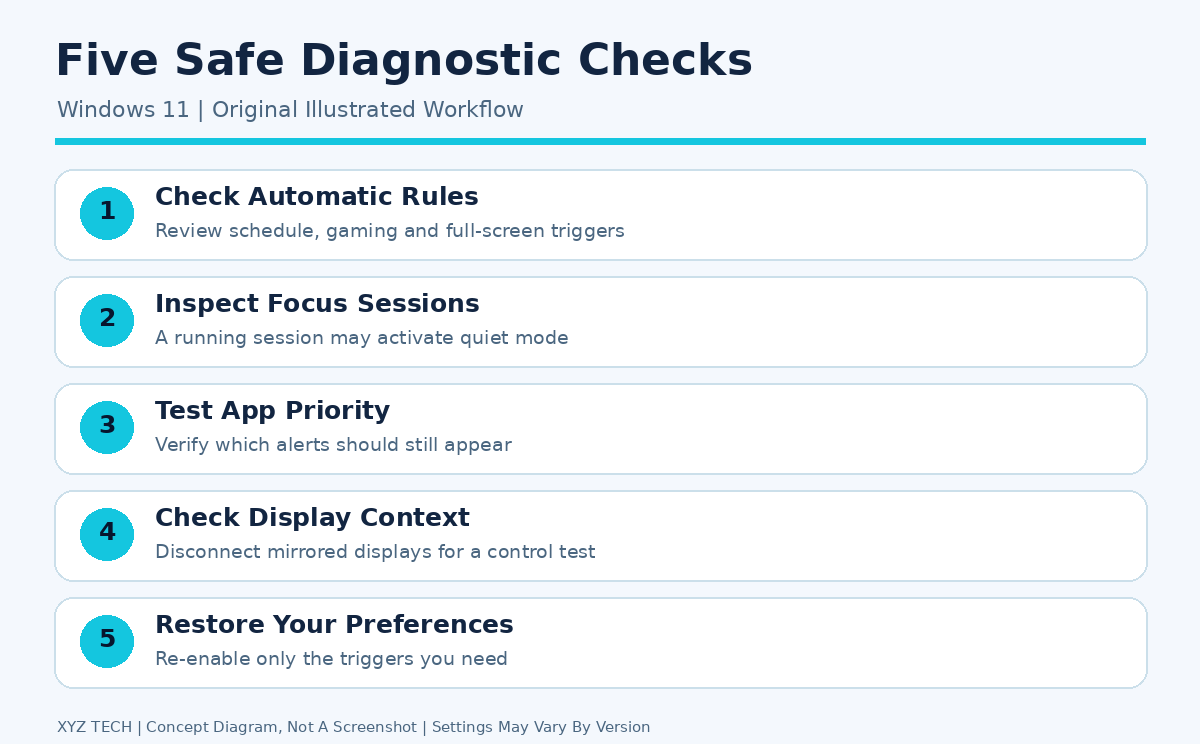
Expand the section labeled Turn on do not disturb automatically under System, Notifications. Review each item separately and note whether it applies to your usual day. You may see scheduling, full-screen applications, games, or display-duplication conditions, depending on the build. Do not switch off every rule until you know which event matters.
Reappearance at the same hour points toward a schedule; reappearance after launching a game points toward an activity rule. Keep a record so a later change can be reversed if it removes helpful quiet hours.
For the related symptom, follow our focused Chrome Notifications Not Showing guide. Keep the distinction between that condition and this article’s central problem in mind.
Check Scheduled Quiet Hours
Time-based notification controls can restart a quiet period each day, including after you turned Do Not Disturb off manually during an earlier session. A schedule that runs overnight can also cross midnight, making the trigger appear inconsistent if you check only the current calendar date. Your device clock and time zone matter when evaluating the schedule.
In the automatic conditions, inspect the beginning time, ending time, repeat days and any interval currently spanning the clock. Record the original values. Temporarily disable only the time condition for one controlled test outside an important meeting, then watch whether quiet mode returns at the expected boundary. Restore the schedule if you still need it.
If Do Not Disturb stops reappearing only when that time rule is off, the schedule is the probable cause. It is usually better to adjust the time window than to permanently abandon all notification management.
Inspect Full-Screen Application Triggers
A browser video, media player, presentation or remote-work tool may use full-screen mode. Windows can treat that as a reason to silence interruptions so they do not cover the content. Users often notice Do Not Disturb after opening a full-screen app and then assume the toggle is malfunctioning. This is particularly confusing when the application restores its prior viewing state at startup.
Close the full-screen app and return to an ordinary window. Reset the Do Not Disturb switch to the intended state, then reopen the app first in a normal window and next in full-screen view. Watch which transition coincides with the change. Do not change app permissions or delete its data during this comparison.
If the switch follows full-screen entry, review the relevant automatic condition. Decide whether suppressing banners during video or presentations is useful before turning it off. The behavior may be an expected preference rather than a defect.
Check The Gaming Condition
Some versions of Windows can activate Do Not Disturb while a game is active. A launcher, overlay or game that starts automatically may therefore seem to silence notifications without an obvious manual action. The condition is intended to prevent banners from interrupting play, but it may not match everyone’s requirements for messages, accessibility alerts, or work calls.
Note which game or launcher was open when quiet mode appeared. Exit the game completely and check the Windows notification setting again. For a controlled test, turn off only the gaming activation rule and start the same game once more. Avoid disabling Windows security features, anti-cheat tools or account controls to troubleshoot a notification preference.
A consistent result points to a rule associated with gaming. Keep it if you prefer uninterrupted play, or change it and configure priority apps if important calls must come through. One game reacting differently from another may reflect how Windows recognizes the app.
For the related symptom, follow our focused Windows 11 Taskbar Auto Hide guide. Keep the distinction between that condition and this article’s central problem in mind.
Review Duplicated Displays And Presentations
Duplicating a screen onto a projector or another monitor may trigger an automatic quiet condition. This helps prevent personal messages from appearing during presentations. Even if the projector is not physically visible, an active remote display connection or a remembered presentation setup can change how notifications behave. The display mode is a separate setting from the notification toggle.
Press Windows + P and observe the selected display mode. During a time when it is safe to change displays, use the ordinary PC screen and temporarily disconnect a mirrored display. Check whether Do Not Disturb returns. Do not interrupt a live presentation, change workplace display policy, or disconnect important remote sessions merely for testing.
If quiet mode appears only when display duplication is enabled, the presentation rule is the likely reason. That can be desirable for privacy. Preserve it for public screens or adjust the automatic condition deliberately, with the audience in mind.
Inspect An Active Focus Session
Focus is a separate Windows productivity feature that helps reduce distraction for a chosen period. Microsoft documents that starting a Focus session can turn on Do Not Disturb automatically. That means the setting can look as though it has re-enabled itself even after the user has unchecked the regular automatic rules. The right place to investigate is the current Focus session and its options.
Open the Windows focus controls or the Clock app and see whether a focus timer is active. End the session if it is safe to do so, then note whether the Do Not Disturb switch returns to your intended state. Review the Focus options, especially any setting that enables Do Not Disturb during the session.
If a Focus timer is the trigger, nothing needs to be repaired. Adjust how Focus manages notifications, or stop the session when it is not wanted. Avoid uninstalling Clock or changing services to solve a productivity preference.
Understand The Role Of The Clock App
Clock can manage focus timers, but a timer and a Windows alarm are not the same type of event. A user can confuse a scheduled focus period with the system’s quiet-hour rule. An alarm may still sound when ordinary banners are suppressed, depending on priority and platform behavior, so it is important to identify the exact Windows feature involved rather than relying on one audible event.
Open Clock and inspect any running Focus timer. Check whether your chosen task has an automatic session and whether the timer starts with another workflow. Use a short, noncritical test to verify Do Not Disturb changes when the timer starts and ends. Do not rely on a single alarm to validate urgent business notifications.
A direct correlation between the timer and the switch indicates an intentional feature interaction. Keep alarms and time-sensitive reminders configured separately, and do not promise that every third-party alert will bypass Do Not Disturb.
Review Priority Notification Exceptions
Windows can allow selected urgent notifications while suppressing most other banners. The existence of one exception can make Do Not Disturb appear unreliable: a call arrives despite quiet mode, while another app sends nothing visible. This difference may be working exactly as configured. Priority settings should reflect real needs rather than allowing every app through indiscriminately.
Open the priority notification settings and inspect permitted categories and apps. Choose one noncritical test alert from a priority app and another from an ordinary app during a deliberate short Do Not Disturb session. Compare their behavior and where the notifications appear. Avoid changing emergency communication arrangements unless another reliable channel is ready.
If only priority messages appear, the policy is operating as intended. Adjust the exception list narrowly rather than disabling notification security or granting permission to unrelated software. A high-priority list should be selective and easy to understand.
For the related symptom, follow our focused Windows 11 App Volume Mixer guide. Keep the distinction between that condition and this article’s central problem in mind.
Inspect Per-App Notification Permissions
An application may have its own Windows notification switch and additional controls for banners, sounds and Notification Center. When one app is quiet but another still alerts, that individual permission can be more important than Do Not Disturb. System-wide notification settings and the application’s internal settings must both permit the alert you expect.
In System, Notifications, find the affected app and inspect its notification access and banner preferences. Open the application itself to review any in-app quiet-hour or status setting. Test a harmless incoming message while Do Not Disturb is off. Do not remove the app or erase profile data simply to test an alert permission.
If the system quiet toggle stays off but only this app fails, focus on the app’s notification pipeline. A reinstall is usually premature; first confirm the app is signed in and allowed to run normally.
Separate Banners From Notification Center History
Do Not Disturb is designed to limit interruptions, and a hidden banner does not necessarily mean the notification was deleted. Depending on the application and the Windows build, an alert can still be found in Notification Center after it arrives. This distinction is crucial when evaluating whether an appointment reminder, cloud update or message was received.
Trigger a harmless notification while Do Not Disturb is on, then open Notification Center through the clock or taskbar. Look for the new item and compare the app’s notification settings. Also check any grouping or history view. Record what you observe without claiming that all applications use the same delivery method.
An item present in Notification Center without a banner indicates a presentation decision rather than a failed network message. If the notification never arrives at all, app permissions or background connectivity may require separate troubleshooting.
For the related symptom, follow our focused Android Notifications Not Working guide. Keep the distinction between that condition and this article’s central problem in mind.
Check Taskbar Badge And Flashing Preferences
A missing badge, flashing taskbar icon or attention indicator can make users feel that notifications disappeared, even when Do Not Disturb is not active. Windows Focus controls may include options to hide taskbar badges or flashing. These appearance settings are independent from whether an app can receive content or send system notifications.
Inspect the Focus preferences and taskbar behavior settings after identifying the exact missing indicator. Compare the same app with and without Focus enabled. Avoid changing the taskbar layout or deleting application settings before confirming which UI signal is absent. Use the notification panel as a second observation point.
If the message appears in the app and Notification Center but its taskbar badge is hidden, the problem is limited to visual presentation. Set the display preference according to your accessibility and attention needs.
For the related symptom, follow our focused Windows 11 Taskbar Icons Missing guide. Keep the distinction between that condition and this article’s central problem in mind.
Test During A Realistic Workday Activity
Do Not Disturb can change only when a particular context exists, so a random test at an empty desktop may not reproduce the problem. Consider the conditions at the original incident: a meeting, mirrored display, full-screen video, game, late-night schedule or Focus timer. A faithful but safe reproduction is more informative than clearing every setting.
Choose one noncritical activity that previously triggered quiet mode. First record the state at an ordinary desktop, perform the activity, and check the state afterward. Change one relevant automatic rule and repeat once. Keep sensitive meetings or confidential projector sessions out of the test if an unexpected banner could expose information.
A repeatable trigger gives you a narrow fix. If the result changes randomly, inspect simultaneous conditions such as a scheduled Focus timer and full-screen app rather than assuming the notification service is corrupted.
Check Date And Time Before Blaming Scheduling
A time-based rule depends on the local system clock. An incorrect time zone or manual date adjustment can make a schedule appear to activate at the wrong hour, particularly after travel or a device migration. This issue differs from an ordinary application that has its own server-side quiet-hour schedule.
Open Windows Settings, Time & language, Date & time and compare the time zone and displayed local time with a trusted reference. Correct an obviously wrong configuration through supported Windows controls. Then review the automatic Do Not Disturb schedule. Do not alter the clock purely to trick the schedule into turning off.
If the quiet period was aligned to an incorrect time zone, fixing the clock restores predictable behavior. If the system clock is already correct, continue isolating the automatic conditions instead of changing time synchronization unnecessarily.
For the related symptom, follow our focused Windows 11 Start Menu Not Opening guide. Keep the distinction between that condition and this article’s central problem in mind.
Consider Work Or School Device Policies
Some business PCs are managed through organizational policy. A user may see settings that cannot be changed or values that revert after sign-in and synchronization. This is a different situation from a personal computer where local choices persist. Trying to bypass a managed preference through the registry can create compliance and support problems.
Identify whether the PC is connected to a work or school account and whether the relevant settings display an organization-management notice. Record the precise setting and your business need, then ask the administrator if there is a suitable policy or exception. Avoid installing unofficial utilities that require elevation to override workplace controls.
If policy causes the change, the fix belongs with the authorized administrator. A documented request for priority alerts is more effective than deleting configuration files or changing the system security model.
Inspect Third-Party Focus And Meeting Apps
Some productivity suites, meeting applications and automation utilities manage their own notification settings or start full-screen views. Their behavior may coincide with Windows Do Not Disturb even when they do not directly control the global toggle. An application setting that says mute notifications can also apply only within that program.
Review the apps active when the issue occurs. Close a suspected nonessential utility for a short comparison or temporarily disable one relevant in-app reminder setting, then repeat the activity. Do not remove security software, meeting policy components or signed-in work apps. Note whether the Windows switch itself changes or only the app’s alerts change.
If Windows does not change but the app quiets itself, troubleshoot that app. If the switch changes only alongside a full-screen meeting or a Focus timer, inspect the Windows condition associated with that context.
Check Whether A Restart Changes The Pattern
A reboot can clear temporary application states, but it does not remove a scheduled quiet-hour rule. A setting that returns exactly when its condition is met after a restart is not fixed by restarting again. Distinguishing a short-lived UI glitch from a persistent rule avoids needless system-level repairs.
Save open work and use the normal Restart option at a convenient time. Verify the Do Not Disturb state immediately after signing in, then retest the specific activity identified earlier. Note whether the main switch is on before the activity begins or changes only when a trigger occurs.
A one-off visual issue that disappears may need no further action. A reliable recurrence under the same condition should lead back to rules, Focus or application settings, not an unsupported service reset.
Review Supported Windows Updates
Notifications and system interfaces can change with Windows releases. If a setting becomes inconsistent immediately after an update, review Windows Update history and the manufacturer’s support notices before assuming a general bug. Updates can also adjust the location or wording of notification controls. Avoid promising that one update fixes every quiet-mode problem.
Open Windows Update, inspect recent installations and check for offered supported updates. Save your work and preserve recovery options before installing. If a failure is reproducible, record the OS build and the exact trigger for support. Do not download random third-party hotfixes or run scripts to remove notification packages.
An officially supported update may address a known problem, but unchanged behavior after updating is a reason to continue the settings-based diagnosis. Keep the evidence of your reproduction steps when contacting support.
For the related symptom, follow our focused Windows 11 File Explorer Slow guide. Keep the distinction between that condition and this article’s central problem in mind.
Do Not Disable Notification Services Blindly
Some websites suggest stopping notification services, erasing application databases or changing obscure registry values to make Do Not Disturb stop returning. Such steps can break the entire notification system and are disproportionate to an automatic schedule or Focus preference. The correct remedy should preserve reminders, accessibility features and application permissions.
Before considering an advanced repair, confirm the standard automatic rules, Focus options, per-app permissions and managed device context. If one vendor-supported procedure is warranted, read precisely what it changes and how it can be reversed. Never grant an unknown cleaner administrative access merely because it claims to repair alerts.
If the problem is traced to a settings choice, a service-level operation adds risk without a diagnostic benefit. A readable record of a controlled test is stronger evidence than a generic troubleshooting command list.
Preserve Important Alerts While Testing
A global quiet-mode change can affect call notifications, reminders and communication tools. For people relying on accessibility cues or on-call alerts, disabling rules indiscriminately can be as disruptive as leaving them enabled. Priority lists and alternative delivery methods should be reviewed before modifying routines that protect attention or sensitive information.
List which alerts truly need to interrupt: urgent work calls, medication reminders, calendar prompts or family contacts, for example. Configure narrow priority notifications where available and verify each with a noncritical test. For high-stakes or emergency needs, retain a separate dependable alert channel rather than trusting one PC notification configuration.
A successful configuration is predictable: ordinary messages wait quietly when desired, while specifically approved important alerts remain visible according to supported Windows behavior. Do not equate receiving every banner with better reliability.
Build A Repeatable Before And After Record
Troubleshooting becomes efficient when each change has a known starting state and a measured outcome. With several possible triggers, switching many options at once makes it impossible to tell what worked. A short log also helps when the settings are managed by another person or the behavior occurs only during certain work activities.
Write down the current switch state, active app, display mode, Focus timer, local time, changed rule and result. Change only one relevant option, repeat one safe test and restore unrelated settings. If the issue persists, compare the next hypothesis using the same test message. Keep screenshots free of private notifications or account details.
A repeatable sequence that isolates one rule is enough to select a lasting preference. If no setting correlates with the behavior, provide those observations to Microsoft or a device administrator rather than guessing at a hidden malfunction.
Verify Your Final Do Not Disturb Behavior
The goal is not necessarily to leave Do Not Disturb permanently disabled. It should activate only at times or under conditions that match your preference, and approved alerts should behave predictably. After making a targeted change, let the computer go through at least one occurrence of the activity that previously caused unexpected silence.
Confirm the Do Not Disturb switch before and during the trigger, check a sample ordinary alert and a priority alert, and review the notification panel afterward. Restore any other rules you disabled during diagnosis. If your work uses a projector, verify the presentation still prevents sensitive banners from being shown to others.
Document the final schedule and exceptions. If a newly installed app later changes the experience, use the same controlled method to distinguish an app-level preference from an automatic Windows rule.
Symptom Decision Table
Match the observation to a non-destructive check. A symptom can have several causes, so treat the suggested explanation as a hypothesis to test rather than a confirmed diagnosis.
| Observed Symptom | First Safe Check | What The Result Suggests |
|---|---|---|
| Switch Activates At The Same Hour | Check Automatic Schedule | Time-Based Condition |
| Switch Activates During A Game | Review Gaming Rule | Gameplay Context |
| Switch Activates In Full Screen | Test Windowed Mode | Full-Screen Condition |
| Switch Activates During Presentation | Check Duplicated Displays | Presentation Privacy Rule |
| Switch Activates When Timer Begins | Review Focus Session | Focus Preference |
| Only One App Stays Silent | Check App Notifications | Per-App Configuration |
Five-Step Verification Checklist
Complete a single controlled test, note the result, then restore any setting you changed only for diagnosis. The correct outcome is normal operation with appropriate privacy and security, not merely a warning disappearing.
- Record the switch state and choose a harmless test notification.
- Inspect automatic conditions and identify a likely schedule or activity trigger.
- Check whether a Focus session is running and whether priority notifications are configured.
- Change only the suspected rule and repeat the original activity safely.
- Restore unrelated settings and document the final notification behavior.
Frequently Asked Questions
Why Does Do Not Disturb Keep Turning On By Itself?
Automatic rules for times, games, full-screen activity or duplicated displays can activate it. A Focus session can do the same. Identify the exact trigger before changing settings.
Does Turning Off Do Not Disturb Disable Automatic Rules?
No, turning off the switch at one moment does not necessarily disable a separate rule that will activate when its condition occurs again.
Can A Focus Session Turn On Do Not Disturb?
Yes, Microsoft documents that starting a Focus session can enable Do Not Disturb. Inspect the timer and Focus options.
Why Does Do Not Disturb Start During A Game?
The gaming automatic condition may be enabled. Compare a normal desktop and a running game, then review that specific rule.
Will Do Not Disturb Delete My Messages?
No, the feature primarily controls interruption and notification presentation. Whether a message is stored depends on the app and its delivery behavior.
Can Some Alerts Still Appear During Do Not Disturb?
Yes, supported priority notification settings can allow selected alerts. Review the allowed apps and categories rather than permitting everything.
Why Are Notifications Quiet Only On A Projector?
A display-duplication rule may be active to prevent banners from appearing during a presentation. Preserve that privacy protection when useful.
Should I Disable Windows Notification Services?
No, that is not an appropriate first response to a scheduling or Focus preference and may break other notifications.
Can The Wrong Time Zone Cause Unexpected Quiet Hours?
Yes, an incorrect local clock or time zone can make a time-based schedule seem to run at the wrong time. Check Windows time settings.
How Do I Verify The Fix?
Repeat the original triggering activity with a harmless test notification and confirm the switch and priority behavior match your intended settings.
Official References
These vendor-maintained resources document the platform behaviors discussed above. The exact settings labels and supported capabilities can differ by OS version, account, region, and device manufacturer.