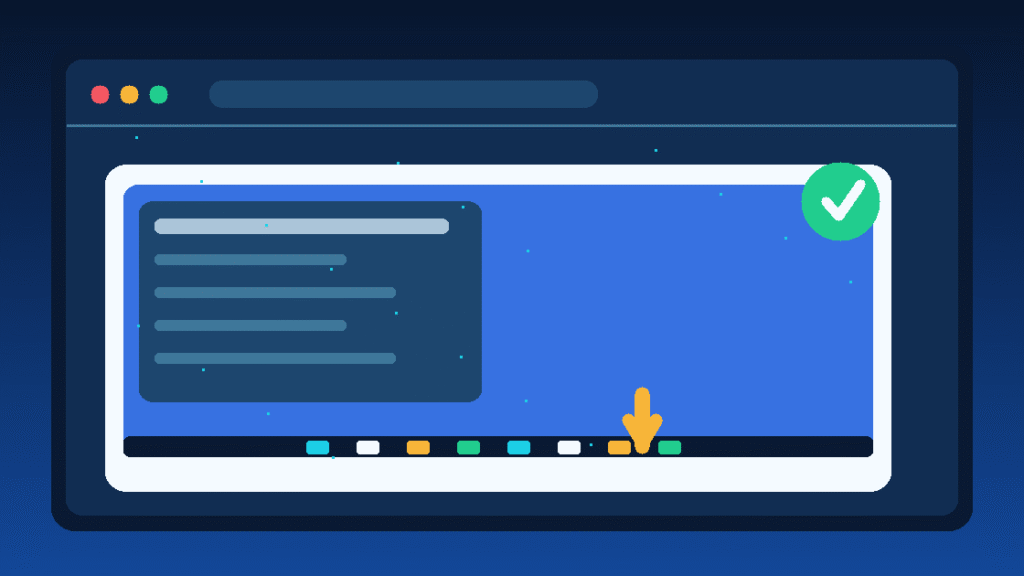

If Windows 11 taskbar auto-hide is not working, right-click the taskbar, open Taskbar settings > Taskbar behaviors and confirm Automatically hide the taskbar is selected. Move the pointer away from the screen edge, inspect app attention indicators and test a normal desktop window. For persistent shell problems, use supported Windows troubleshooting rather than registry fixes or disabling security.
A taskbar that refuses to hide can be caused by a disabled preference, a waiting app, display changes or a Windows shell issue. These checks separate those cases while preserving working app and notification settings.
Confirm That Auto Hide Is Actually Enabled
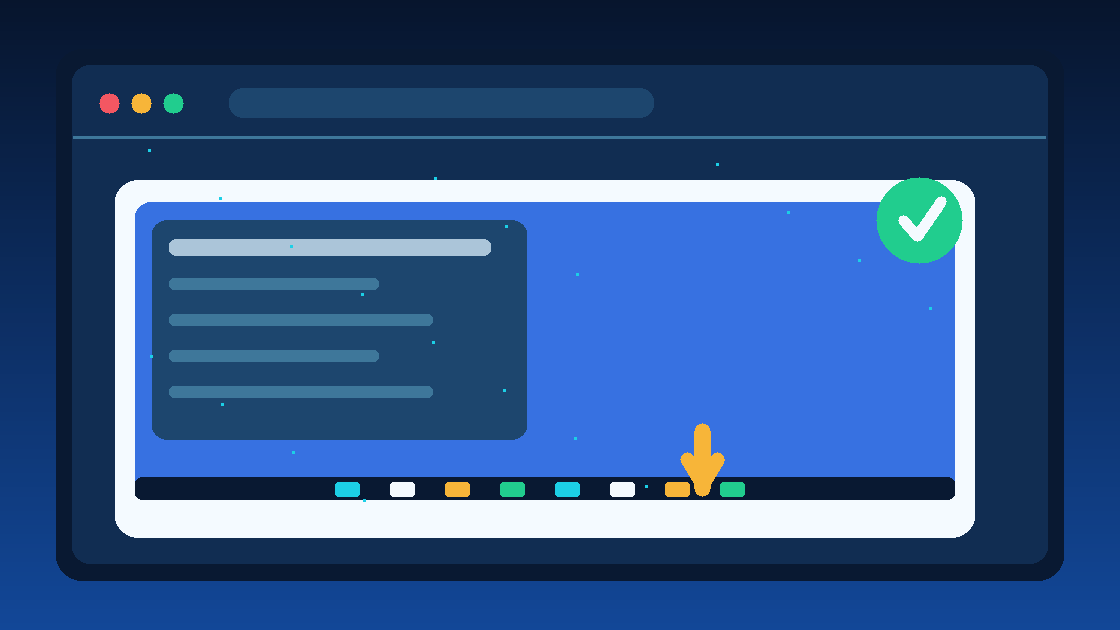
Right-click an empty area of the Windows 11 taskbar and open Taskbar settings. Expand Taskbar behaviors and look for Automatically hide the taskbar. Microsoft documents this as the supported control for keeping the taskbar off screen when it is not in use. If the checkbox is not selected, the taskbar remaining visible may be entirely expected. Do not start with registry edits or third-party shell utilities.
Enable the option if you want auto-hide, then move the pointer away from the screen edge and wait briefly. A touch screen, full-screen game and remote desktop session may each behave differently, so begin with a normal desktop window. Record whether the taskbar disappears at all, hides intermittently or returns immediately after each attempt.
Understand What Auto Hide Should Do
Auto-hide is intended to retract the taskbar when it is not needed, while allowing access through the screen edge or another supported interaction. The taskbar is not deleted and pinned application icons remain available. If the bar appears when the pointer touches its edge, that is often expected behavior, not a malfunction. The same setting can act differently when a window or system control is requesting attention.
Test with a simple window such as File Explorer and move the mouse into the center of the screen. Keep hands off the keyboard for a moment. If the bar retracts normally, look for differences in the troublesome application or monitor. If it remains visible everywhere, continue with taskbar settings and Windows status checks before troubleshooting individual apps.
Avoid Confusing Auto Hide With Taskbar Visibility
Windows allows you to show or hide individual taskbar buttons, search controls and system-tray items. Those visibility options are not the same as automatically hiding the entire taskbar. A taskbar with fewer icons may still remain fixed to the bottom of the desktop. Conversely, a hidden taskbar can retain all its pinned apps and notification area settings.
Review the actual Taskbar behaviors section instead of changing taskbar alignment or icon visibility. On supported newer Windows builds, other customization options may have moved, but auto-hide remains a separate behavior. Changing unrelated personalization settings creates more variables without addressing the symptom. Restore intentional icon preferences after any test. If desktop icons are also missing, use the separate Windows 11 Desktop Icons Missing guide rather than treating both symptoms as one taskbar setting.
Check Whether A Notification Needs Attention
Applications can display taskbar badges, flashing indicators or other signals when they need attention. In certain circumstances, those indicators may keep the taskbar visible or bring it forward while Windows waits for an interaction. Look for a highlighted app button, unread message badge or window requiring confirmation. Check only applications you recognize and trust.
Open the waiting application or dismiss its legitimate dialog, then move the pointer away to retest. Do not blindly click security warnings or suspicious notifications merely to hide the bar. If one application repeatedly triggers the behavior, investigate its notification settings rather than disabling all Windows alerts. Microsoft documents taskbar badging and related notification controls under customization settings.
Check For A Dialog Hidden Behind Another Window
A program may be waiting for a save confirmation, sign-in prompt or error dialog that is partially hidden behind another application. The taskbar might then seem to ignore auto-hide while the program requests focus. Use Alt + Tab or the normal taskbar buttons to inspect open windows, taking care not to abandon unsaved work.
If a dialog is legitimate, respond appropriately and close it before repeating the test. A security prompt should not be dismissed thoughtlessly. Do not force-close every application just to suppress attention indicators. If the taskbar begins hiding after one waiting dialog is resolved, you have identified a specific trigger without changing Windows system components.
Test With Ordinary Desktop Windows First
Full-screen games, media players, remote sessions and presentation software can each change how Windows handles the screen edges and overlays. Before diagnosing a system-wide taskbar failure, open a normal resizable window and check auto-hide. Then compare the same behavior in the problematic app. This separates general shell behavior from one application’s presentation mode.
If auto-hide works on the desktop but not while a particular program is maximized or full screen, check that program’s display settings. Avoid applying universal Windows changes based on a single game or conferencing app. Some apps intentionally prevent other interface elements from obscuring controls. A repeatable app-specific result is useful for the publisher’s support team.
Inspect Windows Notification And Do Not Disturb Settings
Windows 11 includes Do Not Disturb, focus controls and app notification preferences. These can change which alerts interrupt work, but they do not replace the taskbar’s auto-hide checkbox. If an app appears to keep the taskbar visible through notifications, inspect its sender settings and whether it flashes for attention. Do not expect simply enabling Do Not Disturb to repair every auto-hide bug.
Microsoft’s Windows notification guidance explains these preferences. Make a controlled test with one trusted app and restore your intended focus schedule afterward. Disabling all security or system alerts to hide the taskbar is a poor tradeoff. The relevant question is whether a specific legitimate message or badge is keeping the desktop interface active.
Check Pointer Position At The Screen Edge
Auto-hide normally reveals the taskbar when the pointer reaches the edge where the bar is located. A mouse resting near the bottom of the display can make the taskbar stay visible. On some setups a second monitor, unusual display scaling or remote pointer movement may make it difficult to tell which edge is active.
Move the cursor well into the center of the screen, then wait. Avoid leaving the pointer near the bottom-left corner or on a taskbar item. If the bar hides immediately, the setting works and the issue was positioning rather than a failed Windows component. On touch devices, test with the pointer disconnected if a connected mouse is producing unexpected edge movement.
Inspect Multi Monitor Taskbar Behavior
Windows can display taskbars on multiple screens and may offer settings controlling which monitors show app buttons. A taskbar that hides properly on the primary display may behave differently on the secondary one. Test each monitor separately and confirm which screen Windows identifies as primary. A docked laptop can also change its display arrangement after reconnecting.
Do not rearrange monitors or reset display drivers as a first step. Read the supported taskbar and multiple-display settings, then make one reversible adjustment if necessary. After reconnecting an external screen, repeat the same pointer test on both edges. Keep track of the exact monitor that misbehaves so that the next diagnosis remains focused.
Check Taskbar Behavior After Display Changes
Changing display resolution, scaling, rotation or monitor connections can affect how windows and taskbar edges are drawn. If auto-hide stopped working immediately after docking a laptop or switching a projector, note that transition. A normal sign-out or approved display reconnection may resolve a temporary layout problem, though it is not a guaranteed fix.
Preserve unsaved work before changing display settings or restarting Windows. If only one external monitor is affected, compare its scaling and screen arrangement with the primary display. Do not install a third-party taskbar replacement utility to solve an ordinary monitor transition. The most useful test is whether the original taskbar setting works again after Windows recognizes the intended layout.
Test Whether A Specific App Is Holding Focus
An app that repeatedly requests attention or runs an overlay can interfere with normal desktop presentation. Close only the suspected app through its own Exit command after saving work, then test auto-hide on the desktop. If the behavior returns when the app opens again, you have a reproducible app-specific clue rather than evidence that every taskbar setting is corrupt.
Check the publisher’s release notes and update path for that application. Do not disable unrelated background services or security agents. If the program belongs to your workplace, ask IT before changing its overlay or notification settings. Controlled comparisons are safer than uninstalling software simply because the taskbar appeared at the same time.
Distinguish Full Screen From Maximized Windows
A maximized desktop window still participates in ordinary Windows taskbar layout, whereas full-screen apps can use different display behavior. A game that claims exclusive full-screen output may interact with system overlays differently from a borderless window. Compare a normal app, a maximized window and the troublesome full-screen application to identify where the taskbar becomes visible.
If the problem occurs only in a game, use its supported display-mode choices rather than applying system-wide registry tweaks. Do not turn off Windows security or accessibility features. A taskbar that appears briefly when you use Alt + Tab or open a system menu may be normal. Record the exact trigger before calling the issue unresolved.
Avoid Misinterpreting Tablet Or Touch Behavior
Touch-enabled laptops and two-in-one devices may show taskbar controls or other navigation elements based on the current mode and device posture. Those interactions are not always identical to a mouse-controlled desktop. If the device recently switched from laptop to tablet posture, check the operating system’s supported taskbar settings and test the current mode deliberately.
Do not assume the taskbar should always hide on every swipe, keyboard gesture or app launch. Manufacturer-specific touch customizations can affect behavior. If the problem occurs only after changing posture, report the Windows build and device model to its vendor. Preserve accessibility settings used by the device owner rather than disabling them to produce one particular animation.
Check Windows Update For Known Fixes
Taskbar behavior can be affected by Windows bugs that later receive servicing updates. Microsoft has documented improvements to auto-hide reliability in supported Windows 11 builds. If the issue began after a recent update or continues on an older build, record the version and inspect Windows Update for supported available changes. Update through the normal Windows interface rather than unverified installers.
Do not remove security updates merely because a taskbar glitch appeared around the same date. Timing alone does not prove the update caused it. Save work before restarting, and repeat the same simple desktop test afterward. If an organization manages updates, follow its approved schedule and provide the exact build number when asking for assistance.
Restart Explorer Only When Simpler Checks Fail
Windows Explorer helps provide the desktop shell, taskbar and File Explorer interface. If the taskbar is visibly unresponsive beyond just auto-hide, a controlled Explorer restart may be appropriate after saving work. Microsoft documents supported steps for recovering from some Explorer problems, but a restart is not a universal repair for every notification or app-specific overlay.
If your Windows version permits it, open Task Manager, identify Windows Explorer and use the available Restart action. Expect the desktop shell to disappear briefly and return. Do not terminate unrelated system processes or delete Explorer files. If you are unsure, a normal Windows restart after saving work may be safer than manually ending components.
Do Not Reset Every Taskbar Setting At Once
Taskbar alignment, badges, app-button grouping, system tray visibility and automatic hiding are separate choices. Changing them all together makes it impossible to know which setting mattered. It can also disrupt a user’s accustomed workflow or accessibility preferences. Write down the original auto-hide choice and use a single reversible comparison.
If one toggle fixes the issue consistently, keep that correction and stop. If the problem returns, record the exact event that preceded it. Do not install a registry-cleaning tool or a taskbar replacement application as a diagnostic shortcut. The desired outcome is a reliable built-in interface with the original personal preferences preserved.
Compare With Another Windows User Profile Carefully
A taskbar behavior that occurs only under one Windows account can suggest an account-specific setting or application conflict. However, creating or switching profiles is not a first-line fix for a simple checkbox issue. Only consider a comparison on a computer you own or administer, without exposing another user’s data or modifying managed accounts.
A different profile may have different startup apps and notification settings, so the comparison is informative but not definitive. Do not delete an account or copy system configuration files between profiles. If the problem appears under every account, collect the Windows build and common symptoms for support rather than guessing at corruption.
Use Task Manager Only As A Targeted Tool
Task Manager can help identify a visibly unresponsive program or perform a controlled Explorer restart when that is justified. It is not necessary for ordinary auto-hide configuration. Do not end unfamiliar processes or Windows security services because an online article lists them as possible causes. Doing so can interrupt unsaved work or destabilize the desktop.
If Task Manager itself will not open, treat that as a separate issue. The Windows 11 Task Manager Not Opening guide addresses its diagnosis. For the auto-hide symptom, a direct Settings test and one known app comparison usually supply more useful information than process termination.
Distinguish Missing Icons From A Stuck Visible Taskbar
Some users describe the taskbar as broken when icons disappear, the Start button does not respond or a pinned app will not launch. Those are separate issues from the bar failing to retract. Confirm whether auto-hide is the only symptom. A taskbar that stays visible but otherwise works calls for different checks from one that is completely unresponsive.
Use the Windows 11 Taskbar Icons Missing guide when the icons themselves are absent. If the Start menu fails, consult Windows 11 Start Menu Not Opening. Avoid applying the wrong repair to a problem with a different underlying cause.
Check Whether Auto Hide Stays Enabled After Restart
If the taskbar hides immediately after enabling the setting but stops working after each restart, record whether the checkbox itself becomes unchecked or remains selected. Those are meaningfully different outcomes. A preference that turns off may involve application changes or a known Windows build issue; a selected preference that stops functioning may involve an attention request or shell state.
Microsoft’s Windows update documentation includes taskbar reliability fixes for certain builds. Record the exact build, installed utilities and sequence without assuming a single cause. Do not repeatedly edit the registry to force the checkbox on. A reproducible report allows targeted help and avoids damaging other personalization settings.
Use A Symptom Based Comparison
If the taskbar never hides, check the setting and pointer position first. If it hides until a message arrives, inspect the app’s attention indicator. If it fails only in a full-screen game, focus on that application’s display mode. If the issue occurs only on a second monitor, inspect multiple-display taskbar behavior and the display arrangement.
These patterns are diagnostic clues rather than guarantees. More than one trigger can be present. Change one variable at a time and perform the same test afterward. Do not declare the taskbar fixed merely because it disappeared once while a dialog was closed. Verify the normal working conditions that originally reproduced the issue.
Verify The Auto Hide Fix Consistently
With Automatically hide the taskbar enabled, open a normal desktop application, move the pointer into the middle of the screen and confirm the bar retracts. Touch the appropriate screen edge to reveal it, then move away and confirm it hides again. Repeat after opening the application that previously caused trouble, and on each monitor if relevant.
Restore Do Not Disturb, badges and other user preferences to their desired states. If the problem returns, note the exact trigger and Windows build. A successful fix should be repeatable without ending system processes or leaving security protections disabled. Keep the record short enough to share with Microsoft or your device manufacturer.
Prepare A Focused Support Report
If the taskbar remains visible despite the correct setting and a controlled desktop test, record the Windows 11 version, monitor configuration, whether app icons flash, which window is active and whether the behavior persists after a normal restart. Explain whether the auto-hide checkbox itself changes state. Avoid including private notification contents or work-account information in screenshots.
Contact Microsoft or the organization’s IT team depending on ownership of the computer. A report stating that auto-hide works on the primary monitor but not the external display is more actionable than a generic complaint that the taskbar is stuck. Use documented Windows settings and retain accessibility and security preferences throughout troubleshooting.
Symptom Comparison
| Symptom | First Safe Check | What It May Mean |
|---|---|---|
| Taskbar Never Hides | Taskbar Behaviors And Pointer Edge | Disabled Preference Or Edge Hover |
| Taskbar Appears After App Alert | Highlighted App And Dialog | Attention Request |
| Only A Game Keeps It Visible | Game Display Mode | App Specific Full Screen |
| Only Secondary Monitor Fails | Display Arrangement And Taskbar Options | Multiple Monitor Behavior |
| Auto Hide Turns Off After Restart | Windows Build And App Utilities | Settings Persistence |
| Taskbar And Start Menu Both Fail | Windows Explorer And Windows Update | Shell Problem |
Verification Checklist
- Enable Automatically hide the taskbar in supported Windows Settings.
- Move the pointer away from the taskbar edge and test a normal window.
- Inspect highlighted app buttons, notifications and hidden dialogs.
- Compare game and multiple-monitor behavior without changing unrelated settings.
- Recheck after any supported update or controlled shell restart and restore preferences.
Frequently Asked Questions
Where Is Automatically Hide The Taskbar In Windows 11?
Right-click the taskbar, open Taskbar settings, expand Taskbar behaviors and select Automatically hide the taskbar.
Why Does The Taskbar Stay Visible With Auto Hide Enabled?
An app may need attention, the pointer may rest near the edge, or the desktop shell may not be responding normally. Test those possibilities separately.
Can A Notification Keep The Taskbar Visible?
App badges or attention indicators can affect taskbar behavior. Check the specific legitimate app before changing all notifications.
Why Does Auto Hide Fail Only In A Game?
Full-screen display modes and overlays differ from ordinary desktop windows. Check that game's supported display settings.
Does A Second Monitor Change Auto Hide?
Multiple-display taskbar behavior can differ by configuration. Test each monitor and inspect Windows display and taskbar settings.
Should I Restart Windows Explorer?
Only after simpler settings and app checks, with work saved. A normal Windows restart is often less error-prone for unfamiliar users.
Should I Turn Off Windows Firewall To Fix The Taskbar?
No, Firewall settings do not provide a sensible first-line solution to taskbar auto-hide behavior.
Will Clearing Taskbar Icons Fix Auto Hide?
Not necessarily. Icon visibility and taskbar auto-hide are different Windows settings.
Can A Windows Update Fix Taskbar Auto Hide?
Microsoft has documented reliability changes in some builds. Use supported updates and verify the exact symptom afterward.
How Do I Know Auto Hide Is Working Again?
Move the pointer away so the bar retracts, then reveal it at the screen edge and confirm it hides again during ordinary use.
Official References
Microsoft documents taskbar personalization, focus and notifications, and changes to auto-hide reliability. Options vary across Windows 11 builds, particularly on managed and multiple-monitor systems.