
Open Settings > Personalization > Lock screen and confirm that Personalize your lock screen is set to Slideshow, not Windows spotlight or Picture. Select a local folder containing several supported image files, lock with Windows + L, and distinguish lock-screen rotation from the desktop background or sign-in screen. Check power and sleep behavior before attempting advanced repairs.
A lock screen can appear stuck even when the slideshow feature is enabled. The wrong image source, a single eligible photograph, an unreadable folder, fast transitions to the sign-in screen or computer sleep can create similar symptoms. Start with a small local test folder and one controlled change at a time. No registry cleaner or system-file deletion is necessary for ordinary diagnosis.
Distinguish Lock Screen Slideshow From Desktop Slideshow
Windows offers separate image choices for the lock screen and desktop. A rotating desktop wallpaper does not establish that the lock-screen slideshow has been configured. A Windows spotlight picture also changes through Microsoft-provided content, not through the personal photo folder that the Slideshow option uses. Mixing these three displays produces misleading observations when troubleshooting.
Press Windows + L to see the actual lock screen. Then return to Settings > Personalization > Lock screen and read the current selection. Record whether you selected Slideshow, Picture or Windows spotlight. Do not change desktop Background while diagnosing the lock screen, because that modifies a different feature. A correct comparison uses the same surface before and after the test.
Choose The Actual Slideshow Option
In Personalization > Lock screen, the Personalize your lock screen control supports Windows spotlight, Picture and Slideshow. If Picture is selected, one static image is intentional. If spotlight is selected, a Microsoft image feed is in use and your own folder is not the source. Only Slideshow tells Windows to use the selected photo collection for this feature.
Select Slideshow explicitly and inspect the folder chooser and related options. If a work profile prevents customization, do not use policy bypasses or registry edits. Confirm the chosen option remains selected after closing and reopening Settings. A selection that immediately reverts suggests a policy, synchronization or settings problem distinct from ordinary slow image rotation.
For the related issue, see our Windows 11 Desktop Icons Missing guide. It addresses a separate symptom and can help narrow the diagnosis.
Use A Small Local Test Folder
A diagnostic folder should contain multiple ordinary photographs with supported formats, readable paths and no dependency on an unavailable removable disk or cloud-only item. A single eligible picture cannot visibly rotate. A complicated folder tree with broken links, damaged images or partially synchronized placeholders makes the initial test harder to interpret.
Create a new folder under Pictures with five or more locally stored JPEG images that open in Photos. Use descriptive filenames and avoid placing sensitive information in pictures visible from the lock screen. Choose that folder in Slideshow settings and test again. If the local set works, the original folder or file availability is a more likely cause than the Windows feature itself.
Verify Each Photo Opens Normally
Pictures can exist on disk while still being unreadable by ordinary image viewers due to damage, unsupported formats, incorrect extensions or incomplete downloads. Windows may silently skip media that cannot be decoded. Even a large folder can contain very few usable slideshow candidates, especially when original files were created by unusual camera software.
Open several images individually with Microsoft Photos or another trusted local viewer. Verify the file extension and that images display completely, not merely as thumbnails. Export a copy as JPEG from a trusted editor if necessary, preserving originals. Test with a collection of known working files. Do not rename an unsupported file extension to .jpg and assume that changes its actual encoding.
Confirm Folder Permissions And Path
Windows needs access to the selected image locations. A folder moved since configuration, stored on an unplugged USB drive, under a different user profile or subject to restrictive permissions may not be available when the lock screen appears. A network share can also disconnect before login. These are access problems, not necessarily problems with image rotation logic.
In File Explorer, navigate to the folder from the current signed-in account and open a sample image. If its path points to external storage, temporarily test using a local Pictures folder instead. On a managed PC, request approved folder access. Avoid taking ownership of protected system folders or globally weakening permissions, because the slideshow does not require either action.
For the related issue, see our Windows 11 Night Light Not Working guide. It addresses a separate symptom and can help narrow the diagnosis.
Check OneDrive Online Only Images
OneDrive Files On-Demand can show cloud placeholders as if they were ordinary files in File Explorer. The lock screen may need usable local media while the computer is locked or offline. A collection full of cloud-only placeholders can behave differently from fully downloaded local photos. Sync status and file availability should be examined separately.
Open OneDrive status icons and make a small test set available locally, or copy verified photos into a separate non-synced Pictures folder. Confirm those copies open while offline before selecting them. Keep an independent backup and do not treat making files available offline as a recovery strategy. If local photos rotate while placeholders do not, investigate synchronization rather than resetting Windows.
Avoid Assuming A Fast Rotation Interval
The lock-screen slideshow does not necessarily change on the same timer as a desktop wallpaper slideshow. You may see only one image during a short viewing session, particularly if Windows transitions to the sign-in screen or sleeps. A single glance is therefore an inadequate test of a supposedly frozen photo collection.
Make observations over several separate lock sessions with the configured local test folder. Note whether the same picture persists after signing back in and locking again. Test without leaving the display unattended for an excessively long period. Do not download utilities claiming to force undocumented slideshow intervals; use the supported personalization controls that exist on your Windows build.
Separate Sign In Background From Lock Screen
Windows can display the lock-screen background on the sign-in screen depending on a separate setting. Once you dismiss the lock screen to enter a password, the visible image may change, blur or be replaced. That behavior can make the slideshow appear to have stopped when you are looking at the sign-in interface rather than the lock screen.
Review Show the lock screen background picture on the sign-in screen in Lock screen settings. Test by pressing Windows + L, observing the first display, and then deliberately proceeding to authentication. Compare the two stages instead of assuming they must be identical. Leave your security requirements intact, including the need to authenticate on return.
For the related issue, see our Windows 11 Black Screen After Login guide. It addresses a separate symptom and can help narrow the diagnosis.
Review Screen And Sleep Timeouts
A laptop that turns off its screen quickly or enters sleep may never remain on the lock screen long enough for visible rotation. Power and sleep settings are independent of photo selection. A display going dark on battery is not evidence of a broken slideshow, and disabling sleep permanently is not a responsible troubleshooting shortcut.
Open Settings > System > Power & battery > Screen, sleep and hibernate timeouts. Note different plugged-in and on-battery rules. For a controlled test, temporarily choose a reasonable screen timeout while connected to power and restore the original setting afterward. Keep a lock or authentication requirement in place. Avoid leaving an unattended public display unlocked solely to watch images change.
Check Battery And Energy Saver Conditions
Battery-saving settings can reduce activity and shorten screen-on time on portable computers. They are meant to extend usable battery life and can change the conditions under which a slideshow is observed. Their exact interaction with visual personalization may vary by Windows version and device hardware, so do not diagnose them from a single battery-mode test.
Repeat the same lock-screen test once while plugged in and once under the usual battery condition. Record differences without globally disabling power protection. If images appear only when the screen remains active longer, prioritize the timeout configuration. Restore everyday energy-saving settings after the observation and do not mistake a normal battery-related dark display for a slideshow failure.
Test With A Different Folder First
Replacing every system setting at once loses the information that identifies the failing component. A small local test folder is the most reversible comparison: it changes only the content source, while the device, account and selected Slideshow setting remain the same. This helps separate corrupt or unavailable media from broader personalization issues.
Select a second folder with five verified photographs. Lock and observe using the same short procedure. If the second collection rotates while the first does not, inspect the original file formats, availability and access permissions. If neither collection works, continue with supported Windows settings and update checks. Keep copies of original image folders unchanged.
For the related issue, see our Windows 11 Update Stuck guide. It addresses a separate symptom and can help narrow the diagnosis.
Check Windows Update Status
Windows feature updates and servicing releases can change Settings layouts or fix issues in shell components. An outdated or partially applied update may explain inconsistent personalization behavior, although an update is not guaranteed to fix a particular slideshow issue. Diagnose the current build rather than installing unknown hotfix packages from third-party websites.
Open Settings > Windows Update, check whether a restart is pending, and review updates offered through Microsoft channels. Save work and restart at a suitable time if needed. Retest the local slideshow afterward, keeping the same photo set. If the device is managed, follow the approved update policy. Do not delete Windows Update system folders to repair a personalization option.
Restart Explorer Only If Other Shell Features Fail
Explorer handles significant portions of the Windows desktop shell, but the lock-screen experience is not identical to an ordinary File Explorer window. A frozen taskbar, missing icons or other shell symptoms alongside a settings problem may justify a supported Explorer restart. An isolated slideshow symptom does not automatically require it.
Save open work first. If multiple shell components are acting strangely, use Task Manager to restart Windows Explorer and sign out or reboot normally if necessary. Avoid terminating system processes through scripts. After restart, re-open Personalization and confirm the setting and folder have been preserved. If only the slideshow remains affected, return to the controlled folder test.
Look For Work Or School Policies
Organizations can restrict personalization, lock screen pictures and image sources to enforce consistent branding or security requirements. A setting that is grayed out, says it is managed, or keeps reverting may be controlled by a policy rather than damaged user preferences. Altering a company policy without authorization can violate its security rules.
Check whether Windows Settings displays a managed-by-organization notice or the computer uses a work or school account. Ask the administrator whether slideshow personalization is permitted. On a personally owned PC, confirm which account you use and whether configuration tools were deliberately installed. Do not suggest disabling device management services or changing protected registry entries as a quick fix.
For the related issue, see our Laptop Screen Flickering Windows 11 guide. It addresses a separate symptom and can help narrow the diagnosis.
Consider Sign In Account Differences
A Windows computer may have separate personal, family, work and administrator accounts. Photo locations and personalization preferences can be different for each. A slideshow selected while signed in as one user may not appear as expected while testing another account. Access to cloud folders is especially account-specific.
Confirm the active profile in Settings > Accounts before reproducing the problem. Select a local folder belonging to that account and retest. Do not copy someone else’s private pictures into a public Windows folder. If multiple people use the PC, ask them to configure their own account and compare outcomes without altering account permissions.
Check Recently Changed Photo Library Locations
Moving Pictures to a new disk or cloud folder can leave an older slideshow source pointing to the previous location. Likewise, a folder may have been renamed or emptied during cleanup. Windows might still display a previously cached photo even though it cannot read newer files. That can create the appearance of a permanently fixed picture.
Open the folder picker again instead of trusting a remembered path. Navigate to the actual current directory and add it anew. Verify that it contains multiple supported files. If the old folder was moved to another drive, do not move files back without a backup. The aim is to update the source selection, not to reconstruct an entire user profile.
Test Without Screen Saver Confusion
Windows screen savers are configured separately from lock-screen slideshow. A Photos screen saver may show rotating images while the lock screen uses one picture; conversely, a screen saver may stop before the computer locks. Comparing them as if they were one feature creates confusing and contradictory results.
If you intentionally use a screen saver, review its settings under the Windows screen saver options and note when the workstation locks. Then press Windows + L directly and look at the lock screen. Do not change password-on-resume protections or remove the lock timer merely to make the visuals match. Treat screen saver, lock screen and sign-in background as distinct components.
For the related issue, see our Windows 11 Taskbar Auto Hide Not Working guide. It addresses a separate symptom and can help narrow the diagnosis.
Use File Explorer To Inspect Image Counts
A folder that contains hundreds of files may still have only one supported image after you exclude videos, raw camera formats, thumbnails and shortcut files. A slideshow needs a pool of usable pictures. Sorting and filtering by file type can reveal why the number of eligible images is smaller than it appears.
In File Explorer, choose the photo folder and inspect the Type and file extension columns. Open several ordinary JPEG or PNG files and verify their dimensions. Avoid deleting duplicates before confirming they are safely backed up. You can copy several known-good photos into a clean test folder to verify whether content eligibility explains the apparent lack of rotation.
Do Not Purge Windows Spotlight Data At Random
Windows spotlight and the personal-folder slideshow are different content sources. Internet advice for spotlight often recommends deleting cached picture files or resetting components. Those operations may be irrelevant to a Slideshow configuration and could remove other useful settings. Troubleshooting must match the specific feature in use.
Return to Personalization and read the selected mode. If Slideshow is the issue, check its local folder and file availability first. If spotlight is selected, consult Microsoft’s own spotlight guidance rather than running a registry script from an unknown forum. Never download a “lock screen repair” executable without a credible vendor and a clear description of what it changes.
Protect Privacy On A Shared Or Public PC
The lock screen is visible before authentication. Personal images may disclose faces, addresses, confidential documents or other private information to visitors. A test that makes the slideshow work is not successful if it accidentally places sensitive pictures on an unattended workstation display.
Choose harmless test images without personal records. Review any existing folders selected for lock-screen rotation and remove private content through the supported folder picker, not by weakening sign-in security. On a work computer, follow company privacy policy. For urgent protection of a device, use Windows + L rather than waiting for a slideshow, screen timeout or automatic lock trigger.
For the related issue, see our Windows 11 File Explorer Thumbnails Not Showing guide. It addresses a separate symptom and can help narrow the diagnosis.
Compare One Variable At A Time
When multiple changes are applied together, it becomes difficult to know whether the issue was an inaccessible folder, an incorrect mode, an update or a display timeout. A good troubleshooting record should identify the prior setting, one change, what was observed and whether it was reversed. That saves time when the fault returns.
Make a simple table of the selected slideshow folder, observed lock-screen image, AC power state and test time. Use the same five sample photos until a result is clear. If you restore ordinary power rules afterward and the screen turns off sooner, that is not necessarily a new failure. Avoid repeated registry changes to chase an intermittent visual symptom.
Verify The Fix Without Weakening Sign In
Once images appear to rotate on the actual lock screen, verify that the sign-in flow still requests the required PIN, password or other approved authentication method. A photo slideshow is cosmetic, while secure locking protects your documents. Those goals should not be traded against each other.
Reconnect any external keyboard or monitor normally, return temporary display timeout changes to their preferred values and confirm the chosen photo folder remains accessible. Lock the PC several times to observe a repeatable result. If the problem persists, note the Windows build, folder type and managed-device status before seeking Microsoft or manufacturer support.
Five Step Workflow
Use this short workflow only after you have identified the exact symptom. It summarizes the reversible checks explained above rather than replacing the detailed instructions. The diagram is an original teaching illustration, not a screenshot from a particular device or operating-system build.
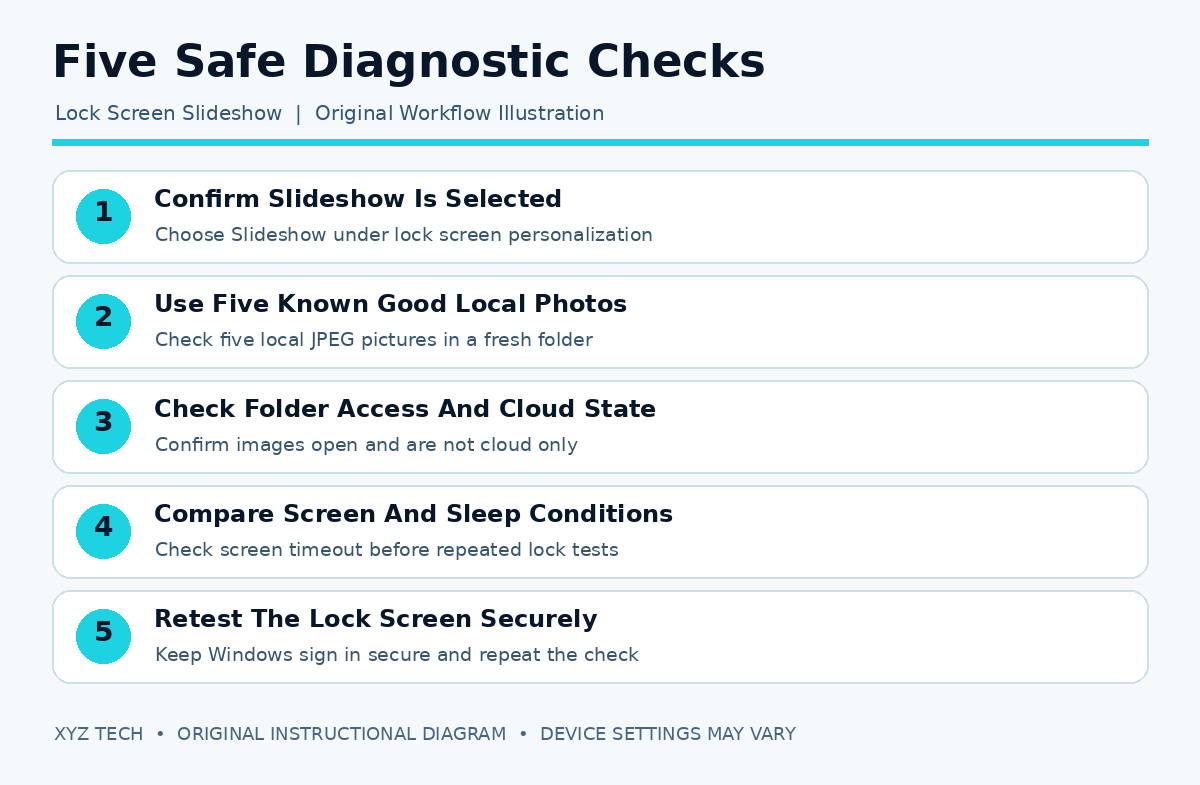
- Confirm Slideshow Is Selected: Choose Slideshow under lock screen personalization. Record the result before moving to the next check.
- Use Five Known Good Local Photos: Check five local JPEG pictures in a fresh folder. Record the result before moving to the next check.
- Check Folder Access And Cloud State: Confirm images open and are not cloud only. Record the result before moving to the next check.
- Compare Screen And Sleep Conditions: Check screen timeout before repeated lock tests. Record the result before moving to the next check.
- Retest The Lock Screen Securely: Keep Windows sign in secure and repeat the check. Record the result before moving to the next check.
Symptom And Next Action Table
| What You Observe | First Safe Check | Why It Matters |
|---|---|---|
| Choose The Actual Slideshow Option | Confirm Slideshow Is Selected | Confirm The Selected Feature |
| Confirm Folder Permissions And Path | Use Five Known Good Local Photos | Separate Automatic From Manual Behavior |
| Review Screen And Sleep Timeouts | Check Folder Access And Cloud State | Check A Known Good Example |
| Restart Explorer Only If Other Shell Features Fail | Compare Screen And Sleep Conditions | Look For A Reversible Condition |
| Test Without Screen Saver Confusion | Retest The Lock Screen Securely | Exclude App Or Profile Limits |
| Protect Privacy On A Shared Or Public PC | Retest The Lock Screen Securely | Retest With Normal Security |
Frequently Asked Questions
Why Is My Windows 11 Lock Screen Showing Only One Picture?
The lock screen may be set to Picture rather than Slideshow, or the selected folder may contain too few usable local images. Check both before trying system repairs.
Is The Desktop Wallpaper Slideshow The Same As The Lock Screen?
No, Windows configures desktop backgrounds and lock-screen pictures separately. A changing desktop does not establish that lock-screen Slideshow is enabled.
Can Windows Spotlight Use My Personal Slideshow Folder?
No, Windows spotlight is a separate dynamic image mode. Choose Slideshow to use pictures from a selected folder.
Can OneDrive Online Only Photos Affect A Lock Screen Slideshow?
They can complicate local file availability. Use a small folder of pictures confirmed to open locally to isolate the source problem.
Why Does The Image Change When I Open The Sign In Screen?
The sign-in background has separate display behavior and a dedicated lock-screen-picture option. Observe the lock screen before dismissing it.
Will Changing Sleep Settings Permanently Fix The Slideshow?
Not necessarily. Screen timeouts control how long the display remains visible, not which images qualify. Restore preferred power settings after testing.
Should I Delete Windows Spotlight Cache Files?
No, not for an ordinary personal Slideshow problem. Confirm which lock-screen mode is selected and use supported Settings controls.
Can A Work Laptop Block Lock Screen Customization?
Yes, managed devices may restrict personalization. Ask the organization administrator before changing policy-controlled settings.
Do I Need A Registry Cleaner To Repair Lock Screen Photos?
No, start with a valid local picture folder, the correct Slideshow setting and a controlled reboot or update check.
How Do I Confirm The Slideshow Is Working?
Observe the actual lock screen over several controlled sessions with several verified local photographs, while keeping secure authentication enabled.
Official Reference Material
These are manufacturer or platform support documents. Settings can differ by operating-system release, device capabilities and organizational policies. The steps above are documentation-based troubleshooting, not a claim of laboratory testing on every supported device.