
If Windows 11 Dynamic Lock does not lock your PC when you walk away, first pair your phone through Settings > Bluetooth & devices. Next open Settings > Accounts > Sign-in options > Dynamic lock and confirm it is enabled. Carry the phone genuinely out of Bluetooth range and allow roughly a minute for detection. If it still fails, troubleshoot the Bluetooth connection and device drivers. Press Windows + L whenever you need immediate security.
Dynamic Lock is a useful second layer of account protection, but it is easy to mistake its delayed Bluetooth range detection for a broken setting. This guide separates pairing faults from sign-in controls, compares common symptoms and explains how to test safely without leaving confidential work exposed.
How To Use This Guide: Check which condition you have before changing anything: the PC cannot find a phone, the phone is paired but there is no automatic locking, or the lock occurs inconsistently. Make one reversible change per test.
Confirm The Phone Is A Supported Bluetooth Companion
Dynamic Lock uses the Bluetooth relationship between a Windows PC and a paired phone to infer when you have walked away. It is not a GPS tracker, presence sensor, face recognition system or replacement for locking manually. Start with a phone that can form a stable Bluetooth connection and a Windows 11 computer with an operational Bluetooth adapter. A paired headset or fitness accessory is not a reliable substitute for the phone workflow described in Microsoft's instructions.
Open Settings, Bluetooth & devices, Devices, and inspect the phone entry. Confirm that the device is genuinely your phone and that the PC's Bluetooth control is enabled. On the phone, leave Bluetooth on and ensure it has not been restricted by an aggressive power mode. Avoid accepting unfamiliar pairing requests when making this check.
Record whether the phone appears paired before testing Dynamic Lock. If Windows never detects the phone, solve the pairing issue first. Do not change unrelated account sign-in requirements while the Bluetooth connection is uncertain.
Understand What Dynamic Lock Actually Does
Microsoft says the feature automatically locks Windows after the paired phone moves out of Bluetooth range, typically within about a minute. This is a delayed, approximate proximity behavior and not an instant reaction to every step you take. Bluetooth signal strength varies with doors, furniture, the adapter's radio and the phone's position. A test carried out a few feet away in the same room may not represent leaving the workplace.
Do not use Dynamic Lock as the only protection when sensitive information is on the screen. Press Windows + L whenever you step away from a shared office, classroom or public desk. The automatic feature is a convenient backup for moments when you forget the normal locking action.
A good test gives Windows time to detect that the phone is no longer nearby. If you return before that detection interval, the computer may have remained unlocked without any actual fault.
Find The Dynamic Lock Control In Windows 11
The current documented path is Settings, Accounts, Sign-in options, then the Dynamic lock section under additional settings. Labels sometimes move between Windows builds, and organizational administrators can restrict features. Windows Security, Account protection, also links to the same account-protection controls. You should verify where the setting appears rather than relying on a screenshot made for a different release.
Expand Dynamic lock and inspect whether its automatic-lock control is enabled. If Windows reports that it cannot find a paired phone, that warning is a clue about Bluetooth pairing, not evidence that a Windows Hello PIN is incorrect. Review any account-management message before attempting to change settings.
If the control is missing or managed, document the Windows build and the exact message. Do not apply an unverified registry fix or install an outside program that promises to unlock hidden Windows security settings.
Related XYZ Tech guide: Windows Hello Face Recognition Not Working. This provides the narrower steps if that symptom is present.
Pair The Phone Using Normal Bluetooth Settings
When the phone does not appear in Devices, use Settings, Bluetooth & devices, Add device, Bluetooth, then follow the pairing prompts on both screens. Some phones need their Bluetooth settings open to be discoverable, while others require confirmation of a code. Make sure you are selecting the correct device rather than a nearby stranger's phone or a previously paired accessory.
Check that the pairing code shown on the PC corresponds with the phone prompt and approve it only on devices you control. If pairing fails, restart Bluetooth on both devices and move them close together. Prefer the built-in Windows Bluetooth troubleshooter and the manufacturer's driver guidance over unofficial driver packages.
Once pairing completes, reopen Dynamic Lock and verify whether the phone is recognized. Pairing is a prerequisite, not proof that automatic locking has been successfully tested. Continue to a controlled walk-away test.
Investigate A Phone That Was Paired Previously
An old Devices entry can persist when a user has replaced the phone, reset its Bluetooth configuration or paired it with another Windows installation. Dynamic Lock may still be looking for a companion that is no longer available. An old device name is not proof of a current working connection, especially when several family phones have similar model labels.
Confirm the phone's current Bluetooth identity in its own settings. If the old pairing is stale, remove only that device entry and pair the intended phone again. Re-pairing can affect other Bluetooth workflows, so note any device-specific configuration first. Avoid indiscriminately removing keyboards, mice and hearing devices from the PC.
After pairing the correct phone, inspect Dynamic Lock's status again and repeat the controlled test. If you are uncertain which entry is your phone, compare the displayed pairing prompts and names instead of guessing.
Check Bluetooth Radio Availability On The Computer
Windows cannot use Dynamic Lock when the computer lacks a functioning Bluetooth radio. If the Bluetooth toggle disappears entirely, the problem may involve the hardware adapter, airplane mode, driver detection or Windows service state. A laptop's physical wireless switch or firmware setting can also affect radio availability on certain models.
Open Settings, Bluetooth & devices and confirm the Bluetooth option is present. If it is missing, inspect Device Manager for the adapter and use Windows Get Help's Bluetooth troubleshooter. For a device with a removable USB adapter, check that it is safely connected. Avoid unplugging a shared workstation's equipment without permission.
Treat a missing radio as a Bluetooth fault first. Resetting sign-in options or changing Microsoft account settings cannot make an undetected adapter work. Revisit Dynamic Lock only after Bluetooth functions normally.
Related XYZ Tech guide: Bluetooth Disappeared In Windows 11. This provides the narrower steps if that symptom is present.
Test Without Nearby Bluetooth Interference
A phone can remain within radio range even when it is physically beyond a desk or behind a thin wall. Conversely, crowded wireless environments and metal furniture can weaken the signal while you are nearby. These variations explain why Dynamic Lock may activate at different distances on different machines. It does not provide a precise distance setting that can be calibrated to the centimeter.
Perform the test in a private environment where leaving the PC briefly unlocked poses no risk. Walk farther away with the phone, remain away long enough, then observe whether the machine has locked. Do not leave the screen exposed to other people for a prolonged experiment. For sensitive work always lock it manually.
If locking happens reliably only at a greater distance, the behavior may reflect radio range rather than an operating-system defect. Note the actual conditions rather than reporting an invented universal number of meters.
Allow Enough Time After Walking Away
Dynamic Lock is not intended to lock the screen immediately at the moment a person stands up. The Microsoft description indicates an automatic lock within approximately a minute after the phone is out of Bluetooth range. Users who watch the screen for five seconds may conclude that the feature is broken despite the feature not having reached its intended activation condition.
Keep a second trusted person nearby to observe only the lock screen while the phone is carried away, or use a safe test environment without confidential content. Wait the documented interval after leaving Bluetooth range. Do not confuse the normal screen-off timer with the Dynamic Lock event. A display can turn off without the account actually being locked.
Confirm that returning to the computer requires the expected PIN, password or Windows Hello sign-in after the test. A dark screen alone is not proof that the session is protected.
Distinguish Screen Timeout From Account Locking
Windows can darken the display or enter sleep according to separate power settings. A screen that turns off due to inactivity does not establish why the session is locked, and Dynamic Lock may work even when the display stays on briefly. Similarly, a sleeping computer may resume to a sign-in screen because of wake-up settings rather than Bluetooth proximity.
Compare three behaviors: manual Windows + L locking, the normal idle display timer, and walking away with the phone. Record which action triggers the sign-in screen. If the PC never locks manually, that is a broader Windows account problem that needs a different diagnostic path. Keep automatic sign-in behavior in mind when interpreting results.
Use clear language in troubleshooting notes. The objective is to verify the Windows session locks when the phone leaves, not simply to make the monitor go black or show a screen saver.
Consider Phone Power Saving And Bluetooth Sleep
Some phones reduce wireless activity when battery-saving modes are enabled. Depending on model and software, that can disturb detection or change the timing of the Bluetooth relationship. These effects are device-specific, so there is no safe blanket instruction to disable every Android or iPhone battery optimization or install a background monitoring app.
Check whether the phone's Bluetooth stays enabled when the screen is locked and when it is taken away. Compare one test under normal power settings with a test under the suspected restrictive mode if practical. Keep battery and accessibility requirements intact, and avoid rooting or modifying the phone for this Windows feature.
If behavior changes only under a particular phone power setting, consider whether the tradeoff is acceptable. Manually locking Windows remains the reliable option even when the phone's battery is low.
Review Windows Bluetooth Driver Status
A working radio can still suffer unstable connections because a driver is outdated, incompatible with a recent update or supplied by an unsupported source. Dynamic Lock depends on stable Bluetooth capability even though it does not directly control the driver. Random audio dropouts and disappearing devices may indicate a broader adapter issue rather than a sign-in setting problem.
Check Windows Update and the computer maker's support page for a driver intended for the exact model and installed Windows build. Device Manager can report adapter status, but an automatically updated driver is not necessarily the best fit for a specialized laptop. Keep a recovery path before making hardware-related changes.
Avoid websites that claim to scan the PC and install many mystery drivers. If pairing becomes unreliable after a specific update, record the date and seek manufacturer guidance before changing additional settings.
Related XYZ Tech guide: Bluetooth Devices Keep Disconnecting. This provides the narrower steps if that symptom is present.
Use The Built-In Bluetooth Troubleshooter
Windows 11 includes Microsoft Get Help troubleshooters for Bluetooth problems. The tool can guide checks for device discovery, pairing and radio availability without requiring unreviewed scripts. It may also distinguish a hardware issue from a temporary Windows configuration problem. The diagnostic's exact steps can change over time.
Open Get Help and search for the Bluetooth troubleshooter or follow the supported link from Bluetooth settings. Read the results, perform only changes you understand, and retest the phone pairing. A troubleshooter reporting no detected issue does not guarantee Dynamic Lock's radio-range behavior is correct.
If the tool identifies a missing adapter or unsupported driver, resolve that underlying issue before revisiting account controls. Avoid repeating the same troubleshooter endlessly without collecting new evidence.
Related XYZ Tech guide: What Is A Device Driver. This provides the narrower steps if that symptom is present.
Keep Windows Updated Through Supported Channels
Windows updates sometimes address device stability and sign-in behavior. Running an outdated build can create needless compatibility uncertainty with Bluetooth hardware and security features. The best approach is routine maintenance through Settings, Windows Update rather than downloading an unofficial system modification that promises to repair Dynamic Lock in one click.
Check for supported updates, read any restart requirements, save work and install changes when appropriate for your device. On managed computers, follow your administrator's release policy. Test Dynamic Lock again only after pending updates and restarts finish. Do not interrupt firmware or driver updates merely to perform a walk-away test.
Record Windows version, device model and the exact pairing symptoms if the feature remains unreliable. Those details are more useful than simply reporting that automatic lock sometimes fails.
Check Work And School Management Restrictions
Organizations may use sign-in policies, device management and security controls that affect which Windows settings are available to an employee. A grayed-out toggle or an option that reverts after policy refresh may be intentional. Trying to bypass those settings could weaken protection or violate the workplace's security requirements.
Look for messages such as Some settings are managed by your organization. Confirm whether the PC is signed in with a work or school account. Contact the administrator with the symptoms and the phone pairing status. Do not edit Group Policy or the registry to defeat an approved configuration.
A managed computer may already have an enforced lock timer, smart card requirement or other protective controls. Dynamic Lock is an additional option, not a justification for removing organizational safeguards.
Avoid Mistaking Windows Hello For Dynamic Lock
Windows Hello refers to supported methods of proving identity when signing in, including a PIN, fingerprint and face recognition. Dynamic Lock decides when to lock an active session using a paired phone's Bluetooth proximity. One can function without the other: a laptop may unlock with facial recognition but still fail to detect the paired phone.
Inspect Dynamic Lock separately from the chosen sign-in method. If you cannot unlock the PC with a PIN, troubleshoot Windows Hello or account recovery independently. Do not reset all sign-in methods to solve a pairing problem. Protect recovery information and avoid removing the only working method of access.
After testing, manually lock with Windows + L and confirm you can return to the normal sign-in screen. This verifies account access while leaving the Bluetooth proximity question to a separate test.
Related XYZ Tech guide: Windows 11 Fingerprint Reader Not Working. This provides the narrower steps if that symptom is present.
Understand What Happens When The Phone Battery Dies
If the phone loses power or Bluetooth switches off, the PC may interpret the lost connection as distance, but radio behavior and detection can be affected by hardware and software state. This is why Dynamic Lock should not be relied upon as a precision safety sensor. A dead phone is also not a way to validate all cases of actual physical departure.
Keep the phone charged during planned diagnostics so low battery does not create a confusing extra variable. Test normal departure first. Do not deliberately exhaust a lithium-ion battery or force a device shutdown just to try the Windows feature. Use ordinary screen locking for immediate security.
If you use a laptop at a shared desk, make Windows + L an automatic habit regardless of battery status. Treat Dynamic Lock as a convenience layer rather than a guarantee.
Do Not Confuse Phone Pairing With Phone Link
Microsoft Phone Link can connect an Android or iPhone to Windows for selected cross-device features, but a Phone Link session does not itself guarantee a valid Bluetooth pairing for Dynamic Lock. People often assume that because messages appear on the PC, proximity-based locking must already be configured. The two functions have different settings and purposes.
Open Bluetooth & devices and verify a genuine paired phone, then review Accounts, Sign-in options for Dynamic Lock. If Phone Link works over Wi-Fi while Bluetooth is disabled, the presence of phone notifications is irrelevant to the proximity requirement. Do not uninstall Phone Link to test a sign-in option.
Keep the workflows separate in your notes. A working Phone Link notification proves only that its own connection succeeded, not that Dynamic Lock recognized a valid companion phone.
Related XYZ Tech guide: Phone Link Notifications Not Syncing. This provides the narrower steps if that symptom is present.
Try A Clean Re-Pair Only When Necessary
If Windows recognizes the wrong phone or repeatedly reports that the correct phone cannot be found, a controlled removal and fresh pairing may help. Re-pairing is not the first step when the feature merely has a longer-than-expected activation delay. It changes a device relationship that other features might use, so the action should be deliberate.
Before removal, identify the phone's Bluetooth name and save any pairing information required by connected services. Remove only that stale device under Windows Bluetooth settings, then initiate a fresh pairing with both devices close together. Accept only matching codes. Re-enable Dynamic Lock if the interface requires it.
Conduct the walk-away test again, with normal battery settings and enough time to register departure. If the problem remains unchanged, collect logs and device details rather than performing increasingly disruptive resets.
Keep The Computer Secure During Tests
Testing an automatic security feature can inadvertently expose the very screen it is supposed to protect. An open financial account, business dashboard or private message should not be visible while someone walks away to check Bluetooth distance. This risk is higher on a shared desk, public library computer or university workstation.
Choose a test session displaying no sensitive content. Have a trusted observer watch for the lock screen, or conduct the test where nobody else can reach the PC. After the experiment, press Windows + L to secure the session regardless of the outcome. Never leave an unlocked laptop unattended as part of a troubleshooting procedure.
If the feature fails repeatedly, disable reliance on it rather than lowering other account protections. Record the symptoms and use established account safeguards until the underlying Bluetooth issue is resolved.
Check The Difference Between Windows Lock And Sign-Out
A Windows lock preserves the running user session while requiring authentication before someone can access it. Signing out is different: it ends the user session and can close applications. Users sometimes expect Dynamic Lock to shut down programs, disconnect the network or sign out as soon as they leave. None of those outcomes defines successful Dynamic Lock behavior.
During testing, confirm the lock screen appears and that the same user session resumes after authenticating. Do not expect applications to close, browser tabs to disappear or the PC to turn off. If unattended operations must stop, choose separate power or security controls designed for that purpose.
Avoid diagnosing the feature by watching download activity or background apps. The correct metric is whether another person can access the active Windows session without signing in.
Recognize When A Hardware Problem Needs Service
If the Bluetooth radio repeatedly disappears, multiple known-good phones refuse to pair and the adapter reports errors even after official updates, the cause may be an internal hardware fault. At that point Dynamic Lock troubleshooting reaches its limit. Replacing the phone or resetting Windows without evidence may create unnecessary expense and data-loss risk.
Document the exact PC model, Windows version, adapter name and failure messages. Consult the device maker or qualified support before opening the machine, replacing a radio module or reinstalling the operating system. Preserve backups of important work. An external compatible Bluetooth adapter might be an option, subject to manufacturer guidance and workplace policy.
While the hardware issue is unresolved, use Windows + L and ordinary account-protection settings. A reliable manual security habit matters more than forcing a convenience feature to run on unstable hardware.
Related XYZ Tech guide: Windows 11 Black Screen After Login. This provides the narrower steps if that symptom is present.
Build A Reproducible Test Routine
Good troubleshooting changes one variable at a time. With the phone paired, Bluetooth enabled and Dynamic Lock on, record the starting distance and whether the PC is already locked. Walk away with the phone into a location that is genuinely outside Bluetooth range, then wait for the documented delay. Re-enter and note whether authentication is required.
If the test fails, repeat once after checking a single suspected factor, such as stale pairing or an update. Do not simultaneously change phone power mode, Wi-Fi, registry settings and sign-in policies. That makes it impossible to know which change mattered. The routine should be both safe and easy to reverse.
Compare normal conditions across two attempts and keep the record simple. An intermittent result deserves focused Bluetooth investigation, not a promise that changing one slider will work on every PC.
Know When To Stop Troubleshooting
Some office environments require immediate locking, while Dynamic Lock is designed as a delayed proximity safeguard. The feature may work within its documented limits yet still be unsuitable for a role handling highly sensitive data or for a PC that remains reachable while the paired phone is nearby. More troubleshooting cannot change that basic design limitation.
Use manual locking and an appropriate organization-managed idle policy whenever immediate protection is required. If the setting is managed or the radio remains unstable, ask qualified support with the test observations. Avoid disabling Windows Hello, password rules or security updates to pursue a convenience improvement.
The practical outcome is a dependable protection routine: a functioning sign-in method, a manual lock shortcut and, where suitable, Dynamic Lock as an additional backup.
Symptom Decision Table
| Observed Symptom | Likely Category | First Safe Check |
|---|---|---|
| Phone Not Detected | Bluetooth Pairing | Inspect Devices and pair the correct phone |
| Still Unlocked After A Few Seconds | Expected Delay | Wait after leaving Bluetooth range |
| Bluetooth Toggle Missing | Adapter Or Driver | Run Windows Get Help Bluetooth checks |
| Locks At Inconsistent Distance | Signal Range | Repeat one controlled safe test |
| Option Is Grayed Out | Device Policy | Consult workplace administration |
| Screen Goes Dark But Session Stays Open | Power Settings | Verify the actual account lock screen |
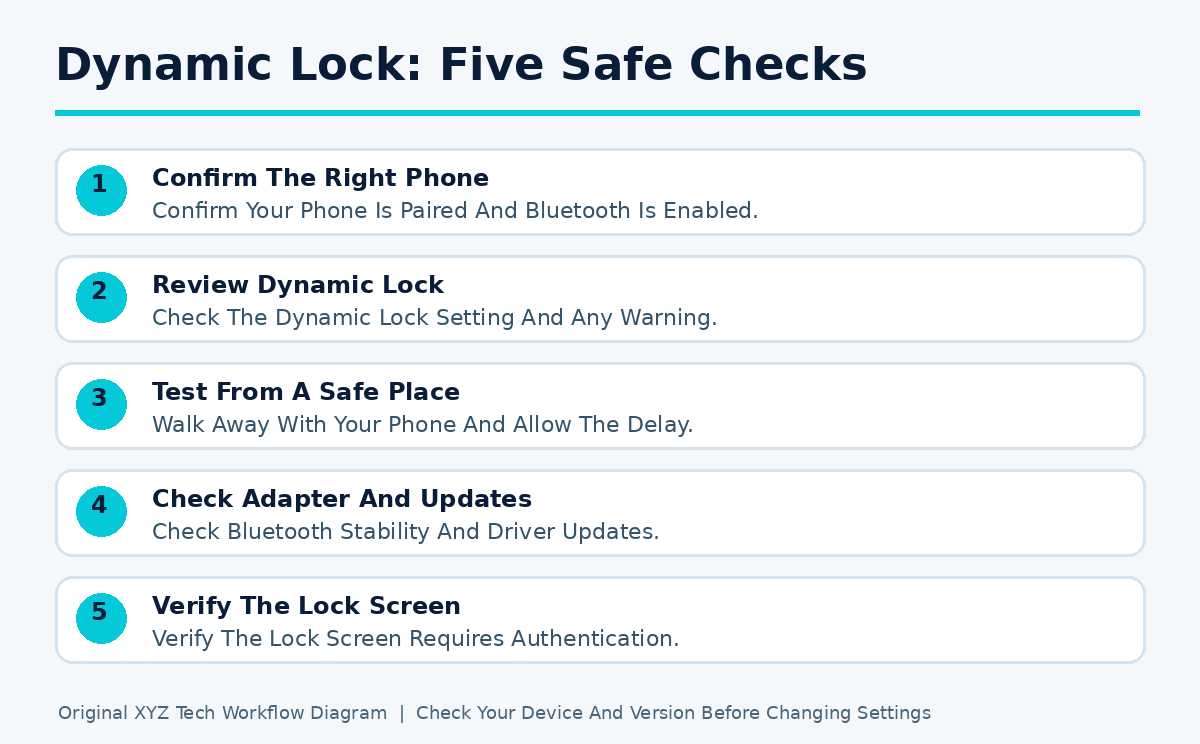
Five Step Verification
- Confirm The Right Phone: Verify the intended phone appears in Bluetooth Devices and that Bluetooth is enabled on both devices.
- Review Dynamic Lock: Inspect Settings, Accounts, Sign-in options, Dynamic lock and any pairing warning.
- Test From A Safe Place: Carry the phone outside Bluetooth range and allow the documented delay without exposing sensitive work.
- Check Adapter And Updates: Use Windows Get Help and manufacturer driver guidance if Bluetooth pairing is unstable.
- Verify The Lock Screen: Confirm authentication is required on return and keep Windows + L as the immediate lock method.
Frequently Asked Questions
How Long Does Dynamic Lock Take To Lock Windows?
Microsoft describes automatic locking within roughly a minute after a paired phone goes out of Bluetooth range. It is not an immediate security control and radio range can vary.
Does Dynamic Lock Work Without Bluetooth?
No, The documented feature depends on the Windows PC detecting a paired phone over Bluetooth. Other forms of phone connectivity are not a substitute for a functioning pairing.
Why Does Dynamic Lock Say It Cannot Find My Phone?
The phone may not be paired correctly, Bluetooth may be disabled or the relationship may be stale. Verify the phone identity and pairing before changing sign-in settings.
Will Dynamic Lock Sign Me Out Or Shut The Computer Down?
No, It locks the existing Windows session and requires authentication. It does not promise to close running programs or shut down the operating system.
Can I Make Dynamic Lock Lock The PC Instantly?
Not through the documented proximity setting. Press Windows + L for immediate locking and follow workplace security requirements rather than relying on the delayed radio trigger.
Does Phone Link Automatically Enable Dynamic Lock?
No, Phone Link data connections and Bluetooth pairing for Dynamic Lock are separate features. Verify the paired phone under Windows Bluetooth settings.
Should I Reset Windows To Repair Dynamic Lock?
No, Start with sign-in settings, phone identity, normal Bluetooth diagnostics and supported updates. Reinstallation is disproportionate for a convenience-lock problem without broader evidence.
Is Dynamic Lock Safer Than Pressing Windows And L?
It is a useful additional safeguard, but manual locking is more immediate and predictable. Use Windows + L whenever leaving a computer unattended.
Why Does Dynamic Lock Work Only When I Move Far Away?
Bluetooth proximity is an approximate signal and walls, furniture and adapter placement influence range. A short walk inside the same room may not cross the detection threshold.
Can An Administrator Disable Dynamic Lock?
Yes, managed PCs may restrict sign-in options. Ask the organization for approved settings rather than changing policy controls without authorization.
Official Reference Links
The vendor documentation below describes supported features and settings. Menus, availability and default behavior vary with device, version and management policy.
- Microsoft Support: Sign-In Options In Windows
- Microsoft Support: Account Protection
- Microsoft Support: Bluetooth Not Connecting
- Microsoft Support: Update Bluetooth Drivers
- Microsoft Support: Fix Bluetooth Disappeared
Verification Scope: The procedure is based on vendor documentation and software troubleshooting principles; no physical device was tested for this article. Keep a note of reversible changes and validate outcomes on your own system.