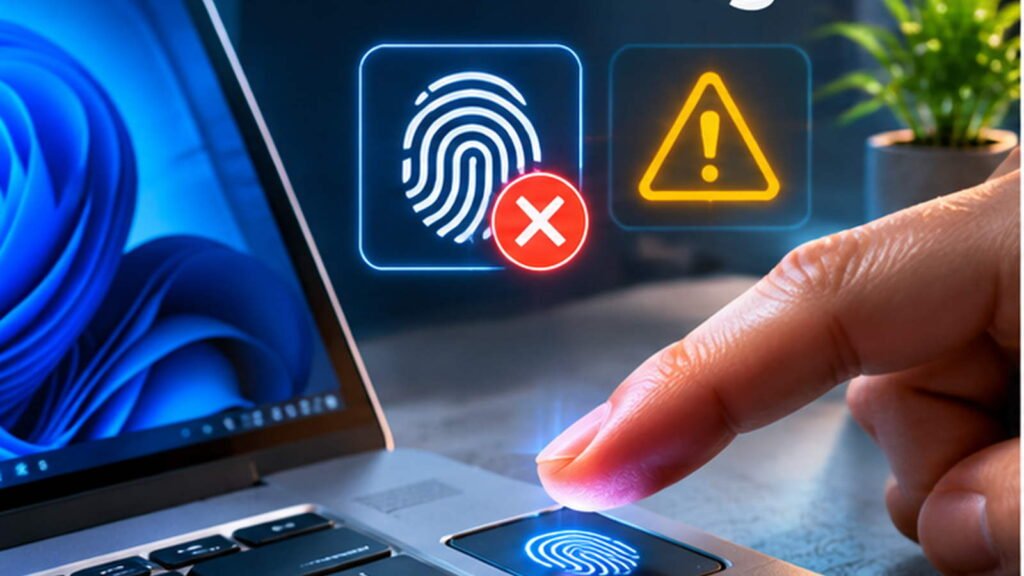

A fingerprint reader can fail because Windows cannot detect it, the driver is unstable, enrollment is poor or the sensor cannot match a finger under current conditions. This guide uses a safe decision-first workflow and distinguishes those causes.
Unlike a forgotten password, a biometric mismatch generally does not justify removing your account or reinstalling Windows. Work from reversible observations toward targeted changes and keep another authorized sign-in method available.
Recognize The Exact Fingerprint Error
Windows Hello may say that a fingerprint could not be recognized, that the option is currently unavailable, or that no compatible scanner was found. These messages describe different failure stages. A failed match means Windows has a usable sensor but did not accept the scan. An unavailable option can involve device support, driver state, policy or sign-in configuration. A completely missing scanner suggests hardware detection, connectivity or firmware issues. Record the message before attempting any fix. Microsoft explains common biometric recognition errors in its Windows Hello troubleshooting documentation. Do not reinstall Windows, remove your PIN or change security policies simply because a fingerprint was rejected once. The correct next step depends on which stage failed.
Check Whether Windows Still Offers PIN Sign-In
A Windows Hello PIN is an alternative way to authenticate to the same Windows device, and it is especially important when the fingerprint reader is temporarily unavailable. At the login screen, use Sign-in options to choose an available authorized method. If your employer uses specific sign-in policies, do not try to bypass them. If you can log in through the PIN, you can inspect the sensor and its settings from inside Windows. Never publicly post your password, PIN or recovery codes while requesting help. If the PIN is also unavailable, treat that as a separate account recovery problem and follow Microsoft guidance instead of disabling Windows Hello. Our Windows Hello Face Recognition Guide explains another biometric method with its own sensor requirements.
Confirm That Your PC Has A Compatible Sensor
Not every Windows 11 laptop includes a fingerprint reader. Some lookalike power buttons or touchpad areas are only mechanical controls. Check the manufacturer specifications for the exact model and its regional configuration. A PC bought with an optional fingerprint module may not actually have that option installed. If your machine uses a USB reader, inspect its product model and Windows Hello compatibility claims from the vendor rather than assuming every USB scanner can log you in. Microsoft lists requirements for third-party fingerprint devices. A missing hardware feature cannot be repaired through software, and a reader that works in a vendor application is not automatically suitable for Windows Hello sign-in.
Inspect Sign-In Options In Settings
After signing in through an authorized method, open Settings > Accounts > Sign-in options and locate Fingerprint recognition (Windows Hello). If the option is visible, read whether Windows allows enrollment, reports an unavailable sensor or displays another diagnostic message. Menu wording and availability can differ according to device security capabilities, connected peripherals and management policy. Microsoft documents this setup under Configure Windows Hello. Do not remove an existing fingerprint solely to test whether the menu works. First confirm the reader is detected and that the PIN remains functional. On a managed machine, an administrator may intentionally limit biometric enrollment, so report the message instead of attempting to change system policy.
Clean The Reader Without Damaging It
A smudged, wet or dirty sensor can have difficulty reading the texture of a finger. Turn to the device maker instructions for cleaning its particular reader. In general, use a clean, dry and soft cloth as directed, and remove residue gently without flooding the sensor with cleaner. Avoid abrasive substances, sharp objects and excessive pressure that can scratch a capacitive surface. Let both the reader and fingertip dry before testing again. A failed scan after washing hands or during very dry weather may be temporary rather than an indication of defective hardware. If the sensor area is cracked or the power button is physically loose, stop pressing it repeatedly and seek hardware inspection. The objective is a reliable contact, not forcing the device to accept an unclear fingerprint.
Use A Consistent Finger Placement
Place the enrolled finger on the sensor in a natural position and follow the animation or prompt if Windows provides one. Some scanners work best with a firm, brief touch; others require a different movement. Repeatedly dragging a finger across a stationary reader can produce inconsistent samples. Compare the same enrolled finger and another registered finger if one exists, but do not enroll a stranger simply to establish whether sign-in functions. Slight variations in pressure, angle, cuts or moisture can explain intermittent failures. If a reader succeeds in Windows settings but fails at startup, note the difference because it may indicate a login-session or wake-related behavior. Keep the test simple and protect your device’s authentication options throughout the process.
Review The Fingerprint Enrollment Without Losing Access
If the reader is detected and scanning works but repeatedly rejects one finger, re-enrollment can be considered after ensuring the account PIN is known and functional. Go to Settings > Accounts > Sign-in options, follow the current Fingerprint recognition controls and remove or add a sample only if you are authorized to modify it. Some workplace devices prevent this action for compliance reasons. Capture the finger from multiple comfortable angles as requested rather than repeatedly using the same tiny patch of skin. Do not remove every working sign-in method at once. A new enrollment may fix a poor stored sample, but it cannot repair a missing sensor driver, damaged reader or a firmware-level failure.
Check Device Manager For The Reader
Open Device Manager from an authorized Windows session and inspect Biometric devices, Human Interface Devices or the location documented by your manufacturer. A functioning reader often appears under a biometric category, though product-specific naming varies. If the entry has a warning marker, open Properties and record the device status code. If no sensor appears, do not create imaginary drivers by installing random packages. Check the laptop model specification, firmware settings and whether a USB reader is physically connected. Our Driver Selection Guide explains how to identify the correct hardware ID and use official drivers. A reader not appearing in Device Manager can indicate connection or hardware issues that a simple re-enrollment will not solve.
Update Only Official Biometric Drivers
Check Windows Update first, including Optional Updates where an applicable manufacturer-approved driver may be offered. If a recent update or hardware change coincides with the failure, check the PC manufacturer’s support page for the exact fingerprint sensor and model. Driver packages are not interchangeable merely because two laptops share a brand. Avoid unofficial driver download aggregators, unsigned executables and tools claiming to update every driver in one click. If the manufacturer specifies an installation order that includes chipset components, follow its documentation. A driver update can address compatibility and stability problems, but it should not be used as evidence that every failed recognition attempt is a driver defect. Record the installed version and result of the next test.
Handle A Fingerprint Problem After A Windows Update
If fingerprint sign-in stopped immediately after a Windows 11 update, record the installed Windows build and any recent driver changes. Do not automatically uninstall security updates; a coincident hardware or profile issue may be the true cause. Check the PC manufacturer support notes for the relevant model and any known fingerprint fixes. Microsoft has documented specific historical issues with certain ELAN drivers through its ELAN fingerprint driver troubleshooter, which is not a universal remedy. On an organization-managed PC, consult IT before rolling back drivers. A controlled change followed by a verified sign-in test is safer than several unexplained reversals.
Understand Enhanced Sign-In Security
Some Windows 11 devices support Enhanced Sign-in Security, often abbreviated ESS. It can restrict use of unsupported external fingerprint readers or cameras to protect biometric authentication pathways. Microsoft explains the interaction in its third-party Windows Hello guidance. If an external reader works in a normal application but not in Windows Hello, verify whether the device is on the supported list and which security requirements apply. Do not disable ESS reflexively just to make an inexpensive peripheral work. A security feature may be the reason the device is correctly excluded. Consider a supported certified reader or consult the manufacturer and administrator for acceptable alternatives.
Check USB Connections For An External Scanner
For a supported USB fingerprint reader, confirm the cable, port and connector are in good condition. Plug it directly into a compatible computer port when possible to isolate a suspect hub or docking station. Do not repeatedly force a connector or use an unverified USB adapter. A USB device that disconnects during sleep or after moving the laptop can produce intermittent biometric failures. Inspect Device Manager after reconnecting and note whether the reader appears reliably. Our Windows USB-C Troubleshooting explains how power, data and port capabilities differ. If the reader is not detected on a known-good port, follow the device maker’s support instructions rather than modifying Windows account security.
Recognize Fingerprint Failures After Sleep
A fingerprint reader that works immediately after restart but disappears after sleep can reflect a device wake or driver power-management issue. Reproduce the symptom once after saving work, and compare Device Manager status before and after sleep. Avoid switching dozens of advanced power settings without a diagnosis. Some USB peripherals are managed differently from built-in biometric sensors, and modern standby capabilities vary by hardware. If your laptop also fails to wake normally, use our Windows 11 Sleep And Wake Guide to separate the general power problem. A fingerprint symptom is sometimes the first visible result of a broader wake issue, not a defect in your fingerprint enrollment.
Check Firmware And Manufacturer Settings Carefully
The firmware or BIOS/UEFI interface on some computers includes controls for integrated peripherals or biometric security features. Before entering firmware settings, confirm that the manufacturer actually provides such controls for your model. Never guess at changes to a security processor, TPM, Secure Boot, or other authentication-related settings merely to restore fingerprint scanning. Firmware modifications can affect device startup and BitLocker recovery prompts. Record current settings and follow only the manufacturer’s documented procedure. If a sensor is disabled by an organizational policy, changing firmware may be inappropriate and could trigger management protections. For personal devices, official firmware updates may address hardware compatibility, but they should be installed with reliable power and verified backups.
Distinguish Account Policy From Hardware Failure
An organization can restrict Windows Hello enrollment through device management or identity policy. A missing enrollment option does not establish a broken scanner if the account is subject to such restrictions. Check whether the PC shows an organization management notice and whether a second authorized account has the same limitation. Do not create another administrative user or remove management enrollment as a workaround. If the feature disappeared after joining a workplace domain or changing organizational accounts, provide IT with the device model, Windows build and exact settings message. The correct remedy may be a policy update or a supported sign-in method rather than a driver installation. For personal PCs, confirm that the current account is fully signed in and authorized to configure biometric options.
When The Fingerprint Reader Works For Apps But Not Login
Some fingerprint scanners provide their own desktop software, while Windows Hello uses a supported biometric integration and account-specific enrollment. Successful identification inside a vendor app does not guarantee that Windows can use the same reader for sign-in. Compare device support claims and the manufacturer’s official setup steps for the installed Windows version. If the scanner appears in Device Manager but Windows Hello says unavailable, inspect its status, driver and compatibility before deleting the app. Do not install unofficial bridges that ask for credentials or Windows security privileges without clear manufacturer support. Windows Hello sign-in must remain a trusted authentication pathway, not an experimental interface into an unknown biometric utility.
Use The Windows Hello PIN As A Safe Fallback
A properly configured PIN remains the intended fallback when fingerprint recognition is temporarily unavailable. Using it does not weaken the need to repair a repeatedly failing reader, but it preserves access while you investigate. If a workplace uses additional verification or passwordless account policies, follow its approved alternatives. Avoid disabling the PIN requirement, deleting the Microsoft account or sharing sign-in codes with a repair technician. If the PIN itself does not work, use the correct Windows account recovery and identity-verification process rather than attempting BIOS resets. It is better to postpone biometric enrollment until your account can be accessed reliably than risk losing the only working sign-in method.
A Comparison Table For Fingerprint Symptoms
Use the symptom rather than the first search result to choose your next step. When a sensor recognizes some attempts but not others, start with safe cleaning and correct placement. When Windows cannot see the device, investigate hardware detection and compatible drivers. When an external reader is rejected, review Windows Hello and Enhanced Sign-in Security support. When the failure appears after sleep, compare wake behavior. Keep this distinction explicit in your notes. A troubleshooting table records observations without claiming an untested repair is guaranteed. Avoid deleting stored fingerprints or Windows security configuration until the evidence points to an enrollment problem. A reader may be working correctly even if the last finger sample was low quality.
| Observed Symptom | Likely Category | Safe Next Action |
|---|---|---|
| Fingerprint Not Recognized | Sample Or Surface | Clean And Retest |
| Sensor Missing From Device Manager | Hardware Or Driver | Check Model And Driver |
| External Reader Unavailable | Compatibility Or ESS | Check Certified Support |
| Fails Only After Sleep | Wake Or Power | Record A Wake Comparison |
| Managed Account Blocks Setup | Organization Policy | Contact IT |
Why Removing All Biometric Data Is Not The First Fix
Instructions on discussion boards sometimes recommend removing biometric databases or manually deleting protected Windows files. Such steps can affect enrollment for more than one user, require administrator privileges and create account-recovery problems. They are not appropriate initial troubleshooting for a finger that occasionally fails to match. Start with official Sign-in options, device detection and manufacturer guidance. If an official support procedure recommends clearing a biometric database in a documented scenario, understand who owns the device and confirm the recovery methods for all affected accounts before proceeding. Never follow a random script that silently changes the Windows Biometric Service, security permissions and protected system data at the same time.
When A Service Or System Repair Is Relevant
Windows biometric functionality relies on system components, but manually changing services is not generally the first response to a missing fingerprint match. If Device Manager shows normal hardware and the settings app itself is malfunctioning, consider broader Windows health checks through the official troubleshooting workflow. Our System File Repair Guide explains the purpose of DISM and SFC, which can help certain system-file failures but cannot repair a cracked sensor. Do not run registry cleaners or bulk service reset scripts based on vague claims. Record the precise error and evaluate whether other Windows settings are failing before making system-wide changes. On work devices, IT should coordinate those repairs.
Avoid Privacy Risks During Fingerprint Troubleshooting
Biometric sign-in is designed to keep access tied to the authorized person and device. Do not upload fingerprint images, security credentials or diagnostic reports containing personal identifiers to public support forums. Support technicians generally need the laptop model, Windows version, sensor device name and relevant error code, not your fingerprint or account PIN. If a repair shop asks to sign in as you, consider whether the manufacturer provides a diagnostic workflow that can run without exposing your private files. For managed devices, use the organization’s approved repair channel. An untrusted driver or biometric app can create a greater security risk than temporarily signing in with your existing PIN.
A Repeatable Test After Each Change
Test one variable at a time. After cleaning, attempt normal fingerprint sign-in under similar finger conditions. After changing a driver, restart only when instructed and compare Device Manager status. After enrollment changes, test the new fingerprint and a working fallback method. If the issue occurs after sleep, reproduce the wake cycle once with saved work. Record the pass or failure rather than relying on memory. This controlled approach prevents a successful scan from being incorrectly attributed to the last of six unrelated changes. Also check that Windows continues to offer the expected PIN or password option. A stable repair should improve recognition without requiring users to sacrifice account access or disable security features.
When To Contact The Computer Manufacturer
Seek official manufacturer support if the reader is absent from Device Manager despite confirming the model includes it, if the sensor is visibly damaged, if firmware reports a biometric hardware fault, or if multiple supported driver tests fail. Provide the precise model, Windows 11 version, sensor name where visible, and a short list of results. Do not send private account security information. Ask about warranty coverage and whether the part is a replaceable module or integrated with another component. For an external sensor, contact the accessory maker about Windows Hello certification and ESS support. A device that consistently fails hardware detection is better handled by trained support than by repeated fingerprint removal.
How To Confirm The Fix Really Worked
After a suspected fix, verify normal sign-in after restart and again after a routine sleep-and-wake cycle if that was the trigger. Test the intended finger two or three times without rapidly repeating an unsuccessful press. Confirm that Device Manager reports no new warning and that Settings still lists the expected Windows Hello method. Preserve a working PIN fallback and check that the laptop maintains its normal security policy. If the problem returns only under particular humidity, user conditions or device movement, record that pattern and request targeted support. A single successful scan is encouraging, but reliable behavior across ordinary use is stronger evidence of resolution.
Frequently Asked Questions
Why Does Windows Hello Say My Fingerprint Cannot Be Recognized?
The reader may be functional but unable to match that particular scan. Clean the surface safely, adjust finger placement, and consider authorized re-enrollment only after confirming a working fallback sign-in.
Where Do I Set Up A Fingerprint In Windows 11?
Open Settings > Accounts > Sign-in options > Fingerprint recognition (Windows Hello), if your hardware and account policy support it.
How Do I Know Whether The Fingerprint Sensor Is Broken?
Compare the exact Windows message and Device Manager detection. Persistent hardware absence or physical damage warrants manufacturer inspection.
Can A Windows 11 Update Break Fingerprint Sign-In?
A driver or compatibility change can contribute in some cases. Record the update and check the device maker for a supported fix rather than uninstalling updates blindly.
Does Windows Hello Require A Fingerprint Reader?
Fingerprint sign-in requires compatible biometric hardware. Other Windows Hello methods can use different hardware and authentication options.
Why Is My External USB Fingerprint Reader Unavailable?
It may lack Windows Hello support, have a driver or port problem, or be restricted by Enhanced Sign-in Security.
Should I Disable Enhanced Sign-In Security?
Not as a routine fix. ESS protects biometric sign-in on supported devices, and an incompatible reader may need replacement or official support.
Is Removing Fingerprints Safe?
It can be appropriate for a confirmed enrollment problem, but first ensure you can sign in with an authorized PIN and know the correct account recovery process.
What If The Sensor Works Until The Laptop Sleeps?
Compare its Device Manager state and wake behavior before changing power settings. Follow official model-specific driver instructions.
Can I Still Sign In Without A Fingerprint?
Yes, when another authorized sign-in method, such as a configured Windows Hello PIN, is available. Use it while investigating the reader.


