
When Android Quick Share cannot find another phone, enable Bluetooth on both devices, unlock the receiving screen and open Quick Share Receive mode. Verify Who can share with you, choosing an appropriate privacy option such as Contacts or the temporary Everyone for 10 minutes setting. Keep the phones close, test a small file and check that the intended recipient approves it. Avoid clearing application data or installing unknown transfer apps.
Android-to-Android Quick Share discovery and transfer failures have different causes. This guide walks through receiving mode, temporary visibility, same-account devices, QR-code options, local wireless conditions and file verification without sacrificing privacy or deleting data.
How To Use This Guide: First identify the point of failure: the other phone never appears, the receiver never gets a prompt, the transfer stalls after acceptance or the completed file cannot be found. Then use the matching section.
Confirm That Both Phones Support Quick Share
Quick Share is Android's nearby content-sharing workflow, previously called Nearby Share on some older interfaces. A user may see the service in Settings, the share sheet or Quick Settings depending on the Android release and device manufacturer. Before interpreting a missing recipient as an error, confirm both phones provide the function and that the selected content can actually be shared. Older or heavily customized phones may offer a different name or user interface.
Open each phone's Settings search and enter Quick Share. If it is not immediately visible, inspect the Quick Settings tile editor and the share options for a simple photo. Do not install a third-party file-sharing APK merely because the built-in tile is absent. Check the manufacturer documentation for model-specific compatibility first.
Record the sender and receiver models, software versions and exact point where the workflow fails. Different phones can have different screens while still supporting the same sharing service.
Identify Whether Discovery Or Transfer Is Failing
Two distinct failures can feel identical. In a discovery failure, the recipient never appears in the sender's available-device list. In a transfer failure, the recipient appears and may accept, but a file is not received or takes too long. Discovery depends heavily on visibility, nearby radios and device state; transfer can also depend on available storage and local connectivity.
Try sharing one small, nonprivate photo or a harmless text file. Observe whether the receiver appears and whether the approval prompt arrives. Do not start by testing a multi-gigabyte video; large files can hide whether basic discovery works. Keep the devices close enough to see both displays.
If discovery succeeds and the small item transfers, focus on the original file or source application. If the recipient never appears, proceed through the Bluetooth and visibility checks instead.
Related XYZ Tech guide: Quick Share Not Finding Windows PC. This provides the narrower steps if that symptom is present.
Turn On Bluetooth On Both Android Devices
Google's Quick Share guidance requires Bluetooth on both devices for nearby discovery. A phone can have working mobile data or a Wi-Fi connection and still fail to show nearby recipients when Bluetooth is off. Airplane mode or a vendor power profile can also change radio behavior. Bluetooth here helps devices find one another, but the overall transfer workflow is not equivalent to old-fashioned Bluetooth file sharing.
On the sender and receiver, open Quick Settings and confirm Bluetooth is enabled. Check Airplane mode, then retry with both screens awake. Avoid disconnecting hearing devices or important peripherals without considering their needs. A brief toggle may help if a radio state is stale, but it is not a reason to reset network settings immediately.
Once the receiver becomes visible, test the small file again. If Bluetooth itself disappears or will not turn on, diagnose the phone's radio or software separately rather than changing every Quick Share privacy option.
Keep The Receiver Unlocked And Nearby
Google advises keeping the receiving phone unlocked when accepting content from another person. The sender may be unable to discover a receiver whose screen is off or whose visibility permission has expired. Physical distance matters because nearby discovery is designed for devices close to each other, not for long-range delivery between cities or across unrelated networks.
Place the two phones side by side on a desk and unlock the receiver. Open Quick Share on the receiving phone before searching from the sender. Remove unusual metal cases temporarily only if needed and safe. Do not place phones on hot surfaces or inside containers as a troubleshooting trick.
A successful discovery while the screen is unlocked points toward the receiver state or privacy window, not a broken file. Maintain that state for a controlled test before exploring further settings.
Open Receive Mode When Sharing With Someone Else
A receiving phone can become visible to nearby senders while its Quick Share Receive screen is open. This offers a simple way to test discoverability without permanently allowing strangers to find the device. Google's current Android guidance specifically describes a Receive mode that remains discoverable while its page is shown.
On the receiver, open Quick Share and select Receive if the control is available. Keep that screen visible while the other user attempts a small transfer. Accept only a request that clearly names the expected sender and content. If the screen differs by vendor, inspect the model's documented sharing interface.
If Receive mode fixes discovery, the issue was probably the receiver visibility state. Exit the page afterward so that the device is not unnecessarily discoverable to anyone nearby.
Related XYZ Tech guide: How To Fix Bluetooth Pairing Problems On Android. This provides the narrower steps if that symptom is present.
Choose The Appropriate Visibility Option
Quick Share visibility settings may include Your devices, Contacts and Everyone for 10 minutes. These options control who can discover the receiver, not whether the receiver can access the internet. Your devices is intended for devices using the same Google Account, while Contacts has different expectations about account information and screen state. Everyone for 10 minutes is temporary and should not be a permanent privacy workaround.
Open Settings and search for Quick Share, then inspect Who can share with you. For a test between two separate people, briefly use the limited Everyone window if you are comfortable with the privacy implications. Restore a more restrictive option afterward. Never approve a transfer simply because the sending name seems vaguely familiar.
Watch whether the desired device appears during the short window. If it does, switch back to Contacts or another suitable policy after the successful test rather than leaving broad discovery enabled.
Understand Your Devices And Google Accounts
When two compatible devices are signed into the same Google Account, Quick Share can make them discoverable under the Your devices setting and may automatically accept a transfer. A colleague's or family member's phone generally should not be treated as your own device just because you use the same Wi-Fi network. Account relationships and network access are separate factors.
Check which Google Account each phone is actually using if you expected the own-device behavior. Do not sign another person's phone into your private Google Account solely to simplify a one-time file transfer. Use the temporary receiver mode or ordinary approval route instead.
If the phones use different accounts, switch to a visibility option intended for sharing with other users. Treat account selection as a privacy choice, not a quick setting to change casually.
Check Contacts Visibility Without Exposing Private Data
Contacts visibility can limit discoverability to known people under Google's supported conditions, but the receiver may still need to be unlocked and the service configured properly. A saved phone number alone does not guarantee instant discovery in every Android version. A missing name can reflect contact configuration rather than a broken Bluetooth radio.
Confirm both participants are intentionally sharing with each other. Check contact identity and the service's visibility explanation on the actual device. Avoid uploading or exporting an entire contacts list to random transfer websites. When you need a one-off share and contacts discovery fails, a short Receive mode test is often more controlled.
After sharing, return to the preferred private setting. Do not disable device security or expand contacts visibility globally to fix one missed connection.
Know Why Everyone For Ten Minutes Expires
A temporary Everyone visibility window is designed to reduce exposure to unsolicited nearby requests. If you wait through the expiration and then begin searching, the device can disappear from the sender's list without any radio problem. Repeatedly toggling unrelated features will not solve an expired privacy window.
Start the receiving window immediately before trying the share, and keep both phones close. Watch for the timeout notice or a reversion to the previous setting. If the option expires, enable it again only for the specific intended transfer. Never approve an unexpected file during this interval.
If discovery works only while the window is active, Quick Share is doing what the setting requests. Choose a suitable long-term Contacts or own-device option rather than viewing temporary visibility as a defect.
Try A QR Code Transfer Where Supported
Recent versions of Quick Share can support showing a QR code to help another device connect to a sharing session. This can be useful when discovery is inconsistent, but the precise QR workflow and camera compatibility vary among devices. The availability of QR sharing should not be assumed on every older phone or customized Android build.
Look for the QR option in the sending flow and follow the displayed instructions if both devices support it. Ask the intended recipient to scan only the code you just generated. Avoid publishing the QR code online or sending it to unrelated people, since it is part of a live sharing context.
If the QR path succeeds, the transfer system may be functional even though nearby discovery was difficult. Keep investigating privacy or radio-state differences rather than declaring hardware failure.
Check Wi-Fi State Without Confusing It With Internet Access
Quick Share may use local wireless connections to move data after devices discover one another. This does not mean both users necessarily need active internet subscriptions for every nearby transfer. A phone showing full Wi-Fi bars can still have limited local communication because of network policy, interference or device restrictions.
Confirm Wi-Fi is available and that neither phone has a special restriction on local device communication. If the user is on managed guest Wi-Fi, ask whether nearby sharing is permitted. A temporary controlled test in a familiar safe environment can help distinguish network policy from the file itself.
Avoid resetting all Wi-Fi passwords or disabling a corporate security profile for a simple transfer. Use documented connection settings and restore any temporary changes.
Related XYZ Tech guide: Android Phone Not Connecting To Wi-Fi. This provides the narrower steps if that symptom is present.
Check Do Not Disturb And Missed Request Prompts
A recipient may appear in the sender list but never notice the incoming request because the screen is locked, the prompt was dismissed or an attention mode suppresses notifications. The transfer has not necessarily failed in that case; the receiving user may simply not have accepted the request. Some own-device transfers behave differently because auto-accept is supported.
Keep the receiving screen awake and watch the notification shade while starting a small test transfer. Check Do Not Disturb if the prompt remains hidden. Do not permanently disable important notification safety filters or accept files without inspecting their sender and type.
If the request is visible and can be accepted, discovery is functioning. Focus next on the receiving app, data transfer and storage rather than continuing to adjust visibility alone.
Confirm The Receiver Accepts The Intended Sender
Nearby sharing involves a trust decision. A device name can be ambiguous or similar to another phone in a crowded location. The recipient should check the request details and accept content only from an expected source. A successful technical connection is not enough when the file could contain unwanted or malicious content.
Ask both users to confirm the displayed device identity and content description before tapping Accept. If the prompt is unexpected, decline it. Never open an unknown executable or installation package simply because it arrived through Quick Share. Use a harmless sample during troubleshooting.
If you are sharing with your own account, the behavior may be automatic, but you should still check that the destination is the right physical device and that the received file is correct.
Check Available Storage Before Sending Larger Files
A small photo might transfer while a large video fails because the receiver lacks sufficient free storage. Storage pressure can also disrupt the source app that prepares the content. This is different from discovery failure and should be assessed only after a small controlled share reaches the recipient.
Inspect the receiving phone's Storage settings and compare available space with the original file size. Leave room for app operations and system maintenance. Delete only known unnecessary content or move media after verifying backups. Do not install aggressive storage cleaners or erase application data just to receive a transfer.
If a tiny file succeeds but a larger one does not, investigate storage and the particular file rather than repeatedly unpairing phones. Confirm the received copy opens completely before deleting the source.
Related XYZ Tech guide: Android Storage Full. This provides the narrower steps if that symptom is present.
Try A Different App And File Type
Some sharing problems come from the source application's export permissions, file provider or unsupported item representation. A photo from a normal gallery or a small file from Files by Google is useful as a neutral test. If the system can share those, a problem inside one cloud app or document viewer should be diagnosed separately.
Send a small local picture, then try another common format. Record which app initiated each attempt. Avoid transferring confidential documents as test material and avoid renaming extensions to make unsupported content look safe. Follow application-specific export or share instructions when a single app consistently fails.
A successful transfer from another app separates Quick Share itself from the source application. That saves time and avoids risky global resets on an otherwise working phone.
Related XYZ Tech guide: Google Photos Backup Not Working. This provides the narrower steps if that symptom is present.
Restart The Sharing Flow Rather Than Clearing All App Data
A stalled Quick Share screen or abandoned transfer can sometimes recover by exiting the sending flow and opening it again. A normal device restart may also refresh temporary radios and system processes. These low-risk actions are preferable to erasing Google Play services data, resetting all network settings or removing personal files without evidence.
Cancel the pending attempt on both phones. Close the share sheet, reopen Quick Share, and test the same small file. Restart one phone at a time if necessary and keep notes about the outcome. Recheck your chosen visibility window after the restart because temporary options may have reset.
If a simple restart solves the issue, no account reset is needed. If it recurs predictably, identify the triggering condition such as locked screen, radio state or a specific app.
Update Android And Google System Components Safely
Quick Share behavior can evolve through Android updates and Google system components, depending on device support. If the two phones use very different software versions, a missing tile or feature difference may reflect version availability rather than user error. Updates can also address bugs in discovery and permission handling.
Check supported system and Google Play system updates through Settings. Save important work, use a reliable connection and restart when prompted. On managed phones, follow the organization's release policy. Do not sideload unverified services from download mirrors to force a new Quick Share interface.
After approved updates, retry a small transfer with default privacy settings. Document versions if a problem persists so support can compare the same device and build.
Respect Work Profiles And Organizational Controls
Work profiles and device-management policies may prevent certain files from being shared outside a protected container. That is often intentional. A document that cannot leave the work profile is not evidence that all personal Quick Share transfers are broken. Removing security profiles to copy corporate files could violate company policy.
Check whether the item belongs to a managed work application and whether an explicit restriction is shown. Test with harmless personal content instead. If only work items fail, contact the administrator for an approved sharing method. Avoid copying sensitive business data into a personal app to bypass protection.
When permission policy is the cause, treat it as a data-governance issue, not a discovery defect. Maintain a clear separation between personal and work content throughout troubleshooting.
Separate Android To Android Sharing From Windows Sharing
Google offers a Quick Share workflow for transferring between Android devices and compatible Windows PCs, but the PC version has separate installation, Bluetooth, Wi-Fi and visibility requirements. A person who cannot find another Android phone should not assume that Windows PC driver instructions apply. The troubleshooting branches are related but not interchangeable.
First identify the device type on both ends. If the receiver is a Windows computer, use the dedicated Android-to-Windows guide instead. For two phones, stay with Android's Receive mode, contact visibility and radio settings. Do not download the Windows app onto an Android phone or change PC firewall rules without a PC involved.
This distinction prevents unnecessary steps and protects Windows security settings from being changed for a phone-to-phone problem. Match the repair procedure to the actual pair of devices.
Related XYZ Tech guide: How To Transfer Contacts Between Android Phones. This provides the narrower steps if that symptom is present.
Avoid Sharing With An Unknown Nearby Device
Crowded airports, libraries and cafés can display many devices with similar names. Temporarily enabling Everyone visibility can also invite unwanted requests, even though users still control acceptance in the documented flow. Privacy should be considered a required part of successful sharing, not an optional afterthought.
Keep phones physically close, confirm sender and recipient identities and disable broad visibility when the planned transfer ends. Decline unexpected prompts. If the content is sensitive, use an approved encrypted sharing method appropriate to the organization rather than selecting a stranger's device from a crowded list.
A completed transfer should be verified on the intended phone by checking the received file, its content and its destination location. Do not delete originals until their new copies are confirmed.
Locate The File After A Successful Transfer
The transfer may complete even when the recipient cannot immediately find the photo or document. The destination app and folder depend on the file type, Android version and user's file-management setup. Searching randomly through cloud accounts can lead to the false assumption that data was lost during Quick Share.
Open the relevant Files or gallery application and inspect recent items or the destination shown in the transfer notification. Check file names and sizes. Do not clear the Downloads folder or change storage permissions just to locate a file. If the source file is important, keep it until the receiver verifies the copy opens.
When the copy is present and usable, the transfer workflow succeeded. An unfamiliar save location is a file-management issue, not necessarily a wireless connection failure.
Build A Repeatable Two-Phone Verification Checklist
Reliable troubleshooting uses a small sample, known devices and one changed setting at a time. Start with both radios enabled, the receiving phone unlocked and Receive mode visible. Send a small file, observe the approval, then verify the destination file. This sequence identifies the failure stage without requiring destructive resets.
If the test fails, change only one relevant factor such as temporary visibility or the source application, then retry. Avoid simultaneously resetting accounts, network settings, app data and developer options. Save the observations so a manufacturer can reproduce the behavior if it is specific to a model.
End the test by restoring preferred visibility and confirming the original file remains intact. The goal is secure, predictable sharing rather than forcing every device to remain discoverable at all times.
Related XYZ Tech guide: Android Clipboard Not Working. This provides the narrower steps if that symptom is present.
Symptom Decision Table
| Observed Symptom | Likely Category | First Safe Check |
|---|---|---|
| Receiver Is Not Listed | Visibility | Unlock phone, open Quick Share Receive mode |
| Receiver Appears But No Prompt | Approval Or Notifications | Keep receiving page open and review alerts |
| Works With Everyone Only | Privacy Policy | Review Contacts or own-device configuration |
| Small File Works, Large File Fails | Storage Or File | Check free storage and app export |
| Request Comes From Stranger | Trust Or Privacy | Decline and restrict visibility |
| Transfer Done But File Missing | File Location | Inspect Files or gallery recent items |
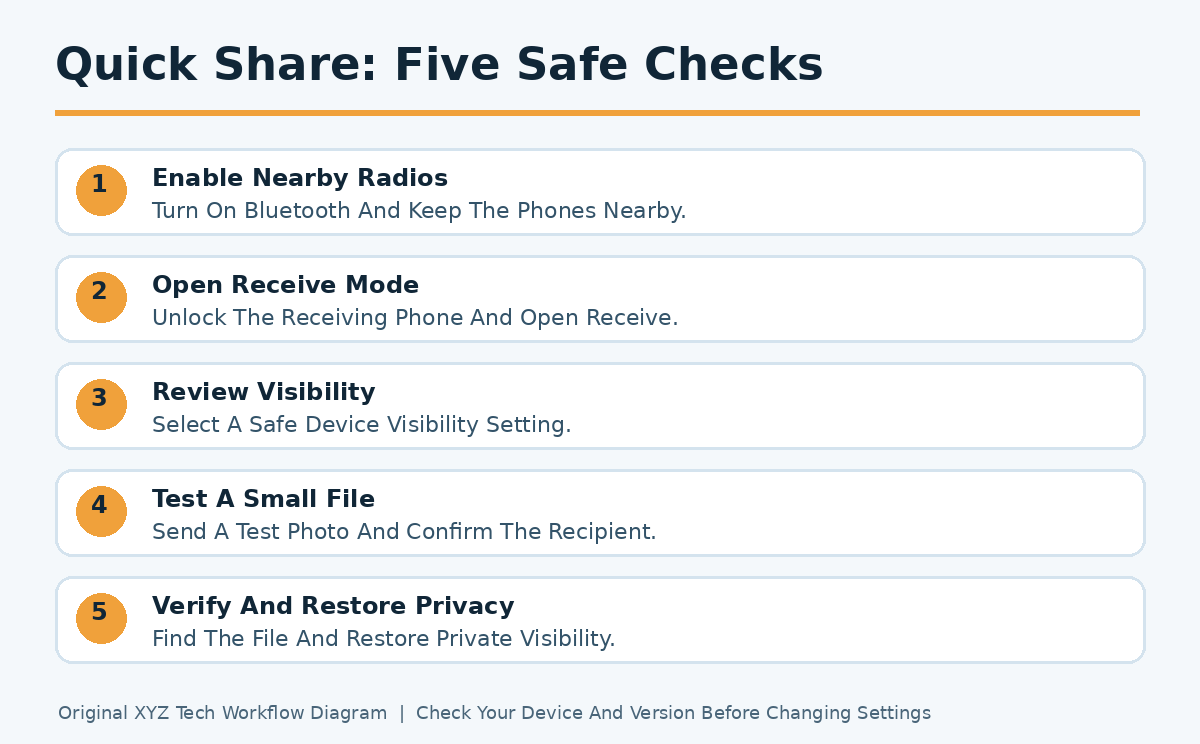
Five Step Verification
- Enable Nearby Radios: Confirm Bluetooth is enabled on both phones and the devices are next to each other.
- Open Receive Mode: Unlock the recipient and open Quick Share Receive mode to make it visible.
- Review Visibility: Use a suitable privacy setting or a brief Everyone for 10 minutes window.
- Test A Small File: Share a harmless photo and check the recipient identity before accepting.
- Verify And Restore Privacy: Check the received copy and return visibility to the preferred setting.
Frequently Asked Questions
Why Is The Other Android Phone Not Visible?
Check Bluetooth on both devices, the receiving phone screen, Receive mode and its Quick Share visibility. A hidden receiver can be normal under privacy settings.
Do Both Phones Need Bluetooth For Quick Share?
Yes, the supported Android nearby discovery guidance requires Bluetooth on both devices. Leave it on during the controlled sharing test.
Do I Need Mobile Internet To Use Quick Share?
Not necessarily for standard nearby sharing. Device discovery and transfer rely on nearby connectivity, although features and workflows can vary by Android version.
What Is The Everyone For 10 Minutes Setting?
It briefly allows nearby users to discover the receiving phone and automatically reverts after the window. Review the sender identity before accepting anything.
Can A Phone Receive Files When Locked?
Google advises unlocking the receiver for sharing with other people. Own-device account behavior can differ; follow the settings on both phones.
Why Did Quick Share Work Only Once?
The temporary visibility window may have expired, the screen may have locked or radio conditions may have changed. Repeat one small controlled test.
Does Quick Share Send Files To Random Nearby Phones?
No, normal sharing includes a chosen recipient and an approval flow for other users. Still verify device identity and reject unexpected incoming requests.
Can Quick Share Use A QR Code?
Yes, supported versions provide a QR sharing option, but availability and camera scanning support depend on the device and software version.
Why Is A Large Video Failing While A Photo Works?
Check receiver storage, file handling and the source application. A small successful transfer suggests that basic discovery is functioning.
Should I Clear Google Play Services Data To Fix Sharing?
No, that is not a good first step. Begin with visibility, Bluetooth, a small test, supported updates and a normal restart.
Official Reference Links
The vendor documentation below describes supported features and settings. Menus, availability and default behavior vary with device, version and management policy.
- Google Android Help: Use Quick Share
- Google Android Help: Quick Share On Android
- Google Files Help: Share Files With Quick Share
- Google Android Help: Sharing Files Between Android And Windows
- Google Android Help: Find And Update Android Version
Verification Scope: The procedure is based on vendor documentation and software troubleshooting principles; no physical device was tested for this article. Keep a note of reversible changes and validate outcomes on your own system.