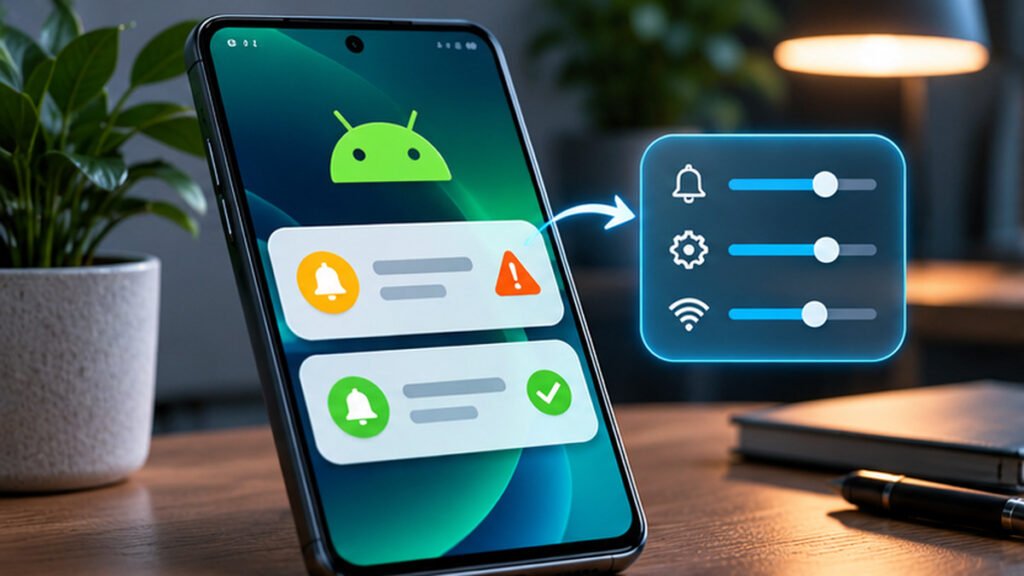

When Android notifications stop working, first check the affected app’s notification permission and categories, Do Not Disturb or Modes, lock-screen alert settings, account connectivity and background battery restrictions. Test one reversible change at a time. Do not clear app data, uninstall important apps or reset the phone before protecting personal information.
This guide distinguishes missing, silent and delayed alerts with device-safe steps for Android phones.
Identify The Exact Notification Failure
Start by determining what has actually stopped working. Some users receive no notifications from one app, while others receive alerts silently, see them only after opening the app, or lose them only when the screen is locked. These are different symptoms. A good repair begins with one clearly described test rather than changing every Android setting.
Ask someone you trust to send a harmless message to an affected messaging app, or use the app’s documented test alert. Note whether the notification appears in the status bar, notification shade, lock screen and sound or vibration channel. Record whether the app was open, the phone was locked, Wi-Fi was active and mobile data was available.
Google’s Android notification controls explain that available settings vary by phone. A Pixel, Samsung Galaxy and other Android device may use different labels or additional manufacturer-specific restrictions. The exact wording in this article is therefore a navigation guide, not a claim that every device has an identical screen.
If all applications fail at once, start with phone-wide notification modes, connectivity and restart checks. If only one app fails, prioritize its notifications, channels, account and background restrictions. If messages arrive but do not make a sound, concentrate on sound and Do Not Disturb before reinstalling anything.
Keep your account details and personal files safe. Our Android backup before reset guide helps establish a recovery copy if troubleshooting eventually requires a more invasive change.
Check Whether App Notifications Are Allowed
On many Android phones, open Settings, Notifications and App notifications, then select the affected application. On some versions the path is Settings, Apps, the app name and Notifications. Confirm that the main permission is enabled and that important notification categories are not disabled individually.
Android notification channels allow an app to organize types of alerts, such as direct messages, group updates, reminders or promotional notices. A user may have enabled the app’s master notification setting while silently disabling its conversation category. Check the relevant category rather than enabling every marketing notification.
Google’s Pixel app-notification instructions describe per-app access and alert behavior. Manufacturers may rename categories or expose the controls in additional settings pages. Search within Android Settings for the app name if the usual menu is absent.
Allowed For Relevant Categories
Not Silenced Unexpectedly
Can Receive New Events
New Controlled Notification
Do not confuse permission to send notifications with permission to access contacts, location or the microphone. Grant only the access the application actually needs. If an app asks for unrelated permissions during troubleshooting, review its official documentation before approving them.
After changing one relevant notification category, lock the phone and repeat the same controlled test. This helps distinguish a real fix from a coincidental message arriving late.
Turn Off Do Not Disturb And Check Notification Modes
Do Not Disturb and other interruption modes can silence notification sounds, hide banners or restrict which alerts appear. A phone can still receive notifications while its current mode prevents the expected visible or audible signal. That is why a silent notification should not automatically be diagnosed as a network problem.
Swipe down to inspect Quick Settings and identify Do Not Disturb, Bedtime, Driving or other active modes. On supported Android versions, Settings may group these options under Modes or Notifications. Temporarily disable the relevant mode for a controlled test, then restore your preferred schedule after identifying the cause.
Google’s Do Not Disturb guidance explains permitted people, applications and schedules. Some devices allow specific priority conversations or alarms through a mode while restricting others. A mode can also activate automatically through a bedtime routine or connected accessory.
If a notification appears in the shade but does not make a sound, inspect the affected channel’s alert behavior and the phone’s ring and notification volume. An app-specific silent category is different from the entire phone being in silent mode.
Do not permanently disable emergency or safety-related configurations to fix a promotional alert. Instead review exceptions carefully and allow the intended application or conversation through the relevant mode when supported.
Retest after each adjustment. If alerts are still completely absent, continue with connectivity and background execution instead of repeatedly toggling the same sound setting.
Check Lock Screen And Silent Notification Behavior
Android can display notifications differently while the phone is unlocked and while it is locked. Some privacy settings hide sensitive content, others hide notifications from the lock screen, and some categories are explicitly silent. This can make an alert appear missing even when it is present in the notification shade.
Open the relevant lock-screen notification controls and check whether notifications are allowed to appear there. Review private-content visibility separately from whether the alert itself appears. A user may reasonably want a notification icon but not a preview of a personal message on a locked phone.
Google’s Pixel notification control guide includes lock-screen display and sound options. Your manufacturer’s One UI or other Android skin may include additional settings for brief and detailed pop-ups.
Check whether the affected channel is set to silent rather than alerting. If a message shows only after opening the shade, the app may already be functioning correctly while the chosen display mode is less prominent.
Avoid turning on full message previews on a shared or publicly visible device simply to test the notification feature. A safer temporary test can use a non-sensitive message or a reminder with fictional text.
If the alert appears correctly while unlocked but not while locked, document that distinction before moving to battery and background restrictions. The narrower symptom often leads to a simpler fix.
Confirm Internet Connectivity And Account Sync
Many messaging, mail and social applications rely on network connectivity and a push delivery service to learn about new events. A phone can show a Wi-Fi icon yet have an internet problem, or an individual service can be temporarily unavailable. Test a normal trusted website and another affected application before changing network settings.
Try a harmless message once on Wi-Fi and once on mobile data if your plan and coverage permit. A notification arriving only on one network suggests that connectivity, DNS, firewall or application service behavior deserves attention. Do not assume a VPN or proxy improves notifications automatically; it may change the path.
Our DNS guide and VPN introduction explain separate networking layers. They can help investigate a restricted school or workplace connection without encouraging users to bypass legitimate network policy.
Check that the affected account remains signed in and has synchronized successfully within the app. Some email tools have their own synchronization frequency or notification preferences, which differ from Android’s operating-system permission. If the app receives mail only when opened, inspect those settings.
Ensure date and time settings are reasonable. Incorrect device time can interfere with some authenticated services, although it is not the most common reason for a missing alert.
Avoid deleting the account to force synchronization until you understand how its local data is preserved. A straightforward connection or app preference correction is a safer first step.
Review Battery Optimization And Background Limits
Battery-saving features can restrict background activity to reduce energy use. Some phones also apply manufacturer-specific sleeping app lists or background limits. These settings may delay certain app activity, but they should not automatically be blamed for every missing notification, and the exact effect varies by app and Android version.
Open the app’s battery settings and inspect whether it is restricted. Use the manufacturer’s documented categories, such as unrestricted, optimized or restricted, where available. If an app demonstrably stops notifying in the background, an appropriate supported setting may allow more timely operation, with a battery-life tradeoff.
Google’s app troubleshooting guidance and Android notification documentation provide general context. A manufacturer’s support page is better than a universal instruction to turn off all battery management on every Android device.
Power saving mode can also change network and background behavior. For a controlled test, record whether the problem occurs only when battery saver is active, then compare results with it temporarily off if safe for your circumstances.
Do not disable battery protection for dozens of apps or install a supposed RAM cleaner to fix one alert. Such broad changes can worsen performance and battery life without identifying the actual cause.
When the app’s permitted notification settings are correct but alerts consistently arrive only after opening it, investigate background limits, service-specific settings and updates together.
Check App-Specific Notification And Conversation Settings
An app can have its own notification rules in addition to Android’s system permissions. Messaging apps may mute particular chats, email apps may notify only for important inbox messages, and calendar apps may have individual reminder schedules. An enabled Android switch cannot override every internal preference.
Open the app’s own notification menu and check the category that matches the missing event. If a single person or group is affected, review that conversation’s mute setting before altering phone-wide permissions. A muted group and a broken push service produce different symptoms.
Some applications allow notification previews, sounds and vibration choices per conversation. A change made on one device may synchronize with account-level preferences in the service. Test using a different contact or reminder category to determine the scope.
If an app provides a test notification feature, use it. Otherwise create a disposable event that does not expose private information. Record whether it reaches the notification shade promptly, appears silently or fails entirely.
Be cautious with third-party guides that recommend logging out or clearing app data immediately. Those operations can remove locally stored media, drafts or authentication state. First inspect reversible settings.
If the problem began after an app update, check the provider’s official help or service status. A server-side bug may not be repairable by changing local phone settings.
Restart The Phone And Update The Affected App
A normal restart can resolve temporary system state and connection problems without deleting personal files. Close the affected app through its supported interface if needed, then restart the device using the manufacturer’s normal controls. After the phone reconnects to the network, send a fresh test notification.
Check Google Play or the official software source for a supported app update. An update may fix a bug, but do not guarantee that every new version improves notifications. Read known issue notes when the problem began immediately after a release.
Google’s Pixel app-fix article recommends checking for updates and restarting among standard troubleshooting steps. Some users may also need an Android system update, which should be performed with adequate battery and a suitable backup plan.
Our Android apps keep crashing guide addresses a related symptom that can prevent an application from running normally. An app that crashes on launch cannot reliably complete every part of its notification workflow.
Avoid downloading modified app packages from unknown websites simply because the store version has a notification problem. Modified packages can compromise accounts or device security.
If the issue persists after a restart and legitimate updates, continue by checking cache and notification history, keeping the app’s valuable data intact.
Use Notification History To Investigate Disappearing Alerts
Some Android devices offer a notification history feature that records recently dismissed notifications after the user enables it. The feature and its location vary by Android version and manufacturer, and history may not include events from before it was enabled.
Google’s Android guidance notes that some phones may not offer notification history. Search Settings for Notification history and check whether it is available and enabled. Treat the result as a diagnostic aid, not a complete audit log.
If the expected notification appears in history, it may have been delivered and then dismissed or hidden by presentation settings. If it never appears, that does not prove the sender’s service never attempted delivery; the device may not have received an event at all.
Privacy matters. Notification history can contain snippets from personal messages and sensitive services. Avoid leaving it visible on a shared device or attaching full screenshots to a public support request.
You can also examine whether a notification is grouped under a channel, marked silent or collapsed in the notification shade. These display behaviors are distinct from an application having no permission to notify.
A controlled fresh test with known timing is more useful than guessing from a message that could have been sent hours earlier.
Clear Cache Carefully Without Clearing App Data
An app cache stores temporary files that can be recreated under normal application behavior. On supported Android devices, the app information page may offer Storage and cache, followed by Clear cache. This is not the same as Clear storage or Clear data, which can delete local application information and require signing in again.
Use cache clearing only after less invasive checks have failed and the app or manufacturer recommends it. It does not reliably fix every push-notification issue, and clearing cache may temporarily increase network use while the app rebuilds data.
Before pressing any button, read the exact label. Manufacturers differ in interface wording. A third-party cleaner that promises to clear everything can delete useful data or introduce other unwanted changes.
If your messaging or authentication app holds local-only information, verify its supported backup and restore methods before any action that might reset application state. Our Android backup guide describes preparation for disruptive operations.
After clearing only the supported cache, reopen the app and allow it to sign in or synchronize normally, then test again with a new harmless alert. If the problem persists, do not repeatedly clear cache without new evidence.
Treat app-data deletion, uninstalling and resetting as later options with explicit recovery preparation, not routine first steps for one missing notification.
Understand Samsung, Pixel And Other Manufacturer Differences
Android is available on phones with different interfaces and background management policies. A Pixel’s Settings menu, a Samsung Galaxy’s One UI menus and another manufacturer’s Android customization can organize notifications and battery limits differently. A guide that claims every phone has one identical path is unreliable.
On Samsung devices, inspect the app notification controls and relevant background usage or sleeping app features described by Samsung for the exact One UI version. On Pixel devices, Google’s support pages provide direct notification and Modes instructions. Other brands may manage protected apps, automatic launch or energy saving differently.
When following instructions, start with the operating-system feature name rather than memorizing one tap sequence. Search within Settings for Notifications, Do Not Disturb, Battery or the affected app. Confirm each screen’s purpose before changing a setting.
Manufacturers can update labels after major Android releases. An older screenshot may be useful context but should not be treated as definitive for a different version. Official documentation and the actual device are authoritative.
Test one change at a time. If you toggle both a manufacturer’s sleeping-app rule and an application’s notification category simultaneously, you will not know which change resolved the issue.
A repeatable troubleshooting log makes future problems easier to solve and avoids broad changes that affect unrelated apps.
Special Cases: Email, Messaging, Wearables And Work Profiles
Email applications sometimes use background synchronization schedules or account-specific notification priorities. If messages arrive immediately when you refresh the inbox but never notify independently, inspect the app’s sync and alert preferences in addition to Android permissions. Some providers restrict alerts to selected folders or message importance.
Messaging applications can mute one conversation while continuing to notify for others. Check group and contact settings. A wearable watch may receive or mirror alerts differently from the phone, and certain companion apps can suppress phone sounds when the watch is connected.
Work profiles and organization-managed devices can impose notification rules or background restrictions that individual employees cannot override. Do not bypass an employer’s security controls by disabling management software. Ask authorized IT support when a work-only app is affected.
For two-factor authentication or emergency-alert apps, take special care. The problem may affect important access or safety workflows. Use the vendor’s official recovery guidance rather than deleting local authenticator state without backup.
If an app stopped notifying after a phone migration, verify that the account is correctly activated and that the older device is not the only one registered for a particular push service. Application behavior varies.
Record which category of app fails. That often indicates whether to prioritize account settings, Android permission or a separate accessory and profile.
Reinstall Only After Protecting App Data
Reinstalling an application is a disruptive troubleshooting action. It may remove local app data, offline files, drafts or security credentials depending on the app and platform. Before attempting it, consult the developer’s backup, export or recovery instructions and confirm you can sign in again.
For a messaging app, check whether chat history is stored locally, backed up in the cloud or tied to a specific account and device. For an authenticator, preserve recovery codes and follow the supported transfer process. Do not assume that reinstalling from Google Play automatically restores all previous state.
Once legitimate data recovery is confirmed, a clean reinstall from an official source may repair some damaged application configurations. It does not address an account-wide service outage or a phone-wide Do Not Disturb rule.
After reinstalling, grant only necessary permissions, allow the app to complete onboarding and check its notification categories. Perform another controlled test using the same account and sender.
If a device administrator controls the app, coordinate with that administrator before removing it. Uninstalling managed software can violate policy and may prevent reconnection to work services.
A factory reset is not a proportional first response to one broken notification. If ordinary troubleshooting fails across many apps, seek authoritative support and prepare a verified backup before considering any irreversible change.
A Safe Step-By-Step Notification Repair Order
Step 1: identify whether the failure affects one app or all apps and whether alerts are missing, silent or hidden. Step 2: check the system’s per-app permission and relevant notification categories. Step 3: temporarily inspect Do Not Disturb, other Modes, phone sound and lock-screen display.
Step 4: verify internet connectivity and the application’s signed-in state. Step 5: review app-specific mute and account-sync options. Step 6: inspect background battery restrictions if alerts arrive only after opening the app. Step 7: restart the phone and check supported updates.
Step 8: examine notification history when the feature exists. Step 9: consider clearing cache only if documentation supports it and valuable app data is preserved. Step 10: escalate to official app support or the device administrator before reinstalling or resetting.
| Symptom | First Check | Avoid As A First Step |
|---|---|---|
| One Chat Silent | Conversation Mute And Channel | Factory Reset |
| All Apps Silent | Modes And Volume | Uninstall Every App |
| Only Delayed In Background | Connectivity And App Battery Rules | Disable All Device Protection |
| Missing On Lock Screen | Lock Screen Notification Settings | Clear App Data |
| After App Update | Known Issues And Version | Unofficial App Download |
Make one change at a time, repeat a harmless test and write down the outcome. If the issue disappears, preserve the stable configuration instead of continuing with unnecessary settings changes.
The safest solution is the narrowest one supported by the observed symptom, the application’s documentation and the device’s actual Android version.
Frequently Asked Questions
Why Are Android Notifications Not Working?
A blocked app category, Do Not Disturb mode, account preference, connectivity issue or background restriction may be involved. Test the actual symptom first.
How Do I Turn On Notifications For One App?
Open the app notification controls in Android Settings and enable the relevant allowed categories for that application.
Why Do Notifications Arrive Only When I Open The App?
Check the app’s account sync, network access and supported background battery restrictions. The cause varies by app and phone.
Why Are My Android Notifications Silent?
Inspect the app’s alert channel, notification volume and active Do Not Disturb or other interruption modes.
Does Clearing Cache Delete My Messages?
Clearing cache is distinct from clearing storage, but read the exact control and the app’s guidance before using it.
Should I Disable Battery Optimization For Every App?
No. Review only the affected application’s supported background behavior and battery impact.
Is A Factory Reset Needed For Missing Notifications?
Usually not as a first step. Start with reversible settings and protect data before any destructive procedure.
Why Is Notification History Missing?
Google notes that notification history is not available on every Android device or software version.


