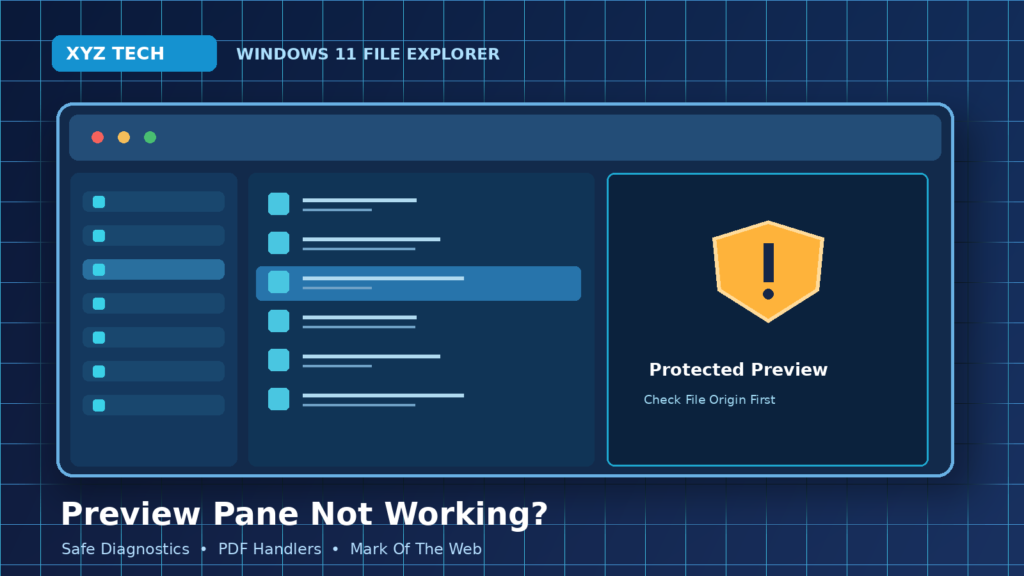

If the Windows 11 File Explorer Preview pane is not working, the first task is to determine whether the pane is hidden, the selected file lacks a working preview handler or Windows is deliberately protecting you from content downloaded from the internet. Since October 2025, Microsoft has intentionally blocked previews for some internet-origin files, so not every missing preview is a malfunction. This guide covers the supported keyboard shortcut, document and PDF handlers, OneDrive placeholders and the security-first way to diagnose the difference without removing protective markings.
Quick Answer: Open File Explorer and press Alt + P to toggle the Preview pane. Test a harmless local PNG file. If local images work but downloaded PDFs show a warning, do not disable security: Windows may be enforcing its October 2025 Mark of the Web preview protection. If a particular trusted local file type fails, check its official preview handler and supported application. Restart File Explorer normally only for a stuck pane, and avoid registry scripts or bulk unblocking tools.
What The File Explorer Preview Pane Does
The Preview pane in Windows File Explorer lets you inspect supported files without fully opening them in their usual applications. Depending on file type and installed components, the pane might display an image, document or PDF. It is not designed to render every file in the same way, and its availability can depend on a registered preview handler. Start by checking whether the pane itself is missing or whether it is visible but cannot show a specific file. These are different problems. A blank pane for one document is not evidence that all of Windows is damaged. Use a harmless file you created yourself as the first test before changing security settings.
Distinguish Preview Pane From Details And Thumbnails
File Explorer includes several related features that are easy to confuse. The Preview pane attempts to display file contents in a side panel; the Details pane focuses on metadata and related information; thumbnails appear as small images or representations in the file list. A PDF thumbnail can be missing while its Preview pane still works, and a supported document might show metadata but no rendered content. Microsoft’s Windows keyboard shortcut reference lists different commands for preview and details panes. Record the exact missing element before choosing troubleshooting steps. Do not rebuild every thumbnail cache when the actual symptom is an intentional downloaded-file security warning.
Understand The October 2025 Security Change
Microsoft states that starting with Windows security updates released on and after October 14, 2025, File Explorer automatically disables previews for certain files downloaded from the internet. The behavior is tied to security information called Mark of the Web and can also affect some files on locations treated as Internet Zone. The objective is to avoid potential security exposure from content preview. If local files preview correctly while downloaded attachments produce a warning, your Windows installation may be working as designed. Microsoft’s official security article describes this change. Do not assume that the correct fix is to turn off the protection globally or to run a command that removes security markings from every downloaded file. For related official or practical guidance, see Microsoft’s Preview Pane Security Update.
Read The Warning Instead Of Hiding It
If the pane warns that the selected file could harm the computer, treat that message as a security decision until you have verified the source. Compare a trusted local test document with the downloaded item. A blocked downloaded PDF is a different situation from a blank preview for an ordinary local image. The message does not prove that the file contains malware, but it also does not certify the file as safe. Leave the protective marking in place when the file is unfamiliar, unsolicited or from an unverified sender. Use the relevant official application to inspect trusted content under its supported protections if appropriate. Do not use batch scripts to suppress the warning just to regain convenience.
Turn The Preview Pane On With Alt Plus P
On Windows 11, press Windows key plus E to open File Explorer, then use Alt plus P to toggle the Preview pane where the keyboard shortcut is supported. Microsoft’s Windows keyboard shortcut guide documents Alt plus P for this purpose. If the pane is hidden, the command may restore its display immediately. Select a small harmless image or local text document to confirm it appears. Do not assume the shortcut repairs a PDF handler or changes the trust classification of a downloaded file. A working pane containing a warning is still an enabled pane. If Alt plus P changes nothing, inspect the View menu and confirm you are working in a normal File Explorer window rather than a separate application dialog. For related official or practical guidance, see Microsoft Windows Keyboard Shortcuts.
Use The View Menu When Shortcuts Differ
File Explorer menu labels can change between Windows builds, but supported versions usually offer a View-related command for showing the Preview pane. Open File Explorer, inspect the View menu and locate the Show or Preview pane setting offered by the current interface. Do not follow a ten-year-old Windows 7 menu walkthrough when your Windows 11 screen looks different. Microsoft’s File Explorer documentation and keyboard shortcut reference provide the current conceptual controls. After enabling the pane, choose a familiar local image and see whether it appears. If the panel shows but is empty for all content, continue with a file-type test. If only downloaded files are blocked, focus on their security status instead.
Check Preview Handler Settings Carefully
Some Windows configurations expose a File Explorer Options setting named Show preview handlers in preview pane. When available, the setting can affect whether registered applications are allowed to render supported content there. Inspect it through the File Explorer Options interface without applying unrelated folder resets. Not all file types have a preview handler, and an installed app may not provide one. If a managed workplace computer hides or locks the option, respect the policy and ask IT for guidance. Never download an unknown preview-handler DLL or registry file from a random site. If you adjust the supported checkbox, test with a harmless known-good file and restore the earlier setting if it does not explain the result.
Test A Local Image Before Troubleshooting PDF
Create or select a small image that was generated or saved locally by a trusted application. Try to preview that image in a normal folder, then compare it with a PDF or Office document. If local images work but PDFs do not, the file-specific handler or trust status becomes a more plausible direction. If nothing previews, investigate the pane setting, File Explorer process and broader system behavior. Use an image with no sensitive information and avoid opening unknown attachments for testing. The objective is to separate an operating-system pane issue from the capabilities of the application associated with a particular file extension. A simple controlled comparison is more informative than resetting every app.
Distinguish A Blocked Download From A Broken File
A file can fail to preview because Windows intentionally blocks its origin, the preview handler cannot render its content or the file itself is corrupt. These conditions do not have the same remedy. First identify where the file came from and whether Windows displays a safety warning. Next compare it with a locally created file of the same type. Then, only if the source is trusted, use the file’s proper application to check whether it opens as expected. A PDF that cannot open in any legitimate reader may be damaged, while a healthy PDF blocked in Preview pane can reflect security policy. Do not strip security labels just to test whether a corrupt file is valid. For related official or practical guidance, see PDF Troubleshooting.
Know What Mark Of The Web Represents
Mark of the Web is Windows origin-related security information that helps applications recognize files obtained from potentially untrusted locations. Microsoft references this marking in its October 2025 File Explorer preview security change. It can also be associated with files on network locations classified under a particular security zone. The existence of the mark does not by itself mean a file is malicious. It does mean that Windows should handle the content with caution. Keep the mark on unsolicited or unverified content. If business processes require previews, involve administrators or document-specific application workflows rather than weakening security for an entire folder tree. Avoid guidance that tells readers to remove marks in bulk without evaluating file trust.
Do Not Unblock Entire Download Folders
Online tutorials sometimes recommend scripts that remove downloaded-file security markings from every item in Downloads. That can make unrelated risky documents easier to preview and removes useful origin information. A responsible troubleshooting guide does not treat this as a standard fix. Instead, verify the file’s provenance and use the vendor’s documented secure viewing method. If an organization has a legitimate policy for trusted content, it should define narrowly scoped approved procedures. Do not change Internet Zone mappings, disable protective browser features or relax group policy for convenience. A different file with the same extension could come from an untrusted source tomorrow. The security decision needs to stay attached to the individual item and its context.
Check Whether OneDrive Files Are Online Only
Some OneDrive files appear in File Explorer before their full contents are downloaded locally. A preview handler may need the actual content rather than an online-only placeholder. Check the provider’s sync and availability status and, if appropriate, make a non-sensitive file available locally through the supported interface. Do not delete synced files when you only intend to free space or refresh their cache. Our OneDrive troubleshooting guide explains the difference between a client problem and file availability. Keep the network connected while testing. If an online-only file becomes previewable after a legitimate download, the issue may involve file availability rather than the Preview pane setting. Do not confuse this with the security block on internet-origin attachments. For related official or practical guidance, see OneDrive Sync Troubleshooting.
Compare PDFs With The Default Reader
A PDF may open correctly in a trusted browser or document reader but lack a functioning Explorer Preview handler. The default app and the preview component are related but not necessarily identical. Check which PDF reader is installed and whether its official documentation states that it supports Explorer previews. Microsoft’s PowerToys guidance also describes optional preview handling for supported formats and cautions that different handlers can conflict. Do not install a random third-party preview package from an unverified download page. Our PDF opening guide helps separate a genuinely damaged document from a rendering or association problem. If a PDF is marked as internet-origin content, its preview can still be blocked even when the reader itself works. For related official or practical guidance, see Chrome PDF Download Settings.
Recognize Office Document Preview Limitations
Word and spreadsheet files may depend on installed Microsoft Office components or other registered handlers for previews. A document can open normally in its main application while the pane remains blank because the handler is missing, disabled or incompatible. Check the supported application and its official repair tools only after confirming the problem affects trusted local Office files. Be careful with files containing macros or external links; opening an untrusted Office document is not an acceptable shortcut around preview restrictions. If a managed Office installation is involved, use IT-approved updates. Document which formats work and which fail. Avoid broad changes to file associations when the actual issue is only a missing preview for one type.
Check Image Formats And File Extensions
JPEG, PNG, WebP, HEIC and other image formats may have different codec support depending on Windows version and installed applications. A file named photo.jpg is not necessarily a valid JPEG if it was renamed from another format. Check its actual source and use a trusted editor or image viewer to identify what it contains. Our file extension explanation covers why changing the ending of a filename does not convert the underlying data. If one uncommon format fails while standard local PNG files preview correctly, an official codec or app may be relevant. Do not install codec packs from advertisements or unknown publishers. A preview pane problem is not a reason to make broad changes to Windows image processing. For related official or practical guidance, see File Extension Explained.
Understand Why Thumbnails And Previews Can Disagree
Thumbnails are small images generated for file-list display, while Preview pane handlers can involve different components or trust decisions. Clearing the thumbnail cache may affect icons or miniature images but cannot be expected to override Microsoft’s downloaded-file preview security restriction. Verify whether the file list shows generic icons, whether the Preview pane itself opens and whether a specific error message appears. Do not run a disk-cleanup operation that removes unrelated data when you have not identified a thumbnail problem. If the symptom is confined to a recently downloaded PDF, follow the security branch. If every local image has a missing thumbnail while the pane renders correctly, that belongs to a different Windows visual-cache workflow.
Check Whether The File Is Corrupted
A file that never finished downloading or is damaged can fail both normal opening and preview. Verify the transfer completion and size, then compare against the expected file only through a trusted source. For software packages or archives, a publisher-provided SHA-256 checksum may help establish file integrity, but a matching checksum is not a blanket guarantee of harmlessness. Our Windows checksum guide explains the supported calculation process. Do not upload private files to random online analysis websites. If a local document cannot open in its own application, focus on restoring a valid copy from the original source or backup. Preview handlers are not designed to repair damaged content.
Restart File Explorer Without Deleting Files
If local files used to preview but the pane has stopped responding, save open File Explorer file operations and restart the File Explorer process through Task Manager using a supported Windows procedure. Microsoft’s troubleshooting documentation describes using Task Manager to restart Windows Explorer in appropriate situations. The desktop and taskbar may briefly refresh; that is expected. Do not terminate unrelated system processes. After Explorer resumes, open a normal folder, enable the Preview pane and test a harmless local image. A successful restart may resolve a transient interface state, but it does not change the trust mark on downloaded files. If the issue returns regularly, record the timing and examine updates or installed handlers. For related official or practical guidance, see How To Verify SHA-256.
Restart Windows Normally If The Pane Is Stuck
A normal Windows restart can clear temporary process and file handler state after you have saved important work. Choose the supported restart command rather than holding the power button, especially while downloads or cloud sync are active. After startup, repeat the identical local file preview test and compare the result. Do not assume that the absence of a warning for a different file proves the original downloaded-file security behavior disappeared. If the warning remains for a web-origin document, review Microsoft’s documented design before attempting anything else. The test should isolate whether File Explorer itself was temporarily unresponsive, not turn ordinary system maintenance into a destructive repair routine.
Install Legitimate Windows And App Updates
Windows security and compatibility updates may adjust preview behavior or fix defects in file handlers. Use Settings, Windows Update and the supported update channel, keeping normal security updates enabled. Check the publisher’s official update mechanism for PDF readers and optional preview extensions. Microsoft’s 2025 security behavior is intentional, so a working update does not necessarily restore previews for internet-marked files. If the change began after a particular update, compare the exact build and read official release notes before assuming a regression. Do not uninstall cumulative security updates simply to regain one blocked preview. Keep a record of the installed update and the file type affected for any support request. For related official or practical guidance, see Microsoft File Explorer Troubleshooting.
Use PowerToys Preview Addons With Care
Microsoft PowerToys provides optional File Explorer add-ons that can support previews and thumbnails for selected formats such as SVG, Markdown, PDF and source code. The official PowerToys documentation warns that enabling handlers can override handlers provided by other software and has noted incompatibilities involving Outlook and PDF preview components. Install PowerToys only through Microsoft’s trusted distribution channels and review the relevant feature settings. It may help for a missing handler, but it should not be used as a workaround to remove security-origin restrictions. Test one supported local harmless file after enabling a handler and restore the earlier setup if it creates conflicts. Keep the app updated through its official channel.
Avoid Random Registry And Policy Changes
Some fixes found online propose changing registry keys for Internet security zones, preview handlers or Windows Explorer. Such edits can affect security controls beyond the one file you meant to inspect. Do not import a registry file or run a PowerShell script merely because a webpage promises to ‘restore every preview.’ If the system is managed, group policy may intentionally enforce restrictions. Use supported UI settings first, then consult your administrator if an enterprise workflow requires an exception. Unverified changes are especially risky when they modify the treatment of internet-origin content. A repair should address the demonstrated cause, not disable a protection that Microsoft introduced to reduce exposure. For related official or practical guidance, see Microsoft PowerToys Preview Handlers.
Check Downloaded Attachments For Trust And Origin
Email attachments and files received through links can carry internet-origin markings. Before viewing them, verify the sender using an independent channel when something is unexpected, and check that the file type matches the anticipated document. Do not enable active content or macros because an attachment fails to preview. Our guide to recognizing fake software download buttons explains how convincing but deceptive download pages can appear. Use built-in Windows protection and the application’s supported security controls. If a file is genuinely needed but the Preview pane blocks it, ask the sender to provide a safe alternate format or use an approved secure viewing workflow. Convenience should not override file-origin caution.
Understand Network Share Zone Classification
Some network locations are classified in a way that causes Windows to treat the content as coming from an Internet Zone. Microsoft’s preview security documentation includes files viewed from such shares in the affected conditions. A corporate mapped drive might therefore display a warning even though the file is used in routine business work. Do not change security zone mappings or group policies yourself to force the pane to display contents. Ask IT to review the location, trust boundaries and approved configuration. A controlled local comparison with a harmless file can help support determine whether the issue follows the share rather than the file extension. Keep filenames and confidential paths out of public troubleshooting screenshots. For related official or practical guidance, see Recognize Fake Downloads.
Know When A Managed PC Has Intentional Restrictions
Workplace computers can apply policies controlling preview handlers, application installation, file associations and how externally sourced content is treated. Those policies may be part of an organization’s data protection requirements. If a Preview pane option is disabled or a file on a managed drive produces a warning, document the behavior and contact authorized support instead of bypassing the policy. Ask whether an approved document viewer can be used for the task. A work device may also have restrictions that differ from a personal Windows 11 laptop. Never instruct colleagues to disable endpoint security or download an unauthorized preview utility. A compliant workaround is one the administrator has evaluated, not one that merely makes the warning disappear.
Compare Behavior In A Fresh Windows Account Carefully
If only one Windows user account has a broken Preview pane while another authorized profile works, the difference can indicate per-user settings, extensions or application registration. However, testing with a second account should be done only on a device you own or have permission to administer. Do not create a new administrator account simply to bypass workplace restrictions. Keep the original user data intact and avoid copying internal registry or profile files between accounts. Test the same harmless locally created image under comparable conditions, not two different files with different trust markings. If behavior differs, provide that information to supported troubleshooting rather than deleting the affected user profile.
Build A Symptom-Based Troubleshooting Table
The table below separates a hidden pane, a downloaded-file security warning, missing PDF handling and cloud-only file availability. Each symptom calls for a different first check. A pane that is absent may need only Alt plus P, while a blocked attachment needs a trust and security review. A local image that previews but a PDF that does not suggests file-type handling. If every local file fails after Explorer becomes unresponsive, restarting that process is a narrower option than resetting Windows. The table does not prove any particular cause on its own. Use one harmless file to repeat the test and record whether your action changed the same behavior.
Follow A Safe Five-Step Preview Workflow
First, enable the Preview pane using the supported keyboard shortcut or View menu. Second, select a harmless image created locally and verify whether the pane can display it. Third, compare a local PDF with an internet-downloaded PDF without weakening file-origin protections. Fourth, investigate a preview handler only if a particular trusted format is failing. Fifth, record the Windows build and exact warning before contacting support. The instructional diagram summarizes these steps. Avoid testing with sensitive documents, executable attachments or files whose sender you cannot verify. A successful diagnosis distinguishes a feature that is switched off, an unsupported handler and a deliberate security restriction.
| Observed Problem | What It Suggests | Safe First Step |
|---|---|---|
| Pane Not Visible | Pane Disabled | Use Alt Plus P Or View Menu |
| Security Warning On Downloads | Mark Of The Web Protection | Verify Source And Keep Protection |
| Local PNG Works But PDF Fails | PDF Handler Or File State | Test Trusted Local PDF And Official Reader |
| OneDrive Cloud File Not Available | Online Only Or Pending Sync | Check Supported Offline Availability |
| All Local Previews Freeze | Explorer Or Handler State | Restart Explorer Normally |
| Only Office Network Share Fails | Zone Or Managed Policy | Contact Administrator |
Report Persistent Issues With Useful Details
If preview fails for trusted local files despite supported checks, collect the Windows version, affected file types, installed preview applications and exact messages. Indicate whether the pane is visible and whether a local PNG file works. For managed devices, report the relevant network share and policy context privately to IT. If an optional PowerToys handler is involved, document its version and whether a second PDF handler is installed. Do not send private files, account credentials or sensitive screenshots through public forums. A concise reproduction case helps a vendor distinguish a legitimate handler bug from expected Mark of the Web behavior. Avoid claiming a security feature is broken merely because it blocks a risky preview. For related official or practical guidance, see Microsoft Security Behavior Reference.
- Enable The Pane: Press Alt Plus P And Inspect View Settings
- Test Trusted Content: Select A Small Locally Created Image
- Compare File Types: Check A Known-Good Local PDF Or Document
- Read Security Warnings: Do Not Bypass Origin Protections
- Target The Repair: Check Handlers Or Ask IT When Appropriate
Restore The Working Configuration And Preserve Security
Once the issue is understood, keep only the changes that demonstrably help. If the pane was hidden, leave it enabled; if an optional handler was conflicting, use the supported vendor solution; if downloaded content is intentionally blocked, preserve that protection. Undo speculative changes that provided no improvement. Continue normal Windows updates and use trusted sources for document readers. If a file needs careful examination, use the appropriate approved application and confirm its origin first. Review the workflow again when Windows or preview tools update, because interfaces and policy behavior may evolve. The aim is not to force every possible file to preview, but to make ordinary safe files usable without weakening the protections around untrusted content.
Frequently Asked Questions
Why Does Windows 11 Say A Downloaded File Could Harm My Computer?
Microsoft intentionally blocks some Preview pane rendering for files marked as originating from the internet, beginning with security updates released on or after October 14, 2025. The warning does not prove malware, but it should not be bypassed indiscriminately.
How Do I Show The File Explorer Preview Pane?
Open File Explorer and use Alt plus P, or find Preview pane in the supported View menu. The keyboard shortcut toggles the pane; it does not repair missing handlers or bypass a file-origin restriction.
Why Can I Preview Images But Not PDFs?
Different file types rely on different preview handlers. A PDF may lack a working handler or may be deliberately blocked because it came from the internet. Test with a trusted local PDF and check official reader support.
Does Clearing The Thumbnail Cache Fix The Preview Pane?
Not necessarily. Thumbnails and Preview pane renderings can use different components. Clearing thumbnails will not normally override the internet-downloaded-file security restriction.
Is It Safe To Unblock All Downloaded Files Automatically?
No, removing origin markings in bulk weakens useful security information for unrelated files. Verify the provenance of each needed document and follow an approved secure viewing workflow instead.
Can A OneDrive File Fail To Preview Because It Is Online Only?
A preview handler may require file content that has not yet been downloaded. Check the cloud service’s sync and local availability status without deleting the file or changing unrelated security settings.
Why Does My Preview Pane Work For One User But Not Another?
Per-user settings, application registration or management policy may differ. Compare the same harmless local file with authorization, preserve account data and avoid deleting user profiles as a quick fix.
Can PowerToys Restore Missing PDF Or SVG Previews?
Microsoft PowerToys provides optional preview handlers for certain formats, but installed handlers can conflict and should be configured through supported settings. It does not mean that blocked internet-origin files should be forcibly previewed.
Should I Remove A Windows Security Update To Restore Previews?
No, the 2025 downloaded-file protection is intentional. Uninstalling security updates is not a responsible first-line solution to a file preview problem.
When Should I Contact Microsoft Or My IT Administrator?
Seek support if trusted local files fail across supported handlers, File Explorer is repeatedly unresponsive or enterprise policies affect work documents. Provide Windows version, file type, exact warning and controlled test results.
Official Sources And Verified Scope
Sources: Microsoft’s October 2025 File Preview Security Policy, Microsoft Windows Shortcuts, Microsoft PowerToys File Explorer Handlers and Microsoft File Explorer Troubleshooting. This is a researched software guide, not a claim of physical testing on all Windows builds. Blocking untrusted file previews can be correct security behavior.


