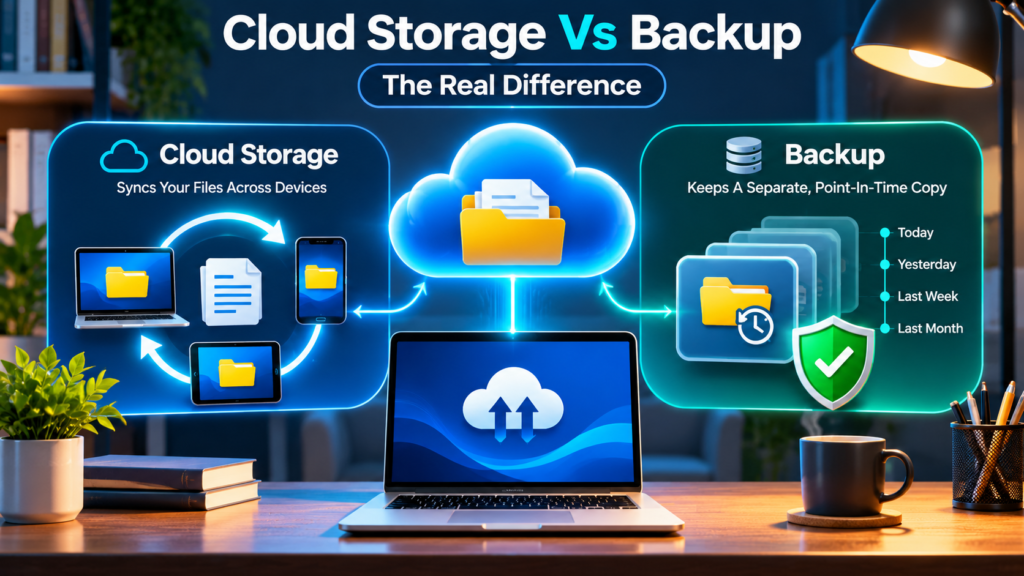

Cloud storage vs backup sounds like a comparison between two similar online services, but the more important distinction is what happens when something goes wrong. Cloud synchronization makes current files available across devices, while a dependable backup preserves recoverable data from before an unwanted change. Both tools can be useful, and some services combine them. This guide explains the differences using documented OneDrive and Google Drive behavior, practical home computer examples, retention considerations and a safe restoration checklist.
Quick Answer: Cloud storage holds your working files online and can synchronize edits and deletions across devices. Backup preserves independently recoverable copies or earlier versions. Sync alone is not a complete backup because a mistaken deletion or damaged current file may propagate. Check the provider’s recycle bin and version limits, keep a separately managed copy of important documents, and test a restore without deleting an original.
Why Cloud Storage And Backup Are Different
Cloud storage keeps working files available through an online service. A synchronization client can update those files across laptops, phones and web browsers, which is excellent for everyday access and collaboration. Backup has a different responsibility: retaining recoverable copies from before a file was erased, damaged or accidentally changed. A service can provide both storage and recovery features, but the two should not be assumed equivalent. Ask what happens when you delete a synced document, lose access to your cloud account or discover a corrupted file several weeks later. A trustworthy protection strategy answers those questions with defined retention, independent access and a tested restore procedure.
How Cloud Synchronization Works
A synchronization client watches selected folders and tries to keep their contents consistent with the remote service. When you edit a report, another device may receive the changed version. When you delete the same report, that deletion can propagate just as efficiently. Some services have restore capabilities, but ordinary sync does not always preserve a permanent copy of the earlier file. Microsoft’s guidance on working with synced files states that removing a synced online-only file can remove it from devices and the cloud. This is a feature of keeping working copies aligned, not a malfunction. Understand which folders are synchronized before using cleanup tools or deleting files to free local disk space.
Further reading: Microsoft’s Sync Behavior Guide
What Makes A Copy A Real Backup
A backup needs a defined recovery purpose. It should preserve selected data even if the original working copy is damaged or removed, retain historical points for an appropriate period and provide a supported way to restore them. A backup could use an external drive, encrypted offsite service or managed snapshot system. A duplicate folder on the same failing disk protects against very few problems, while an independent, dated archive provides more options. The word backup on a product label is less important than its actual behavior. Check what is copied, when jobs run, whether errors are reported, how long versions remain and whether you can successfully restore an earlier document.
A Simple Deletion Test Explains The Risk
Imagine one family photo exists in a synchronized folder and appears on a phone and laptop. Deleting it from the laptop may cause the service to delete the current cloud copy and remove it from the phone’s synchronized view. A recycle bin or version history could help if recovery remains available, but that depends on the provider’s specific rules. A separately retained backup should preserve a recoverable copy from before the deletion. Do not perform this experiment with an irreplaceable real photo. Use a harmless sample file and verify the documented behavior. The objective is to understand whether your protection depends on one shared live state.
Cloud Storage Vs Backup Comparison Table
The most meaningful differences are what each system does with changes, what historical information it retains and how it is recovered after a problem. Online storage can offer high durability for current data while still reflecting the current wrong version of a document. Backup software can preserve earlier states but may require time and special tools to restore them. Some subscriptions combine both functions and have different retention rules for personal and business accounts. The table below presents typical behavior, not a guarantee for any particular product. Check the latest provider documentation before assuming a recycle bin, snapshot or export will remain available for as long as you need it.
| Feature | Typical Cloud Sync | Independent Backup |
|---|---|---|
| Primary Job | Access Current Working Files | Restore Earlier Data |
| Deletion | May Sync Across Devices | Older Copies Can Remain |
| Version History | Depends On Provider Rules | Defined Backup Retention |
| Account Lockout | Can Block Access | Separate Copy May Help |
| Restore Test | Check Provider Features | Restore A Historical File |
Cloud-Only Files Are Not Always Stored Locally
A file visible in File Explorer or Finder may be represented by a placeholder instead of having a complete downloaded copy. OneDrive Files On-Demand and Google Drive streaming are examples of arrangements that can limit local storage use. That convenience changes what happens during an internet outage or account lockout. If a document was never downloaded, you might not be able to open it offline. Conversely, a local unsynced edit may never have reached the cloud. Check both the synchronization status and the actual file through the provider’s web interface. An icon in one folder does not establish that every attachment, application database or desktop document has been preserved.
How OneDrive Handles Synchronized Deletions
OneDrive can synchronize selected local folders with a Microsoft account, and deleting a file inside that synchronized location may affect other connected devices. Microsoft’s documentation distinguishes removing a synced item from freeing local disk space through Files On-Demand. Do not use Delete when you intend only to remove a local download. Check whether the file remains online before uninstalling a client or changing computers. Microsoft’s OneDrive restore documentation describes recycle bin and version recovery options, but these vary with the account and applicable conditions. If OneDrive is showing pending changes, resolve that issue before removing the source directory. A backup should not depend entirely on the success of one synchronization session.
Further reading: Microsoft OneDrive Deletion Guidance If OneDrive uploads are incomplete, our OneDrive Sync Troubleshooting.
Google Drive Streaming And Mirroring Are Still Sync
Google Drive for desktop offers streaming and mirroring modes for eligible My Drive files. Streaming makes cloud files accessible with local caching, while mirroring maintains a local copy of the selected cloud content. In both cases, synchronization is involved. Google’s official instructions explicitly warn users to ensure files have fully synchronized before moving or deleting folders, because unsynced local changes can otherwise be lost. Mirroring does not turn a changing folder into a separate dated archive. When changing modes, follow the supported workflow and inspect the cloud copy before touching old folders. A practical backup is still needed for important information that must survive mistaken deletion or account problems.
Further reading: Google Drive Streaming And Mirroring When the Drive client is stalled, our Google Drive For Desktop Fixes.
What Version History Can Recover
Version history can be extremely helpful after someone saves an unwanted edit or overwrites a useful document. The provider may allow retrieval of an earlier version within its supported history window. That is a recovery feature layered onto cloud storage, not proof that every file has unlimited versions. Retention, supported file types, plan conditions and administrator policies can matter. A file that never uploaded cannot have a remote version. For critical documents, verify the service’s rules and restore a non-sensitive historical example. Keep a separate backup for older recovery points or incidents outside the provider’s version window. Do not confuse a displayed list of revisions with a guaranteed long-term archive.
Recycle Bins Are Not Permanent Archives
A deleted cloud item may remain recoverable for a limited period in the service’s recycle bin. The duration and available restoration tools can differ between personal and organization-managed accounts. Microsoft describes its recovery options and warns that certain restore features have specific eligibility conditions. A user might discover missing files only after a holiday, prolonged device outage or account change, by which point the desired recovery point may no longer exist. If a file has disappeared, check the relevant provider’s web recycle bin promptly and avoid destructive cleanup on the affected device. Never assume that the local Windows Recycle Bin and the cloud service recycle bin contain identical items.
Further reading: Microsoft OneDrive Restoration
Why Ransomware Makes Isolation Important
Malware can encrypt or corrupt local files and a synchronization client may faithfully distribute the unusable versions. Some cloud services provide attack detection or restore options, but these do not replace independently protected backups. A retained copy with separate credentials, controlled write permissions or an offline period may survive when the primary workspace is compromised. Protection also depends on identifying the last clean recovery point. Do not reconnect a clean backup drive to an infected computer before following a safe recovery procedure. Update security software, protect accounts with multifactor authentication where available and preserve keys. The practical goal is to keep one recoverable historical state beyond the reach of the active problem.
Losing A Laptop Tests What Was Actually Uploaded
Cloud synchronization can make replacing a lost laptop much easier if every essential file completed its upload. That qualification is crucial. Desktop documents outside selected folders, browser exports, application databases and files pending upload may remain only on the missing device. Make a list of irreplaceable folders, then verify which ones appear in the cloud account from another trusted device. A separate file backup can cover locations that a sync client does not. If you also need installed applications or operating-system configuration, investigate system-image or application-specific backup options. The answer is not necessarily buying more cloud space; first establish which data has never been included.
Keep Full-Resolution Photos In A Separate Recovery Plan
Photo services may synchronize images, edits and album deletions, but their behavior can differ from ordinary file storage. Before deleting originals, confirm whether the online service holds the full-resolution source, a compressed version or a derivative file. Check upload completion, account ownership and what happens when an album or photograph is removed. For irreplaceable family pictures, keep a dated independent copy outside the normal synced photo library. Organize originals by year or event and test opening a restored sample. Avoid assuming that a thumbnail you can see on a phone proves the full image is safely stored elsewhere. A photo collection deserves its own recovery test, especially before migrating to a new device.
The Three Two One Rule Is A Useful Starting Point
A familiar guideline recommends three copies of important data across two media types, with one copy in a different location. It is a planning principle rather than a promise that nothing can go wrong. For a home computer, the working documents might be copy one, an encrypted external drive copy two and an independent offsite backup copy three. Two folders on the same laptop do not protect against disk failure. Two online folders controlled by the same compromised account may share security risks. Adapt the design to your budget and data importance. Label each copy’s function, update schedule and recovery method so the arrangement works when you actually need it.
Choose Data By Recovery Value
Start with information that would be impossible or costly to recreate: photos, authored documents, signed forms, project files, personal records and encryption recovery information. Temporary downloads and easily reinstallable software can receive a lower priority. Remember that desktop applications sometimes store work in unexpected locations, not only Documents. Check your email exports, note-taking apps and locally saved creative projects. Sensitive files require encrypted backups and careful key storage. A backup that runs daily but silently skips the most important folder is not successful. Organize a small inventory of essential locations before selecting a product or schedule. This can prevent wasted storage while giving critical information the protection it deserves. To evaluate recovery features, use our Choose Home Cloud Backup Software.
Understand Backup Frequency And Recovery Points
A daily backup might be adequate for a rarely changed archive but insufficient for documents edited throughout the day. Your recovery point objective is the amount of recent work you are willing to lose. If an afternoon of writing is irreplaceable, consider more frequent automatic snapshots or backup intervals. Synchronization can move changes quickly, but its latest current version is not the same as a historical recovery point. Check how the backup product records versions and when older ones expire. Do not rely on an app icon that says connected; inspect completed job logs and representative recovery dates. The right frequency reflects the actual consequences of losing work, not a fixed number promoted by a service.
Recovery Time Is Separate From Recovery Point
A complete backup may still take a long time to download and restore. Recovery time objective describes how quickly you need to regain usable access after an incident. A student might only need a few documents immediately; a small business could require the entire working directory before the next morning. Consider upload and download rates, archive size, encryption processing and the time needed to reinstall applications. Test with representative files rather than estimating restoration from a provider’s maximum advertised connection speed. When planning, identify the first files you would restore and keep account recovery methods available. Storing data securely without knowing how long restoration takes can leave you unprepared.
File Backup And System Images Have Different Scopes
File backups can protect selected documents and folders, while a system image can preserve partitions and application state under a product’s supported recovery process. Not every cloud file service creates bootable or restorable system images. For a new laptop, retrieving documents may be enough. For a failed operating-system drive, a full image could simplify rebuilding a compatible computer, although hardware and licensing restrictions may apply. Read the product’s exact restore requirements before assuming that a backup can recreate a Windows installation on any machine. Keep software installers and account details available through legitimate channels. A practical strategy can combine file backup for frequent work with less frequent broader recovery preparation.
Incremental Backups Can Save Capacity
Many backup products avoid recopying the entire data set during every run. Incremental backups typically record changes since the preceding relevant backup, while differential backups record changes against a defined baseline. The recovery chain and retention rules depend on the product; a damaged or missing backup component can affect restoration. Do not delete old archive pieces manually just because they appear large. Let the application enforce its supported retention scheme and monitor integrity warnings. For more detail, our backup comparison article explains the different approaches. Smaller routine uploads may reduce bandwidth use, but the first complete backup can still take substantial time. Capacity planning needs both the initial transfer and continuing changes. For a closer look at supported tools, see our Backup Software For Windows.
Estimate Upload Time With Realistic Assumptions
An initial offsite backup of 100 GB contains about 800 gigabits using decimal units. At a sustained 20 Mbps upload rate, the theoretical minimum is around 11 hours. Protocol overhead, encryption, device sleep, throttling and competing uploads can extend that significantly. Some backup applications compress or deduplicate data, while other data types are already compressed. Use your actual upload speed rather than the higher download number on an internet plan. Protect important calls and household activity by selecting an appropriate backup window or bandwidth limit. After the first upload, compare logs with the predicted transferred volume. Never claim an exact restoration or upload duration without measuring the specific connection. To compare these backup methods, read our Incremental Vs Differential Backups.
Compare Storage Costs And Retention Terms
Cloud storage plans often emphasize the amount of current data you can hold, while backup services may price devices, versions, retention periods, data retrieval or additional protection features differently. These terms change, so check the provider’s current official plan. Examine whether historical versions count toward your allowance, what happens after a subscription expires and whether restoring files requires a separate charge or process. A cheap synchronization subscription may be sufficient for convenience but inadequate for long-term recovery. An expensive backup subscription is also poor value if it is never configured or tested. Assess total cost against irreplaceable data and the real recovery features you need. For a proper bandwidth baseline, consult our Upload Speed Versus Download Speed.
Keep A Backup Outside The Active Sync Location
Copying an archive into a synchronized folder can help move it offsite, but it can also expose that archive to the same permissions, accidental deletion and account compromise as working files. An independent backup system should control its own storage destination, retention rules and write access. A separate account, offline drive or protected versioning mechanism can reduce shared risks, depending on the scenario. Do not assume changing a folder name creates isolation. If the backup is encrypted, store the recovery key separately from the only source device. If the destination requires an administrator, document who can authorize a restore. Good backup design deliberately limits the ways one error can destroy both the working data and its history.
Offline And Protected Backups Reduce Some Risks
An offline drive is disconnected from the source computer except during planned backup and restoration periods. This can reduce exposure to malware or mistaken commands while it is disconnected. Some services instead offer retention locks or immutable copies that cannot be casually modified for a specified period. Each method has limits: an offline drive must be updated, and an immutable archive of already corrupted data is still corrupted. Protect removable media from loss, heat and unauthorized access. Keep track of when it was last updated and verify that representative files are readable. One correctly maintained offline copy can be more useful than several synchronized folders that share the same failure mode.
Secure Encryption And Recovery Credentials
Backups may contain financial statements, medical records, private photographs or company information. Use reputable software with documented encryption, access controls and supported authentication. Understand who holds encryption keys. A key that exists only on the failed computer can make a technically intact backup impossible to recover. Use an approved password manager or other secure recovery method and protect important codes from unauthorized access. Multifactor authentication can help protect cloud accounts, but you also need a plan for account lockout or lost authentication devices. Do not paste keys, backup tokens or private file lists into public support discussions. Protection is meaningful only when authorized users can restore their data safely.
Test Restoration Before An Emergency
Create a harmless sample document, include it in a normal backup run and verify that the job completes. Later restore that file to a different safe folder rather than overwriting the live original. Open the recovered document and confirm it contains the expected text and historical version. Repeat with a small folder structure and check file names, timestamps and permissions where relevant. Do not test recovery by deleting irreplaceable data. A backup dashboard can say successful while excluding a directory you forgot to select. Periodic sample restores reveal those gaps. Record the test date and outcome so you can repeat the procedure on a replacement device or explain it to someone helping with recovery.
Account Lockout Is Another Recovery Scenario
Cloud service access depends on account credentials, recovery methods, billing status and sometimes organization-managed policies. If the account becomes inaccessible, a working synchronized folder may no longer provide every cloud-only file. Keep the recovery email, authorized contacts and supported authentication recovery options current. For critical data, maintain an independent copy you can access without signing into the same provider account. Do not store every recovery code only in the service it is supposed to unlock. Business teams should define file ownership and administrator responsibilities before staff members leave or accounts change hands. Planning for account access is as important as planning for disk failure.
Collaborative Files Need Ownership And Recovery Rules
Shared folders make editing easy, but mistakes can spread to everyone with access. A team member might overwrite a document, change permissions or remove a folder. Version history and administrative recovery may help, subject to the service’s configuration. Keep project milestones or final deliverables in a separate controlled backup so the team does not rely on one person’s personal account. Define who owns shared files and how restores are requested. Preserve relevant audit information when a mistake occurs rather than immediately making many additional changes. Collaboration tools solve the problem of working together; long-term recoverability remains an explicit responsibility for the owner of the information. When reviewing provider pricing, use our Backup Cost Checklist.
Match Each Incident To Its Recovery Method
A lost laptop, accidental deletion, damaged document and cloud account lockout are different incidents. Complete cloud synchronization may help with device loss, while recycle bin or version history may recover a recent mistake. A separately managed backup can cover older versions or inaccessible primary systems. No one product should be assumed perfect at all four. The matrix below pairs common failure scenarios with recovery controls worth testing. Before buying a solution, identify the two or three incidents that would be most damaging to you. That makes selection more concrete than comparing only gigabytes, marketing slogans or the number of devices a plan claims to include.
| Failure | Cloud Tool To Check | Extra Protection |
|---|---|---|
| Lost Laptop | Fully Synchronized Files | Device File Backup |
| Accidental Deletion | Trash And Version History | Independent Dated Copy |
| Corrupted Document | Previous Version | Retained Backup Point |
| Account Lockout | Account Recovery | Accessible Offline Copy |
Build A Manageable Home Recovery Setup
For many households, a reasonable starting design is cloud synchronization for everyday access, an independently scheduled encrypted backup for essential folders and a periodically disconnected or separate offsite copy. First identify the exact source folders. Then verify the initial backup has completed, preserve recovery keys and restore a harmless sample. Decide who would perform the restore if the primary device owner were unavailable. Review disk space, internet usage and retention periodically. You do not need to purchase the largest plan immediately. A modest and carefully maintained design with a demonstrated restore process can offer more practical security than an elaborate system that has never successfully recovered a single file.
Working Files → Cloud Sync → Convenient Current Copies
Working Files → Independent Backup → Dated Recovery Points → Test Restore
Sync provides access. A separately retained backup provides historical recovery.
Avoid Mistakes During Cloud Migration
When changing cloud providers or desktop sync modes, never delete the original directory merely because the new folder has appeared. Wait for pending uploads to complete and compare file counts, sizes and sample contents through the destination service. Google specifically cautions against deleting a mirrored source while unsynced changes remain. The same general principle applies when moving an archive from one computer to another. Keep the original until you have an independent verified copy, then follow the provider’s supported migration procedure. Be careful with shared folders whose ownership or permissions may change. A migration is complete when the correct data can be opened at the destination, not when an installer shows a success message.
Review The Protection Plan Regularly
New devices, folders and applications can silently outgrow an old backup configuration. Every few months, check what is included, how long versions remain, whether the latest jobs completed and whether available storage is approaching its limit. Restore a small file and confirm your passwords and recovery keys still work. When a service changes retention rules or a subscription renews, compare the official documentation with your actual needs. If an incident occurs, make the first restoration attempt from the most appropriate known-good copy, not by experimenting on the only remaining data. A good backup plan is not judged by the number of clouds on a screen, but by its demonstrated ability to recover useful work.
Further reading: Google Advanced Drive Guide
Frequently Asked Questions
Is Cloud Storage The Same As Backup?
Cloud storage mainly keeps files accessible, while backup preserves recoverable copies or earlier states. A platform can include both features, but you must verify its historical retention and restoration procedures.
Can Deleting A Synced File Remove It From Every Device?
Yes, a synchronized deletion can affect other connected devices and the cloud. Some services offer recycle bin or version recovery within documented limits. Keep a separate backup for important files.
Does Google Drive Mirroring Count As An Independent Backup?
No, mirroring maintains a local copy of cloud-managed files and still synchronizes changes. A separately retained backup protects against a broader range of accidental deletion and corrupted current versions.
Does OneDrive Save Everything On My Computer?
OneDrive synchronizes selected locations and does not automatically capture every application database or complete operating-system image. Check included folders, pending changes and the product’s supported recovery features.
Are Recycle Bins And Version History Enough?
They can be valuable recovery layers but may have retention limits, eligibility conditions or account dependencies. Independently protected and tested backups help address incidents outside those limits.
Should I Keep An Offline Backup Too?
For irreplaceable information, a securely stored offline copy can reduce exposure to active malware and accidental changes. Keep it updated and test it periodically, because an old or unreadable drive offers limited help.
What Is The Three Two One Backup Principle?
A common starting point is three copies of important data, using two media types with one copy in another location. Adapt this to your actual risks and verify that the copies can be restored.
How Frequently Should I Run Backups?
Choose an interval based on how much recent work you could afford to lose. A frequently edited project may need several recovery points a day, while a stable archive may need fewer.
Will A Backup Work If I Forget The Encryption Key?
Some encrypted backup systems cannot restore data without the proper recovery key. Preserve supported credentials separately from the device being backed up and follow the vendor’s official recovery guidance.
How Can I Verify A Backup Without Risking My Files?
Restore a harmless test document to a separate folder, open it and compare its contents with the expected version. Leave the original untouched while confirming the recovery procedure.
Sources And Scope
Primary references: Microsoft Sync Guidance, OneDrive Restore Instructions, Google Drive Desktop Mirroring And Streaming and Google Drive Advanced Guide. This is documentation-based guidance, not a claim of tested recovery for any specific account.


