
This practical guide follows Git and GitHub documentation and explains the safest command for each real-world situation.
What The Error Means
The message error: remote origin already exists. is a local Git configuration error. It appears when you try to create a remote called origin even though that name is already assigned inside the current repository. It does not prove that GitHub is broken, that the destination URL is wrong, or that your changes have disappeared. A remote is a short name that points Git toward another repository for fetching or pushing. Start by examining the existing configuration rather than removing repository files or using a forced push. Git’s official remote manual and GitHub’s remote guide document the supported operations. The safest fix is usually to keep the existing entry or update its URL.
The Two Commands Most People Need
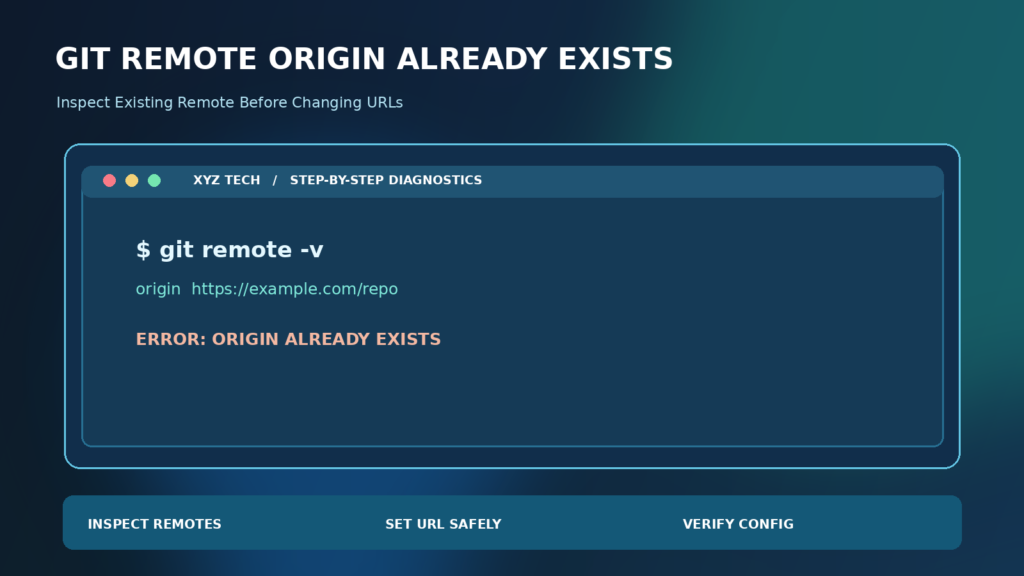
Run git remote -v from the folder containing your project. If origin already points to your intended repository, make no change. If the address is outdated, use git remote set-url origin NEW_URL, replacing NEW_URL with the full verified HTTPS or SSH clone address. Run git remote -v again to confirm the result. Do not type a literal placeholder into a production command. Neither command rewrites commit history, and neither requires deleting .git. A successful URL change proves the local configuration was updated, but it does not prove your account has permission to push. Access, branch protection and divergent remote commits are separate matters that should be investigated only if you encounter those later errors.
Why Origin Already Exists After Git Clone
An ordinary git clone operation creates a working copy and configures a remote commonly named origin. That means following a tutorial that says to add origin immediately after cloning is often redundant. The remote has already been recorded in the repository, so adding the identical name again fails even though the clone itself may be completely healthy. The Pro Git book explains this default convention. Before copying setup commands from a hosting page, establish whether you cloned a repository, initialized a blank local folder, or downloaded a source archive. Those workflows have different initial configurations. A ZIP download normally does not create the same Git history and remote entries as a genuine clone.
Confirm The Actual Repository Folder
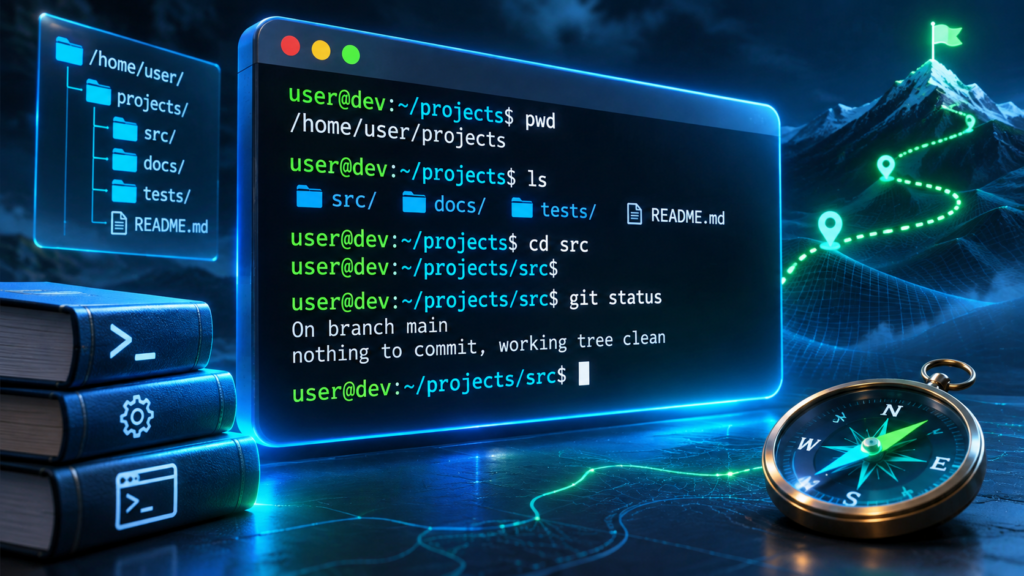
A surprising number of remote problems occur because a terminal is pointed at the wrong folder. Run git rev-parse --show-toplevel to display the root of the current working tree, then git status to inspect its branch and changes. If you are inside a nested source directory, Git can still use the parent repository’s metadata. If the path is not the project you expected, change directories first. Our VS Code Terminal Guide explains how an integrated terminal inherits a working directory. Avoid running git init in arbitrary nested folders merely to silence an error. Creating unintended repositories can complicate source control rather than fix the existing remote.
Read The Fetch And Push Addresses
The output of git remote -v usually shows origin once for fetch and once for push. In a simple personal repository, these addresses match. Some team configurations intentionally use different read and write destinations or multiple push URLs. Examine both lines before changing either. An HTTPS fetch address paired with a different SSH push address, for example, may be part of a documented workflow, not a mistake. For more information, run git remote show origin, knowing that this command may contact the remote and require network access. To inspect locally without a connection, the remote -v command is sufficient for most beginner cases. Git’s configuration documentation describes how remote URLs are stored.
Fix A Wrong Origin With Set-URL
When origin exists but points to the wrong address, use git remote set-url origin https://example.com/account/project.git after substituting the genuine destination. Obtain the correct address through the repository provider’s verified interface rather than an unexpected email or chat message. The command changes the local reference used for that remote. It does not automatically copy commits to the new server or merge histories between repositories. Afterward, verify the displayed fetch and push addresses. If the new remote contains different commits, review those changes before attempting to publish your local branch. The official Git remote documentation supports set-url as the appropriate operation for changing an existing entry.
Keep Origin When The Address Is Correct
Sometimes the best solution is to do nothing. If git remote -v shows the intended address, the duplicate-origin message arose because you repeated an unnecessary setup instruction. You can now continue with the relevant branch and repository workflow. Check git branch -vv to see which remote branch your current branch tracks. A correctly configured remote and a correctly configured upstream branch are not identical concepts, so a push might still require branch setup. Do not remove and recreate origin simply to make the repeated add command succeed. Keeping a working remote preserves clarity for future fetches, pushes and collaboration, and avoids introducing new mistakes into a project that already has a valid destination.
Add A Different Remote For Another Repository
A local repository can have multiple remotes, but each must have its own name. If you need an additional destination, use a name such as backup or upstream: git remote add backup NEW_URL. Replace the URL and confirm that backup is not already configured. Then inspect the complete list using git remote -v. This creates another reference; it does not immediately synchronize branches or grant permission to the new location. Verify whether the backup repository is private before pushing proprietary source code. A second remote can be useful for a deliberate migration, a personal fork or an approved mirror. It is not necessary for a typical repository with only one authoritative hosting destination.
Rename Origin When The Workflow Requires It
You can change a remote’s short name without deleting it. For a fork-based workflow, git remote rename origin upstream can give the original project a conventional name, allowing your writable fork to use origin later. Check that upstream is not already taken and that this naming matches the contributor instructions. Remote renaming can affect scripts, references and assumptions in a shared project, so treat it as an intentional change. Run git remote -v afterward and inspect any upstream branch relationships. The Git manual explicitly supports the rename operation. Beginners should avoid renaming remotes just to mimic another person’s screenshot when their existing project works.
Why Remove And Re-Add Is Usually Unnecessary
Some online tutorials propose git remote remove origin and then another add command. Removing a remote is a supported operation, but it is usually excessive if you only need to correct its URL. You may discard useful remote-tracking configuration and create extra work reconstructing branch relationships. First record the current fetch and push addresses, then decide whether the remote truly needs to disappear. Set-url makes a smaller and clearer change when the destination is the only issue. Removing origin is reasonable if the project intentionally no longer needs that connection, but it should be a deliberate repository maintenance step. Never delete the entire .git directory as a workaround, because that removes repository metadata and may destroy local history not backed up elsewhere.
Understand HTTPS And SSH URLs
Git hosting services often provide HTTPS and SSH repository addresses. Both can reach the same project, but authentication differs. HTTPS access may depend on a supported credential manager or access token, while SSH relies on properly configured keys and host identity checks. Switching protocols should be an informed choice rather than a reflexive response to origin already exists. The short-name conflict is solved by inspecting or updating the remote, regardless of protocol. If authentication fails afterward, investigate account permissions and the hosting provider’s official credential instructions. Avoid putting tokens or passwords directly into published command examples. A remote URL can also refer to a private network server rather than a public Git hosting platform, so verify the correct environment.
Remote Exists But Git Push Is Rejected
An existing remote may be completely valid while a later push fails. Common causes include insufficient permissions, missing upstream branch information, branch protection or remote commits that are absent from your local branch. Read the actual error text and handle that condition separately. A message containing non-fast-forward generally requires reviewing and integrating remote history before pushing, as GitHub explains. Avoid force pushing merely because a tutorial says to override errors. Our Open Source Software Guide provides context on collaborative projects where protecting another contributor’s commits is especially important. Configuration and history errors require different responses.
Origin And Upstream Branches Are Different
A remote named origin identifies an external repository connection. An upstream branch records which branch your local branch relates to for tracking and common pull or push operations. Having origin configured does not guarantee that the current branch tracks origin/main. Run git branch -vv to inspect those relationships, and verify the actual current branch name using git branch --show-current. An example such as git push -u origin main only applies if main is the correct branch, the destination exists and you have permission. Do not blindly change local branch tracking or send commits to a different repository to eliminate an unrelated remote-name error. Understanding the distinction helps diagnose the next message without unnecessary changes.
Check For Special Push URLs
Some repositories configure a separate push URL or multiple push destinations. In such cases, changing the ordinary fetch URL may not update every destination you intend to use. Inspect the remote -v output carefully, and review git remote get-url --push origin when available. Git’s remote manual documents specialized set-url options, including --push, but these should be used only when a defined workflow requires them. A misconfigured additional push address can accidentally send code to an unintended server. If the repository belongs to an organization, consult its source-control policy before adjusting push URL lists. Simple projects are normally easier to maintain with a single verified destination.
Check Remote Access Without Merging Code
After confirming the name and URL, a controlled git fetch origin can test whether Git can reach the remote and update remote-tracking information. Fetch does not automatically merge the downloaded commits into your current checked-out branch. It can still require authentication and network access, and you should understand the security implications of connecting to unfamiliar hosts. A failed fetch may indicate a network, access or repository-address problem rather than the original duplicate-name issue. Record the exact error, distinguish HTTP or SSH authentication failures from name collisions, and choose a targeted solution. For a team repository, avoid changing credentials or origin endpoints without verifying that the destination is authorized.
Using A Fork On GitHub
Suppose you cloned your personal fork of a public project. Origin normally points to that fork. To fetch changes from the source project, add another remote using the distinct name upstream and the verified source URL. You can then inspect the two entries and fetch from upstream when following contribution instructions. Attempting to add a second origin would fail because that name is already used by the fork. This is a normal configuration constraint, not a defect in GitHub. Before making contributions, follow the project’s pull request and branch guidance. Our VS Code Setup Guide discusses preparing an editor, while remote configuration remains a distinct Git workflow.
Migrating A Repository To A New Host
A hosting migration often leaves existing developer clones pointing toward the old server. The team may instruct users to update origin to the new clone URL. Running add origin will predictably fail because the local remote already exists. A supported migration typically involves checking the current address, updating it with set-url, authenticating through the new provider and validating branch policies. Do not assume the new repository has identical default branches or no preexisting commits. A locally correct URL cannot resolve permissions that were not granted on the destination. Administrators should communicate the intended new endpoint through a trusted channel and help contributors verify they are not pushing sensitive work to the wrong account.
| Situation | Appropriate Git Operation | What To Avoid |
|---|---|---|
| Origin Already Correct | Inspect Only | Adding A Duplicate |
| Origin Points To Wrong Repository | git remote set-url | Deleting Git Metadata |
| Need A Second Destination | git remote add NEW_NAME | Reusing Origin |
| Need Different Short Name | git remote rename | Breaking Team Scripts |
| Push Rejected By Branch History | Fetch And Review Commits | Unreviewed Force Push |
What If Git Says Not A Git Repository?
If commands instead report that the folder is not a Git repository, the problem is different from a duplicate origin. Check the current directory and whether you actually cloned or initialized the project. A downloaded source archive may contain files without Git history or a .git metadata directory. Do not repeatedly initialize folders until you understand which one is supposed to be the repository root. If you need a genuine clone, obtain the verified repository address and use the provider’s supported cloning workflow. Our Command Line Basics explains how terminal paths affect commands. Keeping these concepts separate prevents an unrelated setup error from turning into a confusing nested repository structure.
Using GUI Clients With The Same Repository
GitHub Desktop, VS Code and other graphical clients may show remotes through their own interfaces. When a terminal reports an existing origin, first make sure the GUI and terminal refer to the same local path. An editor may open a nested directory, or you may have several copies of a project from earlier experiments. Compare the actual repository root and the remote URLs. If the GUI already configured origin, a separate terminal add command is unnecessary. Avoid alternating between unrelated repository copies without documenting which one contains your latest changes. The goal is not to make each tool display the same screen, but to keep one clear source of truth about the working repository and its intended remote.
A Safe Command Checklist
For a routine duplicate-origin problem, begin with git status, git rev-parse --show-toplevel and git remote -v. If needed, inspect the current branch through git branch -vv. Only then decide to keep, set-url, rename or add a distinct remote. Verify the output of your chosen command. If you need to test access, fetch from the appropriate remote and review the result. This order moves from read-only diagnostics toward targeted configuration changes rather than immediately altering commit history. Keep a copy of the original URL in a private note during migrations. Do not paste credentials into public logs or troubleshooting tickets, and never present placeholder URLs as if they are real project addresses.
Mistakes That Can Risk Your Code
A minor remote-name conflict can become serious if you delete .git, run an unreviewed reset, replace the entire remote history, or use a forced push without understanding the consequences. None of those operations is required to fix a name collision. Git normally protects remote branches from non-fast-forward updates for a reason. Another risk is mistyping a similar repository URL and pushing confidential source to the wrong place. Use the verified provider interface for clone addresses and check repository visibility before sharing. If your organization has a source-control administrator, escalate uncertain migrations rather than experimenting on a production repository. A careful remote change should be narrow, documented and easy to verify.
How To Describe The Error When Seeking Help
A useful support report identifies the command that triggered the message, the current repository path, the expected remote destination and the sanitized output of git remote -v. Include whether the folder was cloned, initialized or copied from an archive, and whether you are using a GUI client. Redact credentials, internal hostnames and private repository information as necessary. A screenshot of the final line alone often omits the information needed to distinguish a correct existing remote from an outdated one. Do not upload your private SSH key or personal access token. If the follow-up problem is a push rejection, capture that exact message separately rather than labeling all failures as remote origin already exists.
What A Successful Fix Looks Like
A successful fix does not require a dramatic terminal output. It means the intended remote name is present exactly once and points to the verified destination. Commands such as git remote -v display the expected fetch and push addresses; your local branch and commit history remain intact. If the remote was already correct, success may consist of simply skipping the redundant add command. If you needed a second repository, it now appears under a different name. You can then proceed with normal source-control work and resolve any separate authentication or history issues when they arise. Document the final setup so that the same tutorial command is not repeated unnecessarily next time.
Frequently Asked Questions
What Does Remote Origin Already Exists Mean?
Git already has a remote called origin in this local repository. Inspect it before adding anything.
How Can I See The Origin URL?
Use git remote -v from the intended repository folder. Review both fetch and push entries.
How Do I Change An Existing Origin URL?
Run git remote set-url origin NEW_URL with your verified address, then run git remote -v again.
Should I Delete Origin And Re-Add It?
Usually not. Updating the URL is preferable when the remote name is correct but its destination changed.
Does Cloning Automatically Configure Origin?
Yes. Ordinary git clone operations normally set origin to the source repository.
Can Git Have More Than One Remote?
Yes. Each remote needs its own name, for example origin, upstream or backup.
Will Set-URL Delete My Commits?
No. It updates remote configuration rather than rewriting local commit history.
What If Push Fails After The URL Is Fixed?
Read the new error. Authentication, access permissions, upstream tracking and divergent branch history are separate issues.
Is Origin Required By Git?
No. Origin is a convention, not a mandatory reserved name for remote repositories.
Should I Force Push After Seeing This Error?
No. Force pushing does not solve a duplicate remote-name error and may overwrite remote branch history.